How to Find a Table Element by Its Text Value in Selenium WebDriver
Use XPath and normalize-space() to locate exact table text in Selenium, scope repeated values, wait for dynamic rows, and avoid common lookup errors.
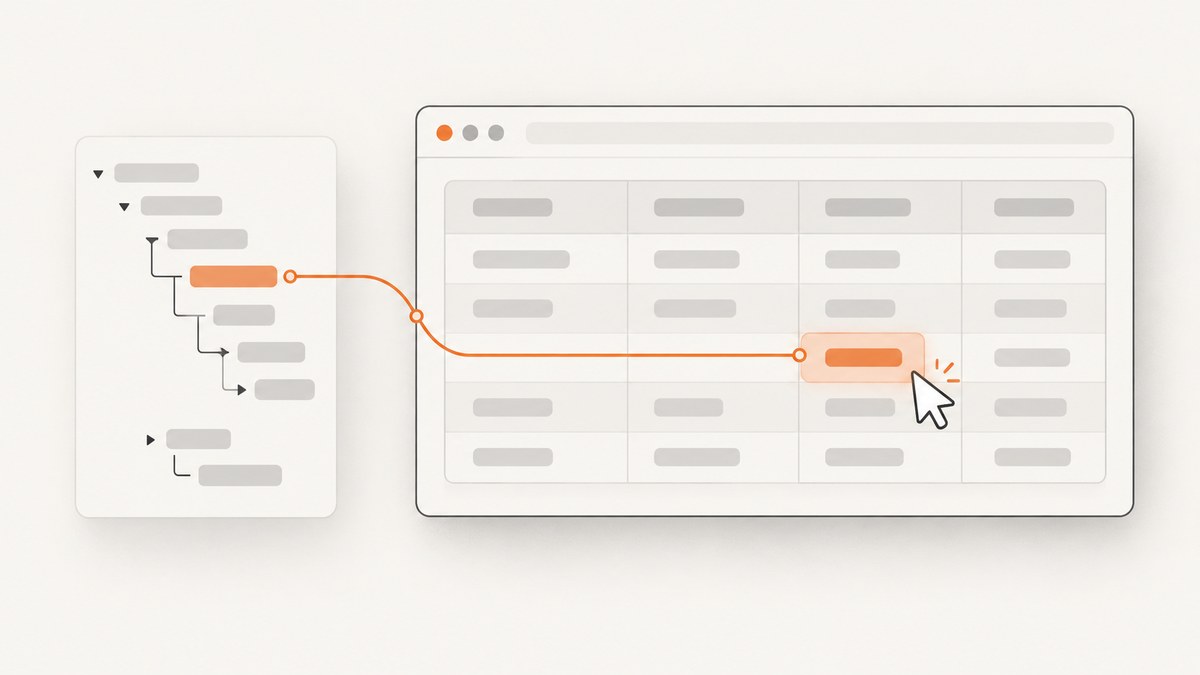
To find a table element by the text it displays, use an XPath text predicate. For an exact table-cell value with whitespace normalized, start with:
WebElement cell = driver.findElement(
    By.xpath("//table//td[normalize-space(.)='Expected value']")
);
The same locator in Python is:
cell = driver.find_element(
    By.XPATH,
    "//table//td[normalize-space(.)='Expected value']"
)
normalize-space(.) trims leading and trailing whitespace and collapses repeated whitespace before comparing. Replace td with th when the target is a header, and scope the XPath to a specific table or row when the same value can appear more than once.
This guide explains exact and partial matches, row relationships, nested markup, uniqueness checks, waits, rendered text versus attributes, complete Java, Python and Node.js examples, troubleshooting, and practical performance considerations.
1. Choose the right XPath for the table value
XPath is useful here because it can express a condition based on an element’s text and can relate one table cell to another. CSS selectors are good for selector criteria, but they do not directly express a text-value predicate.
Exact normalized text
//table//td[normalize-space(.)='Paid']This matches a td whose complete string value is Paid, after whitespace normalization. The dot means the string value of the current element, including text in descendants such as nested span elements.
Scope to a known table
//table[@id='orders']//td[normalize-space(.)='Paid']Use an identifying attribute when the page contains several tables. A narrower locator is easier to understand and is less likely to select an unrelated cell after a layout change.
Find a row by one cell, then another cell in that row
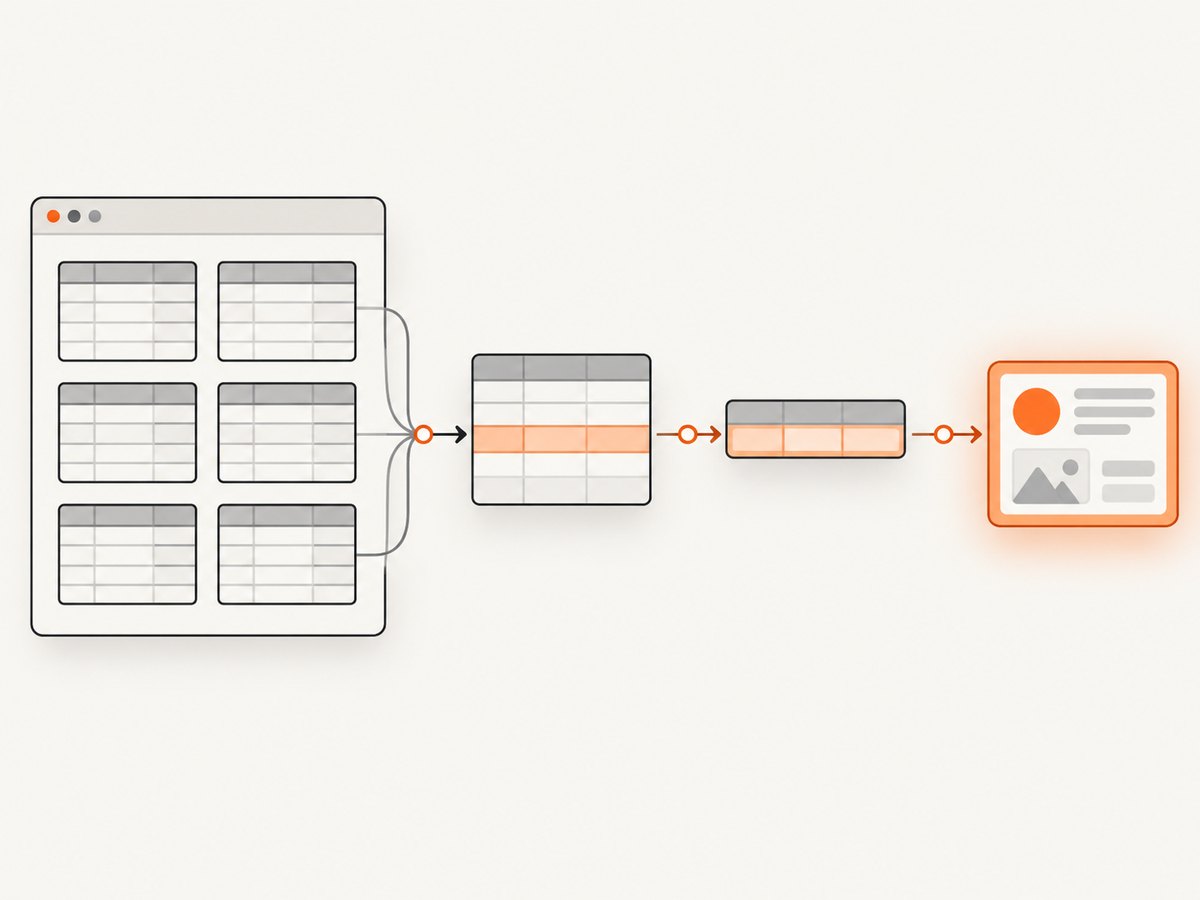
//table[@id='orders']//tr[td[normalize-space(.)='Order 123']]//td[normalize-space(.)='Paid']This first selects rows containing a cell whose normalized value is Order 123, then selects the Paid cell inside that row. It is the most useful pattern when values such as status repeat across many rows.
Partial text with contains()
//table[@id='orders']//td[contains(normalize-space(.), 'Paid')]Use contains() only when a substring is intended. It can match Paid, Unpaid, or a longer label containing that phrase. Exact normalized equality is safer for assertions and actions that must target one known value.
Headers and other table elements
//table[@id='orders']//th[normalize-space(.)='Status']
//table[@id='orders']//tr[normalize-space(.)='Order 123']
//table[@id='orders']//button[normalize-space(.)='View']
The same text predicate can target headers, rows, buttons, or a more specific descendant. Choose the narrowest element that represents the thing your test will inspect or operate.
2. Complete Java example
The following program opens a page, waits for the table cell, reads its rendered text, and checks that the locator identified exactly one element. Replace the URL and expected value with those for your application.
import java.time.Duration;
import java.util.List;

import org.openqa.selenium.By;
import org.openqa.selenium.WebDriver;
import org.openqa.selenium.WebElement;
import org.openqa.selenium.chrome.ChromeDriver;
import org.openqa.selenium.support.ui.ExpectedConditions;
import org.openqa.selenium.support.ui.WebDriverWait;

public class FindTableText {
    public static void main(String[] args) {
        WebDriver driver = new ChromeDriver();
        try {
            driver.get("https://example.test/orders");

            By paidCell = By.xpath(
                "//table[@id='orders']//td[normalize-space(.)='Paid']"
            );

            WebDriverWait wait = new WebDriverWait(driver, Duration.ofSeconds(15));
            wait.until(ExpectedConditions.presenceOfElementLocated(paidCell));

            List<WebElement> matches = driver.findElements(paidCell);
            if (matches.size() != 1) {
                throw new IllegalStateException(
                    "Expected one Paid cell, found " + matches.size()
                );
            }

            WebElement cell = matches.get(0);
            System.out.println("Rendered value: " + cell.getText());
        } finally {
            driver.quit();
        }
    }
}
Selenium’s singular lookup returns the first matching element. The plural form returns every match, so checking the list size is appropriate when uniqueness matters. A first match alone does not prove that the locator identifies the intended cell.
Locate a related cell in a known row
By paidStatusForOrder = By.xpath(
    "//table[@id='orders']"
  + "//tr[td[normalize-space(.)='Order 123']]"
  + "//td[normalize-space(.)='Paid']"
);
WebElement status = new WebDriverWait(driver, Duration.ofSeconds(15))
    .until(ExpectedConditions.visibilityOfElementLocated(paidStatusForOrder));
3. Complete Python example
from selenium import webdriver
from selenium.webdriver.common.by import By
from selenium.webdriver.support.ui import WebDriverWait
from selenium.webdriver.support import expected_conditions as EC

 driver = webdriver.Chrome()
try:
    driver.get("https://example.test/orders")

    paid_cell = (
        By.XPATH,
        "//table[@id='orders']//td[normalize-space(.)='Paid']"
    )

    wait = WebDriverWait(driver, 15)
    wait.until(EC.presence_of_element_located(paid_cell))

    matches = driver.find_elements(*paid_cell)
    if len(matches) != 1:
        raise RuntimeError(f"Expected one Paid cell, found {len(matches)}")

    cell = matches[0]
    print("Rendered value:", cell.text)
finally:
    driver.quit()
In Python, element.text corresponds to Selenium’s rendered text. It is not necessarily the same as an HTML attribute or the current value of a form control.
4. Node.js example with selenium-webdriver
Node.js tests can use the selenium-webdriver package and the same XPath expression.
const { Builder, By, until } = require('selenium-webdriver');

(async function findTableText() {
  const driver = await new Builder().forBrowser('chrome').build();
  try {
    await driver.get('https://example.test/orders');

    const locator = By.xpath(
      "//table[@id='orders']//td[normalize-space(.)='Paid']"
    );
    await driver.wait(until.elementLocated(locator), 15000);

    const matches = await driver.findElements(locator);
    if (matches.length !== 1) {
      throw new Error(`Expected one Paid cell, found ${matches.length}`);
    }

    console.log('Rendered value:', await matches[0].getText());
  } finally {
    await driver.quit();
  }
})();
5. Text, attributes, and form values are different
Selenium describes element text as rendered text: Java uses getText(), Python uses .text, and the Node.js binding uses getText(). This is the value a user can generally see in the element’s rendered content.
An input’s current value is different data. For an input, inspect the appropriate attribute or property rather than expecting getText() to return what was typed. The same distinction applies to data held in attributes such as aria-label, title, or data-status. First decide whether your requirement is visible cell text, an attribute, or a runtime property, then choose the corresponding Selenium API.
6. Waiting for dynamic tables
A lookup can fail because the locator is wrong or because the table has not appeared yet. Dynamic pages often render the table shell first and add rows afterward. Wait for the relevant condition instead of assuming the element exists immediately after navigation.
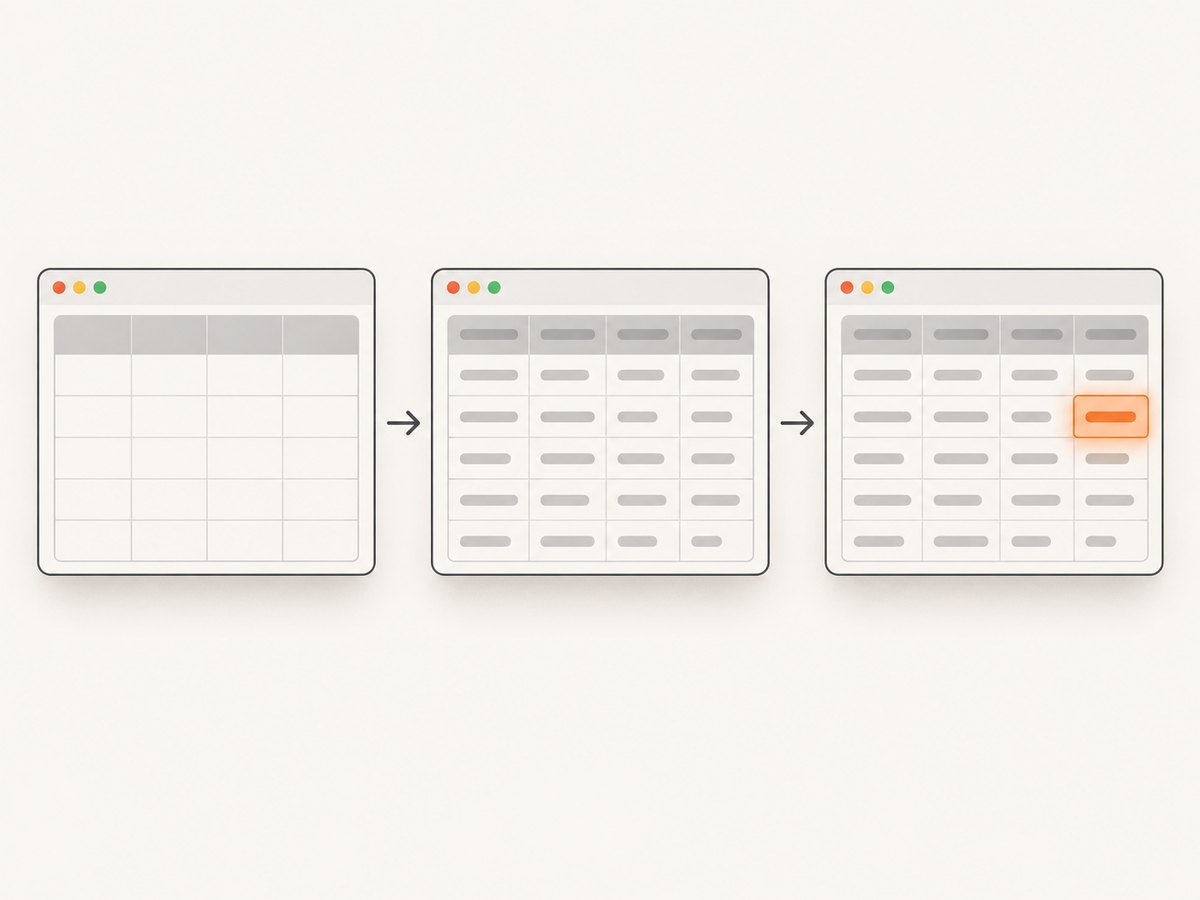
- Navigate to the page.
- Build the narrow XPath for the intended table and value.
- Wait for presence when the DOM node is enough for your next operation.
- Wait for visibility when the user must see the cell or you will interact with it.
- After the wait, use singular or plural lookup according to whether uniqueness matters.
Presence confirms that a matching node is in the DOM. Visibility is a stronger condition for interaction. If a table refreshes, locate the cell again after the refresh rather than retaining a stale element reference.
7. Common failure modes and fixes
| Error or symptom | Likely cause | Fix |
|---|---|---|
NoSuchElementException |
The XPath matches no current node, or lookup happened too early. | Inspect the current DOM, confirm table/td/th, scope the selector correctly, and wait for the target condition. |
| Invalid selector error | The XPath is malformed or was passed using the wrong locator strategy. | Check quotes, brackets, and parentheses; pass it with By.xpath or By.XPATH, not a CSS locator. |
| The wrong cell is returned | The text appears in several tables or rows, and singular lookup returned the first match. | Scope to a table ID, identify the row by another cell, or use plural lookup and inspect all candidates. |
| Exact match does not work | Whitespace or nested text differs from the literal string. | Use normalize-space(.); inspect the DOM and decide whether the target is a td, th, row, or descendant. |
contains() matches too much |
A substring also occurs in another value such as Unpaid. |
Use exact normalized equality or add a row/table constraint. |
| Text assertion is empty or unexpected | The desired data is an input value or attribute, not rendered text. | Read the appropriate attribute or runtime property instead of element text. |
| Element becomes stale | The table was replaced during a refresh. | Wait for the update to finish and find the element again. |
8. Edge cases that affect locator design
Whitespace and line breaks
Literal text comparisons are fragile when markup contains indentation, line breaks, or multiple spaces. normalize-space(.) handles those common differences while preserving the meaningful words.
Nested spans and icons
Using . rather than a direct child text test lets XPath consider descendant text. This helps when a cell contains a status label inside a span. If icons or hidden content contribute unexpected text, inspect the actual DOM and narrow the locator to the visible label element.
Duplicate values
Status values such as Paid commonly repeat. Select the row using a stable identifying value such as an order number, then search within that row. If duplicate rows are expected, deliberately use findElements and assert the count or inspect each candidate.
Changing labels
If the application localizes text or changes labels frequently, a stable ID is usually a better primary locator when one is available. Selenium’s locator guidance favors a unique, stable ID; otherwise use a well-written selector. XPath remains appropriate when the requirement itself is based on displayed text.
9. Reliability and performance practices
- Prefer the narrowest readable XPath that expresses the requirement.
- Scope searches to a table or row to reduce accidental matches.
- Use explicit waits for the target condition instead of arbitrary sleeps.
- Use one lookup when uniqueness is guaranteed; use plural lookup when you need to verify uniqueness.
- Keep expected text in a variable so failures show the value being searched.
- Capture the page source or a DOM snapshot when diagnosing a mismatch.
A short, scoped XPath is easier to review and generally requires less DOM searching than a broad document-wide expression. The largest reliability gain usually comes from waiting for the correct state and choosing a stable scope, rather than from micro-optimizing the XPath syntax.
10. Or skip the browser setup
If your goal is to inspect or archive a page rather than drive an interactive test, ScreenshotNeo can return a screenshot or PDF with one GET request. See the ScreenshotNeo API documentation for the complete option list.
curl -G "https://api.screenshotneo.com/v1/shot" -d access_key=YOUR_API_KEY --data-urlencode url=https://stripe.com -o shot.webpimport requests
r = requests.get("https://api.screenshotneo.com/v1/shot", params={"access_key": "YOUR_API_KEY", "url": "https://stripe.com"}, timeout=90)
open("shot.webp", "wb").write(r.content)const q = new URLSearchParams({ access_key: 'YOUR_API_KEY', url: 'https://stripe.com' });
const res = await fetch(`https://api.screenshotneo.com/v1/shot?${q}`);ScreenshotNeo removes cookie and consent banners, newsletter popups, and chat widgets before capture; bot checks, blank pages, failed loads, timeouts, and cache hits are not billed. Responses identify the result with X-Page-Verdict and X-Billed headers. Its MCP server provides take_screenshot, get_page_info, and capture_pdf tools for Claude, Cursor, and other MCP clients. The free plan includes 1,000 screenshots per month with no card, and paid plans start at $5 for 3,000 shots. Create a free ScreenshotNeo account.
11. Frequently asked questions
Can CSS select a table cell by visible text?
Traditional CSS selectors do not directly express a text-content condition. Use XPath for a text predicate, or locate a stable attribute with CSS.
Should I use text() or . in XPath?
Use . when descendant text, such as a nested span, should count. A direct text() test only considers direct text nodes and can miss nested markup.
How do I prove that the value is unique?
Call findElements/find_elements, check the number of results, and fail with a useful message if it is not the expected count.
Why does the locator work in browser tools but fail in Selenium?
The page may have changed, the test may be searching before rows render, or the XPath may have been passed under the wrong strategy. Compare the live DOM at lookup time and add an explicit wait.
What should I do when the table value is inside an input?
Read the input’s current value through its appropriate property or attribute. Rendered element text and form-control values are separate data.


