How to Find Text Boxes and Enter Values With Selenium
Learn how to locate Selenium text boxes, wait for them, clear existing values, and type reliably with Python, Java, and Node.js examples.
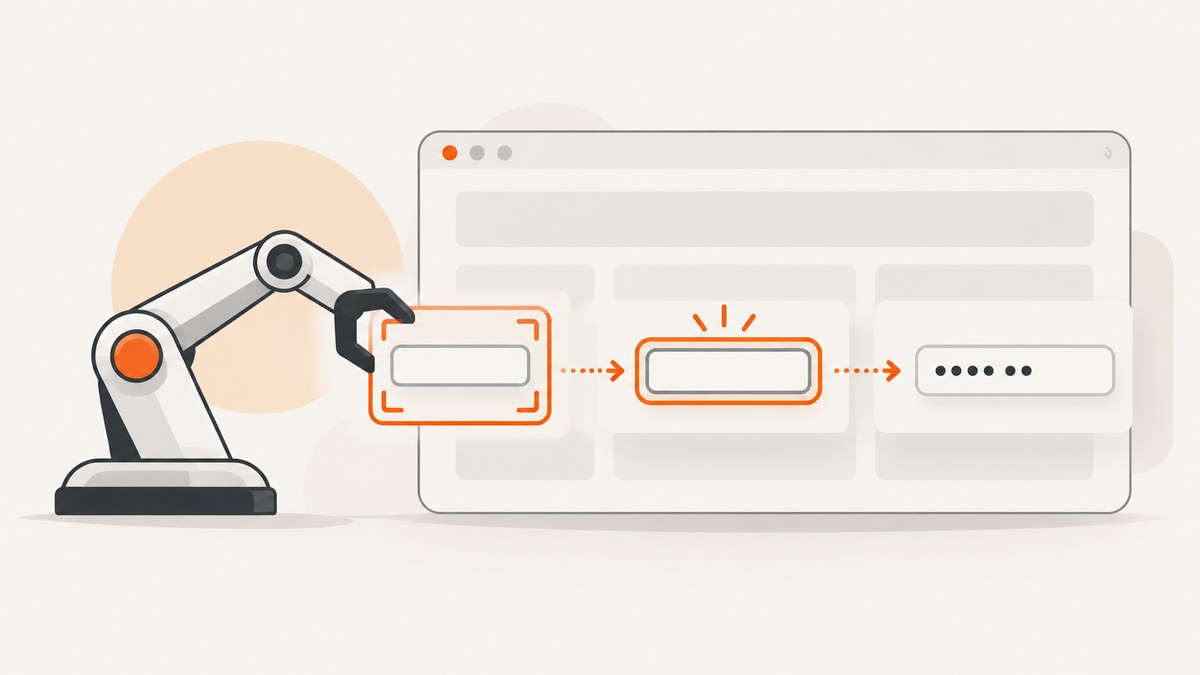
To find a text box with Selenium, choose a locator that identifies the intended input, wait until it is ready, optionally clear its current value, and call send_keys. In Python, the core pattern is:
from selenium.webdriver.common.by import By
from selenium.webdriver.support.ui import WebDriverWait
from selenium.webdriver.support import expected_conditions as EC

field = WebDriverWait(driver, 10).until(
    EC.visibility_of_element_located((By.NAME, "username"))
)
field.clear()
field.send_keys("admin")
send_keys is for text fields and other keyboard-interactable elements. It does not automatically replace existing text, so call clear() when replacement is intended.
1. Start a browser and open the page
A complete Python example uses Selenium Manager to obtain a compatible driver when supported by your Selenium installation:
from selenium import webdriver
from selenium.webdriver.common.by import By
from selenium.webdriver.support.ui import WebDriverWait
from selenium.webdriver.support import expected_conditions as EC


def main():
    options = webdriver.ChromeOptions()
    # options.add_argument("--headless=new")  # Enable for CI or servers.

    driver = webdriver.Chrome(options=options)
    try:
        driver.get("https://example.com/login")

        username = WebDriverWait(driver, 10).until(
            EC.visibility_of_element_located((By.NAME, "username"))
        )
        username.clear()
        username.send_keys("admin")
    finally:
        driver.quit()


if __name__ == "__main__":
    main()
Install Selenium with python -m pip install selenium. In a real test, replace the URL and locator with values from the page under test.
2. Choose a locator for the text box
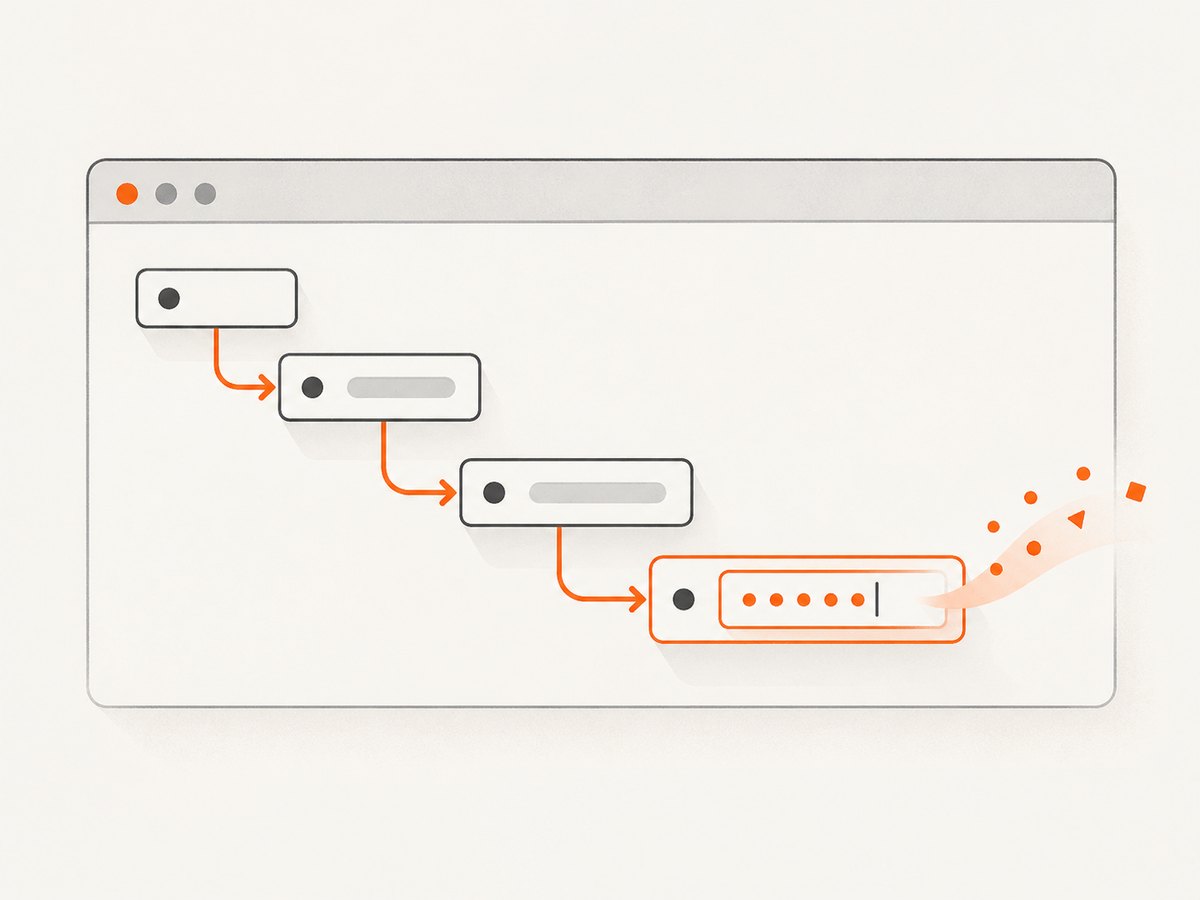
Selenium supports ID, name, XPath, CSS selector, class name, tag name, link text, partial link text, and relative locator strategies. Use the attribute or relationship that uniquely expresses the field’s purpose.
| Strategy | Example | Use it when |
|---|---|---|
| ID | (By.ID, "email") |
The ID is stable and unique. |
| Name | (By.NAME, "username") |
The form field has a meaningful, stable name. |
| CSS selector | (By.CSS_SELECTOR, "input[type='email']") |
You need composed attributes, classes, or a short relationship. |
| XPath | (By.XPATH, "//label[normalize-space()='Email']/following::input[1]") |
You must express a relationship that CSS cannot conveniently express. |
| Class name | (By.CLASS_NAME, "search-input") |
A single, stable class identifies the element. |
| Tag name | (By.TAG_NAME, "textarea") |
You intentionally need a broad set of elements. |
Prefer a locator that is stable across UI revisions, unique, readable, and semantically tied to the field. Avoid generated classes and deeply nested XPath expressions when a stable ID or name exists.
Check whether the locator is unique
matches = driver.find_elements(By.CSS_SELECTOR, "input[name='email']")
if len(matches) != 1:
    raise RuntimeError(f"Expected one email field, found {len(matches)}")
field = matches[0]
find_element returns the first matching element. Use find_elements when you intend to inspect or handle a list of matches.
3. Wait for the state you need
Dynamic pages can render an input after the initial HTML arrives, replace it during hydration, or keep it hidden until a dialog opens. An explicit wait synchronizes the interaction with a condition instead of relying on a fixed sleep.
from selenium.webdriver.support import expected_conditions as EC
from selenium.webdriver.support.ui import WebDriverWait

wait = WebDriverWait(driver, 10)
field = wait.until(
    EC.visibility_of_element_located((By.ID, "search"))
)
field.clear()
field.send_keys("selenium")
Use presence_of_element_located when the element only needs to exist in the DOM. Use visibility when it must be displayed. For a control that must accept input, wait for clickability or add a final interactability check.
field = WebDriverWait(driver, 10).until(
    EC.element_to_be_clickable((By.CSS_SELECTOR, "input[aria-label='Search']"))
)
field.send_keys("selenium")
Expected conditions also cover text presence, which is useful when a label, status message, or validation result controls the next step.
4. Clear, replace, append, or select all
Replace the current value
field.clear()
field.send_keys("new value")
clear() resets an editable, resettable text-entry element. This is the clearest replacement operation.
Append to the current value
field.send_keys(" appended text")Do not call clear() when the intended behavior is to preserve the existing value and add text.
Use keyboard shortcuts when a control needs them
from selenium.webdriver.common.keys import Keys

field.click()
field.send_keys(Keys.CONTROL, "a")
field.send_keys("replacement")
On macOS, use Keys.COMMAND instead of Keys.CONTROL. Prefer clear() for ordinary text inputs; keyboard selection is useful when testing the page’s real keyboard behavior.
5. Text inputs, textareas, and contenteditable fields
Standard <input> types such as text, email, search, password, and tel generally accept send_keys. A <textarea> does too:
notes = WebDriverWait(driver, 10).until(
    EC.visibility_of_element_located((By.TAG_NAME, "textarea"))
)
notes.clear()
notes.send_keys("Line one", "\n", "Line two")
For a contenteditable element, locate the editable node and send keys to it:
editor = WebDriverWait(driver, 10).until(
    EC.visibility_of_element_located((By.CSS_SELECTOR, "[contenteditable='true']"))
)
editor.click()
editor.send_keys("Editable content")
Custom widgets may keep their value in a child input or expose a role such as textbox. Inspect the DOM and target the keyboard-interactable element, not a decorative container.
6. Handling labels and accessible attributes
A visible label is often more stable than a styling class. You can locate the input associated with a label through its for attribute:
label = driver.find_element(By.XPATH, "//label[normalize-space()='Email']")
input_id = label.get_attribute("for")
field = driver.find_element(By.ID, input_id)
field.clear()
field.send_keys("person@example.com")
ARIA attributes can help when a component has no useful name:
field = WebDriverWait(driver, 10).until(
    EC.visibility_of_element_located((By.CSS_SELECTOR, "[role='textbox'][aria-label='Search']"))
)
field.send_keys("selenium")
7. Complete Java example
import java.time.Duration;
import org.openqa.selenium.By;
import org.openqa.selenium.WebDriver;
import org.openqa.selenium.WebElement;
import org.openqa.selenium.chrome.ChromeDriver;
import org.openqa.selenium.support.ui.ExpectedConditions;
import org.openqa.selenium.support.ui.WebDriverWait;

public class EnterText {
    public static void main(String[] args) {
        WebDriver driver = new ChromeDriver();
        try {
            driver.get("https://example.com/login");
            WebDriverWait wait = new WebDriverWait(driver, Duration.ofSeconds(10));
            WebElement username = wait.until(
                ExpectedConditions.visibilityOfElementLocated(By.name("username"))
            );
            username.clear();
            username.sendKeys("admin");
        } finally {
            driver.quit();
        }
    }
}
The Java WebElement contract uses the same conceptual sequence: locate, optionally clear, then call sendKeys.
8. Complete Node.js example
Install the Selenium bindings with npm install selenium-webdriver:
const { Builder, By, until } = require('selenium-webdriver');

(async function enterText() {
  const driver = await new Builder().forBrowser('chrome').build();
  try {
    await driver.get('https://example.com/login');
    const field = await driver.wait(
      until.elementLocated(By.name('username')),
      10000
    );
    await driver.wait(until.elementIsVisible(field), 10000);
    await field.clear();
    await field.sendKeys('admin');
  } finally {
    await driver.quit();
  }
})();
9. Special controls and edge cases
File inputs
A file input is not a normal text box. Selenium can set its value by sending an absolute file path to the <input type="file"> element:
file_input = driver.find_element(By.CSS_SELECTOR, "input[type='file']")
file_input.send_keys("/absolute/path/report.pdf")
Do not try to type into the operating system’s file-picker dialog.
Read-only and disabled inputs
A readonly or disabled control is not editable. Wait for the application to remove that state or interact with the control that enables it. JavaScript assignment can bypass the user interaction your test is supposed to verify, so it should not replace send_keys in an end-to-end test.
Frames
If the text box is inside an iframe, switch into it first:
frame = WebDriverWait(driver, 10).until(
    EC.frame_to_be_available_and_switch_to_it((By.CSS_SELECTOR, "iframe.payment"))
)
field = WebDriverWait(driver, 10).until(
    EC.visibility_of_element_located((By.NAME, "cardholder"))
)
field.send_keys("A. Example")
driver.switch_to.default_content()
Shadow DOM
Shadow roots require traversing the component’s shadow root before finding descendants. The exact API depends on the Selenium language binding and browser version. Inspect whether the input is inside an open shadow root; a normal page-level CSS selector will not cross that boundary automatically.
Masked inputs and reactive frameworks
Input masks may transform each character, while React, Vue, or other frameworks may update state on keyboard or input events. Use real send_keys, wait for the expected value or validation state, and avoid setting the DOM property directly unless the test specifically targets a script-level integration.
10. Troubleshooting
| Symptom or error | Likely cause | Fix |
|---|---|---|
NoSuchElementException |
The locator is wrong, the element has not rendered, or you are in the wrong frame. | Verify the DOM, wait for the required state, and switch into the correct iframe. |
TimeoutException |
The expected condition never became true. | Check the locator, page state, loading behavior, overlays, and timeout length. Capture page diagnostics on failure. |
StaleElementReferenceException |
The framework replaced the element after you found it. | Wait for the page transition, then locate the element again immediately before typing. |
ElementNotInteractableException |
The element exists but is hidden, disabled, covered, or not an editable control. | Wait for visibility or clickability, close the overlay, scroll if needed, and target the actual input. |
InvalidElementStateException |
The target is read-only, disabled, or not keyboard-interactable. | Use an editable input or change the application state that enables it. |
| Text is appended unexpectedly | The old value was never cleared. | Call clear() before send_keys when replacement is intended. |
| Wrong field receives text | The locator matches multiple elements and find_element selected the first. |
Make the locator unique and assert the match count. |
| Typing works locally but fails in CI | Different viewport, timing, browser, fonts, or headless behavior. | Set a deterministic window size, use explicit waits, and collect screenshots, HTML, and browser logs on failure. |
11. A reliable interaction checklist
- Identify the actual editable element, not a wrapper or label.
- Choose a stable, unique locator.
- Wait for presence, visibility, or clickability as the interaction requires.
- Switch into the correct iframe or shadow root.
- Clear the value when replacing existing text.
- Use
send_keysfor keyboard interaction. - Assert the resulting value or page state.
- On failure, record the URL, locator, DOM snapshot, and screenshot.
12. Performance and reliability
Explicit waits usually improve reliability and can reduce wasted time compared with long fixed sleeps. Keep locators specific so Selenium does less searching and so a changed page fails close to the real cause. Re-locate elements after navigation or a known DOM replacement. Run headless browsers in CI only after the same synchronization works in a visible browser, then keep viewport and browser versions controlled.
For repeated form workflows, separate navigation, locating, entry, and assertion into small functions. This makes failures easier to diagnose and lets you apply a consistent timeout policy. Do not hide every error with a retry: retry only operations that are safe to repeat and whose failure is plausibly caused by a transient page transition.
13. Or skip the browser setup
If your goal is to obtain a clean screenshot after filling or inspecting a page, ScreenshotNeo provides a single HTTP request instead of maintaining Selenium and a browser driver. See the ScreenshotNeo API documentation for the full request and option reference.

curl -G "https://api.screenshotneo.com/v1/shot" -d access_key=YOUR_API_KEY --data-urlencode url=https://stripe.com -o shot.webpimport requests
r = requests.get("https://api.screenshotneo.com/v1/shot", params={"access_key": "YOUR_API_KEY", "url": "https://stripe.com"}, timeout=90)
open("shot.webp", "wb").write(r.content)const q = new URLSearchParams({ access_key: 'YOUR_API_KEY', url: 'https://stripe.com' });
const res = await fetch(`https://api.screenshotneo.com/v1/shot?${q}`);Before capture, cookie and consent banners are accepted and more than 60 known consent platforms, newsletter popups, and chat widgets are removed; each cleanup step can be turned off. Bot checks or CAPTCHAs, blank pages, timeouts, failed loads, and cache hits are not billed, and the response identifies the result with X-Page-Verdict and X-Billed headers. ScreenshotNeo also has an MCP server with take_screenshot, get_page_info, and capture_pdf tools for Claude, Cursor, and other MCP clients. The Free plan includes 1,000 shots per month with no card; paid plans start at $5 for 3,000 shots. Create a free ScreenshotNeo account.
14. FAQ
Does send_keys replace text automatically?
No. It types into the current value. Call clear() first when you need replacement.
Should I use XPath or CSS?
Use whichever gives you a stable, unique, readable locator. CSS is concise for attributes; XPath is useful for relationships such as a label followed by an input.
Why does Selenium find the element but fail to type?
The element may be hidden, disabled, read-only, covered, stale, or not a keyboard-interactable control. Wait for the required state and target the real input.
Can Selenium enter a value into a file picker?
Send the absolute path to the file input element. Selenium does not control the operating system dialog directly.
How do I verify that typing worked?
field.send_keys("selenium")
assert field.get_attribute("value") == "selenium"

