How to Find a Website’s Hosting Provider
Learn how to identify a website’s DNS provider, registrar, CDN and likely origin host with dig, WHOIS, IP lookups and practical checks.
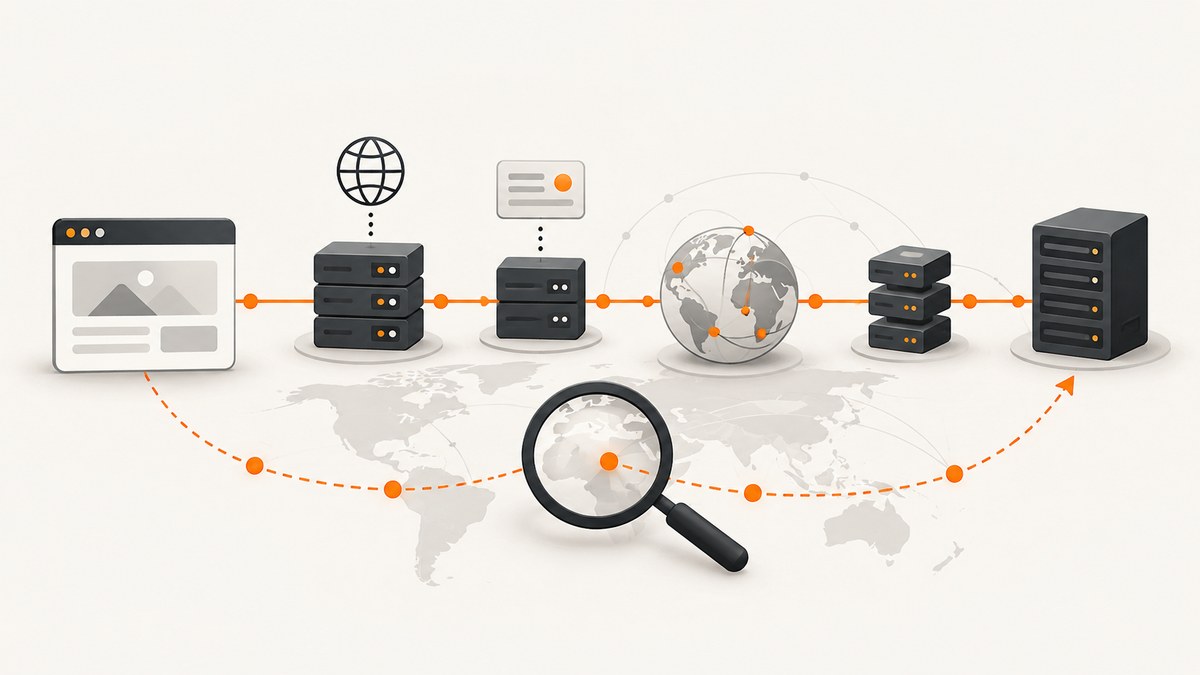
Direct answer: start with the exact hostname, query its authoritative nameservers, inspect its A, AAAA and CNAME records, then look up any visible IP address or hostname. Report the result by role: registrar, authoritative DNS provider, reverse proxy or CDN, network owner, and likely origin host. A single lookup rarely proves who hosts the origin website.
This distinction matters because one company can provide several services, while different companies can handle registration, DNS, traffic proxying and hosting. Cloudflare, for example, can provide DNS and proxy traffic without replacing the hosting provider. When a record is proxied, the address returned to you may belong to Cloudflare rather than the origin server.
1. Understand what “hosting provider” can mean
People use hosting provider for several different layers. Identify each one before drawing a conclusion.

| Role | What it does | What a lookup may show |
|---|---|---|
| Registrar | Registers the domain name and manages its registration record. | WHOIS or ICANN Lookup record. |
| Authoritative DNS provider | Publishes the definitive DNS records for the domain or zone. | NS records such as ns1.example-dns.com. |
| Reverse proxy/CDN | Receives requests at the edge and forwards them to an origin. | Proxy or CDN IP addresses in A/AAAA responses. |
| Network operator | Owns or announces the IP address range. | ASN, organization and geographic data from an IP lookup. |
| Origin host | Runs the web server and serves the site’s content. | An exposed A/AAAA address, CNAME target or hosting-specific hostname. |
DNS converts a human-readable domain into addresses used to locate network services. DNS records can also route email and other services, so inspect the records for the web hostname you care about instead of treating every record as evidence about web hosting.
2. Confirm the hostname you are investigating
- Copy the address and remove the path, query string and fragment. For
https://www.example.com/docs?a=1, begin withwww.example.com. - Check the apex separately:
example.comandwww.example.comcan point to different providers. - Check important subdomains such as
app.example.comorstatic.example.comseparately. A company may host its marketing site, application and assets on different platforms.
Do not assume that the provider used by one hostname serves the entire domain.
3. Query authoritative nameservers
Nameservers identify the service that answers authoritatively for the DNS zone. They do not automatically identify the web host.
# Linux, macOS or WSL
 dig NS example.com +short

# Ask the parent zone which servers are authoritative
 dig +trace example.com NS

# Windows PowerShell
 Resolve-DnsName -Type NS example.com
Read the nameserver hostnames and search their organization. A nameserver branded for a hosting company is useful evidence, but many sites use a separate DNS company while hosting their origin elsewhere.
4. Inspect A, AAAA and CNAME records
dig A example.com +noall +answer
dig AAAA example.com +noall +answer
dig CNAME www.example.com +noall +answer

# Query public resolvers for comparison
dig @1.1.1.1 A www.example.com +short
dig @8.8.8.8 A www.example.com +short
An A record contains an IPv4 address; AAAA contains IPv6; CNAME aliases one hostname to another. Follow a CNAME chain until you reach an address or a provider-owned endpoint.
dig +short www.example.com CNAME
dig +short target.example-cdn.net A
dig +short target.example-cdn.net AAAA
Compare answers from more than one resolver. Differences can indicate DNS propagation, split-horizon DNS, geo-routing or resolver caching. Record the hostname, record type, value and time of each observation.
5. Look up the visible IP or hostname
Use a regional Internet registry, ASN database or IP registration service to identify the organization associated with the address range. Reverse DNS is another clue:
dig -x 203.0.113.10 +short
whois 203.0.113.10
Network ownership is evidence about the visible infrastructure, not conclusive proof of the company operating the website. Cloud providers, CDNs and managed hosting companies may lease addresses, resell infrastructure or run a proxy in front of a different origin.
If the result is a well-known CDN, label it as the edge provider. Do not call it the origin host unless you have additional evidence such as an unproxied record, a provider-specific hostname or documentation from the site owner.
6. Check the registrar separately
Run a WHOIS query or use ICANN Lookup for supported generic top-level domains:
whois example.comThe registrar listed there is the company through which the domain was registered. It may also sell hosting, but registration alone does not prove where the website runs. Some country-code domains are not supported by ICANN Lookup, and privacy services can hide the registrant’s details.
7. A repeatable command-line workflow
The following shell script collects the main public clues without claiming that any one result is definitive.
#!/usr/bin/env bash
set -euo pipefail

host="${1:?Usage: $0 hostname}"
echo "Hostname: $host"
echo
echo "Authoritative nameservers:"
dig NS "$host" +short || true
echo
echo "A records:"
dig A "$host" +noall +answer || true
echo
echo "AAAA records:"
dig AAAA "$host" +noall +answer || true
echo
echo "CNAME:"
dig CNAME "$host" +noall +answer || true
for ip in $(dig A "$host" +short); do
  echo
echo "Reverse DNS for $ip:"
  dig -x "$ip" +short || true
  echo "WHOIS summary for $ip:"
  whois "$ip" 2>/dev/null | sed -n -E '/^(OrgName|Organization|org-name|netname|descr|origin):/Ip' | head -n 8 || true
done
Save it as host-clues.sh, run chmod +x host-clues.sh, then execute ./host-clues.sh example.com. Treat the output as an evidence report. Keep the lookup date because DNS and hosting arrangements can change.
8. Automate the checks in Python
This example uses the standard library for DNS over HTTPS through Google’s public JSON endpoint. It is suitable for a quick report, but production tooling should handle rate limits, resolver errors and provider terms.
import json
import sys
from urllib.parse import urlencode
from urllib.request import Request, urlopen

host = sys.argv[1] if len(sys.argv) > 1 else "example.com"
for record_type in ("NS", "A", "AAAA", "CNAME"):
    query = urlencode({"name": host, "type": record_type})
    request = Request(
        "https://dns.google/resolve?" + query,
        headers={"accept": "application/dns-json", "user-agent": "hosting-research/1.0"},
    )
    try:
        with urlopen(request, timeout=10) as response:
            data = json.load(response)
    except Exception as exc:
        print(record_type, "error:", exc)
        continue
    answers = [answer["data"] for answer in data.get("Answer", [])]
    print(f"{record_type}: {answers}")
Install no third-party package: save as dns_report.py and run python dns_report.py example.com. The returned A address is the resolver’s public view and may be a CDN edge.
9. Automate the checks in Node.js
const host = process.argv[2] || 'example.com';

for (const type of ['NS', 'A', 'AAAA', 'CNAME']) {
  const url = new URL('https://dns.google/resolve');
  url.search = new URLSearchParams({ name: host, type });
  try {
    const response = await fetch(url);
    if (!response.ok) throw new Error(`HTTP ${response.status}`);
    const data = await response.json();
    const answers = (data.Answer || []).map(answer => answer.data);
    console.log(`${type}:`, answers);
  } catch (error) {
    console.error(`${type}: ${error.message}`);
  }
}
Run it with a current Node.js release: node dns-report.mjs example.com. Save the JSON output if you need an audit trail.
10. Interpret Cloudflare and other proxy results correctly
If nameservers or addresses point to Cloudflare, there are two separate possibilities: Cloudflare may only provide authoritative DNS, or it may also proxy web traffic. Cloudflare documents that when a DNS record is proxied, it responds with an anycast IP instead of the origin IP. In that case, your lookup stops at the edge. Cloudflare also states that you do not need to change hosting providers to use its service.

Useful evidence labels are:
- Authoritative DNS: the organization named by NS records.
- Proxy/CDN: the organization associated with returned edge addresses or HTTP response headers.
- Likely origin: a separate provider supported by an unproxied record, CNAME target, certificate metadata or a public technical statement.
Do not attempt to bypass access controls or probe private origin addresses. Use public records and information the site has intentionally exposed.
11. Common errors and fixes
| Symptom | Likely cause | Fix |
|---|---|---|
| “NXDOMAIN” | The hostname does not exist in the queried DNS view, or it is misspelled. | Check spelling, apex versus www, and another public resolver. |
| No A record | The site may be IPv6-only, use a CNAME, or be configured for another service. | Query AAAA and CNAME; inspect the final target. |
| Nameserver and IP owner differ | DNS and hosting are separate services. | Report both roles instead of choosing one. |
| Cloudflare IP appears | The record is proxied. | Identify Cloudflare as the edge and mark the origin unknown unless public evidence exists. |
| WHOIS is redacted | Privacy protection or registry policy. | Use registrar fields, NS records and DNS evidence; do not infer the registrant. |
| Resolvers disagree | Propagation, TTL caching, geo-DNS or split-horizon DNS. | Record resolver, time and answer; repeat after the TTL. |
| Reverse DNS has no result | PTR records are optional. | Use forward DNS, ASN and registration data instead. |
12. Performance, reliability and cost
Individual DNS queries normally complete quickly, but WHOIS services and public APIs can rate-limit automated requests. Cache results for the TTL, use bounded timeouts and retry transient network failures with backoff. Query only the hostnames you need. For a reliable report, collect NS, A, AAAA and CNAME data from at least two resolvers and retain timestamps.
Public DNS and WHOIS data are inexpensive or free, but they reveal only public infrastructure. A CDN can intentionally hide the origin, and managed platforms can place many customers behind shared addresses. State confidence explicitly: “authoritative DNS provider,” “visible edge network,” or “likely origin based on CNAME,” rather than presenting an inference as fact.
Or skip the browser setup
If you need a visual record of the site while documenting your investigation, ScreenshotNeo can capture the page through one API request. It accepts consent banners before capture and removes more than 60 known consent platforms, newsletter popups and chat widgets; each step can be disabled. Bot checks, blank pages, timeouts, failed loads and cache hits are not billed, and response headers identify the page verdict and billing result. Its MCP server provides take_screenshot, get_page_info and capture_pdf tools for Claude, Cursor and other MCP clients.
See the ScreenshotNeo API documentation for all options, including full-page and element captures, device presets, custom headers and cookies, JavaScript, waiting rules, blocking, caching, signed links, asynchronous jobs and bulk capture.
curl -G "https://api.screenshotneo.com/v1/shot" -d access_key=YOUR_API_KEY --data-urlencode url=https://example.com -o shot.webpimport requests
r = requests.get("https://api.screenshotneo.com/v1/shot", params={"access_key": "YOUR_API_KEY", "url": "https://example.com"}, timeout=90)
open("shot.webp", "wb").write(r.content)const q = new URLSearchParams({ access_key: 'YOUR_API_KEY', url: 'https://example.com' });
const res = await fetch(`https://api.screenshotneo.com/v1/shot?${q}`);You get 1,000 screenshots each month free with no card. Paid plans start at $5 for 3,000 shots. Create a free ScreenshotNeo account.
13. A concise reporting template
Hostname checked: www.example.com
Checked at (UTC): 2026-09-29T00:00:00Z
Authoritative DNS (NS): [provider and nameserver values]
A/AAAA result: [addresses]
CNAME chain: [targets]
Visible network owner: [organization/ASN]
Registrar: [registrar, if available]
Proxy/CDN evidence: [yes/no and source]
Likely origin host: [provider or unknown]
Confidence and limits: [what the evidence does not prove]
This format keeps the roles separate and makes your conclusion reproducible.
FAQ
Can I find the host from the domain registrar?
Usually no. The registrar records the domain registration; hosting can be elsewhere.
Does an IP lookup reveal the exact server?
It reveals the organization associated with the visible address. A proxy or CDN may hide the origin.
Should I check only the root domain?
No. Check the apex, www and relevant subdomains independently.
Why does a CNAME help?
A CNAME can expose a provider-specific hostname, but it may still point to a CDN or managed edge rather than the origin.
How should I phrase an uncertain result?
Name the evidence and role: “Cloudflare is the authoritative DNS and visible proxy; the origin host cannot be confirmed from public records.”


