How to Find XPath in Headless Chrome Using Selenium
Inspect an element, verify its XPath in Chrome DevTools, and use a stable Selenium locator in headless Chrome. Includes frames, waits, and fixes for common failures.

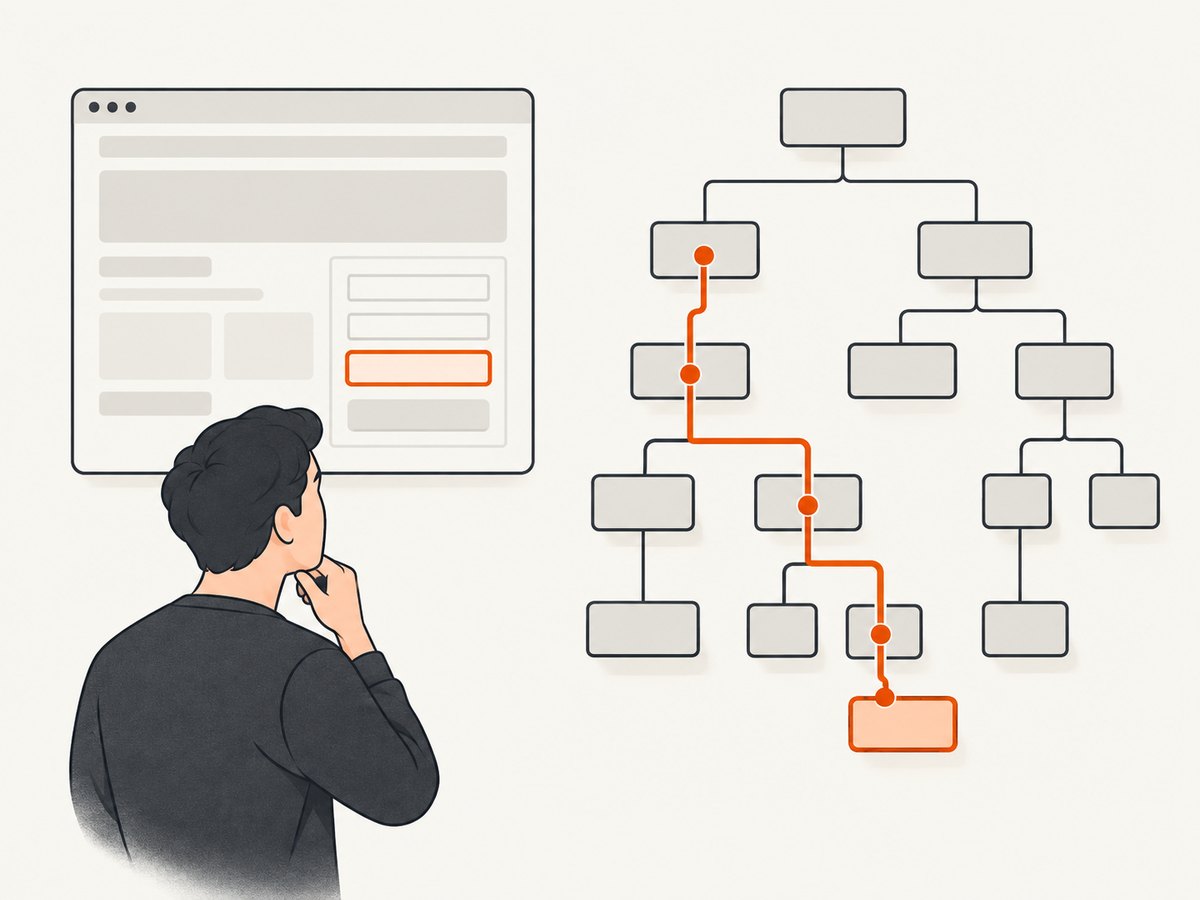
To find an XPath for an element in headless Chrome, inspect the rendered page in Chrome DevTools, test a candidate XPath in the Elements panel, then use that expression with Selenium’s XPath locator in the headless browser session. Headless mode changes whether Chrome displays a window; it does not change how Selenium expresses XPath. The important condition is that DevTools and Selenium inspect the same page state and browsing context.
Use a unique, stable attribute where possible, and check that your expression matches exactly the intended element. A copied absolute path can stop working when the page structure changes. This guide shows how to inspect and validate locators, run Selenium in Python, diagnose misses, and handle frames, dynamic content, and shadow roots.
1. Inspect the element and test an XPath
- Open the page in Chrome and use DevTools’ element picker to select the element you want to locate. The Elements panel shows the rendered DOM tree.
- Right-click the node and choose Copy > Copy XPath to get a starting point, or write a locator using an attribute or relationship you understand. Treat a copied expression as a draft, not a guarantee of stability.
- In DevTools, press
Ctrl+Fon Windows/Linux orCmd+Fon macOS while the Elements panel is active. Enter the XPath expression and inspect the highlighted match and match count. DevTools can search the DOM tree using XPath. Chrome DevTools DOM documentation. - Make the expression descriptive and narrow. For example,
//input[@name='email']targets an input by its name attribute. If multiple nodes match, refine it with a stable parent or another attribute. - Run the same expression through Selenium against the page loaded by Selenium. DevTools is a useful inspection aid, but it does not prove that the controlled browser has the same URL, load state, frame, or DOM.
Chrome’s DevTools window is visible, while the Selenium run can be headless. You can inspect a normal Chrome session interactively, derive a locator, and then apply it in automation. For tricky applications, reproduce the same navigation and state in an ordinary browser before trusting the locator.
2. Run Selenium with headless Chrome in Python
Install Selenium in your Python environment with python -m pip install selenium. Current Selenium versions can manage a compatible ChromeDriver through Selenium Manager when you create the driver. Keep Chrome and ChromeDriver major versions compatible; Selenium’s Chrome documentation lists --headless=new among common Chrome options. Check the current documentation for version-specific details: Selenium: Chrome browser.
from selenium import webdriver
from selenium.webdriver.common.by import By
from selenium.webdriver.chrome.options import Options
from selenium.webdriver.support.ui import WebDriverWait
from selenium.webdriver.support import expected_conditions as EC

URL = "https://example.com"
XPATH = "//input[@name='email']"

options = Options()
options.add_argument("--headless=new")

# Optional in constrained Linux/container environments:
# options.add_argument("--window-size=1440,1000")
# Add --no-sandbox only when required by your container's security setup.

driver = webdriver.Chrome(options=options)
try:
    driver.get(URL)
    element = WebDriverWait(driver, 15).until(
        EC.presence_of_element_located((By.XPATH, XPATH))
    )
    print("Found:", element.tag_name)
    print("Matches with current XPath:", len(driver.find_elements(By.XPATH, XPATH)))
finally:
    driver.quit()
The wait above checks that the element is present in the DOM. If the next action requires it to be visible or clickable, use EC.visibility_of_element_located or EC.element_to_be_clickable instead. Increase the timeout only when the page legitimately needs longer; a long fixed sleep can slow every run and still fail on slower pages.
Choose a locator that survives page changes
| Approach | Example | When it fits |
|---|---|---|
| Unique ID | By.ID, "email" |
A predictable, unique ID is available. Selenium recommends unique, predictable IDs when possible. |
| XPath attribute | //input[@name='email'] |
A meaningful stable attribute is present, but a direct ID locator is not. |
| XPath relationship | //label[normalize-space()='Email']/following::input[1] |
The relationship is meaningful and the target lacks a useful identifier. |
| CSS selector | input[name='email'] |
A CSS selector expresses the target simply; Selenium supports CSS as well. |
Avoid relying on long absolute paths such as /html/body/div[2]/main/div[1]/form/input unless the page is intentionally fixed. Wrapper elements, layout changes, or inserted content can invalidate positional paths. XPath is useful for expressing relationships, but prefer a short, readable locator and narrow the search context where practical. Selenium discusses locator strategies and their tradeoffs in its locator guidance.
3. Verify uniqueness and inspect results in Selenium
Selenium’s singular find_element call returns the first match in the current context. If an XPath accidentally matches several nodes, the call may succeed while selecting the wrong one. Use find_elements while developing a locator: it returns all matches, or an empty list. Confirm that there is one result when uniqueness is required.
from selenium.webdriver.common.by import By

matches = driver.find_elements(By.XPATH, "//button[normalize-space()='Continue']")
print("match count:", len(matches))
for index, match in enumerate(matches):
    print(index, match.tag_name, match.get_attribute("type"), match.text)
Whitespace, hidden duplicates, repeated navigation menus, and responsive layouts can create multiple matches. If there are several, inspect their attributes and ancestry, then add a stable qualifier. For example, scope the XPath to a form identified by a stable attribute:
form = driver.find_element(By.CSS_SELECTOR, "form#checkout")
button = form.find_element(By.XPATH, ".//button[@type='submit']")
The leading dot in .//button makes the XPath relative to the selected form. Scoping can make intent clearer and avoid matching a similar control elsewhere in the document.
4. Handle dynamic pages, frames, and shadow roots
Wait for the right page condition
Modern pages often insert content after navigation. An XPath that matched in DevTools after waiting may not match immediately after driver.get(). Wait for the condition your next step needs rather than assuming navigation completion means every client-rendered element is ready. Selenium’s wait documentation covers explicit waits: Selenium waits.
from selenium.webdriver.support.ui import WebDriverWait
from selenium.webdriver.support import expected_conditions as EC

wait = WebDriverWait(driver, 20)
ready = wait.until(
    EC.visibility_of_element_located((By.XPATH, "//h1[normalize-space()='Account']"))
)
When an element is replaced during a framework render, a previously found WebElement reference can become stale. Locate it again after the update, using a wait for the new state. Do not keep reusing a reference to an old DOM node.
Switch into an iframe first
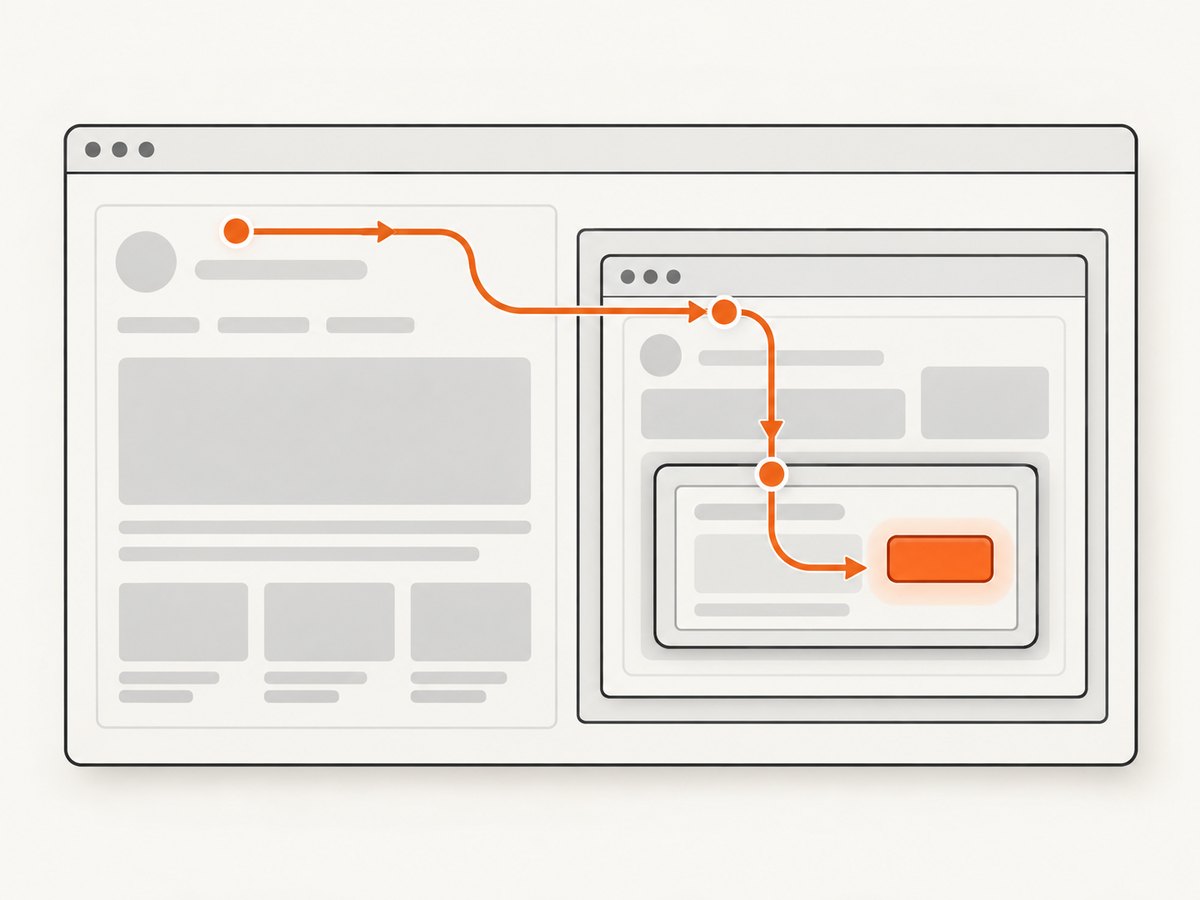
An XPath search is scoped to the current browsing context. If the element is inside an iframe, switch to that frame before searching. An XPath tested against the top-level document will not cross into the frame.
frame = WebDriverWait(driver, 15).until(
    EC.presence_of_element_located((By.CSS_SELECTOR, "iframe.payment-frame"))
)
driver.switch_to.frame(frame)
try:
    card_input = WebDriverWait(driver, 15).until(
        EC.visibility_of_element_located((By.XPATH, "//input[@name='cardnumber']"))
    )
finally:
    driver.switch_to.default_content()
Use the iframe’s stable selector or another reliable way to identify it. Nested frames require switching one level at a time. After the frame interaction, return to the top-level context with default_content() before searching elsewhere.
Search inside a shadow root
Ordinary document XPath queries do not pierce a web component’s shadow root. First locate the host, obtain its shadow root through Selenium, and then search within that root. Selenium documents Shadow DOM support under its element finding guidance: Finding web elements.
host = driver.find_element(By.CSS_SELECTOR, "account-panel")
shadow = host.shadow_root
email = shadow.find_element(By.CSS_SELECTOR, "input[name='email']")
Support details can depend on the Selenium and browser versions. If an XPath works in the ordinary document but not within a component, inspect whether the node is in a shadow tree and use Selenium’s shadow-root API and a locator supported in that root.
5. Troubleshooting: “Unable to locate element”
| Symptom | Likely cause | Fix |
|---|---|---|
NoSuchElementException or “Unable to locate element” |
The query runs too early, the expression is wrong, or the node is not in the current document. | Check the URL and page state, use an explicit wait, and compare the live Selenium DOM with the DevTools DOM. |
| XPath finds a different button | The expression matches several similar nodes; singular lookup returns the first. | Count with find_elements, inspect each candidate, then qualify or scope the expression. |
| Works in DevTools, fails in Selenium | The contexts differ: another frame, shadow root, route, authentication state, or client-rendering timing. | Reproduce the same state; switch to the frame or query the shadow root as appropriate. |
| Element found, click fails | The node may be hidden, covered, disabled, or not yet clickable. | Wait for clickability, check visibility and enabled state, and inspect overlays or sticky banners. |
| Stale element reference | The page replaced the node after Selenium found it. | Wait for the new DOM state and locate the element again. |
| Chrome fails to start or session creation fails | Chrome/ChromeDriver incompatibility, missing browser dependencies, or container restrictions. | Match Chrome and ChromeDriver major versions, check Selenium’s current Chrome setup guidance, and adjust container options only for the relevant environment. |
| XPath syntax error | Unbalanced quotes/brackets or invalid XPath syntax. | Test the expression in DevTools, escape or switch quote types in the host language, and simplify it incrementally. |
For attributes containing a literal quote, XPath quoting needs care. If the value contains an apostrophe, use double quotes in the XPath string, for example //button[@aria-label="What's next"]. If it contains both quote types, build a valid XPath concat() expression or choose a different stable attribute.
6. Performance, reliability, and cost
For ordinary page automation, locator choice is usually a maintainability decision before it is a performance optimization. Selenium cautions that XPath can be flexible but may have performance costs; a unique ID or a narrowly scoped locator is often simpler. Avoid repeatedly searching a large document inside a tight loop. Locate a parent once when appropriate, and use explicit waits so the page is queried at the relevant state.
Headless execution avoids displaying a browser window, but the workflow still depends on browser startup, page loading, network conditions, and site behavior. Reuse a browser session for related steps when isolation requirements allow it; always close the driver in a finally block or an equivalent context manager so a failure does not leave a browser process running. Set sensible navigation and wait timeouts for your application. For reproducible results, pin and update Selenium and Chrome together and record browser versions in CI logs.
Selenium and Chrome are software components; the research sources establish no general per-screenshot charge or benchmark for this workflow. Your operational cost comes from the machines and infrastructure running the browser, plus maintenance of browser versions and test reliability. Headless does not remove the need to plan for page failures, retries, or resource limits in parallel jobs.
7. Screenshot alternative when the goal is an image
If you are finding an XPath because you ultimately need a screenshot, Selenium gives you control over the browser and DOM. For a straightforward page capture, ScreenshotNeo is a website screenshot API and MCP server: one GET request can return a PNG, JPEG, WebP, or PDF. Its 63 options include full-page capture, element capture by CSS selector, device presets, custom waits, and request controls. See the ScreenshotNeo API documentation.
Or skip the browser setup
ScreenshotNeo accepts a URL and returns the capture. For this example, the target is Stripe; replace it with your page URL. See the API docs for output and configuration options.
curl -G "https://api.screenshotneo.com/v1/shot" -d access_key=YOUR_API_KEY --data-urlencode url=https://stripe.com -o shot.webpimport requests
r = requests.get(
"https://api.screenshotneo.com/v1/shot",
params={"access_key": "YOUR_API_KEY", "url": "https://stripe.com"},
timeout=90,
)
open("shot.webp", "wb").write(r.content)const q = new URLSearchParams({ access_key: 'YOUR_API_KEY', url: 'https://stripe.com' });
const res = await fetch(`https://api.screenshotneo.com/v1/shot?${q}`);
if (!res.ok) throw new Error(`Screenshot request failed: ${res.status}`);
const image = Buffer.from(await res.arrayBuffer());
await import('node:fs/promises').then(fs => fs.writeFile('shot.webp', image));- Cookie and consent banners, newsletter popups, and chat widgets are removed before the shot; each cleanup step can be turned off.
- Bot checks, blank pages, timeouts, failed loads, and cache hits are not billed; response headers identify the page verdict and billing result.
- An MCP server provides
take_screenshot,get_page_info, andcapture_pdftools for AI agents and MCP clients. - The free plan includes 1,000 shots a month with no card. Paid plans start at $5 for 3,000 shots; every feature is available on every plan.
Create a free ScreenshotNeo account and get 1,000 screenshots a month with no card.
8. FAQ
Does headless Chrome use a different XPath syntax?
No. Use Selenium’s By.XPATH locator strategy in headless and visible Chrome alike.
Should I use the XPath copied by DevTools?
Use it to identify the node, then simplify it into a stable locator based on attributes or meaningful structure. Recheck uniqueness in Selenium.
Can XPath select an element inside an iframe?
Only after switching Selenium into that iframe. XPath searches the current browsing context.
Why does a locator work locally but fail in CI?
Compare browser versions, page state, viewport, network timing, and whether the element is inside a frame or shadow root. Use explicit waits for the required condition.


