How to Generate PDFs From HTML Templates With Google Firebase
Generate secure PDFs from controlled HTML templates with Firebase, Cloud Functions or Cloud Run, Puppeteer, and a production-ready workflow.

Short answer: Firebase does not provide a built-in HTML-to-PDF endpoint. Use Firebase Authentication and your Firebase app as the integration layer, then send an authenticated request to server-side code that populates a controlled HTML template and renders it with headless Chrome through Puppeteer or Playwright. Return the PDF directly or save it to Cloud Storage and return an authorized download path.
Google Cloud documents headless Chrome automation on Cloud Run, including creating PDFs and screenshots of web pages, with Puppeteer and Playwright as browser-control options. Read the Cloud Run browser automation documentation. Firebase Hosting can route requests to Cloud Functions for Firebase or Cloud Run, but its documented request timeout is 60 seconds for either route. Read the Firebase Hosting routing documentation.
Architecture
A production flow normally looks like this:
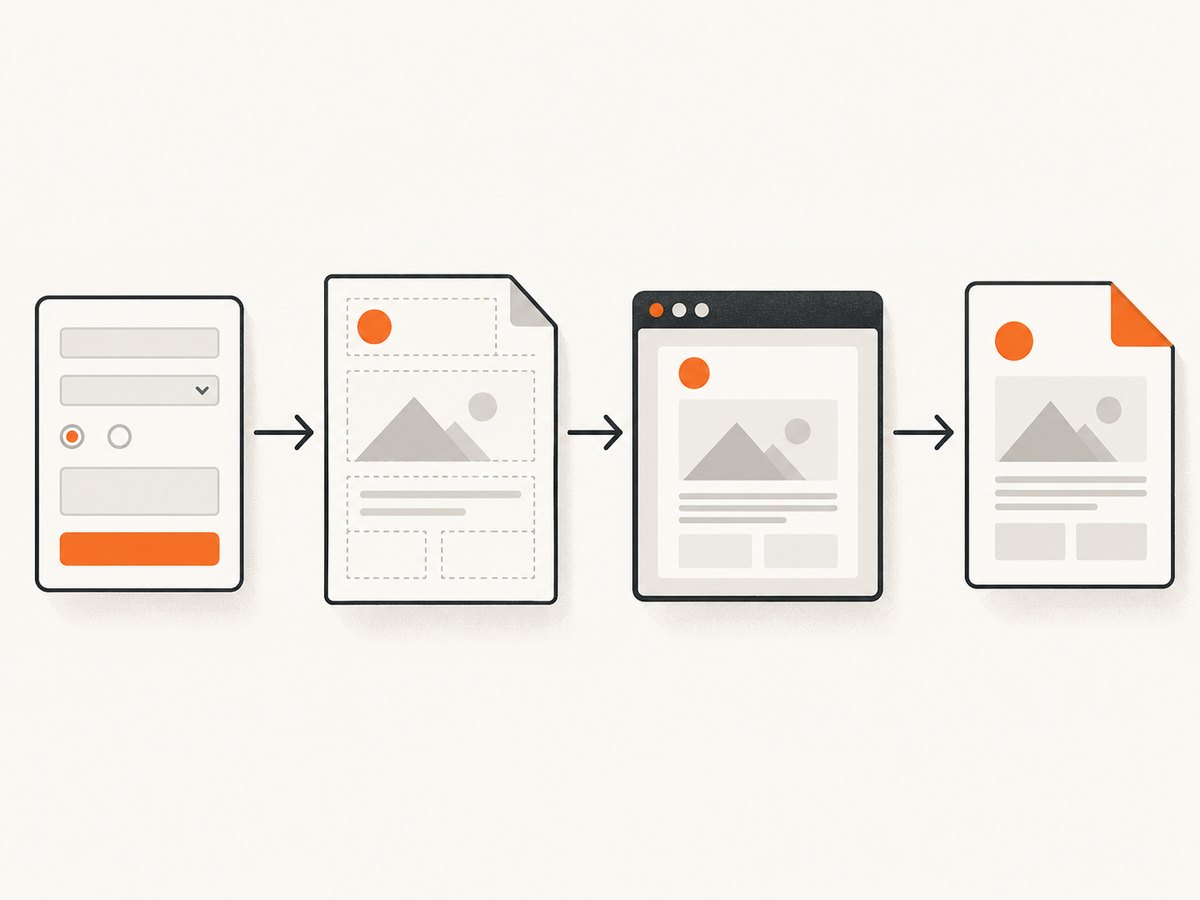
- The client signs in with Firebase Authentication.
- The client sends an ID token and document data to a server endpoint.
- The server verifies the token and validates the input.
- The server inserts escaped values into a template it controls.
- Puppeteer or Playwright opens the generated HTML in headless Chrome.
- The browser waits for fonts, images, and other required assets.
- The server creates a PDF, then either streams it back or stores it in Cloud Storage.
Keep privileged credentials and template logic on the server. Do not trust template variables supplied by a browser, and do not allow arbitrary user HTML or URLs unless you have designed and isolated that use case.
Choose Cloud Functions or Cloud Run
| Option | Use it when | Trade-offs |
|---|---|---|
| Cloud Functions for Firebase | You want tight Firebase CLI integration and a small HTTPS function. | Use a supported runtime and account for function execution constraints. Production deployment requires the Blaze plan according to the Firebase Functions setup guide. |
| Cloud Run | You need a custom container, browser binaries, OS packages, a non-Node runtime, or more environment control. | You manage the container and deployment configuration, but can tune the browser environment for your workload. |
| Firebase Hosting routing | You want one public site origin or a friendly Firebase URL in front of the backend. | The documented Hosting request timeout is 60 seconds for both Cloud Functions and Cloud Run. Long renders should use a direct backend URL or an asynchronous job. |
Cloud Run implementation with Node.js and Puppeteer
This example uses Express, Puppeteer, and an in-memory HTML template. In a real application, verify Firebase ID tokens with the Firebase Admin SDK and load templates from your deployment package or a trusted source.
1. Create the project files
mkdir firebase-pdf-service
cd firebase-pdf-service
npm init -y
npm install express puppeteer
2. Add the server
const express = require('express');
const puppeteer = require('puppeteer');
const app = express();
app.use(express.json({ limit: '256kb' }));
function escapeHtml(value) {
return String(value ?? '')
.replace(/&/g, '&')
.replace(/</g, '<')
.replace(/>/g, '>')
.replace(/"/g, '"')
.replace(/'/g, ''')
.replace(/&/g, '&')
.replace(/</g, '<')
.replace(/>/g, '>')
.replace(/"/g, '"')
.replace(/'/g, ''');
}
function renderTemplate(data) {
const customer = escapeHtml(data.customer);
const invoiceNumber = escapeHtml(data.invoiceNumber);
const total = escapeHtml(data.total);
const issuedAt = escapeHtml(data.issuedAt);
return `
Invoice ${invoiceNumber}
Thank you for your business.
Total: ${total}
`;
}
app.post('/pdf', async (req, res) => {
const { customer, invoiceNumber, total, issuedAt } = req.body || {};
if (!customer || !invoiceNumber || !total || !issuedAt) {
return res.status(400).json({ error: 'customer, invoiceNumber, total, and issuedAt are required' });
}
let browser;
try {
browser = await puppeteer.launch({
headless: 'new',
args: ['--no-sandbox', '--disable-setuid-sandbox']
});
const page = await browser.newPage();
await page.setContent(renderTemplate({ customer, invoiceNumber, total, issuedAt }), {
waitUntil: 'networkidle0'
});
await page.evaluate(() => document.fonts.ready);
const pdf = await page.pdf({
format: 'A4',
printBackground: true,
preferCSSPageSize: true
});
res.set({ 'Content-Type': 'application/pdf', 'Content-Disposition': 'attachment; filename="invoice.pdf"' });
res.send(pdf);
} catch (error) {
console.error(error);
res.status(500).json({ error: 'PDF rendering failed' });
} finally {
if (browser) await browser.close();
}
});
app.get('/healthz', (_req, res) => res.send('ok'));
const port = process.env.PORT || 8080;
app.listen(port, () => console.log(`Listening on ${port}`));
The escaping helper is deliberately simple for text nodes. If you place values in attributes, URLs, CSS, or JavaScript, use context-specific escaping and validate the allowed format. Also fix the helper in production so it uses one carefully reviewed escaping implementation; the example shows the required characters explicitly for readability.
3. Add a Dockerfile
FROM node:20-bookworm-slim

RUN apt-get update \
  && apt-get install -y --no-install-recommends \
     ca-certificates fonts-liberation libasound2 libatk-bridge2.0-0 \
     libatk1.0-0 libc6 libcairo2 libcups2 libdbus-1-3 libdrm2 \
     libgbm1 libglib2.0-0 libgtk-3-0 libnspr4 libnss3 \
     libu2f-udev libvulkan1 libx11-6 libx11-xcb1 libxcb1 \
     libxcomposite1 libxdamage1 libxext6 libxfixes3 libxrandr2 \
  && rm -rf /var/lib/apt/lists/*

WORKDIR /app
COPY package*.json ./
RUN npm ci
COPY . .
ENV NODE_ENV=production
CMD ["node", "server.js"]
4. Deploy to Cloud Run
gcloud builds submit --tag REGION-docker.pkg.dev/PROJECT_ID/pdf/pdf-service
gcloud run deploy pdf-service \
  --image REGION-docker.pkg.dev/PROJECT_ID/pdf/pdf-service \
  --region REGION \
  --platform managed \
  --allow-unauthenticated
For a private service, remove --allow-unauthenticated and put authentication, token verification, or an authenticated gateway in front of the endpoint. Configure the service account and IAM policy according to your deployment model.
Calling the endpoint
cURL
curl -X POST "$PDF_SERVICE_URL/pdf" \
  -H 'Content-Type: application/json' \
  -H "Authorization: Bearer $FIREBASE_ID_TOKEN" \
  --data '{"customer":"Ada Lovelace","invoiceNumber":"INV-1001","total":"$120.00","issuedAt":"2026-09-30"}' \
  -o invoice.pdf
Python
import requests

payload = {
    "customer": "Ada Lovelace",
    "invoiceNumber": "INV-1001",
    "total": "$120.00",
    "issuedAt": "2026-09-30",
}
response = requests.post(
    "https://YOUR_SERVICE_URL/pdf",
    json=payload,
    headers={"Authorization": "Bearer YOUR_FIREBASE_ID_TOKEN"},
    timeout=90,
)
response.raise_for_status()
with open("invoice.pdf", "wb") as file:
    file.write(response.content)
Node.js
const payload = {
  customer: 'Ada Lovelace',
  invoiceNumber: 'INV-1001',
  total: '$120.00',
  issuedAt: '2026-09-30'
};

const response = await fetch('https://YOUR_SERVICE_URL/pdf', {
  method: 'POST',
  headers: {
    'Content-Type': 'application/json',
    Authorization: 'Bearer YOUR_FIREBASE_ID_TOKEN'
  },
  body: JSON.stringify(payload)
});
if (!response.ok) throw new Error(`${response.status} ${await response.text()}`);
const pdf = Buffer.from(await response.arrayBuffer());
require('fs').writeFileSync('invoice.pdf', pdf);
Template design and rendering details
- Fonts: Bundle fonts in the container or use an asset origin reachable from the renderer. Wait for
document.fonts.readybefore exporting. - Images: Use stable HTTPS URLs or bundled assets. Broken or slow images can change pagination; wait for them explicitly when required.
- Page breaks: Use CSS such as
break-inside: avoid,page-break-before, and@page. Test long text and tables, not only the happy path. - Print colors: Set
printBackground: truewhen backgrounds are part of the design. - Dynamic data: Validate dates, numbers, enumerations, and maximum lengths before rendering. Do not concatenate unchecked HTML.
- External requests: If templates can reference URLs, restrict protocols, hosts, redirects, and private network ranges to reduce SSRF risk.
Returning or storing the PDF
For small, fast documents, stream application/pdf directly as shown. For large files, slow assets, or workflows that may exceed the Firebase Hosting route timeout, create an asynchronous job:
- Store a job record with a pending status.
- Render in a worker or directly addressed backend.
- Save the PDF to Cloud Storage with a non-public object ACL.
- Update the job with success or failure.
- Return a short-lived authorized download path after checking the requesting user.
Use idempotency keys so a client retry does not create duplicate documents. Delete temporary files and define a retention period for generated PDFs.
Firebase integration checklist
- Require Firebase Authentication or another verifiable identity.
- Verify the ID token server-side; never trust a user ID sent in JSON.
- Authorize access to the underlying record before rendering.
- Keep service-account credentials and storage permissions out of browser code.
- Apply request-size, field-length, and rate limits.
- Log a request ID, template version, render duration, and outcome without logging sensitive document contents.
- Test the exact Hosting route and the direct backend route separately.
Troubleshooting
| Symptom | Likely cause | Fix |
|---|---|---|
| 504 or a request that ends around one minute | Firebase Hosting’s documented 60-second request timeout. | Use a direct backend endpoint or an asynchronous job and poll for completion. |
| Browser fails to launch | Missing Chrome libraries, sandbox permissions, or an incompatible runtime. | Use a container with the required OS packages, review launch arguments, and inspect Cloud Run logs. |
| PDF has missing fonts or images | Assets are unreachable, still loading, or blocked by network policy. | Bundle critical assets, use reachable URLs, wait for network and fonts, and fail clearly when required assets do not load. |
| HTML appears as text or markup is injected | Template values were inserted without context-aware escaping. | Escape text nodes, validate input, and keep arbitrary HTML out of the template API. |
| Pages break in the wrong places | Content length differs from the design assumptions. | Add print CSS, avoid fixed heights, test long values, and use explicit page-break rules where needed. |
| 401 or 403 responses | Missing, expired, or unverified Firebase token, or insufficient IAM permission. | Send a current token, verify it on the server, and check service and storage IAM bindings. |
| Duplicate PDFs after retries | No idempotency protection. | Persist an idempotency key and return the existing job or object for repeated requests. |
Performance, reliability, and cost
- Warm instances: Browser startup is expensive. Reuse a browser process carefully, but isolate pages and close them after each job.
- Concurrency: Measure memory and CPU with your real templates before increasing concurrency. Multiple Chromium pages can consume substantial memory.
- Timeouts: Set client and server timeouts above the expected render time, while respecting the route’s documented limit.
- Retries: Retry transient infrastructure failures with backoff; do not blindly retry validation errors or non-idempotent work.
- Observability: Record render duration, page count, asset failures, browser errors, and job status.
- Cost: The reviewed sources do not provide a universal cost per PDF or sizing recommendation. Measure your own invocation duration, memory, storage, and egress usage against current Google Cloud pricing before publishing an estimate.

Or skip the browser setup
If you need a clean capture or PDF from a URL rather than a Firebase-managed template, ScreenshotNeo provides a single GET request. Its consent handling accepts cookie banners and removes more than 60 known consent platforms, newsletter popups, and chat widgets before capture; each step can be turned off. Bot checks, blank pages, failed loads, timeouts, and cache hits are not billed, and the response identifies the result with X-Page-Verdict and X-Billed headers. ScreenshotNeo also provides an MCP server for AI agents with take_screenshot, get_page_info, and capture_pdf tools.
See the ScreenshotNeo API documentation.
curl -G "https://api.screenshotneo.com/v1/shot" -d access_key=YOUR_API_KEY --data-urlencode url=https://stripe.com -o shot.webp
import requests
r = requests.get("https://api.screenshotneo.com/v1/shot", params={"access_key": "YOUR_API_KEY", "url": "https://stripe.com"}, timeout=90)
open("shot.webp", "wb").write(r.content)
const q = new URLSearchParams({ access_key: 'YOUR_API_KEY', url: 'https://stripe.com' }); const res = await fetch(`https://api.screenshotneo.com/v1/shot?${q}`);
ScreenshotNeo includes 1,000 screenshots a month free with no card; paid plans start at $5 for 3,000. Create a free ScreenshotNeo account.
FAQ
Does Firebase Hosting convert HTML to PDF by itself?
No. Hosting routes requests. Your backend still needs browser-rendering code such as Puppeteer or Playwright.
Should I use Puppeteer or Playwright?
Both are browser-control libraries suitable for headless Chrome workflows. Choose based on your team’s APIs, browser version policy, and container testing.
Can I render a PDF entirely in the browser?
You can generate a client-side print view, but server-side rendering is safer for trusted templates, consistent output, and protected data.
When should I use an asynchronous job?
Use one when rendering can approach the Hosting timeout, assets are slow, files are large, or users can tolerate polling for completion.
Where should generated PDFs be stored?
Cloud Storage is a practical choice when files must be downloaded later. Keep objects private and issue authorized, time-limited access.


