How to Capture Website Screenshots with the Firecrawl API
Learn how to capture viewport and full-page website screenshots with Firecrawl, wait for dynamic content, automate interactions, and handle failures.
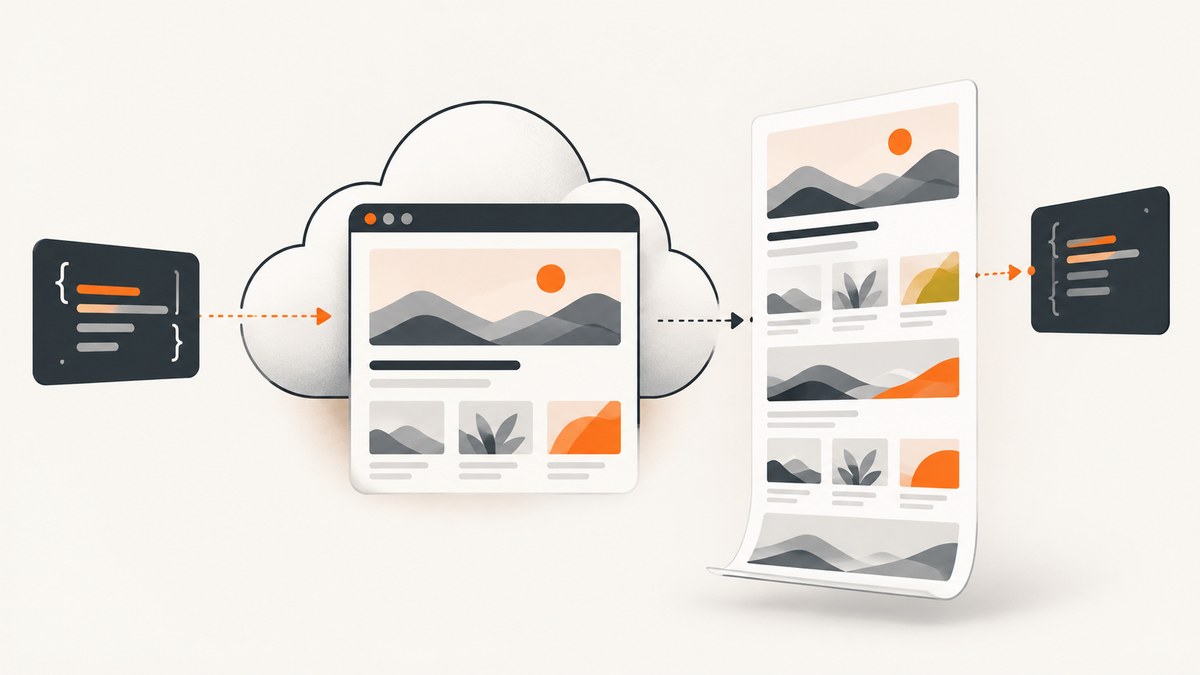
Firecrawl’s v2 Scrape API can capture a rendered website as a screenshot. Send a POST request to https://api.firecrawl.dev/v2/scrape, authenticate with a bearer API key, and include a screenshot object in formats. Set fullPage to true for the complete page or false for the viewport. Firecrawl returns a screenshot URL in the response.
curl -X POST https://api.firecrawl.dev/v2/scrape \
  -H 'Content-Type: application/json' \
  -H 'Authorization: Bearer fc-YOUR-API-KEY' \
  -d '{
    "url": "https://example.com",
    "formats": [
      {
        "type": "screenshot",
        "fullPage": true,
        "quality": 80,
        "viewport": {"width": 1280, "height": 800}
      }
    ]
  }'
The response contains a success field and a nullable data.screenshot URL. Always check both before saving the result. If you use screenshot actions, action results appear under data.actions.screenshots.
1. Create a basic Firecrawl screenshot request
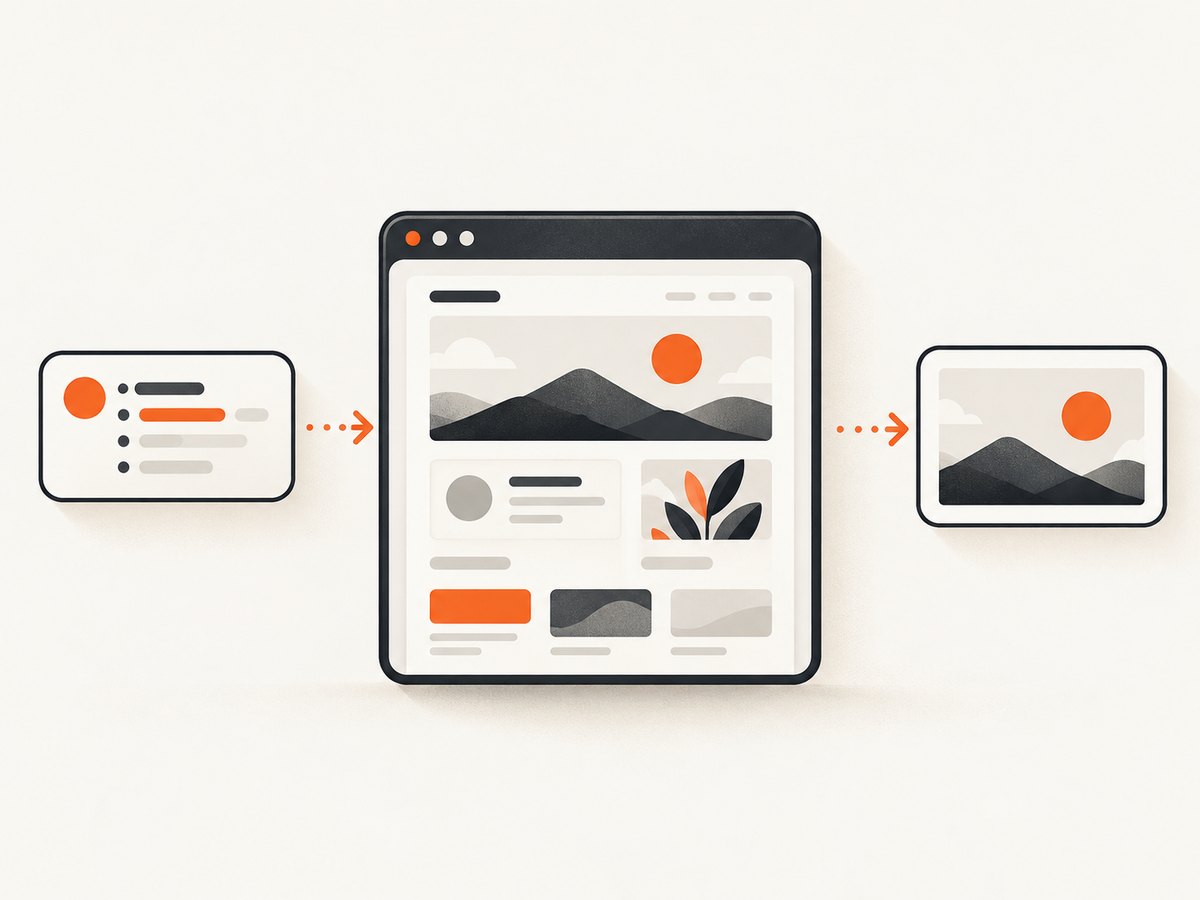
The smallest useful request supplies a URL and asks for the screenshot format. A viewport screenshot uses the browser’s visible area; a full-page screenshot expands through the complete rendered document.
curl -X POST https://api.firecrawl.dev/v2/scrape \
  -H 'Content-Type: application/json' \
  -H 'Authorization: Bearer fc-YOUR-API-KEY' \
  -d '{
    "url": "https://example.com",
    "formats": [{"type": "screenshot", "fullPage": false}]
  }'
Python with requests
import requests

payload = {
    "url": "https://example.com",
    "formats": [{
        "type": "screenshot",
        "fullPage": True,
        "quality": 85,
        "viewport": {"width": 1440, "height": 900}
    }]
}

response = requests.post(
    "https://api.firecrawl.dev/v2/scrape",
    headers={
        "Authorization": "Bearer fc-YOUR-API-KEY",
        "Content-Type": "application/json",
    },
    json=payload,
    timeout=90,
)
response.raise_for_status()
data = response.json()

if not data.get("success") or not data.get("data", {}).get("screenshot"):
    raise RuntimeError(f"No screenshot returned: {data}")

print(data["data"]["screenshot"])
Node.js with fetch
const payload = {
  url: 'https://example.com',
  formats: [{
    type: 'screenshot',
    fullPage: true,
    quality: 85,
    viewport: { width: 1440, height: 900 }
  }]
};

const response = await fetch('https://api.firecrawl.dev/v2/scrape', {
  method: 'POST',
  headers: {
    'Authorization': 'Bearer fc-YOUR-API-KEY',
    'Content-Type': 'application/json'
  },
  body: JSON.stringify(payload)
});

if (!response.ok) throw new Error(`HTTP ${response.status}`);
const result = await response.json();
const screenshot = result.data?.screenshot;
if (!result.success || !screenshot) throw new Error('Screenshot missing');
console.log(screenshot);
2. Choose full-page or viewport capture
| Setting | Result | Use it for |
|---|---|---|
fullPage: false |
The visible viewport only | Above-the-fold checks, responsive previews, hero sections |
fullPage: true |
The complete rendered page | Archives, visual regression, documentation, long-form pages |
A deterministic viewport prevents screenshots from changing because the browser size differs between runs. Supply both width and height in pixels.
{
  "url": "https://example.com/pricing",
  "formats": [{
    "type": "screenshot",
    "fullPage": true,
    "viewport": {"width": 1280, "height": 800},
    "quality": 90
  }]
}
quality controls image quality where supported. Use a lower value when transfer size matters and a higher value for visual review. Keep the viewport constant when comparing captures.
3. Capture a mobile layout
Set mobile: true and use a mobile-sized viewport to request mobile emulation. The Firecrawl guide demonstrates a 390×844 viewport. Location settings such as country and language can be supplied when a site changes content by region.
{
  "url": "https://example.com",
  "mobile": true,
  "location": {"country": "US", "languages": ["en-US"]},
  "formats": [{
    "type": "screenshot",
    "fullPage": false,
    "viewport": {"width": 390, "height": 844}
  }]
}
Some sites use the user agent instead of viewport dimensions to select mobile markup. If the page still renders its desktop version, provide a mobile user agent through headers.
{
  "url": "https://example.com",
  "headers": {
    "User-Agent": "Mozilla/5.0 (iPhone; CPU iPhone OS 17_0 like Mac OS X) AppleWebKit/605.1.15 Mobile/15E148 Safari/604.1"
  },
  "formats": [{
    "type": "screenshot",
    "viewport": {"width": 390, "height": 844}
  }]
}
4. Wait for JavaScript content
Single-page applications and lazy components may not be ready when the initial document loads. Firecrawl supports a top-level waitFor delay and sequential wait actions. Use a selector wait when a specific component signals readiness; use a fixed delay when the page has no reliable marker.
{
  "url": "https://example.com/dashboard",
  "waitFor": 3000,
  "formats": [{"type": "screenshot", "fullPage": true}]
}
For a selector or interaction sequence, use actions. Actions run in order, so this example clicks a consent control, waits for the content panel, then takes a screenshot.
{
  "url": "https://example.com/app",
  "actions": [
    {"type": "click", "selector": "button.accept"},
    {"type": "wait", "selector": "main[data-ready='true']"},
    {"type": "screenshot", "fullPage": true}
  ]
}
Other documented actions include scrolling, typing with write, pressing keys, scraping, executing JavaScript, and producing a PDF. The combined time spent in wait actions and waitFor must not exceed 60 seconds. Selector waits time out after 30 seconds. Treat these as API behavior limits and re-check the current Firecrawl documentation when you build long-running workflows.
5. Interact with a page before capture
Actions are useful when the desired state is hidden behind a menu, consent dialog, accordion, or lazy-loaded section. A typical sequence is:
- Open the target page.
- Click the control that reveals the content.
- Scroll if the site loads more content on demand.
- Wait for a selector or a short delay.
- Capture the screenshot.
{
  "url": "https://example.com/catalog",
  "actions": [
    {"type": "click", "selector": "button#show-all"},
    {"type": "scroll", "direction": "down", "amount": 900},
    {"type": "wait", "milliseconds": 1500},
    {"type": "screenshot", "fullPage": true}
  ]
}
Use stable selectors rather than generated class names. If an action is optional, make your workflow resilient to the control being absent; otherwise a harmless redesign can turn every capture into an error.
6. Return a screenshot and extracted content together
A single scrape can request machine-readable formats alongside the screenshot. This is useful when you store a visual artifact beside the page’s content or links.
{
  "url": "https://example.com/article",
  "formats": [
    "markdown",
    "links",
    "html",
    "rawHtml",
    {"type": "screenshot", "fullPage": true}
  ]
}
Keep the screenshot URL and extracted fields associated with the same request ID in your database. That makes it possible to identify which rendered state produced each artifact.
7. Handle the response safely
Do not assume an HTTP success status means an image exists. Validate the API’s success field and check that data.screenshot is a non-null URL.
const result = await response.json();
if (!result.success) {
  throw new Error(`Firecrawl request failed: ${JSON.stringify(result)}`);
}
if (typeof result.data?.screenshot !== 'string') {
  throw new Error('Firecrawl returned no screenshot URL');
}

// Download or enqueue result.data.screenshot according to your storage policy.
When you use an action-based screenshot, inspect data.actions.screenshots instead of assuming the top-level field is populated. Preserve the original JSON response during debugging; it usually contains the context needed to identify a failed action or missing output.
8. Use the Firecrawl Python SDK
The first-party Python example uses the firecrawl-py package and reads the returned document’s screenshot property. SDK method names and parameter casing can change, so pin and verify the package version against the current Firecrawl documentation.
from firecrawl import FirecrawlApp

firecrawl = FirecrawlApp(api_key="fc-YOUR-API-KEY")
doc = firecrawl.scrape(
    "https://example.com",
    formats=["screenshot"]
)

print(doc.screenshot)
9. Troubleshooting common failures
| Symptom | Likely cause | Fix |
|---|---|---|
| 401 or authentication error | Missing, malformed, or revoked bearer key | Send Authorization: Bearer fc-... and keep the key server-side. |
success is false |
The scrape or an action failed | Log the complete JSON response, verify the URL, and simplify actions one at a time. |
data.screenshot is null |
The requested output was not produced | Check success, inspect action results, and confirm that the screenshot format is present. |
| Blank or incomplete page | JavaScript, lazy loading, or an early capture | Wait for a readiness selector, add a bounded delay, or scroll before capture. |
| Selector wait times out | The selector never appears or differs on mobile | Confirm the selector in the target layout and use a realistic readiness marker. |
| Mobile screenshot looks desktop | The site relies on user-agent detection | Set mobile: true, use a mobile viewport, and provide a mobile user agent. |
| Consent dialog covers content | The page requires interaction before rendering the target state | Click the consent control before waiting and capturing. |
| Capture exceeds the time limit | Wait settings exceed documented limits | Keep combined waits under 60 seconds and selector waits under 30 seconds. |
10. Performance and reliability practices
- Choose the smallest capture: viewport screenshots transfer less data than full-page images.
- Set explicit dimensions: fixed width and height reduce visual drift between runs.
- Wait on state, not guesses: a readiness selector is usually more reliable than a long fixed delay.
- Keep action sequences short: every click, scroll, and wait adds another failure point.
- Retry carefully: retry transient HTTP or rendering failures with backoff, but do not blindly repeat a deterministic invalid selector.
- Record inputs: store URL, viewport, mobile setting, waits, actions, and response status with each artifact.
- Separate capture from persistence: enqueue the screenshot URL for download so a slow storage system does not hold the scrape request open.
- Control concurrency: use a bounded worker pool and respect the limits of your Firecrawl account and application.
Firecrawl’s documented wait limits are behavior constraints, not performance guarantees. The dossier does not establish benchmark numbers, uptime figures, rate limits, or pricing, so size your own workload from observed response times and the current service documentation.
11. Firecrawl versus running Playwright yourself
Firecrawl provides managed browser rendering through an API and can return screenshots together with extracted formats. Playwright gives you direct browser control, local file handling, and fine-grained interaction logic, but you own browser installation, lifecycle, infrastructure, and operational maintenance. Use Playwright when you need that level of control; use Firecrawl when a hosted scrape request and a screenshot URL fit your workflow.
12. Or skip the browser setup
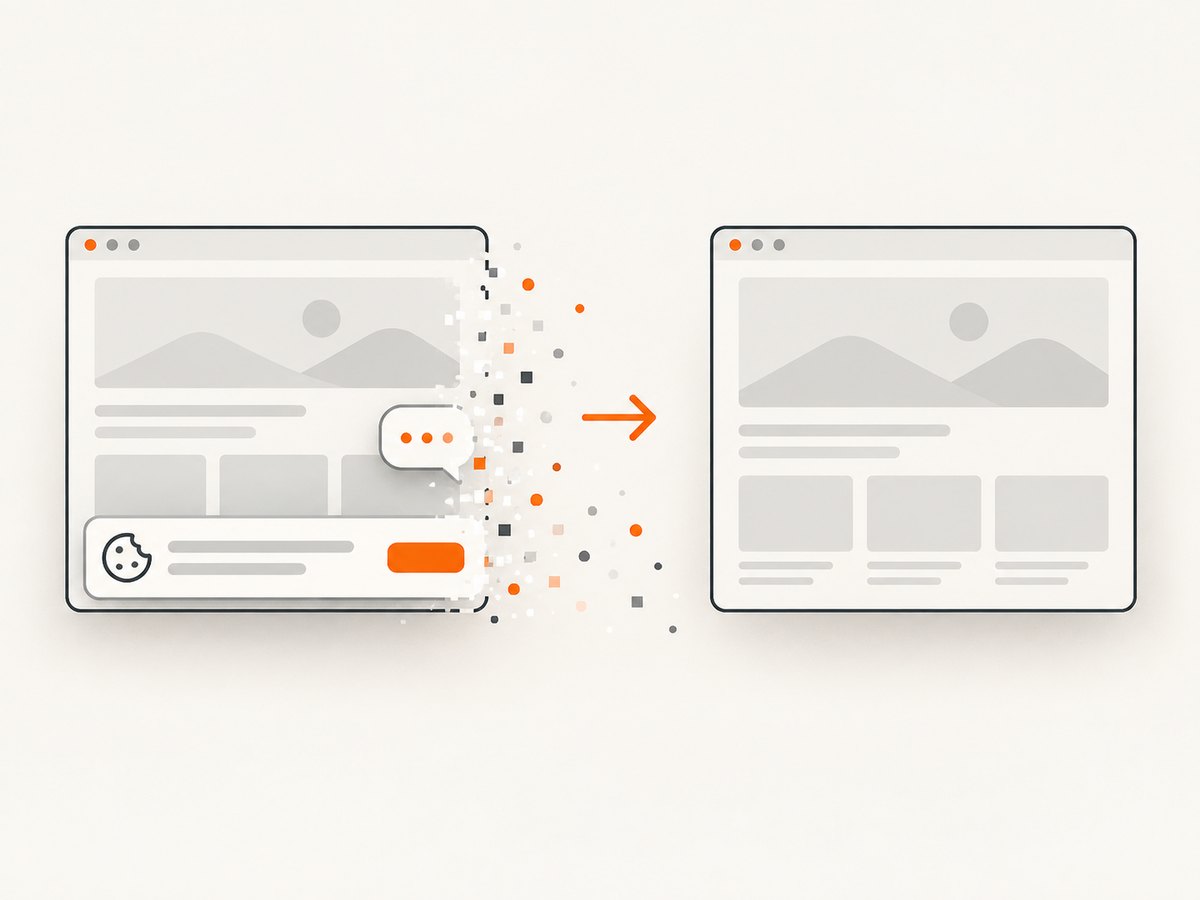
ScreenshotNeo is a website screenshot API and MCP server. It accepts one GET request and returns a PNG, JPEG, WebP, or PDF. Cookie and consent banners, newsletter popups, and chat widgets are removed before the shot. Bot checks, blank pages, timeouts, failed loads, and cache hits are not billed, and response headers identify the page verdict and billing result.
curl -G "https://api.screenshotneo.com/v1/shot" -d access_key=YOUR_API_KEY --data-urlencode url=https://stripe.com -o shot.webpimport requests
r = requests.get("https://api.screenshotneo.com/v1/shot", params={"access_key": "YOUR_API_KEY", "url": "https://stripe.com"}, timeout=90)
open("shot.webp", "wb").write(r.content)const q = new URLSearchParams({ access_key: 'YOUR_API_KEY', url: 'https://stripe.com' });
const res = await fetch(`https://api.screenshotneo.com/v1/shot?${q}`);See the ScreenshotNeo API documentation for the 63 capture options, including full-page and element capture, device presets, custom viewports, retina scale, PDF settings, custom CSS and JavaScript, clicks, waits, blocked resources, headers, cookies, authorization, timezone, geolocation, transparent backgrounds, resizing, caching, signed links, asynchronous webhooks, bulk capture, usage data, and the OpenAPI specification. Its MCP server includes take_screenshot, get_page_info, and capture_pdf for Claude, Cursor, and other MCP clients.
ScreenshotNeo offers 1,000 screenshots per month free with no card. Paid plans start at $5 for 3,000 shots; every feature is available on every plan. Create a free ScreenshotNeo account.
13. FAQ
Does Firecrawl return image bytes directly?
The documented response exposes a screenshot URL. Fetch or queue that URL according to your storage workflow.
Can I request a screenshot without full-page capture?
Yes. Set fullPage to false or omit it for a viewport-sized capture.
How do I know whether dynamic content was ready?
Wait for a selector that represents the ready state, then validate that the request succeeded and a screenshot URL is present.
Can one request include markdown and a screenshot?
Yes. Include markdown and the screenshot object together in formats.
When should I use an action instead of waitFor?
Use actions when the page needs a click, scroll, key press, script, or selector-based wait. Use waitFor for a simple fixed delay.
What should I do when a site changes its layout?
Prefer stable semantic selectors, log the response, and keep interaction steps isolated so you can identify which selector needs updating.


