How to Print Firefox Background Images to PDF With Selenium PrintOptions
Set Selenium’s Firefox PrintOptions background flag to include CSS background colors and images in a PDF, then troubleshoot print CSS and layout issues.
To include CSS background colors and images in a PDF printed from Firefox with Selenium Python, set PrintOptions.background = True and pass that object to driver.print_page(). Selenium returns the PDF as a Base64 string, so decode it before writing the file. This setting enables background printing for the print operation; the page’s print stylesheet and browser rendering still affect the final result.
1. Set up Selenium and Firefox
Install Selenium and make Firefox available in the environment where the script runs. Selenium’s Python API provides PrintOptions in selenium.webdriver.common.print_page_options, and the WebDriver API exposes print_page(print_options=None) for printing the current page to PDF. See the Python PrintOptions API and Selenium WebDriver API.
- Install Selenium in the Python environment used by your script:
python -m pip install selenium. - Ensure Firefox is installed and can be launched by the account running the script.
- Navigate to the target page and wait for it to render before printing, especially if its content is populated asynchronously.
- Set the background option, call
print_page, decode the result, and close the driver.
2. Complete Python example
import base64
from pathlib import Path

from selenium import webdriver
from selenium.webdriver.common.print_page_options import PrintOptions

url = "https://example.com"
output_path = Path("page.pdf")

driver = webdriver.Firefox()
try:
    driver.get(url)

    print_options = PrintOptions()
    print_options.background = True
    print_options.shrink_to_fit = True

    pdf_base64 = driver.print_page(print_options)
    output_path.write_bytes(base64.b64decode(pdf_base64))
finally:
    driver.quit()

print(f"Saved PDF to {output_path.resolve()}")
background is the setting that requests printing background colors and images. shrink_to_fit asks Selenium to scale content to fit the printable page area; it can help with wide layouts but may reduce the size of text and graphics. The API also exposes layout options including page size, scale, margins, and page ranges. Consult the Python PrintOptions reference for the installed Selenium version’s supported properties.
Make the output path and browser lifecycle explicit
The example uses try/finally so Firefox closes even if navigation, printing, decoding, or file writing raises an exception. The output is written as bytes, which preserves the PDF data. In a service or batch job, use a unique output filename per URL or job to avoid overwriting earlier captures.
For a local page, provide a file URL or serve the page over HTTP in the environment where Firefox runs. A remote Selenium setup may run Firefox on another machine or container; in that case, the output returned by print_page is still handled by the Python client, but the browser’s network access, fonts, certificates, and installed Firefox version belong to the remote environment.
3. What the background option does
The print background option is intended to include CSS background colors and images in the PDF. It is distinct from an ordinary image element such as <img>: this setting concerns print backgrounds. A CSS declaration such as background-image: url(...) may be printed when backgrounds are enabled, subject to page styles and browser rendering. The technical reference describes the background setting as controlling background color and image printing and identifies false as the default; see the Selenium Java PrintOptions API for the equivalent API description.
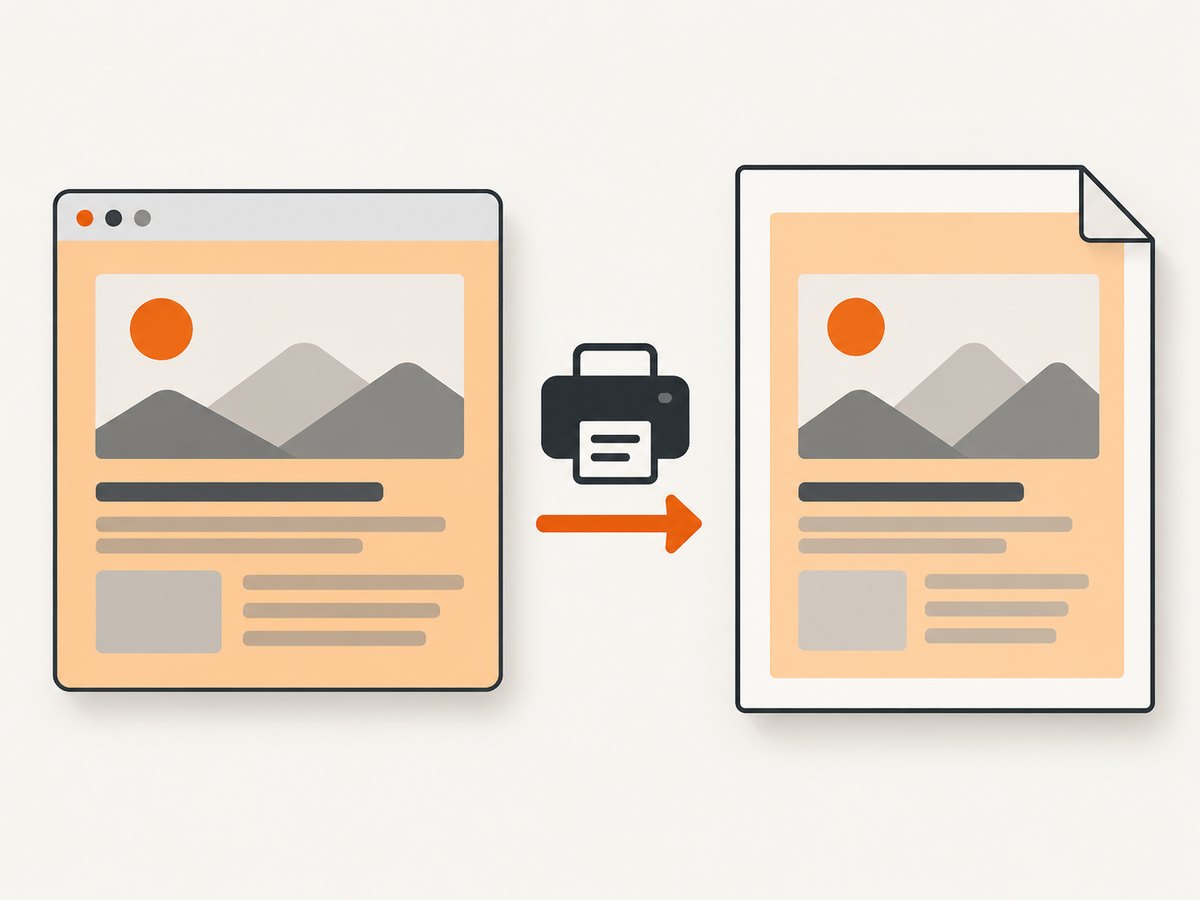
Enabling the option does not rewrite the page’s CSS or guarantee that every background asset will render. A print stylesheet can remove a background, hide its element, or replace the screen layout. Network failures, late-loading resources, and browser or driver differences can also affect the result. Treat the PDF as the output of both the print command and the page’s print rendering behavior.
Check print CSS when a background is missing
Search the site stylesheets for @media print and inspect rules applied to the element that owns the background. Look for rules that set background or background-image to none, hide the element, change its dimensions, or replace the screen layout. Also check whether the image is applied to a different element in print mode.
/* Example: a print rule that removes backgrounds */
@media print {
  .hero {
    background: none;
  }
}
If you own the page and want the background in print, remove or adjust the conflicting print rule. Avoid changing page CSS blindly when the page belongs to another site; first confirm the same URL and content are being rendered.
4. Firefox’s manual PDF controls as a diagnostic
Firefox’s print preview provides a useful manual comparison. Open the same page in Firefox, choose Save to PDF, and under More settings enable Print backgrounds. Keep the format set to Original while comparing: Mozilla says choosing Simplified prevents selecting Print backgrounds. Firefox also exposes paper size, scale, page ranges, margins, and headers and footers. Refer to Mozilla’s Firefox printing guidance.
This is a diagnostic comparison, not proof that Selenium’s automated output is correct. If manual Firefox output includes the background and Selenium output does not, record the Firefox, geckodriver, Selenium, and page versions, then compare the print settings and inspect print-specific CSS.
5. Tune PDF layout without losing the background
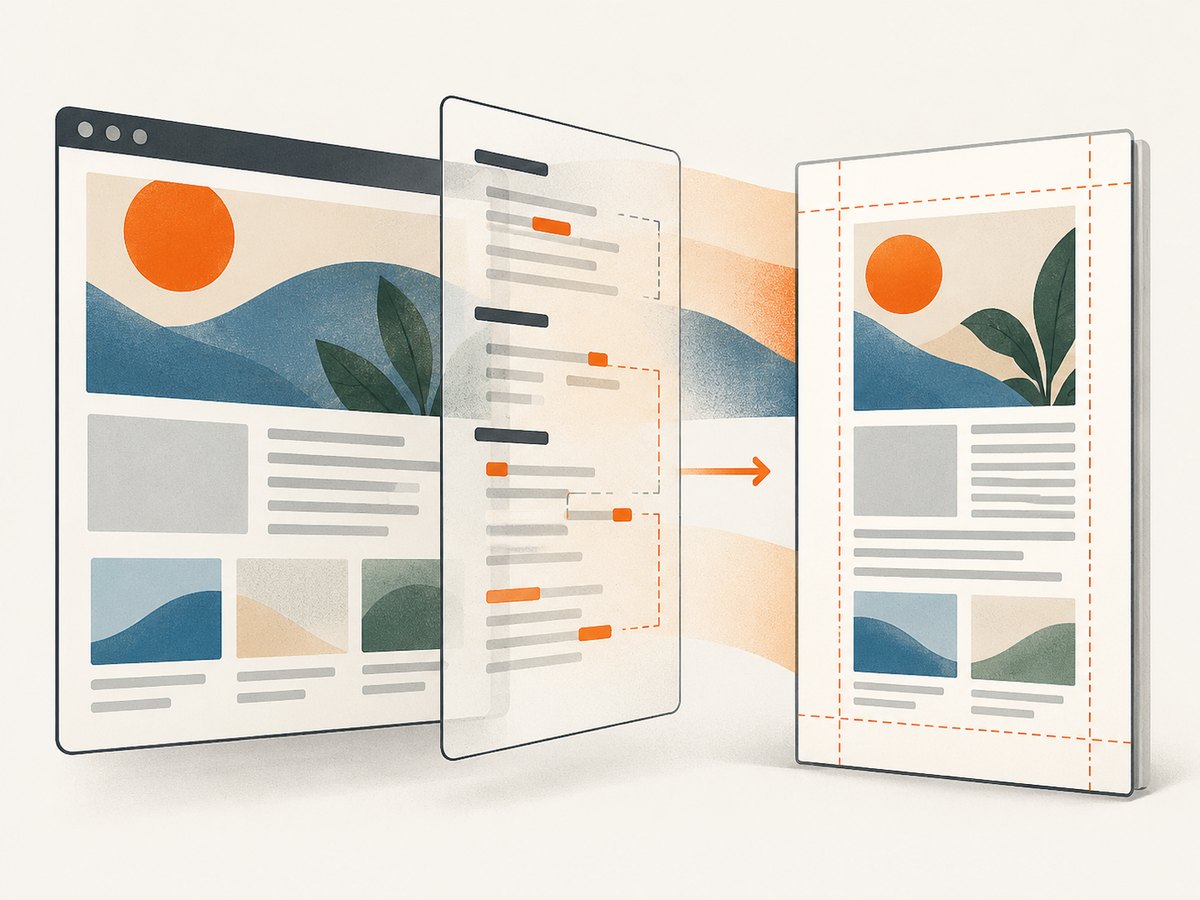
If the background prints but is clipped, shifted, or scaled unexpectedly, adjust page layout settings. Selenium’s print options include controls such as paper size, margins, scale, page ranges, orientation, and shrink-to-fit across its language APIs. Change one variable at a time and inspect the resulting PDF; a layout adjustment can move or resize the content without changing whether backgrounds are enabled.
| Symptom | Setting or page behavior to inspect |
|---|---|
| Edges are cut off | Paper size, margins, orientation, and content width |
| Content is too small | Scale and shrink-to-fit; a wide page may be reduced to fit |
| Only some pages appear | Page-range configuration and whether the content spans more pages than expected |
| Background is absent throughout | background = True, print CSS, and Firefox’s print rendering |
| Background appears in the wrong position | Element dimensions, print layout rules, margins, and scale |
Keep the page size and margins appropriate to the content. Shrink-to-fit can prevent overflow, but it may make the entire document harder to read. If exact placement matters, define a print stylesheet for the page and use consistent print settings in each run.
6. Other Selenium language APIs
The title and runnable workflow here use Selenium Python. The same general setting is available in other Selenium bindings, although method and property names differ. Use the documentation for the binding and version installed in your project.
Java
import org.openqa.selenium.print.PrintOptions;
import org.openqa.selenium.print.Pdf;
import org.openqa.selenium.print.PrintsPage;

PrintOptions options = new PrintOptions();
options.setBackground(true);

Pdf pdf = ((PrintsPage) driver).print(options);
// Write pdf.getContent() to a file using your project’s byte-writing method.
The Java API documents setBackground(true) and also exposes print layout settings such as page ranges, page size, margins, scale, and shrink-to-fit. See the Java PrintOptions API and PrintsPage API. The snippet assumes driver is a Firefox WebDriver that supports printing; the PDF content-writing step depends on the application’s file-handling conventions.
.NET
Selenium’s .NET API documents OutputBackgroundImages as the property controlling whether background images are printed. Check the version-specific .NET PrintOptions API for the exact setup and print call in your project.
7. Troubleshooting common failures
| Problem | Likely cause | Fix |
|---|---|---|
| PDF has no CSS background | The option was not enabled, or print CSS removes the background or hides its element. | Set background = True; inspect @media print; compare with Firefox preview using Original format and Print backgrounds. |
| Background is missing only in automated output | Firefox, geckodriver, Selenium, page version, or print rendering differs from the manual setup. | Record the versions and compare the same URL and page state. Reproduce with a stable page and inspect the generated PDF. |
| PDF contains the wrong page state | Printing began before navigation or asynchronous content finished. | Wait for a page-specific element or a known completion condition before calling print_page. |
| PDF is blank or incomplete | The page failed to load fully, a resource was unavailable, or the browser printed before content was ready. | Check navigation errors and browser logs, verify the page in Firefox, and wait for the content required in the PDF. |
| Text or backgrounds are clipped | Paper size, orientation, margins, scale, or page width does not suit the content. | Adjust one layout option at a time; check the page’s print CSS and consider shrink-to-fit for oversized content. |
Python cannot import PrintOptions |
The installed Selenium version or import path differs from the code’s expected API. | Check the installed Selenium version and its matching Python API documentation, then update the import and option usage accordingly. |
| Firefox does not launch in CI | Firefox may be missing, unavailable to the process account, or incompatible with the configured driver environment. | Confirm Firefox is installed and launchable in that environment; record Firefox, geckodriver, and Selenium versions when investigating. |
Do not assume that an <img> element and a CSS background have identical print behavior. The print background option addresses backgrounds; if an ordinary image element is missing, inspect its loading state, print CSS, and dimensions separately.
8. Reliability, performance, and cost considerations
For repeatable PDF output, pin or record the browser, driver, Selenium, and page versions, use the same print options in each environment, and ensure the page reaches the state you intend to capture. A page that depends on remote fonts, third-party backgrounds, or delayed scripts can produce different results when those resources load differently. Capture failures should be surfaced to the caller rather than silently treated as valid PDFs.
Print work consumes browser time and resources, especially when each job launches a fresh Firefox process or pages load many assets. Reuse browser sessions where appropriate to reduce startup overhead, but isolate jobs when state, cookies, or failures could contaminate later captures. Set timeouts consistent with your workload, and always quit the driver in a cleanup path. The dossier provides no benchmark figures, so performance should be measured on the pages and environment you plan to run.
The Selenium method uses your own browser and compute environment; costs therefore depend on that infrastructure and any services used to run it. Keep an eye on concurrency, memory, and job duration in CI or a capture service. A failed page load or an unexpectedly large PDF can increase runtime even when the resulting artifact is unusable.
9. Or skip the browser setup
If your task is capturing a website as a PDF rather than controlling Firefox’s print pipeline, ScreenshotNeo provides a website screenshot API and MCP server. Its API can return a PDF with one request; see the ScreenshotNeo API documentation for parameters and configuration. This is a separate capture route, so it does not expose Selenium’s Firefox PrintOptions.
curl -G "https://api.screenshotneo.com/v1/shot" \
  -d access_key=YOUR_API_KEY \
  --data-urlencode url=https://stripe.com \
  -d format=pdf \
  -o page.pdf
ScreenshotNeo removes cookie and consent banners, newsletter popups, and chat widgets before a shot. Bot checks, blank pages, and failed loads are never billed. Its MCP server lets AI agents use the take_screenshot, get_page_info, and capture_pdf tools. The free plan includes 1,000 screenshots each month with no card; paid plans start at $5 for 3,000 shots.
Create a free ScreenshotNeo account to get 1,000 screenshots a month with no card.
10. FAQ
Does background = True change the website’s CSS?
No. It configures the print operation to include backgrounds; the page’s own print styles still apply.
Can this setting force a background image to load?
No. It controls print background handling, not resource availability. Confirm the asset loads and the element remains visible in print layout.
Should I use Firefox’s Simplified format for comparison?
No. Mozilla says Simplified format prevents selecting Print backgrounds. Compare with Format set to Original.
Where can I find the equivalent outside Python?
Selenium documents setBackground(true) for Java and OutputBackgroundImages for .NET. Confirm details against the binding version used by your project.


