How to Create a Firefox Bookmarklet for Selector-Based Screenshots
Build a Firefox bookmarklet that captures any CSS-selected element with html2canvas, then compare it with Firefox’s native tools and ScreenshotNeo.
Yes. A Firefox bookmarklet can ask for a CSS selector, find the matching element, load html2canvas, render the element, and download a PNG. The result is a DOM-based reconstruction, so it can differ from a native browser screenshot when CSS, fonts, filters, video, canvas content, or cross-origin images are involved.
What you will build
The bookmarklet below:
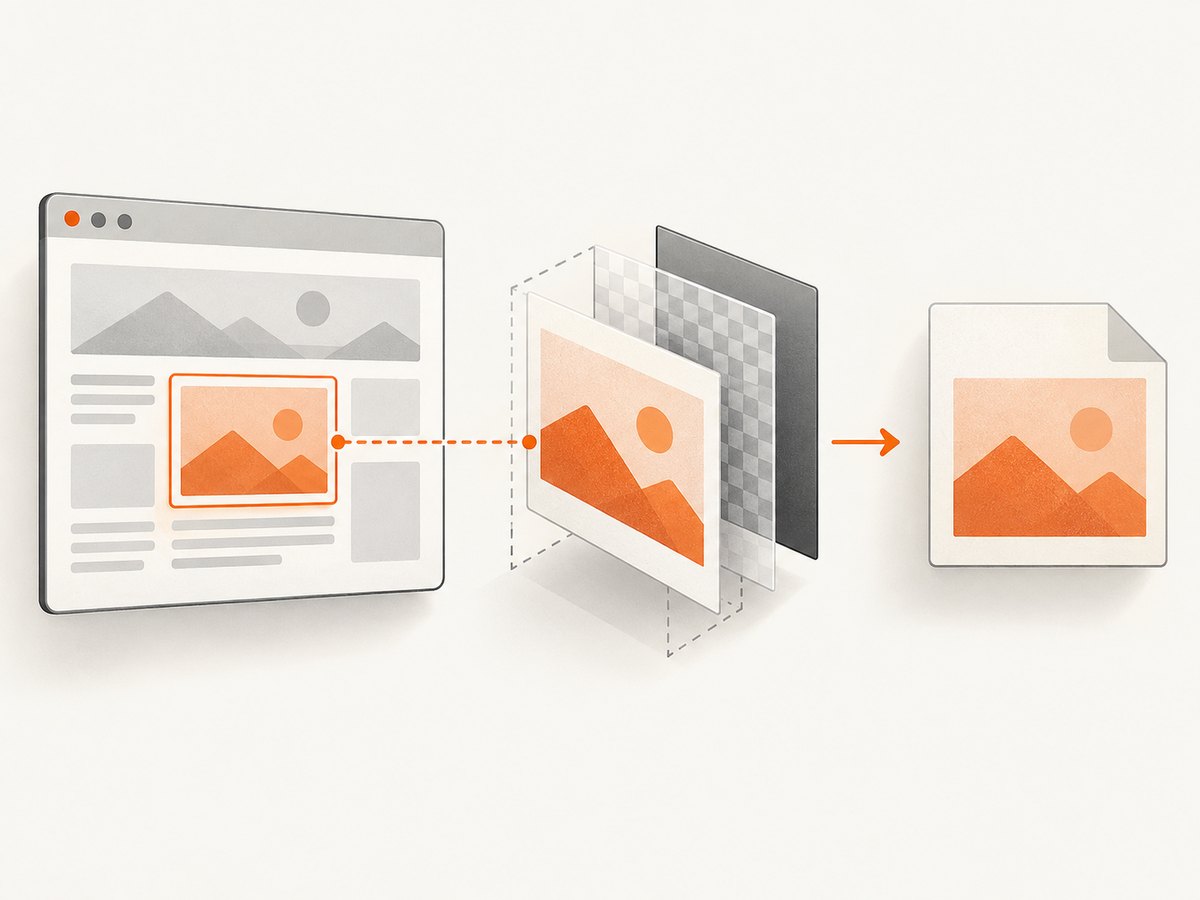
- prompts for a CSS selector such as
#contentorarticle.hero; - requires exactly one matching element;
- loads html2canvas only when it is not already present;
- uses the device pixel ratio for sharper output;
- enables CORS requests for images when the image server permits them; and
- downloads
element-screenshot.png.
1. Create the bookmarklet
- Open Firefox’s bookmarks manager or bookmark toolbar and create a new bookmark.
- Give it a name such as
Capture element. - Paste the JavaScript below into the bookmark’s URL or location field.
- Save the bookmark. If Firefox removes the
javascript:prefix when you paste it, type that prefix again manually at the beginning of the URL.
javascript:(async()=>{
  const selector=prompt('CSS selector to capture:','#content');
  if(!selector)return;
  const matches=document.querySelectorAll(selector);
  if(matches.length!==1){
    alert(matches.length===0
      ? 'No element matched: '+selector
      : 'Selector matched '+matches.length+' elements. Refine it so exactly one element matches.');
    return;
  }
  const el=matches[0];
  if(!window.html2canvas){
    await new Promise((resolve,reject)=>{
      const s=document.createElement('script');
      s.src='https://html2canvas.github.io/html2canvas/dist/html2canvas.min.js';
      s.onload=resolve;
      s.onerror=()=>reject(new Error('Could not load html2canvas'));
      document.head.appendChild(s);
    });
  }
  const canvas=await html2canvas(el,{
    scale:window.devicePixelRatio,
    useCORS:true
  });
  const a=document.createElement('a');
  a.download='element-screenshot.png';
  a.href=canvas.toDataURL('image/png');
  a.click();
})().catch(e=>alert('Capture failed: '+e.message));
Visit the page you want to capture, click the bookmark, enter the selector, and choose the downloaded PNG. The script is wrapped in an async immediately invoked function expression, so its variables do not leak into the page.
2. Find a reliable CSS selector in Firefox
- Open Firefox Developer Tools with F12 or Ctrl/Cmd+Shift+I.
- Open the Inspector and activate the node picker.
- Click the element you want to capture.
- Prefer a stable ID, data attribute, or semantic class over a generated framework class.
- Run
document.querySelectorAll('your selector').lengthin the Console to confirm that the count is exactly one.
Examples:
#content
article[data-post-id='42']
main .pricing-card.featured
[data-testid='invoice-preview']
querySelector returns the first match, which can hide a selector mistake. This bookmarklet deliberately checks querySelectorAll first and stops when the selector matches zero or multiple nodes. Refine the selector instead of silently capturing the wrong card or repeated list item.
3. How the rendering options work
| Option | Purpose | Limit |
|---|---|---|
scale |
Multiplies the canvas resolution. window.devicePixelRatio keeps output sharp on Retina displays. |
Higher values use more memory and take longer. |
useCORS |
Asks html2canvas to request images with CORS enabled. | It works only when the image server sends an allowing CORS header. |
backgroundColor |
Sets a fallback background, for example '#ffffff'. |
Use null when you need transparency and the page supports it. |
windowWidth/windowHeight |
Controls the virtual viewport used while cloning the document. | It does not turn the bookmarklet into a full browser viewport capture. |
logging |
Enables html2canvas diagnostic logging. | Useful while debugging, noisy in normal use. |
For example, this Console version adds a white background and logging:
html2canvas(document.querySelector('#content'), {
  scale: window.devicePixelRatio,
  useCORS: true,
  backgroundColor: '#ffffff',
  logging: true
}).then(canvas => console.log(canvas));
4. What html2canvas can and cannot reproduce
html2canvas does not take pixels from Firefox’s compositor. Its documentation explains that the screenshot is based on the DOM and “may not be 100% accurate to the real representation” because it builds the image from information available on the page. It can render properties it understands, but unsupported CSS can produce a different result.
Expect differences with:
- cross-origin images without an appropriate
Access-Control-Allow-Originresponse; - CSS filters, blend modes, complex masks, and some pseudo-elements;
- web fonts that have not finished loading;
- videos, WebGL, and content drawn by another canvas;
- sticky or fixed elements whose position changes during cloning;
- animations and transitions captured between frames; and
- very large elements that exceed the browser’s canvas or memory limits.
useCORS:true is not a bypass for cross-origin security. If an image is fetched without permission, drawing it can taint the canvas, and toDataURL() may fail. The image server must opt in, or you must use a same-origin proxy.
5. Capture several matching elements
The bookmarklet promises one target per run. To capture every match, replace the single-element section with a loop and create one download per canvas:
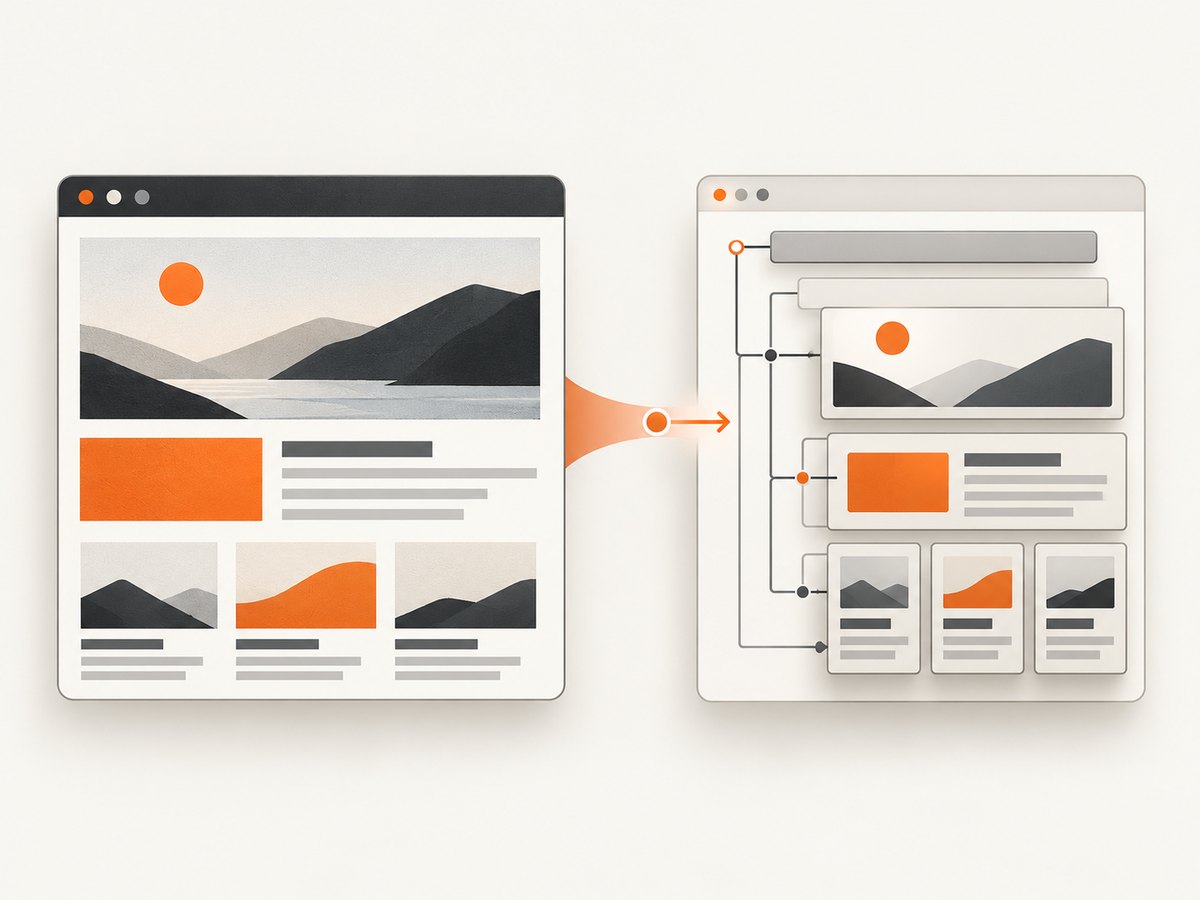
const elements=[...document.querySelectorAll('.card')];
if(!elements.length) throw new Error('No cards matched');
for(let i=0;i<elements.length;i++){
  const canvas=await html2canvas(elements[i],{scale:devicePixelRatio,useCORS:true});
  const a=document.createElement('a');
  a.download=`card-${i+1}.png`;
  a.href=canvas.toDataURL('image/png');
  a.click();
}
Browsers may block a burst of downloads. For many elements, combine the canvases into one document or download them one at a time after a user gesture.
6. Native Firefox alternatives
When pixel fidelity matters more than a reusable script, Firefox’s built-in tools are simpler:
- In the Inspector’s HTML pane, open an element’s context menu and choose Screenshot Node. Mozilla documents this as the browser-level way to capture one node.
- Firefox’s screenshot UI can capture a selected region, an automatically highlighted page part, the visible page, or the full page.
- Firefox’s command-line screenshot support includes a
--selectoroption for one CSS-selected element, along with delay and device-pixel-ratio controls.
| Need | Bookmarklet | Native Firefox |
|---|---|---|
| Repeatable selector workflow | Strong: save once and run on matching pages | Manual each time |
| Rendering fidelity | DOM reconstruction | Browser-level pixels |
| Cross-origin images | Requires CORS or a proxy | Usually works because Firefox owns the page render |
| Installation | Create one bookmark and load a library | No code |
| Automation | Can be adapted and extended | Best for occasional captures |
7. Troubleshooting
The bookmark does nothing
Check that the bookmark URL starts with javascript:. Firefox can strip that prefix during paste. Edit the bookmark and type it again.
“No element matched” appears
The selector is invalid for the current page, the element is inside an iframe, or the page has not rendered it yet. Confirm the selector in the Inspector and Console. An element inside a cross-origin iframe cannot be queried from the top page because of the same-origin policy; run the bookmarklet in the iframe’s own document when permitted.
The selector matched multiple elements
Add an ID, an attribute, a parent-child relationship, or an :nth-of-type() qualifier. Check the count with document.querySelectorAll(selector).length.
“Could not load html2canvas” appears
The page, network, or content-security policy blocked the external script. Try a page that permits the script, load html2canvas from a source you control, or use Firefox’s native Screenshot Node command.
The output is blank or missing images
Wait until lazy content and fonts finish loading, scroll the target into view, and retry. For images, verify that the server sends CORS headers. A canvas containing disallowed cross-origin pixels cannot be read safely.
The screenshot looks different from the page
This is expected for unsupported CSS, animations, filters, video, and DOM reconstruction. Freeze animations with custom CSS, wait for fonts, choose a native Firefox capture, or use a browser screenshot service that captures the rendered page.
The browser reports a canvas size or memory error
Reduce scale, capture a smaller element, or split a long page into sections. A device-pixel ratio of 3 can create nine times as many pixels as a scale of 1.
8. Performance and reliability checklist
- Use the smallest target element that answers your need.
- Run after the page’s async data, fonts, and images have loaded.
- Keep
scaleat1for fast previews and use the device pixel ratio for final images. - Do not repeatedly inject html2canvas; the bookmarklet checks
window.html2canvasfirst. - Expect different output when responsive breakpoints, zoom, or device pixel ratio changes.
- For repeatable jobs, record the URL, selector, viewport, scale, and page state alongside each image.
Or skip the browser setup
ScreenshotNeo provides a one-request screenshot API when you need repeatable captures from code or CI. Its selector option can capture one element, while full-page capture loads lazy images. Cookie and consent banners, newsletter popups, and chat widgets are removed before the shot. Bot checks, blank pages, failed loads, timeouts, and cache hits are not billed, and the response identifies the result with X-Page-Verdict and X-Billed headers. ScreenshotNeo also has an MCP server with take_screenshot, get_page_info, and capture_pdf tools for Claude, Cursor, and other MCP clients.
See the ScreenshotNeo API documentation for all options. This is a complete one-call example:
curl -G "https://api.screenshotneo.com/v1/shot" \
  -d access_key=YOUR_API_KEY \
  --data-urlencode url=https://stripe.com \
  -d selector='#content' \
  -o shot.webp
import requests
r = requests.get(
'https://api.screenshotneo.com/v1/shot',
params={
'access_key': 'YOUR_API_KEY',
'url': 'https://stripe.com',
'selector': '#content',
},
timeout=90,
)
r.raise_for_status()
open('shot.webp', 'wb').write(r.content)const q = new URLSearchParams({
access_key: 'YOUR_API_KEY',
url: 'https://stripe.com',
selector: '#content'
});
const res = await fetch(`https://api.screenshotneo.com/v1/shot?${q}`);
if (!res.ok) throw new Error(`HTTP ${res.status}`);
require('fs').writeFileSync('shot.webp', Buffer.from(await res.arrayBuffer()));Every plan includes every feature. The free plan includes 1,000 screenshots per month with no card; paid plans start at $5 for 3,000 shots. Create a free ScreenshotNeo account.
FAQ
Can a bookmarklet capture a cross-origin iframe?
Not from the parent page. Browser same-origin rules prevent the script from reading a cross-origin iframe’s DOM.
Does html2canvas create a native screenshot?
No. It reconstructs an image from the DOM and styles it can read.
Why use a selector prompt instead of embedding the selector?
Prompting avoids escaping quotes and backslashes inside the bookmarklet URL and lets one bookmark work on many pages.
When should I choose Firefox’s Screenshot Node?
Choose it when you need the browser’s rendered pixels and only occasional manual captures.
Can I download JPEG or WebP instead of PNG?
Yes. Replace canvas.toDataURL('image/png') with canvas.toDataURL('image/jpeg',0.9) or the supported WebP MIME type. PNG is safest for transparency and text.


