How to Build a Firefox Extension for Desktop Screenshots
Build a Firefox WebExtension that captures the visible tab, saves PNGs, handles permissions, adds shortcuts, and avoids common capture failures.
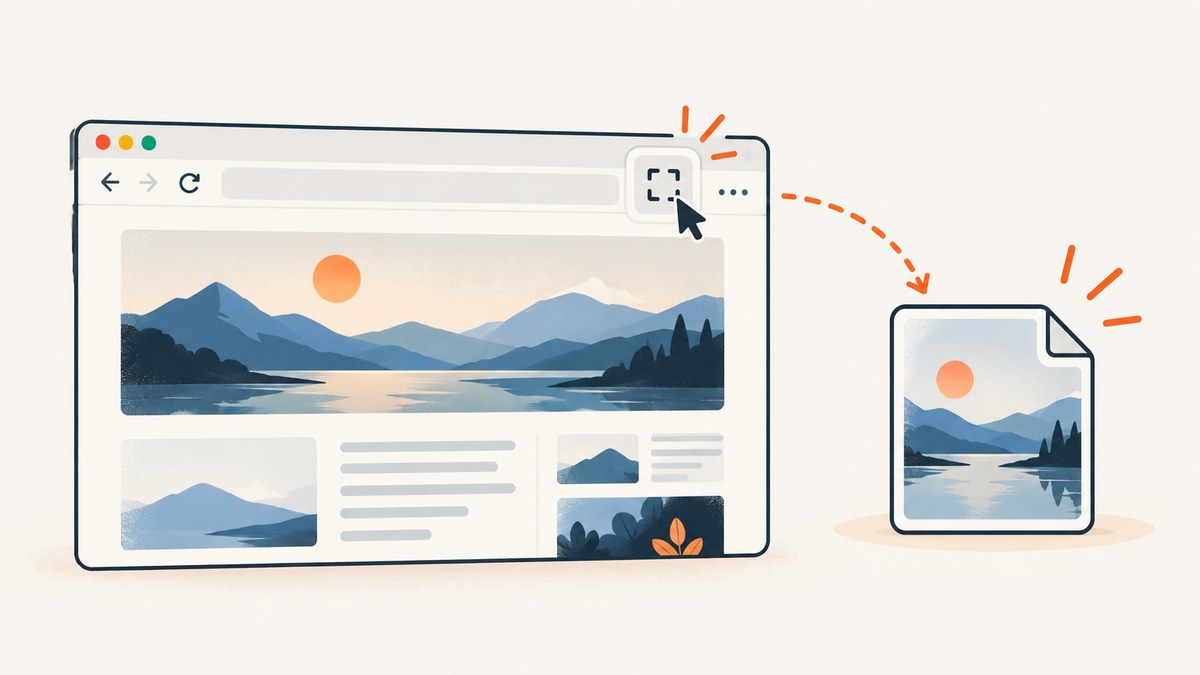
Short answer: build a Manifest V3 WebExtension with an action or keyboard command. In the user-action handler, call browser.tabs.captureVisibleTab(), which returns a Promise containing an image data URL, then pass that URL to browser.downloads.download() to save a PNG. For a user-triggered current-tab workflow, activeTab is the narrowest useful permission.
This guide builds a working extension, explains every permission and capture option, shows toolbar and keyboard workflows, and covers testing, packaging, failures, performance, and alternatives.
1. What Firefox can capture
tabs.captureVisibleTab() captures the visible area of the active tab in a window and fulfills with a data URL. It is a viewport screenshot: content below the fold is not included. Browser chrome, other applications, and tabs that are not visible are outside the API’s target.
| Requirement | Implementation |
|---|---|
| Capture the current visible tab | browser.tabs.captureVisibleTab() |
| Allow a user-clicked extension to access that tab | activeTab |
| Save the returned image | downloads permission plus browser.downloads.download() |
| Trigger from the toolbar | action.onClicked |
| Trigger from a shortcut | commands and commands.onCommand |
| Annotate or select page elements | Content script plus messaging; use activeTab or host permissions |
See the MDN captureVisibleTab reference, MDN permissions reference, and MDN downloads API for the current Firefox behavior.
2. Create the smallest working extension
Project layout
screenshot-extension/
  manifest.json
  background.js
  icons/
    icon-48.png
manifest.json
{
  "manifest_version": 3,
  "name": "Desktop Screenshot",
  "version": "1.0.0",
  "description": "Capture the visible Firefox tab.",
  "permissions": ["activeTab", "downloads"],
  "background": {
    "scripts": ["background.js"]
  },
  "action": {
    "default_title": "Capture screenshot"
  },
  "icons": {
    "48": "icons/icon-48.png"
  }
}manifest_version, name, and version are required metadata. The background script listens for the toolbar action. Check the current Firefox Manifest V3 guidance before publishing because supported background and action details can change.
background.js
browser.action.onClicked.addListener(async () => {
  try {
    // Call capture directly from the user-action handler.
    const dataUrl = await browser.tabs.captureVisibleTab(undefined, {
      format: "png"
    });

    await browser.downloads.download({
      url: dataUrl,
      filename: `firefox-screenshot-${Date.now()}.png`,
      saveAs: true
    });
  } catch (error) {
    console.error("Screenshot failed", error);
  }
});
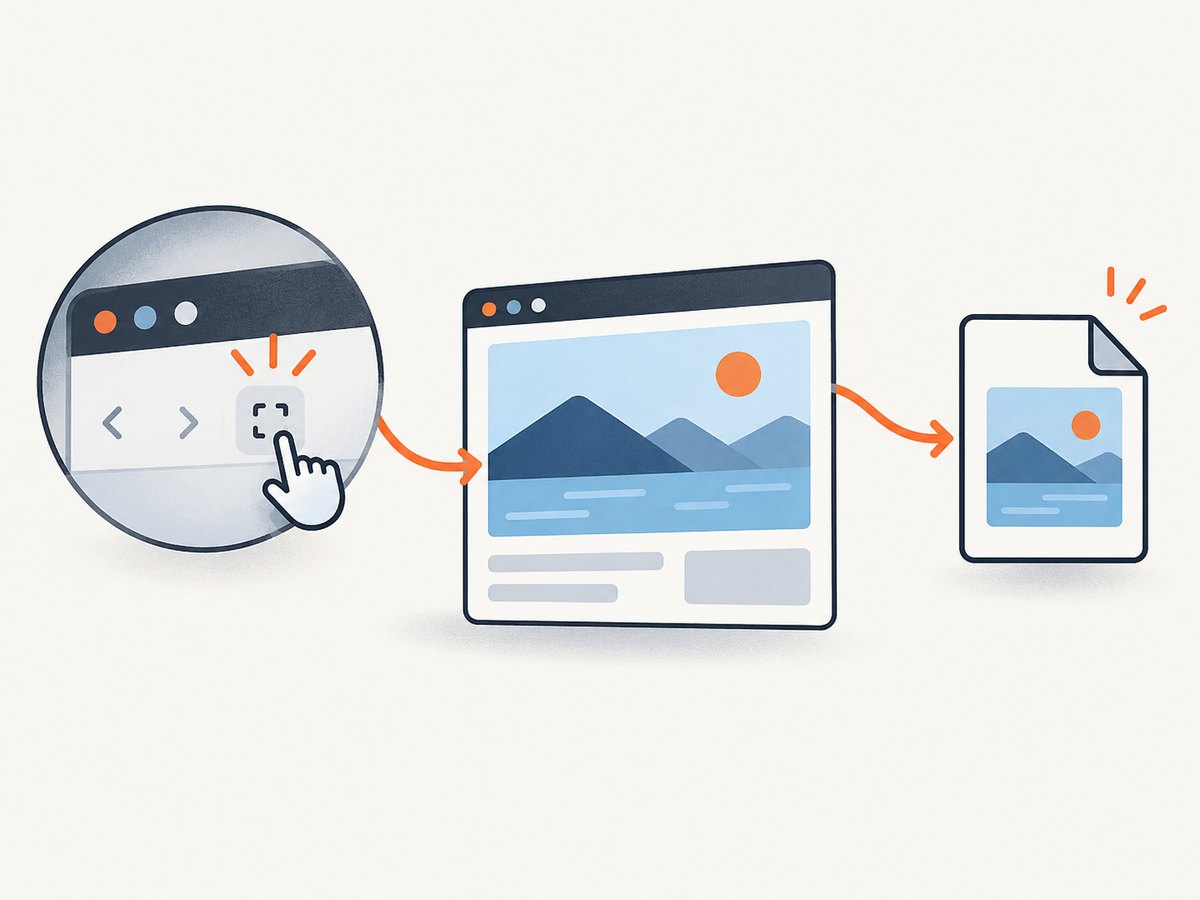
Click the extension’s toolbar button. Firefox captures the visible tab, opens the download prompt, and saves the data URL as a PNG.
3. Add JPEG or WebP output
The optional image details object controls the output format and, where supported by Firefox, quality. Keep the filename extension consistent with the requested format.
const dataUrl = await browser.tabs.captureVisibleTab(undefined, {
  format: "jpeg",
  quality: 85
});

await browser.downloads.download({
  url: dataUrl,
  filename: `firefox-screenshot-${Date.now()}.jpg`,
  saveAs: true
});
PNG is lossless and best for text or UI. JPEG is smaller for photographs but introduces compression artifacts. If you request a format that your target Firefox version does not support, catch the rejected Promise and show a useful error.
4. Add a keyboard shortcut
Declare a command in the manifest and handle it in the background script. The command handler should start the capture immediately rather than waiting for unrelated asynchronous work.
{
  "manifest_version": 3,
  "name": "Desktop Screenshot",
  "version": "1.0.0",
  "permissions": ["activeTab", "downloads"],
  "background": { "scripts": ["background.js"] },
  "action": { "default_title": "Capture screenshot" },
  "commands": {
    "capture-visible-tab": {
      "suggested_key": {
        "default": "Ctrl+Shift+S",
        "mac": "MacCtrl+Shift+S"
      },
      "description": "Capture the visible tab"
    }
  }
}
async function captureAndSave() {
try {
const dataUrl = await browser.tabs.captureVisibleTab();
await browser.downloads.download({
url: dataUrl,
filename: `firefox-screenshot-${Date.now()}.png`,
saveAs: true
});
} catch (error) {
console.error("Screenshot failed", error);
}
}
browser.action.onClicked.addListener(captureAndSave);
browser.commands.onCommand.addListener((command) => {
if (command === "capture-visible-tab") {
captureAndSave();
}
});Users can change shortcuts at about:addons → the gear menu → Manage Extension Shortcuts. A shortcut is still a user action, but Firefox may reject capture on a restricted page.
5. Use a popup for preview and controls
A popup is useful when users need format choices or a preview. Keep privileged capture and download calls in the background script; send a message from the popup.
<!-- popup.html -->
<button id="capture">Capture visible tab</button>
<select id="format">
  <option value="png">PNG</option>
  <option value="jpeg">JPEG</option>
</select>
<script src="popup.js"></script>
// popup.js
const button = document.querySelector("#capture");
const format = document.querySelector("#format");
button.addEventListener("click", async () => {
const result = await browser.runtime.sendMessage({
type: "capture",
format: format.value
});
if (!result.ok) {
button.textContent = result.error;
}
});// Add this listener to background.js
browser.runtime.onMessage.addListener(async (message) => {
if (message.type !== "capture") return;
try {
const extension = message.format === "jpeg" ? "jpg" : "png";
const dataUrl = await browser.tabs.captureVisibleTab(undefined, {
format: message.format
});
await browser.downloads.download({
url: dataUrl,
filename: `firefox-screenshot-${Date.now()}.${extension}`,
saveAs: true
});
return { ok: true };
} catch (error) {
console.error(error);
return { ok: false, error: "Capture failed" };
}
});6. Permissions: choose the smallest scope
activeTab
activeTab grants temporary access to the current tab after a user interaction such as a toolbar click, command, or context-menu action. Navigation removes the grant. It is the right default when the extension only captures the page the user explicitly selects.
downloads
The downloads permission lets the extension hand the returned data URL to Firefox’s download manager. Without it, capture can succeed while saving fails.
When host permissions are needed
Use host permissions or activeTab when you inject a content script to draw annotations, inspect elements, or implement a selection overlay. The content script runs in the page context and messages the background script for privileged APIs.
Avoid <all_urls> unless the product genuinely needs ongoing access to every site. Broad host access creates a larger permission prompt and is unnecessary for a click-to-capture extension.
7. User-gesture and restricted-page edge cases
- Start
captureVisibleTab()directly inside the click or command handler. Waiting for another Promise first can lose the user-action status required by gesture-gated APIs. - Expect failures on browser-internal pages such as
about:addons, privileged Firefox pages, and other restricted surfaces. - Do not assume the active tab remains unchanged while an asynchronous operation runs. If your workflow is more complex, obtain the active tab first and validate its ID before saving.
- A visible-tab capture does not create a full-page image. Full-page capture requires scrolling, stitching, or a different capture service.
- High-DPI displays can produce larger images and data URLs. Avoid keeping many data URLs in memory at once.
8. Test and reload locally
- Put
manifest.jsonandbackground.jsin one directory. - Open
about:debuggingin Firefox. - Choose This Firefox → Load Temporary Add-on, then select a file in the extension directory.
- Open a normal web page and click the extension button.
- After edits, return to
about:debuggingand click Reload.
Mozilla’s temporary installation guide documents this workflow. The temporary extension remains installed until Firefox restarts. web-ext can automate temporary installation and reloads when files change.
9. Package and publish
For other people to install the extension, package it and submit it to Mozilla for signing. Publishing metadata can include a Gecko ID and data-collection declaration. Follow Mozilla’s publishing documentation and the current manifest reference for required fields. Temporary installation does not reproduce every release behavior: installation-time permission prompts are not shown, and some local state may persist after removal.
10. Troubleshooting
| Symptom | Likely cause | Fix |
|---|---|---|
captureVisibleTab rejects |
Restricted page, missing permission, or unsupported target | Try a normal HTTPS page, keep activeTab, and inspect the background console. |
| Capture works but download fails | downloads is absent or the filename is invalid |
Add the permission and use a safe filename with the matching extension. |
| Toolbar click does nothing | Background script syntax/runtime error | Open about:debugging, inspect the extension console, and reload after fixing the error. |
| Shortcut does not fire | Shortcut conflict or unassigned key | Change it in Manage Extension Shortcuts and test again. |
| Permission prompt is unexpectedly broad | <all_urls> or unnecessary host permissions |
Remove them and use activeTab for user-triggered captures. |
| Image is blank or incomplete | Page is still loading, content is lazy-loaded, or the target is cross-origin/privileged | Capture after the page is ready; explain that the API captures the currently visible rendered viewport. |
| Large memory use | Several large data URLs retained in JavaScript | Download immediately, release references, and avoid parallel captures. |
11. Performance, reliability, and cost
- Latency: capture time depends on page rendering and image encoding. Do not block the UI; disable a popup button while a capture is running.
- Memory: data URLs duplicate image data in memory. Process one capture at a time and avoid previewing many full-resolution images.
- Reliability: wrap both capture and download in
try/catch, log the original error during development, and show a concise recovery message to users. - Output: PNG preserves sharp text; JPEG reduces size for photographic pages. Match the file extension to the requested format.
- Cost: the extension uses Firefox locally and has no API bill. Operating cost appears when you add hosted storage, synchronization, or a remote capture service.
12. Or skip the browser setup
If you need repeatable captures from a script, CI job, backend, or AI agent, ScreenshotNeo provides a single screenshot API request. Read the ScreenshotNeo API documentation for all options.

cURL
curl -G "https://api.screenshotneo.com/v1/shot" -d access_key=YOUR_API_KEY --data-urlencode url=https://stripe.com -o shot.webpPython
import requests

r = requests.get(
    "https://api.screenshotneo.com/v1/shot",
    params={"access_key": "YOUR_API_KEY", "url": "https://stripe.com"},
    timeout=90,
)
r.raise_for_status()
open("shot.webp", "wb").write(r.content)
Node.js
const q = new URLSearchParams({
  access_key: 'YOUR_API_KEY',
  url: 'https://stripe.com'
});
const res = await fetch(`https://api.screenshotneo.com/v1/shot?${q}`);
if (!res.ok) throw new Error(`Screenshot failed: ${res.status}`);
const buffer = Buffer.from(await res.arrayBuffer());
require('fs').writeFileSync('shot.webp', buffer);
ScreenshotNeo removes cookie banners, newsletter popups, and chat widgets before capture. Bot checks, blank pages, failed loads, timeouts, and cache hits are not billed, and response headers identify the page verdict and billing status. It also offers an MCP server with take_screenshot, get_page_info, and capture_pdf tools for Claude, Cursor, and other MCP clients. The Free plan includes 1,000 screenshots per month without a card; paid plans start at $5 for 3,000 screenshots. Start with the free ScreenshotNeo account.
13. FAQ
Can this capture the entire desktop?
No. captureVisibleTab() captures the visible area of a Firefox tab. It cannot capture other applications or browser chrome.
Do I need <all_urls>?
No for a user-clicked current-tab screenshot. activeTab is the narrower permission. Add host permissions only for features that require persistent page access.
Can I capture a tab that is not active?
The basic API targets the active tab in a window. A workflow for another tab requires selecting or activating the target and handling the associated permission and UX constraints.
How do I add annotations?
Inject a content script to draw or collect annotations, message the background script, and then capture the rendered result. Use activeTab for a user-triggered action or host permissions for persistent access.
Why use an API instead of an extension?
An extension is ideal for a person capturing the current viewport. An API is easier to automate across URLs, servers, CI pipelines, and AI agents, and can provide full-page or PDF workflows without maintaining browser UI code.


