Screenshot Capture Extensions for Firefox
Firefox already captures full pages. Compare its built-in tool with extensions for scrolling pages, annotations, privacy, PDFs, and automation.
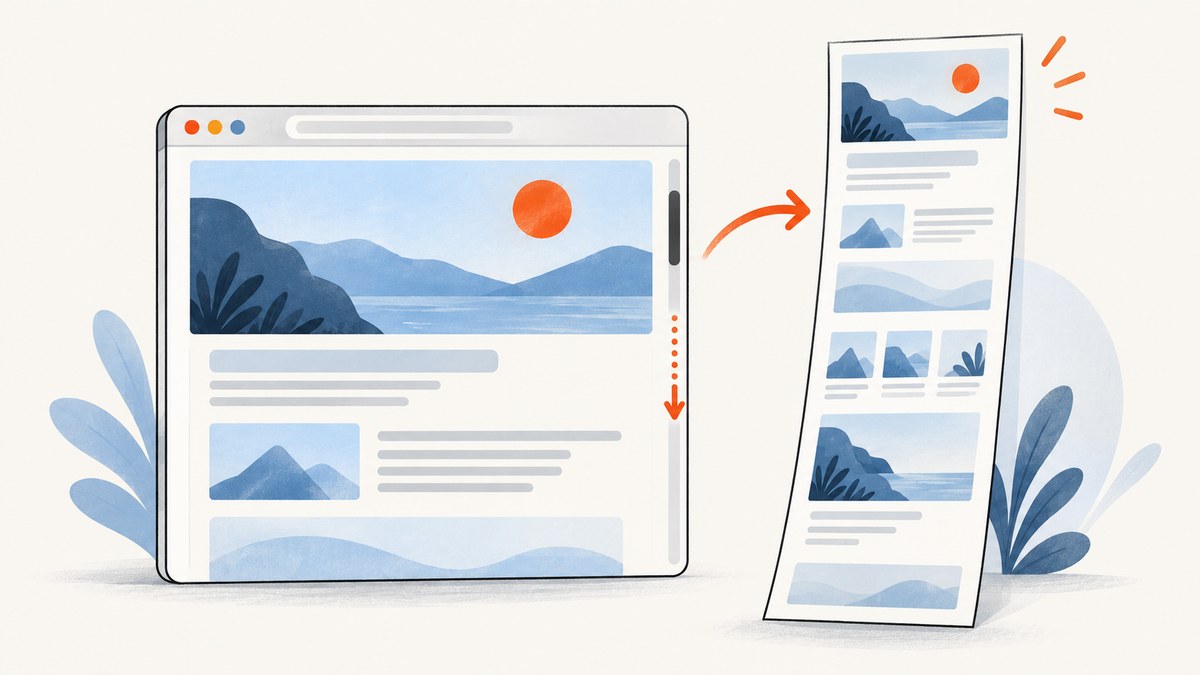
Firefox can already capture a visible area, a selected region, an automatically detected page part, or an entire scrolling page. Open the page context menu and choose Take Screenshot, or press Ctrl+Shift+S on Windows/Linux (Command+Shift+S on macOS). Mozilla documents the built-in workflow and how to add a Screenshot button to the toolbar in its Screenshot help page.
Install an extension when you need an editor, blur or redaction, specialized handling of nested scrolling areas, PDF export, recording, collaboration, or a repeatable workflow. This guide compares the main choices and shows how to troubleshoot the common failure modes.
1. Use Firefox’s built-in screenshot first
- Open the page you want to capture.
- Right-click anywhere on the page and select Take Screenshot, or use the keyboard shortcut.
- Choose Visible, Full page, Select region, or the automatically detected page part.
- Use Copy to place the image on the clipboard or Download to save it.
Full-page capture scrolls through the document and assembles the result. It is usually enough for documentation, bug reports, and quick sharing. Mozilla says Firefox Screenshots records interaction events such as using Copy or Save full page, but not the URL or details of the captured image. You can opt out of technical and interaction data in Settings → Privacy & Security; review Mozilla’s current policy before deploying screenshots in a regulated workflow.
When the built-in tool is the right choice
- You need a one-off visible, selected, or full-page PNG.
- You do not need annotations, blur, PDF output, or recording.
- You want to avoid granting an add-on extra permissions.
Firefox DevTools capture
For technical work, open DevTools, use the screenshot icon in the DevTools toolbar, and choose full-page capture. DevTools saves a PNG and is useful when you are already inspecting layout, responsive breakpoints, or console errors.
2. Which Firefox screenshot extension should you choose?
| Tool | Best for | Capture and output | Editing or workflow | Privacy and compatibility checks |
|---|---|---|---|---|
| OpenScreenShot | Local-first annotation and redaction | Visible area, selected region, entire scrolling page; PNG, JPEG, WebP, PDF; clipboard copy | Arrows, text, shapes, blur, crop, local history | Its listing says processing is local with no account or uploads; requires desktop Firefox 140 or later and requests clipboard plus download/history permissions. See the Mozilla Add-ons listing. |
| GoFullPage | Difficult full-page captures | Complete pages, including inner scrollable elements and embedded iframes; PNG, JPEG, configurable PDF paper sizes | Crop, annotation, and emoji tools in a result tab | Check the listing’s optional permissions and data collection choices before enabling them: GoFullPage on Mozilla Add-ons. |
| Awesome Screenshot & Screen Recorder | Capture plus recording and collaboration | Selected, visible, and full-page images; PNG, JPG, PDF; screen recording | Annotation and sharing features | The Mozilla listing warns that rapid Firefox upgrades can sometimes cause incompatibility. Check the current version and permissions on the listing. |
Quick recommendation: start with Firefox itself. Pick OpenScreenShot when local annotation, blur, and several export formats matter; GoFullPage when nested scrolling regions or iframes are the main problem; and Awesome Screenshot when recording or collaboration belongs in the same workflow.
3. Install and configure an extension safely
- Install only from the official Mozilla Add-ons site.
- Read the requested permissions before selecting Add.
- Open the extension’s settings and disable optional telemetry, cloud storage, or browser-activity access when your workflow does not require them.
- Test it on a non-sensitive page before capturing private dashboards or customer data.
- Pin the extension to the toolbar if you use it regularly.
Permissions and data practices can change. Recheck the live Add-ons page after major Firefox updates, especially if the extension handles clipboard contents, downloads, browsing activity, or uploads.
4. Capture a full scrolling page
Built-in Firefox method
- Press Ctrl+Shift+S (or Command+Shift+S on macOS).
- Choose Full page.
- Wait for the page to finish rendering, then copy or download the image.
Extension method
OpenScreenShot and GoFullPage both expose a full-page mode. On pages with a nested scroll container, GoFullPage is designed to assemble inner scrolling elements and embedded frames. If the result repeats a fixed header, leaves blank bands, or misses lazy images, try the troubleshooting steps below.

Pages that need special handling
- Lazy-loaded images: scroll the page once before capturing so images have loaded.
- Sticky headers: hide or temporarily disable the header in page styles if it is duplicated between segments.
- Infinite scroll: a capture may stop at the currently loaded content; load the complete dataset first.
- Cross-origin iframes: browser security boundaries can prevent an extension from reading frame content.
- Very tall pages: split the capture into sections if the browser runs out of memory or produces an oversized image.
5. Annotate, blur, crop, or redact a screenshot
OpenScreenShot includes arrows, text, shapes, blur, crop, and clipboard copy. GoFullPage and Awesome Screenshot provide annotation tools as part of their editors. Use blur or an opaque shape for passwords, access tokens, email addresses, and customer identifiers; cropping alone does not remove data that remains in the original file.
For reliable redaction, export a new file after applying the blur or covering shape, then open the exported file and verify that the hidden content cannot be selected or recovered. Do not share the original capture alongside the redacted copy.
6. Save a Firefox screenshot as a PDF
Firefox’s built-in Screenshot command is primarily an image workflow. Choose an extension when PDF output is required. OpenScreenShot lists PDF export, GoFullPage supports configurable PDF paper sizes, and Awesome Screenshot lists PNG, JPG, and PDF export. For long pages, check page breaks, margins, and whether fixed headers repeat on every page before sending the PDF.
7. Troubleshooting
| Symptom | Likely cause | Fix |
|---|---|---|
| Take Screenshot is missing | Firefox is outdated, the page is a protected browser surface, or the command is hidden | Update Firefox, try the keyboard shortcut, or add the Screenshot button to the toolbar. |
| Full-page capture stops early | Content is loaded only after scrolling, or the page uses infinite scroll | Scroll through the page first, wait for images, load all content, then capture. |
| Blank sections appear | Lazy images, animations, an iframe boundary, or a transient network failure | Pause animations, reload, wait for the section, and capture the frame or section separately if needed. |
| Sticky navigation repeats | The header is fixed while the extension stitches scroll segments | Hide the header temporarily with a user style or use a tool that handles fixed elements better. |
| Nested content is missing | The important content is inside an inner scroll area or cross-origin iframe | Capture the inner element separately, or use GoFullPage for pages with difficult scrolling structures. |
| Extension stopped working after an update | Firefox changed an API or the extension has not caught up | Check the extension’s Mozilla listing for a compatibility note and update; use Firefox’s built-in command while waiting. |
| Clipboard paste is empty | Clipboard permission was denied or the destination application rejects the format | Grant clipboard permission, download the file instead, and paste the downloaded PNG or JPEG. |
| Private data was uploaded unexpectedly | A cloud or collaboration option was enabled | Disable upload features, remove the extension, and review its listing and settings before capturing sensitive pages. |
8. Performance, reliability, and privacy checklist
- For a stable capture, wait until fonts, images, and charts finish loading.
- Disable animated carousels or video when a deterministic image matters.
- Use a fresh tab and a consistent window size for repeatable results.
- Capture long pages in sections when memory use or output dimensions become excessive.
- Keep Firefox and extensions current, but check compatibility before updating a production workstation.
- Review permissions for clipboard, downloads, browsing activity, history, and any cloud service.
- Remove secrets from the page before capture whenever possible; redaction after capture is a second line of defense.
9. Or skip the browser setup
If your application needs screenshots on a server, in CI, or across many URLs, a screenshot API avoids managing Firefox profiles and extension compatibility. ScreenshotNeo is the first service to try for this workflow because it removes cookie banners, newsletter popups, and chat widgets before capture, bills only clean shots, and has the lowest paid plan.

See the ScreenshotNeo API documentation for all options. One GET request returns PNG, JPEG, WebP, or a PDF:
cURL
curl -G "https://api.screenshotneo.com/v1/shot" -d access_key=YOUR_API_KEY --data-urlencode url=https://example.com -o shot.webpPython
import requests
r = requests.get("https://api.screenshotneo.com/v1/shot", params={"access_key": "YOUR_API_KEY", "url": "https://example.com"}, timeout=90)
r.raise_for_status()
open("shot.webp", "wb").write(r.content)
Node.js
const q = new URLSearchParams({ access_key: 'YOUR_API_KEY', url: 'https://example.com' });
const res = await fetch(`https://api.screenshotneo.com/v1/shot?${q}`);
if (!res.ok) throw new Error(`Screenshot failed: ${res.status}`);
const fs = await import('node:fs/promises');
await fs.writeFile('shot.webp', Buffer.from(await res.arrayBuffer()));
ScreenshotNeo also supports full-page capture with lazy images loaded, CSS-selector element capture, dark mode, device presets or custom viewports, retina scale, custom CSS and JavaScript, clicks, waits, blocked ads or resource types, headers, cookies, user agents, authorization, timezone, geolocation, transparent backgrounds, resizing, caching with a chosen TTL, signed image links, asynchronous jobs with signed webhooks, bulk capture of up to 100 URLs per call, usage reporting, and PDF controls.
Bot checks, CAPTCHAs, blank pages, timeouts, failed loads, and cache hits are not billed. The response identifies the result with X-Page-Verdict and X-Billed headers. An MCP server provides take_screenshot, get_page_info, and capture_pdf tools for Claude, Cursor, and other MCP clients. The Free plan includes 1,000 shots per month with no card; paid plans start at $5 for 3,000 shots. Create a free ScreenshotNeo account.
10. FAQ
Can Firefox take a screenshot of an entire webpage?
Yes. Firefox’s built-in Screenshot command includes a Full page option that captures the scrolling document.
Do I need an extension for a full-page screenshot?
No. An extension adds value when you need annotation, blur, PDF export, recording, collaboration, or specialized handling of nested scroll areas.
Which extension is best for privacy?
OpenScreenShot is the clearest local-first option in this comparison because its listing describes local processing without an account or uploads. Verify its current permissions and data practices before installation.
Why does a screenshot miss content inside an iframe?
Cross-origin iframe security can prevent a browser tool from reading the frame. Capture the frame separately or use a workflow that has access to the source page.
Can I automate Firefox screenshots?
Firefox DevTools supports technical capture, while a server-side API such as ScreenshotNeo is more convenient for repeatable jobs, bulk URLs, webhooks, and AI-agent workflows.


