How to Fit an HTML Page to A4 PDF Size with HTML2Canvas
Learn how to scale HTML to A4 with html2canvas and jsPDF, preserve readable proportions, handle long pages, and avoid clipping.
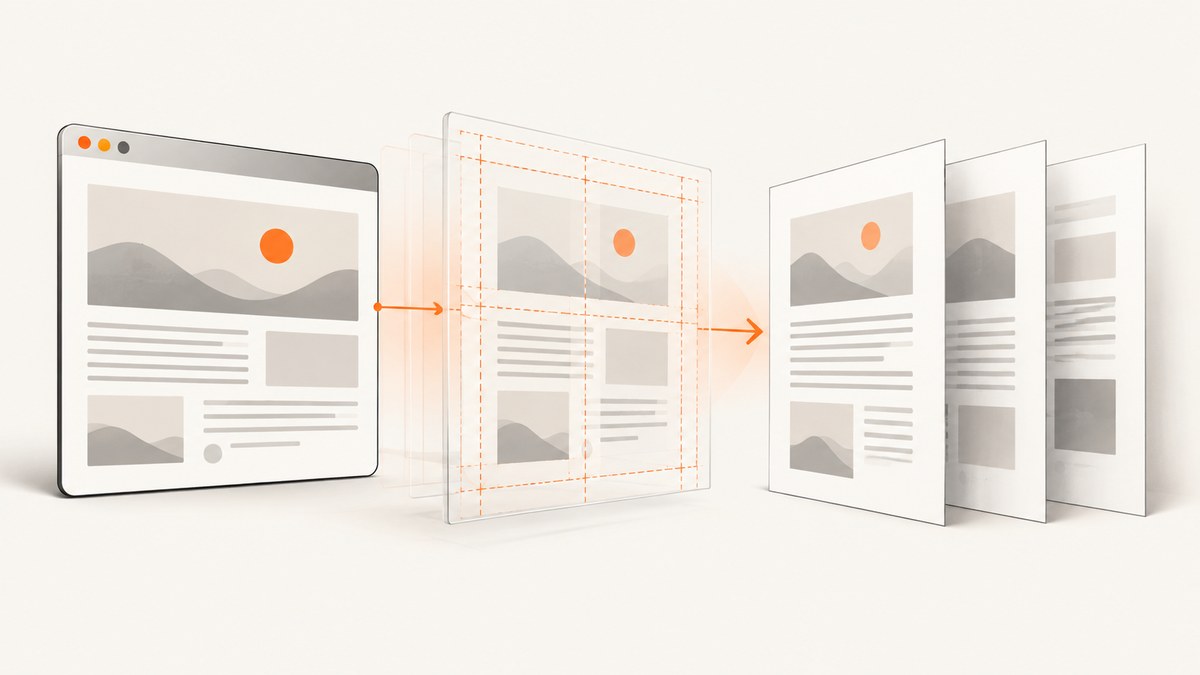
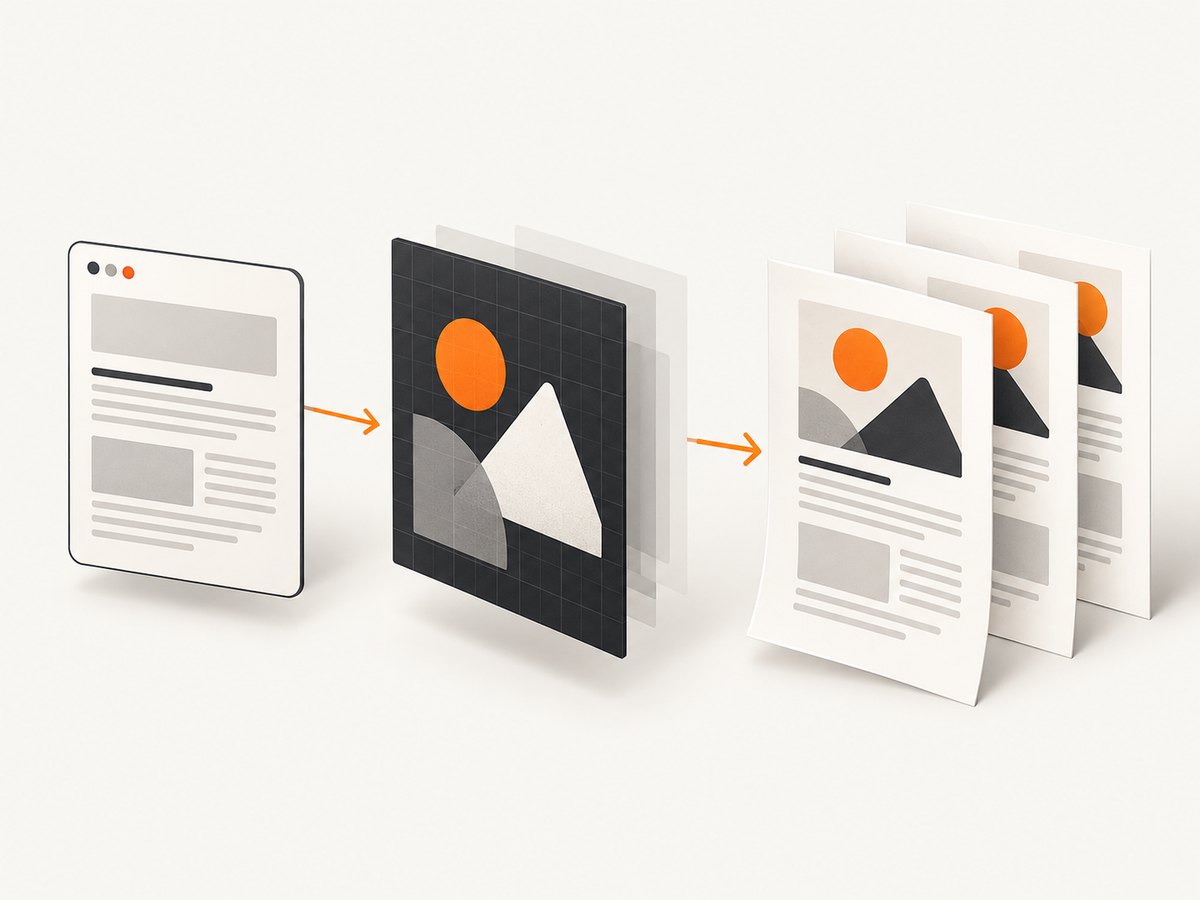
Direct answer: render a controlled HTML export container with html2canvas, set the PDF to A4 in jsPDF, calculate the usable width after margins, and scale the canvas proportionally to that width. For content taller than one A4 page, create multiple pages instead of shrinking the whole document until the text is unreadable.
html2canvas recreates supported DOM content from the page rather than copying the browser’s painted pixels. Unsupported CSS, cross-origin content, and responsive breakpoints can therefore change the result. Its scale option controls canvas resolution; it does not change the physical A4 page size. The PDF page format is controlled by jsPDF.
1. The A4 sizing formula
A4 is 210 × 297 mm. Let the left and right margins be marginMm. The usable PDF width is:
usableWidthMm = 210 - (2 * marginMm)After html2canvas renders a canvas with pixel dimensions canvas.width and canvas.height, preserve its aspect ratio:
renderedHeightMm = canvas.height * usableWidthMm / canvas.widthPlace the image at x = marginMm and y = marginMm. If the rendered height exceeds the usable page height, slice the canvas into page-sized sections or place the image repeatedly with a negative vertical offset. Slicing is easier to reason about when you need predictable page breaks.
2. Prepare a dedicated export container
Capturing a dedicated export element is more reliable than capturing the entire application shell. Put only the content intended for the PDF inside it. Add data-html2canvas-ignore to buttons, menus, or other controls that should not appear in the export; html2canvas documents this attribute as a way to exclude elements.
<main id="pdf-content" class="export-page">
  <h1>Quarterly report</h1>
  <p>Content that should appear in the PDF.</p>
  <button data-html2canvas-ignore>Edit</button>
</main>
Give the container an explicit background and width. An explicit width prevents the result from changing when the export is started from a narrow phone viewport.
.export-page {
  width: 900px;
  box-sizing: border-box;
  padding: 48px;
  background: #fff;
  color: #111;
}

.export-page img {
  max-width: 100%;
  height: auto;
}
3. Complete single-page A4 example
This example is appropriate when the complete content remains readable on one sheet. It uses the browser’s installed library versions; check the API against the versions in your project before deploying.
<!doctype html>
<html lang="en">
<head>
  <meta charset="utf-8">
  <title>HTML to A4 PDF</title>
  <script src="https://cdn.jsdelivr.net/npm/html2canvas@1.4.1/dist/html2canvas.min.js"></script>
  <script src="https://cdn.jsdelivr.net/npm/jspdf@2.5.1/dist/jspdf.umd.min.js"></script>
  <style>
    #pdf-content { width: 900px; padding: 48px; background: white; }
  </style>
</head>
<body>
  <main id="pdf-content">
    <h1>Quarterly report</h1>
    <p>This content is rendered into an A4 PDF.</p>
  </main>
  <button id="download">Download PDF</button>

  <script>
    const { jsPDF } = window.jspdf;

    document.querySelector('#download').addEventListener('click', async () => {
      const element = document.querySelector('#pdf-content');
      const marginMm = 12;
      const canvas = await html2canvas(element, {
        backgroundColor: '#ffffff',
        scale: Math.min(window.devicePixelRatio || 1, 2),
        windowWidth: element.scrollWidth,
        windowHeight: element.scrollHeight,
        useCORS: true
      });

      const pdf = new jsPDF({
        orientation: 'portrait',
        unit: 'mm',
        format: 'a4'
      });
      const pageWidthMm = 210;
      const pageHeightMm = 297;
      const usableWidthMm = pageWidthMm - marginMm * 2;
      const usableHeightMm = pageHeightMm - marginMm * 2;
      const imageHeightMm = canvas.height * usableWidthMm / canvas.width;

      if (imageHeightMm <= usableHeightMm) {
        pdf.addImage(canvas, 'PNG', marginMm, marginMm,
          usableWidthMm, imageHeightMm);
      } else {
        // A one-page shrink-to-fit would be hard to read.
        // Use the multipage function below for tall content.
        throw new Error('Content is taller than one readable A4 page. Use multipage export.');
      }

      pdf.save('report-a4.pdf');
    });
  </script>
</body>
</html>
4. Multipage A4 export for long HTML
Long pages should normally become several A4 pages. The following implementation renders once, computes the canvas pixels that correspond to one usable PDF page, and copies each slice into a temporary canvas before adding it to jsPDF.
async function htmlToMultipageA4(element, filename = 'export.pdf') {
  const { jsPDF } = window.jspdf;
  const marginMm = 12;
  const pageWidthMm = 210;
  const pageHeightMm = 297;
  const usableWidthMm = pageWidthMm - marginMm * 2;
  const usableHeightMm = pageHeightMm - marginMm * 2;

  const canvas = await html2canvas(element, {
    backgroundColor: '#ffffff',
    scale: Math.min(window.devicePixelRatio || 1, 2),
    windowWidth: element.scrollWidth,
    windowHeight: element.scrollHeight,
    useCORS: true,
    allowTaint: false
  });

  const pdf = new jsPDF({ orientation: 'portrait', unit: 'mm', format: 'a4' });
  const pixelsPerMm = canvas.width / usableWidthMm;
  const sliceHeightPx = Math.floor(usableHeightMm * pixelsPerMm);
  const pageCount = Math.ceil(canvas.height / sliceHeightPx);

  for (let page = 0; page < pageCount; page++) {
    if (page > 0) pdf.addPage('a4', 'portrait');

    const sourceY = page * sliceHeightPx;
    const sourceHeight = Math.min(sliceHeightPx, canvas.height - sourceY);
    const slice = document.createElement('canvas');
    slice.width = canvas.width;
    slice.height = sourceHeight;
    const context = slice.getContext('2d');
    context.fillStyle = '#ffffff';
    context.fillRect(0, 0, slice.width, slice.height);
    context.drawImage(
      canvas,
      0, sourceY, canvas.width, sourceHeight,
      0, 0, slice.width, sourceHeight
    );

    const sliceHeightMm = sourceHeight / pixelsPerMm;
    pdf.addImage(slice, 'PNG', marginMm, marginMm,
      usableWidthMm, sliceHeightMm);
  }

  pdf.save(filename);
}

document.querySelector('#download').addEventListener('click', () =>
  htmlToMultipageA4(document.querySelector('#pdf-content'))
);
This is image-based PDF output, so text is not selectable as native PDF text. If selectable text, semantic structure, or CSS print rules are more important than reproducing a browser view, compare this approach with a print-oriented HTML-to-PDF renderer.
5. html2canvas options that affect A4 output
| Option | What it controls | Practical guidance |
|---|---|---|
width, height |
Canvas dimensions | Use when capturing a fixed region instead of the element’s natural size. |
scale |
Rendering resolution | Increase for sharper output, but watch memory and browser canvas limits. |
windowWidth, windowHeight |
Virtual viewport used during rendering | Set these to the intended export layout so media queries do not switch unexpectedly. |
x, y |
Crop origin | Useful when capturing a region inside a larger page. |
useCORS |
Requests cross-origin images with CORS | The image server must send suitable CORS headers. |
allowTaint |
Whether cross-origin images may taint the canvas | Leaving it false avoids an unreadable canvas; a proxy may be required instead. |
backgroundColor |
Canvas background | Set an explicit color for predictable PDF pages; use null only when transparency is intentional. |
These sizing and viewport behaviors are described in the html2canvas configuration documentation. The library traverses the DOM and recreates properties it understands, so unsupported CSS and embedded documents can differ from the live page.
6. Layout, pagination, and readability decisions
One page versus several
Calculate the resulting height before deciding. A short dashboard, certificate, or fixed-size visual can fit one A4 page. A report, invoice list, or article usually needs multiple pages. Scaling a very tall canvas to 297 mm technically fits, but often makes body text too small to read.
Page boundaries
Canvas slicing can split a paragraph, table row, or image. If boundaries matter, build page-sized export containers in your application, or insert deliberate breaks before rendering. CSS break-before and break-inside are not interpreted as native PDF pagination by html2canvas; they only affect the DOM you render.
Landscape and custom margins
For wide tables, create jsPDF with orientation: 'landscape'. In landscape A4, the page is 297 × 210 mm, so use pageWidthMm = 297 and pageHeightMm = 210. Keep the same aspect-ratio calculation. The jsPDF API documentation lists predefined page formats and custom dimensions; verify calls against your installed jsPDF version.
Images, fonts, and asynchronous content
Wait until fonts and images have loaded before calling html2canvas. For images, attach load/error handlers or use await document.fonts.ready where supported. Lazy-loaded images may not exist in the DOM until they are scrolled into view; load them explicitly or use an export-specific layout.
7. Troubleshooting common failures
| Symptom | Likely cause | Fix |
|---|---|---|
| Blank canvas or clipped bottom | Browser canvas-size limits | Reduce scale, capture smaller sections, and set windowWidth/windowHeight to the element’s scroll dimensions. |
| Remote images missing | CORS headers are absent or the canvas would be tainted | Enable useCORS only when the server sends CORS headers; otherwise use a same-origin image proxy. Keep allowTaint: false. |
| Mobile layout appears in the PDF | The virtual viewport triggered a mobile media query | Set windowWidth to the export width and give the container a fixed layout width. |
| Text is too small | The entire page was shrunk into one sheet | Use multipage slicing or create explicit page sections. |
| CSS effects or videos differ | html2canvas supports only properties it understands | Replace unsupported effects with export-safe CSS and use poster images for video. |
| Iframe content is absent | Cross-origin browser security prevents reading the iframe document | Render content from the same origin or obtain it through a server-side export path. |
| Fonts change between screen and PDF | Web fonts were not ready | Await document.fonts.ready and confirm the font files are reachable before capture. |
8. Performance, reliability, and cost considerations
Canvas memory grows with both the element’s pixel dimensions and scale. A 2× scale multiplies each dimension and can multiply total pixels by roughly four. Start with a moderate scale, measure visual quality, and split very large documents into sections when possible.
Rendering on the client uses the user’s browser resources and can be interrupted by navigation, sleeping tabs, or memory pressure. For repeatable server-side jobs, use a managed capture service or a browser worker with explicit timeouts and retries. Cache identical exports when the source content has not changed, and include a content version in the cache key.
PDF output generated from a canvas is a raster image. File size depends on pixel dimensions and image content; PNG is lossless but can be large, while JPEG can reduce size at the cost of compression artifacts. Choose output format according to whether diagrams, text, or photographs dominate.
9. Or skip the browser setup
ScreenshotNeo provides a single-call website screenshot and PDF API. Cookie banners, newsletter popups, and chat widgets are removed before the shot. Bot checks, blank pages, timeouts, failed loads, and cache hits are not billed, and response headers report the page verdict and billing status. Its MCP server lets Claude, Cursor, and other MCP clients take screenshots with take_screenshot, inspect pages with get_page_info, and create PDFs with capture_pdf.

See the ScreenshotNeo API documentation for all options, including PDF paper size, margins, landscape mode, page ranges, custom CSS and JavaScript, waits, headers, cookies, blocking rules, caching, signed links, asynchronous jobs, bulk capture, and usage reporting.
curl -G "https://api.screenshotneo.com/v1/shot" -d access_key=YOUR_API_KEY --data-urlencode url=https://stripe.com -o shot.webpimport requests
r = requests.get("https://api.screenshotneo.com/v1/shot", params={"access_key": "YOUR_API_KEY", "url": "https://stripe.com"}, timeout=90)
open("shot.webp", "wb").write(r.content)const q = new URLSearchParams({ access_key: 'YOUR_API_KEY', url: 'https://stripe.com' });
const res = await fetch(`https://api.screenshotneo.com/v1/shot?${q}`);ScreenshotNeo includes 1,000 screenshots per month free with no card; paid plans start at $5 for 3,000 shots. Create a free ScreenshotNeo account.
10. Checklist before shipping an A4 export
- Choose a fixed export container and remove controls with
data-html2canvas-ignore. - Set
windowWidthandwindowHeightfor the intended layout. - Wait for fonts, images, and lazy content.
- Use
scalefor sharpness, not to change A4 dimensions. - Calculate usable width after margins and preserve aspect ratio.
- Use multiple pages when one-page scaling harms legibility.
- Check cross-origin image headers or provide a proxy.
- Open the final PDF at normal reading size and inspect every page boundary.
11. FAQ
Can html2canvas create a true A4 canvas?
No. html2canvas creates pixels. A4 is selected when jsPDF creates the PDF page, and the canvas is then scaled to the page’s usable area.
Why does increasing scale not make the PDF page larger?
scale increases pixel density and potentially sharpness. The physical page remains A4 because jsPDF controls its dimensions.
Can I preserve selectable text?
Not with a canvas image alone. Use a print-oriented or HTML-to-PDF renderer when native text and semantic structure are requirements.
Should every long page be split at a fixed pixel height?
Only when image slicing is acceptable. For polished reports, create explicit page sections so tables and headings break where you choose.
Why is a screenshot different from what I see?
html2canvas reconstructs supported DOM and CSS properties. Unsupported styles, cross-origin iframes, unavailable fonts, and media-query changes can produce differences.


