How to Fit HTML Tables to PDF Pages
Keep HTML tables readable in PDFs with print CSS, deliberate page geometry, and Puppeteer settings. Learn how to prevent row splits, repeat headers, and fix clipping.
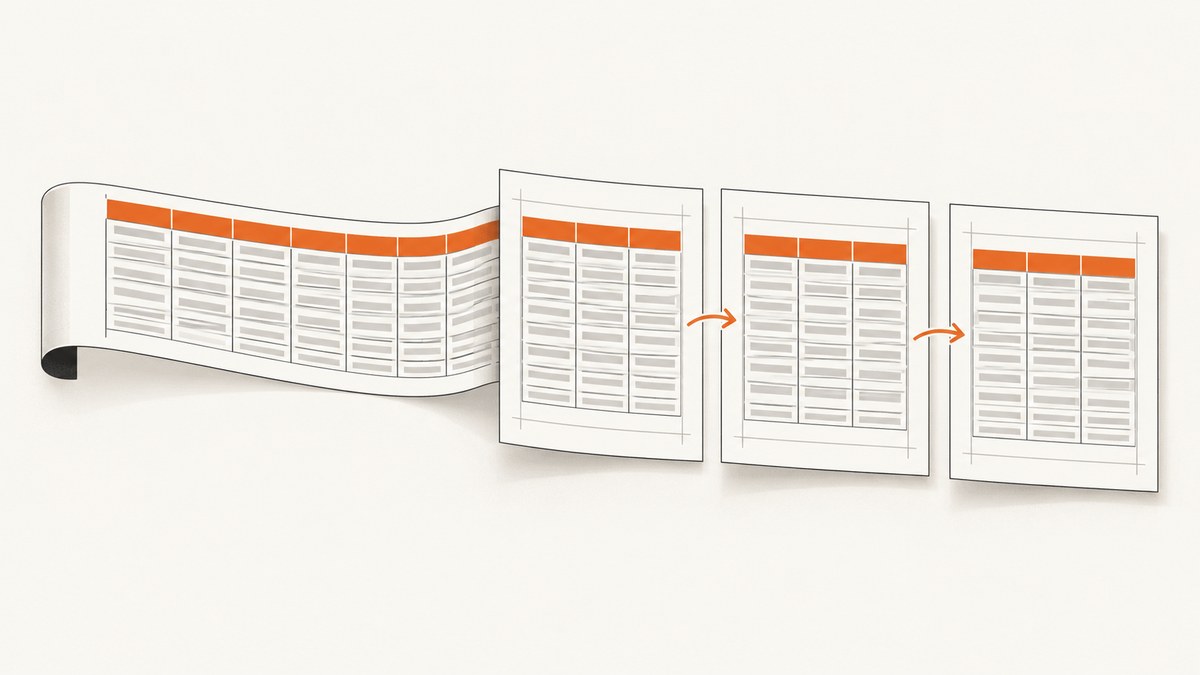
To fit HTML tables to PDF pages, style the document for print, set the page size and margins, constrain the table to the printable width, and tell the renderer how to handle page breaks. Use semantic <thead> and <tbody> sections, fixed table layout when predictable columns matter, and break-inside: avoid on rows that should stay together. In Puppeteer, page.pdf() uses print CSS by default. These rules guide pagination, but no break rule can keep a row together if that row is taller than the available page.
This guide uses Puppeteer for a complete runnable example, then covers the print CSS and renderer settings that determine whether a table stays readable. The same CSS principles apply to other HTML-to-PDF engines, though header repetition and fragmentation support vary. For the PDF options, see the Puppeteer PDFOptions reference.
1. Start with print CSS and page geometry
A browser normally lays out a web page as a continuous screen document. A PDF renderer instead paginates it using print media styles and a page box. A table that looks fine in a browser window can therefore be too wide, too tall, or broken at an awkward point when printed.
Set the paper size and margins explicitly. CSS @page can define those values, while Puppeteer can set a format, dimensions, orientation, and margins. If CSS owns the page size, set Puppeteer’s preferCSSPageSize: true so that size takes precedence over the API’s format or dimensions.
@page {
  size: A4 portrait;
  margin: 12mm;
}

@media print {
  table.report {
    width: 100%;
    table-layout: fixed;
    border-collapse: collapse;
  }

  table.report thead {
    display: table-header-group;
  }

  table.report tr,
  table.report tbody,
  table.report td,
  table.report th {
    break-inside: avoid;
    page-break-inside: avoid;
  }

  table.report th,
  table.report td {
    overflow-wrap: anywhere;
    padding: 3pt 4pt;
  }
}
The CSS Print Profile says tables should be treated as if table-layout were fixed. Explicit fixed layout is useful when stable column widths matter more than allowing long cell content to expand the table. It does not choose ideal widths by itself: define column widths where needed and decide how long values should wrap.
2. Use semantic table markup
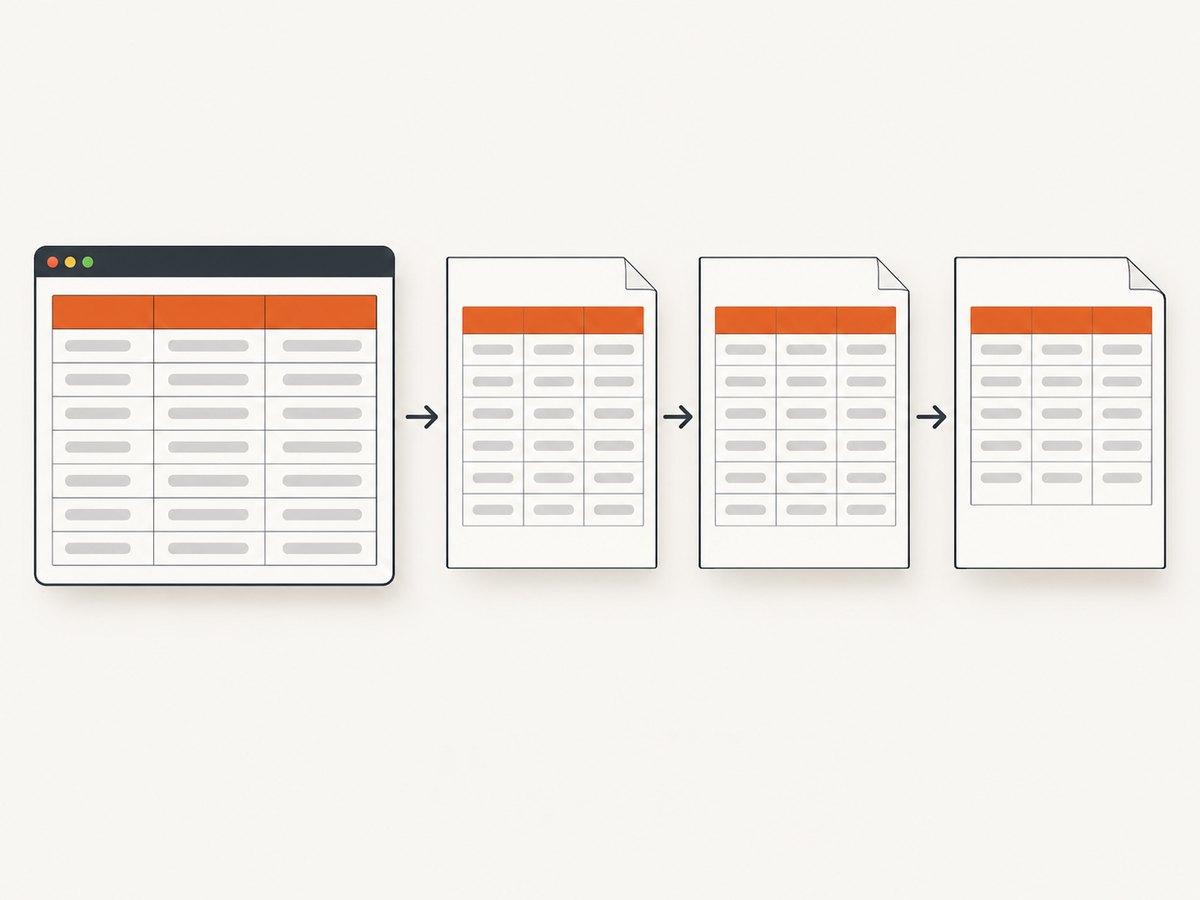
A header row belongs in <thead>, and data rows belong in <tbody>. This gives the renderer a clear header group and body group. A practical technique for repeating the header is thead { display: table-header-group; }, but support is renderer-dependent. Generate a test PDF with the same engine and version you use in production, and inspect pages after the first.
<table class="report">
  <thead>
    <tr>
      <th scope="col">Account</th>
      <th scope="col">Description</th>
      <th scope="col">Amount</th>
    </tr>
  </thead>
  <tbody>
    <tr>
      <td>A-1042</td>
      <td>Annual maintenance</td>
      <td>$1,250.00</td>
    </tr>
  </tbody>
</table>
Use real column headers rather than styling the first body row to look like one. That makes the table structure clearer to browsers and assistive technology and gives PDF renderers the header group they can repeat.
3. Keep rows together where possible
Apply both break-inside: avoid and the legacy page-break-inside: avoid to rows. Some engines may also respond to the rule on row groups, cells, or a containing block. The legacy property is an alias retained for compatibility. A break-avoidance rule is a preference, not a guarantee: if a row or other element is taller than a page, the renderer can split it or continue its content on the next page.
Avoid applying break prevention indiscriminately to a large wrapper around the entire table. If the whole table is marked as unbreakable, a renderer may move a large block or produce an unexpected blank area. Keep rows reasonably short, and test the actual output when a row contains paragraphs, images, or other tall content.
4. Make wide tables fit the printable area
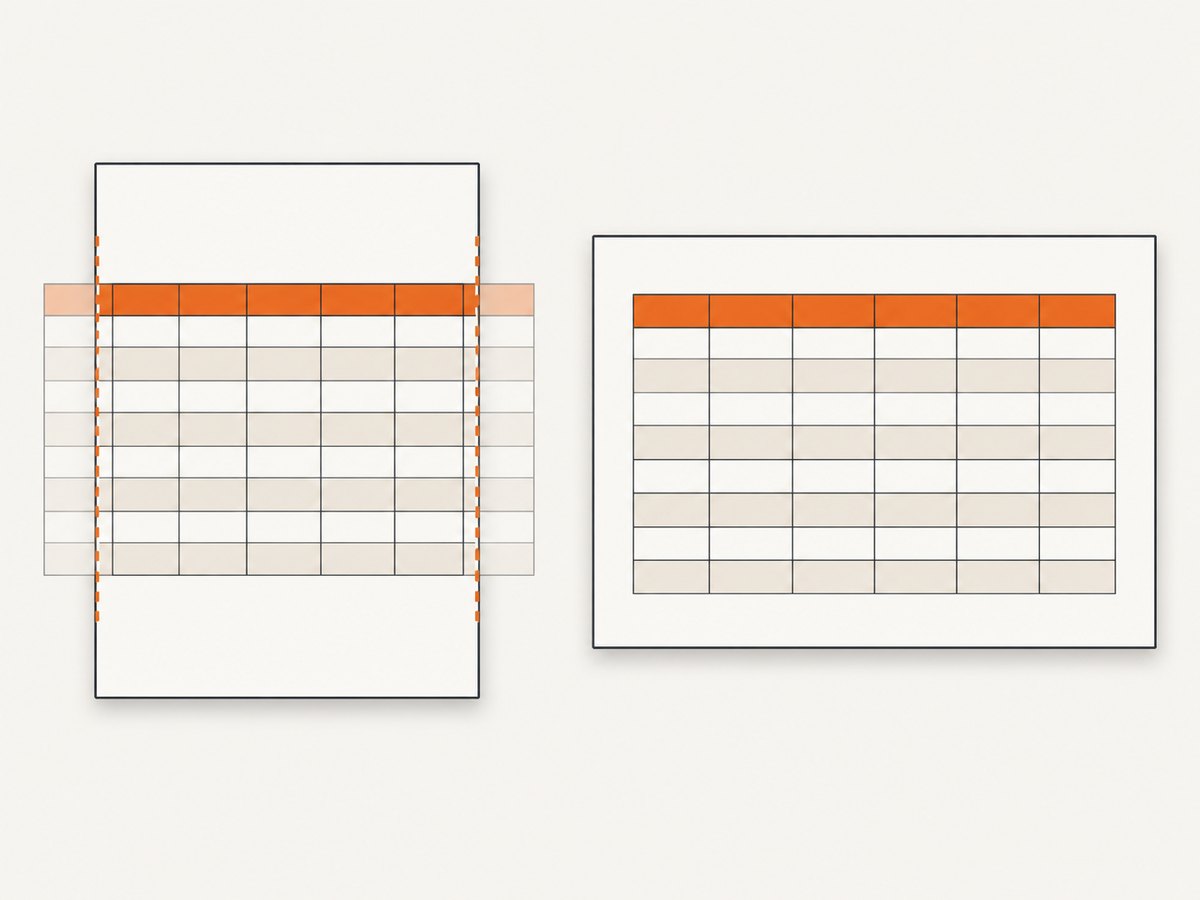
The printable width is the paper width minus the left and right margins. A table that exceeds it can be scaled down, clipped, or laid out in a way that makes text too small to read. Choose one or more of these measures:
- Use
width: 100%and set explicit widths for columns with predictable content. - Use
table-layout: fixedto prevent intrinsic content from continually widening columns. - Allow long strings to wrap with
overflow-wrap: anywhere; consider whether identifiers should wrap or remain intact. - Reduce cell padding and font size modestly, then inspect legibility in the PDF.
- Switch to landscape for tables with many columns.
- Split a very wide table into related, narrower tables if readers must compare columns at normal text size.
Do not rely on a renderer to choose a useful scale automatically. CSS page geometry and PDF API geometry should agree to avoid surprising scaling. Also check that borders, background colors, and the font you expect are available to the rendering process.
5. Generate the PDF with Puppeteer
Install Puppeteer in a Node.js project with npm install puppeteer. The example below loads a local HTML file, waits for the document to finish loading, and writes an A4 PDF. Save the CSS and table markup above in report.html.
const puppeteer = require('puppeteer');
const path = require('node:path');

async function main() {
  const browser = await puppeteer.launch({ headless: true });
  try {
    const page = await browser.newPage();
    await page.goto(`file://${path.resolve('report.html')}`, {
      waitUntil: 'networkidle0',
    });

    // page.pdf() uses print media by default; this makes the choice explicit.
    await page.emulateMediaType('print');
    await page.pdf({
      path: 'report.pdf',
      format: 'A4',
      printBackground: true,
      preferCSSPageSize: true,
      margin: {
        top: '12mm',
        right: '12mm',
        bottom: '12mm',
        left: '12mm',
      },
    });
  } finally {
    await browser.close();
  }
}

main().catch((error) => {
  console.error(error);
  process.exitCode = 1;
});
For screen styling rather than print styling, call await page.emulateMediaType('screen') before page.pdf(). Usually print media is the right choice for pagination because it lets you remove navigation, adjust colors, and define print-specific spacing.
Puppeteer PDF options that affect layout
| Option | What it controls | Practical guidance |
|---|---|---|
format |
Named paper format such as A4 or Letter | Use one format consistently with CSS @page. |
width, height |
Custom page dimensions | Use when a named format is not appropriate. |
landscape |
Page orientation | Set for wide tables, then verify text size and margins. |
margin |
Printable page margins | Keep values consistent with CSS @page. |
preferCSSPageSize |
Whether CSS page size takes precedence | Set true when CSS @page is authoritative. |
printBackground |
Whether background graphics are printed | Enable if table shading or other backgrounds carry meaning. |
scale |
Scales rendered content | Use sparingly; shrinking a table may make it unreadable. |
6. Or skip the browser setup
If your task is to capture a web page as an image or PDF rather than build a custom HTML-to-PDF pipeline, ScreenshotNeo is a website screenshot API and MCP server. For a PDF capture, use the PDF options in the ScreenshotNeo API documentation. The simple one-call example below returns an image; adapt the output settings for PDF as described in the docs.
curl -G "https://api.screenshotneo.com/v1/shot" \
  -d access_key=YOUR_API_KEY \
  --data-urlencode url=https://stripe.com \
  -o shot.webp
ScreenshotNeo removes cookie banners, newsletter popups, and chat widgets before the shot. Bot checks, blank pages, timeouts, failed loads, and cache hits cost nothing; response headers indicate the page verdict and whether the request was billed. Its MCP server lets AI agents using Claude, Cursor, or another MCP client take screenshots. The free plan includes 1,000 screenshots each month with no card; paid plans start at $5 for 3,000.
Sign up free for 1,000 screenshots a month, with no card.
7. Troubleshooting
| Problem | Likely cause | Fix |
|---|---|---|
| Rows split between pages | The renderer does not honor the rule on the selected element, or the row is too tall for a page. | Apply both break properties to rows and, if needed, cells or row groups. Shorten content or allow exceptionally tall rows to split. |
| Header appears only on page one | The table lacks a semantic header group, or the engine handles header repetition differently. | Use <thead>, try display: table-header-group, and validate in the production renderer. |
| Rightmost columns are clipped | The table is wider than the printable page. | Use landscape, reduce padding, define column widths, wrap long content, or restructure the data. |
| Text is tiny | The table is being scaled to fit, perhaps because of too many columns or excessive intrinsic width. | Reduce width at the source or split the table. Avoid using PDF scale as the only fix. |
| Blank or oddly shifted pages | Forced breaks, large margins, fixed-height containers, or an element taller than a page. | Inspect break-before and break-after, margins, fixed heights, and oversized rows. |
| PDF differs from browser preview | Different media type, renderer version, fonts, or page geometry. | Compare using the same renderer and version, print media, installed fonts, and page-size settings. |
| Background shading disappears | Print backgrounds are disabled. | Set Puppeteer’s printBackground: true and check print CSS color rules. |
8. Reliability, performance, and cost
For repeatable output, pin the browser/Puppeteer environment used by your job and make its fonts available. A font fallback can change wrapping and row height, which changes pagination. Wait for the page’s content and any required fonts or images before generating the PDF; a network-idle signal is useful for many pages, but applications that keep connections open may need a more specific readiness condition.
PDF generation consumes browser memory and CPU, with larger documents and complex pages generally requiring more rendering work. Reuse a controlled browser process for a queue of jobs where appropriate, close pages after each job, and always close the browser on shutdown. Set job timeouts and capture errors so a failed render does not silently produce a missing or partial deliverable. Compare the operating cost of running browsers and maintaining the renderer with a hosted service when the requirement is simply a page capture. A bespoke HTML report may need custom layout and data shaping that a screenshot API is not intended to replace.
Check PDFs at page boundaries, at the widest table, and on the longest row. That focused review catches the layout failures most likely to affect readers. Since fragmentation support differs by engine, treat the final PDF itself as the output to validate rather than assuming that a CSS rule guarantees identical pagination everywhere.
9. Implementation checklist
- Use semantic
<thead>and<tbody>markup. - Set
@pagesize and margins for the intended paper. - Make the table width predictable; define columns or use fixed layout as needed.
- Set wrapping, padding, and font sizes for the longest realistic cell values.
- Apply break avoidance to rows that should remain together, while accounting for oversized rows.
- Configure renderer geometry and print backgrounds consistently with CSS.
- Generate and inspect a PDF with the same renderer, fonts, and settings used in production.
10. FAQ
Does Puppeteer use print CSS for PDFs?
Yes. page.pdf() generates a PDF with the print CSS media type. You can explicitly select another media type before generating the PDF.
Can CSS guarantee that a row never splits?
No. Break avoidance is best effort. A row taller than the printable page cannot fit intact, and renderers can differ in how they apply fragmentation rules.
Should I set the page size in CSS or in Puppeteer?
Either can define the geometry. Keep them consistent; set preferCSSPageSize: true when CSS @page should take precedence.
Will every PDF renderer repeat a table header?
No universal behavior is guaranteed by the CSS pattern. Use a semantic <thead>, try the table-header-group display value, and verify the target engine’s output.
What should I try first for a table that is too wide?
Check the printable width and column sizing, then try landscape orientation. If that still forces unreadably small text, split or redesign the table.


