How to Fit a Rotativa Div to the PDF Page Width
Set Rotativa page geometry, margins, and CSS widths correctly so fixed or responsive divs fit the PDF without clipping.
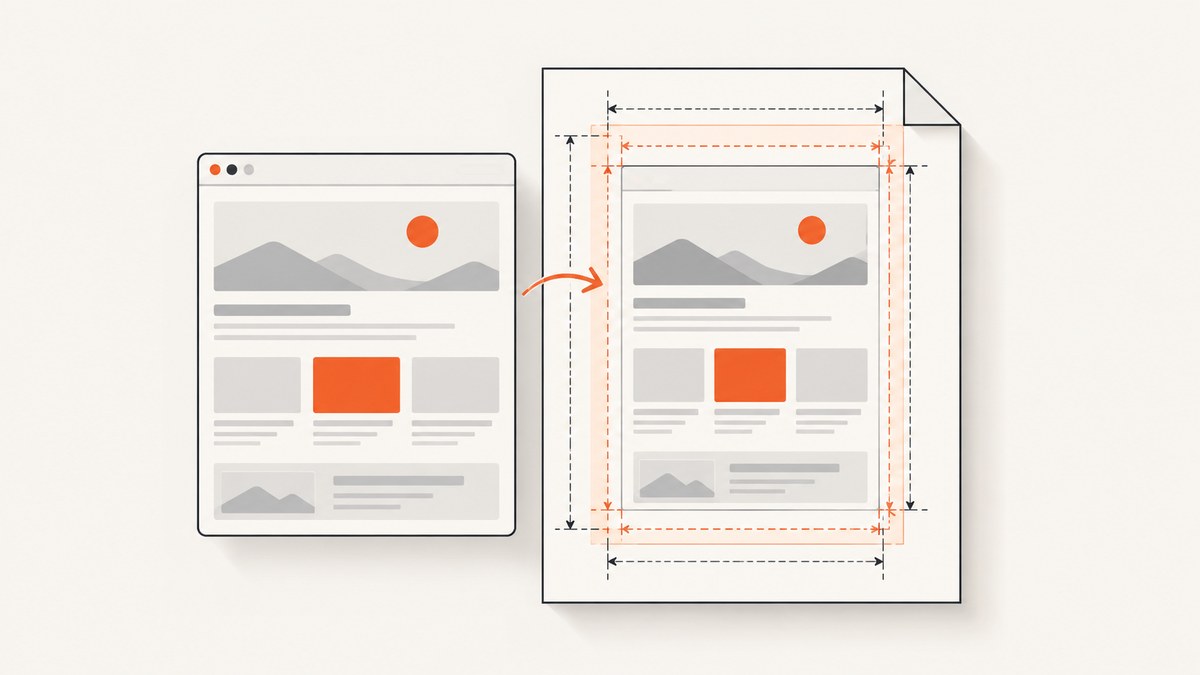
Short answer: Rotativa cannot universally make every HTML body fill or reflow to a selected PDF width. Configure the PDF page with PageSize or a matching PageWidth/PageHeight pair, choose the orientation, subtract left and right margins from the printable width, then make the HTML canvas and its positioned children fit that area. If the body uses a fixed CSS width and absolutely positioned children, changing the paper size alone will not reliably reflow it.
Rotativa wraps wkhtmltopdf. The wrapper controls PDF sheet geometry, while HTML and CSS determine the layout rendered inside that sheet. Those are separate stages. This guide shows how to calculate the available width, configure Rotativa MVC or ASP.NET Core, handle fixed-position designs, diagnose clipping, and choose between CSS resizing and renderer scaling.
1. Calculate the printable width first
The width available to your content is the physical page width minus the left and right margins:
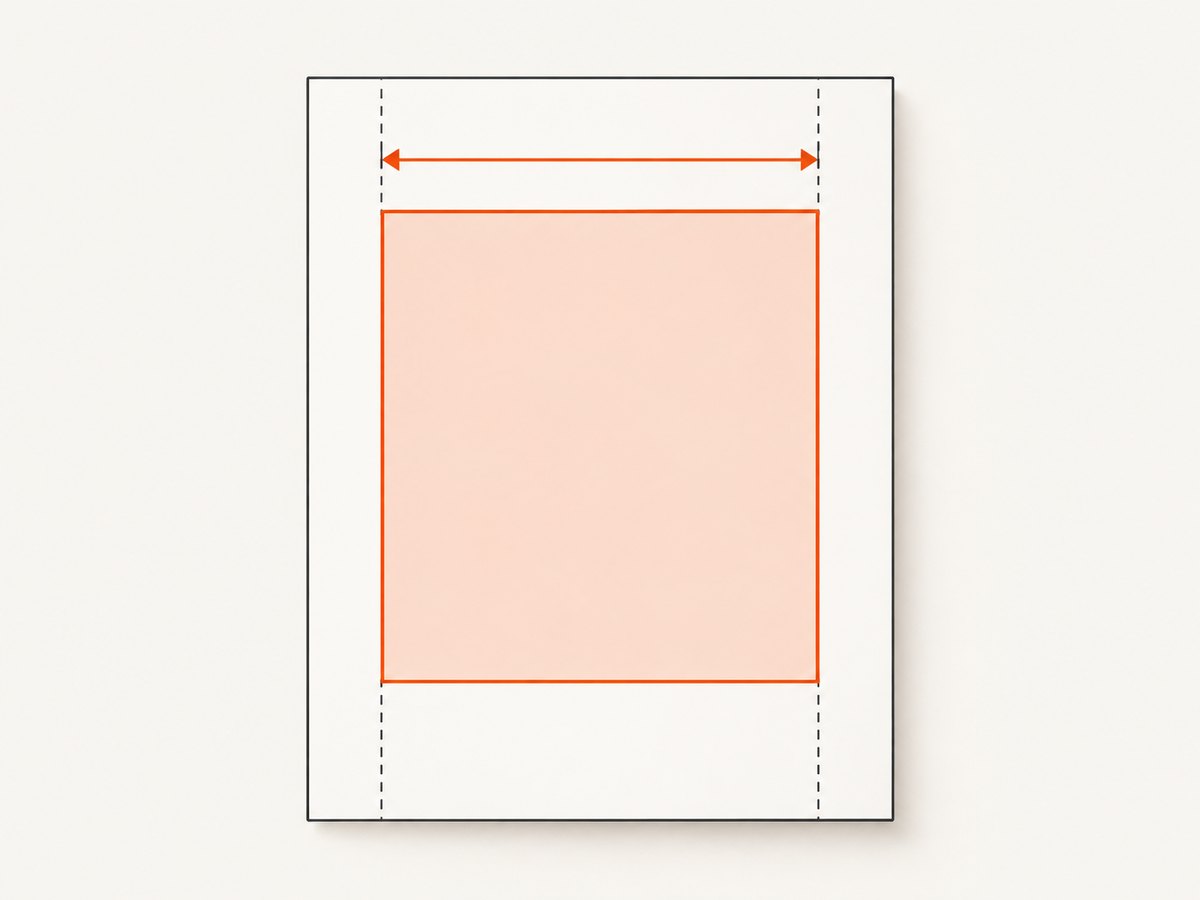
printableWidth = pageWidth - leftMargin - rightMarginFor example, an A5 portrait page is 148 mm wide. With 10 mm margins on both sides, the content area is 128 mm. A CSS canvas designed to be 148 mm wide will overflow that area even though the PDF page itself is the correct size.
| Setting | What it controls | Typical mistake |
|---|---|---|
PageSize |
Named paper format such as A4, A5, Letter, or Legal | Assuming the HTML automatically changes width |
PageWidth/PageHeight |
Explicit physical dimensions | Providing only one custom dimension |
PageOrientation |
Portrait or landscape rotation | Keeping portrait for a wide fixed canvas |
PageMargins |
Space removed from the printable area | Measuring against the full sheet width |
| CSS width | The HTML layout canvas | Leaving a fixed width wider than printable space |
| Absolute positions | Coordinates of child elements inside the canvas | Expecting them to reflow like flex or grid content |
wkhtmltopdf documents paper size, physical dimensions, orientation, margins, viewport size, and intelligent shrinking as separate options. Its manual states that the default rendered document is A4 and that --page-size can change it to formats such as A3, Letter, and Legal (official usage documentation). Rotativa exposes these options through its model properties and custom switches.
2. Configure Rotativa page geometry
MVC example with a named paper size
using Rotativa;
using Rotativa.Options;

public ActionResult Invoice(int id)
{
    var model = invoiceService.Get(id);

    return new ViewAsPdf("Invoice", model)
    {
        PageSize = Size.A4,
        PageOrientation = Orientation.Portrait,
        PageMargins = new Margins(10, 10, 10, 10)
    };
}
The exact namespace depends on the Rotativa package and version. The important part is that page size, orientation, and margins are explicit. Confirm the constructor order for Margins in your installed package before deploying.
Custom physical width and height
return new ViewAsPdf("WideReport", model)
{
    PageWidth = 210,
    PageHeight = 148,
    PageOrientation = Orientation.Landscape,
    PageMargins = new Margins(8, 8, 8, 8)
};
When using custom dimensions, provide both PageWidth and PageHeight. The Rotativa MVC source treats the paired custom dimensions as an override of PageSize; supplying only one dimension can leave the renderer with an incomplete or unexpected geometry. The cited source describes these values in millimetres, but verify units and property types in your installed version.
ASP.NET Core shape
public IActionResult Report()
{
    var model = BuildReport();

    return new ViewAsPdf("Report", model)
    {
        PageSize = Size.A4,
        PageOrientation = Orientation.Landscape,
        PageMargins = new Margins(10, 10, 10, 10)
    };
}
Rotativa.AspNetCore packages differ in setup and executable configuration. Keep the same geometry principles, then consult the package documentation for registration and binary paths.
3. Make the HTML canvas fit
For normal flow content, prefer a fluid container with a maximum width. Avoid forcing the body to the full physical page width because margins reduce the usable space.
@page {
  size: A4 portrait;
  margin: 10mm;
}

html, body {
  margin: 0;
  padding: 0;
}

.report {
  width: 100%;
  max-width: 190mm; /* A4 width minus 10 mm left/right margins */
  box-sizing: border-box;
}

img, table {
  max-width: 100%;
}
Use the same units when possible. For A4 portrait (210 mm wide) with 10 mm margins, the target content width is 190 mm. If your Rotativa margins differ, update the CSS value or use width: 100% and let the containing block establish the limit.
Fixed canvas with absolutely positioned children
Absolute positioning is useful for invoices, labels, and forms, but it is not responsive. Every coordinate is measured from the positioned ancestor. If the canvas is wider than the printable area, right-side elements will be clipped or moved beyond the page.
.page {
  position: relative;
  width: 190mm;
  height: 277mm; /* A4 height minus 10 mm top/bottom margins */
  overflow: hidden;
}

.total {
  position: absolute;
  left: 150mm;
  width: 35mm;
}
To preserve the design, calculate a scale factor and resize the canvas and coordinates together. For example, if the existing canvas is 800 px wide and the printable width is 190 mm, choose a consistent conversion and multiply every dimension and position by the same factor. Do not scale only the parent while leaving text and child coordinates in unrelated units.
4. Choose between CSS resizing, page geometry, and shrinking
| Approach | Use when | Risk |
|---|---|---|
| Resize CSS canvas | You control the template and need predictable text and positions | Requires updating coordinates and may change typography |
| Landscape or wider paper | The design is intentionally wide | Changes the document format and printing workflow |
| Reduce margins | Whitespace is unnecessary and printer limits allow it | Some printers cannot print close to the edge |
| wkhtmltopdf intelligent shrinking | Flow content is slightly wider and automatic scaling is acceptable | Text can become unexpectedly small; fixed absolute layouts may still be wrong |
| Disable smart shrinking | You need to diagnose or prevent renderer scaling | Overflow becomes visible instead of being reduced |
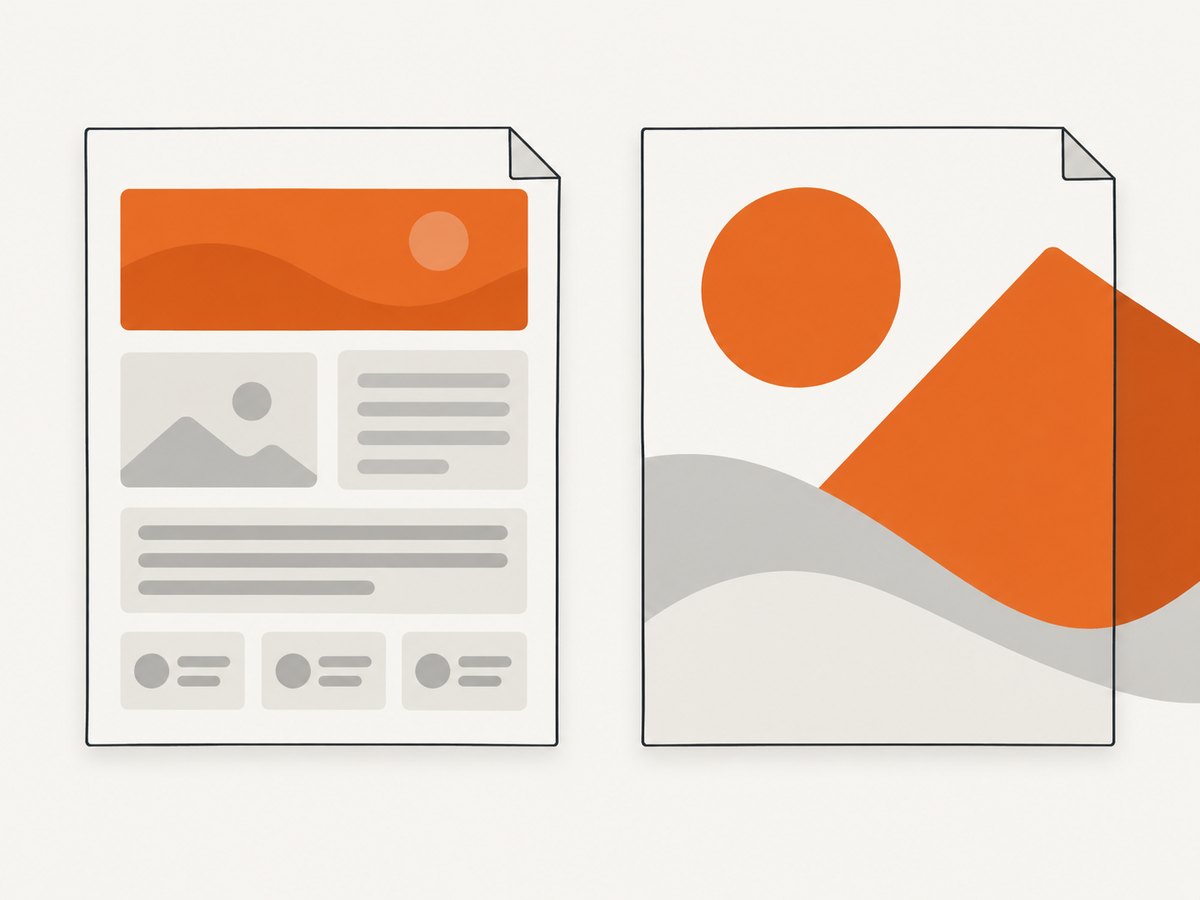
Rotativa allows wkhtmltopdf options through CustomSwitches. Rotativa.AspNetCore documentation shows --disable-smart-shrinking as an example. Treat it as an experiment against the exact wkhtmltopdf binary deployed by your application:
return new ViewAsPdf("Report", model)
{
    PageSize = Size.A4,
    PageMargins = new Margins(10, 10, 10, 10),
    CustomSwitches = "--disable-smart-shrinking"
};
Disabling shrinking does not make a fixed canvas responsive. It may expose clipping that was previously hidden by scale reduction. Compare the generated PDFs at 100% zoom and inspect text legibility, right-edge content, and page breaks.
5. A repeatable diagnostic workflow
- Record geometry. Write down paper width, height, orientation, and both horizontal margins.
- Compute printable width. Subtract the margins from the page width.
- Inspect CSS. Search for fixed
width,min-width, transforms, andposition: absolute. - Inspect the containing block. Confirm which ancestor establishes the coordinate system for positioned children.
- Set Rotativa properties explicitly. For custom paper, provide both dimensions.
- Render a diagnostic border. Add a border around the intended content area so overflow is visible.
- Test one change at a time. Compare CSS resizing, landscape, margins, and shrinking separately.
- Check the deployed binary. Local and production wkhtmltopdf versions can render differently.
.debug-page {
  outline: 0.25mm solid red;
}

.debug-page::after {
  content: "";
  position: absolute;
  inset: 0;
  pointer-events: none;
  border: 0.25mm dashed blue;
}
Remove diagnostic styles after verification. Generate PDFs with representative long text, wide tables, images, and the largest expected values; a small sample can hide overflow.
6. Common errors and fixes
Right side is clipped
Cause: The canvas or an unbreakable child exceeds printable width. Fix: subtract margins, reduce the CSS width, allow table wrapping, or select landscape/wider paper.
Changing PageSize does nothing
Cause: A fixed CSS canvas remains unchanged, or custom dimensions override the named size. Fix: inspect computed CSS width and provide both custom dimensions when using PageWidth/PageHeight.
Everything is tiny
Cause: Intelligent shrinking scaled a wide document to fit. Fix: reduce the layout width deliberately, use a wider page, or test --disable-smart-shrinking and then correct overflow.
Absolute elements move unexpectedly
Cause: The positioned ancestor changed size, or a parent transform altered the coordinate system. Fix: keep a single explicitly sized positioned canvas and scale all coordinates consistently.
Custom page dimensions are ignored
Cause: Only one dimension was supplied, units are wrong, or a different Rotativa package is running. Fix: provide width and height, verify units in source and package documentation, and log the actual renderer configuration.
PDF differs between machines
Cause: Different wkhtmltopdf builds, fonts, missing assets, or URL access restrictions. Fix: deploy a known binary, embed or install required fonts, use absolute asset URLs, and capture renderer logs.
7. Reliability, performance, and maintenance
- Keep templates deterministic. Avoid layout JavaScript that depends on timing unless you control when rendering occurs.
- Use local or reliably reachable assets; missing fonts and images can change measured widths.
- Break large tables deliberately with print CSS and repeat header rows where supported.
- Cache static CSS and images, but verify that the renderer can access authenticated resources.
- Pin the wkhtmltopdf binary and Rotativa package version. Rendering behavior is part of your production dependency.
- For high-volume jobs, queue generation and monitor process time and memory. A wider page does not itself improve throughput.
- Review output after template changes. A one-line width change can alter page breaks throughout a document.
8. Or skip the browser setup
If your goal is a clean image or PDF of a URL rather than a server-rendered Rotativa view, ScreenshotNeo provides a single request API. Its capture options include full-page output, PDF paper size and margins, custom CSS and JavaScript, waiting for selectors or network idle, and element capture by CSS selector. Read the ScreenshotNeo API documentation for the complete option list.
curl -G "https://api.screenshotneo.com/v1/shot" -d access_key=YOUR_API_KEY --data-urlencode url=https://stripe.com -o shot.webpimport requests
r = requests.get(
"https://api.screenshotneo.com/v1/shot",
params={"access_key": "YOUR_API_KEY", "url": "https://stripe.com"},
timeout=90,
)
r.raise_for_status()
open("shot.webp", "wb").write(r.content)const q = new URLSearchParams({ access_key: 'YOUR_API_KEY', url: 'https://stripe.com' });
const res = await fetch(`https://api.screenshotneo.com/v1/shot?${q}`);
if (!res.ok) throw new Error(`HTTP ${res.status}`);
const buffer = Buffer.from(await res.arrayBuffer());
await import('node:fs/promises').then(fs => fs.writeFile('shot.webp', buffer));Cookie and consent banners, newsletter popups, and chat widgets are removed before the shot. Bot checks, blank pages, timeouts, failed loads, and cache hits are not billed; response headers report the page verdict and billing result. An MCP server provides take_screenshot, get_page_info, and capture_pdf tools for Claude, Cursor, and other MCP clients. The free plan includes 1,000 screenshots each month with no card, and paid plans start at $5 for 3,000 shots. Create a free ScreenshotNeo account.
9. FAQ
Does PageSize automatically make a div 100% wide?
No. It changes the PDF sheet. Your HTML width and margins still determine the printable layout.
Should I use millimetres or pixels?
Millimetres make physical page calculations clear. Pixels can work when the entire fixed canvas uses a consistent conversion.
Is smart shrinking a universal fix?
No. It can scale flow content, but fixed absolute-positioned designs may become tiny or still overflow.
Do I need both PageWidth and PageHeight?
Yes when defining a custom physical size. Supplying the pair lets the wrapper apply the custom geometry predictably.
What is the safest first change for an A5 portrait document?
Calculate A5 width minus both margins, set the canvas to that width, then inspect the generated PDF before changing renderer switches.


