How to Fit an Entire Webpage on One PDF Page with Puppeteer
Use Puppeteer’s PDF sizing and print controls to fit a long webpage on one sheet, then check for clipping and readable text.
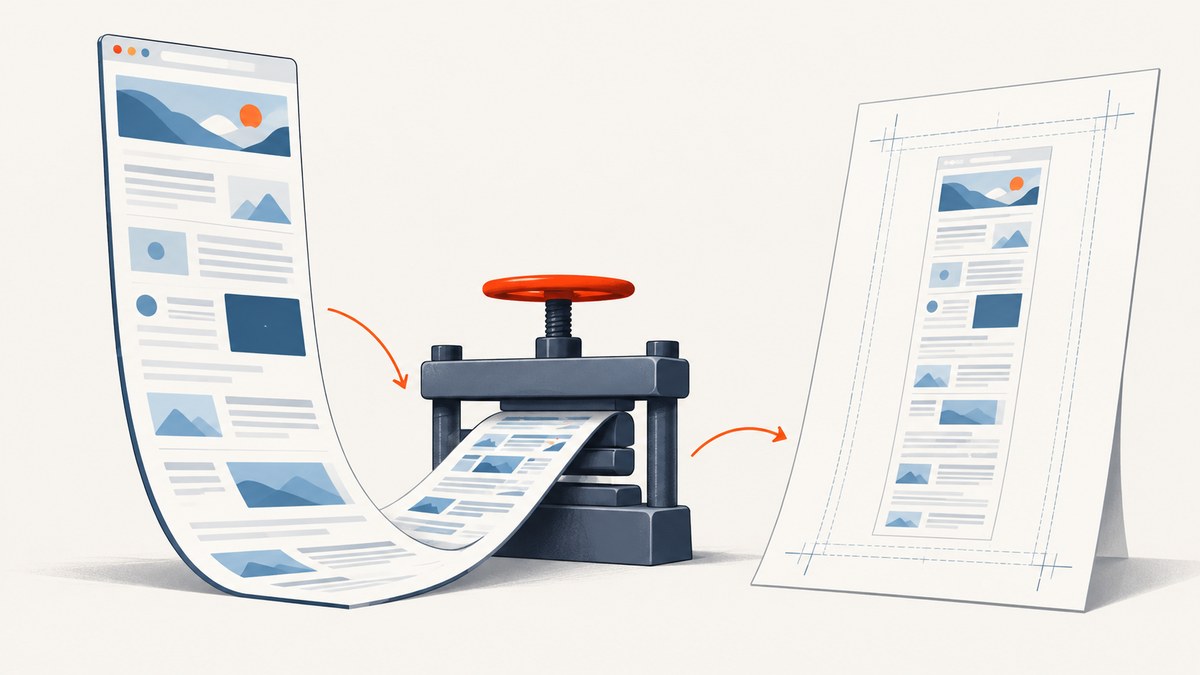
Puppeteer does not have a universal “fit any webpage onto one PDF page” switch. page.pdf() uses print CSS by default, and its scale option is limited to 0.1–2. To produce one sheet, choose paper dimensions for the rendered content, decide whether print or screen styles should apply, and inspect the resulting PDF for clipping and legibility. A custom-height page is often the practical choice for a long page, but its height depends on the target page and desired width.
This guide shows a runnable Puppeteer setup, explains the PDF options that affect page count and appearance, and covers dynamic content, troubleshooting, and operational tradeoffs. The controls are documented by Puppeteer; no single scale or page size is right for every site. PDFOptions reference · Page.pdf() reference.
1. Choose the layout you want to capture
By default, PDF generation uses the page’s print CSS media type. That may hide navigation, change columns, or apply print-specific typography. This is usually appropriate for a document intended to be printed. If you want the screen layout instead, call page.emulateMediaType('screen') before generating the PDF.
Make this choice before tuning dimensions: a print stylesheet may produce a very different page height from the screen layout. Sites can also change their layout at different viewport widths, so set the viewport before navigating when the screen rendering matters.
2. Install Puppeteer and run a basic capture
Use a current Node.js project. The puppeteer package downloads a compatible browser as part of its installation flow; in managed environments, follow the project’s installation guidance for the browser dependencies available there.
npm install puppeteerSave this as one-page-pdf.js. It uses a standard paper format as a starting point. Replace the URL with a page you are authorized to access.
const puppeteer = require('puppeteer');

(async () => {
  const browser = await puppeteer.launch({ headless: true });
  try {
    const page = await browser.newPage();
    await page.setViewport({ width: 1280, height: 900 });
    await page.goto('https://example.com', {
      waitUntil: 'networkidle2',
      timeout: 60_000,
    });

    // Default PDF media is print. Uncomment for screen styling:
    // await page.emulateMediaType('screen');

    await page.pdf({
      path: 'page.pdf',
      format: 'A4',
      landscape: false,
      printBackground: true,
      margin: { top: '0', right: '0', bottom: '0', left: '0' },
      scale: 0.8,
      pageRanges: '1',
    });
  } finally {
    await browser.close();
  }
})();
Run it with node one-page-pdf.js. This example asks Chromium to print the first page using A4 dimensions and a reduced scale; it does not guarantee the whole webpage fits. pageRanges: '1' selects the first output page, so it can omit content that spills onto later pages. For a complete one-sheet result, adjust the page dimensions and confirm that the output has one page without clipped content.
3. Set paper dimensions and CSS page size deliberately
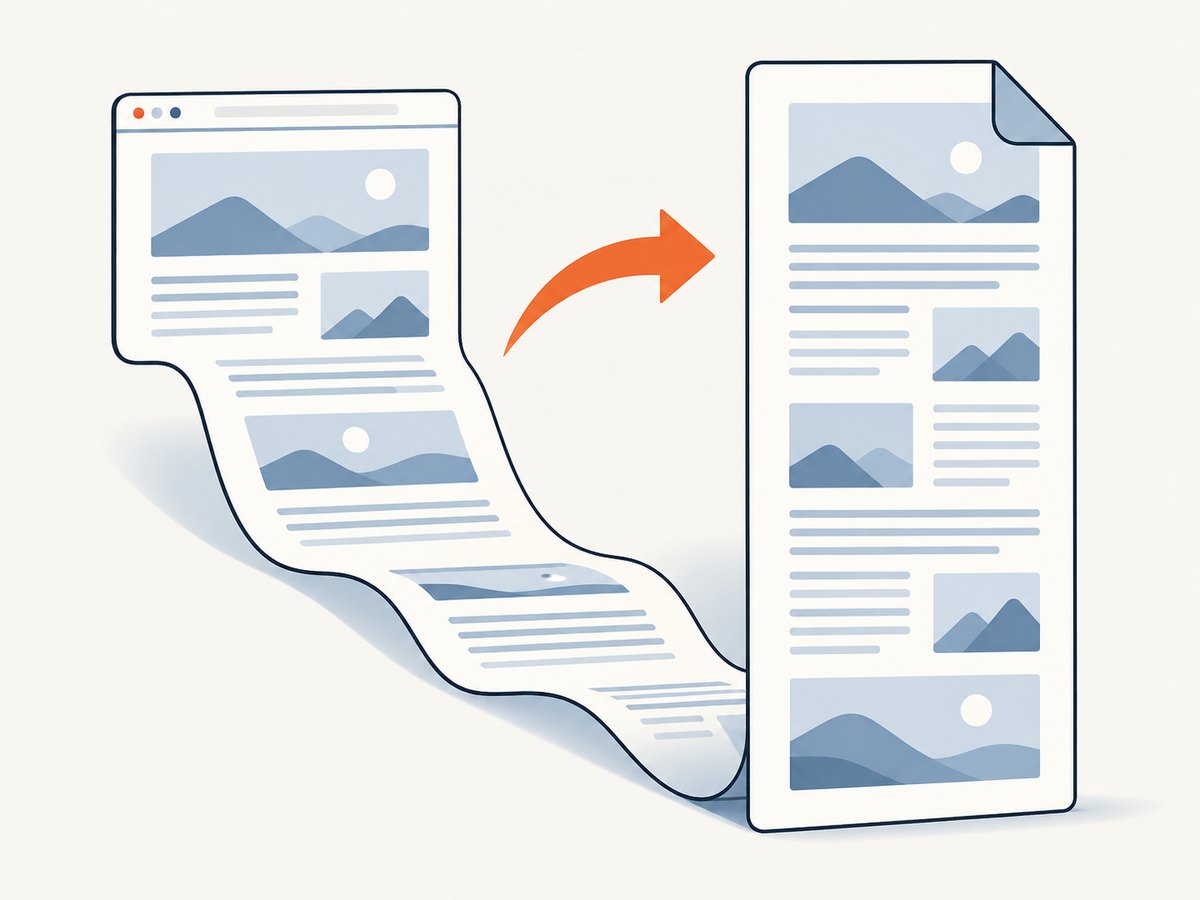
You can use format for a standard paper size or provide explicit width and height. For a long page, a custom height may be needed. Determine it from the content actually rendered at the chosen width; the Puppeteer API documents dimensions, but does not prescribe a formula that works for arbitrary dynamic pages.
| Option | What it controls | Useful detail |
|---|---|---|
format |
Standard paper format | Defaults to Letter when paper format applies and explicit sizing does not supersede it. |
width, height |
Paper dimensions | Use explicit dimensions when a tall custom sheet is required. |
preferCSSPageSize |
Which page dimensions take priority | Defaults to false. When true, a CSS @page size takes priority over API width, height, or format. |
scale |
Scales rendering to fit | Defaults to 1; documented range is 0.1 through 2. |
margin |
Printable page margins | No margins are set by default. Set explicit margins if the design requires them. |
If the page’s stylesheet declares a matching @page size, enable preferCSSPageSize: true. Otherwise, with its default value of false, content is scaled to fit the PDF dimensions you select. Avoid defining competing dimensions in both CSS and options without deciding which one wins.
await page.pdf({
  path: 'long-page.pdf',
  width: '210mm',
  height: '900mm',
  preferCSSPageSize: false,
  margin: { top: '0', right: '0', bottom: '0', left: '0' },
  printBackground: true,
  scale: 0.9,
});
The values above are examples, not a recommended universal sheet size. Measure or estimate the rendered page at the selected width, then adjust the height and verify the PDF. If you set a CSS page size instead, use preferCSSPageSize: true so it takes priority.
4. Tune print CSS, scale, margins, and backgrounds
The scale setting can shrink or enlarge the rendering, but only within 0.1–2. Lower values may help a slightly overlong page fit; a drastic reduction can make text difficult to read. If the content is far taller than a standard sheet, use a custom height or reconsider whether one page is a useful output format.
Margins consume space when set, so remove them only when edge-to-edge output is appropriate. printBackground defaults to false. Enable it when the page’s colored backgrounds or other background graphics are part of the intended result. Print rendering may adjust colors; the documentation identifies -webkit-print-color-adjust for forcing exact colors.
@media print {
  html {
    -webkit-print-color-adjust: exact;
    print-color-adjust: exact;
  }

  /* Example only: remove elements that do not belong in the PDF. */
  .cookie-banner,
  .floating-chat {
    display: none !important;
  }
}
Only hide elements when you control the page or have permission to alter its presentation. CSS changes can affect layout height, so recalculate or recheck the chosen PDF dimensions after applying them.
5. Wait for content before measuring or printing
Dynamic pages may render content after navigation completes. Lazy-loaded images, client-side application data, and web fonts can change the final dimensions. Puppeteer’s waitForFonts option defaults to true and waits for document.fonts.ready to resolve. That does not guarantee every site-specific asynchronous task has finished.
Use a site-specific readiness condition when possible, such as a selector that appears after the main content loads. The navigation wait condition is a starting point, not proof that a page is complete. Some sites keep connections open, so waiting for network idle can time out or take longer than expected.
await page.goto('https://example.com/report', {
  waitUntil: 'domcontentloaded',
  timeout: 60_000,
});
await page.waitForSelector('main article', { timeout: 30_000 });
await page.evaluate(() => document.fonts.ready);

await page.pdf({
  path: 'report.pdf',
  width: '210mm',
  height: '1100mm',
  printBackground: true,
  waitForFonts: true,
  margin: '0',
});
6. Inspect the PDF instead of trusting page-range settings
After each configuration change, inspect page count, missing sections, cut-off content, and text size. A PDF restricted to page 1 may look like a successful one-page export while silently dropping later content. For a trustworthy result, verify both that there is one page and that the bottom of the source page is present.
- Open the generated PDF and confirm it contains the expected content from top to bottom.
- Check headings, images, tables, and fixed-position elements for overlap or clipping.
- Read body text at the intended viewing size; a single page that requires extreme zoom may not be useful.
- Repeat the check after site content, viewport, CSS, or Puppeteer/Chromium versions change.
7. Common errors and fixes
| Symptom | Likely cause | Fix |
|---|---|---|
| The PDF has multiple pages | The selected sheet height is too short, or print CSS creates breaks. | Use a suitable custom height, inspect print styles and @page, and verify the PDF page count. |
| The PDF has one page but content is missing | pageRanges: '1' printed only the first sheet. |
Remove the page range while tuning, or increase the sheet height; inspect the full document. |
| Text is too small | The page was scaled down heavily to fit standard paper. | Use a taller custom sheet, adjust layout/viewport, or accept multiple pages when readability matters more. |
| Colors or backgrounds are absent | printBackground defaults to false, or print color adjustment changed them. |
Set printBackground: true and consider -webkit-print-color-adjust: exact. |
| Screen layout differs from the browser | PDF uses print media by default. | Call page.emulateMediaType('screen') before page.pdf(). |
PDF dimensions ignore CSS @page |
preferCSSPageSize is false by default. |
Set it true when CSS dimensions should win, or remove conflicting CSS sizing. |
| Navigation or capture times out | The site is slow, keeps connections active, or requires an application-specific readiness signal. | Choose a navigation wait suitable for the page, set a bounded timeout, and wait for the main content selector. |
| Images or fonts are missing | Resources had not loaded when printing began. | Wait for the relevant content and fonts, then inspect resource failures and rerun. |
8. Performance, reliability, and cost considerations
Generating a PDF requires launching or reusing a browser, loading the page and its resources, and rendering the print output. Page complexity, network conditions, and waiting strategy affect elapsed time. Reusing a browser process can avoid repeated startup overhead in a service, but isolate page state and close pages when finished. Bound navigation and readiness waits so a stalled page does not occupy a worker indefinitely.
For reliable output, pin and document the Puppeteer and Chromium versions used by your workflow, and keep a representative page for visual review when changing them. The PDF API specifies option behavior, but it does not promise a universal readable scale or identical output for every dynamic site. Make page count and visual inspection part of your own acceptance process.
Self-hosted capture has infrastructure costs: browser CPU and memory, network transfer, storage, and engineering time for browser updates and failed-page handling. A custom-height one-page PDF may also be inconvenient for common viewers or printers; confirm that your recipients can use the resulting dimensions.
9. Or skip the browser setup
If a screenshot is sufficient, ScreenshotNeo returns PNG, JPEG, WebP, or PDF from one API request. Its PDF options include paper size, margins, landscape, and page ranges. The call below uses the documented API shape; see the ScreenshotNeo API docs for configuration.
curl -G "https://api.screenshotneo.com/v1/shot" \
  -d access_key=YOUR_API_KEY \
  --data-urlencode url=https://example.com \
  -o page.pdf
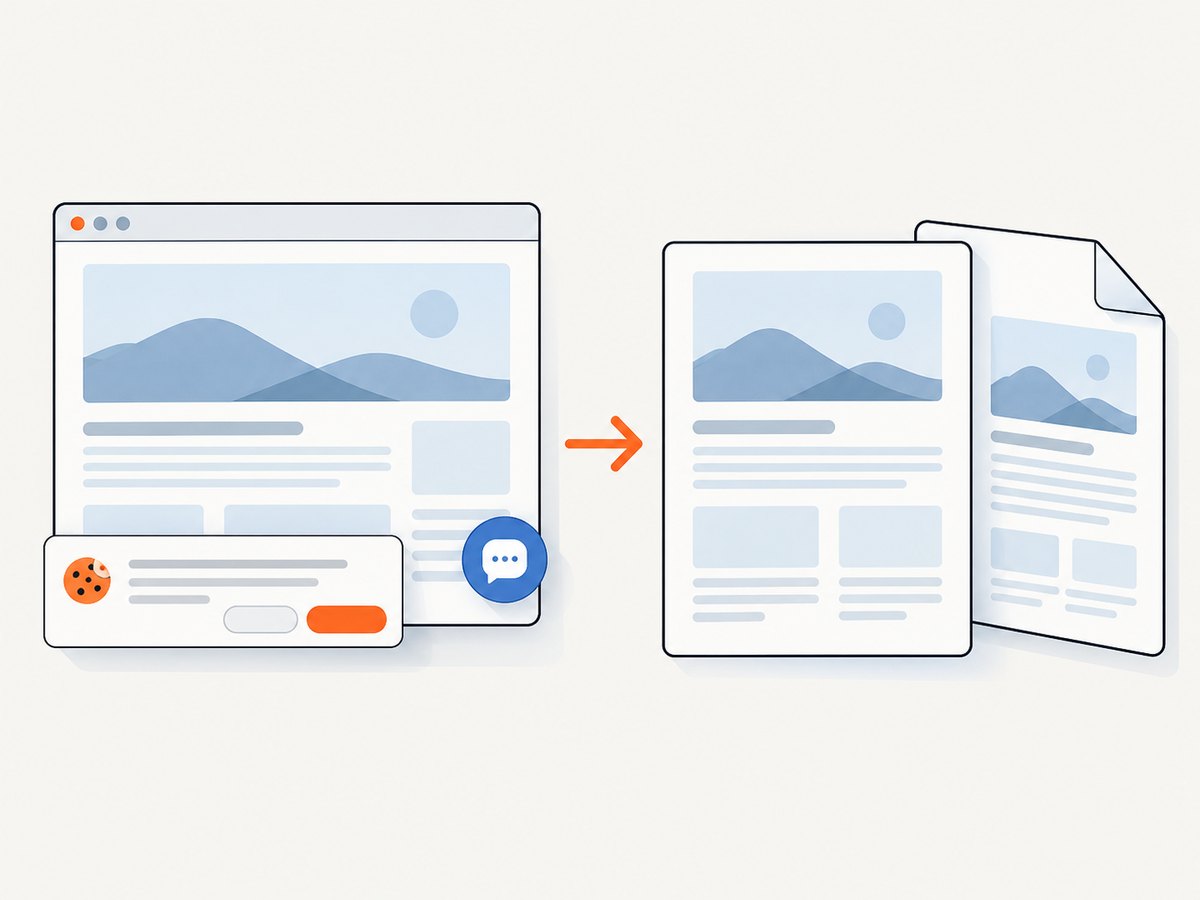
Set the output format and PDF dimensions according to the API documentation and your intended result. ScreenshotNeo accepts cookie/consent banners and removes 60+ known consent platforms, newsletter popups, and chat widgets before capture; each step can be turned off. Bot checks/CAPTCHAs, blank pages, timeouts, failed loads, and cache hits cost nothing, and response headers report the page verdict and billing status. Its MCP server gives AI agents tools for screenshots, page information, and PDF capture.
The free plan includes 1,000 screenshots per month with no card. Paid plans start at $5 for 3,000 shots; every feature is on every plan. Create a free ScreenshotNeo account and make your first 1,000 screenshots this month at no charge.
10. FAQ
Can Puppeteer automatically make every webpage fit on one page?
No universal one-page sizing switch is documented. Choose dimensions and styling for the specific page, then check for missing content and legibility.
Does scale: 0.1 guarantee the full page fits?
No. Scale is constrained to 0.1–2, and page dimensions, layout, and page breaks still matter.
Should I use print or screen media?
Use print media for a print stylesheet. Call emulateMediaType('screen') first when the screen presentation is the desired output.
Can I keep the PDF to one page without losing content?
Only if the selected page dimensions accommodate the rendered content. Verify the bottom of the source and the PDF page count; limiting output to page 1 can hide overflow.


