How to Fit a Webpage on a Single-Page PDF
Learn how to fit a webpage onto one readable PDF page using print preview, browser settings, CSS, automation, and ScreenshotNeo.
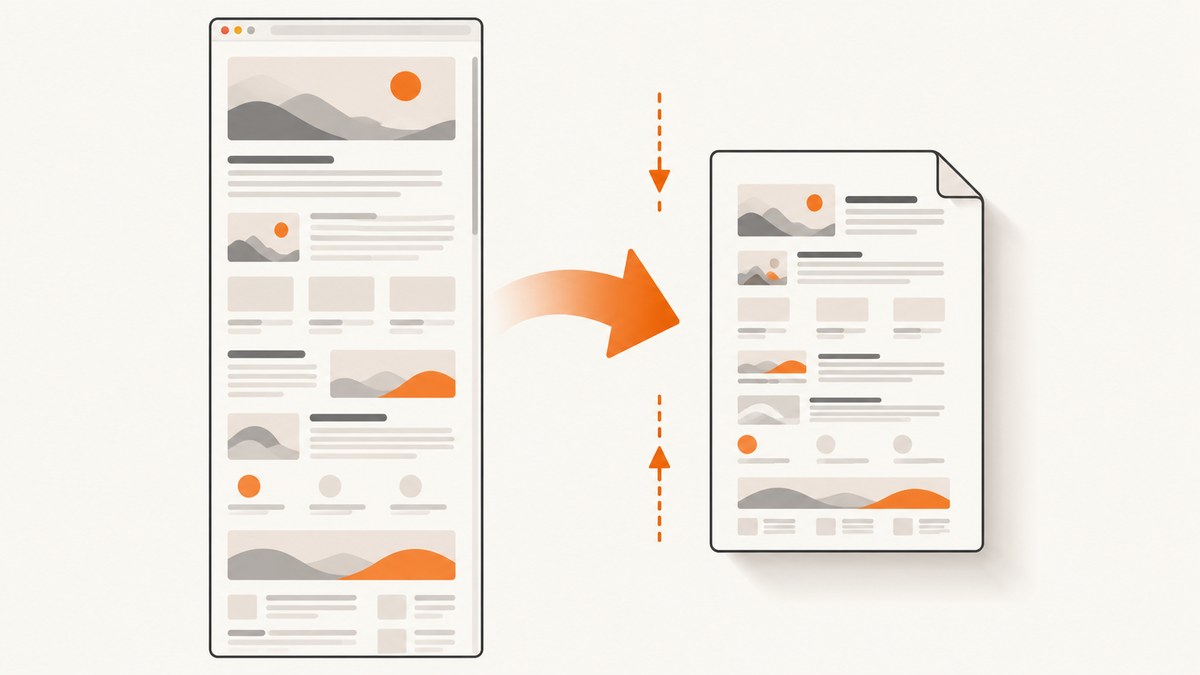
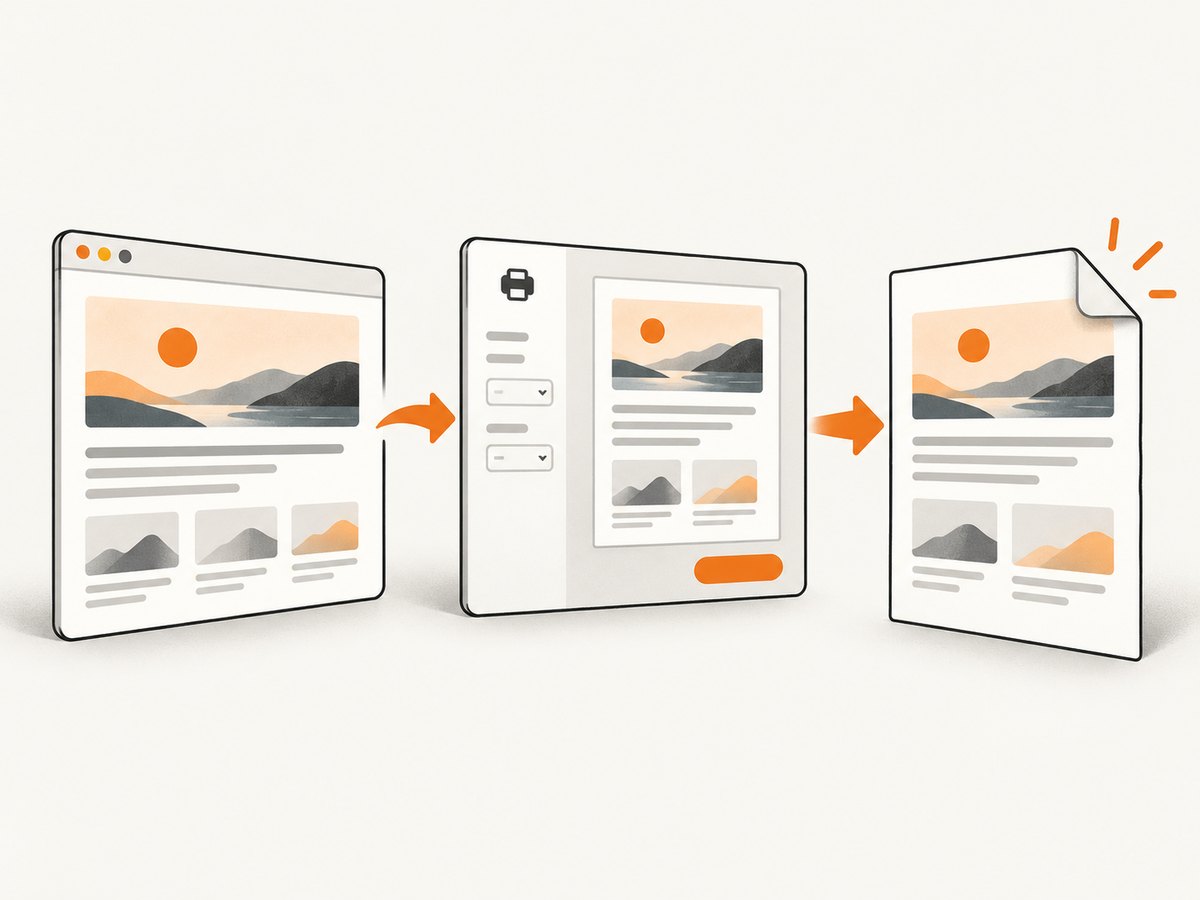
Direct answer: Open the webpage’s print dialog, choose Save to PDF, select the final paper size and orientation, then lower Scale or choose a fit option until the preview shows one page. Check the preview at normal reading size before saving. If the text becomes too small, use a multi-page PDF or print only the relevant section.
This workflow works in Chrome, Edge, Firefox, Safari, and most Chromium-based browsers, although labels differ by browser and operating system. In Firefox, the destination is explicitly named Save to PDF; Microsoft Edge provides controls such as Fit to printable area, Actual size, custom scale, paper size, margins, headers and footers, and background graphics. Mozilla’s Firefox printing guide documents the same general process.
1. The reliable browser workflow
- Open the page you need to export.
- Open print preview with Ctrl+P on Windows or Command+P on macOS. You can also use the browser menu and choose Print.
- Set the destination to Save to PDF or the equivalent PDF destination.
- Choose the paper size that matches the deliverable, usually A4 or Letter.
- Choose portrait for a tall, narrow page or landscape for a wide layout.
- Open More settings and adjust Scale. Use Fit to printable area when available, or enter a custom percentage.
- Confirm that the preview shows exactly one PDF page and that required content is present.
- Save the file, then open it separately and inspect it at 100% zoom.
Scale is the setting that shrinks the rendered document. Pages per sheet is different: it places multiple already-rendered pages on one sheet and does not reflow a long webpage into one readable page. Selecting two or four pages per sheet can make a PDF sheet look compact while still leaving the document itself split across pages.
2. Choose the right page geometry
Paper size
Pick the physical page size expected by the recipient or printer. A mismatch can create an extra page or force more aggressive scaling. If the PDF is only for screen sharing, a larger paper size may preserve readability, but it can be unsuitable for office printing.
Portrait versus landscape
Portrait usually works for article pages. Landscape is useful for dashboards, tables, wide code samples, and pages with a fixed desktop layout. Changing orientation can reduce the scale required to fit the same content.
Margins
Reduce margins when content is clipped near an edge or when the browser is scaling farther than necessary. Do not remove margins so aggressively that text touches the page boundary. Browser print dialogs may offer default, minimum, or custom margins.
Headers, footers, and backgrounds
Turn browser-generated headers and footers off when they consume space or add unwanted URLs, dates, and titles. Enable background graphics only when color blocks, diagrams, or shaded table rows are part of the information you need. Backgrounds can increase file size and may print differently on physical printers.
3. Clean the page before printing
Navigation bars, cookie notices, ads, chat bubbles, newsletter forms, and sticky controls often consume more space than the article itself. First try the browser’s reader or simplified view when it is available. Firefox calls this Simplified format; Edge can use Immersive Reader on supported pages. Availability depends on the site and browser version.
If reader mode removes a table, code sample, or interactive explanation that you need, return to the original page and hide only the unwanted elements. Developer tools can help you identify a selector, but changes made in developer tools are temporary and may not survive the print pipeline.
Temporary CSS cleanup
For a page you control, add a print stylesheet. For example:
@media print {
  nav, header, footer, .cookie-banner, .chat-widget, .newsletter-modal,
  .advertisement, .share-buttons { display: none !important; }

  main, article { max-width: none; width: 100%; }
  body { margin: 0; color: #000; background: #fff; }
  a { color: inherit; text-decoration: none; }
}

@page {
  size: A4 portrait;
  margin: 10mm;
}
Use print-specific CSS to control what is printed, not to force every long document into microscopic text. The browser still decides how the resulting content flows across pages.
4. Make a long page fit without destroying readability
There is no universal scale that fits every webpage. A page with 20 screens of content may technically fit on one sheet, but the result can be unreadable. Use this order:
- Remove peripheral content with reader mode or print CSS.
- Switch to the correct paper size.
- Try landscape for wide content.
- Turn off headers and footers.
- Reduce margins.
- Lower scale in small steps, such as 90%, 80%, then 70%.
- Stop when the smallest body text is still readable at normal viewing size.
If the preview still requires an extreme reduction, choose a multi-page PDF. A practical one-page PDF is one that preserves the information hierarchy and can be read without continuous zooming. When only a portion matters, select that content and print the selection if your browser supports it.
5. Automate PDF creation with Playwright
For repeatable exports, browser automation gives you control over viewport, CSS, waiting, and PDF settings. Install Playwright with Node.js:
npm install playwrightSave this as one-page-pdf.mjs:
import { chromium } from 'playwright';

const url = process.argv[2];
if (!url) throw new Error('Usage: node one-page-pdf.mjs https://example.com');

const browser = await chromium.launch();
const page = await browser.newPage({ viewport: { width: 1440, height: 1000 } });
await page.goto(url, { waitUntil: 'networkidle', timeout: 90000 });

await page.emulateMedia({ media: 'print' });
await page.addStyleTag({ content: `
  @media print {
    nav, header, footer, .cookie-banner, .chat-widget,
    .newsletter-modal, .advertisement { display: none !important; }
  }
` });

await page.pdf({
  path: 'page.pdf',
  format: 'A4',
  landscape: false,
  printBackground: true,
  preferCSSPageSize: false,
  scale: 0.75,
  margin: { top: '8mm', right: '8mm', bottom: '8mm', left: '8mm' }
});

await browser.close();
Run it with:
node one-page-pdf.mjs https://example.comThe scale value changes the rendered size; it does not guarantee one page. After generation, inspect the PDF page count and legibility. If the page is still split, lower the scale, remove more print-only elements, or accept multiple pages. If content is clipped, increase margins or remove the conflicting print CSS.
6. Or skip the browser setup
ScreenshotNeo provides a website capture API that can return PNG, JPEG, WebP, or PDF output. It handles the browser session for you and exposes PDF controls such as paper size, margins, landscape mode, and page ranges. The API also supports custom CSS and JavaScript, waiting for selectors or network idle, cookies, headers, user agents, time zones, and geolocation. See the ScreenshotNeo documentation for the current option names and PDF examples.
Basic request:
curl -G "https://api.screenshotneo.com/v1/shot" \
  -d access_key=YOUR_API_KEY \
  --data-urlencode url=https://stripe.com \
  -o shot.webp
Python:
import requests

r = requests.get(
    "https://api.screenshotneo.com/v1/shot",
    params={"access_key": "YOUR_API_KEY", "url": "https://stripe.com"},
    timeout=90,
)
r.raise_for_status()
open("shot.webp", "wb").write(r.content)
Node.js:
const q = new URLSearchParams({ access_key: 'YOUR_API_KEY', url: 'https://stripe.com' });
const res = await fetch(`https://api.screenshotneo.com/v1/shot?${q}`);
if (!res.ok) throw new Error(`HTTP ${res.status}`);
const data = Buffer.from(await res.arrayBuffer());
await import('node:fs/promises').then(fs => fs.writeFile('shot.webp', data));
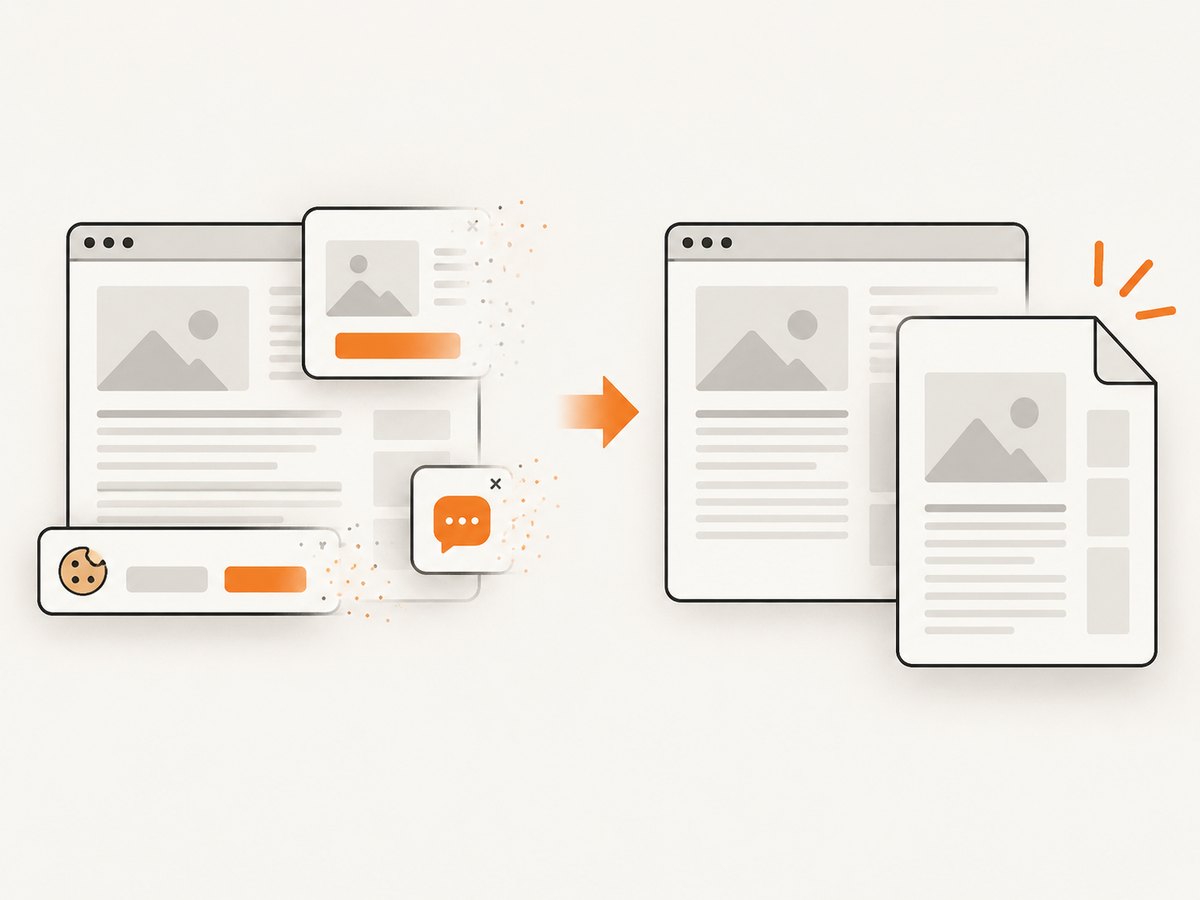
Cookie banners, newsletter popups, and chat widgets are removed before the shot. Bot checks, blank pages, failed loads, timeouts, and cache hits are not billed, and response headers identify the page verdict and whether the request was billed. ScreenshotNeo also has an MCP server so Claude, Cursor, and other MCP clients can take screenshots or capture PDFs through take_screenshot, get_page_info, and capture_pdf.
The Free plan includes 1,000 shots per month with no card. Paid plans start at $5 for 3,000 shots, and every feature is available on every plan. Create a free ScreenshotNeo account.
7. Troubleshooting checklist
| Symptom | Likely cause | Fix |
|---|---|---|
| The PDF has several pages | Scale is too high or the page contains too much content. | Use Fit to printable area, lower custom scale, remove print-only elements, or accept a multi-page PDF. |
| Only part of the page appears | A fixed-height container, overflow rule, or lazy-loaded section is not printing. | Wait for content to load, disable restrictive height/overflow rules in print CSS, and inspect the preview. |
| Text is tiny | The entire document has been forced into one sheet. | Use landscape or larger paper, remove clutter, print a selection, or keep multiple pages. |
| Right edge is cut off | Portrait orientation or margins do not match the page width. | Switch to landscape, choose the correct paper size, reduce margins, or lower scale slightly. |
| Colors or images are missing | Background graphics are disabled, or assets have not loaded. | Enable background graphics, wait for network idle, and verify image URLs. |
| Cookie dialog covers the preview | The consent layer is part of the page being printed. | Accept or dismiss it before printing, use reader mode, hide it with print CSS, or use a capture service that removes known consent platforms. |
| Automation times out | The page never reaches the selected load condition. | Increase the timeout, wait for a specific selector, or use a less strict readiness condition. |
| PDF output differs between browsers | Print engines apply different CSS and pagination rules. | Standardize on one browser engine for automated jobs and review representative pages. |
8. Performance, reliability, and cost considerations
Performance
Large images, web fonts, animations, and third-party scripts slow print preview and automation. Disable animation in print CSS, wait for the content that matters, and avoid waiting indefinitely for unrelated analytics requests. For batch jobs, reuse a browser process where your automation framework supports it.
Reliability
Webpages change after deployment. A selector that hides a popup today may stop matching after a redesign. Keep a small set of representative URLs, check page count and file size, and alert when required headings or sections disappear. For dynamic pages, wait for a meaningful selector instead of assuming that the initial load event means the page is complete.
Cost
Browser automation consumes compute, storage, and maintenance time. A self-hosted browser is reasonable for low volume and controlled sites. An API can be simpler when you need many domains, consistent capture settings, retries, signed webhooks, bulk capture, or usage reporting. With ScreenshotNeo, clean shots are billed while bot checks, blank pages, failed loads, timeouts, and cache hits are not billed; caching also lets you choose a TTL.
9. Edge cases to check
- Infinite scroll: scroll or wait until lazy content is loaded before printing.
- Sticky elements: fixed headers can repeat or cover content; hide them in print CSS.
- Tables: wide tables usually need landscape, smaller margins, or a selected range.
- Code blocks: preserve wrapping and use a print font size that remains readable.
- Embedded viewers: an iframe or PDF viewer may print as a blank box; print the source document directly if possible.
- Authentication: the browser must already have the required session cookie or authorization header.
- Cross-origin assets: fonts and images may be blocked or unavailable to an automated browser.
- Very long documents: forcing one page can make the result unusable; a short, readable multi-page PDF is often the better deliverable.
10. FAQ
Does “Pages per sheet” make a webpage one page?
No. It places multiple rendered pages on one physical sheet. Use Scale or a fit option to reduce the webpage itself.
What scale should I use?
There is no universal value. Start with Fit to printable area, then reduce custom scale until the preview shows one page while the smallest required text remains readable.
Why does my PDF have a blank second page?
Common causes include a trailing element wider or taller than the printable area, a fixed-height container, a forced page break, or margins that leave a few pixels of overflow. Inspect print CSS and reduce the offending dimension.
Should I always choose landscape?
No. Use it when the page is wider than it is tall or contains wide tables. Portrait is usually easier to read for articles.
Can a browser guarantee one page?
It can preview and generate a one-page result when the content fits, but responsive layouts, print CSS, fonts, and browser engines can change pagination. Always inspect the generated file.
When should I use an API instead of print preview?
Use an API when captures are recurring, high volume, automated, or need consistent cleanup and options across many websites. For an occasional page, the built-in print dialog is usually enough.


