How to Fix an Address Bar That Is Not Working
Diagnose an address bar that will not type, search, navigate, or load pages with a browser-by-browser troubleshooting flow.
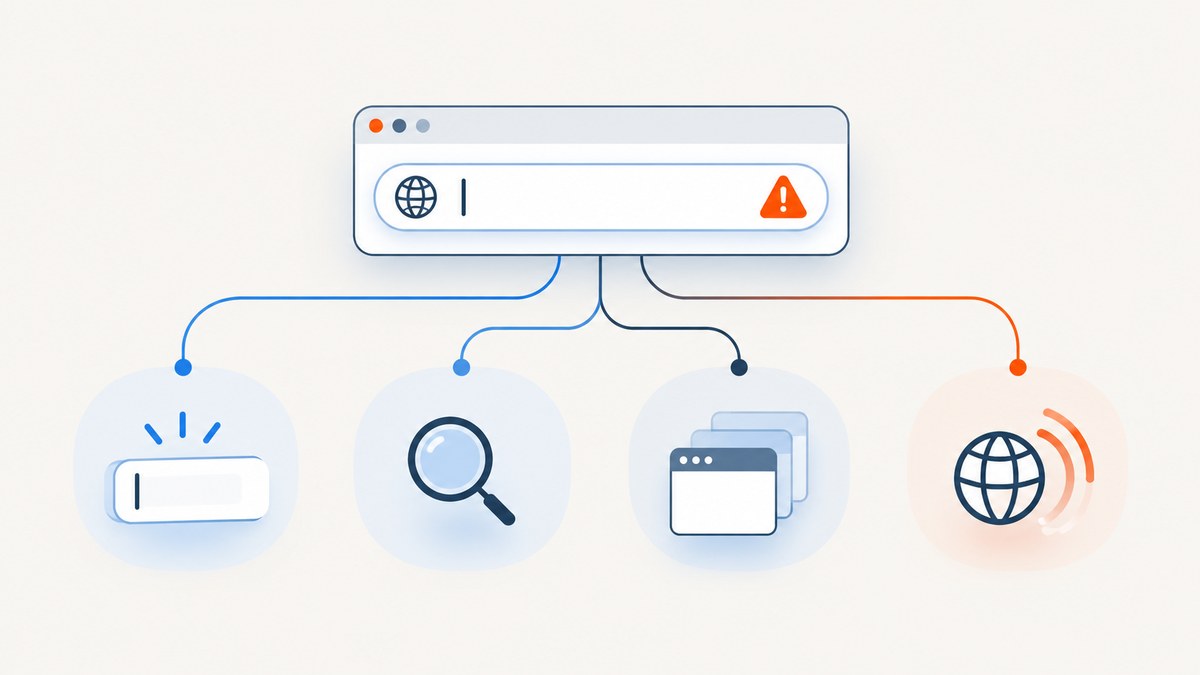
An address bar can fail in several different ways: it may ignore the keyboard, accept text but do nothing when you press Enter, stop showing suggestions, treat search words as a URL, or display a browser error after navigation. The fastest fix depends on which stage is failing.
Start by separating input, browser behavior, and destination loading. Click the address field, type a short test such as test, and check whether characters appear. Then try both an ordinary search phrase and a complete address beginning with https://. Finally, test another website and another browser. This small set of checks tells you whether the problem is the field itself, one browser, one website, or your connection.
1. Identify exactly what is not working
Use this sequence before changing settings:
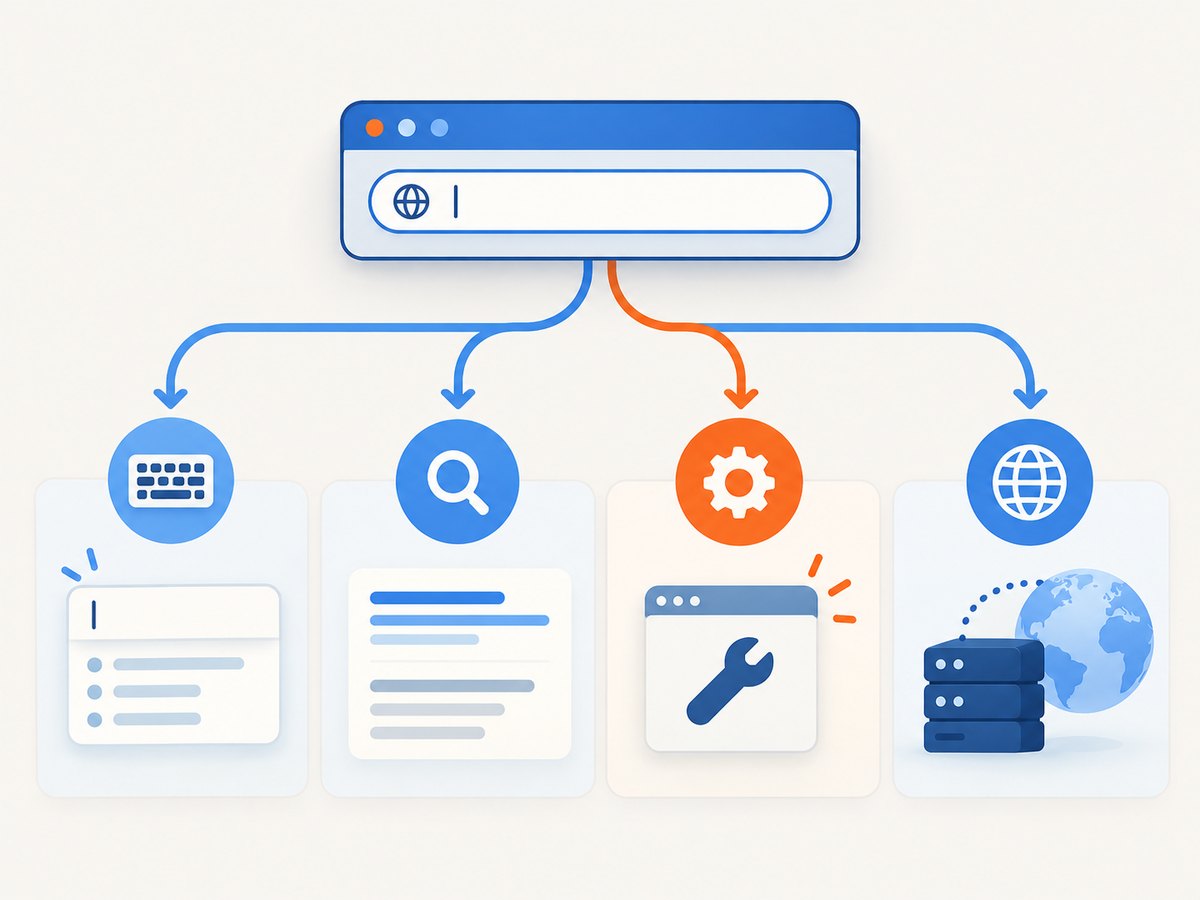
- Test focus. Click directly in the address field. If the cursor does not appear, press
Ctrl+Lon Windows/Linux orCommand+Lon macOS, then type. - Test typing elsewhere. Type into a page form, a text editor, or the browser’s find box. If typing fails in every application, investigate the keyboard, connection, batteries, receiver, or accessibility settings separately.
- Test a complete URL. Enter
https://example.com. Include the scheme while diagnosing so search handling does not obscure the result. - Test a search phrase. Enter two ordinary words. If a URL works but a search phrase does not, inspect the default search engine, suggestions, and extensions.
- Compare scope. Open a second tab, another site, and another browser. Mozilla recommends this comparison to distinguish a site-specific failure, a Firefox-only issue, and a connection problem affecting browsers generally (Mozilla Support).
| Observed symptom | Most likely area | First action |
|---|---|---|
| No cursor or characters | Focus, input device, browser UI, extension | Use the keyboard shortcut, then test another app and browser |
| Characters appear but Enter does nothing | Browser process, extension, profile, or stalled tab | Open a new tab and restart the browser |
| Full URL works; search words fail | Search engine, suggestions, keyword handling, extension | Check search settings and isolate extensions |
| Only one site fails | Destination, DNS, cookies, or site security | Try another site and the same URL in another browser |
| All browsers fail | Network, proxy, offline state, or system security | Check connectivity and proxy settings |
2. Restore focus and rule out an input-device problem
Make sure the browser window is active, then press Ctrl+L (Windows/Linux) or Command+L (macOS). On mobile, tap the address field once, wait for the caret and keyboard, and tap again if the first tap selected the page instead.
Type into a normal text field. If that also fails, reconnect a USB keyboard, re-pair a Bluetooth keyboard, replace batteries, or try the built-in keyboard on a laptop. Test a different pointing device if clicks do not place the caret. These tests establish an input fault; the address-bar symptom alone does not justify replacing hardware.
If typing works elsewhere but not in the address bar, close the current tab and open a new one. A page can consume focus or leave the browser process in a bad state. Restart the browser before changing profiles or reinstalling it.
3. Restart, update, and isolate extensions
Save work in other tabs, close the browser completely, and open it again. If the problem returns, restart the computer. Then install the latest browser update available for your operating system. Updates can repair browser UI defects and compatibility problems.
Extensions can intercept keyboard shortcuts, rewrite searches, inject overlays, or replace the new-tab page. Disable all nonessential extensions temporarily and test a new tab. If the address bar works, enable extensions one at a time until the failure returns. Google recommends removing extensions during Chrome troubleshooting and adding them back individually (Chrome Help). Microsoft gives similar advice for Edge (Microsoft Support).
Chrome checks
Close unnecessary tabs and applications, restart Chrome, and test the same address in another browser. Google’s general repair guidance also includes checking extensions, hardware acceleration, and profile-related problems. Treat these as browser-failure diagnostics rather than a guaranteed address-bar repair.
Firefox checks
Firefox’s address bar combines an input box, a results view, and logic that decides among bookmarks, extension or keyword actions, URL navigation, autofill, and a default-engine search. Mozilla’s technical overview describes the input as “The text box component of the address bar” (Firefox Source Docs). If complete URLs work but searches do not, review the default search engine, search suggestions, and keyword extensions.
Edge checks
Update Edge, close unneeded tabs, disable extensions, restart, and check whether security software is interfering. On supported Windows installations, open Installed apps, select Microsoft Edge, choose Modify, and select Repair. Microsoft says Repair should preserve browser data and settings; managed installations may hide Modify and require an administrator.
4. Diagnose search, suggestions, and Enter behavior
If characters appear but the result is wrong, compare three inputs:
https://example.com— a complete URL.example.com— text that browsers may interpret as a URL or search.weather tomorrow— an ordinary search phrase.
A complete URL should navigate directly. Search phrases depend on the configured default search engine. If suggestions are missing, check whether suggestions are disabled in privacy settings, whether an extension is filtering them, and whether the browser can reach its search provider. If Enter appears to do nothing, try clicking a suggestion with the mouse, pressing the browser’s reload button, or opening the same text in a new tab.
Do not assume that a destination error proves the address field is broken. A browser can accept and submit the address correctly while DNS, TLS, a proxy, a captive portal, or the destination server prevents loading.
5. Determine whether the destination or connection is at fault
Open a second, known-working site. Then open the affected site in another browser and, if possible, on another network such as a phone hotspot. Interpret the results:
- One site fails everywhere: the site may be down, blocking your network, misconfigured, or rejecting your browser. Check the site’s own status information and try again later.
- Several sites fail in one browser: inspect that browser’s extensions, proxy, offline mode, cache, cookies, and security software.
- Several sites fail in every browser: investigate Wi-Fi or Ethernet, DNS, VPN, proxy settings, captive portals, firewall rules, and system time.
- Only one account or profile fails: create a temporary browser profile to determine whether profile data is involved.
Mozilla’s website-loading guidance separates Firefox-only issues from failures that also occur in other browsers and recommends checking another site and browser first. Apply its proxy, cache, cookies, and offline-mode steps when the symptom is page loading or connectivity, rather than a field that cannot receive typing.
6. Clear site data carefully and test a fresh profile
For a single-site failure, clear that site’s cookies and cached data instead of wiping the entire browser immediately. You may be signed out, and a site’s saved preferences can reset. Retest in a private window; if the site works there, an extension or stored site data is a strong suspect.
A fresh browser profile is a useful next diagnostic step when the address bar works in private mode but not in the normal profile. Record bookmarks, saved passwords, and sync status before deleting or resetting anything. Profile resets can remove local settings and extension data.
7. Check proxy, VPN, security software, and offline state
When navigation fails across browsers, verify that the device is online and that the system date and time are correct. Temporarily disconnect a VPN or proxy only if your organization permits it. Check whether the browser is in offline mode. Security software can block browser processes, DNS, or certificate connections; use its documented browser or web-protection settings rather than disabling protection broadly.
On a managed work or school device, policies may control search engines, extensions, proxy settings, and repair options. If settings are locked or Edge does not show Modify, contact the administrator with the exact symptom, browser version, and comparison results.
8. Advanced recovery, with data precautions
Use advanced actions only after the reversible tests above:
- Export or sync bookmarks and passwords.
- Write down installed extensions and important browser settings.
- Create a new profile and test the address bar before removing the old one.
- Repair or reinstall the browser using the vendor’s official installer.
- Restore extensions one at a time and retest after each change.
Reinstalling cannot repair a broken network, destination server, or keyboard. It is most useful when the browser itself is damaged and the same failure reproduces only there.
9. Troubleshooting checklist
- ☐ Does
Ctrl+LorCommand+Lfocus the field? - ☐ Can you type in another browser field and another application?
- ☐ Does a complete
https://address navigate? - ☐ Does an ordinary search phrase work?
- ☐ Does a new tab behave differently?
- ☐ Does another website load?
- ☐ Does another browser load the same site?
- ☐ Did restarting and updating change the result?
- ☐ Did disabling extensions isolate the problem?
- ☐ Is the device using a VPN, proxy, offline mode, or managed policy?

Or skip the browser setup
If your goal is to capture a page for documentation, visual regression, support evidence, or an AI workflow, you can avoid maintaining a local browser capture setup with ScreenshotNeo. It provides a GET endpoint that returns a PNG, JPEG, WebP, or PDF. Cookie and consent banners are accepted before capture, and more than 60 known consent platforms, newsletter popups, and chat widgets are removed. Bot checks, blank pages, timeouts, failed loads, and cache hits are not billed, and the response identifies the result with X-Page-Verdict and X-Billed headers.
See the ScreenshotNeo documentation for all options. The same request works from cURL, Python, or Node.js:
cURL
curl -G "https://api.screenshotneo.com/v1/shot" -d access_key=YOUR_API_KEY --data-urlencode url=https://stripe.com -o shot.webpPython
import requests
r = requests.get("https://api.screenshotneo.com/v1/shot", params={"access_key": "YOUR_API_KEY", "url": "https://stripe.com"}, timeout=90)
open("shot.webp", "wb").write(r.content)
Node.js
const q = new URLSearchParams({ access_key: 'YOUR_API_KEY', url: 'https://stripe.com' });
const res = await fetch(`https://api.screenshotneo.com/v1/shot?${q}`);
You can add full-page capture with lazy images loaded, CSS-element capture, dark mode, device presets or custom viewports, retina scale, custom CSS and JavaScript, clicks, selector waits, delays, network-idle waits, request blocking, headers, cookies, user agents, authorization, timezone, geolocation, transparent backgrounds, resizing, caching with a chosen TTL, signed links, asynchronous jobs, webhooks, bulk capture of up to 100 URLs per call, and usage reporting. An MCP server provides take_screenshot, get_page_info, and capture_pdf for Claude, Cursor, and other MCP clients.
There are 1,000 screenshots a month free with no card. Paid plans start at $5 for 3,000 shots, and every feature is available on every plan. Create a free ScreenshotNeo account.
10. Performance, reliability, and cost considerations
For local troubleshooting, change one variable at a time so you know which action helped. Keep a short record of browser version, operating system, affected URLs, whether another browser works, and the result after each change. This prevents repeated resets and gives administrators useful evidence.
For automated screenshots, use explicit waits only when needed: a selector wait for a known component, a short delay for an animation, or network idle for pages that finish loading asynchronously. Cache stable pages with a TTL to reduce repeated work. Use asynchronous jobs and signed webhooks for long or large batches, and inspect verdict and billing headers so failed captures do not become unexplained expenses.
FAQ
Why can I type in web pages but not the address bar?
The browser UI may have lost focus, an extension may intercept shortcuts, or the profile may be damaged. Try the focus shortcut, a new window, disabled extensions, and another browser.
Why does a URL work but Google or another search not?
Direct navigation and search use different browser paths. Check the default search engine, search suggestions, keyword extensions, and whether the search provider is reachable.
Should I reinstall the browser first?
No. Restart, update, compare browsers, and isolate extensions first. Reinstall only after preserving important profile data and confirming the issue is browser-specific.
What if the address bar works but the page is blank?
Treat it as a loading problem. Test another site and browser, then investigate connection, proxy, security software, JavaScript, and the destination.
Can a managed computer prevent repair?
Yes. Organization policies can hide settings or control extensions and proxies. Edge may omit Modify on managed installations; contact the administrator.


