How to Fix Android AccessibilityService Screenshot SecurityException
Diagnose Android screenshot SecurityException causes, configure canTakeScreenshot, handle secure windows, and use the correct API by Android version.
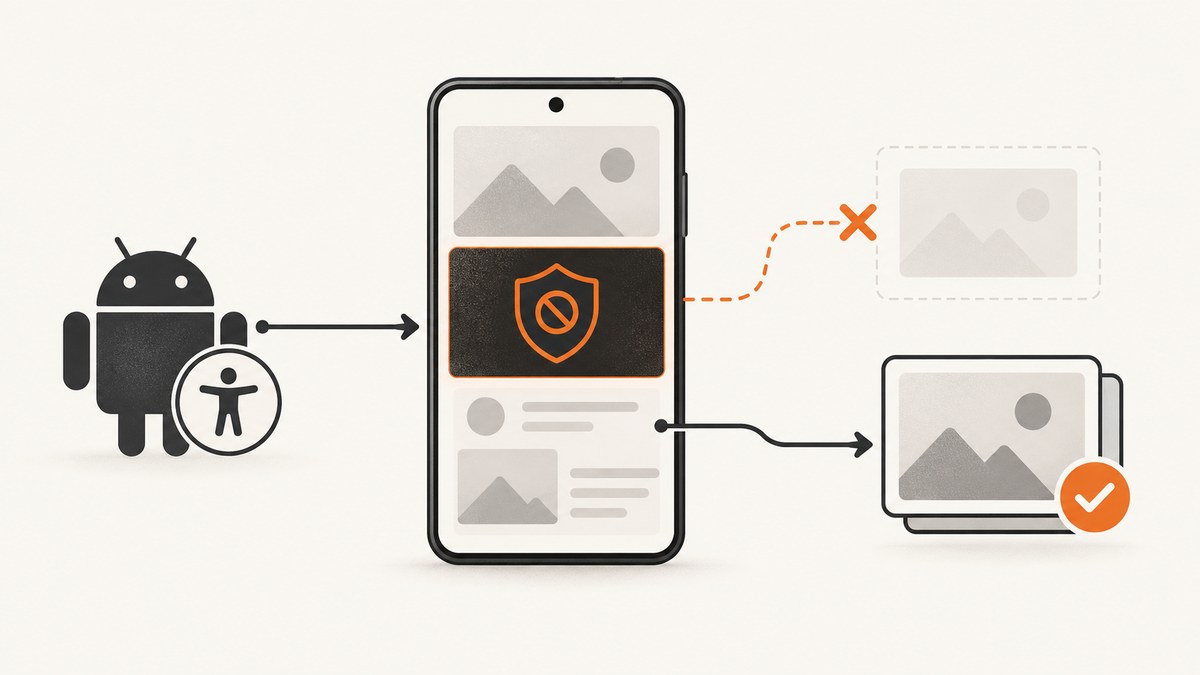
A screenshot failure in an Android AccessibilityService usually has one of two causes: the service is not configured or enabled for screenshot capture, or Android is correctly refusing a protected window. The public display screenshot API requires Android 11 (API 30) and the android:canTakeScreenshot="true" capability in the service metadata. Android 14 (API 34) adds window-specific capture.
Start by identifying your API level, the method you call, the complete exception and stack trace, and whether the callback reports an error. Do not treat every failure as the same SecurityException.
1. Diagnose the failure before changing code
- Check the Android API level.
AccessibilityService.takeScreenshot(displayId, executor, callback)is available from API 30.takeScreenshotOfWindow(accessibilityWindowId, executor, callback)requires API 34. - Check the call path. A Java or Kotlin exception thrown at the call site is different from a failure delivered to
onFailurein the screenshot callback. - Inspect service metadata. The accessibility-service XML must declare
android:canTakeScreenshot="true". - Confirm the service is enabled. The user must enable the service in Accessibility settings, and the service must have accessibility access when the call runs.
- Look for secure content. Android reports
ERROR_TAKE_SCREENSHOT_SECURE_WINDOWwhen the target contains a window protected withWindowManager.LayoutParams.FLAG_SECURE. - Collect evidence. Record the exact exception text, stack trace, API level, service declaration, method name, display or window ID, and callback error code.
These checks separate a missing capability from a deliberate secure-window refusal. Google Play’s AccessibilityService declaration and policy requirements are separate from the runtime screenshot capability; satisfying one does not automatically satisfy the other.
2. Configure the accessibility service for screenshots
2.1 Declare the service in the manifest
<manifest xmlns:android="http://schemas.android.com/apk/res/android">
    <application ...>
        <service
            android:name=".MyScreenshotAccessibilityService"
            android:permission="android.permission.BIND_ACCESSIBILITY_SERVICE"
            android:exported="true"
            android:label="@string/app_name">
            <intent-filter>
                <action android:name="android.accessibilityservice.AccessibilityService" />
            </intent-filter>
            <meta-data
                android:name="android.accessibilityservice"
                android:resource="@xml/accessibility_service_config" />
        </service>
    </application>
</manifest>
2.2 Add canTakeScreenshot to the service metadata
Create res/xml/accessibility_service_config.xml:
<accessibility-service
    xmlns:android="http://schemas.android.com/apk/res/android"
    android:accessibilityEventTypes="typeAllMask"
    android:accessibilityFeedbackType="feedbackGeneric"
    android:notificationTimeout="100"
    android:canRetrieveWindowContent="true"
    android:canTakeScreenshot="true" />
The screenshot capability belongs in the accessibility-service configuration. Adding unrelated permissions, changing storage settings, or attaching a hardware capture device does not grant it.
3. Capture the display on API 30 and newer
Use the display API when you need a screenshot of the current display and your app supports API 30 or later. The result is asynchronous and arrives through the callback.
class MyScreenshotAccessibilityService : AccessibilityService() {
    private val screenshotExecutor = Executors.newSingleThreadExecutor()

    override fun onAccessibilityEvent(event: AccessibilityEvent?) {
        // Handle events required by your service.
    }

    override fun onInterrupt() = Unit

    fun captureDisplay(displayId: Int = Display.DEFAULT_DISPLAY) {
        if (Build.VERSION.SDK_INT < Build.VERSION_CODES.R) {
            Log.e("Screenshot", "AccessibilityService.takeScreenshot requires API 30+")
            return
        }

        takeScreenshot(
            displayId,
            screenshotExecutor,
            object : TakeScreenshotCallback() {
                override fun onSuccess(screenshot: ScreenshotResult) {
                    val hardwareBuffer = screenshot.hardwareBuffer
                    val colorSpace = screenshot.colorSpace
                    val bitmap = Bitmap.wrapHardwareBuffer(hardwareBuffer, colorSpace)
                    if (bitmap == null) {
                        Log.e("Screenshot", "Could not create a Bitmap from ScreenshotResult")
                        hardwareBuffer.close()
                        return
                    }

                    try {
                        FileOutputStream(File(cacheDir, "display.png")).use { output ->
                            bitmap.copy(Bitmap.Config.ARGB_8888, false)
                                .compress(Bitmap.CompressFormat.PNG, 100, output)
                        }
                    } finally {
                        bitmap.recycle()
                        hardwareBuffer.close()
                    }
                }

                override fun onFailure(errorCode: Int) {
                    Log.e("Screenshot", "Screenshot failed: $errorCode")
                }
            }
        )
    }
}
Use the callback’s error value to distinguish a protected window from other failures. Keep ownership and cleanup of the returned HardwareBuffer explicit; close it after converting or saving the image.
4. Capture a specific window on API 34 and newer
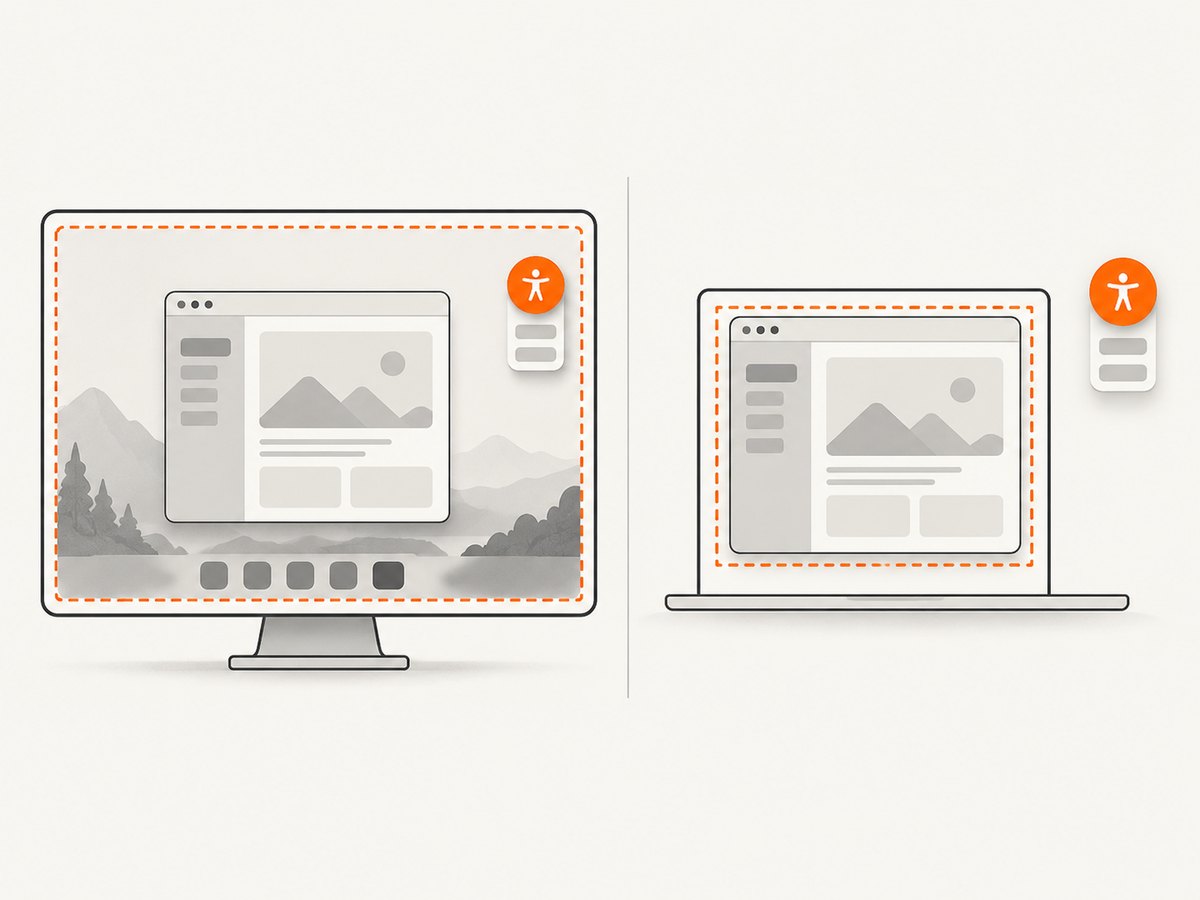
Android 14 adds takeScreenshotOfWindow. It accepts an accessibility window ID and is useful when an accessibility overlay is present over the target window.
fun captureWindow(windowId: Int) {
    if (Build.VERSION.SDK_INT < Build.VERSION_CODES.UPSIDE_DOWN_CAKE) {
        Log.e("Screenshot", "Window capture requires API 34+")
        return
    }

    takeScreenshotOfWindow(
        windowId,
        screenshotExecutor,
        object : TakeScreenshotCallback() {
            override fun onSuccess(result: ScreenshotResult) {
                val bitmap = Bitmap.wrapHardwareBuffer(
                    result.hardwareBuffer,
                    result.colorSpace
                )
                if (bitmap != null) {
                    try {
                        // Persist or process the bitmap here.
                    } finally {
                        bitmap.recycle()
                    }
                }
                result.hardwareBuffer.close()
            }

            override fun onFailure(errorCode: Int) {
                Log.e("Screenshot", "Window screenshot failed: $errorCode")
            }
        }
    )
}
Obtain the relevant ID from the current accessibility window list and call this method only when the device is API 34 or newer. Window capture does not bypass FLAG_SECURE.
5. Understand secure-window refusal
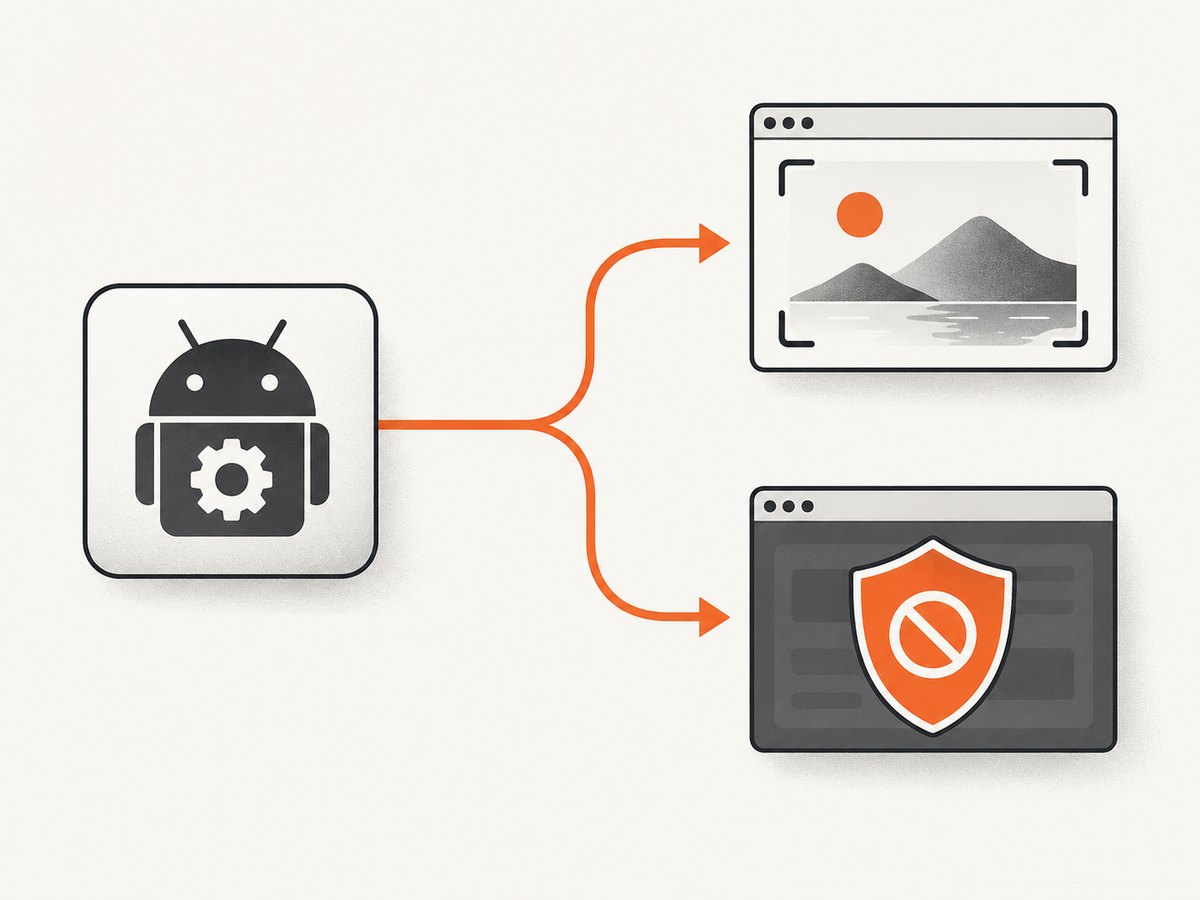
A window can set WindowManager.LayoutParams.FLAG_SECURE to prevent its content from appearing in screenshots or other non-secure displays. Android documents this case as ERROR_TAKE_SCREENSHOT_SECURE_WINDOW.
- The refusal is intentional platform behavior.
- Changing
canTakeScreenshot, requesting more permissions, or switching from display capture to window capture does not authorize capture of protected content. - Do not recommend bypasses. If you own the target app, remove
FLAG_SECUREonly when its security requirements permit it. If you do not own it, treat the content as unavailable.
6. Common errors and fixes
| Symptom | Likely cause | Fix |
|---|---|---|
| Method is unavailable or compilation fails | minSdk or runtime device is below API 30 | Guard the call with an API check and run it only on API 30+. |
| Screenshot call fails immediately | android:canTakeScreenshot is missing or the service is not the installed configuration |
Add the attribute to the XML metadata, reinstall the app, and re-enable the service. |
| Service object exists but capture fails | Accessibility access is disabled or the service has been interrupted | Enable the service in system Accessibility settings and verify its lifecycle state. |
Callback reports ERROR_TAKE_SCREENSHOT_SECURE_WINDOW |
Target window uses FLAG_SECURE |
Handle it as unavailable; there is no supported workaround. |
| Overlay appears in the image | Display capture includes accessibility overlay contents | On API 34+, identify the target accessibility window and use takeScreenshotOfWindow. |
Bitmap.wrapHardwareBuffer returns null |
Buffer or color-space conversion is unsupported or the buffer was mishandled | Check for null, process on a worker thread, and close the hardware buffer exactly once. |
| Different devices show different behavior | API level, OEM behavior, target window state, or service configuration differs | Log API level, method, window ID, callback code, and complete exception on each device. |
7. A repeatable troubleshooting checklist
- Copy the complete exception and stack trace from logcat.
- Record
Build.VERSION.SDK_INTand whether you calltakeScreenshotortakeScreenshotOfWindow. - Verify the installed APK contains the accessibility XML with
android:canTakeScreenshot="true". - Uninstall/reinstall if you changed service metadata, then enable the service again.
- Confirm the service receives accessibility events and has not been interrupted.
- Log the callback error code separately from thrown exceptions.
- If the error identifies secure content, stop looking for a permission fix and document the capture as unavailable.
- If an overlay is the problem and API 34 is available, switch to window-specific capture.
- When asking for help, include the metadata XML, API level, method call, target window context, exception text, stack trace, and callback code.
8. Performance, reliability and privacy considerations
- Keep capture off the main thread. Supply an executor for the callback and perform image conversion and file I/O on worker threads.
- Release buffers. Close each
HardwareBufferand recycle or otherwise release derived bitmaps after use. - Expect asynchronous failure. A successful method invocation does not mean a screenshot was produced; the callback is authoritative.
- Design for unavailable content. Secure windows, disabled services, API-level limits, and changing window state are normal failure paths.
- Minimize retention. Screenshots can contain personal or sensitive data. Store only what the feature needs and protect exported files.
- Respect platform and Play requirements. AccessibilityService use has policy and declaration obligations that are independent of screenshot API configuration.
9. Or skip the browser setup
If your goal is a website screenshot rather than an Android device display, ScreenshotNeo provides a single HTTP request. It handles browser setup and returns PNG, JPEG, WebP, or PDF output. See the ScreenshotNeo API documentation for all options.
curl -G "https://api.screenshotneo.com/v1/shot" -d access_key=YOUR_API_KEY --data-urlencode url=https://stripe.com -o shot.webpimport requests
r = requests.get("https://api.screenshotneo.com/v1/shot", params={"access_key": "YOUR_API_KEY", "url": "https://stripe.com"}, timeout=90)
open("shot.webp", "wb").write(r.content)const q = new URLSearchParams({ access_key: 'YOUR_API_KEY', url: 'https://stripe.com' });
const res = await fetch(`https://api.screenshotneo.com/v1/shot?${q}`);Cookie banners, newsletter popups and chat widgets are removed before the shot. Bot checks, blank pages and failed loads are never billed, and response headers identify the page verdict and billing result. An MCP server lets AI agents use take_screenshot, get_page_info and capture_pdf. The Free plan includes 1,000 screenshots a month with no card; paid plans start at $5 for 3,000.
Create a free ScreenshotNeo account to try it with 1,000 screenshots per month and no card.
10. FAQ
Does canTakeScreenshot bypass FLAG_SECURE?
No. It grants the service screenshot capability; it does not override a secure target window.
Can I use takeScreenshotOfWindow on Android 13?
No. The window-specific API is available from API 34. Use display capture on API 30–33 where supported.
Is every screenshot failure a SecurityException?
No. Failures can be callback errors, configuration problems, disabled accessibility access, API-level limitations, or secure-window refusal. The exact stack trace matters.
Does Google Play approval enable runtime screenshot capture?
No. Play declaration and policy compliance are separate from the service metadata capability and runtime accessibility state.
What should I include in a bug report?
Include the API level, exact method, complete exception and stack trace, callback error code, service XML, manifest declaration, enabled/accessibility state, and whether the target window is known to use FLAG_SECURE.


