How to Fix Screenshots Not Working on Android Phones
Find out whether Android screenshots are failing everywhere, blocked in one app, or saved somewhere unexpected—and follow the right fix.

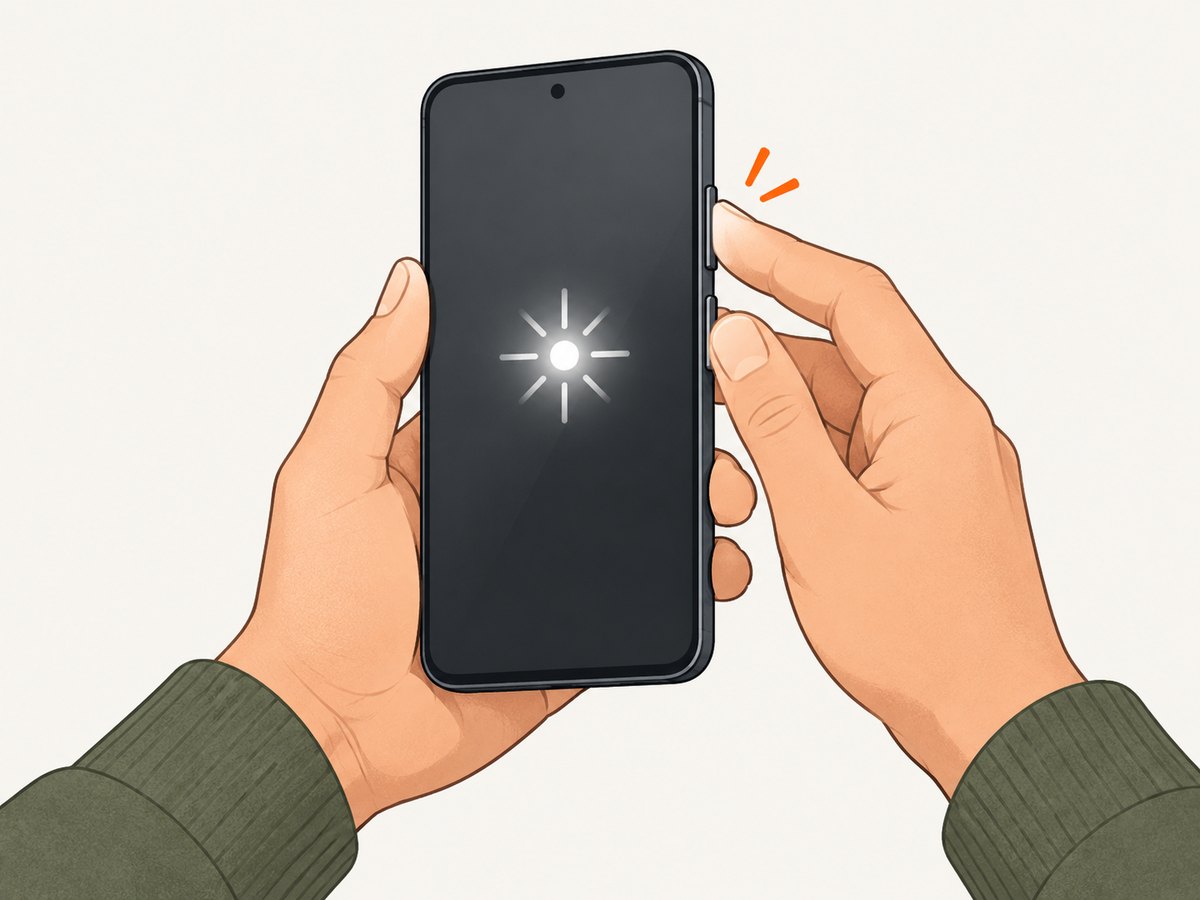
If screenshots are not working on your Android phone, first check whether the problem happens everywhere or only in one app. Press Power + Volume Down at the same time. If the phone gives no response, hold Power for a few seconds and tap Screenshot. If the capture works but you cannot find it, check Photos → Collections → On this device → Screenshots. If one app produces a black or blank image while other screens capture normally, the app may intentionally block screenshots to protect sensitive information.
These checks distinguish a button or system problem from an app privacy restriction, a missing file, or a work-device policy. Start with the reversible steps below; a factory reset deletes phone data and should be a last resort after a backup and manufacturer support.
1. Use Android’s standard screenshot methods
- Open the screen you want to capture.
- Press Power and Volume Down together, then release them. On most Android phones this captures the screen.
- If that does not respond, hold the Power button for a few seconds. When the power menu appears, tap Screenshot, if that option is available.
- Wait for the capture preview or other confirmation before trying again. Repeated button presses can create duplicate captures if the first one worked but its preview was missed.
Button behavior and power-menu options can differ by manufacturer and model. If neither method works, use the instructions from your phone maker’s support site. Google also documents scrolling screenshots on Android 12 and later for most screens that allow scrolling; some Pixel screenshot instructions apply only on Android 11 and later. These version and screen qualifications mean a scrolling-capture option may not appear on every device or app. Google’s Android screenshot instructions include the standard methods and device guidance.
2. Find out whether the issue affects one app or the whole phone
Try to take a screenshot of a normal screen, such as the home screen or Settings. The result narrows down the cause:

| What happens | Likely direction | Next step |
|---|---|---|
| Nothing captures on any screen | Button method, phone storage, software, downloaded-app conflict, or device policy | Continue to the phone-wide checks below. |
| Other screens work, but one app is blank or blocked | The app may protect its window | Use the app’s approved export, download, or sharing feature. |
| The screen flashes or a preview appears, but the image is missing from the current app | The file may have been saved to the Screenshots folder | Check Photos or the manufacturer’s Gallery app. |
| The phone is managed by work or school | An administrator may have disabled capture | Ask the organization’s IT administrator. |
3. Understand black or blocked screenshots in a particular app
Some Android apps intentionally prevent screenshots of protected windows. Android provides the FLAG_SECURE window flag for this purpose. Its platform documentation explains that the flag tells Android not to allow screenshots or display the window on a non-secure display; banking apps and password managers may use it to protect sensitive information. Android Developers: FLAG_SECURE.
If your normal screens capture correctly but a banking, payment, password-management, streaming, or other sensitive screen is blank or blocked, that behavior may be an app restriction rather than a fault with the phone. Do not try to bypass the restriction. Look for an in-app receipt, statement, export, download, or share option, or contact the app provider if you need an authorized record.
A black capture can have other causes, but the scope test is useful: if only one app is affected and the rest of Android works, investigate that app’s policy first. If every screen is black or fails, continue with device-wide checks.
4. Check where Android saved the screenshot
- Open Google Photos.
- Go to Collections → On this device → Screenshots.
- If Photos is unavailable, or the phone has an older setup, open the manufacturer’s Gallery app and look for a Screenshots album or folder.
- Check the capture time and open the image to confirm it is the screenshot you expected.
The current Photos collection path is documented in Google’s screenshot help. A screenshot does not have to appear inside the app you were using when you pressed the buttons. If the folder exists but the newest capture is absent, take one test screenshot of the home screen and check the folder again.
5. Fix a phone-wide screenshot failure
When capture fails on every screen, try these checks in order. They are reversible and help separate a temporary phone issue from a downloaded-app conflict.
Restart and check free storage
Restart the phone, then try a screenshot of the home screen. Check available storage in Settings; the exact menu labels vary by Android version and manufacturer. Google says phones can start having issues when less than 10% of storage is free. That is a general phone-performance warning, not a screenshot-specific threshold. If storage is nearly full, remove files or apps you no longer need, or move personal files using a method you trust, then retry.
Install available updates
Check Settings for Android system updates and use Google Play to update the affected app or other pending apps. Menu names and update timing vary by phone. Restart after an update if requested, then retest with a regular screen. Google’s Android device troubleshooting guidance covers restart, updates, storage, safe mode, and escalation steps.
Test for a downloaded-app conflict with safe mode
A downloaded app can interfere with normal phone behavior. Safe mode temporarily disables downloaded apps, but the steps to enter it vary by manufacturer and model. Follow the phone maker’s instructions rather than relying on a button sequence that may not apply to your device. Take a screenshot while in safe mode, then restart normally to leave safe mode.
- If screenshots work in safe mode: a downloaded app may be involved. Review apps installed or updated around the time the problem began, and remove or adjust them one at a time using normal Android settings.
- If screenshots still fail in safe mode: the cause may be system-level, physical, or policy-related. Contact the manufacturer’s support team with your phone model, Android version, and the checks you tried.
Leave factory reset until last
A factory reset removes data from the phone. Google recommends backing up first. Before considering one, try the reversible checks, confirm you can restore important data, and ask the manufacturer’s support team whether a reset is appropriate for the symptom. Do not reset a phone just because a single app blocks screenshots; that may be its intended security behavior. See Google’s reset and restore guidance for the implications and preparation.
6. Check whether work or school policy disabled capture
On a managed phone, an organization can apply device-management restrictions. Android’s DevicePolicyManager reference documents a screen-capture restriction that an eligible device or profile owner can set. Android Developers: screen-capture policy.
If the phone belongs to your employer or school, or has a work profile, ask the IT administrator whether screen capture is restricted. This is especially relevant when screenshots fail across apps on a managed device. Do not attempt to circumvent the organization’s controls; ask for an approved way to document the information.
7. Follow this symptom-based checklist
- No response: try Power + Volume Down together, then the Power menu’s Screenshot option.
- Only one app is blank or blocked: check whether the app intentionally protects its window; use an approved export or share feature.
- Capture seems successful but file is missing: check Photos → Collections → On this device → Screenshots, then the manufacturer’s Gallery folder.
- Nothing works anywhere: restart, check storage, install updates, and test safe mode using the maker’s instructions.
- Managed phone: ask IT about capture policy.
- Still broken: contact manufacturer support before considering a data-erasing reset.
8. Or skip the browser setup
If what you actually need is a screenshot of a website for a bug report, documentation page, or workflow, you can capture the site from a server instead of troubleshooting a phone browser. ScreenshotNeo is a website screenshot API and MCP server from ScreenshotNeo. The request below returns an image for a URL. See the ScreenshotNeo API docs for request options.
curl -G "https://api.screenshotneo.com/v1/shot" -d access_key=YOUR_API_KEY --data-urlencode url=https://stripe.com -o shot.webpimport requests
r = requests.get(
"https://api.screenshotneo.com/v1/shot",
params={"access_key": "YOUR_API_KEY", "url": "https://stripe.com"},
timeout=90,
)
r.raise_for_status()
open("shot.webp", "wb").write(r.content)const q = new URLSearchParams({ access_key: 'YOUR_API_KEY', url: 'https://stripe.com' });
const res = await fetch(`https://api.screenshotneo.com/v1/shot?${q}`);
if (!res.ok) throw new Error(`Screenshot request failed: ${res.status}`);
const fs = await import('node:fs/promises');
await fs.writeFile('shot.webp', Buffer.from(await res.arrayBuffer()));Replace YOUR_API_KEY with your API key and change the target URL. ScreenshotNeo removes cookie and consent banners, newsletter popups, and chat widgets before capture; each cleanup step can be turned off. Bot checks, CAPTCHAs, blank pages, timeouts, failed loads, and cache hits are not billed, and the response identifies the page verdict and billing result in headers. AI agents can use its MCP server tools to take screenshots, get page information, and capture PDFs. The free plan includes 1,000 shots per month with no card; paid plans start at $5 for 3,000 shots, and every feature is on every plan.
Create a free ScreenshotNeo account for 1,000 screenshots a month, with no card required.
9. Performance, reliability, and cost considerations
For phone screenshots, first use the built-in capture path; it avoids introducing another app or service and should be enough for ordinary captures. Low free storage can accompany broader phone issues, while a one-app-only failure points toward that app’s protection. Safe mode is a diagnostic comparison, not a permanent capture workflow. On managed devices, reliability depends on organization policy as well as the phone.
For website captures needed by a developer workflow, an API avoids dependence on a particular handset’s buttons or browser session. Consider what the output must contain before choosing settings: an entire page or a viewport, a selector or full page, and image or PDF. ScreenshotNeo supports full-page capture with lazy images loaded, element capture by CSS selector, device presets and custom viewports, retina scale, dark mode, custom CSS and JavaScript, wait conditions, request blocking, headers and cookies, caching with a chosen TTL, and asynchronous jobs with signed webhooks. Those options can affect capture time and output size; use only what the task requires. Bulk capture supports up to 100 URLs per call. Pricing is Free for 1,000 shots monthly, then Starter at $5 for 3,000, Growth at $15 for 15,000, Pro at $39 for 60,000, Scale at $99 for 250,000, and Business at $249 for 1,000,000; yearly billing gives two months free. Review current request syntax and options in the API documentation.
10. Troubleshooting common Android screenshot errors
| Symptom | Possible cause | What to do |
|---|---|---|
| Power + Volume Down does nothing | Timing or model-specific button behavior | Press the buttons together; try Power-menu Screenshot; consult the phone maker if neither works. |
| Only one app returns a black image | The app may use Android’s secure-window protection | Use its approved export, download, or share path; do not bypass the restriction. |
| Screenshot notification appeared, but no image is in the app | It may be stored in a separate Screenshots folder | Check Photos’ On this device collection or the maker’s Gallery app. |
| Capture fails across apps and storage is nearly full | General phone problems can occur below 10% free storage | Free space, restart, and retry. The 10% guidance is not a screenshot-specific rule. |
| It works in safe mode only | A downloaded app may conflict | Review recently installed or updated apps and change them one at a time. |
| It fails on a work or school phone | Administrator policy may disable capture | Ask the organization’s IT administrator for the approved process. |
| Still fails after reversible checks | Device-specific software or hardware issue | Contact manufacturer support. Consider reset only after backup and support guidance. |
Frequently asked questions
Can I take a scrolling screenshot on Android?
Google says scrolling screenshots work on Android 12 and up on most screens that allow scrolling. The option may not appear on every app or screen.
Why does a screenshot disappear after I take it?
It may have been saved outside the app you were viewing. Check the device’s Screenshots collection or Gallery folder and verify the capture time.
Should I install a screenshot app to fix the built-in feature?
First find the cause. A separate app cannot necessarily capture protected windows or override an administrator’s policy, and it will not resolve a phone-wide system fault by itself.
Does a factory reset guarantee screenshots will work?
No. The cause could be app protection, management policy, or hardware. A reset erases data, so use it only after backup and manufacturer guidance.
Sources
- Google Android Help: take a screenshot or record your screen
- Google Android Help: fix an Android device that freezes or is unresponsive
- Google Android Help: reset your Android device to factory settings
- Android Developers: WindowManager.LayoutParams.FLAG_SECURE
- Android Developers: DevicePolicyManager screen-capture restriction


