How to Fix Angular 2 Unit Tests Failing in PhantomJS
Trace the first PhantomJS error, check your Angular-era test setup, and choose a targeted fix or a carefully scoped runner migration.

When Angular 2 unit tests fail in PhantomJS, start with the first browser-side exception or syntax error in the Karma output. The final “tests failed” summary is rarely enough to identify the cause. Record the exact versions of Angular, TypeScript, Zone.js, Karma, Jasmine, PhantomJS, and the Karma launcher, then classify the earliest failure: parsing, a missing browser API, test initialization, browser launch or connection, or an assertion.
There is no single patch that can be recommended from the title alone. Angular 2 projects differ in their dependency locks, transpilation targets, polyfills, and test bootstrap. Current Angular testing documentation describes current workflows; it does not certify a compatible Angular 2 and PhantomJS version combination. Use the evidence from your project before changing packages or configuration.
1. Capture the first useful error
Run the failing test target and save the complete output, not just the final summary. Note the first PhantomJS page error, the spec that was running, whether Karma says the browser connected, and whether any tests actually executed. If the log suppresses page exceptions, expose them through PhantomJS’s page error handler or its remote debugging support. See the [PhantomJS troubleshooting guide](https://phantomjs.org/troubleshooting.html) for those diagnostic techniques.
Do not begin by changing several versions or adding a bundle of polyfills. That can hide the original failure and make it unclear which change mattered. Preserve the initial output and change one thing at a time.
2. Identify the failure category
| Earliest evidence | Likely area to inspect | First action |
|---|---|---|
| Syntax or parse error before specs run | Application or dependency bundle contains syntax PhantomJS cannot parse | Find the file and line, then inspect the test target’s transpilation output |
| “X is not defined” or missing method/property | Browser capability, polyfill, or initialization order | Identify the global/API and confirm it exists in the target browser |
| Error during test bootstrap, before a spec assertion | Angular test setup, Zone.js, or loaded script order | Compare the target’s setup files with the project’s locked Angular/Zone versions |
| Karma never reports a connected browser | PhantomJS executable, launcher, Karma configuration, or process startup | Inspect launcher output and confirm the browser process starts |
| Specs run and an expectation fails | Test or application behavior | Debug the assertion and its inputs as you would in another browser |
This is a diagnostic map, not a compatibility guarantee: one symptom can have more than one cause. Follow the earliest stack frame to the source file rather than fixing a later cascade of errors.
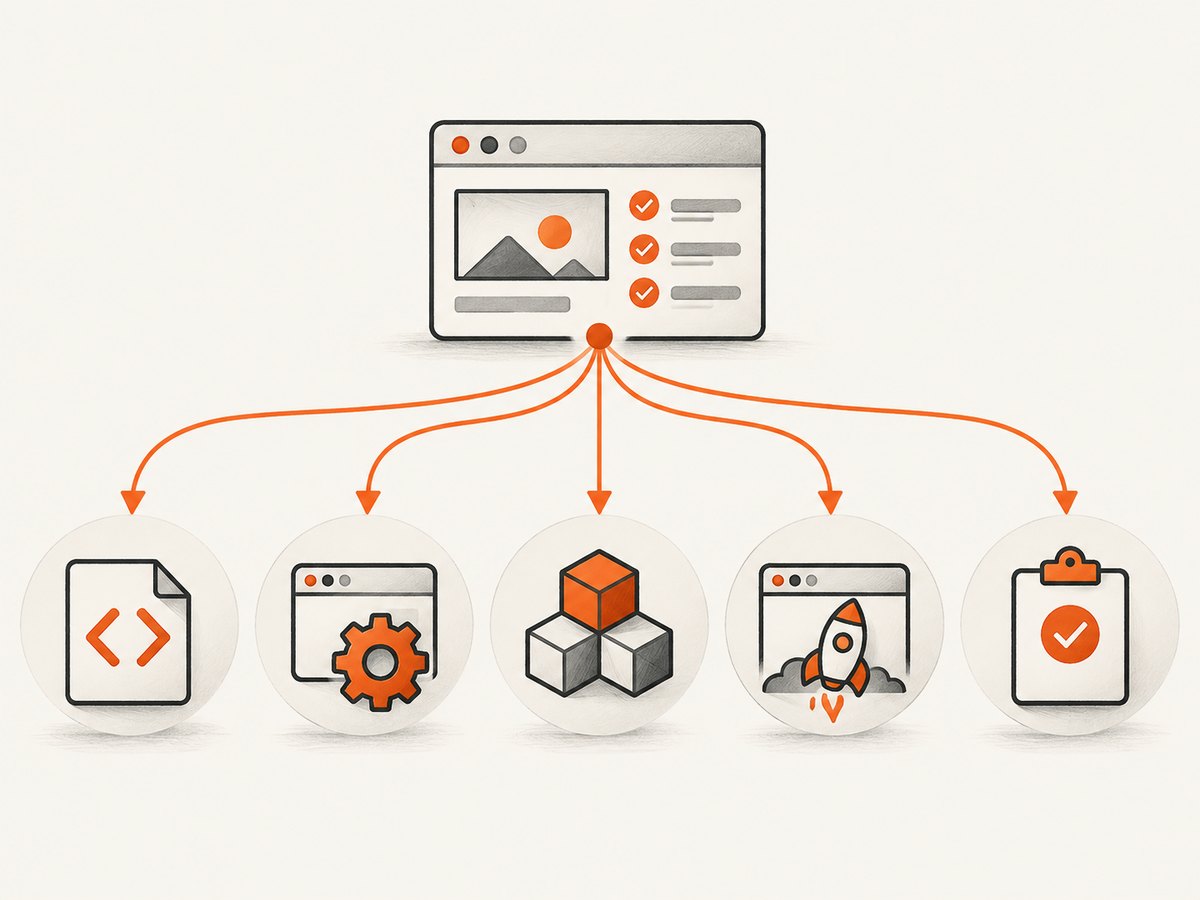
3. Record the exact dependency and browser setup
Inspect package.json and the lockfile. Record exact resolved versions—not only version ranges—of:
@angular/*packages and Angular compiler/build tooling- TypeScript and Zone.js
- Karma,
karma-jasmine, and the PhantomJS launcher package - PhantomJS itself and the Node.js version used to run Karma
Also inspect the test target’s effective configuration: which scripts it loads, their order, whether dependencies are transpiled, the emitted JavaScript target, and which polyfills are included. A developer build and a test build may use different configurations. Confirm the actual bundle delivered to PhantomJS rather than assuming the application’s normal build settings also apply to tests.
Angular’s current [Karma and Jasmine guide](https://angular.dev/guide/testing/karma) documents setup and CI execution. The current [testing overview](https://angular.dev/guide/testing) describes available runner choices. These are useful references for understanding modern Angular, but neither establishes a supported Angular 2/PhantomJS matrix. Treat examples from current Angular as guidance to compare against, not configuration to paste into a legacy project.
4. Fix syntax errors by checking emitted code
If PhantomJS reports an unexpected token, inspect the exact failing bundle and line. Determine whether the syntax came from your source or a dependency. Modern syntax such as newer declarations, operators, or module output may have reached an old browser untransformed. The repair, if appropriate, is to adjust the test target’s transpilation or dependency processing so its output matches the browser it actually launches.
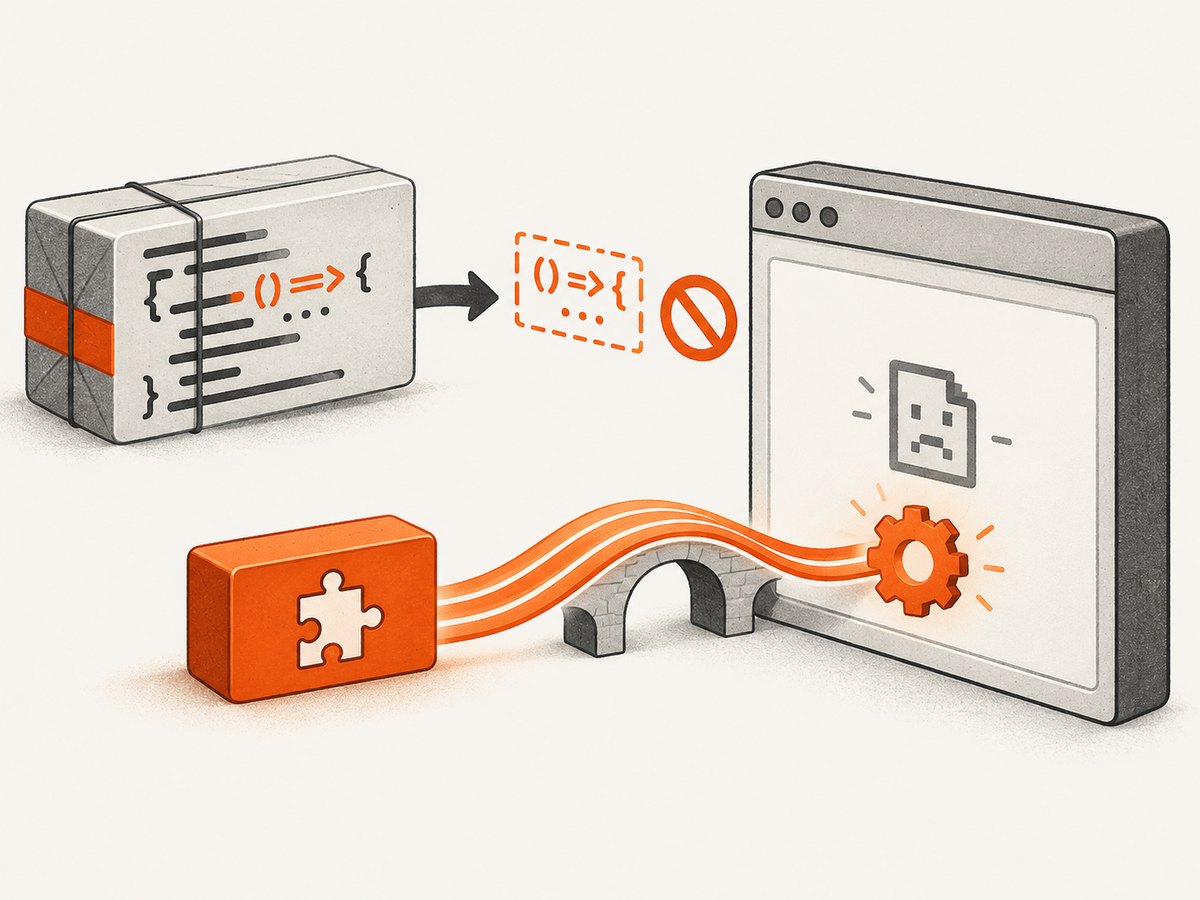
- Reproduce the failure with the same test command and preserve the generated bundle.
- Locate the first reported file and line in that bundle; map it back to source or dependency if source maps are available.
- Check whether the failing syntax is expected in PhantomJS’s JavaScript engine.
- Change only the relevant compiler or bundler setting, then verify that the emitted test bundle no longer contains the unsupported syntax.
- Run the same failing spec and then the broader suite to detect unintended effects.
Do not blindly lower the TypeScript target. A setting can affect application code, dependencies, or test tooling differently, and may not transform dependency files at all. Confirm which compilation step owns the offending output.
5. Investigate missing browser APIs and polyfills
A missing global or method can mean PhantomJS lacks a browser API, the required polyfill is absent, or the code executes before the polyfill loads. First identify the specific API from the exception. Check whether it is available in the PhantomJS version configured by the launcher; then inspect the test entry point’s script order.
Zone.js patches browser APIs for Angular’s change detection and testing, but its behavior depends on the Zone.js version and the APIs involved. Angular’s [Zone.js guidance](https://angular.dev/guide/zone) explains the relationship between Zone.js and browser APIs, including limits on automatic patching. Verify how the legacy target loads Zone.js and its test setup. Do not transplant a current Angular polyfill list into an Angular 2 project without checking version compatibility and bootstrap order.
If evidence points to one missing API, add or correct only the justified polyfill, and load it before code that uses it. A polyfill cannot fix unsupported JavaScript syntax, an assertion failure, or a browser process that never launches.
6. Check Angular test initialization and Zone.js
If the browser connects but errors occur while the test environment is initializing, inspect the test bootstrap and setup files. Check for duplicate or missing Zone.js imports, mismatched Angular and Zone.js packages, and setup code that runs in the wrong order. Compare the project’s Angular-era test instructions and installed versions rather than relying on a modern template.
- Confirm the test environment is initialized once, in the intended entry point.
- Confirm the required Zone.js testing support is present if that Angular version and setup require it.
- Check that application and test code resolve the same compatible Angular package versions.
- Review the first initialization exception; later failures may simply be fallout from it.
7. Separate Karma launch failures from page failures
If Karma never sees PhantomJS connect, investigate outside the spec first. Check that the launcher points to an installed, executable PhantomJS binary and that the Karma configuration names the expected browser. Read process output for startup or exit errors, and confirm the command is running in the intended environment, especially in CI where paths and permissions can differ.
If PhantomJS connects and then reports a page exception, the problem has moved into browser-side execution. Use the page error and stack frame rather than continuing to adjust launcher settings. Conversely, changing application transpilation will not solve a browser process that never starts.
8. Decide between a targeted repair and migration
Keep PhantomJS temporarily when a small, evidenced configuration or polyfill change resolves the problem and the project is intentionally pinned to its legacy stack. Consider a maintained browser or runner when the failure comes from stale integration, missing browser behavior, or ongoing maintenance needs. Compare options against the exact error, dependency compatibility, browser API fidelity needed by the tests, integration maintenance, and the effort of adapting the project.
Angular documents both Karma and Vitest workflows today, and notes that new projects use Vitest by default. That is context for evaluating future direction, not a drop-in Angular 2 migration recipe. Jasmine’s [7.0 upgrade guide](https://jasmine.github.io/upgrade-guide/7.0) says karma-jasmine was deprecated in 2022 and had not been updated as of that guide; check current package status before planning a migration. No general source can estimate your project’s migration cost or certify an Angular 2 combination, so evaluate it against your locked dependencies and test requirements.
For tests that depend on rendering or browser APIs, consider whether a real, maintained browser better represents the behavior under test. Angular’s current testing overview discusses real-browser testing, but choosing a runner still requires project-specific work: configuration, CI, test bootstrap, and any unsupported APIs or assumptions need review.
9. Make the fix reproducible
- Keep the lockfile and record the test command and browser version used.
- Write down the original first error and the smallest configuration or code change that addressed it.
- Run the previously failing spec, then the full test target.
- Run the same command in CI or another clean environment if the issue appeared there.
- Remove temporary debugging hooks after collecting the needed diagnostics, or keep them if they provide useful failure output.
When reporting the issue to teammates, include the first error, the failing spec, exact relevant package versions, the launched browser, and whether the browser connected. This makes “tests fail in PhantomJS” a reproducible problem instead of a summary with many possible causes.
Or skip the browser setup
If your immediate task is capturing a website for a visual check or documentation, ScreenshotNeo provides a website screenshot API and MCP server; it does not run Angular unit tests or repair a Karma test target. A single request returns an image or PDF, and the [API documentation](https://screenshotneo.com/docs/) lists its options.
curl -G "https://api.screenshotneo.com/v1/shot" \
  -d access_key=YOUR_API_KEY \
  --data-urlencode url=https://stripe.com \
  -o shot.webp
Cookie banners, newsletter popups, and chat widgets are removed before the shot, and those steps can be turned off. Bot checks, blank pages, timeouts, failed loads, and cache hits cost nothing; response headers report the page verdict and billing status. Its MCP server lets AI agents use take_screenshot, get_page_info, and capture_pdf. The free plan includes 1,000 shots per month with no card; paid plans start at $5 for 3,000 shots. See ScreenshotNeo or sign up for 1,000 free screenshots a month, no card required.
Troubleshooting checklist
| Symptom | Cause to verify | Fix direction |
|---|---|---|
| Unexpected token / syntax error | Untransformed application or dependency syntax | Inspect the emitted bundle and target the responsible compilation step |
| Missing global or method | Unsupported browser API, missing polyfill, or wrong load order | Verify that exact API and load a justified compatible polyfill before use |
| Failure while Angular initializes | Zone.js, Angular version mismatch, duplicate setup, or wrong test bootstrap | Compare resolved versions and setup order in the actual test target |
| Browser does not connect | Launcher path, executable, configuration, or process startup | Inspect launcher output and verify PhantomJS starts in the same environment |
| Assertion fails after specs execute | Test expectation or application behavior | Debug inputs and behavior; do not treat it as a parser or launcher issue |
| Fix works locally but not in CI | Different binary, environment, dependency resolution, or target command | Compare lockfile install, browser path/version, and exact CI command |
Performance, reliability, and cost
For this legacy test stack, the practical cost is mostly maintenance and diagnosis time: repeated full-suite runs, unstable browser startup, or workarounds for missing APIs. The cited guidance does not provide a general performance benchmark or a project-independent cost estimate. Keep investigation fast by reproducing one failing spec, preserving the first error, and avoiding broad dependency changes before identifying the category.
Reliability depends on using the same locked dependencies, test command, and browser environment locally and in CI. A test that only passes after manually changing the browser or installing an unrecorded package is not yet reproducible. If the required browser behavior is outside PhantomJS’s capabilities, a targeted patch may increase complexity without making the test representative; evaluate a maintained environment against the actual tests.
FAQ
Can I fix every PhantomJS failure by adding a polyfill?
No. Polyfills address particular missing APIs. They do not transform syntax, repair Karma startup, correct test initialization, or make a false assertion pass.
Does a current Angular testing guide guarantee Angular 2 support?
No. It documents current workflows and should not be read as a compatibility matrix for an Angular 2-era dependency set.
Should I migrate to Vitest immediately?
Not solely because PhantomJS fails. First identify the failure, then compare migration effort and compatibility with the value of a maintained test environment.
What should I include when asking for help?
The earliest full error and stack, failing spec, exact package versions, test command, PhantomJS version, and whether Karma reports a browser connection.


