How to Fix Angular End-to-End File Downloads in Headless Chrome
Diagnose Angular E2E download failures by identifying your runner, browser mode, and download API, then persist files reliably in CI.
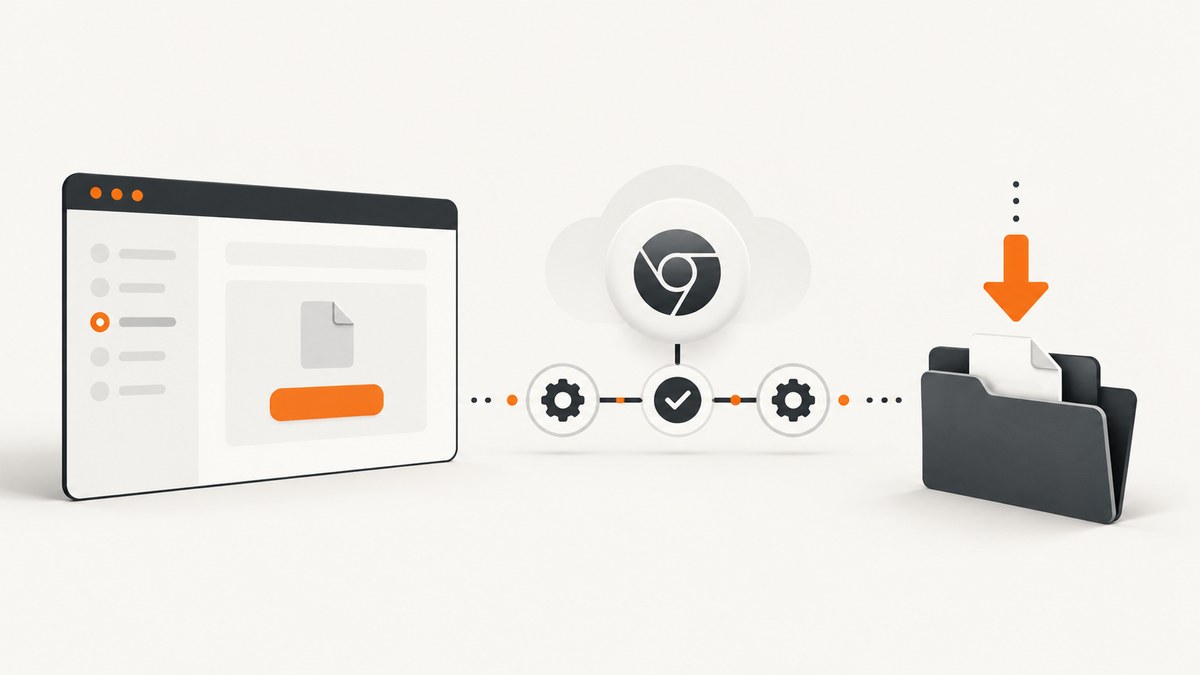
Direct answer: Angular does not provide one universal file-download API for end-to-end tests. The ng e2e command dispatches to the E2E builder configured in angular.json, so first identify whether the project uses Playwright, Puppeteer, Cypress, WebdriverIO, or Nightwatch. Then use that runner’s documented download API, run the same Chrome executable and headless mode used in CI, and wait for the file to be written before closing the page or browser context.
For Playwright, arm page.waitForEvent('download') before clicking, await the event, and call download.saveAs(). For Puppeteer, choose an allowed download policy and configure a writable downloadPath. A browser-context download is temporary; closing the context removes files that were not saved elsewhere.
1. Identify the Angular E2E runner
Angular’s CLI delegates E2E execution to the builder configured for the project target. The Angular testing guide lists Cypress, Nightwatch, WebdriverIO, Playwright, and Puppeteer as integration choices. Inspect the target and installed package versions before changing test code.
# Find the E2E target and builder
node -e "const p=require('./angular.json'); for (const [name, project] of Object.entries(p.projects||{})) console.log(name, project.architect?.e2e || project.targets?.e2e)"

# Inspect likely runner packages
npm ls @playwright/test playwright puppeteer cypress webdriverio @wdio/cli nightwatch --depth=0
Look for an e2e target under projects.<name>.architect (or targets in newer workspace files). The builder name tells you which API owns downloads. Do not copy Playwright syntax into a Puppeteer test or assume that changing Angular configuration changes browser download behavior.
2. Record the browser binary, version, and headless mode
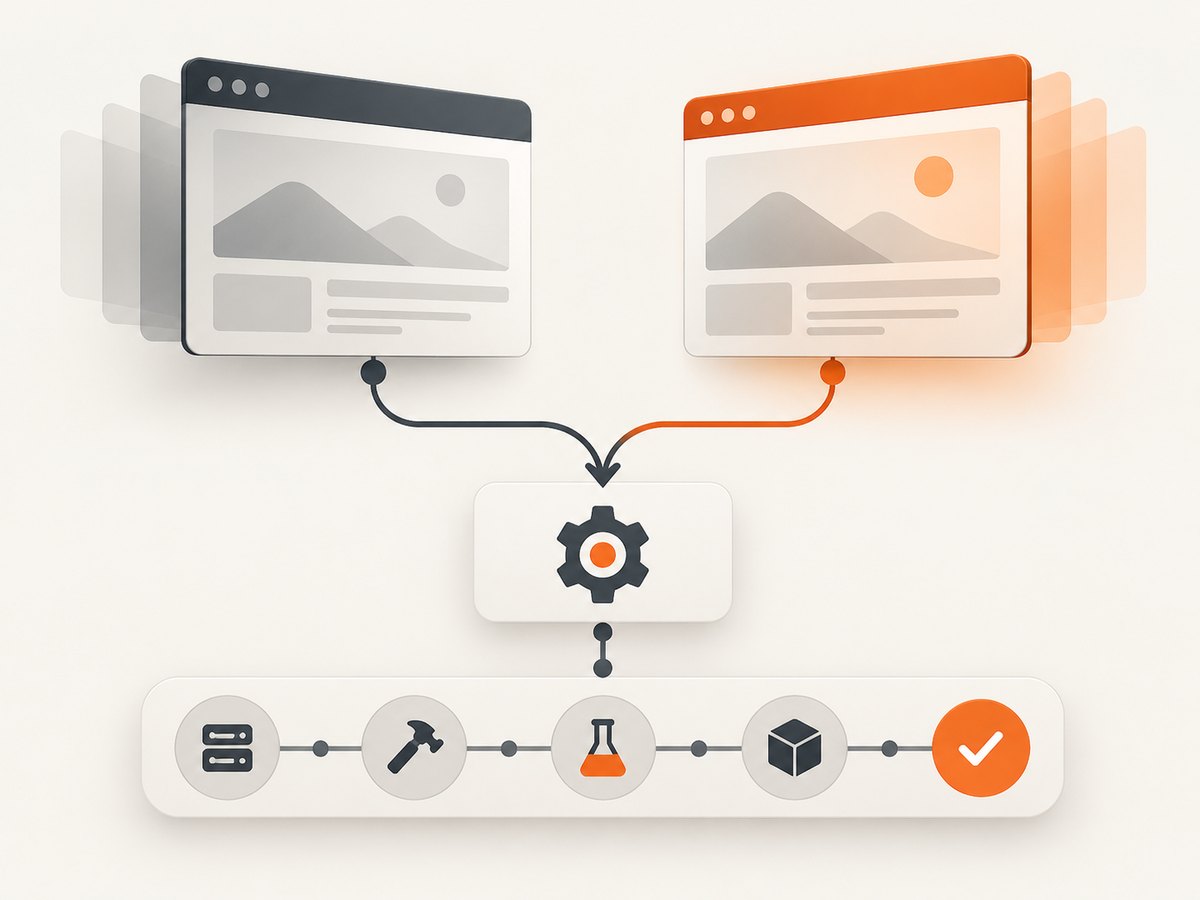
Download behavior can differ between local and CI runs when they use different Chrome builds. Record the executable path, version, channel, and whether the runner launches its bundled Chromium shell or branded Chrome.
google-chrome --version || true
chromium --version || true
node --version
npm ls @playwright/test playwright puppeteer --depth=0
Chrome documents unified Headless and headful modes. Since Chrome 132.0.6793.0, the old Headless implementation is distributed as the standalone chrome-headless-shell binary. Playwright uses a separate Chromium headless shell by default; select its chromium channel when you need the newer Chrome Headless implementation. Shell and branded Chrome or Edge can behave differently, so reproduce the CI channel when diagnosing.
References: Angular testing and E2E guide, Chrome Headless documentation, and Playwright browser channels.
3. Playwright: wait for and save the download
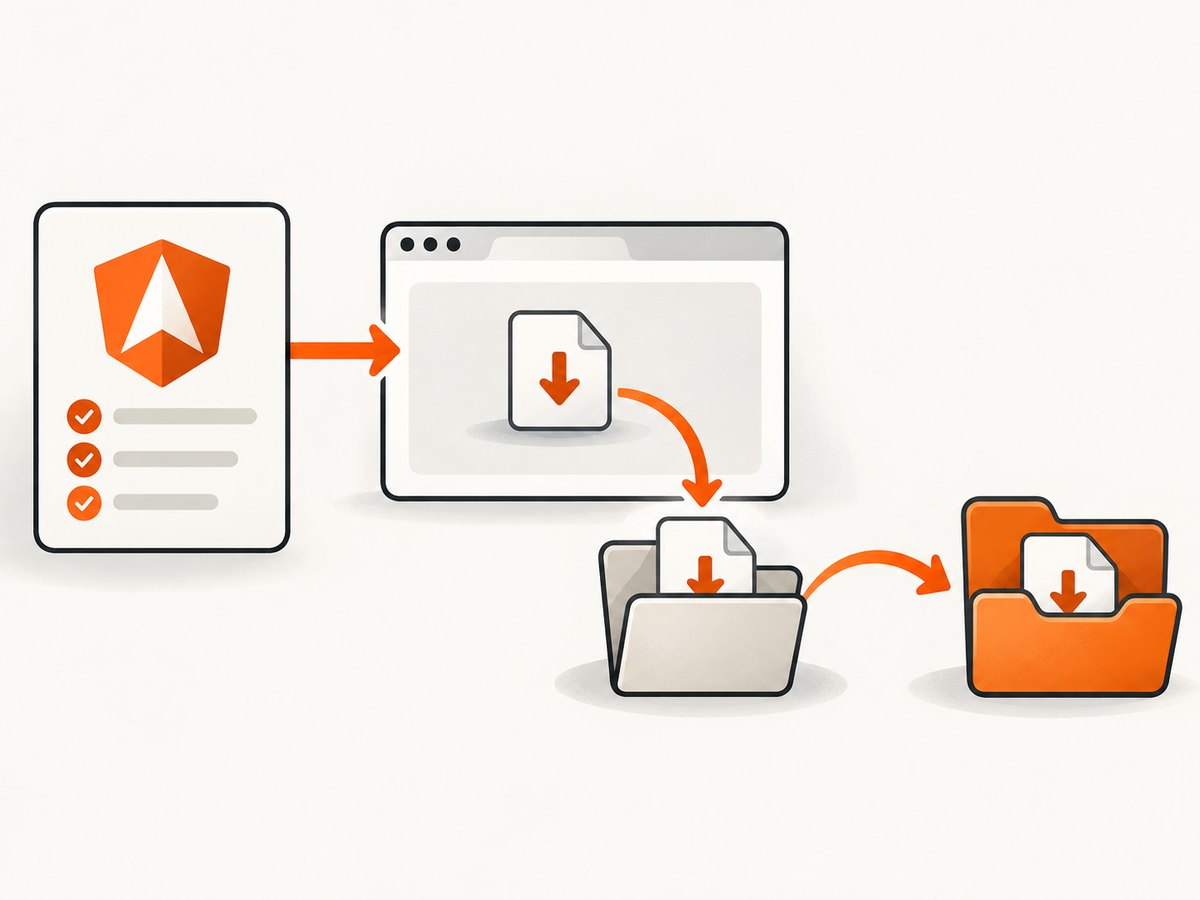
Register the download wait before the click. This avoids missing an event that fires immediately after the action. Save to a known artifact directory and keep the context open until saveAs resolves.
import { test, expect } from '@playwright/test';
import fs from 'node:fs/promises';
import path from 'node:path';


test('downloads the report', async ({ page }, testInfo) => {
  const outputDir = testInfo.outputDir;
  await fs.mkdir(outputDir, { recursive: true });

  await page.goto('http://localhost:4200/reports');

  // Arm the listener before triggering the download.
  const downloadPromise = page.waitForEvent('download');
  await page.getByRole('button', { name: 'Download file' }).click();

  const download = await downloadPromise;
  const failure = await download.failure();
  expect(failure).toBeNull();

  const filename = download.suggestedFilename();
  const destination = path.join(outputDir, filename);
  await download.saveAs(destination);

  await expect.poll(async () => (await fs.stat(destination)).size).toBeGreaterThan(0);
});
The equivalent Playwright flow is documented in its download guide. If the application opens a new tab, use a page or context event for that tab as well as the download event. If it creates a blob: URL, verify that the click actually starts a browser download; otherwise test the underlying API response or use application code to export the blob.
Use the same browser channel as CI
import { chromium } from '@playwright/test';

const browser = await chromium.launch({
  headless: true,
  channel: process.env.CI_CHROME_CHANNEL || undefined // e.g. 'chromium'
});
const context = await browser.newContext({ acceptDownloads: true });
const page = await context.newPage();
// ... trigger and save the download ...
await context.close();
await browser.close();
Leave channel unset to use Playwright’s default browser, or set it deliberately and use the same setting locally and in CI. Keep acceptDownloads enabled when your installed Playwright version exposes that context option.
4. Puppeteer: configure policy and a writable path
Puppeteer exposes download policy and destination settings rather than Playwright’s download event API. Its API requires downloadPath when the policy allows downloads. Confirm the exact method and option names against the Puppeteer version in your lockfile because download APIs have changed across releases.
import puppeteer from 'puppeteer';
import fs from 'node:fs/promises';
import path from 'node:path';

const downloadPath = path.resolve('test-output/downloads');
await fs.mkdir(downloadPath, { recursive: true });

const browser = await puppeteer.launch({
  headless: true,
  // Set executablePath only when CI requires a specific Chrome binary.
  // executablePath: process.env.CHROME_BIN
});
const page = await browser.newPage();

// Use the download policy API supported by your installed Puppeteer version.
await page.setDownloadBehavior({
  behavior: 'allow',
  downloadPath
});

await page.goto('http://localhost:4200/reports', { waitUntil: 'networkidle0' });
await page.getByText('Download file').click();

// Wait for your application-specific completion signal, or poll the directory.
for (let i = 0; i < 60; i++) {
  const files = (await fs.readdir(downloadPath)).filter(f => !f.endsWith('.crdownload'));
  if (files.length) break;
  await new Promise(r => setTimeout(r, 500));
}

await browser.close();
If your installed Puppeteer no longer exposes page.setDownloadBehavior, consult the matching Puppeteer API documentation and use the version’s supported browser/CDP download mechanism. A writable directory, correct permissions, and waiting for the temporary .crdownload file to disappear are essential in CI.
5. Cypress, WebdriverIO, and other runners
For Cypress, WebdriverIO, and Nightwatch, download handling depends on the runner and its browser capabilities. Start with the installed version’s download or file-system documentation, then verify the browser’s download directory and completion signal. The Angular layer still only selects the builder; it does not change those APIs.
- Find the E2E builder in
angular.json. - Read the runner version from
package-lock.json,pnpm-lock.yaml, oryarn.lock. - Configure a unique, writable directory per test worker.
- Trigger the download and wait for a completed file, not merely a click or network request.
- Assert file name, size, and (when practical) content type or checksum.
6. Diagnose failures in a fixed order
No download event is received
- Cause: The listener was registered after the click, the locator did not activate the control, or the response was an ordinary navigation.
- Fix: Create the wait promise first, assert the control is visible and enabled, then click. Inspect the browser network log and response headers for an attachment.
The event fires but the file disappears
- Cause: The Playwright context closed before persistence completed.
- Fix: Await
download.saveAs()before closing the page, context, or browser. Save outside temporary directories that the test runner cleans up.
Puppeteer reports a missing or unwritable path
- Cause: The policy allows downloads but
downloadPathis absent, does not exist, or is not writable by the CI user. - Fix: Create the directory before launching the test, use an absolute path, and check permissions with
fs.access.
Only CI fails
- Cause: CI uses another Chrome binary, channel, version, sandbox configuration, user profile, or authentication state.
- Fix: Log executable and version, select the same Playwright channel or Chrome binary, and reproduce with the same environment variables and test account.
The click opens a tab instead
- Cause: The application uses
target="_blank"or script code to open a new page. - Fix: Wait for the new page and then attach the download listener in the correct page/context, or change the application behavior for the test.
The download is a blob or client-generated file
- Cause: No attachment response is emitted because JavaScript builds the file in memory.
- Fix: Verify the blob generation, permissions, and click handler. Test the export endpoint separately when one exists, or use the browser’s resulting download event after the blob is handed to an anchor.
Authentication succeeds in the app but not for the file
- Cause: The download request lacks cookies, an authorization header, or a CSRF token.
- Fix: Inspect the request in DevTools or tracing, ensure the same browser context performs login, and verify server-side authorization for the download URL.
The file is zero bytes or still incomplete
- Cause: The test checked directory existence instead of completion.
- Fix: In Playwright, await
saveAsand checkdownload.failure(). In Puppeteer, wait until the temporary download suffix disappears, then assert a non-zero size and expected content.
7. Make downloads reliable in CI
- Use a per-test or per-worker output directory to prevent filename collisions.
- Use deterministic names when the application supports them; otherwise use
suggestedFilename()and sanitize path separators. - Preserve the output directory as a CI artifact on failure.
- Keep browser context teardown after file persistence and assertions.
- Capture runner traces, console output, and network failures for intermittent cases.
- Set a bounded timeout and report whether the failure was a missing event, download failure, or incomplete file.
- Run the same browser channel locally and in CI before changing application code.
8. Performance, reliability, and cost considerations
Download tests are usually limited by server generation time and browser startup. Reuse a browser process where your runner supports it, but isolate contexts and output paths. Avoid arbitrary long sleeps; wait for the download event and a completed file. Parallel workers need separate directories or collision-safe filenames.
For large files, assert completion and a representative checksum or header rather than loading the entire file into test memory. If the test only verifies authorization and headers, a direct HTTP request can be faster, while one browser test should still cover the real click and session flow.
Headless mode itself does not guarantee identical behavior across browser builds. Pin runner and browser versions in CI, record upgrades, and rerun the test against the exact channel used by production checks.
9. Verify the endpoint outside the browser
A direct request helps separate server failures from browser automation failures. Use the authenticated URL and headers required by your application.
curl -L --fail --cookie "session=YOUR_COOKIE" \
  -o report.pdf \
  "http://localhost:4200/api/reports/latest/download"
import requests
r = requests.get(
"http://localhost:4200/api/reports/latest/download",
cookies={"session": "YOUR_COOKIE"},
timeout=90,
)
r.raise_for_status()
with open("report.pdf", "wb") as f:
f.write(r.content)
const res = await fetch('http://localhost:4200/api/reports/latest/download', {
  headers: { Cookie: 'session=YOUR_COOKIE' }
});
if (!res.ok) throw new Error(`${res.status} ${res.statusText}`);
const data = Buffer.from(await res.arrayBuffer());
require('node:fs').writeFileSync('report.pdf', data);
These requests do not replace the E2E test: they answer whether the endpoint returns a successful file when given the required session state.
Or skip the browser setup
If your goal is a clean screenshot or PDF of an Angular route rather than testing the download interaction, ScreenshotNeo provides a single GET request. Its capture flow accepts cookie and consent banners like a visitor, then removes more than 60 known consent platforms, newsletter popups, and chat widgets before the shot. Bot checks, blank pages, failed loads, timeouts, and cache hits are not billed, and response headers identify the page verdict and billing result. Its MCP server exposes take_screenshot, get_page_info, and capture_pdf for Claude, Cursor, and other MCP clients.
Read the ScreenshotNeo API documentation for all options, including full-page capture, selectors, waits, headers, cookies, user agents, JavaScript, custom CSS, PDF settings, caching, signed links, async jobs, bulk capture, and usage reporting.
curl -G "https://api.screenshotneo.com/v1/shot" -d access_key=YOUR_API_KEY --data-urlencode url=https://stripe.com -o shot.webpimport requests
r = requests.get("https://api.screenshotneo.com/v1/shot", params={"access_key": "YOUR_API_KEY", "url": "https://stripe.com"}, timeout=90)
open("shot.webp", "wb").write(r.content)const q = new URLSearchParams({ access_key: 'YOUR_API_KEY', url: 'https://stripe.com' });
const res = await fetch(`https://api.screenshotneo.com/v1/shot?${q}`);There are 1,000 free screenshots each month with no card. Paid plans start at $5 for 3,000 shots, and every feature is available on every plan. Create a free ScreenshotNeo account.
FAQ
Does Angular’s ng e2e command control downloads?
No. It invokes the configured E2E builder; the selected runner controls download events, policies, and file paths.
Why must Playwright wait before clicking?
The download event can fire immediately after the action. Registering the wait first prevents a race.
Where does Playwright save downloads?
It uses a temporary context directory until you call saveAs. Context cleanup removes temporary files, so persist the file before teardown.
Should I use branded Chrome in CI?
Use the browser channel that matches the environment you need to diagnose. Playwright’s default Chromium headless shell and branded Chrome can behave differently.
Can a direct HTTP test replace the browser test?
It can verify endpoint status, authentication, and response content, but it does not prove that the Angular click and browser download flow works.


