How to Fix Appium’s Browser Unreachable Error When Taking Screenshots
Diagnose Appium's UnreachableBrowserException with endpoint, driver, capability, context, and cloud checks before your next screenshot.
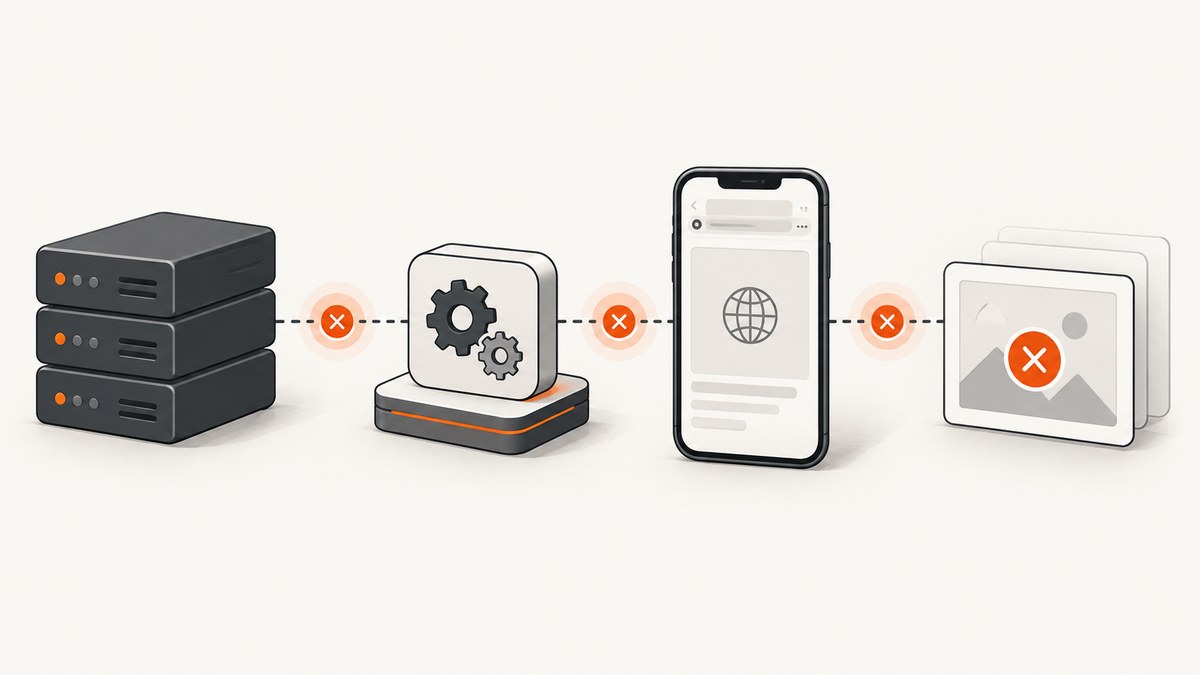
When Appium reports org.openqa.selenium.remote.UnreachableBrowserException during getScreenshotAs, the screenshot call is usually where a dead or unreachable session is discovered. The exception is a transport and session-liveness failure first: the client cannot reach the browser, driver, device, or cloud endpoint that owns the session. Appium itself may still be running.
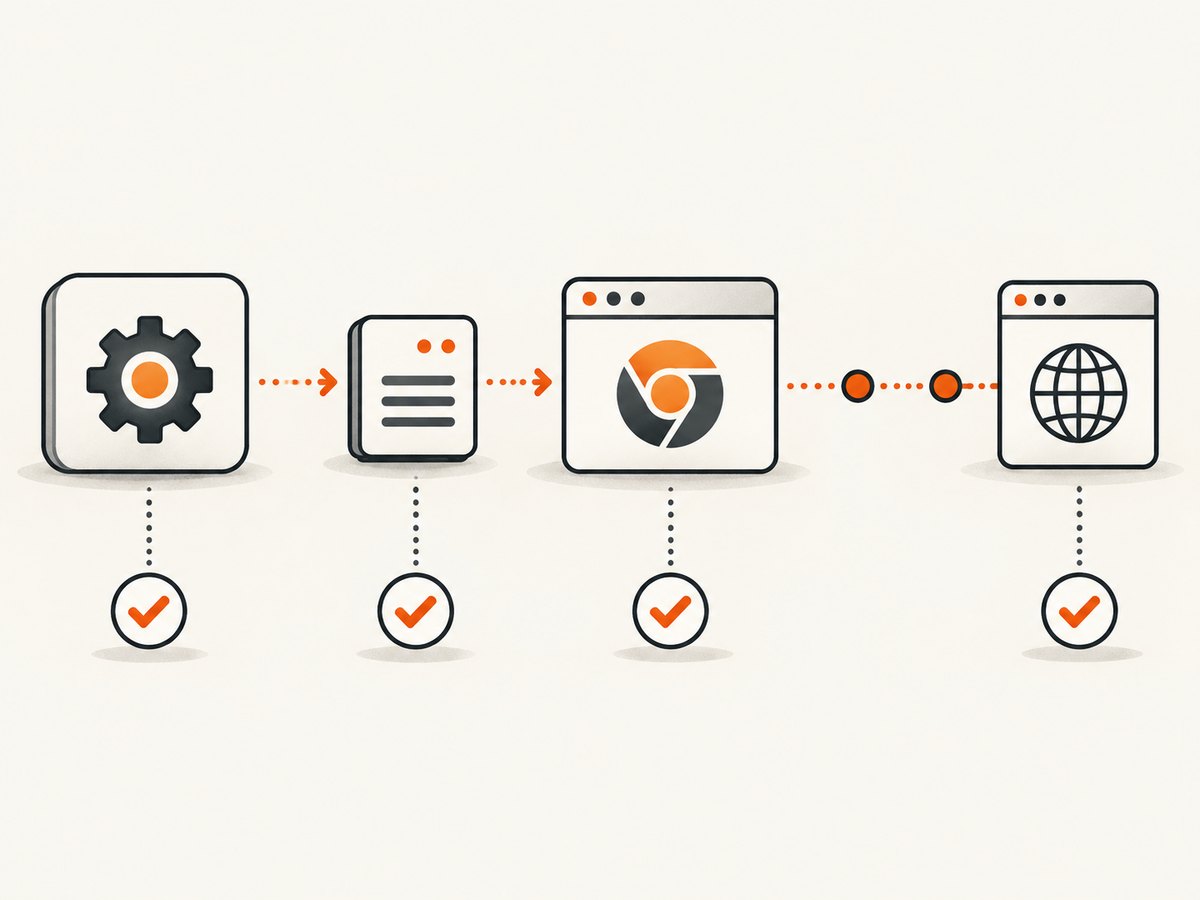
The fastest fix is to identify the endpoint named in the nested error, verify the Appium server and driver, rebuild a minimal W3C capability set, create a new session, and only then retry the screenshot. A delay or Selenium upgrade cannot repair a refused connection or a dead browser process.
What “browser unreachable” means in Appium
Appium is a server, driver, and client stack. A client sends commands to the Appium server; the selected driver communicates with the browser or application on a device; a cloud provider may add another remote endpoint. A screenshot travels through that chain. If any downstream address is wrong, stopped, disconnected, or no longer serving the session, the screenshot command can raise UnreachableBrowserException.
Read the complete exception, including its nested cause. Connection refused usually means the address is valid but nothing is listening there. No route found points to a wrong or unavailable server route. A driver process exit, device disconnect, dead webview, or cloud capability mismatch can produce the same top-level exception.
| Log clue | Likely location | First action |
|---|---|---|
127.0.0.1:random-port connection refused |
Local driver or browser endpoint | Check driver process, device, and duplicate Appium servers. |
No route found |
Appium URL or reverse proxy | Use the exact base path and port configured in the client. |
| Cloud URL or host mismatch | Provider endpoint | Compare the provider’s current URL and vendor capabilities. |
| Context disappears | WebView or browser process | List contexts, wait for the intended one, and restart if the process died. |
Fix it in a repeatable sequence
1. Confirm the server URL and running process
Print the exact URL your client uses. Confirm that the intended Appium server is listening and that only one expected instance is running. A stale Desktop server, a second CLI process, or a client pointed at the wrong port can show a healthy startup message while commands are routed elsewhere.
# Linux or macOS: inspect listeners (adjust the port if needed)
lsof -nP -iTCP:4723 -sTCP:LISTEN

# Start one server explicitly
appium --address 127.0.0.1 --port 4723 --log-level info
Use the same URL in the client. Depending on your Appium version and setup, that may be http://127.0.0.1:4723 or a URL with a provider-specific base path. Do not guess the path; copy it from the server or provider documentation.
2. Verify Appium, the driver, and the target
The current Appium quickstart requires Appium, an Appium driver and its dependencies, a client library, and a test script. Check that the driver is installed for the Appium version in use, that the device is visible, and that Chrome, Safari, or the target application is installed and launchable.
appium --version
appium driver list --installed
adb devices                 # Android
xcrun simctl list devices   # iOS simulators
For a physical device, confirm USB debugging, trust prompts, device authorization, and a stable connection. For iOS, ensure the WebDriverAgent prerequisites are satisfied and the selected XCUITest target can launch.
3. Create a minimal W3C session
Capabilities are the core parameters used to start an Appium session, and they cannot be changed after the session starts. Recreate the session after editing them. Standard fields include platformName, browserName, and browserVersion. Appium-specific fields use the appium: prefix.
{
  "platformName": "Android",
  "appium:automationName": "UiAutomator2",
  "appium:udid": "DEVICE_ID",
  "browserName": "Chrome"
}
For an application rather than a mobile browser, use the target appropriate to your driver, such as appium:app or appium:bundleId. XCUITest recommends at least one of browserName, appium:app, or appium:bundleId so it knows what to install or launch.
4. Run a complete Python reproduction
This example uses the Appium Python client and Selenium’s screenshot API. Replace the device identifier and URL with values for your environment.
from appium import webdriver
from appium.options.android import UiAutomator2Options
from selenium.common.exceptions import WebDriverException

options = UiAutomator2Options()
options.platform_name = "Android"
options.automation_name = "UiAutomator2"
options.udid = "DEVICE_ID"
options.browser_name = "Chrome"

# Match the server URL exactly. Some providers require a path.
server_url = "http://127.0.0.1:4723"
driver = None
try:
    driver = webdriver.Remote(server_url, options=options)
    driver.get("https://example.com")
    driver.implicitly_wait(2)
    driver.save_screenshot("appium-shot.png")
    print("Screenshot saved")
except WebDriverException as exc:
    print("Screenshot failed:", exc)
    print("Inspect the full Appium log and the nested exception.")
finally:
    if driver is not None:
        driver.quit()
If session creation succeeds but the screenshot fails, preserve the log from session creation through the failure. The first transport or driver error is generally more useful than the final Selenium wrapper.
5. Check context and timing
Hybrid apps can expose NATIVE_APP and one or more web contexts. After navigation or a crash, the context you selected may no longer exist. List contexts, select one that is present, and wait for the transition to settle.
contexts = driver.contexts
print("Contexts:", contexts)
if "WEBVIEW_com.example" in contexts:
    driver.switch_to.context("WEBVIEW_com.example")
# Capture only after the page or app state is ready
driver.save_screenshot("context-shot.png")
Waiting helps with a page that is still loading; it cannot revive a browser process that has exited. When the driver or browser is dead, quit and create a new session after fixing the underlying cause.
6. Treat cloud capabilities as provider-specific
A screenshot-specific report from Perfecto reached this exception because the cloud provider required a host capability containing its cloud URL. Adding that field fixed the capture for that provider. It is not a universal Appium requirement. Follow the provider’s current capability schema, including its vendor namespace, URL, authentication, device name, and platform version.
Appium’s cloud guidance names HeadSpin, Sauce Labs, and BrowserStack as examples of compatible vendor namespaces. Availability, supported driver versions, and pricing change, so verify those details directly with the provider.
Common errors and precise fixes
| Error or symptom | Cause | Fix |
|---|---|---|
| Connection refused on a dynamic localhost port | The downstream driver/browser endpoint stopped or the device is unavailable. | Inspect the earlier Appium log, verify the driver and device, then recreate the session. |
| No route found | The client URL, port, or base path does not match the server. | Copy the exact server URL into the client and remove stale processes. |
| Session starts, then screenshot fails after app switching | The browser or WebView crashed, or the selected context disappeared. | List contexts, wait for the target, and restart after a crash. |
| Cloud session works until screenshot | Provider host or vendor capability is missing or malformed. | Use the provider’s documented host URL and namespaced capability object. |
| Driver cannot launch the target | Missing browserName, appium:app, or appium:bundleId, or target is not installed. |
Add the correct target capability and install or expose the app. |
| Changing capabilities has no effect | Capabilities are fixed for the current session. | Quit the session and create a new one. |
| Works intermittently on USB | Device authorization, cable, power, or USB transport instability. | Reauthorize the device, use a stable connection, and check device logs. |
Reliability and performance practices
- Keep one owner for the server port. Start Appium from a controlled process and record its URL in configuration.
- Log request and session identifiers. Correlate client failures with the server log instead of retrying blindly.
- Use bounded waits. Wait for a selector, context, or navigation state with a timeout; avoid indefinite sleeps.
- Retry session creation, not a dead session. A short retry can handle a transient device startup problem. Reusing a session after its endpoint has exited usually cannot work.
- Capture at a stable state. Stop animations where possible, wait for the intended context, and avoid taking the shot during an app transition.
- Control screenshot size. Full-device images and high-density displays consume more storage and transfer time. Crop or resize downstream when a complete device frame is unnecessary.
For repeated remote runs, a hosted Appium device lab can remove local routing and hardware availability as failure points. Confirm the vendor’s current Appium support, endpoint format, device inventory, and commercial terms before adopting it.
Or skip the browser setup
If your goal is a clean website image rather than an Appium device test, ScreenshotNeo captures a URL through one HTTP request. Cookie and consent banners are accepted and removed before capture, along with more than 60 known consent platforms, newsletter popups, and chat widgets. Each step can be turned off. Bot checks, blank pages, timeouts, failed loads, and cache hits are not billed, and the response identifies the result with X-Page-Verdict and X-Billed headers. An MCP server provides take_screenshot, get_page_info, and capture_pdf tools for Claude, Cursor, and other MCP clients.
See the ScreenshotNeo API documentation for all options.
cURL
curl -G "https://api.screenshotneo.com/v1/shot" -d access_key=YOUR_API_KEY --data-urlencode url=https://stripe.com -o shot.webpPython
import requests
r = requests.get("https://api.screenshotneo.com/v1/shot", params={"access_key": "YOUR_API_KEY", "url": "https://stripe.com"}, timeout=90)
open("shot.webp", "wb").write(r.content)
Node.js
const q = new URLSearchParams({ access_key: 'YOUR_API_KEY', url: 'https://stripe.com' });
const res = await fetch(`https://api.screenshotneo.com/v1/shot?${q}`);
You can request PNG, JPEG, WebP, or PDF and configure full-page lazy-image loading, a CSS-selected element, dark mode, 12 device presets or any viewport, retina scale, paper size and margins for PDFs, custom CSS and JavaScript, clicks, selector or network-idle waits, blocked ads and trackers, custom headers, cookies, user agents, authorization, timezone, geolocation, transparent backgrounds, resizing, chosen cache TTLs, signed image links, asynchronous jobs with signed webhooks, bulk capture of up to 100 URLs per call, usage data, and an OpenAPI specification. Common parameter names from other screenshot APIs also work.
The Free plan includes 1,000 screenshots per month with no card. Paid plans start at $5 for 3,000 shots; yearly billing gives two months free, and every feature is available on every plan. Create a free ScreenshotNeo account.
Cost and operational notes
With local Appium, budget for device hosts, browser and driver maintenance, CI minutes, artifact storage, and time spent diagnosing disconnected sessions. A cloud lab shifts those costs to a provider and adds its own session and device pricing. ScreenshotNeo charges only for clean shots; failed loads and the other verdicts described above cost nothing. Use caching with a TTL when the same URL is captured repeatedly, and use bulk capture for batches instead of opening many independent client connections.
FAQ
Does a running Appium process prove the browser is reachable?
No. Appium can listen successfully while its driver, browser, device, WebView, or cloud endpoint is unavailable.
Should I add a longer delay before getScreenshotAs?
Only when logs show a page or context that is still loading. A delay does not fix a refused connection or an exited driver.
Can I repair capabilities without restarting?
No. Capabilities are fixed for the session. Quit it and create a new session with corrected W3C fields.
Is host always required?
No. It resolved one provider-specific Perfecto report. Use it only when your cloud provider documents it.
When should I use ScreenshotNeo?
Use it when you need website screenshots or PDFs without maintaining a browser, device, and driver stack, especially when consent UI and failed-page billing matter.


