How to Fix Appium Crashes When Taking Screenshots
Diagnose Appium screenshot crashes on Android and iOS with platform-specific fixes, logs, capabilities, recovery steps, and reliable capture patterns.
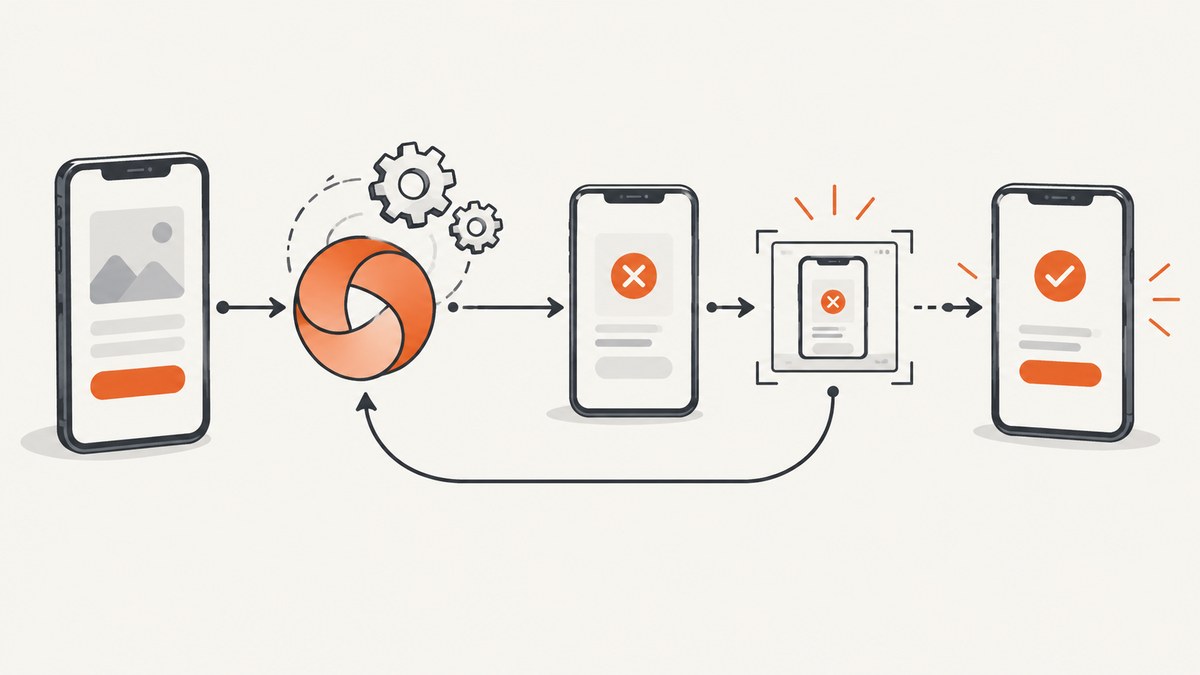
Short answer: Appium screenshot crashes and timeouts usually come from the device, driver, platform security settings, or the current native/web context. Start at the failing layer: verify the session and endpoint, collect verbose Appium logs, then apply the Android or iOS recovery that matches the symptom.
Appium exposes screenshots through GET /session/:session_id/screenshot and returns a base64-encoded PNG. Some platforms intentionally block screenshots; Android’s FLAG_SECURE is the documented example. See the Appium screenshot command documentation.
1. Classify the failure before changing settings
Record the exact client exception and the Appium server line immediately before it. Then answer these questions:
- Does the session stay alive after the screenshot command?
- Does it fail in native context, web context, or both?
- Does it affect one app, one device, one OS version, or every session?
- Is the symptom an immediate security denial, a timeout, a lost connection, a wrong orientation, or a server crash?
A failure limited to one application often indicates an app security flag. A failure across applications and sessions points toward the driver, device, ADB, WebDriverAgent, or server environment.
2. Verify the endpoint, session, and client call
Use your client’s standard screenshot method and confirm that the request targets the active Appium server and session. The documented endpoint is:
GET /session/:session_id/screenshotThe response is a base64 PNG string. A dead or replaced session can make a valid screenshot call look like a capture failure.
Python client example
from appium import webdriver
from appium.options.android import UiAutomator2Options

options = UiAutomator2Options()
options.platform_name = "Android"
options.device_name = "Android Emulator"
options.app_package = "com.example.app"
options.app_activity = ".MainActivity"

# Start your Appium server first, for example on http://127.0.0.1:4723

driver = webdriver.Remote("http://127.0.0.1:4723", options=options)
try:
    png_base64 = driver.get_screenshot_as_base64()
    with open("screen.png", "wb") as output:
        import base64
        output.write(base64.b64decode(png_base64))
finally:
    driver.quit()
JavaScript (WebdriverIO) example
import { remote } from 'webdriverio';

const driver = await remote({
  hostname: '127.0.0.1',
  port: 4723,
  path: '/',
  capabilities: {
    platformName: 'Android',
    'appium:automationName': 'UiAutomator2',
    'appium:deviceName': 'Android Emulator',
    'appium:appPackage': 'com.example.app',
    'appium:appActivity': '.MainActivity'
  }
});

try {
  await driver.saveScreenshot('./screen.png');
} finally {
  await driver.deleteSession();
}
3. Fix Android screenshot crashes
Check SDK and ADB health first
Appium’s Android guidance starts with the emulator or physical device, ANDROID_HOME, and the installed platform and build tools. Confirm that ADB can see the target:
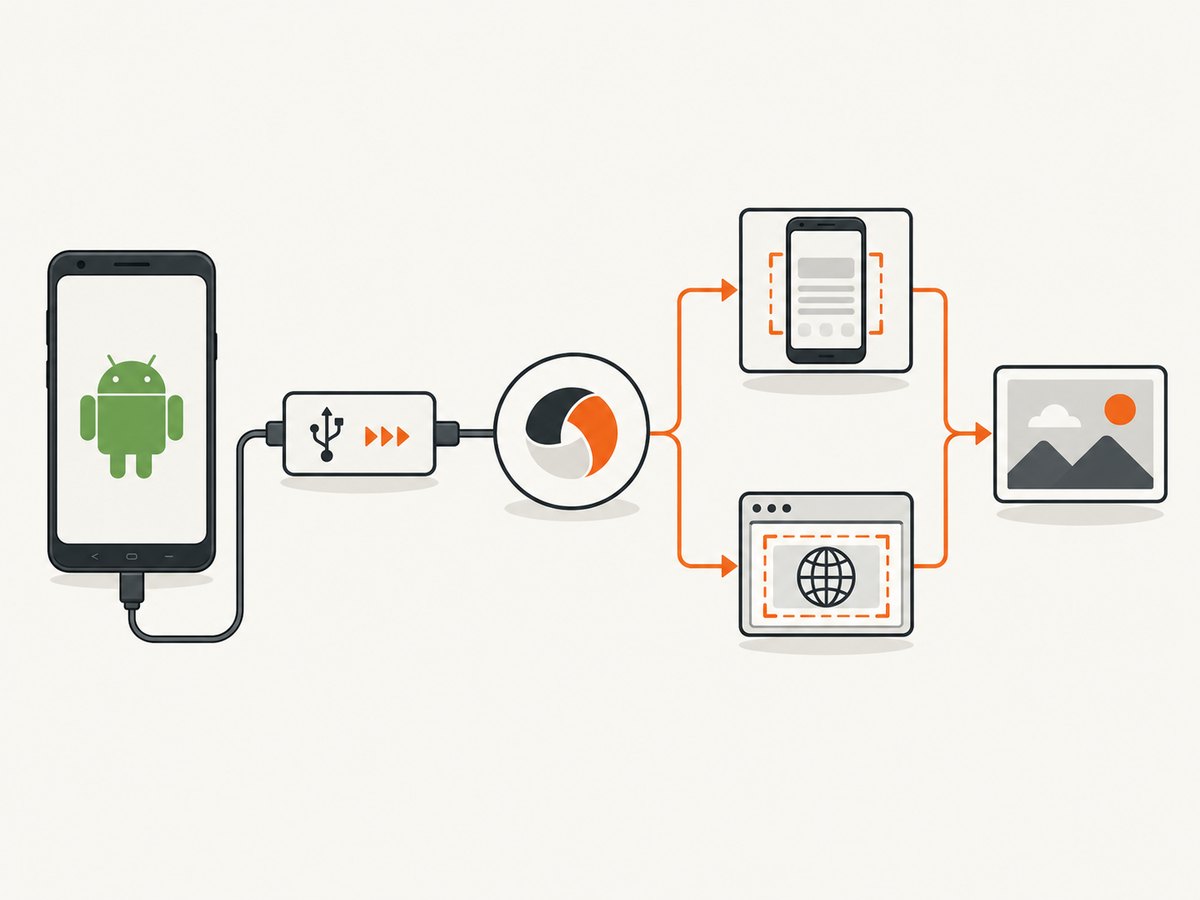
echo "$ANDROID_HOME"
adb devices -l
If the device intermittently disappears, reset ADB and retry the session:
adb kill-server
adb devices
For a physical device, unlock it, accept the USB debugging prompt, and make sure its state is device rather than unauthorized or offline.
Separate native and web contexts
In an Android web context, ChromeDriver normally handles the screenshot. Set appium:nativeWebScreenshot=true to use the native ADB method instead:
{
  "platformName": "Android",
  "appium:automationName": "UiAutomator2",
  "appium:deviceName": "Android Emulator",
  "appium:nativeWebScreenshot": true
}
This is useful when the browser context is healthy but ChromeDriver’s screenshot proxy is the failing layer.
Set a writable screenshot path
If the driver writes a temporary image on the device, configure appium:androidScreenshotPath to a writable directory:
{
  "appium:androidScreenshotPath": "/sdcard/screenshots"
}
Use a directory that exists and has appropriate permissions for the device image. A path that is valid on your workstation is not automatically valid inside Android.
Check FLAG_SECURE
Android applications can set FLAG_SECURE to prevent screenshots for security reasons. In that case the screenshot command may return a blank, blocked, or unusable image rather than a normal capture. Remove or change the flag only in a test build and only when your security requirements allow it. Do not weaken production protections to make a test pass.
Review Android watchers
Appium Android watchers monitor application-not-responding and crash states. If watcher activity contributes to resource pressure, test a session with:
{
  "appium:disableAndroidWatchers": true
}
Use this as a diagnostic change and compare the logs before making it part of a shared capability profile.
4. Fix iOS and XCUITest screenshot failures
Recognize the 15-second timeout
Search verbose logs for Failed to get screenshot within 15s. XCUITest troubleshooting identifies a crash in the device’s testmanagerd process as one cause. If the real device has stopped accepting connections, reboot it, start a fresh session, and retry.

Control orientation explicitly
Automatic orientation detection can fail, especially in landscape. XCUITest supports screenshotOrientation values:
| Value | Use |
|---|---|
auto |
Let the driver infer orientation |
portrait |
Portrait |
portraitUpsideDown |
Upside-down portrait |
landscapeRight |
Landscape with the home button on the configured side |
landscapeLeft |
The opposite landscape direction |
{
  "platformName": "iOS",
  "appium:automationName": "XCUITest",
  "appium:deviceName": "iPhone",
  "appium:screenshotOrientation": "landscapeLeft"
}
Choose an appropriate screenshot quality
screenshotQuality accepts values 0–3:
| Value | Format and behavior |
|---|---|
| 0 | Lossless PNG |
| 1 | High-quality JPEG |
| 2 | Low-quality JPEG |
| 3 | Lossless HEIC, with PNG fallback when hardware HEIC encoding is unavailable |
Use a faster JPEG mode when transfer time or memory is the problem; use lossless output when pixel fidelity matters.
Align the iOS toolchain
Record the Xcode version, iOS version, WebDriverAgent version, Appium server version, and XCUITest driver version. Keep these components aligned and include them in bug reports so a version-specific regression can be identified.
5. Capture verbose logs and build a minimal reproduction
Run Appium with verbose logging and save the lines around the screenshot command. Your escalation bundle should include:
- Appium server and client versions
- Driver name and version
- OS version and device or emulator model
- Whether the target is real or simulated
- Native or web context
- Exact client exception and server error
- Full verbose output around the failure
- A minimal app and one screenshot call that reproduces it
Reducing the test to session creation, one optional context switch, one screenshot, and session shutdown reveals whether the failure belongs to setup, navigation, context switching, or capture.
6. Troubleshooting matrix
| Symptom | Likely cause | Fix |
|---|---|---|
| Immediate blank or blocked image | Android FLAG_SECURE |
Verify the app security policy; use a test build without the flag if permitted. |
| Android device vanishes | ADB connection instability | Run adb kill-server && adb devices; reconnect or unlock the device. |
| Failure only in Android web context | ChromeDriver screenshot path | Try nativeWebScreenshot=true. |
| File write error on Android | Invalid or unwritable device path | Set androidScreenshotPath to a writable directory. |
| iOS timeout at 15 seconds | testmanagerd crash or stale device connection |
Inspect logs, reboot the device, and create a fresh session. |
| Wrong image orientation | Automatic orientation heuristic | Set screenshotOrientation explicitly. |
| Slow or memory-heavy iOS capture | Lossless output or large transfer | Review screenshotQuality and choose JPEG when acceptable. |
| Only one app fails | Application-specific security or rendering behavior | Compare with another app and inspect app flags and logs. |
7. Reliability, performance, and cost considerations
- Reliability: Reuse a healthy session for a small group of captures, but recreate sessions after ADB, WebDriverAgent, or
testmanagerdconnection loss. - Performance: Lower-quality JPEG output can reduce encoding and transfer time. Native Android capture can avoid a problematic browser proxy in web context.
- Resource pressure: Watch emulator CPU, device storage, Appium logs, and Android watcher activity when failures correlate with long runs.
- Security: Treat blocked screenshots as an intentional control until the application owner confirms otherwise.
- Reproducibility: Pin compatible Appium, driver, Xcode, iOS, Android SDK, and browser versions in CI and record them with every failure artifact.
Or skip the browser setup
For website screenshots, ScreenshotNeo provides a one-request capture API and an MCP server for AI agents. It is separate from Appium’s device screenshot command, so use it when the target is a web URL rather than a native mobile app.
See the ScreenshotNeo API documentation for all options.
curl -G "https://api.screenshotneo.com/v1/shot" -d access_key=YOUR_API_KEY --data-urlencode url=https://stripe.com -o shot.webpimport requests
r = requests.get("https://api.screenshotneo.com/v1/shot", params={"access_key": "YOUR_API_KEY", "url": "https://stripe.com"}, timeout=90)
open("shot.webp", "wb").write(r.content)const q = new URLSearchParams({ access_key: 'YOUR_API_KEY', url: 'https://stripe.com' });
const res = await fetch(`https://api.screenshotneo.com/v1/shot?${q}`);- Cookie banners, newsletter popups, and chat widgets are removed before the shot.
- Bot checks, blank pages, failed loads, timeouts, and cache hits are not billed; response headers identify the page verdict and billing result.
- An MCP server lets Claude, Cursor, and other MCP clients call
take_screenshot,get_page_info, andcapture_pdf. - The Free plan includes 1,000 screenshots a month with no card; paid plans start at $5 for 3,000 shots.
Create a free ScreenshotNeo account and get 1,000 screenshots each month without adding a card.
FAQ
Does Appium always return PNG data?
The standard screenshot endpoint returns a base64-encoded PNG string. XCUITest quality settings can change the underlying image format and encoding behavior.
Should I reboot every time a screenshot fails?
No. First determine whether the failure is ADB, context-specific, security-related, or an iOS daemon crash. Reboot an iOS device when logs indicate a stale connection or testmanagerd failure.
Can I bypass FLAG_SECURE from Appium?
No supported Appium setting should override an application’s security policy. Change the flag only in an authorized test build.
Why does a screenshot work in native context but fail in web context?
Android web screenshots may be proxied through ChromeDriver. Try nativeWebScreenshot=true to use the native ADB capture path.
What should I attach to an Appium issue?
Attach versions, device details, real versus simulated status, context, the exact exception, and verbose server output around the screenshot command.


