How to Fix Apps That Block Screenshots
Learn why an app blocks screenshots, how to diagnose the cause, and the safe, authorized ways to save the information you need.
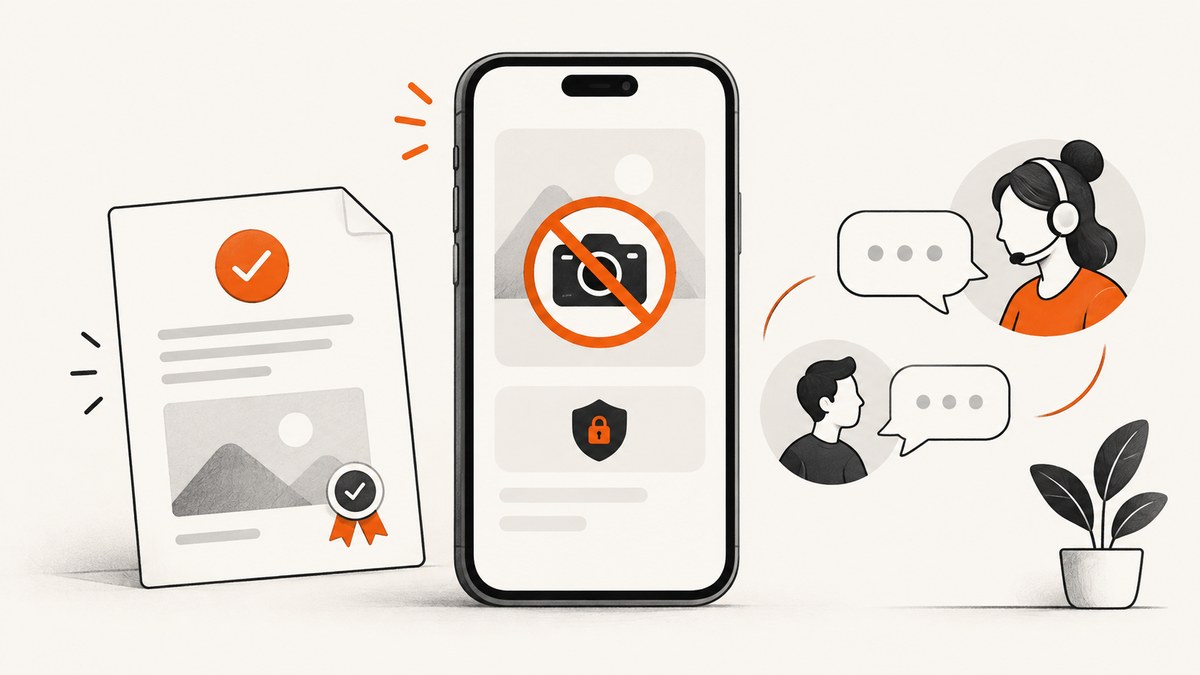
When an app blocks screenshots, there usually is no broken button to repair. The app, a work or school policy, or the operating system may be deliberately preventing the screen from being captured. Android apps can mark a window as secure, managed devices can block screen capture, and iPhone or iPad apps can detect recording or screenshot events and respond according to their own policy.
The practical fix is to identify who is enforcing the restriction and use an approved way to retain the information: an in-app export, download, print, share action, official web view, or a copy supplied by the app provider or your organization administrator. Do not root a device, patch an app, install a screenshot-bypass module, or use a capture tool to defeat a security control. Google Play requires apps to respect other apps’ FLAG_SECURE declarations and prohibits facilitating workarounds.
1. First, determine what is being blocked
Start with three details: your device platform, the app and exact screen, and what the result looks like. A black image, an error saying screenshots are disabled, a screenshot button that does nothing, or a recording that blanks one app can all indicate an intentional restriction.
| What you observe | Likely scope | What to check next |
|---|---|---|
| Only one app or one sensitive screen fails | App security, content licensing, privacy policy, or a managed-app rule | Look for export, download, print, share, or an official web version |
| Screenshots fail in every app | Device setting, work-profile policy, storage problem, or a system fault | Restart, check device screenshot instructions, and ask your administrator if the device is managed |
| The image is black or blank | Often an intentional secure-window result | Confirm whether the app protects banking, passwords, paid media, or organization data |
| Capture works until a work account is opened | App-protection policy | Contact IT; do not try to move protected data into an unmanaged app |
Testing another ordinary app is useful as a diagnostic clue, not a guarantee. If the built-in screenshot works elsewhere but fails in one protected app, focus on that app’s policy rather than repairing the phone’s buttons or gesture.
2. Android: why FLAG_SECURE produces a blank result
Android’s documented control is the FLAG_SECURE window flag. Android says this flag prevents screenshots and prevents the window from appearing on a non-secure display such as casting. It is intended for sensitive activities such as banking screens and password managers. When capture is attempted, the resulting image can be blank. See the Android secure sensitive activities documentation.
This is an app-level decision. The operating system is doing what the app requested, so repeatedly pressing the screenshot keys or changing the screenshot gesture will not authorize capture. A capture app using Android’s user-authorized MediaProjection API can request normal screen access, but that permission does not promise access to content protected by a secure window. Android describes MediaProjection in its screen-capture documentation.
Android 14 screenshot detection is different
Android 14 introduced a standardized screenshot-detection API. Detection lets an app know that a screenshot occurred so it can warn the user, record an event, or change its interface. Detection is not a permission that makes capture succeed. When an app must keep content out of screenshots and non-secure displays, Android still points developers to FLAG_SECURE.
What developers should and should not do
If you own the Android app and need to protect a sensitive activity, a minimal Kotlin example is:
class PaymentActivity : AppCompatActivity() {
    override fun onCreate(savedInstanceState: Bundle?) {
        super.onCreate(savedInstanceState)
        window.setFlags(
            WindowManager.LayoutParams.FLAG_SECURE,
            WindowManager.LayoutParams.FLAG_SECURE
        )
        setContentView(R.layout.activity_payment)
    }
}
Apply the flag only to screens that need it, and provide an approved way to obtain receipts or records. If you are the app’s user, do not remove the flag from a third-party APK or install a module designed to bypass it. Google Play’s device and network abuse policy states that Play apps must respect other apps’ FLAG_SECURE declarations and must not facilitate workarounds.
3. iPhone and iPad: detection and app responses
Apple documents a different model. UIKit exposes capture status for recording, mirroring, and AirPlay, and an app can respond by pausing playback, hiding sensitive content, or presenting a message. Apple’s UIScreen.isCaptured property is deprecated in favor of sceneCaptureState; the documentation also references a notification posted when a person takes a screenshot. Read the Apple capture-status documentation.
These APIs describe what an app can detect and how it may respond. They do not establish that every iOS or iPadOS app blocks screenshots in the same way as Android. If one app shows a warning or omits content while other apps capture normally, follow that service’s export or support path.
For an app developer using Swift, a current scene-based check can be structured like this:
func updateForCaptureState() {
    guard let scene = view.window?.windowScene else { return }
    let state = scene.captureState
    sensitiveView.isHidden = (state != .none)
}

// Observe UIScreen.capturedDidChangeNotification and call
// updateForCaptureState() when the scene becomes active.
The exact user experience belongs to the app’s privacy and content policy. A user cannot turn an app’s response into an authorized export merely by changing a system setting.
4. Work and school apps may be enforcing a policy
Managed Android devices and apps can block screenshots independently of the app’s public settings. Microsoft Intune documentation says app-protection policies can automatically restrict operating-system screenshot and recording attempts at the window level for integrated apps. Intune users may also see a policy named “Screen capture and Google Assistant” set to Block. Read the Intune Android App SDK documentation and the Android app-protection settings.
This commonly affects work accounts in Outlook, Teams, OneDrive, SharePoint, or another protected application. The restriction may apply only while organization data is open. On a corporate-owned device, a device-level screen-capture setting can affect more than one app.
If the content belongs to an employer or school, ask the IT administrator for an approved copy or for the policy to be reviewed. An administrator can determine whether the rule is intentional, scoped to a work profile, or applied to the whole device. Do not copy protected data into a personal app to get around the rule.
5. The safe troubleshooting workflow
- Record the exact context. Note the device model and OS version, app name and version, screen involved, and whether the result is black, blank, or an error. Include whether a work or school account is signed in.
- Test a neutral app. Capture a home screen or an unrelated app. If that succeeds, the phone’s basic capture feature is probably available and the restriction is likely app-specific or policy-specific.
- Check the app’s allowed actions. Look for Export, Download, Save receipt, Print, Share, Copy details, or a document history. Some services expose these actions only after a transaction is complete.
- Try the official web interface. A provider may offer an account page or printable statement even when its mobile screen is protected. Use only an official domain and sign in normally.
- Ask for an accessible format. Contact the app provider with the legitimate purpose, such as retaining a receipt, appointment detail, or account record. Request a PDF, CSV, emailed confirmation, or other approved format.
- Escalate managed data to IT. For work or school data, send the app name, account context, and error text to the organization administrator. They can confirm the policy and provide a compliant sharing method.
- Perform ordinary device checks only when capture fails everywhere. Restart the device, install the normal system update offered by the manufacturer, check available storage, and review the maker’s screenshot instructions. These steps can repair a device-wide failure; they do not defeat an app-level secure window.
6. Common errors and their fixes
| Error or symptom | Cause | Fix |
|---|---|---|
| “Can’t take screenshot due to security policy” | Secure window or managed policy | Use the app’s export/share option or ask the provider or administrator for an approved copy |
| Black screenshot from a banking or password screen | FLAG_SECURE is preventing the protected window from appearing in the image |
Download a statement, copy non-sensitive details through an allowed action, or request support |
| Screen recording shows everything except one app | The app is excluding protected content from capture | Use an official export or web view; a recorder cannot grant access the app denied |
| Screenshot fails only with a work account | App-protection or device-management policy | Contact IT and request a policy-approved document |
| Screenshots fail in every app | Device setting, work-profile restriction, storage, or system fault | Restart, check storage and device instructions, then contact the device administrator or manufacturer |
| A third-party capture app also returns a blank image | The source window is secure | Stop trying capture workarounds and use an authorized source of the information |
7. Why capture tools cannot be assumed to override the block
A screenshot utility, desktop mirroring tool, or MediaProjection-based recorder still operates within the platform’s security model. Android specifically documents FLAG_SECURE as the mechanism for keeping a window out of screenshots and non-secure displays. A user granting capture permission to a recorder is not the same as the protected app granting permission to expose its data.
An external camera photograph is not a software fix. It can defeat the intent of a privacy, workplace, or paid-content control and may expose information to people or services that were not authorized to receive it. Use it only where the content owner and organization explicitly permit that method; otherwise request an approved copy.
8. Or skip the browser setup
If your goal is to capture a public web page that you control or are authorized to archive, ScreenshotNeo provides a website screenshot API and MCP server. It is useful for web pages; it cannot and should not override a protected mobile app window.
One GET request returns a PNG, JPEG, WebP, or PDF. The API accepts a URL and can handle full-page capture, lazy-loaded images, a CSS-selected element, dark mode, device presets or custom viewports, retina scale, custom CSS and JavaScript, clicks, waits, request blocking, headers, cookies, user agents, authorization, timezone, geolocation, transparent backgrounds, resizing, caching, signed links, asynchronous jobs, webhooks, bulk capture, and usage reporting. See the ScreenshotNeo documentation for the complete option list.
cURL
curl -G "https://api.screenshotneo.com/v1/shot" \
  -d access_key=YOUR_API_KEY \
  --data-urlencode url=https://stripe.com \
  -o shot.webp
Python
import requests

r = requests.get(
    "https://api.screenshotneo.com/v1/shot",
    params={"access_key": "YOUR_API_KEY", "url": "https://stripe.com"},
    timeout=90,
)
r.raise_for_status()
open("shot.webp", "wb").write(r.content)
Node.js
const q = new URLSearchParams({
  access_key: 'YOUR_API_KEY',
  url: 'https://stripe.com'
});
const res = await fetch(`https://api.screenshotneo.com/v1/shot?${q}`);
if (!res.ok) throw new Error(`HTTP ${res.status}`);
const fs = await import('node:fs/promises');
await fs.writeFile('shot.webp', Buffer.from(await res.arrayBuffer()));
ScreenshotNeo removes cookie and consent banners, newsletter popups, and chat widgets before capture. Only clean shots are billed: bot checks, blank pages, timeouts, failed loads, and cache hits cost nothing, and the response reports the result with X-Page-Verdict and X-Billed headers. Its MCP server includes take_screenshot, get_page_info, and capture_pdf for Claude, Cursor, and other MCP clients.
The Free plan includes 1,000 screenshots each month with no card. Paid plans start at $5 for 3,000 shots; yearly billing gives two months free, and every feature is included on every plan. For a public <img> tag, use a signed link rather than exposing your access key. Choose caching TTLs, waits, blocking rules, and viewport settings to keep repeated captures predictable and efficient.
Create a free ScreenshotNeo account and start with 1,000 screenshots a month without a card.
9. Performance, reliability, and cost considerations
- Separate authorized web capture from protected-app capture. ScreenshotNeo can render an authorized URL; it is not a bypass for banking, workplace, school, health, password, or paid-media protections.
- Use waits only when needed. A selector wait, delay, or network-idle wait helps dynamic pages finish rendering, but excessive waits increase response time.
- Capture only what you need. An element selector is smaller and faster than a full-page image when a single chart or receipt is sufficient.
- Cache stable pages. A chosen TTL reduces repeated work. Cache hits are not billed, according to ScreenshotNeo’s response billing behavior.
- Handle verdict headers. Read
X-Page-VerdictandX-Billedso your job queue can distinguish a clean capture from a bot check, blank page, timeout, failed load, or cache hit. - Use asynchronous jobs for large batches. Signed webhooks and bulk capture support workflows that should not hold an HTTP request open. Bulk calls support up to 100 URLs.
Frequently asked questions
Can I make an app allow screenshots from Android settings?
Usually no. If the app uses FLAG_SECURE or a management policy blocks capture, the app or administrator must provide the allowed path.
Why is my screenshot black instead of showing an error?
A secure Android window can intentionally produce a blank result. That output does not prove the phone’s screenshot feature is damaged.
Does Android 14 screenshot detection allow capture?
No. Detection tells an app that a screenshot happened. It is separate from the prevention mechanism used to keep protected content out of screenshots.
Who can remove a work-app screenshot restriction?
The organization administrator who assigned the app-protection or device policy can review it. The app provider may also supply an approved export.
Can ScreenshotNeo capture a protected mobile app?
No. ScreenshotNeo captures authorized web URLs. It does not override secure app windows, device-management rules, or content-owner restrictions.


