How to Fix HTML-to-PDF Export Issues in ASP.NET Core with Microsoft Edge
Diagnose Edge headless and WebView2 PDF failures in ASP.NET Core with path, async, concurrency, readiness, flags, and logging fixes.
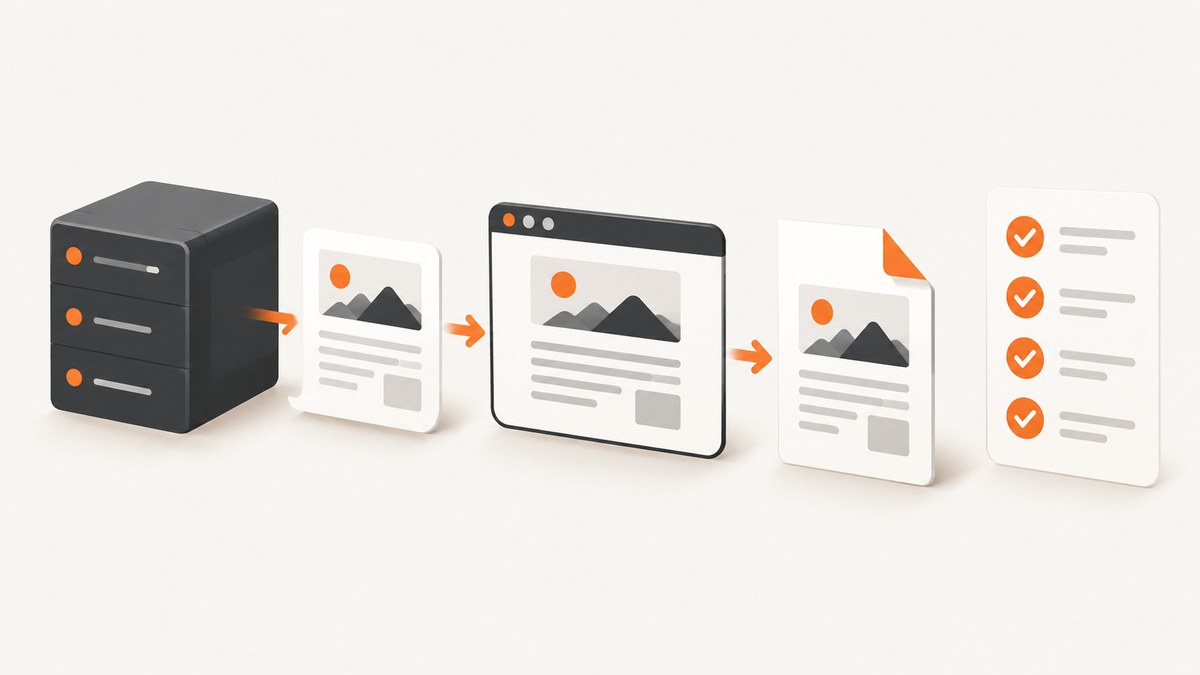
Start by identifying the PDF route. ASP.NET Core applications commonly use either an embedded WebView2 control that calls CoreWebView2.PrintToPdfAsync/PrintToPdfStreamAsync, or a separate msedge.exe process launched with headless flags such as --print-to-pdf. These paths have different failure modes and fixes. WebView2 requires an absolute output path, an awaited asynchronous operation, and one print operation at a time. Headless Edge requires valid command-line flags and version-specific investigation.
1. Identify which Edge printing path you use
Check the code and deployment process before changing settings:
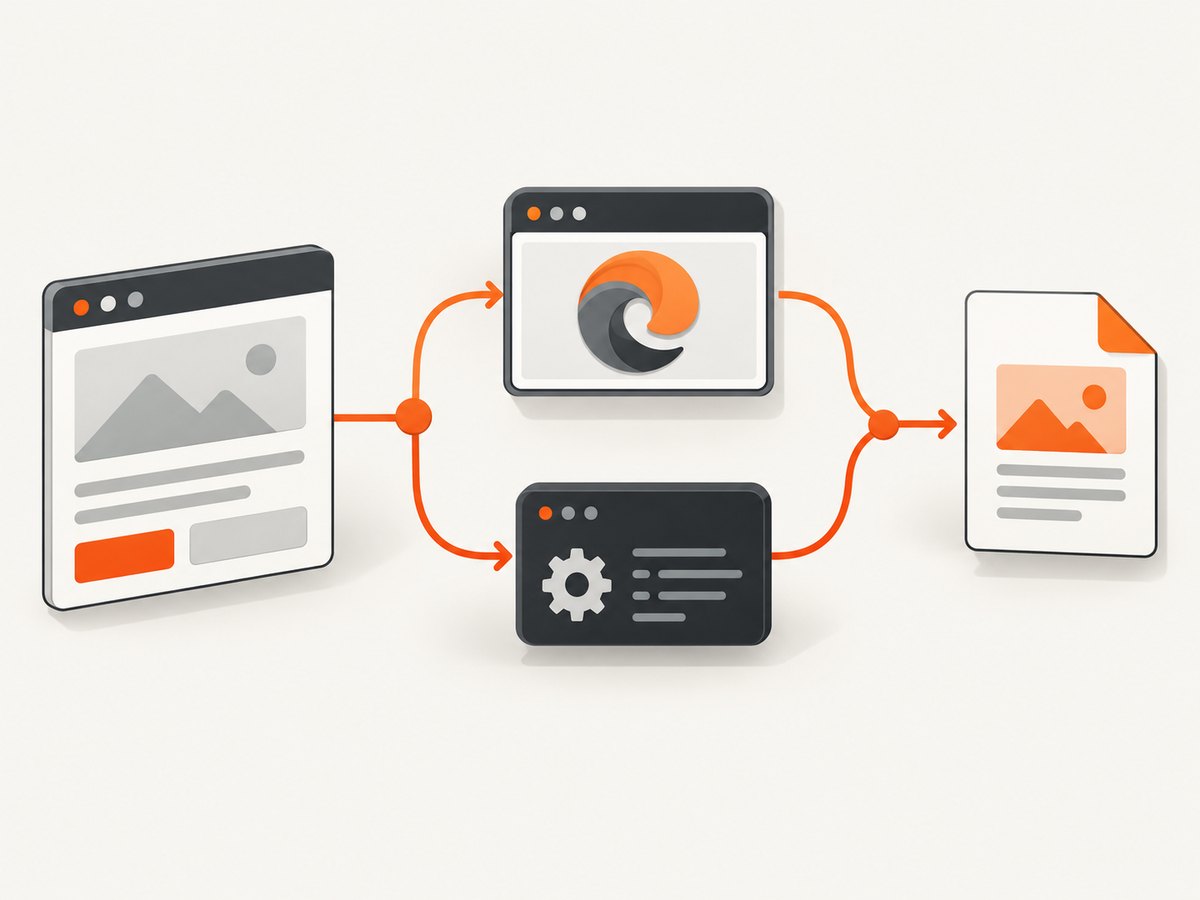
- WebView2: your application creates a WebView2 control and calls
PrintToPdfAsync,PrintToPdfStreamAsync, or a related API. - Headless Edge: your application starts
msedge.exewith arguments such as--headlessand--print-to-pdf. - Print UI: your application opens the browser print interface with WebView2’s print UI APIs instead of silently writing a file.
Microsoft documents these WebView2 routes in Printing from WebView2 apps. Do not apply a headless command-line workaround to a WebView2 API call, or vice versa.
2. Fix WebView2 file output
Use an absolute path that includes the filename
The WebView2 API requires a valid absolute path. An existing file is overwritten; an invalid path causes the operation to fail. Build the path explicitly and create its directory before printing.
using Microsoft.Web.WebView2.Core;

var outputDirectory = Path.Combine(AppContext.BaseDirectory, "pdf-output");
Directory.CreateDirectory(outputDirectory);

var outputPath = Path.Combine(outputDirectory, "invoice-123.pdf");
var absolutePath = Path.GetFullPath(outputPath);

if (webView.CoreWebView2 is null)
    throw new InvalidOperationException("WebView2 is not initialized.");

var settings = webView.CoreWebView2.Environment.CreatePrintSettings();
settings.ShouldPrintBackgrounds = true;

bool written = await webView.CoreWebView2.PrintToPdfAsync(absolutePath, settings);

if (!written)
    throw new InvalidOperationException($"WebView2 did not write the PDF: {absolutePath}");

if (!File.Exists(absolutePath))
    throw new IOException($"Print completed without an output file: {absolutePath}");
The API reference states that the asynchronous operation completes when data has been written to the PDF file. Keep the process alive until the awaited task finishes; an application that exits early can leave no file. See the CoreWebView2 API reference.
Return a PDF stream when your application owns storage
PrintToPdfStreamAsync avoids path and permission problems by returning PDF data for your code to save or send in an HTTP response.
using Microsoft.Web.WebView2.Core;

using Stream pdfStream = await webView.CoreWebView2.PrintToPdfStreamAsync(null);
pdfStream.Position = 0;

Directory.CreateDirectory("pdf-output");
await using var file = File.Create(Path.GetFullPath("pdf-output/report.pdf"));
await pdfStream.CopyToAsync(file);
Use the stream route when storage is provided by a database, object store, or ASP.NET Core response. Continue to await the operation and check exceptions.
Wait for the intended document and its generated content
WebView2 prints the current top-level document. Requesting a PDF immediately after navigation can capture an incomplete page when your application still renders data, images, or charts in JavaScript. Wait for the readiness condition your page can actually guarantee, such as a server-rendered response, a DOM marker, or an application message. There is no universal readiness event for every ASP.NET Core page.
await webView.EnsureCoreWebView2Async();
await webView.CoreWebView2.NavigateAsync("https://localhost:5001/invoices/123");

// Replace this with an application-specific readiness check.
await WaitForDomMarkerAsync(webView, "#invoice-ready", TimeSpan.FromSeconds(30));

bool written = await webView.CoreWebView2.PrintToPdfAsync(absolutePath, settings);
3. Serialize PDF operations per WebView2 instance
Only one printing operation can be in progress on a WebView at a time. If another PDF job is running, PrintToPdfAsync can complete with false; overlapping print operations can also throw or fail. Queue work for each WebView instance, or create independent instances when genuine parallel rendering is required.
private readonly SemaphoreSlim _printLock = new(1, 1);

public async Task<string> ExportAsync(string path, CancellationToken cancellationToken)
{
    await _printLock.WaitAsync(cancellationToken);
    try
    {
        bool ok = await webView.CoreWebView2.PrintToPdfAsync(path, null);
        if (!ok) throw new InvalidOperationException("WebView2 reported a failed print operation.");
        return path;
    }
    finally
    {
        _printLock.Release();
    }
}
4. Check print settings and document state
Pass print settings when you need controlled output; pass null for defaults. Confirm that the page has navigated to the intended URL and that application-generated content is ready before calling the print method. Record the settings used so a later comparison is reproducible.
| Requirement | Action |
|---|---|
| Background colors/images | Enable the corresponding print setting when the design depends on them. |
| Paper, margins, orientation | Set them through WebView2 print settings and log the values. |
| Dynamic content | Wait for an application-specific ready marker or completion signal. |
| Output destination | Use an absolute path, or use the stream API and save it yourself. |
5. Diagnose Edge headless command-line exports
Use a minimal invocation first
msedge.exe --headless --disable-gpu --print-to-pdf="C:\\absolute\\path\\report.pdf" "file:///C:/absolute/path/report.html"Use an absolute output path and a local HTML file to separate browser, network, and application problems. Capture the process exit code, standard output/error where available, installed Edge version, input URL, and expected output path.
Remove PDF headers and footers
For the specific headless symptom of unwanted headers and footers, a Microsoft Q&A moderator recommends --no-pdf-header-footer. The answer says --no-display-header-and-footer is not recognized for headless PDF printing. This is community guidance, not the WebView2 API contract, so verify the flag against the Edge version and invocation you actually run. See the Q&A answer.
msedge.exe --headless --disable-gpu --no-pdf-header-footer --print-to-pdf="C:\\absolute\\path\\report.pdf" "file:///C:/absolute/path/report.html"Investigate version-specific regressions
A Microsoft Q&A report dated October 9, 2025 describes one user’s Edge 141.0.3537.57 installation no longer producing a file with --print-to-pdf after an update. Treat this as a report to reproduce, not proof of a universal or current regression. Test the exact installed version with a minimal local HTML file, a clean profile, and a captured exit/result. See the reported issue.
6. Add diagnostic logging before changing more code
For every export, record:
- renderer route: WebView2 API or headless executable
- ASP.NET Core, WebView2 SDK/runtime, and Edge versions
- input URL or local file path
- absolute output path and whether its directory exists
- print settings and command-line arguments
- start/end timestamps and elapsed time
- returned Boolean result, process exit code, exceptions, and captured stderr
- whether the output file exists, its byte length, and any subsequent file access error
This evidence distinguishes a bad path, an early process exit, a concurrent print, an incomplete page, and a browser-specific failure.
7. Troubleshooting checklist
| Symptom | Likely cause | Fix |
|---|---|---|
| No PDF file from WebView2 | Relative/invalid path, missing directory, or process exit | Use a full path, create the directory, await the task, and keep the process alive. |
PrintToPdfAsync returns false |
Another print operation is active | Serialize operations with a queue or semaphore; inspect the result. |
| Exception while printing | Invalid path, filesystem permissions, or conflicting print work | Log the exception and path; verify write access and one-job-at-a-time behavior. |
| PDF contains an old or blank page | Print requested before navigation or client rendering completed | Wait for an application-specific readiness marker. |
| Headers/footers remain in headless output | Unsupported flag | Try --no-pdf-header-footer and verify the installed Edge version. |
| Headless command suddenly stops writing files | Version-specific browser behavior or regression | Reproduce with minimal local HTML, record the exact version, and compare clean-profile runs. |
| Works locally but fails in hosting | Different executable path, identity, profile, permissions, or runtime | Log the resolved executable, account, versions, arguments, and absolute output path in the deployed environment. |
8. Performance, reliability, and cost considerations
- Reuse carefully: a single WebView reduces startup overhead, but its print work must be serialized. Separate instances provide concurrency at higher resource cost.
- Keep inputs deterministic: use stable URLs, explicit readiness checks, and fixed print settings.
- Bound work: apply application timeouts and cancel queued jobs; retain logs for failed exports.
- Validate artifacts: check the returned result, file existence, and file size before reporting success.
- Choose output handling: direct file output is simple for local storage; stream output fits HTTP responses and managed storage.
- Control browser versions: record and update Edge/WebView2 deliberately so a change can be correlated with failures.
9. Or skip the browser setup
ScreenshotNeo provides a website screenshot and PDF API when you do not want to manage Edge processes or WebView2 lifetimes. The same endpoint can return PDF output; see the ScreenshotNeo API documentation.

curl -G "https://api.screenshotneo.com/v1/shot" -d access_key=YOUR_API_KEY --data-urlencode url=https://stripe.com -d format=pdf -o page.pdfimport requests
r = requests.get("https://api.screenshotneo.com/v1/shot", params={"access_key": "YOUR_API_KEY", "url": "https://stripe.com", "format": "pdf"}, timeout=90)
r.raise_for_status()
open("page.pdf", "wb").write(r.content)const q = new URLSearchParams({ access_key: 'YOUR_API_KEY', url: 'https://stripe.com', format: 'pdf' });
const res = await fetch(`https://api.screenshotneo.com/v1/shot?${q}`);
if (!res.ok) throw new Error(`HTTP ${res.status}`);
const data = Buffer.from(await res.arrayBuffer());
require('fs').writeFileSync('page.pdf', data);ScreenshotNeo removes cookie banners, newsletter popups, and chat widgets before capture. Bot checks, blank pages, failed loads, timeouts, and cache hits are not billed, and responses identify the page verdict and billing status. Its MCP server lets AI agents use take_screenshot, get_page_info, and capture_pdf. The Free plan includes 1,000 screenshots per month with no card; paid plans start at $5 for 3,000. Create a free ScreenshotNeo account.
10. FAQ
Does ASP.NET Core itself cause Edge PDF failures?
No universal ASP.NET Core defect is established by the available evidence. Renderer choice, path handling, process lifetime, concurrent jobs, page readiness, flags, and browser version all need to be checked.
Should I use WebView2 or headless Edge?
Use the route your application can operate and diagnose reliably. WebView2 offers API-controlled printing and stream output; headless Edge is a separate executable workflow with command-line and version concerns.
Can I run multiple WebView2 PDF exports at once?
Not on the same WebView instance. Queue them or use independent instances.
What is the fastest first test?
Print a minimal local HTML file to an absolute path, capture the result and logs, then add your ASP.NET Core URL and dynamic content back one variable at a time.


