How to Fix Bad Fonts in Chromium Browsers with ErgoDox Oryx
Diagnose blurry, fuzzy, or missing Chromium text around ErgoDox Oryx with platform-specific Windows and Linux steps.
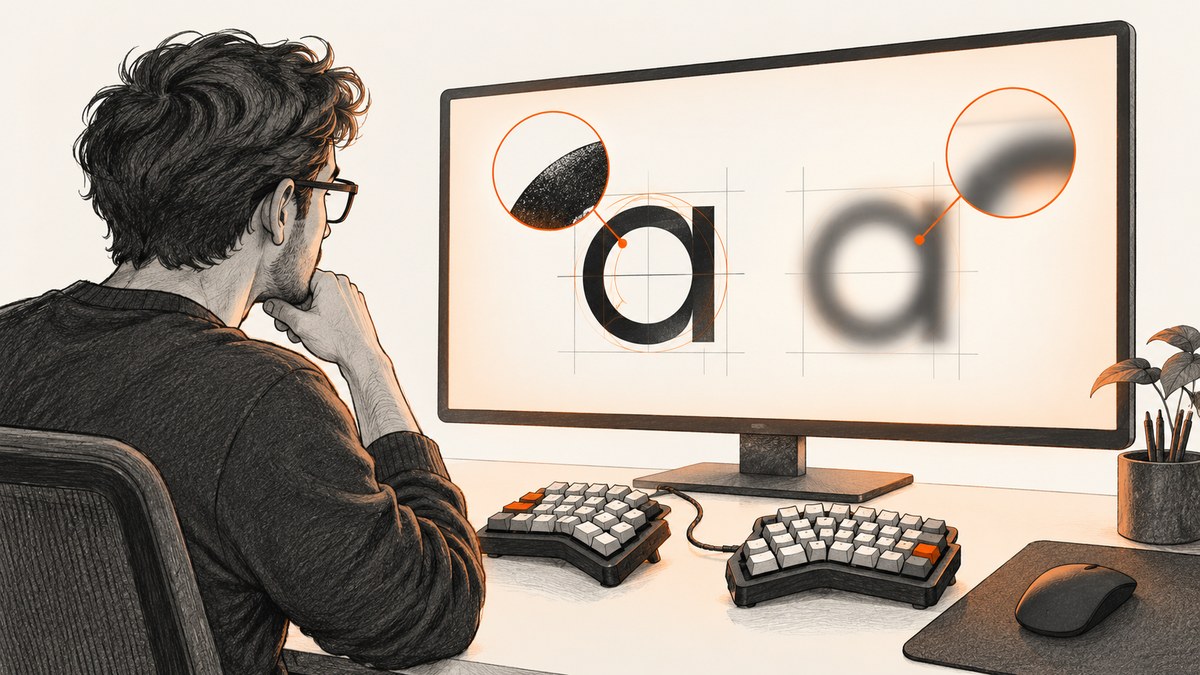
Start by finding where the defect appears. Compare Oryx with another website, then compare website text with Chromium’s own menus and tabs. Record your operating system, Chromium browser and version, display scaling, desktop session (Wayland or X11 on Linux), and when the problem began. Oryx is a keyboard-layout configurator; the available ErgoDox documentation does not identify Oryx, the keyboard, or its firmware as a cause or cure for Chromium font rendering.
1. Identify the scope before changing settings
Use this quick matrix:
| What is blurry or missing? | Most useful first check |
|---|---|
| Only Oryx | Test two unrelated sites. A page-specific font, zoom, or loading problem is more likely. |
| Several websites | Check display scaling, browser zoom, graphics/session details, and OS font smoothing. |
| Chromium menus, tabs, or settings | Focus on OS scaling, compositor, and display-session configuration. |
| Squares instead of characters | Check whether the required font or language fallback is installed. |
Write down the exact symptom: blurry or fuzzy edges, wrong glyphs, squares, unusually thin text, or missing icons. Also note whether screenshots show the defect; if a screenshot is sharp while the monitor looks blurry, the display pipeline is implicated.
2. Windows: run ClearType, then apply Chrome’s documented fallback
- Open the Windows Adjust ClearType text tool from Start search.
- Enable ClearType if prompted and complete every sample-selection page.
- Close and reopen Chromium. Check Oryx and a second site at 100% browser zoom.
- If text remains unclear, open Windows appearance and performance settings, clear Smooth edges of screen fonts, apply the change, and reopen Chromium.
These steps are documented for Windows. They are not a general macOS or Linux procedure. If the problem started after changing monitor scaling, temporarily return to the display’s recommended resolution and test again.
Check browser zoom and page styles
- Press
Ctrl+0to reset the current page to 100% zoom. - Open Chromium settings and remove a site-specific zoom override for the Oryx domain.
- Test in a private window with extensions disabled. A custom stylesheet, accessibility extension, or font-replacement extension can affect one site.
- Open DevTools and inspect a blurry element’s computed
font-family,font-weight, andfont-size. A missing webfont may cause fallback glyphs or squares.
3. Linux: inspect scaling and the desktop session
Linux has several independent scaling layers: desktop display scaling, toolkit scaling, browser zoom, and compositor output. Chromium documentation describes blur when application output is scaled to match system-wide zoom or a changed resolution. Treat this as a mechanism to investigate, not proof that every Linux font problem has the same cause.
- Record your distribution, Chromium version, Wayland or X11 session, monitor resolution, and scaling percentage.
- Test the recommended monitor resolution and a nearby scaling value. Log out and back in after changing desktop scaling.
- Reset Chromium page zoom with
Ctrl+0. - Compare a Wayland session with an X11 session, or vice versa, if both are available. This isolates the display compositor from page content.
Wayland diagnostic: Preferred Ozone platform
A January 2024 Chromium community report on Ubuntu with Wayland and 200% scaling described sharper windows after changing chrome://flags/#ozone-platform-hint (Preferred Ozone platform) from Default to Auto or Wayland. Another tester could not reproduce the result. The report used Chrome 120.0.6099.129, so treat this as a version- and setup-dependent experiment.
- Open
chrome://flagsand search for Preferred Ozone platform. - Record the original value before changing it.
- Choose Auto, relaunch Chromium, and retest.
- If needed, test Wayland and relaunch again.
- Restore the recorded value if rendering becomes worse or applications misbehave.
Flags are temporary configuration switches. Chromium warns that flags and command-line switches are different mechanisms and that either can change or disappear. Do not treat this experiment as a universal fix or leave unrelated flags enabled.
4. Separate Oryx from the rendering fault
ErgoDox EZ describes Oryx as a graphical frontend for common QMK operations. It generates a C file that QMK compiles into keyboard firmware; the keyboard itself requires no software to work, and customization occurs at firmware level. Chrome is one workflow for saving a compiled layout. This explains why an ErgoDox user may encounter Oryx in Chromium, but it does not establish that the keyboard, firmware, or Oryx changes font rendering.
Use a controlled comparison:
- Open Oryx in another Chromium-based browser profile with extensions disabled.
- Open the same Oryx page in Firefox or another browser.
- Capture the page and inspect the resulting image at 100% zoom.
- Check whether the issue follows the monitor/session or stays with one browser profile.
5. Missing glyphs, squares, and fallback fonts
If the symptom is squares instead of text, identify the language or symbol set that is missing. Install the matching OS font package, then restart Chromium. Inspect the page’s computed font stack and verify that a webfont request is not blocked by an extension, privacy tool, certificate error, or content-security policy. A fallback font can look different without being a Chromium bug.
For an Oryx-specific failure, clear the site’s cached data, reload without extensions, and check the browser console for failed font requests. Do not change keyboard firmware while diagnosing a browser font problem.
6. A repeatable diagnostic checklist
- Record OS, Chromium version, display scale, monitor resolution, and Wayland/X11 session.
- Classify the affected area: Oryx only, websites generally, or Chromium UI.
- Reset page zoom and test a private window.
- Compare another site and another browser.
- On Windows, complete ClearType tuning; if needed, test the documented font-smoothing setting.
- On Linux, test recommended resolution and scaling before browser flags.
- On Wayland, record and cautiously test Preferred Ozone platform.
- Restore every experimental setting that does not help.
- Report the exact symptom and the recorded configuration when asking for support.
7. Troubleshooting common failures
| Symptom | Likely cause | Fix |
|---|---|---|
| Only one site is blurry | Page zoom, CSS, webfont, or extension | Reset zoom, test private mode, inspect computed fonts and blocked requests. |
| Everything is blurry after scaling change | OS/compositor scaling mismatch | Use recommended resolution, test a different scale, and relogin. |
| Windows text remains fuzzy | ClearType or font-smoothing configuration | Run ClearType; then test the documented Smooth edges setting and reopen Chromium. |
| Wayland improves only with one flag value | Build- and session-specific Ozone behavior | Keep the working value only if stable; record it and retest after browser updates. |
| Squares replace characters | Missing font or failed webfont load | Install the needed font, check the network request, and remove blocking extensions. |
| Changing flags makes Chromium unstable | Experimental setting or incompatible build | Reset the flag to Default and relaunch; avoid unrelated switches. |
8. Performance, reliability, and reversibility
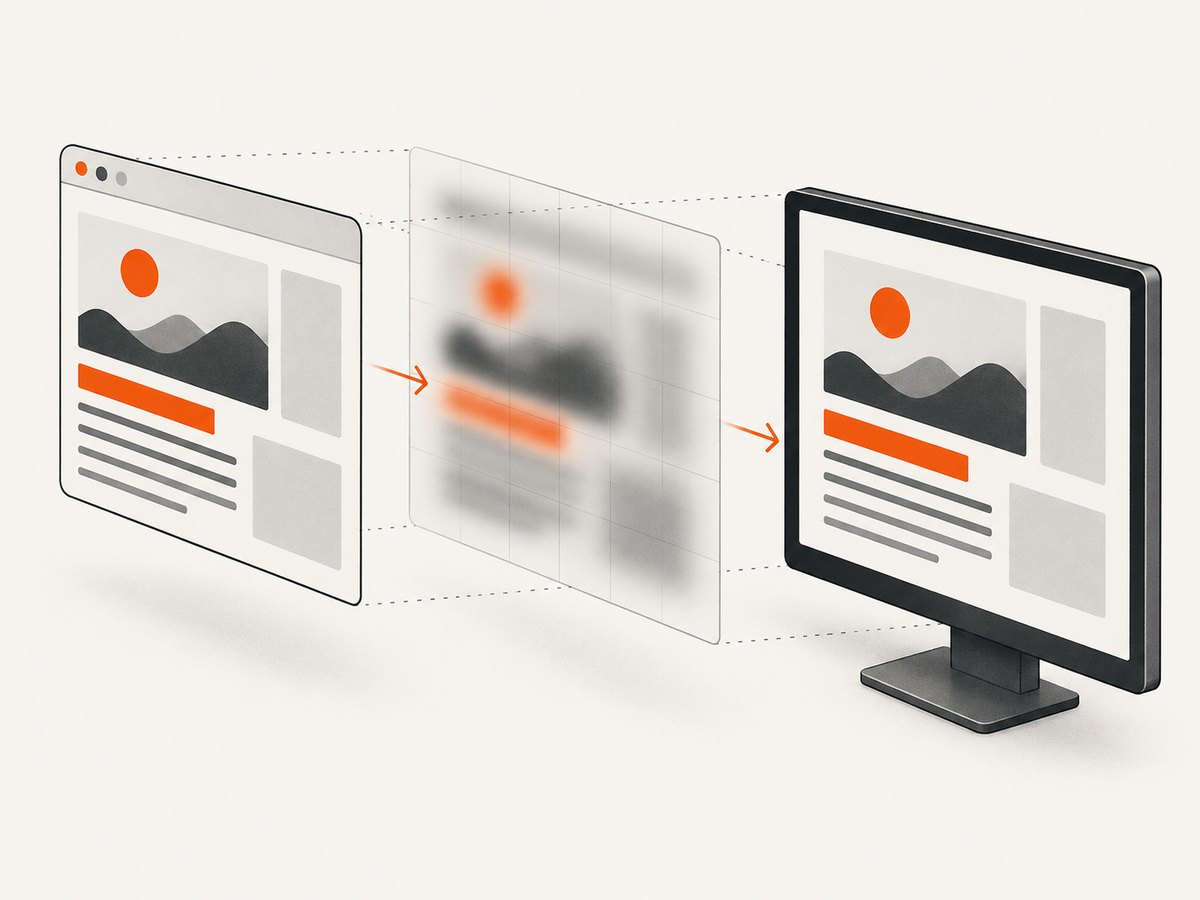
Font diagnosis is low risk when each change is isolated and reversible. ClearType and display scaling affect the whole desktop, so record the original values. Browser flags can affect window rendering and may be removed in later versions. A screenshot captured through a separate renderer can distinguish page CSS from the local display pipeline, but it cannot prove that your monitor output is correct.
Or skip the browser setup
If your goal is a clean image of Oryx or another page, ScreenshotNeo captures the URL through one API request. See the ScreenshotNeo API docs for all options.
curl -G "https://api.screenshotneo.com/v1/shot" -d access_key=YOUR_API_KEY --data-urlencode url=https://stripe.com -o shot.webpimport requests
r = requests.get("https://api.screenshotneo.com/v1/shot", params={"access_key": "YOUR_API_KEY", "url": "https://stripe.com"}, timeout=90)
open("shot.webp", "wb").write(r.content)const q = new URLSearchParams({ access_key: 'YOUR_API_KEY', url: 'https://stripe.com' });
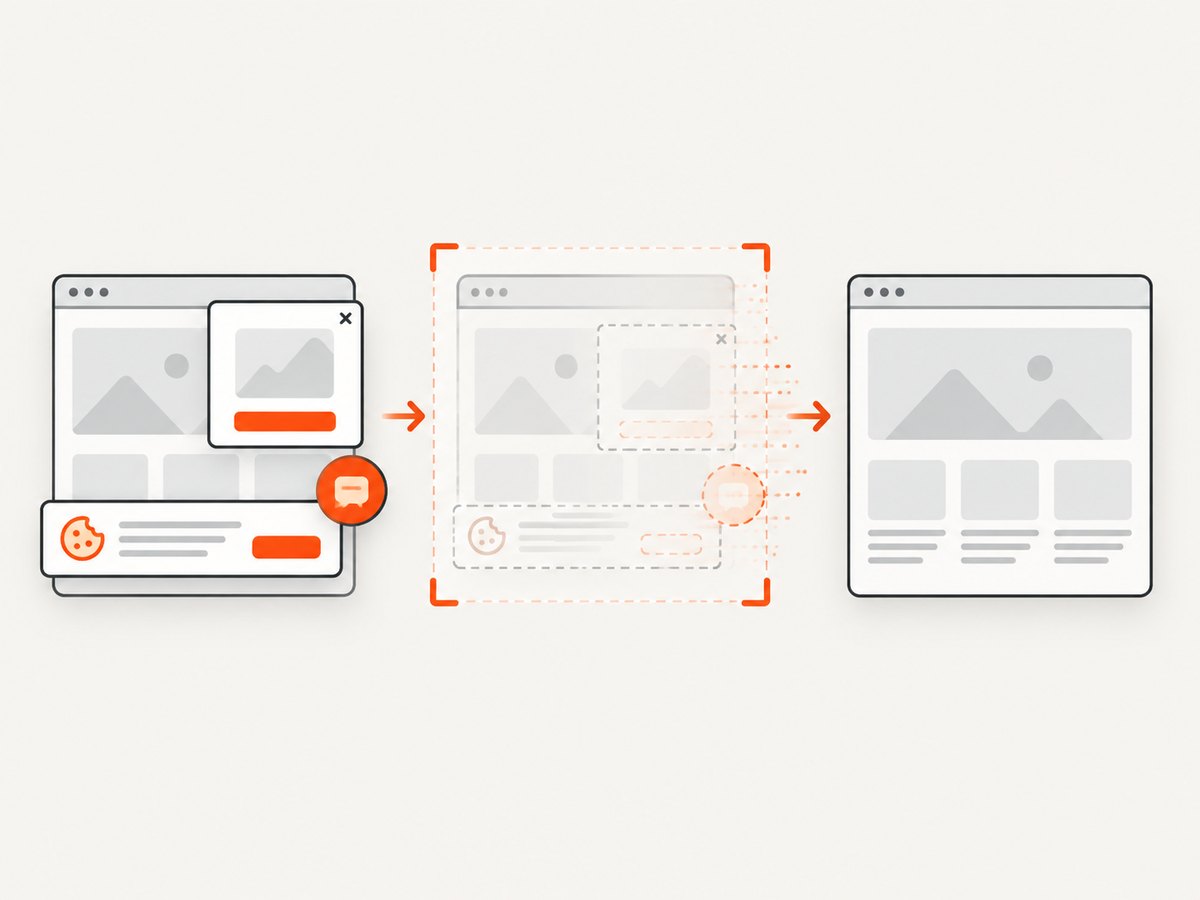
const res = await fetch(`https://api.screenshotneo.com/v1/shot?${q}`);Cookie banners, newsletter popups, and chat widgets are removed before capture. Bot checks, blank pages, failed loads, timeouts, and cache hits are not billed; response headers identify the page verdict and whether it was billed. An MCP server provides take_screenshot, get_page_info, and capture_pdf for Claude, Cursor, and other MCP clients. The free plan includes 1,000 screenshots per month with no card, and paid plans start at $5 for 3,000. Create a free ScreenshotNeo account.
FAQ
Can ErgoDox firmware fix blurry Chromium text?
No evidence in the ErgoDox documentation connects keyboard firmware to Chromium font rasterization. Diagnose the browser, OS, scaling, and display session separately.
Should I force Wayland?
Only as a reversible diagnostic on a Wayland setup. The reported improvement was not reproduced by every tester and came from an older Chrome build.
Why does a screenshot look sharp when my monitor looks blurry?
The page may be rendered correctly while desktop scaling, the compositor, cable, monitor mode, or display settings soften the on-screen result.
What details should I include in a bug report?
Include the exact symptom, affected pages, OS and distribution, Chromium version, Wayland/X11 session, display scale, monitor resolution, recent updates, and which reversible tests changed the result.


