How to Fix Black Backgrounds in Screenshots
Find out whether the black area is real or only a transparency preview issue, then fix the file, export settings, or capture workflow.
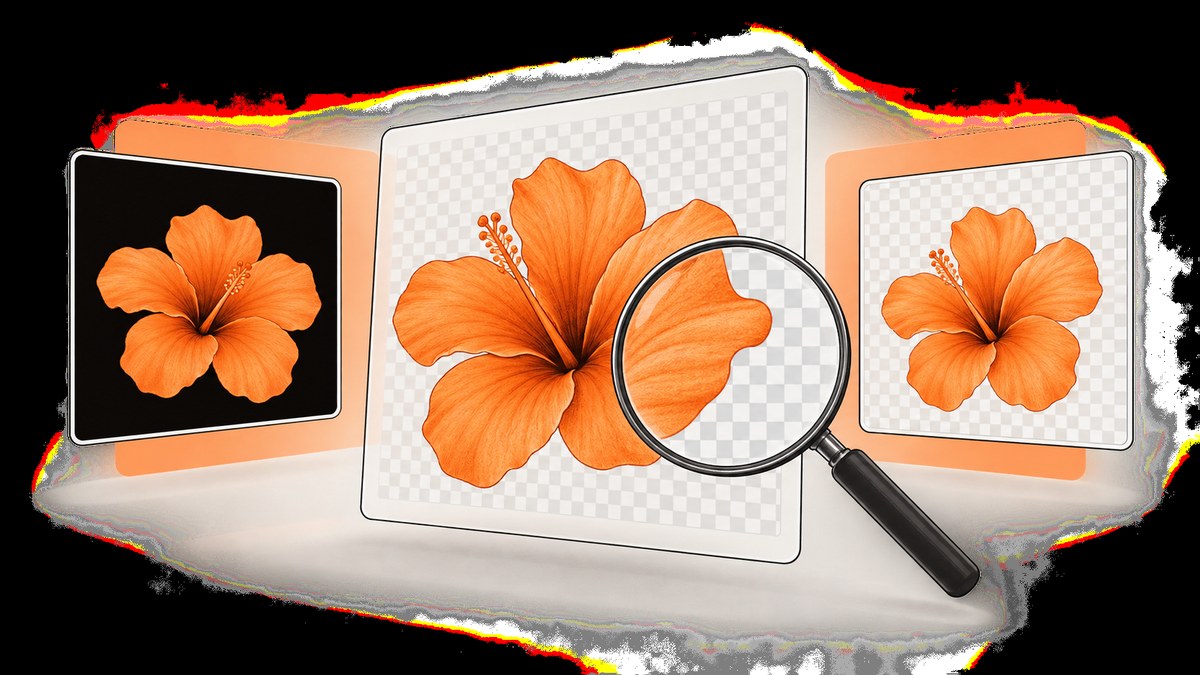
A black background in a screenshot has two common causes: the image is transparent but the viewer displays transparency as black, or the black pixels were saved into the file. Test the image over a bright solid-color canvas first. If the color shows through, the alpha channel is intact and you need a different preview or editing destination. If the black rectangle remains, the file is opaque or transparency was removed during export.
1. Diagnose the black background before changing the file
PNG can store an alpha channel with a transparency value for every pixel. Alpha zero is fully transparent, the maximum value is fully opaque, and values between them are partially transparent. A PNG without alpha or transparency data contains opaque pixels. The specification also allows viewers to support transparency only partially, so a black preview does not prove that black pixels are present. Read the W3C PNG specification.
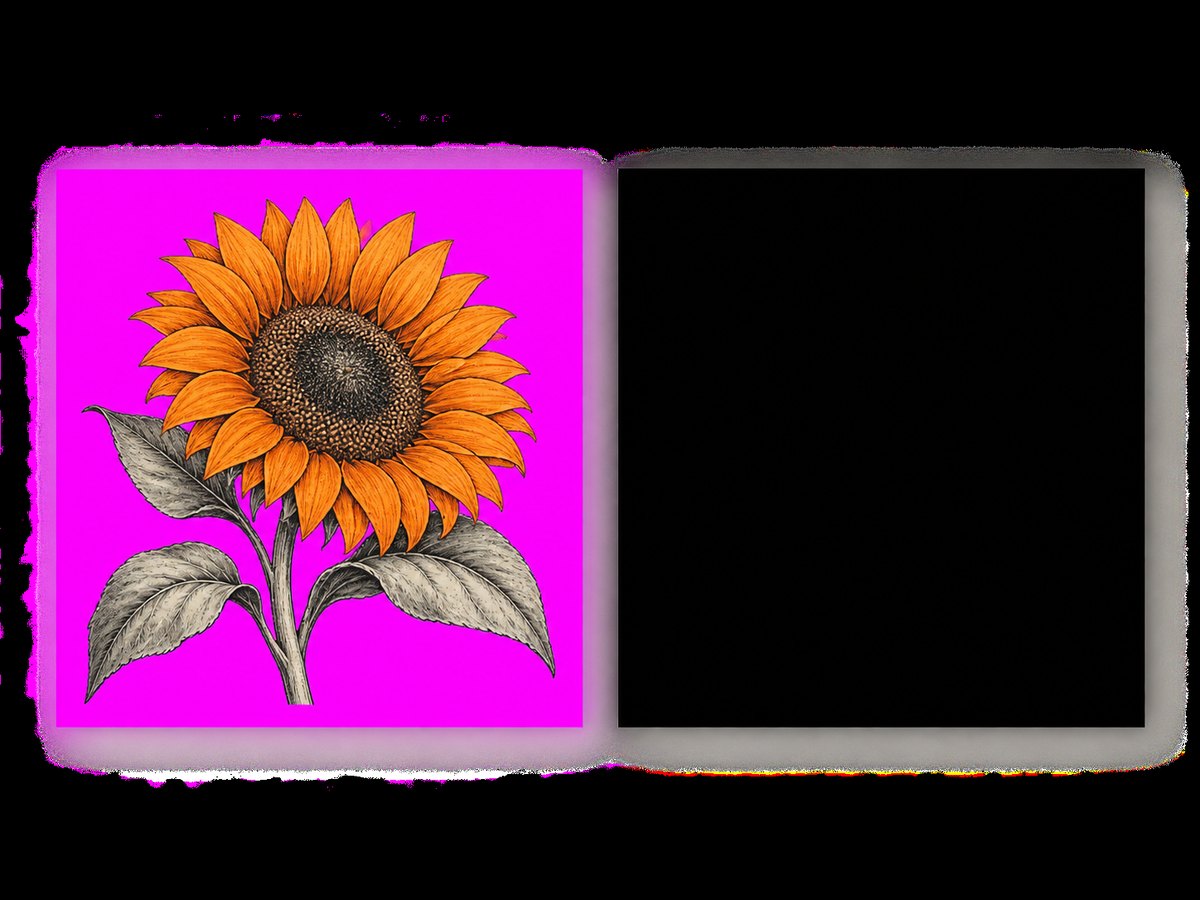
- Keep the original file. Do not overwrite it while diagnosing.
- Open or place it over a saturated color such as magenta, cyan, or yellow.
- Look at the area outside the subject.
| What you see | Likely cause | Next action |
|---|---|---|
| The colored canvas shows through | Transparency is present; the current viewer composites it as black | Use an editor, browser, slide, or document that supports PNG alpha |
| A solid black rectangle remains | The pixels are opaque or alpha was lost | Return to the editable source and export with transparency enabled |
| Only one app or thumbnail is black | That preview route may not support transparency correctly | Open the original PNG elsewhere before editing it |
| The image itself captured a black window or screen | This is a capture or display problem, not a transparent-background problem | Check the application, display, and capture workflow separately |
2. If transparency is still present
When the colored-canvas test confirms transparency, preserve the original PNG. Try opening it in a browser, image editor, presentation document, or design tool that composites alpha. A viewer that does not fully support transparency can show transparent pixels against black even though the file is correct.
- Do not flatten the image just to change its preview.
- Do not convert it to JPEG: JPEG does not carry transparent information.
- If you need a visible background, add one deliberately in the destination document and export a separate copy.
- Check the file after sharing or downloading it again; a copy may have been converted or flattened by the workflow.
3. If the file is opaque, restore transparency from the source
- Open the layered or editable source rather than the flattened screenshot.
- Hide, delete, or disable the background, paper, or canvas layer.
- Confirm that the editor shows a checkerboard or equivalent transparency indicator.
- Export to PNG, or to WebP when the destination supports it.
- Enable the editor’s transparency or alpha export option.
- Re-run the colored-canvas test on the exported copy.
Menu names vary by application. In Clip Studio Paint, the official procedure is to hide the Paper layer, export as PNG or WebP, and enable Export transparency. In versions before 4.1, the setting was called Export alpha channel. See Clip Studio’s export instructions.
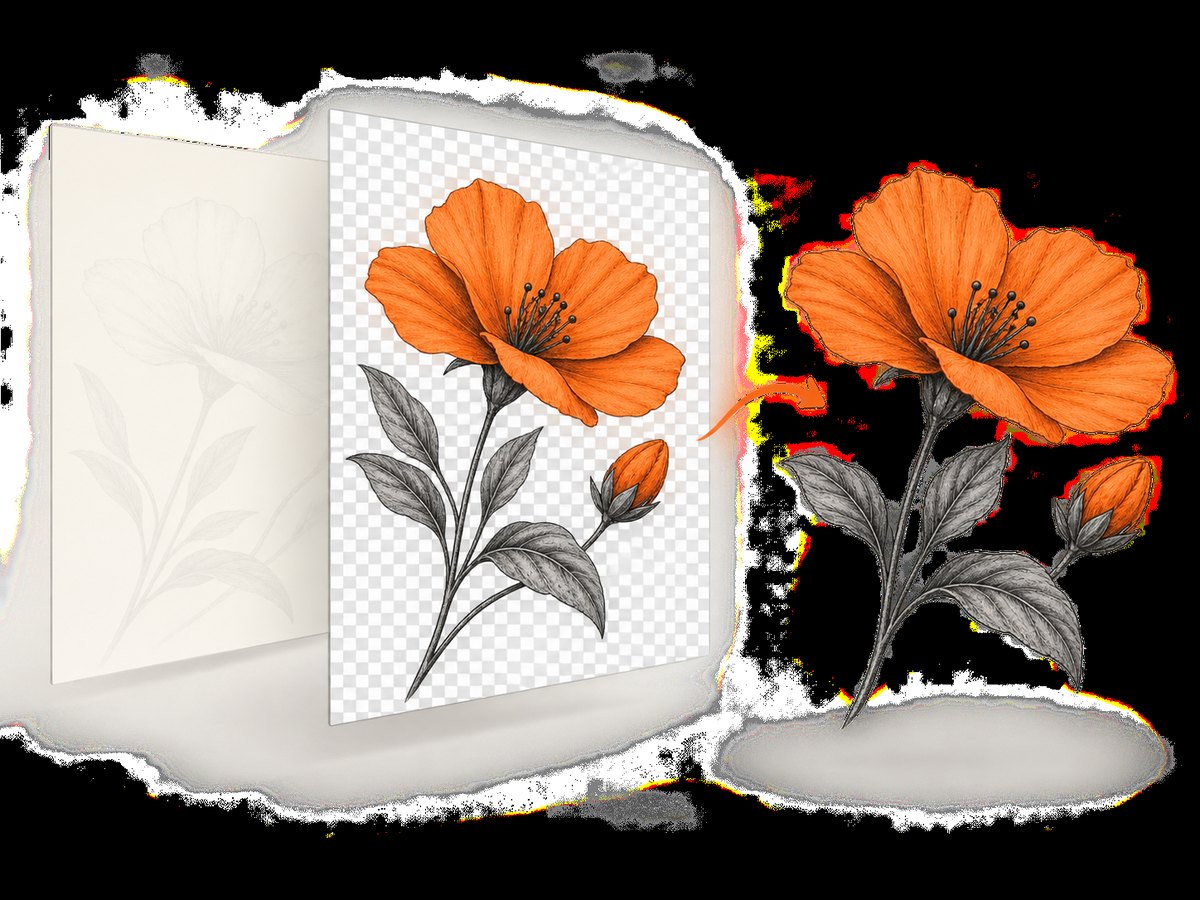
Why JPEG and BMP usually make this worse
JPEG and BMP do not preserve the transparent information described above. Use PNG when broad compatibility matters. Use WebP only when the receiving application, browser, or publishing pipeline supports WebP alpha.
4. Remove a black background when no editable source exists
If the only file you have is an opaque screenshot, there is no hidden alpha channel to switch on. You must create a mask or select the black area in an image editor, then delete it or turn the selection into transparency. Results depend on the subject:
- Flat black background: use a contiguous-color selection, then refine the edge.
- Black touching dark subject pixels: use a mask, paths, or manual edge cleanup; a global color removal will also damage the subject.
- Soft shadows or antialiased edges: keep partial alpha and inspect the result over both light and dark colors.
- Compression artifacts: remove the background by range and refine, rather than selecting only exact black.
Export the result as PNG with transparency enabled and retain the original opaque screenshot separately.
5. iPhone screenshots: check SDR, HDR, and file format
Apple’s current iPhone guide documents a Screen Capture setting under Settings > General > Screen Capture. SDR screenshots use PNG. HDR screenshots use HEIF, and HDR requires a compatible display to show its full quality; on a standard display, HDR content appears in SDR. Read Apple’s Screen Capture guide.
This is a format and display check, not a universal repair for a black background. If the problem is an HDR HEIF shown incorrectly by a particular app, open or convert the original in a tool that supports HEIF/HDR, or select SDR for future captures when PNG compatibility is more important.
6. Windows capture workflow
Microsoft’s Snipping Tool can capture, save, annotate, and share a snip. Its Edit > Edit with Paint path opens the capture for resizing, color, text, and other edits. See Microsoft’s Snipping Tool documentation. This workflow does not promise recovery of an alpha channel that was never saved, so use the diagnostic test before assuming Paint can restore transparency.
7. Capture a clean screenshot with an API
If the black area is introduced by a website’s consent banner, popup, chat widget, or a failed browser-rendering workflow, an automated capture service can avoid maintaining your own browser setup. ScreenshotNeo is a website screenshot API and MCP server for developers. It can remove consent banners, newsletter popups, and chat widgets before capture, and supports PNG, JPEG, WebP, and PDF output. See the ScreenshotNeo API documentation.
cURL
curl -G "https://api.screenshotneo.com/v1/shot" \
  -d access_key=YOUR_API_KEY \
  --data-urlencode url=https://example.com \
  -o shot.webp
Python
import requests

r = requests.get(
    "https://api.screenshotneo.com/v1/shot",
    params={"access_key": "YOUR_API_KEY", "url": "https://example.com"},
    timeout=90,
)
r.raise_for_status()
open("shot.webp", "wb").write(r.content)
Node.js
const q = new URLSearchParams({
  access_key: 'YOUR_API_KEY',
  url: 'https://example.com'
});
const res = await fetch(`https://api.screenshotneo.com/v1/shot?${q}`);
if (!res.ok) throw new Error(`HTTP ${res.status}`);
const fs = await import('node:fs/promises');
await fs.writeFile('shot.webp', Buffer.from(await res.arrayBuffer()));
Options that help prevent unwanted black regions
| Need | ScreenshotNeo option or capability |
|---|---|
| Capture the whole page | Full-page capture with lazy images loaded |
| Capture only the useful region | Capture one element by CSS selector |
| Match the user’s theme | Dark mode |
| Reproduce a device | 12 device presets, any viewport, and retina scale |
| Remove overlays | Consent handling, popup and chat-widget removal, hide selectors, and click an element before capture |
| Wait for the page to settle | Wait for a selector, a delay, or network idle |
| Control the page request | Custom headers, cookies, user agent, Authorization, timezone, and geolocation |
| Prevent third-party interference | Block ads, trackers, requests, or resource types |
| Keep the output transparent | Transparent background where the page and requested output support it |
| Reduce or standardize files | Image resizing and a cache TTL you choose |
8. Or skip the browser setup
Use one request when you need a clean capture without maintaining Playwright or Chromium:
curl -G "https://api.screenshotneo.com/v1/shot" -d access_key=YOUR_API_KEY --data-urlencode url=https://example.com -o shot.webpScreenshotNeo removes cookie banners, popups, and chat widgets before the shot. Bot checks, blank pages, failed loads, timeouts, and cache hits are not billed, and each response reports the result in X-Page-Verdict and X-Billed headers. An MCP server provides take_screenshot, get_page_info, and capture_pdf tools for Claude, Cursor, and other MCP clients. The Free plan includes 1,000 screenshots each month with no card; paid plans start at $5 for 3,000 shots. Create a free ScreenshotNeo account.
9. Troubleshooting checklist
| Symptom | Cause | Fix |
|---|---|---|
| Black only in a thumbnail or chat preview | Preview does not composite alpha correctly | Open the original over a colored canvas in an editor or browser |
| Black remains over every background | Opaque pixels or lost alpha | Return to the layered source, hide the background, and export transparency |
| Exported PNG is still black | Paper/background layer is visible or export transparency is off | Hide the layer and enable the application’s transparency/alpha option |
| Edges look dark after background removal | Black edge pixels or a matte were included | Refine the mask and inspect on both light and dark canvases |
| Transparency disappeared after saving as JPEG | JPEG cannot carry alpha | Use PNG, or WebP where supported |
| iPhone file is HEIF instead of PNG | HDR Screen Capture mode | Use an HEIF/HDR-capable workflow or select SDR for future captures |
| Automated capture contains a consent dialog | Capture happened before interaction or cleanup | Use a consent-aware workflow, wait for the page, or use ScreenshotNeo’s cleanup options |
| API response is not an image | Authentication, URL, or page-load failure | Check the HTTP status and response headers, validate the target URL, and inspect X-Page-Verdict and X-Billed |
10. Performance, reliability, and cost considerations
- Use element capture instead of full-page capture when you only need a component; it reduces unnecessary pixels and page length.
- Wait for a specific selector when one component determines readiness. Use network idle only when the page’s network activity eventually settles.
- Choose a viewport and retina scale that match the destination. Larger dimensions increase file size and processing work.
- Use caching with a TTL when the same URL can be reused. Cache hits are not billed by ScreenshotNeo.
- For repeated jobs, async capture with signed webhooks avoids holding a request open. Bulk capture supports up to 100 URLs per call.
- For public image tags, signed links prevent exposing an unrestricted capture endpoint.
- Only clean shots are billed by ScreenshotNeo; bot checks, blank pages, timeouts, failed loads, and cache hits cost nothing.
11. FAQ
Does a black preview always mean my PNG has a black background?
No. Test it over a bright color. If the color shows through, transparency is present and the preview is the problem.
Can I make a JPEG transparent?
No. Start with an editable source and export PNG or a supported WebP file.
Why does my transparent image look correct in one app and black in another?
Viewers differ in how completely they support and composite transparency.
Will changing iPhone from HDR to SDR remove black backgrounds?
It can change the screenshot format from HEIF to PNG, but it is not a general repair for opaque black pixels.
Can Snipping Tool recover transparency?
Microsoft documents capture, saving, annotation, and Paint editing; it does not document alpha recovery for an existing opaque image.
What should I keep for future edits?
Keep the layered source and an exported PNG with transparency. Treat flattened or JPEG copies as delivery files, not masters.


