How to Fix Black CasperJS Screenshots and Missing Elements on Remote URLs
Fix missing content and black CasperJS screenshots by waiting for the page state you need, checking the viewport and capture target, and diagnosing runtime failures.

When CasperJS opens a remote URL, navigation finishing does not prove that the content you need has appeared or rendered. Wait for a specific condition—such as an element becoming visible or expected text appearing—then verify the final URL, viewport, and capture target before saving. If that condition times out, treat the capture as a failed run instead of keeping a misleading image.
A black screenshot is a rendering symptom, not a diagnosis. Missing elements often point to timing, visibility, or capture bounds; if the expected DOM is present but the output is black, investigate CasperJS and PhantomJS versions, page errors, failed loads, and resources that did not finish. The available documentation does not identify one universal cause or fix for black images.
1. Decide what “ready” means for this page
CasperJS documentation cautions that there is no single definition of a page being loaded. DOM readiness, completed requests, application logic, and rendered elements are distinct milestones. Choose the milestone that corresponds to the screenshot’s purpose instead of relying on navigation completion alone. See the CasperJS API documentation.
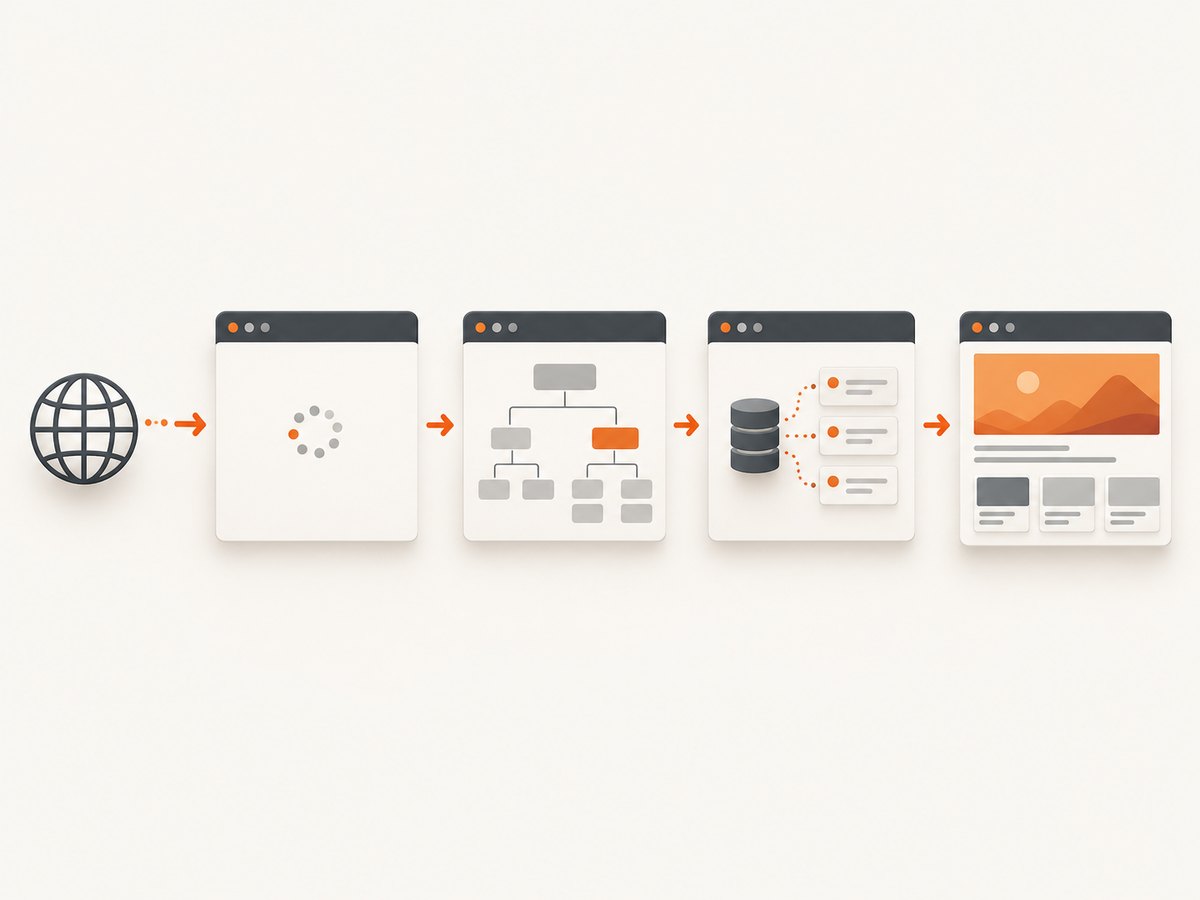
For a remote page, start by identifying a reliable marker: a results container, a heading, a status label, or a known number of items. A marker should indicate useful content, not just a generic shell that appears before the application has finished loading.
| What the capture needs | Wait condition to consider | What it tells you |
|---|---|---|
| An element exists in the DOM | waitForSelector |
The selector matched, but the element may be hidden. |
| An element is actually visible | waitUntilVisible |
The target is visible according to CasperJS’s visibility check. |
| A known text marker appears | waitForText |
The page contains the expected text. |
| A particular request or asset matters | waitForResource |
The selected resource event occurred. |
| Application state has a custom condition | waitFor with a DOM condition |
Your condition, such as an item count, became true. |
Presence is not the same as readiness. A list element can exist while it is empty; a chart container can be visible before its drawing finishes; a page can show placeholder text before replacing it. Choose a condition that checks the meaningful state you need.
2. Add an explicit wait and fail clearly on timeout
This example waits for a results element, captures only after it appears, and exits with an error path if it does not. Replace the example URL and selector with the remote page and content marker relevant to your task.
var remoteUrl = 'https://example.com/search?q=casperjs';

casper.start(remoteUrl);

casper.waitForSelector('#results', function () {
    this.echo('Results appeared; capturing page.');
    this.capture('results.png');
}, function () {
    this.echo('Expected results did not appear before timeout.');
    this.exit(1);
}, 10000);

casper.run();
The documented default timeout for waitFor is 5,000 ms. Pass a deliberate timeout for remote pages, whose response and application behavior can vary. A longer timeout gives a slow page more time, but it does not make a missing selector appear. On timeout, save diagnostic information and fail the job rather than silently capturing whatever happens to be on screen.
To wait for visibility rather than mere existence, use the corresponding helper with the same success and failure structure. For known text, use waitForText. For a resource, use waitForResource. The CasperJS API documents these wait helpers and their callbacks; consult the API reference for the signature supported by your installed version.
Wait for an application-specific condition
When a generic selector is insufficient, check the page state you care about. For example, a result list may be present before its rows load. A custom wait condition can check that the expected number of rows exists:
casper.start(remoteUrl);

casper.waitFor(function checkResults() {
    return this.evaluate(function () {
        var rows = document.querySelectorAll('#results .result-row');
        return rows.length >= 3;
    });
}, function onReady() {
    this.capture('results.png');
}, function onTimeout() {
    this.echo('Fewer than three results appeared before timeout.');
    this.exit(1);
}, 15000);

casper.run();
This example makes a specific assumption: three rows indicate that the page is ready for the intended capture. Adjust the selector, count, and timeout for the application. Do not use a fixed delay as a substitute when a reliable condition is available; a delay can be too short on a slow run and waste time on a fast one.
3. Confirm the page and content before rendering
Before calling a capture method, record the final URL and confirm that the expected DOM state is present. Redirects, authentication pages, interstitials, and error pages can all load successfully while being the wrong document for your screenshot.
casper.then(function () {
    this.echo('Final URL: ' + this.getCurrentUrl());
    this.echo('Results visible: ' + this.visible('#results'));
});
For a text-based marker, inspect whether the expected text is present as well. If your readiness condition succeeds but the final URL is unexpected, investigate redirects and access requirements before changing render settings. If the DOM is missing the content, the issue is upstream of image capture: the application may not have loaded the data, the selector may not match this page state, or the remote request may have failed.
4. Check viewport, clipping, and capture method
CasperJS documentation says PhantomJS has a default viewport of 400 × 300 pixels and that CasperJS does not override it by default. Set an intentional viewport for the target layout. A small viewport can produce a cropped or incomplete-looking image, though the documentation does not claim it explains every black screenshot.
casper.options.viewportSize = {
    width: 1365,
    height: 900
};

casper.start(remoteUrl);

casper.waitForSelector('#results', function () {
    this.capture('results.png');
}, function () {
    this.echo('Results were not found.');
    this.exit(1);
}, 10000);

casper.run();
Choose capture behavior to match the desired output:
capture()delegates to the page render method. It can capture the page or a specified clip rectangle.captureSelector()captures the area containing the selected element. Confirm the selector exists and the element is in the expected state first.
When using a clip rectangle, check its x and y origin, width, and height against the actual viewport and page layout. A clip outside the content or with a small size can omit the expected material. Selector capture is useful for a focused component, but it cannot compensate for a selector that matches the wrong element or a page that has not populated it. See the CasperJS API documentation for capture methods.
5. Diagnose a black image separately from missing DOM
Use this sequence to narrow down the failure without assuming a universal black-screen cause:
- Check the final URL. Log it after navigation and look for redirects or an unexpected destination.
- Check the readiness condition. Confirm the expected element, text, or item count before capture.
- Inspect the capture bounds. Verify viewport size and any clip rectangle or selector capture target.
- Record page errors and load failures. Use the logging or event hooks supported by the installed CasperJS version to identify JavaScript errors, failed resources, and timeouts.
- Check the runtime pair. Record exact CasperJS and PhantomJS versions and verify they are a supported combination for that CasperJS release.
- Compare DOM state with the image. If the DOM condition succeeds but the image is black, focus the investigation on rendering and the execution environment. If the DOM condition fails, focus on navigation, data loading, selectors, and access.
The official CasperJS project says it is no longer actively maintained. Its project page also specifically warns that versions through 1.1-beta3 do not support PhantomJS 2.0 and newer. Check the exact versions in use; do not apply that particular warning to every CasperJS release. See the CasperJS project on GitHub.
6. Troubleshooting common failures
| Symptom | Likely area to inspect | Practical next step |
|---|---|---|
| Screenshot is taken but expected element is absent | Capture happened before the relevant page state | Wait for the target selector, visibility, text, resource, or application-specific condition. |
| Wait always times out | Selector mismatch, wrong URL, content never loaded, or access/interstitial page | Log the final URL; inspect DOM and confirm the selector against the page that actually loaded. |
| Element exists but appears missing in the image | Element may be hidden, offscreen, covered, or not yet populated | Wait for visibility or meaningful content; inspect layout and choose an appropriate viewport. |
| Only part of the page appears | Small viewport, clip bounds, or selector capture area | Set an intentional viewport and verify clip coordinates or the selected element’s bounds. |
| DOM checks pass, but image is black | Rendering environment, runtime compatibility, page errors, or resource failures | Record CasperJS/PhantomJS versions and execution logs; reproduce while checking failed resources and page errors. |
| Behavior differs after a runtime upgrade | CasperJS and PhantomJS version compatibility | Check the project’s version-specific compatibility notes and validate the exact pair in the execution environment. |
| Capture fails only on some runs | Variable remote load time or application timing | Wait on the content condition, set a suitable explicit timeout, and treat timeout as a failed capture. |
The table gives diagnostic paths, not guaranteed root causes. A page’s URL, script, runtime versions, and execution environment determine which branch applies.
7. Reliability, performance, and cost considerations
Reliability comes from making readiness observable. A selector or content condition gives each run a clear pass/fail result. Record the URL, wait condition outcome, runtime versions, and relevant load errors so intermittent failures can be distinguished from a consistently wrong selector or unsupported runtime combination.

Timeouts trade waiting time against the chance of failing a slow but valid page. Keep them long enough for the page behavior you expect, but avoid masking a broken condition with very large values. If the condition never becomes true, a longer timeout only delays the failure. Fixed sleeps are simple but add delay to every run and can still capture too early when the page is slower than expected.
Screenshot cost depends on where the script runs and how often it retries; the supplied CasperJS sources do not give performance benchmarks or pricing. Avoid retrying blindly on a deterministic selector error or version incompatibility. Capture diagnostic state on failure and retry only when the underlying cause is plausibly transient.
Or skip the browser setup
ScreenshotNeo is a website screenshot API and MCP server from Yorker Media. If you want a screenshot without maintaining the CasperJS and PhantomJS runtime, make one GET request. See the ScreenshotNeo API documentation for parameters and setup.
curl -G "https://api.screenshotneo.com/v1/shot" -d access_key=YOUR_API_KEY --data-urlencode url=https://stripe.com -o shot.webpimport requests
r = requests.get(
"https://api.screenshotneo.com/v1/shot",
params={"access_key": "YOUR_API_KEY", "url": "https://stripe.com"},
timeout=90,
)
open("shot.webp", "wb").write(r.content)const q = new URLSearchParams({
access_key: 'YOUR_API_KEY',
url: 'https://stripe.com'
});
const res = await fetch(`https://api.screenshotneo.com/v1/shot?${q}`);
if (!res.ok) throw new Error(`Screenshot request failed: ${res.status}`);
const bytes = new Uint8Array(await res.arrayBuffer());
await import('node:fs/promises').then(fs => fs.writeFile('shot.webp', bytes));ScreenshotNeo accepts cookie and consent banners as a visitor and removes more than 60 known consent platforms, newsletter popups, and chat widgets before capture; each step can be turned off. Bot checks and CAPTCHAs, blank pages, timeouts, failed loads, and cache hits cost nothing, and response headers report the page verdict and billing status. Its MCP server offers take_screenshot, get_page_info, and capture_pdf for Claude, Cursor, and other MCP clients. The free plan includes 1,000 shots each month without a card; paid plans start at $5 for 3,000 shots. Every feature is on every plan.
Create a free ScreenshotNeo account to get 1,000 screenshots a month with no card.
8. A repeatable capture checklist
- Use the correct remote URL and record the final URL after redirects.
- Choose a marker that proves the screenshot’s content is ready.
- Wait for existence, visibility, text, a resource, or a custom DOM condition as appropriate.
- Set an explicit timeout and make timeout a failed capture.
- Set a viewport that fits the page layout.
- Validate selector captures and clip coordinates.
- If the DOM is ready but the image is black, inspect runtime versions, page errors, failed loads, and the execution environment.
FAQ
Does a successful navigation mean the page is ready to screenshot?
No. Navigation completion and the appearance or rendering of application content are separate conditions. Wait for the page state the image needs.
Should I always wait for every network request to finish?
Not necessarily. Pick the condition that matters to the capture. A page may continue making requests after its relevant content is ready, while a network milestone alone may not prove that a particular element is visible.
Does increasing the timeout fix black screenshots?
Only if the capture is happening before the needed page state arrives. If the DOM condition already succeeds and the image remains black, investigate rendering and runtime diagnostics instead.
Can I capture one element instead of the full page?
Yes. CasperJS provides captureSelector() for the area containing a selected element. Confirm that the selector identifies the intended element and that it is ready before capturing.


