How to Fix a Black Screen in Full-Page Website Screenshots
A black full-page screenshot has several possible causes. Use this step-by-step process to find whether the problem is the page, browser, capture scope, or automation setup.
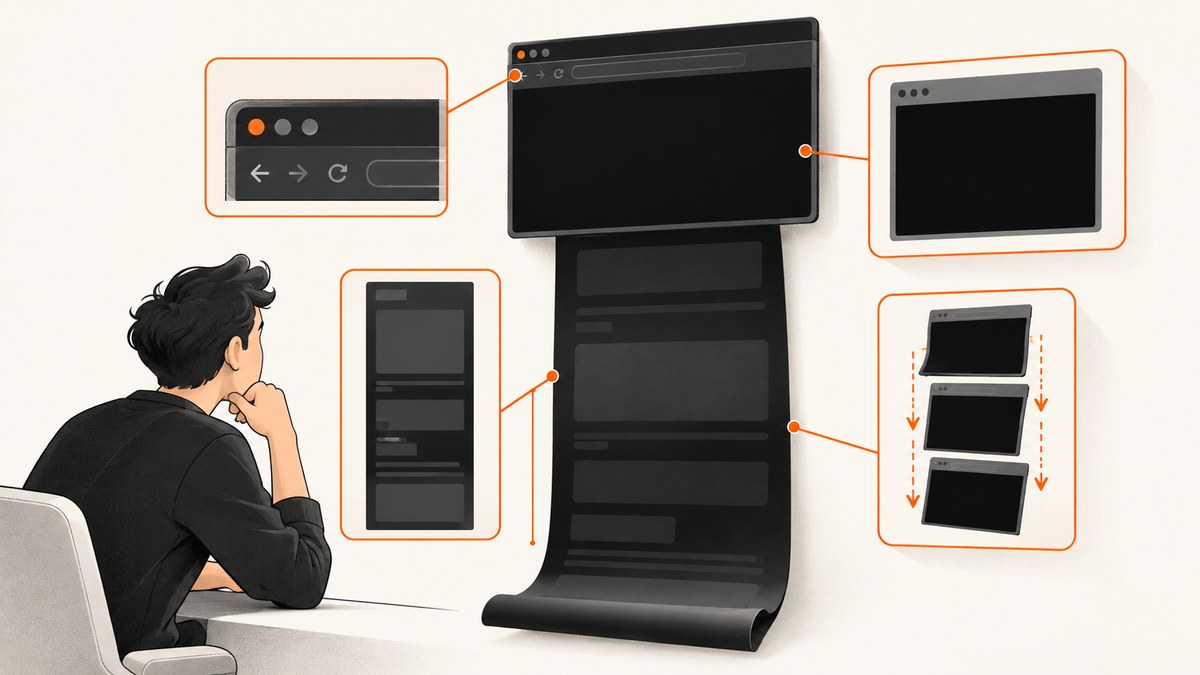
A black full-page screenshot does not, by itself, tell you why the image is black. First check whether the page looks normal in the browser. Then compare the full-page capture with a viewport or element capture, and compare the affected browser with another browser. Those checks help locate the problem without assuming a single cause.
If you use Playwright, the full-page option is fullPage: true. That option captures the page’s full scrollable area; it does not diagnose or repair a page that the browser is not rendering correctly. This guide walks through a practical diagnosis for a manual Chrome capture and a runnable Playwright example.
1. Check what is actually black
Before changing settings, identify where the black appears. Open the page normally and reload it. Is the page itself black, or does it look normal in the browser while only the saved image is black? Does the problem affect every page or just one? Does it happen in another browser?
These observations separate a page-loading or rendering problem from a capture-specific symptom. Chrome Help recommends trying another browser when diagnosing whether a problem is specific to Chrome or to a website. Its troubleshooting guidance also mentions resource pressure, extensions, and hardware acceleration as possible diagnostic leads. Those possibilities are not proof of a universal cause for black screenshot files.
| What you observe | What to check next |
|---|---|
| The page is black in the browser too | Troubleshoot the page or its loading first. A screenshot tool captures what the browser renders; changing the screenshot scope cannot restore content that did not render. |
| The page looks normal, but the full-page file is black | Compare viewport and element captures, then check the capture tool’s full-page behavior. |
| One page fails, but others work | Look for a page-specific loading, script, or content issue. Repeat the capture after the page is visibly ready. |
| Many pages fail in one browser | Compare another browser and investigate the affected browser’s extensions, resource use, and graphics settings. |
| The same page works in another browser | The difference narrows the investigation toward the first browser or its setup, but does not prove which setting or component is responsible. |
2. Compare viewport, element, and full-page captures
A full-page screenshot captures the page’s full scrollable area. Playwright documents this with fullPage: true on page.screenshot(). A viewport capture covers only the currently visible browser area. An element capture targets a particular element. These capture scopes provide useful comparisons; the documentation does not say that one scope is always more reliable.

- Capture the visible viewport.
- If a specific area matters, capture that element as well.
- Capture the full page.
- Compare the files. Note which scopes are black and whether the browser still displays the page correctly.
If only the full-page result is black, keep that distinction in your bug report and investigate the capture mechanism and its configuration. If all captures are black but the browser looks normal, keep the browser and capture tool details together as you troubleshoot; the available documentation does not establish one cross-browser root cause.
3. Troubleshoot Chrome one change at a time
Chrome Help’s troubleshooting instructions offer several useful checks. Apply one at a time and retry the same page and capture after each change. That makes it easier to tell whether a step affected the symptom.
Reduce resource pressure
Close unused tabs and applications, stop downloads you do not need, and retry. Chrome Help lists memory pressure among possible reasons Chrome may not load a site successfully and advises closing unused tabs when speeding up Chrome. This is a diagnostic step, not a guaranteed screenshot fix.
Isolate extensions
Temporarily disable Chrome extensions and repeat the capture. If the result changes, re-enable extensions one by one until you identify whether a particular extension coincides with the failure. Chrome Help recommends removing extensions and adding them back one at a time when troubleshooting Chrome problems. Restore extensions that are not involved.
Test hardware acceleration as an isolation step
- In Chrome, open Settings > System.
- Turn off Use hardware acceleration when available.
- Restart Chrome and repeat the same capture.
- If nothing changes, restore the setting and continue investigating.
Chrome Help documents this setting as a step for hardware-acceleration issues. It does not promise that changing it fixes every black screenshot. Treat the outcome as evidence about this browser setup, not as a general fix.
4. Reproduce the problem with Playwright
For an automated capture, keep the first reproduction small: open one URL, wait for the page to load, and save a viewport image and a full-page image. The example below uses Playwright’s JavaScript library with Chromium. It writes both files in the directory where you run the script.
Install and run
npm init -y
npm install playwright
npx playwright install chromium
node screenshot.js https://example.com
Create screenshot.js:
const { chromium } = require('playwright');

(async () => {
  const url = process.argv[2];
  if (!url) {
    throw new Error('Usage: node screenshot.js https://example.com');
  }

  const browser = await chromium.launch({ headless: true });
  try {
    const page = await browser.newPage({ viewport: { width: 1440, height: 900 } });
    const response = await page.goto(url, { waitUntil: 'load', timeout: 60000 });
    console.log('HTTP status:', response ? response.status() : 'no response');
    console.log('Page title:', await page.title());
    await page.screenshot({ path: 'viewport.png' });
    await page.screenshot({ path: 'full-page.png', fullPage: true });
  } finally {
    await browser.close();
  }
})();
This is a diagnostic baseline, not a guarantee that every site is fully ready at the load event. Some sites finish rendering later, load content as you scroll, or depend on application state. First confirm that the page content is present; then adapt the waiting strategy to the site. If the page is still loading or visibly incomplete in the browser, address that before treating a black image as a screenshot-format problem.
Capture one element for comparison
If you know a selector for a visible page region, add this after navigation. Replace the selector with one that exists on the target page:
const target = page.locator('main').first();
await target.screenshot({ path: 'element.png' });
The element capture is a comparison point, not a universal workaround. If the element is missing, hidden, or not yet rendered, the locator may fail or capture an unexpected region. Check the selector and the page state before drawing conclusions from the output.
Keep a useful reproduction record
- Record the URL, browser, capture tool, and whether the run was headless.
- Keep the viewport, element, and full-page files together.
- Record whether the page looked normal in that same browser before capture.
- Repeat with another browser or a clean browser profile if available.
- Change one setting at a time and note the result.
Playwright’s screenshot documentation describes the full-page option, but does not prescribe a general remedy for black output. Avoid interpreting fullPage: true itself as a fix or a likely cause without comparing the results.
5. Troubleshooting common symptoms
| Symptom | Likely area to investigate | Next step |
|---|---|---|
| The page looks black before capture | Page rendering or loading | Reload, check whether content loads, and try another browser to help distinguish a page issue from a Chrome issue. |
| Only the full-page output is black | Capture scope or full-page capture behavior | Compare viewport and element output, then preserve the difference when investigating the tool setup. |
| Several unrelated pages fail in Chrome | Browser setup or resource pressure | Close unused tabs and apps, then test extensions and acceleration separately. |
| Disabling extensions changes the result | Potential extension conflict | Re-enable extensions one by one to identify the extension associated with the change. |
| Changing acceleration has no effect | Acceleration is not an indicated fix in this setup | Restore the original setting and continue with page, browser, and capture-scope checks. |
| Playwright creates a file, but it is black | Could be page rendering or capture behavior | Inspect the page in the same browser setup; compare viewport and full-page files, and check the response status and page title. |
| Playwright fails before saving a file | Navigation, timeout, selector, or browser-launch error | Read the thrown error, confirm the URL is reachable, and isolate navigation from screenshot capture before changing more settings. |
6. Reliability, performance, and cost considerations
A full-page image covers more content than a viewport image, so it can take longer to capture and produce a larger file. Keep the viewport and the requested output appropriate to the diagnostic: use a viewport image to answer whether the visible area renders, an element image to isolate a component, and a full-page image when content below the fold is part of the problem. There is no measured success rate or universal performance figure in the sources for this issue.
For repeatable automation, keep the URL, browser, viewport, capture scope, and wait behavior consistent between retries. Avoid changing several browser settings at once; doing so makes the outcome harder to interpret. If a page is intermittent, record whether it failed to load or rendered incomplete content rather than labeling every bad result a black-screen capture defect.
Local Playwright uses your browser automation setup and machine resources. If you process many URLs, consider the time and resources consumed by full-page captures and save only the image scope your workflow needs. A hosted screenshot API can move browser setup out of your script, but evaluate the response and billing behavior against your workload. ScreenshotNeo says failed loads, blank pages, and bot checks/CAPTCHAs are not billed; its responses identify page verdict and billing through headers. Those are product facts, not a claim that a hosted capture can repair a website that does not render.
7. Or skip the browser setup
ScreenshotNeo is a website screenshot API and MCP server from ScreenshotNeo. Its one-call API can return an image or PDF. The options described in the ScreenshotNeo API documentation include full-page capture. A remote capture can help you compare a local browser result with a separate capture environment.

curl -G "https://api.screenshotneo.com/v1/shot" -d access_key=YOUR_API_KEY --data-urlencode url=https://example.com -o shot.webpimport requests
r = requests.get(
"https://api.screenshotneo.com/v1/shot",
params={"access_key": "YOUR_API_KEY", "url": "https://example.com"},
timeout=90,
)
open("shot.webp", "wb").write(r.content)const q = new URLSearchParams({ access_key: 'YOUR_API_KEY', url: 'https://example.com' });
const res = await fetch(`https://api.screenshotneo.com/v1/shot?${q}`);
if (!res.ok) throw new Error(`Screenshot request failed: ${res.status}`);
await Bun.write('shot.webp', res);Cookie banners are accepted and removed before the shot, along with known newsletter popups and chat widgets; each step can be turned off. Bot checks, blank pages, and failed loads are never billed, and cache hits cost nothing. The response includes X-Page-Verdict and X-Billed headers. An MCP server gives AI agents tools to take screenshots, get page information, and capture PDFs. The free plan includes 1,000 screenshots per month with no card; paid plans start at $5 for 3,000. See the docs for request options and sign up for the free plan at ScreenshotNeo.
8. A concise decision checklist
- Does the page itself render? If not, investigate page loading first.
- Does another browser behave differently? Use the comparison to narrow the issue to the page or browser setup.
- Is the symptom limited to full-page capture? Compare viewport, element, and full-page results.
- Does reducing resource use change anything? Close unused tabs and apps, then repeat.
- Does extension isolation change anything? Re-enable extensions one at a time if it does.
- Does the acceleration test change anything? Restart Chrome after changing it; restore the setting if the result is unchanged.
- Can you reproduce it in Playwright? Record the URL, browser, response status, title, and capture scope.
FAQ
Why is my full-page screenshot black when the website looks normal?
The symptom alone does not identify a cause. Compare viewport and element captures, then check whether another browser reproduces it. Keep the page, browser, and capture scope in the diagnosis.
Does fullPage: true fix a black image?
No. In Playwright, it requests a screenshot of the full scrollable page. The option describes capture scope, not a repair for missing or incorrectly rendered page content.
Should I leave hardware acceleration off?
Use the setting as a temporary diagnostic. If turning it off and restarting Chrome does not change the result, Chrome Help’s troubleshooting sequence gives no reason to treat that change as a fix; restore it and continue investigating.
Should I buy a graphics card or other hardware?
A black screenshot alone does not establish a hardware fault. First compare the page in the browser, capture scopes, and another browser, then use the browser troubleshooting steps above.


