How to Fix Black PhantomJS Screenshots in a Jersey REST Service
A black-looking PhantomJS screenshot may be transparent, a failed render, or a damaged HTTP response. Diagnose each layer before changing your Jersey service.
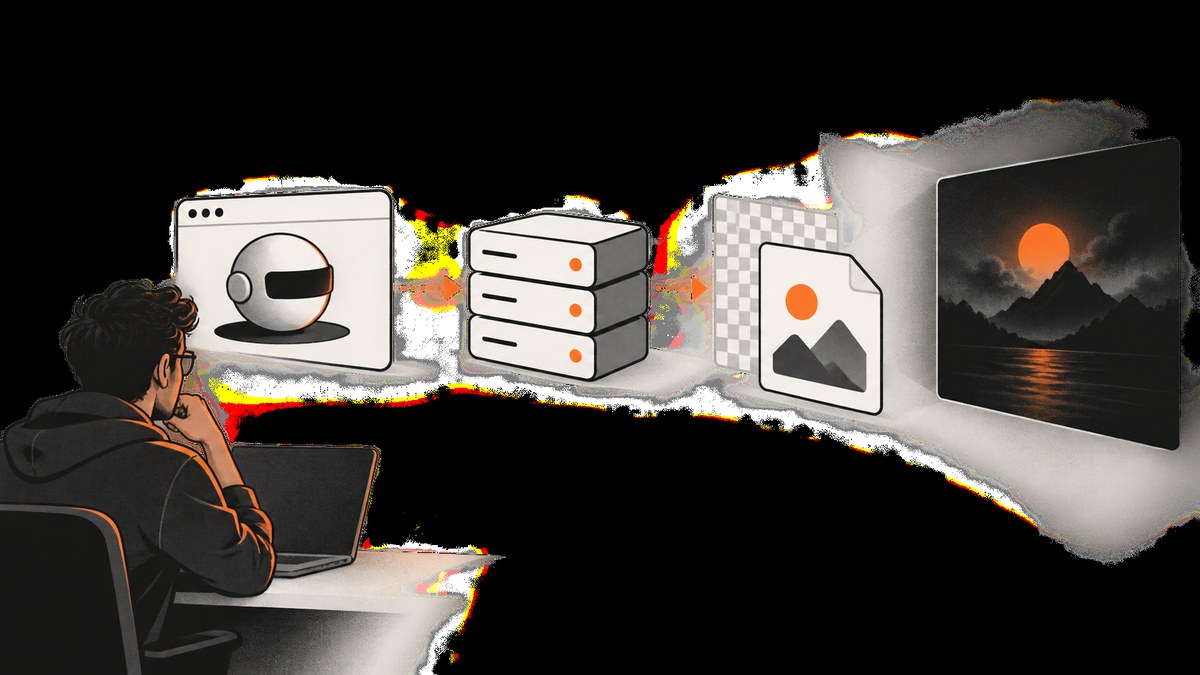
A black-looking PhantomJS screenshot from a Jersey REST endpoint can have three different causes: the captured page may have a transparent background that a viewer displays as black; PhantomJS may have captured an unrendered or failed page; or the image may be correct on disk but altered or mislabeled while Jersey returns it. Treat those as separate layers. First inspect the image bytes and alpha channel, then diagnose page loading and rendering, and only then investigate the HTTP response.
PhantomJS leaves the page background to the page itself. If no background is set, it can remain transparent. That is a documented behavior, but it does not establish the cause of any particular Jersey failure. Check the PNG’s alpha channel before calling it a black render. [PhantomJS FAQ]
1. Identify which layer is failing
Use this sequence to avoid debugging Jersey when the image is simply transparent, or changing PhantomJS settings when the response body is the real problem.
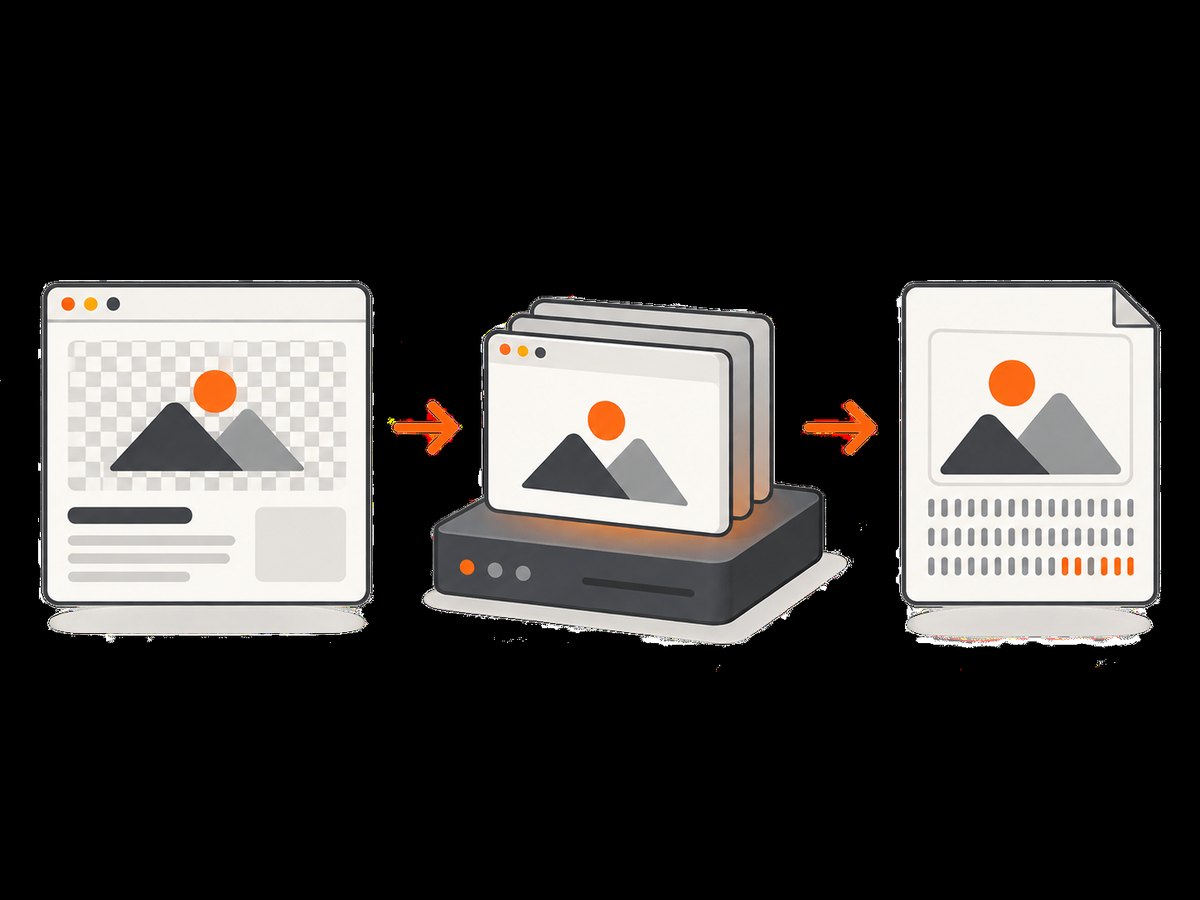
- Save PhantomJS output to a local file. Run the rendering script outside the service process, using the same PhantomJS binary and target URL if possible.
- Validate the image. Check that a PNG or JPEG decoder can open it, record its dimensions, and inspect whether the PNG contains alpha. View it against a white background as well as the viewer’s default background.
- Make the page background explicit. Temporarily set an opaque white background before rendering. If the screenshot becomes readable, transparency was at least part of what you were seeing.
- Prove the page loaded. Record the page status, requested resources, timeouts, and JavaScript errors. A successful call to
page.render()does not by itself prove that useful page content was ready. - Compare local output with the REST response. If the local file is valid and looks right but the downloaded response is not, investigate Jersey response construction, headers, and bytes separately.
Keep the original output and response body while diagnosing. A decoded image and the HTTP headers make the failure much easier to classify than a screenshot embedded in a log or browser preview.
2. Make the page background opaque
The PhantomJS FAQ gives this page-side workaround:
page.evaluate(function() {
  document.body.bgColor = 'white';
});
Apply it only after the document body exists. If you control the target page, setting a background in its CSS is usually easier to reason about. If you do not control it, inject the background after the page has loaded and before calling page.render(). For pages whose visible surface comes from a root element rather than body, set the background on the relevant element too.
Here is a minimal PhantomJS script that opens a page, records loading errors, applies a white background, and saves a PNG. It uses the callback form of page.open() and avoids a Jersey dependency while you isolate rendering.
var page = require('webpage').create();
var system = require('system');
var target = system.args[1];
var output = system.args[2] || 'shot.png';

if (!target) {
  console.error('Usage: phantomjs capture.js URL [output.png]');
  phantom.exit(2);
}

page.viewportSize = { width: 1280, height: 900 };
page.onError = function (message, trace) {
  console.error('PAGE ERROR: ' + message);
  trace.forEach(function (item) {
    console.error('  ' + item.file + ':' + item.line);
  });
};
page.onResourceRequested = function (request) {
  console.log('REQUEST ' + request.url);
};
page.onResourceReceived = function (response) {
  if (response.stage === 'end') {
    console.log('RESPONSE ' + response.status + ' ' + response.url);
  }
};

page.open(target, function (status) {
  console.log('OPEN STATUS: ' + status);
  if (status !== 'success') {
    console.error('Page did not open successfully: ' + target);
    phantom.exit(1);
    return;
  }

  var backgroundSet = page.evaluate(function () {
    if (!document.body) return false;
    document.body.bgColor = 'white';
    document.body.style.backgroundColor = 'white';
    return true;
  });
  console.log('BODY FOUND: ' + backgroundSet);
  if (!backgroundSet) {
    console.error('Document body was unavailable at capture time');
    phantom.exit(1);
    return;
  }

  page.render(output, { format: 'png' });
  console.log('WROTE ' + output);
  phantom.exit(0);
});
Run it with phantomjs capture.js https://example.com shot.png. The script deliberately reports resource URLs and page exceptions to standard output/error. Do not send those logs to the same output stream as image bytes in a REST response. PhantomJS’s screen-capture guide documents page.render(), viewport sizing, and clipping; use its documented geometry options when the capture dimensions need to differ. [Screen capture guide]
3. Check loading, JavaScript, and runtime settings
A page can open while its content is incomplete. Inspect resource activity and page exceptions, and test a simple static page to separate application behavior from runtime setup. The PhantomJS troubleshooting guide specifically recommends examining network behavior and TLS/OpenSSL when HTTPS behaves differently from HTTP. [Troubleshooting guide]
- Resource failures: Record requested URLs and response status. Look for blocked resources, failed TLS handshakes, redirects, or requests that never finish. A missing stylesheet or script can make the page appear empty even if the document request succeeded.
- JavaScript exceptions: Use
page.onErrorto record the message and stack. Fix errors in the target page or determine whether a script depends on browser capabilities unavailable in your PhantomJS build. - Readiness: A load callback may precede content populated later by application JavaScript. For diagnosis, add a known selector check or a bounded wait after load. Avoid an arbitrary long sleep as a permanent readiness strategy: it increases response latency and still may not cover variable network delays.
- Binary identity: Run
phantomjs --versionin the service environment and compare it with the command-line version you tested. Check the executable path used by the Jersey process; machines may contain more than one installation. - Geometry: Confirm
viewportSizeand anyclipRecthave positive dimensions and cover the content. A valid render of a zero-sized or irrelevant region can look blank.
Set relevant WebPage options before calling page.open(). The settings reference documents javascriptEnabled, loadImages, and resourceTimeout, and says settings apply during the initial open. For example:
page.settings.javascriptEnabled = true;
page.settings.loadImages = true;
page.settings.resourceTimeout = 15000;
page.viewportSize = { width: 1280, height: 900 };

page.open(target, function (status) {
  // Inspect status and page state, then render only when ready.
});
Do not change all settings at once. Start with the defaults, add a specific timeout or resource option to test a hypothesis, and preserve logs from each run. [WebPage settings reference]
4. Return the image bytes correctly from Jersey
Once the local PNG is valid, make the REST endpoint return the file’s raw bytes with a matching media type. Do not serialize a byte array as JSON, convert it to a string, or mix diagnostic output into the body. The following Jersey resource illustrates the delivery layer; adapt the path and process invocation to your application. It assumes a capture has already been written to a temporary file.
import java.io.IOException;
import java.nio.file.Files;
import java.nio.file.Path;
import javax.ws.rs.GET;
import javax.ws.rs.PathParam;
import javax.ws.rs.Produces;
import javax.ws.rs.core.Response;
import javax.ws.rs.core.MediaType;

@javax.ws.rs.Path("/captures")
public class CaptureResource {
  @GET
  @javax.ws.rs.Path("/{id}.png")
  @Produces("image/png")
  public Response getPng(@PathParam("id") String id) throws IOException {
    // Resolve id through an application-owned lookup. Do not accept an
    // arbitrary filesystem path from the request.
    Path image = lookupCompletedCapture(id);
    if (image == null || !Files.isRegularFile(image)) {
      return Response.status(Response.Status.NOT_FOUND).build();
    }

    byte[] bytes = Files.readAllBytes(image);
    return Response.ok(bytes, "image/png")
        .header("Content-Disposition", "inline; filename=\"capture.png\"")
        .build();
  }

  private Path lookupCompletedCapture(String id) {
    // Replace with a safe application-specific lookup.
    return null;
  }
}
This is a delivery example, not a PhantomJS or Jersey-specific fix established by the cited PhantomJS documentation. The key diagnostic is the boundary: inspect the saved image first; then inspect the response status, Content-Type, and downloaded bytes. If the endpoint generates the file on demand, wait for PhantomJS to finish and verify its exit status and output file before building the response. Keep process logs on stderr or a separate logger.
5. Capture dimensions and page regions
PhantomJS supports viewport dimensions and a clipping rectangle for screen capture. Choose a viewport that reflects the layout you want to render, then use clipping only when you intentionally need a specific region. A clip rectangle outside the viewport or with zero width or height is a strong candidate when the output is uniformly blank. Compare the whole viewport capture with a clipped capture before changing CSS or infrastructure. [PhantomJS screen capture guide]
For a full page, ensure the capture method and page dimensions match the expected content. A viewport screenshot shows the visible viewport; it is not automatically proof that below-the-fold content was rendered. Dynamic pages may also lazy-load images as they enter view. If the target depends on scrolling, reproduce that behavior in the diagnostic script and verify the resulting document dimensions.
6. Avoid an unnecessary Xvfb change
Do not add Xvfb as the first fix. PhantomJS’s FAQ says X server support was needed for version 1.4 or earlier; from version 1.5 onward PhantomJS was pure headless and did not need X11/Xvfb. Check the actual deployed version and binary first. [PhantomJS FAQ]
If the service uses a very old build, document that fact and test a supported runtime path before changing display configuration. A black or transparent-looking image alone does not show that a virtual display is missing.
7. Troubleshooting checklist
| Symptom | Likely cause | Check and fix |
|---|---|---|
| Viewer shows black, but file opens | Transparent PNG background | Inspect alpha; set an explicit opaque page background before rendering. |
| Image is uniformly blank or tiny | Page not ready, missing body, or incorrect geometry | Log open status; check body/selector readiness and viewport or clip dimensions. |
| HTTPS fails while HTTP works | TLS/OpenSSL or network behavior | Capture resource logs and investigate the deployed runtime’s TLS behavior. |
| Output differs between laptop and service | Different PhantomJS executable, version, OS environment, or settings | Log the executable path and phantomjs --version in the service environment. |
| Local PNG is correct but downloaded result is not | Response serialization, content type, or body contamination | Download raw response bytes; verify status and Content-Type: image/png; keep logs out of the body. |
| Intermittent or incomplete page | Resource timeout or asynchronous content | Record failed/slow requests and page errors; wait for a concrete readiness condition with a limit. |
| Works in an old server only with display setup | Possibly a pre-1.5 PhantomJS build | Verify the version; the FAQ says 1.5+ is pure headless and does not require Xvfb. |
8. Reliability, performance, and cost
For a local PhantomJS service, each capture depends on a process or runtime, page network access, resource completion, and enough time for application JavaScript. Measure these stages separately: process startup, document open, readiness wait, render, and response transfer. This makes it clear whether a timeout should be adjusted or whether the page itself is slow. Bound waits and process execution, and return a clear failure status when capture did not produce a valid file.

Concurrency needs care: launching too many browser processes at once can compete for memory and CPU, while serializing all requests can increase queue time. Track queue depth and capture duration under your own workload before selecting a concurrency limit. Reuse and isolation choices depend on the PhantomJS version and application; do not assume a performance figure without measuring the deployed system.
Local rendering offers control over runtime and network placement, which can matter for private targets, but the team operates the browser process and its failure handling. A hosted service moves that operational work to a provider but requires checking current terms, privacy requirements, target reachability, and supported controls. The research available for this article does not establish current prices or service levels for PhantomJsCloud. Its documentation does describe a REST-like screenshot service and recommends inspecting browserError in pageResponse.events when troubleshooting that service. That vendor-specific advice is not evidence about a local Jersey endpoint. [PhantomJsCloud documentation]
Or skip the browser setup
For a new endpoint or a team that does not want to operate a local browser process, ScreenshotNeo provides a website screenshot API and MCP server. The GET request below returns a screenshot for the target URL; see the API documentation for parameters and response details.
curl -G "https://api.screenshotneo.com/v1/shot" \
  -d access_key=YOUR_API_KEY \
  --data-urlencode url=https://stripe.com \
  -o shot.webp
import requests
r = requests.get(
"https://api.screenshotneo.com/v1/shot",
params={"access_key": "YOUR_API_KEY", "url": "https://stripe.com"},
timeout=90,
)
open("shot.webp", "wb").write(r.content)const q = new URLSearchParams({
access_key: 'YOUR_API_KEY',
url: 'https://stripe.com'
});
const res = await fetch(`https://api.screenshotneo.com/v1/shot?${q}`);
if (!res.ok) throw new Error(`Screenshot request failed: ${res.status}`);
await Bun.write('shot.webp', new Uint8Array(await res.arrayBuffer()));ScreenshotNeo accepts cookie or consent banners like a visitor and removes more than 60 known consent platforms, newsletter popups, and chat widgets before capture; each step can be turned off. Bot checks and CAPTCHAs, blank pages, timeouts, failed loads, and cache hits are not billed, and response headers report the page verdict and billing status. Its MCP server provides take_screenshot, get_page_info, and capture_pdf for Claude, Cursor, and other MCP clients. The free plan includes 1,000 screenshots per month with no card; paid plans start at $5 for 3,000 screenshots. Every feature is available on every plan.
Create a free ScreenshotNeo account and get 1,000 screenshots a month with no card.
FAQ
Does a black preview prove the PNG pixels are black?
No. A transparent image can be composited against black by a viewer. Inspect alpha and compare against a known opaque background.
Should I set javascriptEnabled to true?
Only if the page needs JavaScript and the setting is disabled in your runtime. Set WebPage settings before opening the URL, then check page errors and readiness.
Is Jersey known to cause black PhantomJS screenshots?
The sources reviewed do not establish a Jersey-specific bug. Isolate rendering from HTTP delivery by saving a local file and comparing it with the response bytes.
What evidence should I collect for a reproducible report?
Include the reduced script, target conditions, operating system, PhantomJS version and executable path, response headers, image dimensions and alpha information, and the expected versus actual result. PhantomJS’s issue guidance asks for environment details and a reduced test case. [Issue reporting guidance]


