How to Fix Black Screens in Selenium IE Screenshots
A black IE screenshot often points to how the browser runs, especially in Windows services or CI. Work through the desktop, IE mode, driver and configuration checks in order.
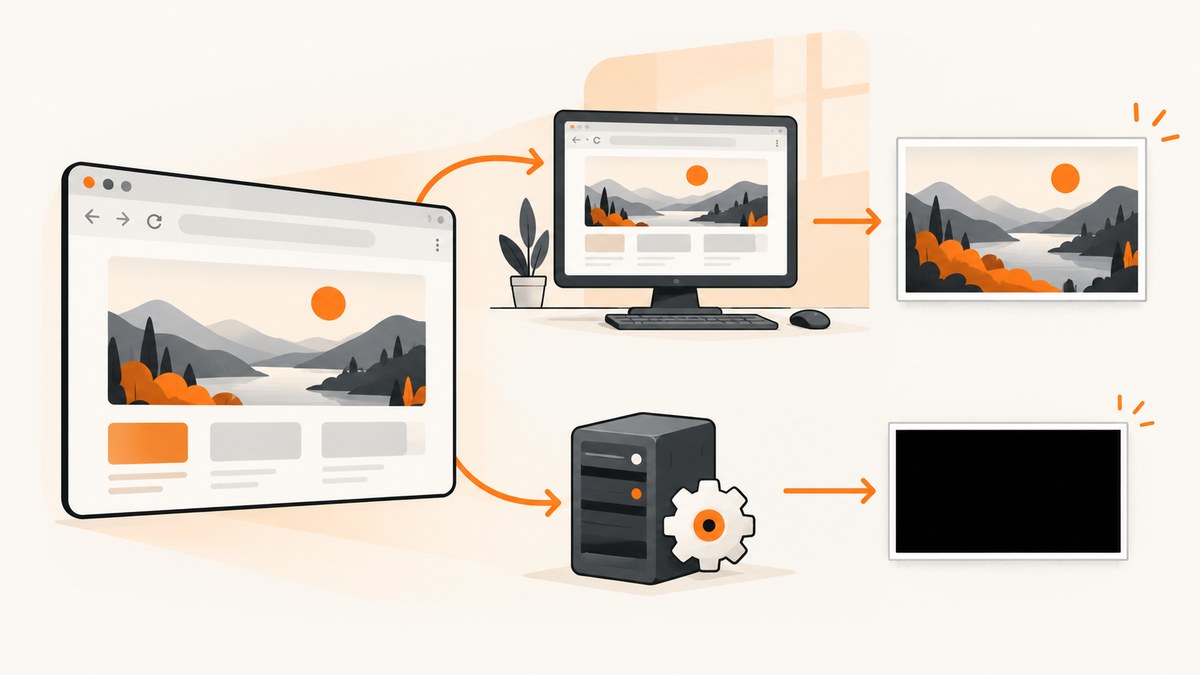
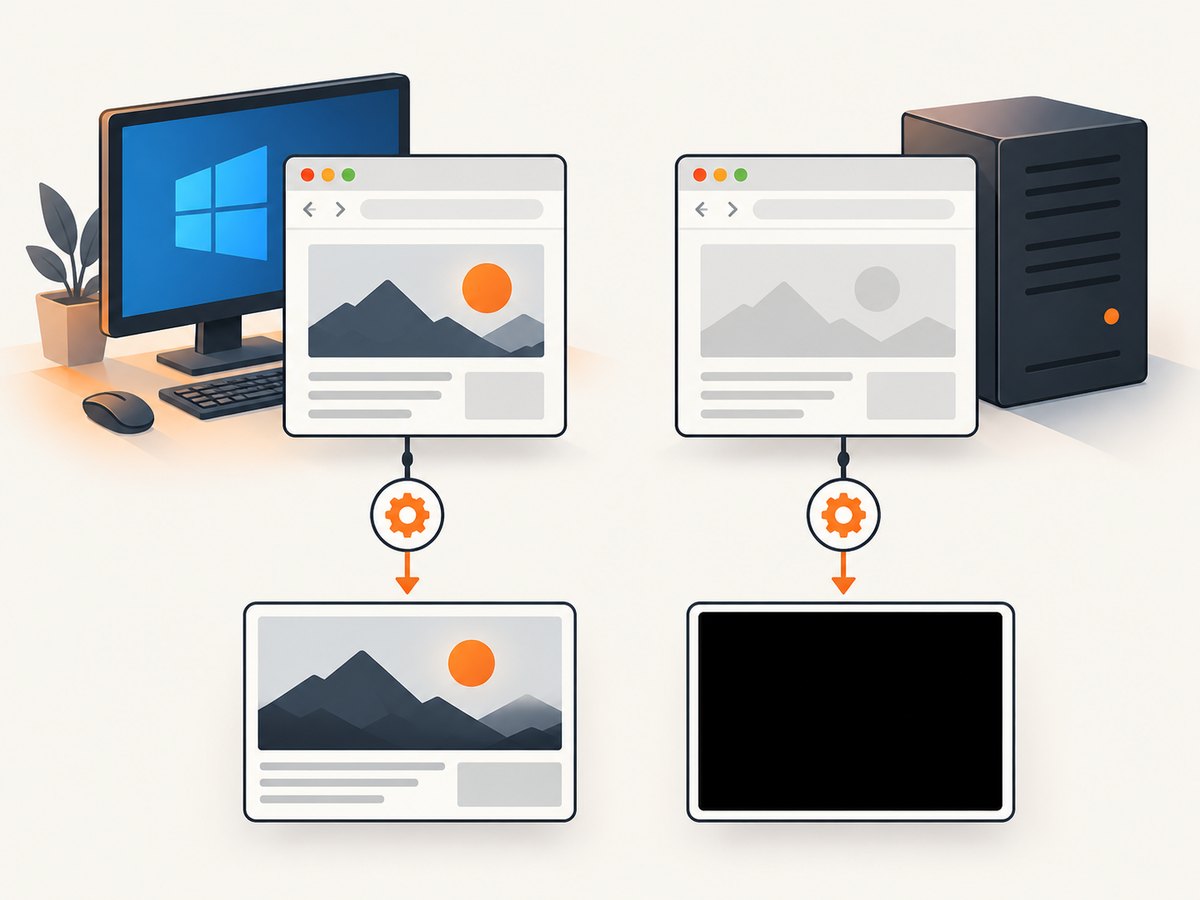
A black or blank Selenium screenshot in Internet Explorer mode often points to the Windows execution context, especially when the same test works in an interactive desktop session but fails as a service or CI job. First reproduce the screenshot under the same Windows account in an interactive session; if it works there, investigate desktop access and service configuration before changing screenshot code.
For current Selenium, target Microsoft Edge in IE mode with IEDriver rather than relying on standalone Internet Explorer: Selenium ended official support for standalone IE in June 2022, while the IE driver still supports Edge IE Compatibility Mode. The driver and browser mode must be configured correctly, and screenshots need a desktop session. Selenium IE driver documentation · Microsoft’s IE mode automation guide.
1. Identify which IE environment you are capturing
“Selenium IE screenshot” may mean standalone Internet Explorer 11, or a legacy site rendered by Edge in IE mode. Those are different setups. The current Selenium-supported route is IEDriver attached to Edge IE mode. Microsoft’s guide requires IEDriver 4.0.0.0 or later for IE mode automation.
Black screenshots have been reported in both newer Edge IE mode and older IE11 setups when Selenium ran in the background. One report described Azure self-hosted Windows Server 2019, Edge 114, IE mode, Selenium 4.7.2 and IEDriver 4.10.0; the reporter said interactive execution and local debugging did not produce the blank image. An older IE11 report described black images when Selenium Hub and node ran in the background but worked when run manually. These are field reports, not proof that every black screenshot has the same cause: issue #12247 and issue #3193.
2. Run a minimal screenshot in an interactive desktop session
Use the same Windows host, user account, URL and driver binary that the failing job uses. Temporarily run the job interactively and save the PNG to a known writable location. This comparison isolates the failure to the execution environment when the identical test works interactively but not as a service.
Runnable Python example for Edge IE mode
Install Selenium with python -m pip install selenium. Put IEDriver on PATH; for Edge IE mode, use IEDriver 4.0.0.0 or later. If needed, set EDGE_BIN to the full path of msedge.exe. Save as capture_ie_mode.py and run with python capture_ie_mode.py https://example.com. This requires Windows and an available desktop session.
import os
import sys
from pathlib import Path

from selenium import webdriver
from selenium.webdriver.ie.service import Service


def main():
    if len(sys.argv) != 2:
        raise SystemExit("Usage: python capture_ie_mode.py https://example.com")

    target_url = sys.argv[1]
    options = webdriver.IeOptions()
    options.attach_to_edge_chrome = True

    edge_path = os.environ.get("EDGE_BIN")
    if edge_path:
        options.edge_executable_path = edge_path

    # Optional explicit driver location. Otherwise Selenium discovers IEDriver on PATH.
    driver_path = os.environ.get("IEDRIVER")
    service = Service(executable_path=driver_path) if driver_path else Service()
    driver = webdriver.Ie(options=options, service=service)
    try:
        driver.set_page_load_timeout(60)
        driver.get(target_url)
        output = Path("ie-screenshot.png").resolve()
        if not driver.save_screenshot(str(output)):
            raise RuntimeError("WebDriver reported that the screenshot was not saved")
        print(f"Saved {output}")
    finally:
        driver.quit()


if __name__ == "__main__":
    main()
The example deliberately does not enable ignore_protected_mode_settings. Correct the browser’s zone configuration first; Selenium warns that ignoring it can make tests flaky or unresponsive, or leave browsers hanging.
3. Fix the Windows desktop and service context
If interactive execution works and service execution fails, treat that as the leading diagnostic clue. Selenium’s issue discussion notes that screenshots need a display and a logged-in user. A Windows service can run outside the interactive user’s desktop session, so an automation flow may navigate without errors yet have no usable desktop surface to capture. This explains the pattern as a likely environmental issue; it does not establish the exact cause for every host.
- Run the test interactively under the service account or the same account configured for the CI agent. Compare the screenshot.
- Check whether the agent is configured to run in service mode or in an interactive logged-in desktop session. Use a supported interactive desktop runner arrangement when the test requires desktop rendering.
- Compare account identity, desktop/window station access, browser process lifetime and session state between the successful and failing runs.
- Keep the desktop session alive for the full browser session. Do not assume a successful navigation means a desktop image was available to capture.
- Enable IEDriver logs and preserve them with the CI artifact. Check for launch, attach, navigation and shutdown differences across the two execution modes.
The issue reports document this interactive-versus-background pattern, but they do not prove which Windows subsystem is responsible on another machine. Avoid changing screenshot code until this comparison is complete.
4. Check IE driver and browser configuration
Use the supported driver and architecture
- For Edge IE mode, use IEDriver 4.0.0.0 or later and configure IEDriver to attach to Edge. Microsoft documents this version requirement and the setup in its IE mode automation guide.
- Use the 32-bit IEDriver unless your environment has a tested reason to use 64-bit. Selenium notes known limitations with the 64-bit driver and recommends the 32-bit version.
- Put
IEDriverServer.exeonPATHor provide its location explicitly. The Python example accepts theIEDRIVERenvironment variable for this. - Keep the IEDriver, Selenium and Edge IE mode configuration aligned. If changing versions, change one component at a time and record which combination changed the result.
Set the Internet Options prerequisites
For IE driver sessions, check the required settings in Internet Options on the machine and under the relevant user context. Restart the browser after changing them.
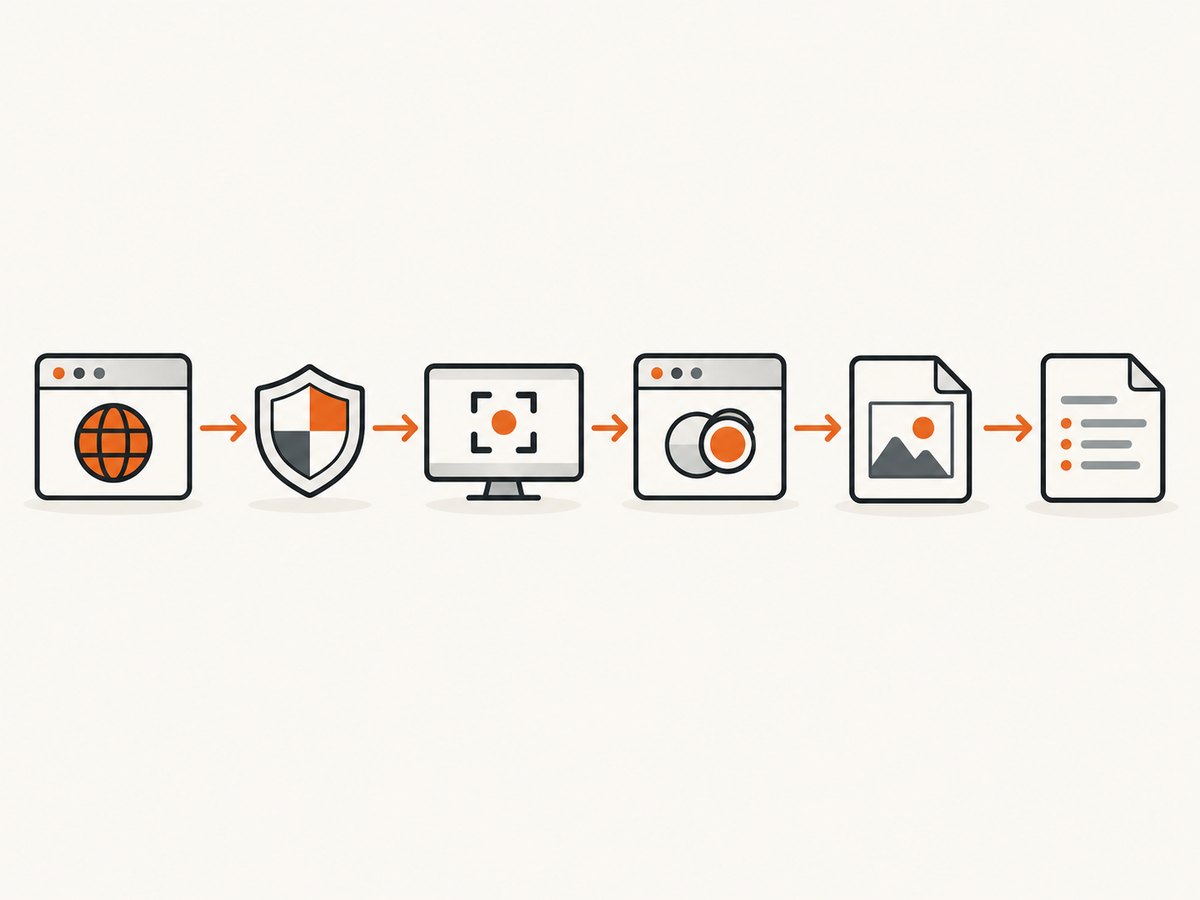
- Protected Mode: enable or disable it consistently for every security zone. Selenium requires the setting to match across zones.
- Enhanced Protected Mode: disable it for IE10 and later, per Selenium’s configuration requirements.
- Zoom: set browser zoom to 100%. Selenium’s IE driver expects 100% zoom by default.
- Windows display scale: set display scaling to 100% on the test host.
These settings are host and user-profile configuration; confirm them for the account that actually starts the browser, not just an administrator’s desktop.
Apply the IE11 FEATURE_BFCACHE setting only when using IE11
For standalone IE11 configurations, Selenium documents a registry workaround for the back/forward cache. Inspect HKEY_LOCAL_MACHINE\SOFTWARE\Microsoft\Internet Explorer\Main\FeatureControl\FEATURE_BFCACHE; on 64-bit Windows also check the corresponding Wow6432Node path. If the subkey is absent or unset, create the key and add a DWORD named iexplore.exe with value 0. Follow your organization’s registry-change process and restart IE. This IE11-specific setting is not a general fix for Edge IE mode service screenshots.
5. Capture a clean PNG and collect useful diagnostics
A successful Selenium screenshot command proves only that WebDriver returned image bytes. It does not prove that the image contains the rendered page. Save to a stable path, check the file size and open the PNG. Preserve the image and driver log together with the CI run ID, account, Windows session type, Selenium and IEDriver versions, and Edge version.
# PowerShell: run from the same account/session as the test
$env:EDGE_BIN = "C:\Program Files (x86)\Microsoft\Edge\Application\msedge.exe"
$env:IEDRIVER = "C:\WebDriver\IEDriverServer.exe"
python .\capture_ie_mode.py https://example.com
Get-Item .\ie-screenshot.png | Select-Object FullName, Length
To write IEDriver logs to a file with Selenium Python, configure the service explicitly:
from selenium import webdriver
from selenium.webdriver.ie.service import Service

service = Service(
    executable_path=r"C:\WebDriver\IEDriverServer.exe",
    log_output="iedriver.log",
    log_level="INFO",
)
options = webdriver.IeOptions()
options.attach_to_edge_chrome = True
driver = webdriver.Ie(options=options, service=service)
try:
    driver.get("https://example.com")
    driver.save_screenshot("ie-screenshot.png")
finally:
    driver.quit()
When using Selenium Grid, collect logs from the node that owns the browser, not only the hub. The older black screenshot report specifically contrasted manually started hub/node processes with background processes.
6. Use ignoreProtectedModeSettings only as a controlled diagnostic
ignoreProtectedModeSettings (Python: options.ignore_protected_mode_settings = True) bypasses the driver’s Protected Mode consistency check. It does not create a desktop session, grant a service desktop access or guarantee a non-black screenshot. Selenium explicitly calls this a second-best, best-effort option and warns it may make tests flaky, unresponsive or cause browser hangs. Correct the zones manually first.
If you test the capability, do it on an isolated run, save the logs, and revert if hangs or instability appear. Do not make it a permanent CI default simply because it suppresses a startup exception.
7. cURL, Python and Node.js alternatives for a regular webpage capture
These examples are for capturing an ordinary public webpage through ScreenshotNeo, not for reproducing a legacy IE rendering engine. They avoid provisioning an IE desktop when the requirement is simply to obtain a page screenshot. See the ScreenshotNeo API documentation for request options.
cURL
curl -G "https://api.screenshotneo.com/v1/shot" -d access_key=YOUR_API_KEY --data-urlencode url=https://example.com -o shot.webpPython
import requests

r = requests.get(
    "https://api.screenshotneo.com/v1/shot",
    params={"access_key": "YOUR_API_KEY", "url": "https://example.com"},
    timeout=90,
)
r.raise_for_status()
open("shot.webp", "wb").write(r.content)
Node.js
const q = new URLSearchParams({ access_key: 'YOUR_API_KEY', url: 'https://example.com' });
const res = await fetch(`https://api.screenshotneo.com/v1/shot?${q}`);
if (!res.ok) throw new Error(`Screenshot request failed: ${res.status}`);
const bytes = Buffer.from(await res.arrayBuffer());
await import('node:fs/promises').then(fs => fs.writeFile('shot.webp', bytes));
8. Troubleshooting: symptom, likely cause and next action
| Symptom | Likely cause | Next action |
|---|---|---|
| Works locally, black only in Jenkins, Azure or service mode | The service execution context may not have an interactive desktop available to capture. | Run the identical test interactively under the same account; compare desktop/window station access and agent mode before changing Selenium code. |
| Black image but no WebDriver exception | The driver returned an image despite an unavailable or unusable desktop surface. | Open the PNG, verify size, and compare interactive and service runs. Preserve driver logs and Windows session details. |
| Driver refuses to start due to Protected Mode settings | Internet Options differ between zones. | Set Protected Mode consistently in all zones and restart. Use the ignore capability only as a temporary diagnostic. |
| Driver reports unexpected zoom or coordinates behave incorrectly | Browser zoom or Windows display scale is not 100%. | Set both to 100% in the browser account/session used by the test host. |
| IEDriver executable cannot be found | Driver binary is missing from PATH or configured path is wrong. | Place it on PATH or set IEDRIVER as shown in the Python sample; check permissions and that the file exists. |
| Edge launches outside IE mode, or startup fails | IE mode attachment or Edge executable configuration is missing or inconsistent. | Set attach_to_edge_chrome, use IEDriver 4.0.0.0+, and optionally set EDGE_BIN to the actual Edge executable. |
| Runs become flaky or the browser hangs after enabling ignoreProtectedModeSettings | The bypass can make sessions unreliable. | Remove the capability and align Protected Mode settings manually. |
| IE11 works inconsistently around navigation history | The FEATURE_BFCACHE registry key may be absent or unset. | Check the IE11-specific registry path and configure iexplore.exe as DWORD 0 when appropriate. |
| Screenshot file is missing or zero bytes | Unwritable path, early process exit, failed screenshot call, or browser shutdown race. | Use an absolute writable output path, check the Boolean result of save_screenshot, and keep the browser alive through capture. |
9. Performance, reliability and cost considerations
For a single screenshot, the capture command is rarely the main fix when a black image correlates with service mode. First stabilize the browser’s session and configuration. IEDriver startup, Edge launch and page loading add work before the image is written; reuse a browser only when the surrounding test design supports it, and always close the session in a finally block. Selenium documents that ensureCleanSession clears cache, history and cookies but slows browser launch, so enable it only when you need that clean profile behavior.
For CI reliability, keep a small diagnostic artifact bundle: screenshot, IEDriver log, version numbers and execution mode. If screenshots are the only required output and no IE engine fidelity is needed, an API capture removes the Windows driver/session setup. ScreenshotNeo bills only clean shots; bot checks/CAPTCHAs, blank pages, timeouts, failed loads and cache hits are not billed, and response headers report the page verdict and billing status. Its published plans are Free: 1,000 shots/month; Starter: $5 for 3,000; Growth: $15 for 15,000; Pro: $39 for 60,000; Scale: $99 for 250,000; Business: $249 for 1,000,000. Yearly billing gives two months free. All features are on every plan. These costs apply to ScreenshotNeo captures, not Selenium or CI infrastructure.
Or skip the browser setup
If you need a normal website screenshot rather than an IE-specific rendering test, ScreenshotNeo takes it with one GET request. Cookie and consent banners, newsletter popups and chat widgets are removed before capture; each step can be turned off. Bot checks, blank pages and failed loads are never billed. An MCP server lets AI agents use take_screenshot, get_page_info and capture_pdf. The free plan includes 1,000 screenshots a month with no card; paid plans start at $5 for 3,000. See the API docs.
curl -G "https://api.screenshotneo.com/v1/shot" -d access_key=YOUR_API_KEY --data-urlencode url=https://example.com -o shot.webpSign up free for 1,000 screenshots a month, no card required.
FAQ
Does a black screenshot mean the page did not load?
Not necessarily. A browser can navigate without an error while the screenshot surface is blank. Compare the saved image from an interactive session and inspect the driver log.
Should I keep standalone IE for new Selenium tests?
Selenium no longer officially supports standalone Internet Explorer. For legacy site testing, its current IE driver support is for Microsoft Edge IE Compatibility Mode.
Can ScreenshotNeo reproduce an IE mode screenshot?
No claim here that it emulates IE mode. Use it for ordinary website screenshots when IE engine compatibility is not the test requirement.
Do I need a cloud testing vendor to fix this?
The cited reports do not establish that any particular vendor fixes black service screenshots. First verify the session and configuration; evaluate a hosted runner only against your own IE mode and desktop requirements.


