How to Fix Black Screenshots in Browser Capture
Diagnose black browser screenshots by checking capture policy, rendering mode, GPU, containers, output options, and protected content.
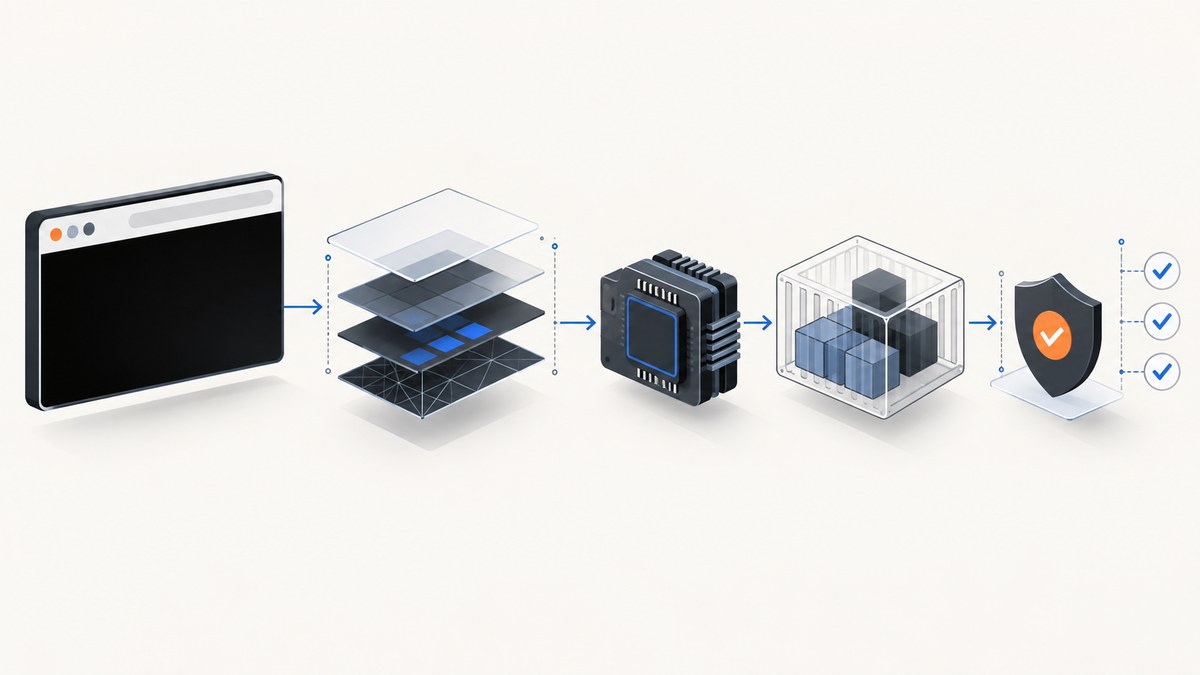
A black screenshot has several possible causes. First determine whether the browser is intentionally hiding protected content or whether rendering, capture, runtime, or image interpretation failed. A launch flag cannot fix every case.
Use this order: check capture policy, identify exactly what is black, reproduce with a minimal script, compare page and element capture, verify headless and GPU settings, then inspect container permissions and output options.
1. Check whether black capture is intentional
Some browser policies deliberately prevent screenshots of protected content. A W3C TPAC 2024 presentation from Xiaohan Wang of the W3C Media Working Group and Google Chrome states: “When these policies are set, screenshot attempts while using Edge on desktop will be prevented by showing a black screen instead of the protected content.” Read the W3C capture-prevention presentation.
This branch commonly affects protected banking, medical, corporate, or media content. If the page owner or managed browser has enabled a capture-prevention policy, follow the permitted access route. Do not treat bypassing that protection as ordinary troubleshooting.
2. Record what is actually black
Before changing flags, write down:
- Framework and version (Puppeteer, Playwright, Selenium, or another tool).
- Browser and version.
- Headless, headful, or Puppeteer
chrome-headless-shellmode. - Operating system, container image, and CI provider.
- Screenshot method, target, image format, scale, and background options.
- Whether the whole viewport is black or only a video, canvas, iframe, or protected element.
Capture a known simple page and compare a viewport shot with a targeted element shot. Puppeteer documents both Page.screenshot() and ElementHandle.screenshot() in its screenshots guide. Playwright exposes page screenshots, full-page capture, selectors, output type, scale, and background options in its Page API.
3. Create a minimal Puppeteer reproduction
Use a minimal script to separate the page from your application’s waits, extensions, and post-processing:
import puppeteer from 'puppeteer';

const browser = await puppeteer.launch({
  headless: true
});

try {
  const page = await browser.newPage();
  await page.setViewport({ width: 1280, height: 800, deviceScaleFactor: 1 });
  page.on('console', message => console.log('[page]', message.text()));
  page.on('pageerror', error => console.error('[pageerror]', error));
  page.on('requestfailed', request =>
    console.error('[requestfailed]', request.url(), request.failure()?.errorText)
  );

  await page.goto('https://example.com', { waitUntil: 'networkidle2' });
  await page.screenshot({ path: 'shot.png', fullPage: true });
} finally {
  await browser.close();
}
networkidle2 is only an example. Applications with polling, streaming, or long-lived connections may never become idle; use a known selector or an application-specific readiness condition when appropriate.
4. Compare page and element capture
If the viewport is black but a simple element is visible, the problem may be a composited layer, video surface, iframe, canvas, or page-level background. If both are black, investigate browser startup, policy, GPU, or container conditions.
const pageShot = await page.screenshot({ path: 'viewport.png' });
const main = await page.$('main');
if (main) {
  await main.screenshot({ path: 'main.png' });
}
For Playwright, the equivalent diagnostic is:
import { chromium } from 'playwright';

const browser = await chromium.launch({ headless: true });
const page = await browser.newPage({ viewport: { width: 1280, height: 800 } });
await page.goto('https://example.com', { waitUntil: 'domcontentloaded' });
await page.screenshot({ path: 'page.png', fullPage: true, type: 'png', scale: 'css' });
await page.locator('main').screenshot({ path: 'main.png', type: 'png' });
await browser.close();
5. Check image output options
A file can look black or blank because it is being interpreted incorrectly:
- Verify that the file is not zero bytes or truncated.
- Open PNG, JPEG, or WebP with a viewer that supports that format.
- Check whether a transparent image is being displayed against a black background.
- Confirm the requested scale and dimensions.
- Do not use transparency options with JPEG.
Playwright’s omitBackground removes the default white page background so transparency is possible; the option does not apply to JPEG. A transparent page may appear black in a viewer that uses a black canvas. Save a PNG and inspect its alpha channel before concluding that rendering failed.
6. Headless mode and GPU checks
Puppeteer chrome-headless-shell
Puppeteer’s troubleshooting documentation specifically says that chrome-headless-shell requires --enable-gpu to enable GPU acceleration. It also notes that Chrome generally needs suitable system drivers to detect and use a GPU. This is a shell-specific check, not a universal fix for every headless mode.
import puppeteer from 'puppeteer';

const browser = await puppeteer.launch({
  headless: 'shell',
  args: ['--enable-gpu']
});

const page = await browser.newPage();
await page.goto('https://example.com', { waitUntil: 'networkidle2' });
await page.screenshot({ path: 'shell.png' });
await browser.close();
Run a controlled comparison with your normal mode and another supported browser mode, while collecting browser stderr. Describe the result as evidence about your environment, not as proof that one mode fixes all black screenshots.
Do not make --no-sandbox your screenshot fix
Puppeteer says the browser sandbox protects the host from untrusted web content and strongly discourages disabling it. Configure a working sandbox in the runtime instead of copying --no-sandbox from an unrelated CI example. Treat any sandbox change as a security decision.
7. Check containers and read-only filesystems
Chrome needs writable locations for its profile, configuration, and cache. Puppeteer’s troubleshooting guide lists unwritable paths as a reason Chrome can fail before Puppeteer connects, and documents extra requirements for read-only containers.
- Use a browser build and system dependencies that match the base image.
- Provide a writable temporary directory.
- Set a writable user-data directory for the browser profile.
- Ensure the cache and crash-report locations are writable.
- Capture browser stderr and the process exit code.
- Verify that the sandbox can start under the container’s user and kernel settings.
import puppeteer from 'puppeteer';

const browser = await puppeteer.launch({
  headless: true,
  userDataDir: '/tmp/puppeteer-profile'
});

const page = await browser.newPage();
await page.goto('https://example.com', { waitUntil: 'domcontentloaded' });
await page.screenshot({ path: '/tmp/capture.png' });
await browser.close();
The path must exist and be writable by the process. Do not assume that a path writable on a laptop is writable in a container or CI worker.
8. Wait for the content you need
A screenshot taken before the application paints can be blank, while a screenshot taken after a protected video surface is initialized may be intentionally black. Prefer a readiness signal that describes the content:
await page.goto('https://example.com/dashboard', { waitUntil: 'domcontentloaded' });
await page.waitForSelector('[data-ready="true"]', { timeout: 30000 });
await page.screenshot({ path: 'dashboard.png', fullPage: true });
Use a short delay only when the page has no reliable readiness signal. For animated canvases or video, check whether the pixels are actually available to the browser’s screenshot API; a DOM selector alone does not make protected media capturable.
9. Troubleshooting checklist
| Symptom | Likely cause | Fix or next check |
|---|---|---|
| Entire desktop capture is black in managed Edge | Screenshot-prevention policy | Confirm the policy with the administrator or site owner and use an approved access route. |
| Only a DRM video or protected canvas is black | Intentional protected-media behavior | Do not bypass it; capture permitted surrounding content or use an authorized export. |
Simple pages are black only in chrome-headless-shell |
GPU acceleration or driver setup | Test the documented --enable-gpu option and verify suitable drivers. |
| Chrome exits before Puppeteer connects | Missing dependencies, unwritable profile/cache, or sandbox failure | Inspect stderr, use writable directories, match browser and image dependencies, and preserve the sandbox. |
| PNG appears black in one viewer but not another | Transparency or viewer interpretation | Inspect alpha, try an opaque PNG, and verify format support. |
| Only the first frame is blank | Capture happened before application readiness | Wait for a selector, application-ready flag, or required network response. |
| Element shot works but full page shot fails | Large page, compositing layer, or full-page layout issue | Capture sections, reduce viewport complexity, and inspect browser logs. |
10. Performance, reliability, and cost considerations
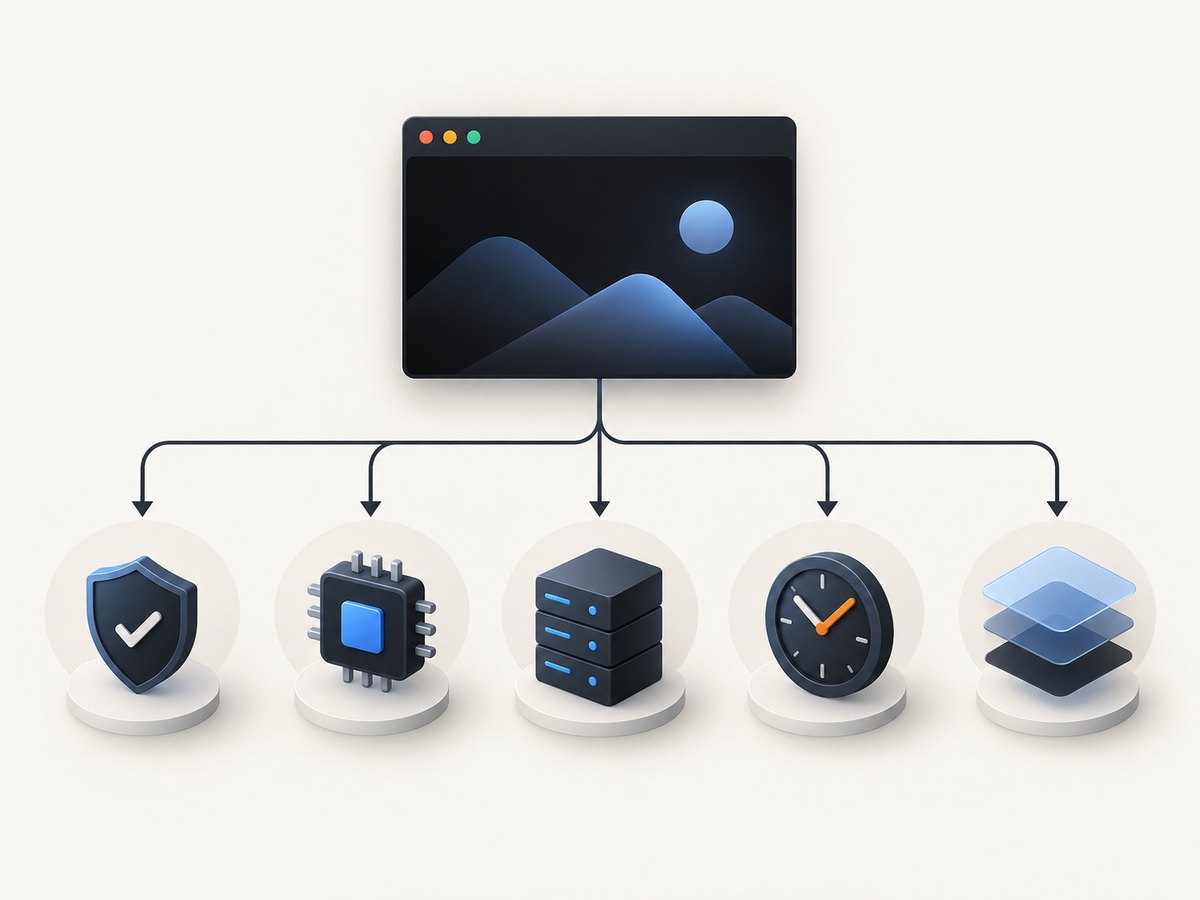
- Reduce uncertainty first: keep a small reproduction page and fixed viewport so each change tests one variable.
- Use targeted captures: element screenshots can avoid unnecessary full-page layout and make it clear whether a component is responsible.
- Control concurrency: too many simultaneous browsers can exhaust memory and cause crashes that look like capture failures.
- Reuse browsers carefully: a long-lived process saves startup time but requires cleanup of pages, contexts, and temporary profiles.
- Record artifacts: retain browser version, launch arguments, stderr, dimensions, format, and a failed image for reproducibility.
- Separate policy failures from infrastructure failures: retries may help a crashed browser, but they will not make protected content capturable.
Or skip the browser setup
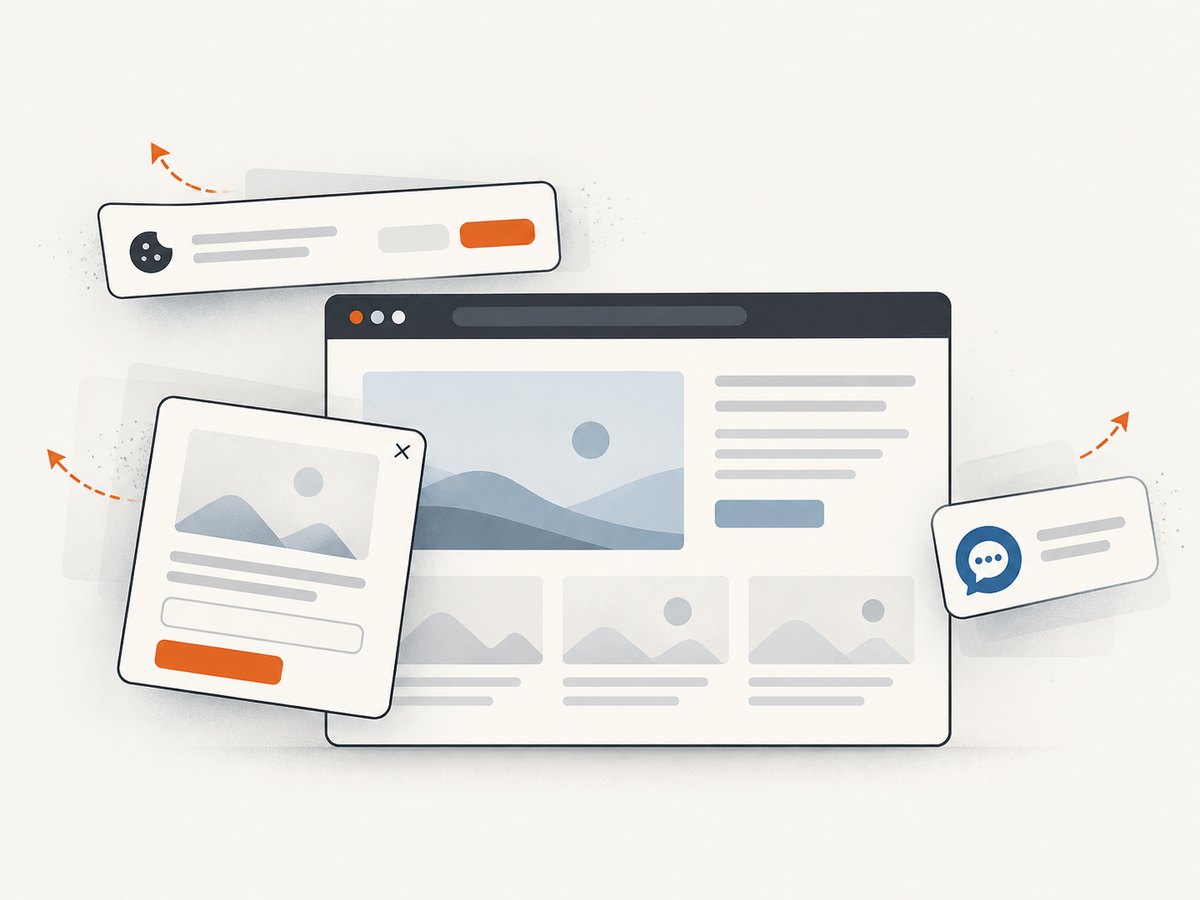
ScreenshotNeo provides a hosted website screenshot API and MCP server. It accepts one GET request and returns PNG, JPEG, WebP, or PDF. Before capture, it accepts cookie and consent banners and removes more than 60 known consent platforms, newsletter popups, and chat widgets; each cleanup step can be turned off.
Only clean shots are billed. Bot checks or CAPTCHAs, blank pages, timeouts, failed loads, and cache hits cost nothing, and the response identifies the result with X-Page-Verdict and X-Billed headers. An MCP server lets Claude, Cursor, and other MCP clients use take_screenshot, get_page_info, and capture_pdf.
See the ScreenshotNeo API documentation for all options.
cURL
curl -G "https://api.screenshotneo.com/v1/shot" -d access_key=YOUR_API_KEY --data-urlencode url=https://stripe.com -o shot.webpPython
import requests

r = requests.get(
    "https://api.screenshotneo.com/v1/shot",
    params={"access_key": "YOUR_API_KEY", "url": "https://stripe.com"},
    timeout=90,
)
r.raise_for_status()
open("shot.webp", "wb").write(r.content)
Node.js
const q = new URLSearchParams({ access_key: 'YOUR_API_KEY', url: 'https://stripe.com' });
const res = await fetch(`https://api.screenshotneo.com/v1/shot?${q}`);
if (!res.ok) throw new Error(`Screenshot failed: ${res.status}`);
const body = Buffer.from(await res.arrayBuffer());
await import('node:fs/promises').then(fs => fs.writeFile('shot.webp', body));
ScreenshotNeo also supports full-page capture with lazy images loaded, CSS element capture, dark mode, device presets and custom viewports, retina scale, PDF paper and page options, custom CSS and JavaScript, clicks, waits, blocking rules, headers, cookies, user agents, authorization, timezone, geolocation, transparent backgrounds, resizing, configurable caching, signed links, asynchronous jobs with signed webhooks, bulk capture of up to 100 URLs per call, a usage API, and an OpenAPI specification. Parameter names used by other screenshot APIs also work to ease migration.
The Free plan includes 1,000 screenshots each month with no card. Paid plans start at $5 for 3,000 shots; yearly billing gives two months free, and every feature is available on every plan. Create a free ScreenshotNeo account.
FAQ
Does adding --disable-gpu fix black screenshots?
There is no universal flag. The documented GPU requirement in the supplied sources is specific to Puppeteer’s chrome-headless-shell mode, where --enable-gpu may be required.
Why is a transparent screenshot black?
The pixels may be transparent and your image viewer may render transparency against black. Inspect the alpha channel or save an opaque PNG. Playwright’s omitBackground does not apply to JPEG.
Should I retry a black screenshot?
Retry after transient browser or network failures, but first classify the result. Retries will not change an intentional capture-prevention policy or protected-media restriction.
What details should I include in a bug report?
Include framework and browser versions, headless mode, OS or container image, launch arguments, screenshot options, target type, a minimal URL or reproduction, browser stderr, and whether all content or only one protected surface is black.
Can a hosted API avoid local Chrome problems?
Yes. A hosted service such as ScreenshotNeo removes local browser installation and container-profile setup from your application, while its verdict and billing headers let you distinguish clean captures from failed or blocked pages.


