How to Fix Black Screenshots in Puppeteer
Diagnose black Puppeteer screenshots by checking rendering, transparency, geometry, browser mode, GPU settings, and page readiness.
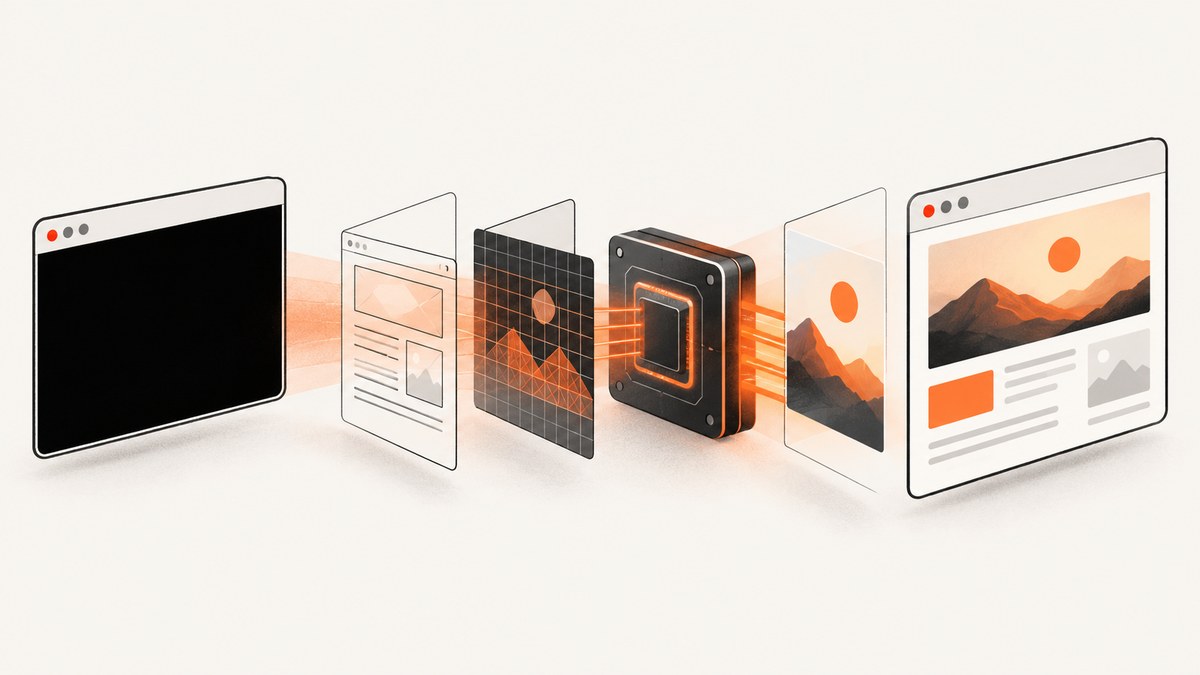
A black Puppeteer screenshot can come from several independent layers: the page may render black, the capture may request transparency, the selected region may be wrong, or Chromium may be using an unsuitable rendering path. There is no single flag that fixes every case. Start by checking the page itself, then compare screenshot settings one at a time.
The quickest reliable sequence is:
- Wait for navigation and the content you expect.
- Capture a normal viewport screenshot with
omitBackground: false. - Remove
clipand test bothfullPage: falseandfullPage: true. - Record whether Chromium is headless,
headless: 'shell', or headful. - If accelerated content is involved, test the documented
--enable-gpulaunch flag. - Record Puppeteer, Chrome or Chromium, operating-system, container, driver, and launch-argument versions before changing several variables at once.
1. Confirm that the page renders before you capture it
Puppeteer can successfully create an image even when navigation has not produced the page you expected. A redirect, client-side application, authentication wall, bot check, JavaScript exception, or slow API request can leave the browser with a blank or dark document. Open the same URL in a visible browser or inspect the page before diagnosing the screenshot API.
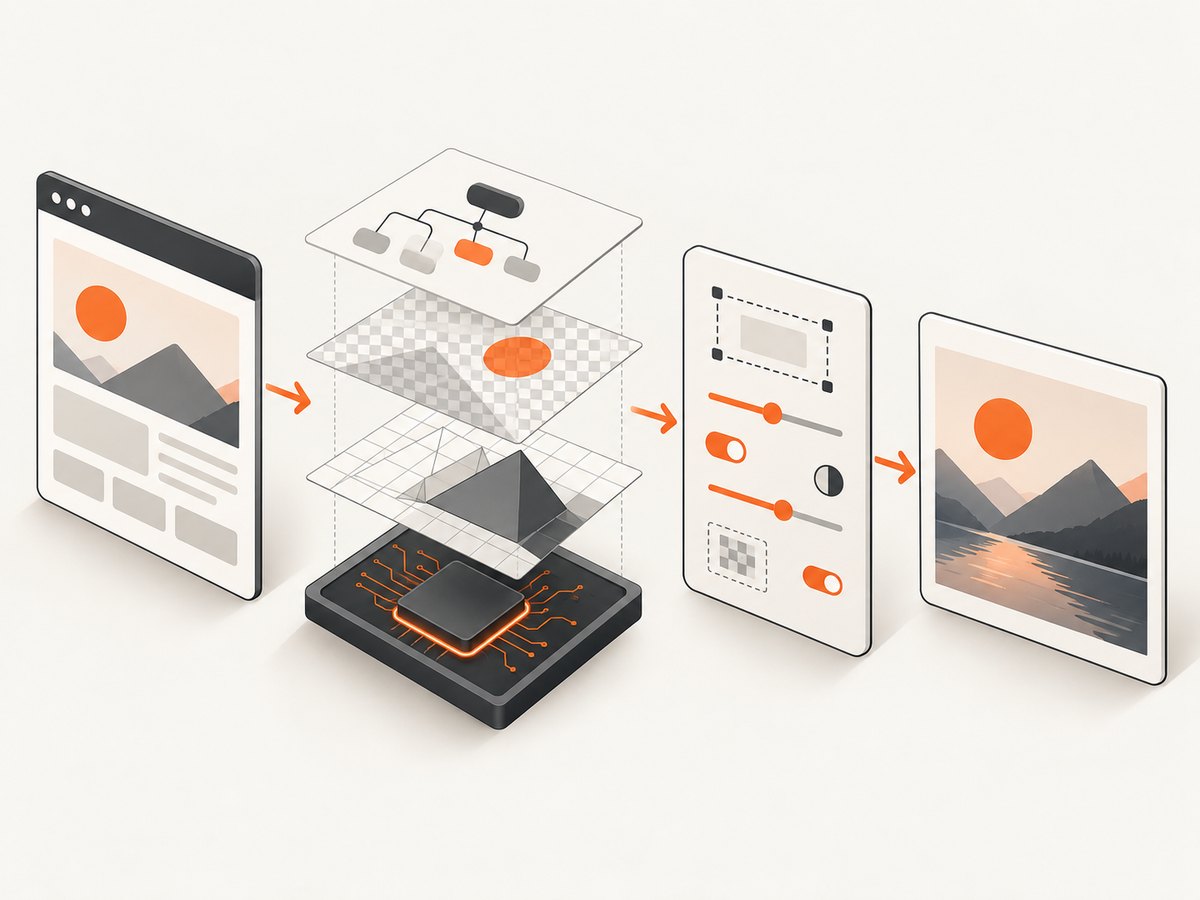
Use an explicit navigation wait and inspect the DOM:
import puppeteer from 'puppeteer';

const browser = await puppeteer.launch({ headless: true });
const page = await browser.newPage();

await page.setViewport({ width: 1440, height: 900, deviceScaleFactor: 1 });
await page.goto('https://example.com', {
  waitUntil: 'networkidle2',
  timeout: 60000
});

console.log({
  url: page.url(),
  title: await page.title(),
  bodyText: (await page.locator('body').innerText().catch(() => '')).slice(0, 200),
  bodyColor: await page.evaluate(() => getComputedStyle(document.body).backgroundColor)
});

await page.screenshot({ path: 'debug.png', type: 'png' });
await browser.close();
The screenshots guide documents waiting for navigation or content readiness before calling Page.screenshot(). If bodyText is empty, the title is unexpected, or the page background is actually black, fix navigation, application state, or the site itself first. See the Puppeteer screenshots guide.
2. Test transparency and the page background
omitBackground is a transparency option. Its documented default is false, which produces an opaque background. When it is true, Puppeteer omits the default background so transparent pixels can appear in the output. That is useful for compositing, but it is not a general black-screen repair switch.
// Opaque screenshot: use this while diagnosing black output.
await page.screenshot({
  path: 'opaque.png',
  omitBackground: false
});

// Transparent screenshot: use only when your pipeline needs alpha.
await page.screenshot({
  path: 'transparent.png',
  omitBackground: true
});
If a reliable solid color is required, set it in the document and keep the screenshot opaque:
await page.evaluate(() => {
  document.documentElement.style.background = '#ffffff';
  document.body.style.background = '#ffffff';
});
await page.screenshot({ path: 'white.png', omitBackground: false });
Do not infer that every black image is caused by transparency. A historical 2017 Puppeteer issue described black output involving omitBackground: true in headful mode, but that report does not establish a current universal bug. Reproduce under the exact Puppeteer and Chrome versions you run. The current ScreenshotOptions API defines the option and its default.
3. Eliminate capture-geometry mistakes
The screenshot can be valid while the requested region contains only a background, an off-screen area, or a transparent layer. Check the viewport, clip, fullPage, and element bounds separately.
| Setting | What it changes | Diagnostic test |
|---|---|---|
viewport |
CSS width, height, and device scale | Use a known size such as 1440×900 and deviceScaleFactor: 1 |
fullPage |
Captures the complete document height | Compare false and true |
clip |
Captures a rectangle in page coordinates | Remove it, then log the rectangle |
| Element screenshot | Captures one element’s bounding box | Check that the selector exists and has nonzero dimensions |
const box = await page.locator('#main').boundingBox();
console.log('element box:', box);

if (!box || box.width === 0 || box.height === 0) {
  throw new Error('The target element is missing or has zero size');
}

await page.screenshot({ path: 'viewport.png', fullPage: false });
await page.screenshot({ path: 'document.png', fullPage: true });
await page.screenshot({
  path: 'element.png',
  clip: box,
  omitBackground: false
});
For an element-specific capture, Puppeteer also supports ElementHandle.screenshot(). Make sure the element is visible, not covered by a modal, and laid out before capturing. The Page.screenshot API describes the supported geometry options.
4. Check browser mode and GPU rendering
Puppeteer supports headless Chrome, the newer headless shell mode, and headful Chrome. Rendering behavior can differ between them, especially for WebGL, canvas, video, compositing, and sites that depend on accelerated content.
When using headless: 'shell', Puppeteer’s troubleshooting guide documents --enable-gpu to enable GPU acceleration. Chromium’s headless GPU documentation gives the same flag to avoid forcing software rendering. Whether acceleration works still depends on the operating system, container, available devices, and driver stack.
const browser = await puppeteer.launch({
  headless: 'shell',
  args: ['--enable-gpu']
});
Test one mode at a time:
const cases = [
  { name: 'headless', options: { headless: true } },
  { name: 'shell-gpu', options: { headless: 'shell', args: ['--enable-gpu'] } },
  { name: 'headful', options: { headless: false } }
];

for (const item of cases) {
  const browser = await puppeteer.launch(item.options);
  const page = await browser.newPage();
  await page.goto('https://example.com', { waitUntil: 'networkidle2' });
  await page.screenshot({ path: `${item.name}.png`, omitBackground: false });
  await browser.close();
}
If only one mode produces black output, compare its launch arguments and runtime environment. Avoid adding unrelated flags until you know which change affects the result. A container may lack a usable GPU even when the flag is present; conversely, forcing software rendering can expose bugs in accelerated page content.
5. Build a narrow reproduction
Reduce the failure to one URL, one browser launch, one viewport, and one screenshot call. Save all relevant context:
- Puppeteer version and the Chrome or Chromium version.
- Operating system, container image, CPU architecture, and GPU or driver details.
- Headless, headless shell, or headful mode.
- Every launch argument and environment variable.
- Viewport, device scale,
fullPage,clip, andomitBackgroundvalues. - Whether the page is black when viewed before capture.
- Whether PNG, JPEG, and WebP behave differently.
Change one axis at a time: first transparency, then geometry, then browser mode, then GPU configuration. This distinguishes a page-rendering problem from a capture-path problem without assuming a cause the evidence does not support.
6. Common black-screen errors and fixes
| Symptom | Likely cause | Fix |
|---|---|---|
| Every screenshot is black, including a simple page | Browser or rendering environment issue | Run a minimal page, record versions, compare headless and headful, and test --enable-gpu where applicable. |
| Only transparent PNGs are black | Alpha handling or viewer interpretation | Capture with omitBackground: false; inspect the PNG over a contrasting background. |
| Viewport capture works but full-page capture is black | Document height, lazy content, or full-page layout behavior | Capture the viewport first, wait for content, inspect document dimensions, then retry fullPage: true. |
| Only a clipped or element shot is black | Wrong coordinates, hidden element, or zero-size box | Remove clip, log boundingBox(), scroll the element into view, and verify computed visibility. |
| Page is black before the screenshot call | Site rendering, authentication, bot check, or JavaScript failure | Inspect console and page errors, wait for the required selector, and test the URL interactively. |
| WebGL or canvas content is black | GPU, driver, or browser-mode difference | Compare modes and test --enable-gpu; verify the runtime has the expected graphics support. |
| Headful only is black | Display-server or transparency interaction | Compare with headless, verify the exact versions, and avoid treating the historical issue as universal. |
| Intermittent black images | Capture occurs before fonts, images, or application state are ready | Wait for a selector or network idle, add a bounded delay only when needed, and capture diagnostic metadata. |
7. Make captures reliable in production
Wait for an application signal
networkidle2 is useful but cannot prove that a single-page app finished rendering. Prefer a selector or application-ready marker:
await page.goto('https://example.com/dashboard', { waitUntil: 'domcontentloaded' });
await page.waitForSelector('[data-rendered="true"]', { timeout: 30000 });
await page.screenshot({ path: 'dashboard.png' });
Keep timeouts bounded
Set navigation, selector, and screenshot timeouts appropriate to your workload. On failure, retain the URL, mode, options, and browser logs so a black result can be reproduced.
Use deterministic geometry
Set the viewport and device scale explicitly. If responsive breakpoints matter, test each intended viewport separately instead of relying on a machine default.
Control expensive resources carefully
Blocking ads, trackers, or unnecessary resource types can improve throughput, but blocking a stylesheet, font, script, or image required for rendering can create a misleading black or incomplete result. Apply request interception incrementally and compare against an unblocked capture.
Choose an output format deliberately
PNG preserves lossless detail and alpha; JPEG is opaque and smaller for photographic pages; WebP can reduce size when your consumers support it. Use PNG while diagnosing transparency, then select the format required by downstream systems.
8. Performance, reliability, and cost considerations
Browser startup is often more expensive than the screenshot call. Reuse a browser process when safe, create isolated pages for concurrent jobs, and cap concurrency to the CPU and memory available. Full-page captures and large device scale factors consume more memory. Waiting for a precise readiness selector usually gives more predictable latency than an unnecessarily long fixed delay.
For reliable retries, distinguish navigation failures, page-level failures, and image-encoding failures. Retry transient navigation or infrastructure errors with a limit and backoff. Do not blindly retry a deterministic selector failure or a page that consistently renders black; retain diagnostics and investigate the underlying state.
Your own Puppeteer deployment also carries the cost of Chromium storage, patching, sandbox configuration, compute, and operational debugging. If you need a managed capture endpoint, ScreenshotNeo returns PNG, JPEG, WebP, or PDF from one GET request and reports whether a response was a clean shot or a non-billable failure in response headers.
Or skip the browser setup
ScreenshotNeo provides a managed screenshot API when you do not want to maintain Puppeteer, Chrome versions, GPU settings, and capture infrastructure. It accepts the URL, handles the browser capture, and supports the same kinds of controls developers commonly need, including full-page shots, element selectors, dark mode, device presets, custom viewports, retina scale, waits, custom CSS and JavaScript, request blocking, headers, cookies, user agents, authorization, timezone, geolocation, resizing, caching, signed links, asynchronous jobs, bulk capture, and PDFs. See the ScreenshotNeo documentation for the complete option list.
cURL
curl -G "https://api.screenshotneo.com/v1/shot" -d access_key=YOUR_API_KEY --data-urlencode url=https://stripe.com -o shot.webpPython
import requests

r = requests.get(
    "https://api.screenshotneo.com/v1/shot",
    params={"access_key": "YOUR_API_KEY", "url": "https://stripe.com"},
    timeout=90,
)
r.raise_for_status()
open("shot.webp", "wb").write(r.content)
Node.js
const q = new URLSearchParams({ access_key: 'YOUR_API_KEY', url: 'https://stripe.com' });
const res = await fetch(`https://api.screenshotneo.com/v1/shot?${q}`);
if (!res.ok) throw new Error(`HTTP ${res.status}`);
const buffer = Buffer.from(await res.arrayBuffer());
require('fs').writeFileSync('shot.webp', buffer);
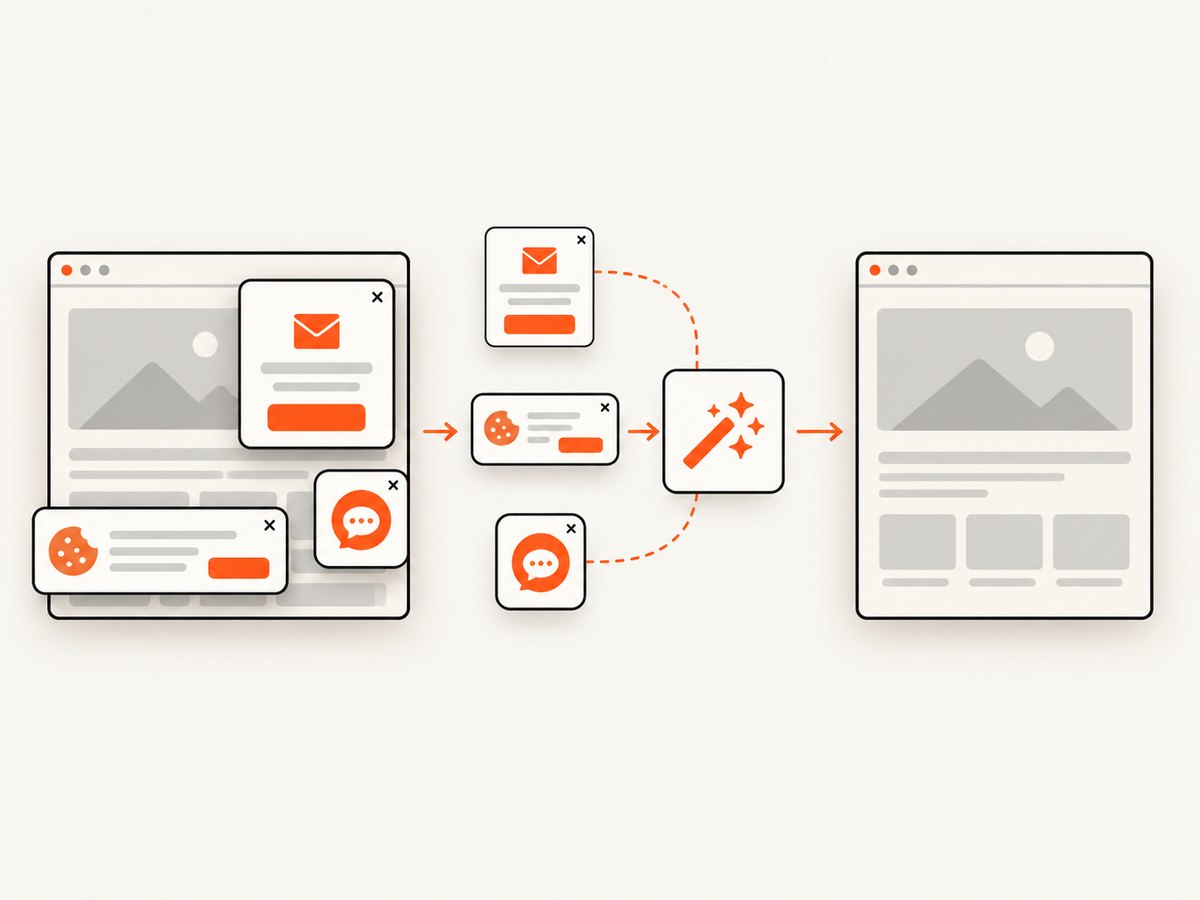
Cookie banners, newsletter popups, and chat widgets are removed before the shot. Bot checks, blank pages, timeouts, failed loads, and cache hits are not billed, and response headers identify the page verdict and billing status. ScreenshotNeo also offers an MCP server with take_screenshot, get_page_info, and capture_pdf tools for Claude, Cursor, and other MCP clients. The Free plan includes 1,000 shots each month with no card; paid plans start at $5 for 3,000 shots. Create a free ScreenshotNeo account.
FAQ
Does omitBackground: true always cause black screenshots?
No. It requests transparency. Viewer behavior, page backgrounds, browser mode, and versions all matter, so compare with the default opaque setting.
Should I always add --enable-gpu?
No. Puppeteer documents it for GPU acceleration in headless: 'shell', and Chromium documents it for headless GPU use. Test it in your actual environment, especially for accelerated content.
Can fullPage make a screenshot black?
It changes capture geometry and can expose layout or lazy-loading problems. Compare it with a normal viewport capture and inspect the page before capture.
What information should I include in a bug report?
Include the URL or a minimal reproducible page, Puppeteer and browser versions, OS or container, browser mode, launch flags, viewport, screenshot options, and whether the page itself is black.
Is a black response from a screenshot service always a billed capture?
Service policies differ. ScreenshotNeo identifies page verdict and billing in response headers and does not bill bot checks, blank pages, timeouts, failed loads, or cache hits.


