How to Fix Black Screenshots with Pyglet
Learn why pyglet screenshots turn black and how to capture the correct color buffer after rendering, with fixes for buffering, DPI, and OpenGL contexts.
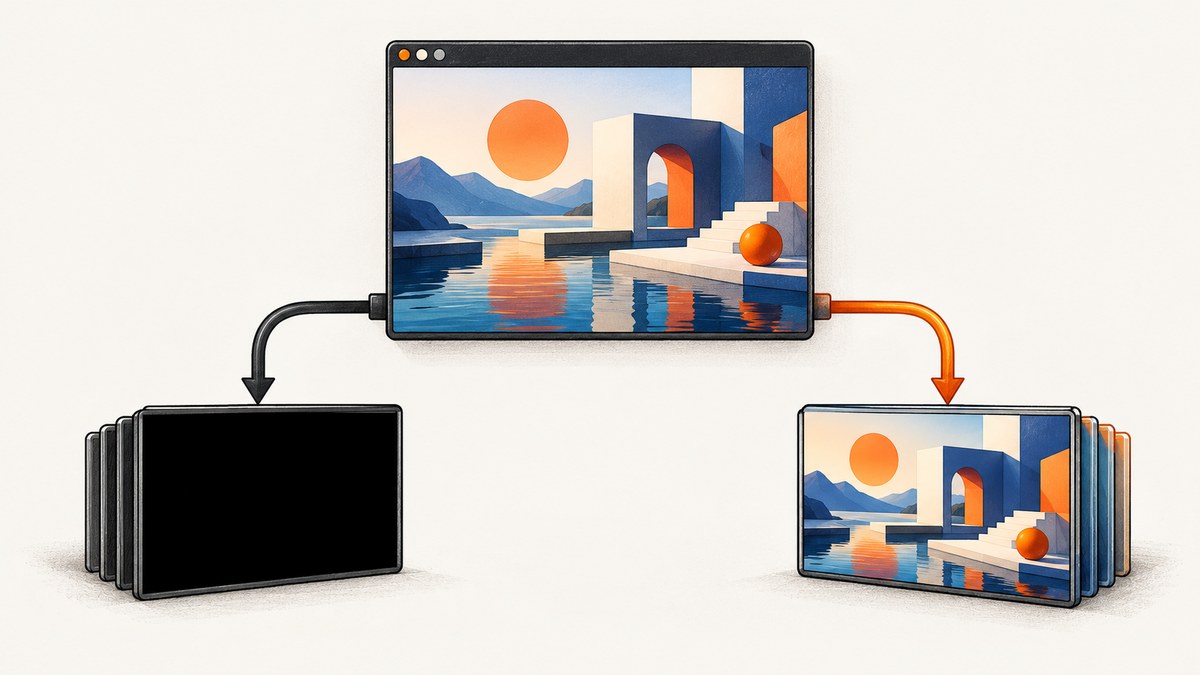
A black pyglet screenshot usually means the capture read the wrong framebuffer, ran before the scene was drawn, or read pixels before buffered OpenGL commands completed. Capture the current window’s primary color buffer after drawing:
pyglet.image.get_buffer_manager().get_color_buffer().save("screenshot.png")The same operation can be written in two steps:
color_buffer = pyglet.image.get_buffer_manager().get_color_buffer()
image_data = color_buffer.get_image_data()
image_data.save("screenshot.png")
Pyglet documents this color buffer as the primary color framebuffer, also called the back buffer. If your application renders to a custom framebuffer, texture, or another window, capture that render target instead.
1. Capture after the frame is rendered
Put the save operation after clear() and all sprite, shape, label, and batch draw calls for the frame you want. A capture before those calls can read a cleared or uninitialized back buffer.
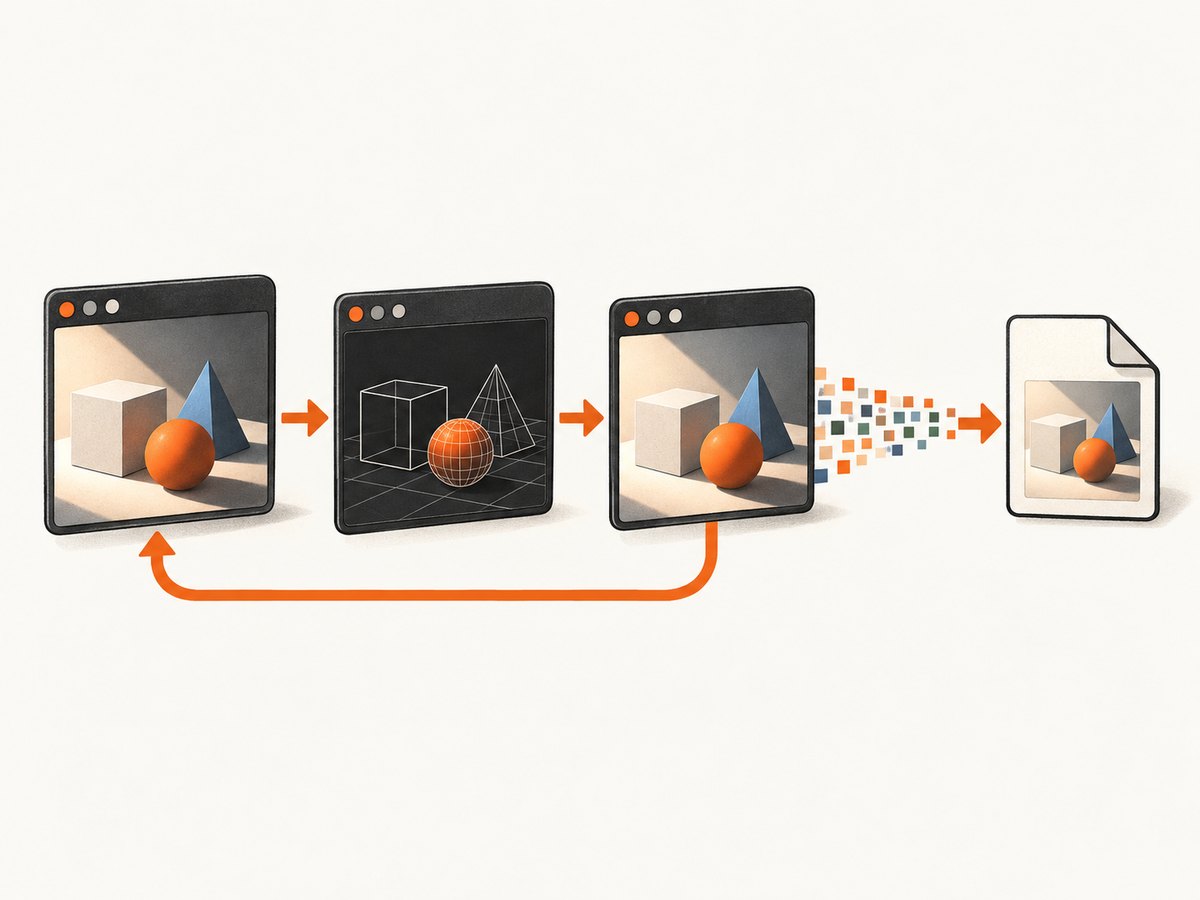
import pyglet

window = pyglet.window.Window(width=800, height=450, caption="Capture demo")

label = pyglet.text.Label(
    "Frame ready",
    x=400,
    y=225,
    anchor_x="center",
    anchor_y="center",
    font_size=28,
)

@window.event
def on_draw():
    window.clear()
    label.draw()

    # This must run after the scene has been drawn.
    pyglet.image.get_buffer_manager().get_color_buffer().save("screenshot.png")

pyglet.app.run()
This example saves on every frame, which is useful for demonstrating ordering but expensive in a real application. Capture on demand instead.
2. Use a key-triggered capture
Event handlers should request a capture; the draw handler should perform it after rendering. This keeps the readback tied to a complete frame.
import pyglet
from pyglet.window import key

window = pyglet.window.Window(width=800, height=450)
capture_requested = False

label = pyglet.text.Label(
    "Press S to save a screenshot",
    x=400,
    y=225,
    anchor_x="center",
    anchor_y="center",
    font_size=22,
)

@window.event
def on_key_press(symbol, modifiers):
    global capture_requested
    if symbol == key.S:
        capture_requested = True

@window.event
def on_draw():
    global capture_requested
    window.clear()
    label.draw()

    if capture_requested:
        color_buffer = pyglet.image.get_buffer_manager().get_color_buffer()
        color_buffer.save("screenshot.png")
        capture_requested = False

pyglet.app.run()
If the scene is animated, the saved image is the first frame drawn after the key event. For a specific animation frame, set the request flag from your update logic and capture only after that frame’s draw calls.
3. Understand double buffering and flip()
With a double-buffered window, drawing normally targets a back buffer and window.flip() presents it. Pyglet’s windowing documentation describes flip() as the operation used for double-buffered windows.
For a non-double-buffered window, flip() is unnecessary. Call pyglet.gl.glFlush() to ensure buffered commands are sent for execution before reading pixels:
import pyglet
from pyglet import gl

window = pyglet.window.Window(double_buffer=False)

@window.event
def on_draw():
    window.clear()
    # draw your scene here
    gl.glFlush()
    pyglet.image.get_buffer_manager().get_color_buffer().save("screenshot.png")

pyglet.app.run()
Do not add arbitrary sleeps to solve this problem. First verify the window’s buffering mode and the order of draw, flush or flip, and capture operations.
4. Make sure the intended OpenGL context is current
get_color_buffer() reads the primary color framebuffer associated with the current context. A black image can result when code draws in one window or context and captures from another.
- Run the capture while the target window’s context is current.
- Do not create a second window and assume it shares the first window’s pixels.
- If a callback changes context, restore or explicitly select the context that owns the rendered scene before reading the buffer.
- When multiple windows are open, keep a reference to the target window and perform the capture from its draw path.
The default color-buffer call is correct only when the visible scene was rendered into that default window framebuffer.
5. Capturing a custom framebuffer or texture
Post-processing pipelines often render to an off-screen framebuffer or texture before displaying the result. In that case, reading the window’s primary color buffer may return black or an unrelated image. Capture the object that contains the scene instead of the default window buffer.
The diagnostic question is: where were the final pixels written? If the answer is a custom framebuffer, bind or read that framebuffer using your rendering code, then convert its pixels to an image. If the answer is a texture, read the texture data or draw it into the current window before using pyglet’s color-buffer helper.
Also check framebuffer completeness and viewport setup. A custom target with an invalid attachment or zero-sized color attachment cannot produce the expected screenshot.
6. Check logical size versus framebuffer size
High-DPI displays can have different logical window dimensions and physical framebuffer dimensions. Pyglet exposes the physical dimensions through window.get_framebuffer_size().
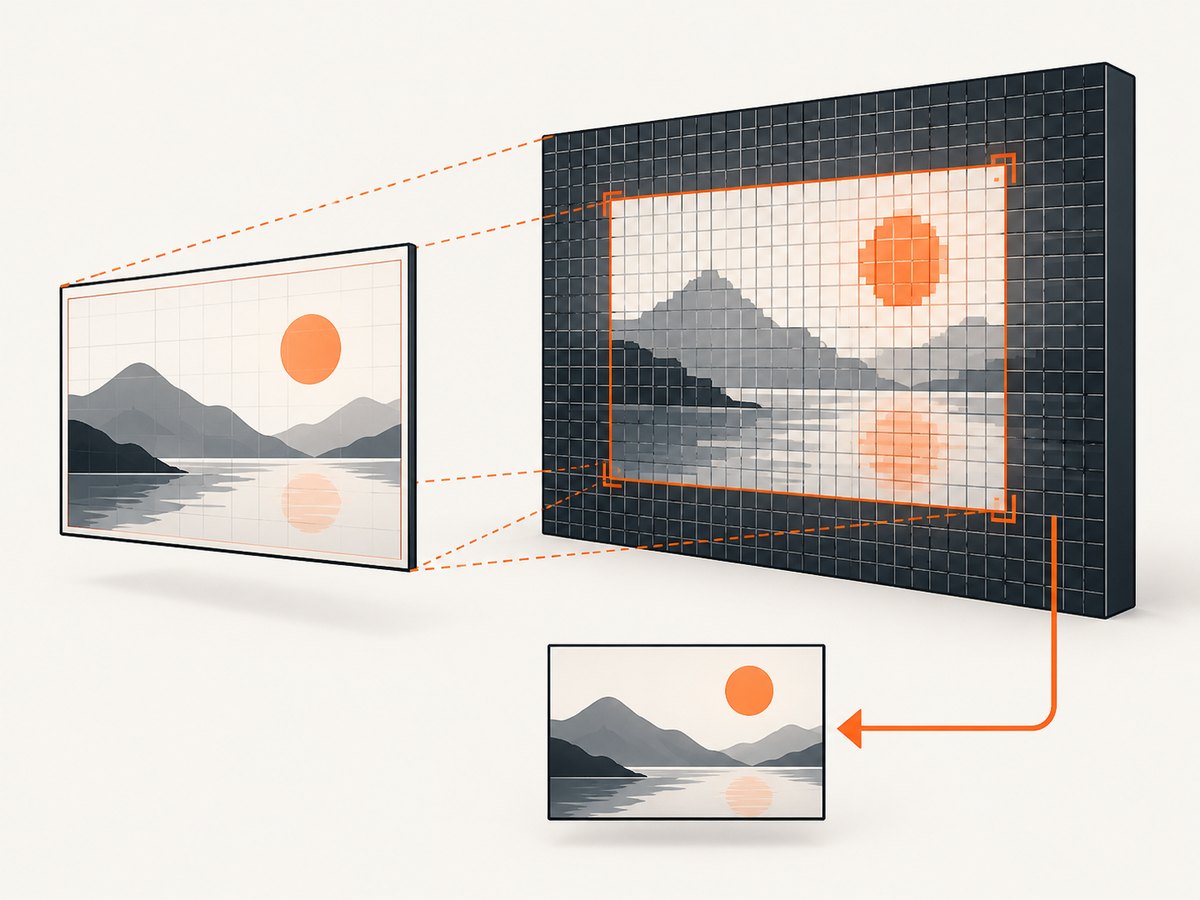
framebuffer_width, framebuffer_height = window.get_framebuffer_size()
print(f"Framebuffer: {framebuffer_width}x{framebuffer_height}")
Use the framebuffer dimensions when you:
- Set OpenGL viewports.
- Allocate custom render targets.
- Compare the expected screenshot size.
- Compute pixel coordinates for readback.
If the viewport was configured with logical dimensions on a scaled display, only part of the framebuffer may be rendered and the remainder can appear black. Pyglet’s windowing guide describes real and scaled display modes; inspect the actual framebuffer size rather than assuming it equals window.width and window.height.
7. Keep rendering and image encoding separate
Screenshot capture has two stages: transferring pixels from OpenGL and encoding those pixels as an image file. Pyglet’s image conversion uses glReadPixels, which can be slow because data moves from the GPU to the CPU. A slow save does not by itself indicate a black-frame bug.
PNG saving is built in. Other formats may require Pillow, depending on your pyglet version and installed image handlers:
# PNG is supported by pyglet's built-in image saving.
image = pyglet.image.get_buffer_manager().get_color_buffer()
image.save("screenshot.png")

# For alternate formats, install and configure Pillow if your application needs it.
Test the PNG first. If the PNG is black, changing the encoder will not repair a framebuffer or timing problem.
8. A complete capture helper
Centralizing the operation makes it easier to log the active window, framebuffer size, and output path.
from pathlib import Path
import pyglet


def save_current_frame(window, path="screenshot.png"):
    """Save the current window's primary color buffer after drawing."""
    width, height = window.get_framebuffer_size()
    print(f"Saving {width}x{height} framebuffer to {path}")

    color_buffer = pyglet.image.get_buffer_manager().get_color_buffer()
    color_buffer.save(str(Path(path)))


window = pyglet.window.Window(width=800, height=450)

@window.event
def on_draw():
    window.clear()
    # Draw every object for this frame before calling the helper.
    save_current_frame(window)

pyglet.app.run()
For production code, call save_current_frame only when requested so that GPU readback does not stall every frame.
9. Troubleshooting black output
| Symptom | Likely cause | Fix |
|---|---|---|
| Window looks correct, PNG is black | Capture runs before draw calls or reads a different context | Move capture to the end of on_draw and confirm the target window is current. |
| Only the background is present | Capture occurs before sprites, shapes, labels, or batches are drawn | Place the save call after every draw operation for the target frame. |
| Intermittent black frames | Buffered commands have not completed | For non-double-buffered windows, call glFlush(); for double-buffered windows, follow the documented flip() flow. |
| Screenshot dimensions are unexpected | High-DPI scaling separates logical and physical sizes | Inspect window.get_framebuffer_size() and configure the viewport and render targets with those dimensions. |
| Default capture is black but a post-processed display is visible | Final pixels are in a custom framebuffer or texture | Capture the custom render target or draw it into the current window before reading the color buffer. |
| Capture from a second window is empty | The second window has its own framebuffer | Capture while the window that rendered the scene is current. |
| Saving is very slow | glReadPixels transfers data from GPU to CPU |
Capture on demand, reduce resolution when acceptable, and avoid saving every animation frame. |
| PNG works but another format fails | Additional encoders are unavailable | Use PNG or install/configure Pillow for the required format. |
10. A practical debugging checklist
- Confirm the scene is visible in the same window you intend to capture.
- Put the capture after
clear()and all scene draw calls. - Verify that
get_color_buffer()is reading the primary framebuffer used by your renderer. - Check whether the window is double-buffered.
- Use
flip()for the normal double-buffered presentation flow; useglFlush()for a non-double-buffered window. - Print
window.get_framebuffer_size()and compare it with your viewport and render-target sizes. - If you use an off-screen framebuffer, capture that target instead of the default window buffer.
- Test PNG before investigating alternate encoders.
- Move readback off the per-frame path unless continuous recording is required.
11. Or skip the browser setup
If the screenshot you need is a website rather than a pyglet window, ScreenshotNeo provides a single GET request that returns a PNG, JPEG, WebP, or PDF. See the ScreenshotNeo API documentation for the available options.
cURL:
curl -G "https://api.screenshotneo.com/v1/shot" -d access_key=YOUR_API_KEY --data-urlencode url=https://stripe.com -o shot.webpPython:
import requests
r = requests.get("https://api.screenshotneo.com/v1/shot", params={"access_key": "YOUR_API_KEY", "url": "https://stripe.com"}, timeout=90)
open("shot.webp", "wb").write(r.content)
Node.js:
const q = new URLSearchParams({ access_key: 'YOUR_API_KEY', url: 'https://stripe.com' });
const res = await fetch(`https://api.screenshotneo.com/v1/shot?${q}`);
ScreenshotNeo accepts cookie and consent banners before capture and removes more than 60 known consent platforms, newsletter popups, and chat widgets. Bot checks, blank pages, failed loads, timeouts, and cache hits are not billed, and the response identifies the result with X-Page-Verdict and X-Billed headers. Its MCP server lets Claude, Cursor, and other MCP clients use take_screenshot, get_page_info, and capture_pdf. The Free plan includes 1,000 screenshots each month with no card; paid plans start at $5 for 3,000 screenshots.
Create a free ScreenshotNeo account and try the first 1,000 screenshots without adding a card.
12. FAQ
Why does the pyglet window render correctly while the saved image is black?
The display and the readback may not use the same timing or framebuffer. Capture after drawing, verify the current context, and check whether your scene is rendered to a custom target.
Should I call flip() before saving?
Follow the buffering model of the window. Double-buffered windows use flip() for presentation; a non-double-buffered window does not need flip() and should use glFlush() to ensure commands execute.
Can I capture before on_draw finishes?
No. The reliable point is after all draw calls for the target frame have completed while the intended context and framebuffer are current.
Why is my screenshot larger than the window dimensions?
High-DPI scaling can give the physical framebuffer more pixels than the logical window. Use get_framebuffer_size() to determine the actual capture dimensions.
Can pyglet save JPEG or WebP directly?
PNG is the built-in path. Additional formats may require Pillow and the appropriate image handlers.
How often should I capture?
Capture on demand for debugging or user actions. GPU readback through glReadPixels can impose a substantial performance cost when performed every frame.


