How to Fix Black Screenshots in Selenium WebDriver
Diagnose and fix black Selenium screenshots with synchronization, browser, driver, headless, output, and CI checks.
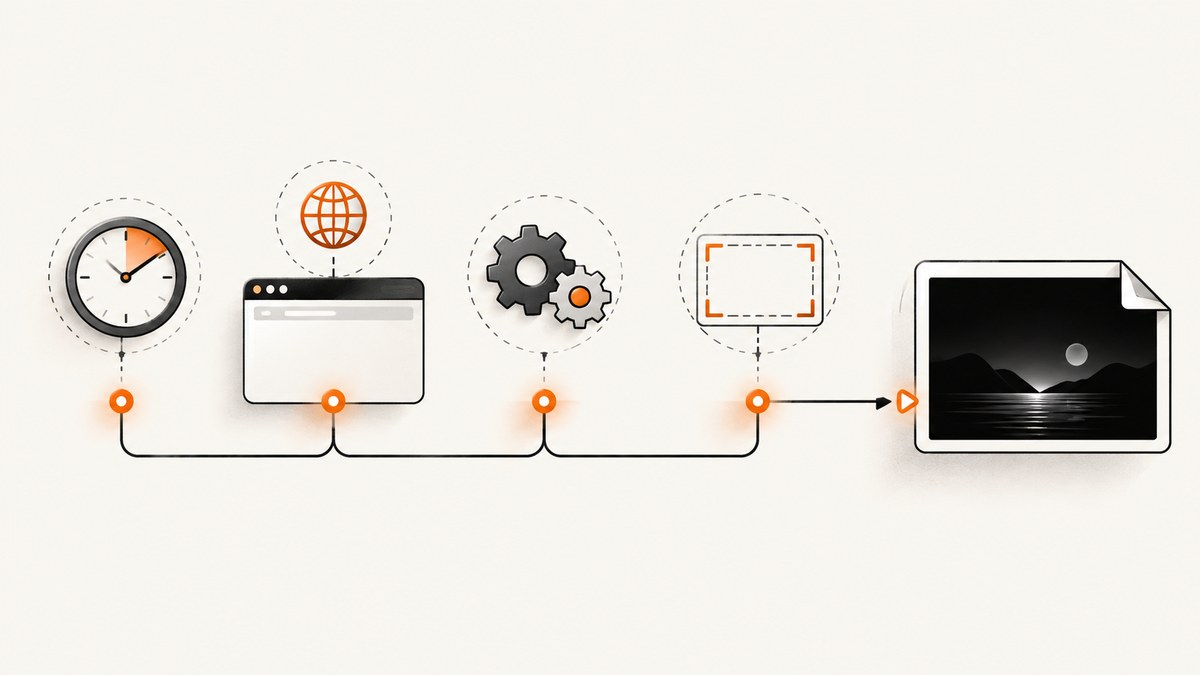
A black Selenium screenshot does not identify one specific failure. The blank image can come from page synchronization, browser or driver startup, headless configuration, window geometry, the screenshot output path, or the CI environment. Use the workflow below to isolate each layer, then apply the smallest fix that addresses the evidence.
Quick answer: a diagnostic sequence
- Save to a new, explicit PNG path and verify that the screenshot method returned success. Open that exact file.
- Record the browser name and version, driver version, operating system, headless setting, screenshot method, and window dimensions.
- Wait for a meaningful page condition, such as a visible application element. A temporary long delay can test whether timing is involved; replace it with an explicit wait afterward. Selenium describes poor synchronization as its most common Selenium-related error (Selenium troubleshooting).
- Run the same capture once headful and once headless, changing only that setting. Current Chrome headless and headful modes use the same Chrome implementation; old headless is a separate
chrome-headless-shellbinary from Chrome 132.0.6793.0 (Chrome Headless mode). - For Chrome, verify that Chrome and ChromeDriver have matching major versions and enable ChromeDriver logging (Selenium Chrome documentation).
- Try the same page and capture method in another supported browser. If the symptom follows one browser, investigate that browser and driver path.
- If it happens only in CI, a container, or a service, launch the same Chrome binary with the same arguments directly in that environment. On Linux, run Chrome as a regular user. ChromeDriver calls the
--no-sandboxworkaround unsupported and highly discouraged (ChromeDriver startup troubleshooting). - If you manage drivers manually, consider Selenium Manager, which can discover the installed browser, resolve a compatible driver, and cache it (Selenium Manager).
These checks separate rendering, capture, and file-handling problems. No single flag fixes every black screenshot.
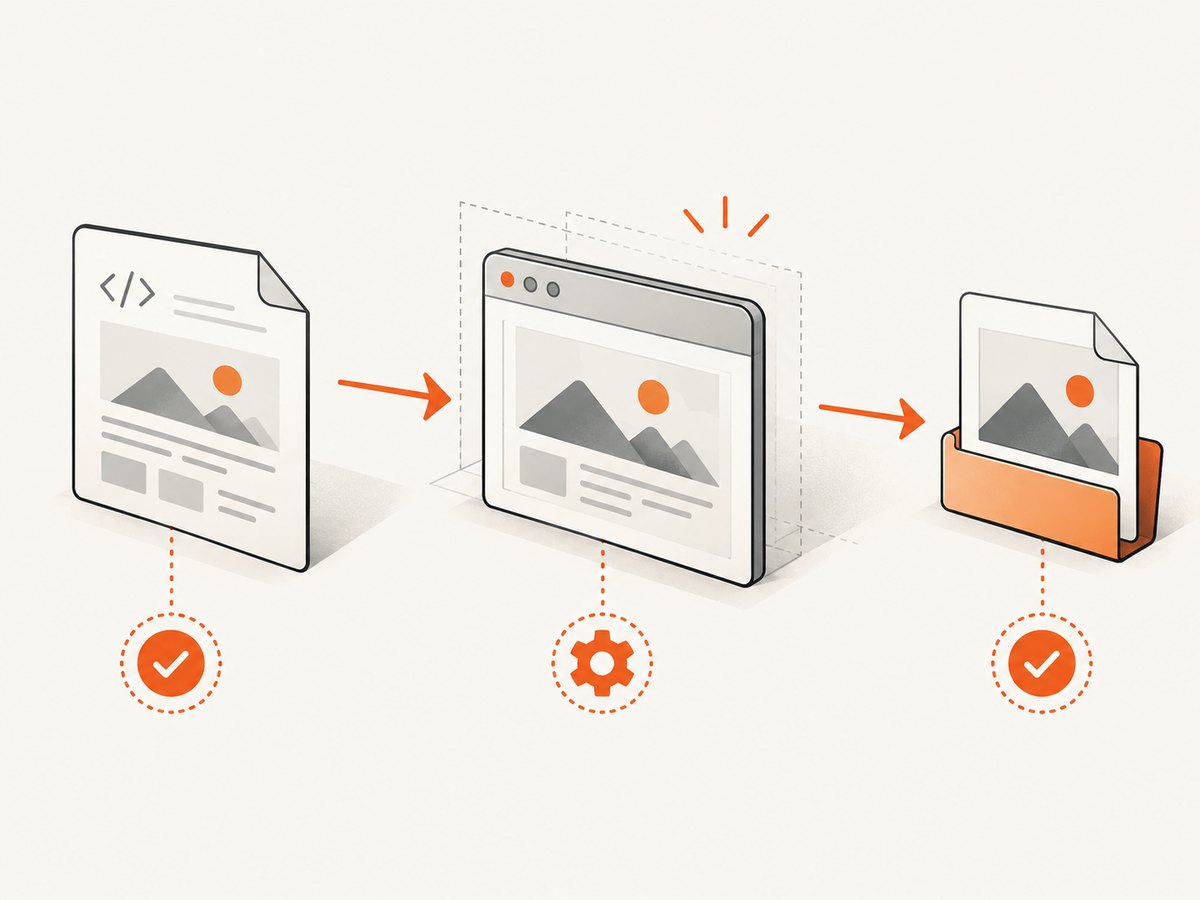
1. Build a minimal, observable reproduction
Remove your test framework, parallel workers, custom extensions, and application-specific helpers. Capture a known page with a fresh filename and print every value needed to reproduce the run.
from pathlib import Path
import time
from selenium import webdriver
from selenium.webdriver.chrome.options import Options
from selenium.webdriver.common.by import By
from selenium.webdriver.support.ui import WebDriverWait

options = Options()
# Compare this run with the flag removed.
options.add_argument('--headless=new')
options.add_argument('--window-size=1440,1000')

driver = webdriver.Chrome(options=options)
try:
    driver.get('https://example.com')
    WebDriverWait(driver, 30).until(
        lambda d: d.find_element(By.TAG_NAME, 'body').is_displayed()
    )
    print('browser:', driver.capabilities.get('browserName'))
    print('browserVersion:', driver.capabilities.get('browserVersion'))
    print('window:', driver.get_window_size())
    print('url:', driver.current_url)
    path = Path(f'/tmp/selenium-shot-{time.time_ns()}.png')
    ok = driver.save_screenshot(str(path))
    print('save_screenshot returned:', ok, 'path:', path)
    print('bytes:', path.stat().st_size)
finally:
    driver.quit()
Selenium’s Python API also exposes screenshot bytes and base64. Comparing those with the saved file helps determine whether the problem is the browser capture or your file copy, artifact upload, or image viewer. Check the file modification time so an older black file is not being inspected.
2. Synchronize with the page you actually need
A navigation finishing does not mean that a single-page application has rendered its useful state. Images, canvas content, fonts, client-side data, and transitions may arrive later. Wait for a condition that represents the screenshot target.
Wait for a visible element
from selenium.webdriver.common.by import By
from selenium.webdriver.support import expected_conditions as EC
from selenium.webdriver.support.ui import WebDriverWait

wait = WebDriverWait(driver, 30)
driver.get('https://app.example.test/dashboard')
wait.until(EC.visibility_of_element_located((By.CSS_SELECTOR, '[data-testid="dashboard"]')))
driver.save_screenshot('/tmp/dashboard.png')
Use a temporary delay only as a diagnostic
If adding a substantial delay changes the image, timing may be involved. Replace the delay with a specific wait once you know what readiness means. Useful conditions include a visible selector, a loading overlay becoming invisible, a known URL, or a JavaScript application flag.
wait.until(EC.invisibility_of_element_located((By.CSS_SELECTOR, '.loading')))
wait.until(lambda d: d.execute_script('return document.readyState') == 'complete')
document.readyState alone is often insufficient for client-rendered applications. Avoid waiting for an arbitrary number of seconds in production because it increases latency without proving that the target is ready.
3. Check viewport and capture geometry
A valid screenshot can appear empty when the browser window is smaller than expected, the target is outside the viewport, or an element screenshot is requested for an element with zero dimensions. Print the size immediately before capture.
print(driver.get_window_size())
driver.set_window_size(1440, 1000)
print(driver.execute_script('return {w: innerWidth, h: innerHeight, dpr: devicePixelRatio}'))

# Element capture: confirm a real, displayed rectangle.
el = driver.find_element(By.CSS_SELECTOR, '#report')
print(el.is_displayed(), el.rect)
el.screenshot('/tmp/report.png')
For full-page captures, understand whether your browser and Selenium version implement full-page behavior or only the current viewport. A viewport screenshot is a useful control: if it is correct while a full-page image is black, focus on the full-page implementation or page layout rather than startup.
4. Compare headless and headful Chrome correctly
Run two controlled captures with the same URL, wait condition, browser version, window size, and screenshot method. Change only the headless argument. Current Chrome headless creates platform windows without displaying them, while retaining Chrome’s normal browser functionality. Therefore, a headful success does not prove that headless is the universal cause; it identifies a difference worth investigating.
def make_driver(headless: bool):
    opts = Options()
    if headless:
        opts.add_argument('--headless=new')
    opts.add_argument('--window-size=1440,1000')
    return webdriver.Chrome(options=opts)

for mode in (True, False):
    d = make_driver(mode)
    try:
        d.get('https://example.com')
        WebDriverWait(d, 30).until(
            EC.visibility_of_element_located((By.TAG_NAME, 'body'))
        )
        d.save_screenshot(f'/tmp/chrome-{"headless" if mode else "headful"}.png')
    finally:
        d.quit()
Do not switch to the old headless shell as a routine fix. Since Chrome 132.0.6793.0 it is distributed separately, so introducing it changes the browser binary and the test conditions.
5. Verify Chrome, ChromeDriver, and Selenium configuration
ChromeDriver’s major version should match Chrome’s major version. Print capabilities and inspect the actual binary used by the runner. A locally installed browser can update while a manually pinned driver remains unchanged.
caps = driver.capabilities
print(caps.get('browserVersion'))
print(caps.get('chrome', {}).get('chromedriverVersion'))
print(caps.get('chrome', {}).get('userDataDir'))
Enable ChromeDriver logs when creating the service:
from selenium.webdriver.chrome.service import Service

service = Service(log_output='/tmp/chromedriver.log')
driver = webdriver.Chrome(service=service, options=options)
Read the log for the executable path, command-line arguments, startup errors, and session creation details. Selenium Manager can reduce driver drift when your project does not otherwise provide a driver. It manages discovery and downloads; it does not guarantee to repair a rendering defect.
6. Reproduce the operating environment
When the screenshot is black only in CI, first prove that Chrome itself starts there. ChromeDriver recommends launching the same Chrome binary directly from a normal user command prompt with the same switches. This distinguishes a browser startup problem from a WebDriver command problem.
Linux root execution is a common Chrome startup-crash cause. Configure the runner to use a regular user with a writable profile and temporary directory. Do not make --no-sandbox your standard solution: ChromeDriver documents it as unsupported and highly discouraged.
Record these environment details in every failing job:
- Operating-system image and architecture.
- Chrome binary path and version.
- ChromeDriver version and Selenium version.
- Headless flag, window size, device scale factor, and user-data directory.
- Container user, display server configuration, and resource limits.
- ChromeDriver log and the exact screenshot artifact.
7. Rule out output and image-viewer mistakes
Check the boolean return from save_screenshot, file size, modification time, and image dimensions. Save bytes directly when your framework might overwrite artifacts:
png = driver.get_screenshot_as_png()
if not png.startswith(b'\x89PNG'):
    raise RuntimeError('Screenshot response is not a PNG')
with open('/tmp/fresh.png', 'wb') as f:
    f.write(png)
print('wrote bytes:', len(png))
Upload the file as a binary CI artifact. Avoid opening a partially uploaded file or a thumbnail generated by a pipeline. If the PNG is valid but your viewer shows black, inspect it with a second image tool and check color-profile handling.
8. Browser comparison as a controlled experiment
Run the same URL, wait condition, viewport, and screenshot API in Firefox and Chrome. Selenium’s troubleshooting guidance recommends trying multiple browsers to help identify whether the underlying browser driver is involved. If only Chrome fails, collect ChromeDriver logs and verify Chrome configuration. If every browser produces black output, prioritize page readiness, geometry, output handling, and the environment.
Common errors and fixes
| Symptom | Likely area | Action |
|---|---|---|
| Black only immediately after navigation | Synchronization | Wait for a visible target or application-ready condition. |
| Headful works, headless fails | Mode-specific configuration | Compare with identical size and waits; inspect logs and Chrome version. |
| Session will not start | Browser/driver or environment | Match major versions, print binaries, launch Chrome directly, avoid root. |
| File is unchanged between runs | Artifact path | Use a unique path, check return value and modification time. |
| Element image is black or tiny | Element geometry | Check is_displayed(), rectangle dimensions, and scroll the element into view. |
| Only CI fails | Runner differences | Reproduce inside the same image and user account with ChromeDriver logs. |
9. Performance and reliability practices
- Use explicit waits tied to application state instead of fixed sleeps.
- Reuse a browser session only when tests isolate cookies, storage, and pages correctly; otherwise create a clean profile for reproducibility.
- Set a deliberate viewport and device scale factor so image dimensions remain stable across workers.
- Keep browser and driver versions pinned or let Selenium Manager resolve them consistently.
- Capture logs and the exact image on failure; a screenshot without capabilities and environment data is difficult to diagnose.
- Retry only after classifying the failure. A retry cannot fix a deterministic selector, version mismatch, or bad output path.
Screenshot time is affected by navigation, JavaScript execution, resource loading, and waits. A longer timeout improves tolerance for slow pages but can hide a broken readiness condition. Keep page-load and explicit-wait timeouts separate so failures identify the stage that exceeded its budget.
Or skip the browser setup
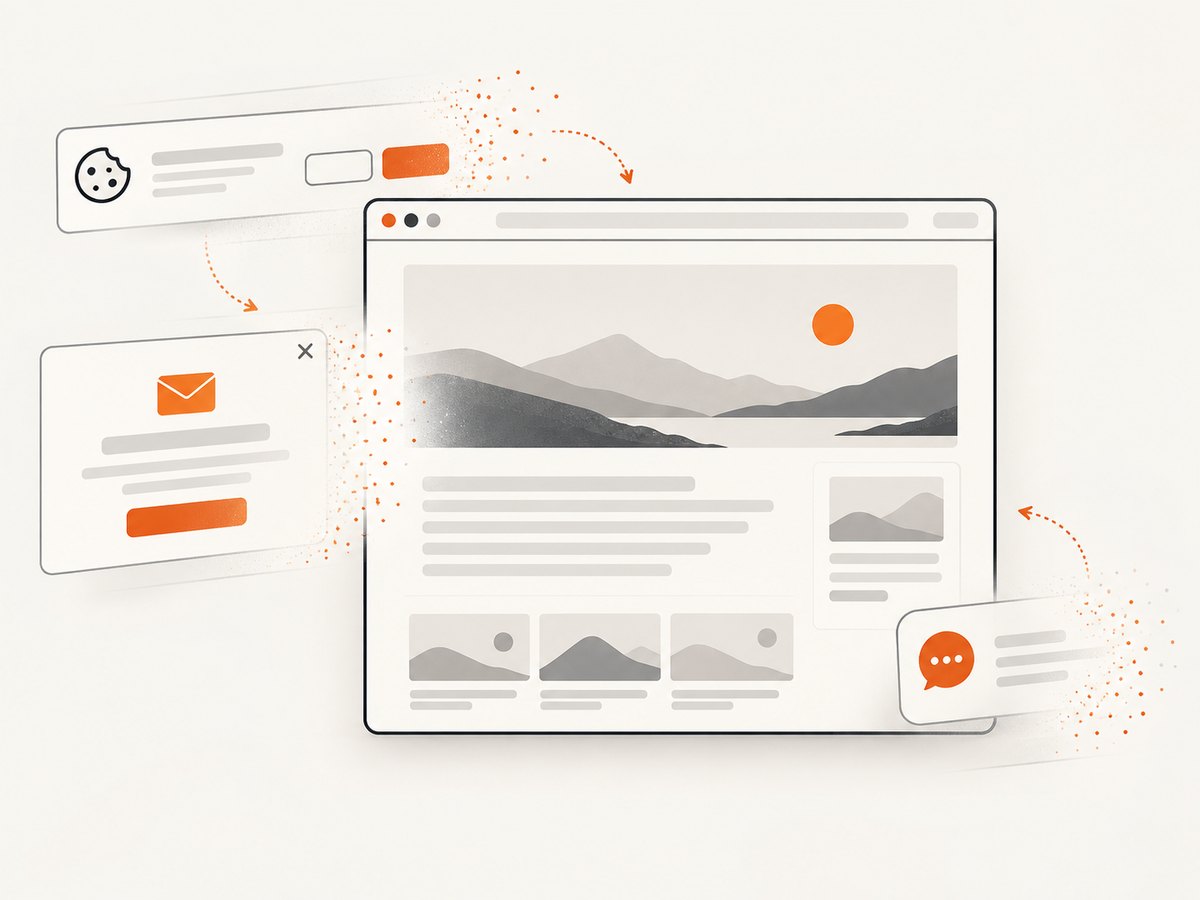
If you need a reliable image rather than a Selenium debugging exercise, ScreenshotNeo provides a website screenshot API. It accepts one GET request and returns PNG, JPEG, WebP, or PDF. Before capture it accepts cookie and consent banners and removes more than 60 known consent platforms, newsletter popups, and chat widgets; each step can be turned off. Bot checks and CAPTCHAs, blank pages, timeouts, failed loads, and cache hits cost nothing, and the response identifies the result with X-Page-Verdict and X-Billed headers.
See the ScreenshotNeo API documentation for all options.
curl -G "https://api.screenshotneo.com/v1/shot" -d access_key=YOUR_API_KEY --data-urlencode url=https://stripe.com -o shot.webpimport requests
r = requests.get("https://api.screenshotneo.com/v1/shot", params={"access_key": "YOUR_API_KEY", "url": "https://stripe.com"}, timeout=90)
open("shot.webp", "wb").write(r.content)const q = new URLSearchParams({ access_key: 'YOUR_API_KEY', url: 'https://stripe.com' });
const res = await fetch(`https://api.screenshotneo.com/v1/shot?${q}`);You can request full-page captures with lazy images loaded, an element by CSS selector, dark mode, device presets or any viewport, retina scale, custom CSS and JavaScript, clicks, selector waits, delays, network-idle waits, blocked ads or resource types, headers, cookies, user agents, authorization, timezone, geolocation, transparent backgrounds, resizing, caching with a chosen TTL, signed links, asynchronous jobs with signed webhooks, bulk capture of 100 URLs per call, and usage data. An MCP server exposes take_screenshot, get_page_info, and capture_pdf to Claude, Cursor, and other MCP clients.
There is a free plan with 1,000 screenshots per month and no card. Paid plans start at $5 for 3,000 shots; every feature is on every plan. Create a free ScreenshotNeo account.
FAQ
Is a black screenshot always a Chrome headless bug?
No. The evidence can point to timing, browser or driver startup, geometry, output handling, or the execution environment. Compare headful and headless runs as a controlled experiment.
Should I add --no-sandbox?
Do not use it as a routine fix. ChromeDriver describes it as unsupported and highly discouraged. Run Chrome as a regular user instead.
Will Selenium Manager make screenshots render correctly?
It can reduce browser-driver version drift by resolving a compatible driver. It does not guarantee a rendering fix.
What should I collect before opening an issue?
Provide the URL or a reproducible page, browser and driver versions, Selenium version, operating system, headless setting, window dimensions, screenshot method, ChromeDriver log, and the exact image artifact.
Can an image API avoid Selenium entirely?
Yes. ScreenshotNeo handles browser capture behind a GET API and can remove consent banners, popups, and chat widgets before capture. It also reports non-billable failed outcomes and provides MCP tools for AI agents.


