How to Fix Black Screenshots in Windows
Find out whether the black screen is in the saved image, one app, or Windows itself, then follow the right troubleshooting steps.
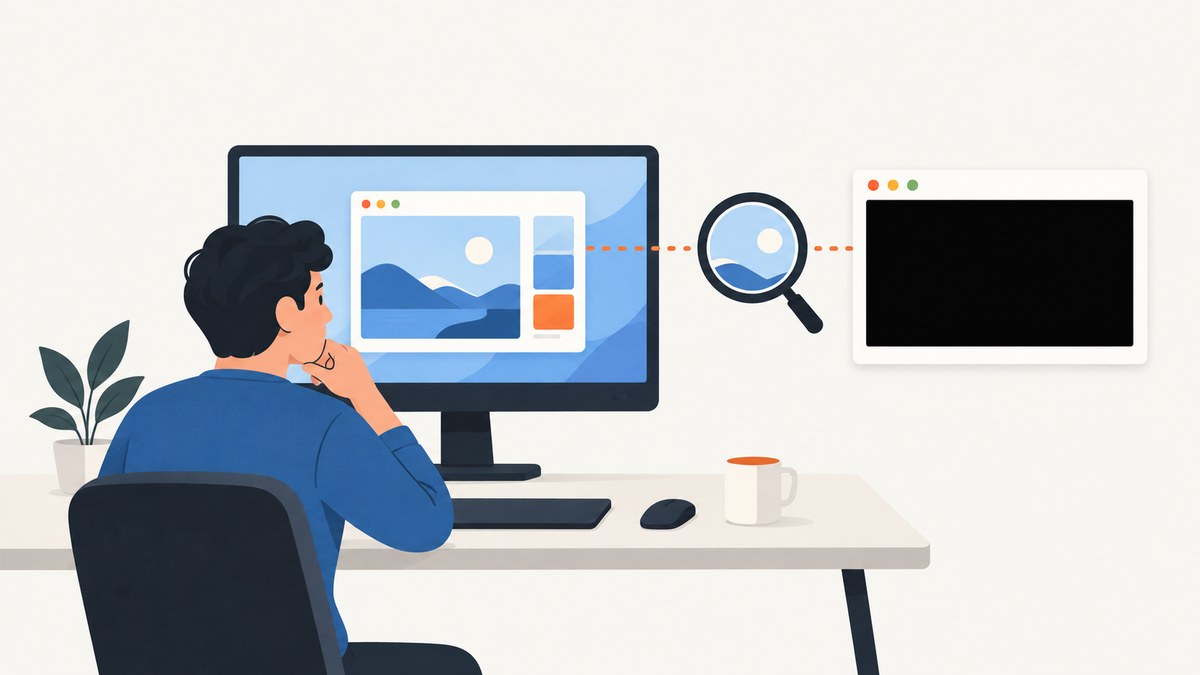
A black screenshot can mean three different things: the saved image is black while Windows looks normal, one app or video is black in the capture, or the live display itself goes black or flickers when you capture. There is no single fix established for all three. Start by comparing two capture methods on an ordinary desktop window, then follow the branch that matches what you see.
This guide uses Windows’ built-in Snipping Tool and keyboard shortcuts. Microsoft documents both capture paths, as well as separate steps for blank or flickering displays. Those display steps are relevant when Windows itself is misbehaving; they are not a proven cure for every capture-only problem.
1. Identify what is actually black
Before changing drivers, buying a keyboard, or changing app settings, take note of exactly what turns black and when. Close the capture overlay and see whether the live desktop returns. Open an ordinary desktop window, such as File Explorer or Settings, for a comparison. Avoid using a protected video or a page with unusual content as your first test.
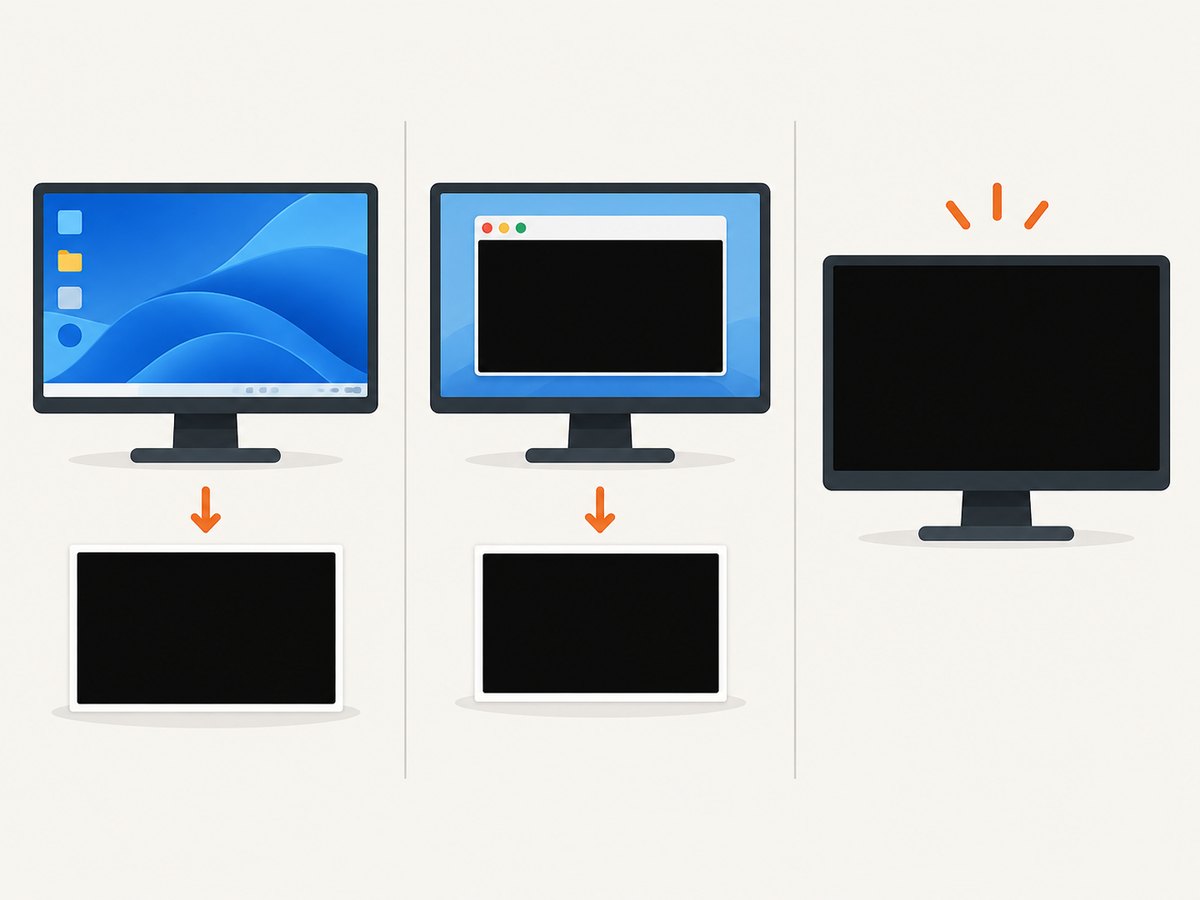
| What you see | First thing to try | What it suggests |
|---|---|---|
| The saved image is black, but the live desktop remains visible | Capture an ordinary desktop window with Snipping Tool, then try a keyboard shortcut | A capture method or app-specific issue may be involved |
| Only one app, webpage, or video is black in the image | Capture another window and compare with a different method | The issue is confined to that content or an app feature, such as an overlay |
| The capture overlay or entire display turns black, blanks, or flickers | Close the overlay; if the display remains affected, use Microsoft’s blank-screen or flicker guidance | The live display is affected, so investigate the graphics/display path |
This is a practical sorting method, not a formal Microsoft diagnostic tree. It helps avoid applying display troubleshooting to a screenshot file that is black while the desktop remains normal.
2. Compare Snipping Tool with a keyboard shortcut
Use the same ordinary desktop window for both captures. This keeps the content constant while you change the capture method.
- Open a non-protected window such as Settings or File Explorer.
- Open Snipping Tool and capture a rectangular area that includes visible content.
- Save the image and open it in Photos or another image viewer. Check whether the black area is in the saved file.
- Capture the same window with a Windows keyboard shortcut. Microsoft documents the Print Screen key and other capture shortcuts; the exact behavior can depend on the device and keyboard.
- If your keyboard has no usable PrtScn key, Microsoft lists Fn+Windows logo+Space Bar as an alternative on some devices. Hardware behavior varies, so check the device maker’s instructions if it does not work.
If one method works and the other does not, use the working method for now. The difference points toward the failing shortcut, capture app, or device behavior, but it does not by itself identify the root cause. If both methods produce black captures of ordinary desktop content, the problem is broader than one shortcut; the available sources do not establish a single cause for that situation.
3. If Windows itself blanks or flickers
First distinguish a black saved file from a black live display. If the display blanks or flickers while you capture, or stays blank after the snipping overlay closes, follow Microsoft’s blank-screen troubleshooting steps. One basic step Microsoft lists is pressing Windows+Ctrl+Shift+B to reset the graphics driver. The screen may briefly flicker or beep.
Microsoft says screen flickering is usually caused by a display-driver issue or an incompatible app, and notes that resetting the graphics driver may help in some cases. Apply those instructions to a display that is actually blank or flickering. Do not assume this key combination repairs a black image when the desktop itself remains visible.
If the display problem continues, use Microsoft’s guidance for troubleshooting blank screens or troubleshooting screen flicker. Follow the steps that match your Windows version and symptoms; the causes and fixes can differ.
4. If one app, site, or video is black
Capture a different ordinary window and use a second capture method. If those work, the issue is likely specific to the affected content or app path. Check the app’s supported settings and updates, and contact its vendor or your organization’s administrator if needed.
Overlays are one possibility in particular cases, but the evidence does not establish them as a general explanation. A Microsoft Q&A post describes a website overlay that coincided with black captured content. A Microsoft-hosted PowerToys issue includes a report suspecting an NVIDIA App overlay. These are case reports, not proof that an overlay explains every black screenshot. If you use a graphics, recording, gaming, or screen annotation overlay, you can temporarily close it and repeat the same comparison to see whether your own result changes.
Do not assume a black capture of a video proves that digital rights management is the cause. The available research did not confirm that explanation for this symptom. Ask the app provider about supported capture behavior, and do not try to bypass content restrictions.
5. Troubleshooting common cases
| Symptom | Likely area to investigate | Next step |
|---|---|---|
| Only one shortcut saves a black image | That shortcut, keyboard behavior, or capture app | Use the method that captures correctly; confirm the shortcut supported by your device |
| Snipping Tool preview is black, but another capture works | Snipping Tool or its interaction with that window | Update Windows and the app through supported channels, then retry on ordinary desktop content |
| Only one webpage or app is affected | App-specific rendering, content, or overlay | Close overlays for a controlled comparison; check the app’s supported settings or ask its vendor |
| The entire display goes black or flickers | Display or graphics-driver path, or an incompatible app | Use Microsoft’s blank-screen or flicker troubleshooting; the graphics reset shortcut may help in some cases |
| There is no PrtScn key | Keyboard/device shortcut support | Try the documented alternate shortcut if supported; consult the device instructions |
| Every capture method is black on ordinary windows | A broader system or capture issue | Record Windows version, device, affected apps, and which methods fail; seek Microsoft or device-vendor support if the comparison does not isolate it |
A USB keyboard with a Print Screen key is only a narrow option if your current keyboard lacks a usable capture key and your device supports that key path. It will not fix an app overlay, a graphics-driver issue, or content that an app does not expose to capture. Do not buy hardware as a general black-screenshot remedy.
6. Capture webpages without setting up a Windows browser
If your actual goal is to save a webpage as an image or PDF, you can use a screenshot API instead of troubleshooting a local screen capture. That is useful for web content capture; it does not repair a black Windows display or diagnose an app-specific issue on your computer.

Or skip the browser setup
ScreenshotNeo is a website screenshot API and MCP server from Yorker Media. One GET request returns a PNG, JPEG, WebP, or PDF. Its capture flow accepts cookie and consent banners and removes more than 60 known consent platforms, newsletter popups, and chat widgets before taking the shot; each step can be turned off. Bot checks/CAPTCHAs, blank pages, timeouts, failed loads, and cache hits cost nothing, and response headers report the page verdict and billing status.
For AI workflows, its MCP server provides take_screenshot, get_page_info, and capture_pdf tools for Claude, Cursor, and other MCP clients. The free plan includes 1,000 screenshots a month with no card; paid plans start at $5 for 3,000. All features are on every plan. See the ScreenshotNeo API documentation for request options and setup.
curl -G "https://api.screenshotneo.com/v1/shot" -d access_key=YOUR_API_KEY --data-urlencode url=https://stripe.com -o shot.webpEquivalent Python request:
import requests

r = requests.get(
    "https://api.screenshotneo.com/v1/shot",
    params={"access_key": "YOUR_API_KEY", "url": "https://stripe.com"},
    timeout=90,
)
open("shot.webp", "wb").write(r.content)
Equivalent Node.js request:
const q = new URLSearchParams({ access_key: 'YOUR_API_KEY', url: 'https://stripe.com' });
const res = await fetch(`https://api.screenshotneo.com/v1/shot?${q}`);
if (!res.ok) throw new Error(`Screenshot request failed: ${res.status}`);
await Bun.write('shot.webp', res);
The Node.js example uses Bun’s file writer to save the response. With Node.js alone, save the response body with the built-in filesystem module:
import { writeFile } from 'node:fs/promises';

const q = new URLSearchParams({ access_key: 'YOUR_API_KEY', url: 'https://stripe.com' });
const res = await fetch(`https://api.screenshotneo.com/v1/shot?${q}`);
if (!res.ok) throw new Error(`Screenshot request failed: ${res.status}`);
await writeFile('shot.webp', Buffer.from(await res.arrayBuffer()));
These examples request a screenshot using the supplied defaults. ScreenshotNeo also supports full-page capture with lazy images loaded, CSS selector element capture, dark mode, 12 device presets and custom viewports, retina scale, PDF options, HTML/CSS rendering, custom CSS and JavaScript, clicking an element, hiding selectors, waits, blocking ads or selected requests and resource types, custom headers/cookies/user agent/Authorization, timezone and geolocation, transparent backgrounds, resizing, configurable cache TTL, signed links for public image tags, async jobs with signed webhooks, bulk capture of up to 100 URLs per call, a usage API, and an OpenAPI spec. The parameter names used by other screenshot APIs also work, which can make migration easier.
For performance and reliability, choose only the waits and page behaviors your target requires: full-page capture and waiting for network idle can take longer than a simple viewport capture. Caching can reduce repeat work when a saved result is acceptable, and its TTL is configurable. For batch workflows, async jobs or bulk capture can fit better than issuing many independent calls. Check the response’s page verdict and billing headers when handling failures; the service distinguishes clean captures from cases such as failed loads and cache hits. Plan cost is predictable by monthly volume: Free is 1,000, Starter $5 for 3,000, Growth $15 for 15,000, Pro $39 for 60,000, Scale $99 for 250,000, and Business $249 for 1,000,000; annual billing gives two months free.
Sign up for 1,000 free screenshots a month with no card.
7. A short prevention checklist
- When the issue returns, first check whether the live display or only the saved image is black.
- Keep one repeatable test window available so you can compare capture methods against the same content.
- Note whether the problem affects one app, one shortcut, or every capture method.
- When the display itself blanks or flickers, use display troubleshooting; when one app alone fails, investigate that app and its overlays.
- Record the Windows version, device model, app, capture method, and whether the live display recovered. That information makes a support request more useful.
Frequently asked questions
Can Windows+Ctrl+Shift+B fix every black screenshot?
No. Microsoft lists it as a graphics-driver reset in blank-screen guidance and says it may help with flickering in some cases. It is relevant when the live display is affected, not an established fix for every black saved capture.
Should I replace my keyboard?
Only consider another keyboard if your current one lacks a working capture key and the supported shortcuts do not fit your device. A keyboard is not a general fix for black captures.
Does a black video capture prove DRM is blocking it?
No. The research for this guide did not establish DRM as the cause of a particular black screenshot. Check the app’s supported capture behavior instead.
Where can I read Microsoft’s instructions for taking a screenshot?
See Microsoft’s guides for Snipping Tool and the Print Screen keyboard shortcut.


