How to Fix a Blank First Page in HTML-to-PDF Output
Find the real cause of a blank first PDF page: print CSS, page breaks, geometry, and renderer options, with fixes for Puppeteer and WeasyPrint.
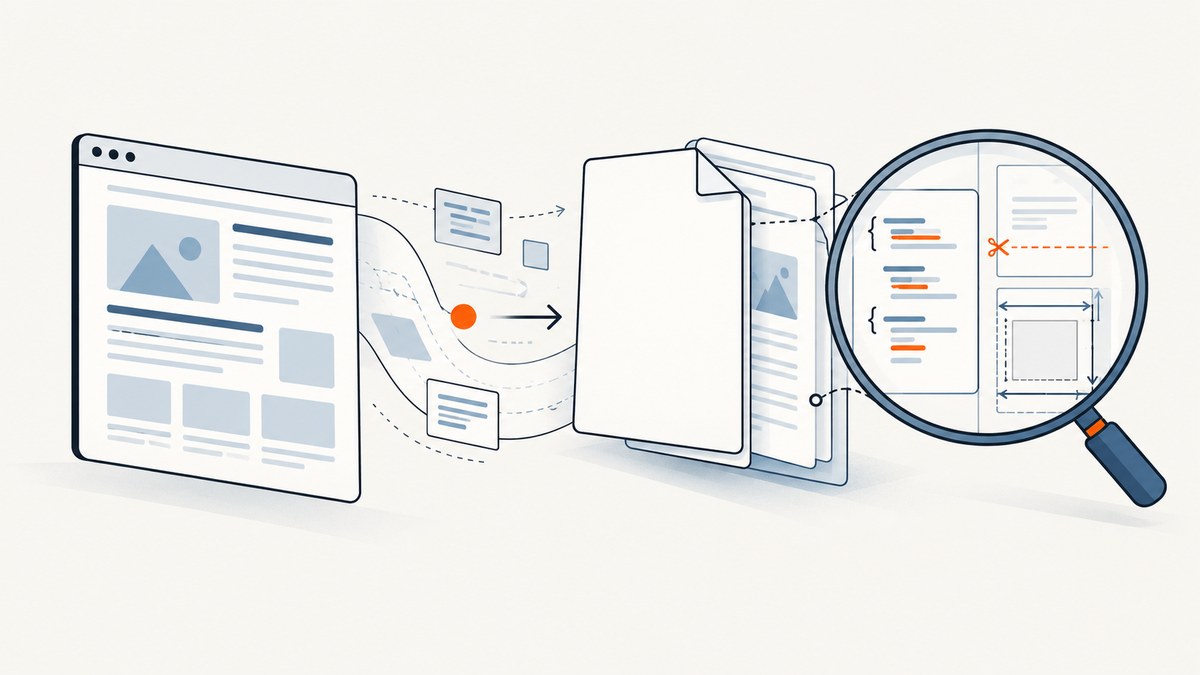
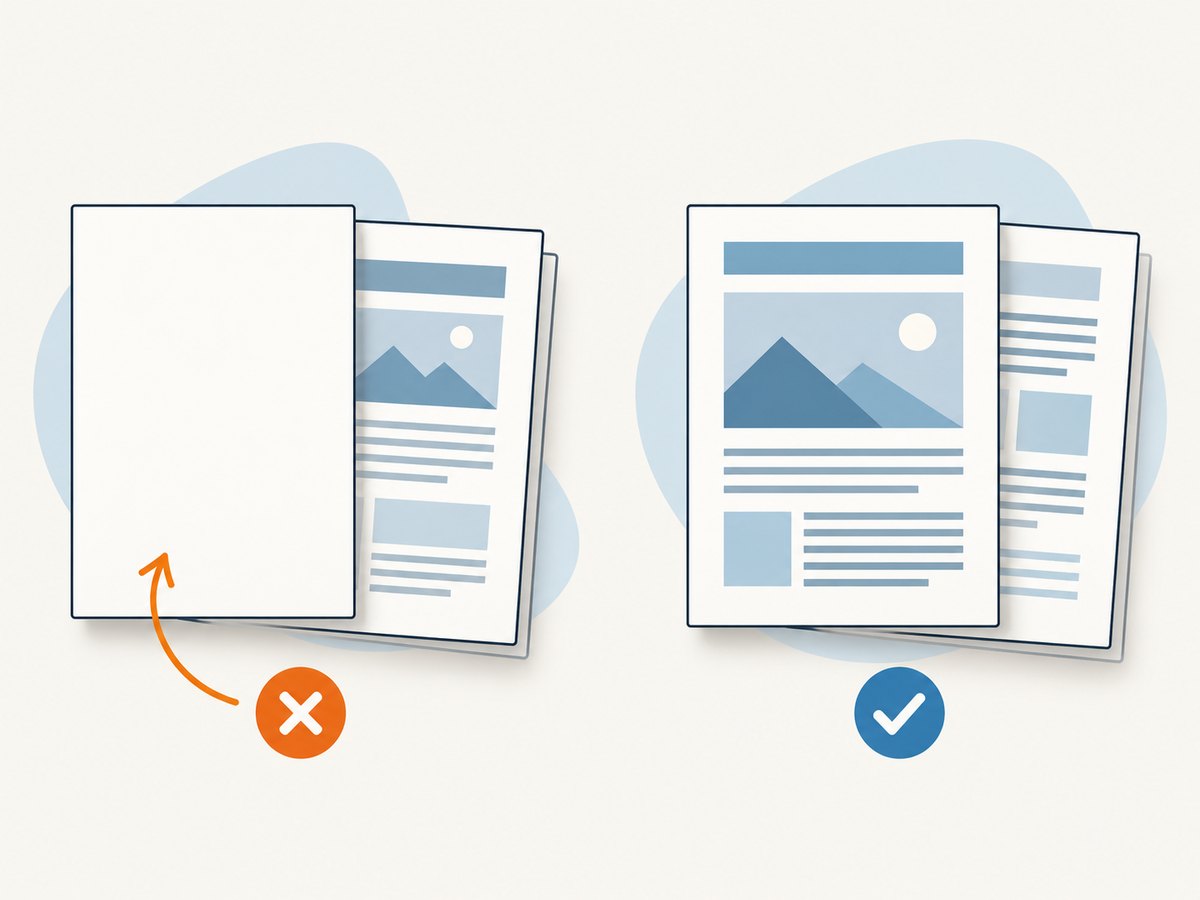
A blank first page is a symptom, not a diagnosis. The cause is usually a print-only CSS rule, an explicit page break, conflicting page geometry, or renderer-specific behavior. Record your renderer and version, compare print and screen styles, inspect breaks and @page rules, then reproduce the smallest failing document before changing production CSS.
1. Confirm what “blank first page” means
Open the PDF with a text extractor or PDF viewer and answer these questions:
- Is page one completely empty, or does it contain a header, footer, margin, or background?
- Does the expected content begin at the top of page two, or is it pushed down by a large offset?
- Does the problem occur for every document or only one template?
- Does it happen only in PDF output, while the same HTML looks correct in a browser?
- Does changing the renderer version, paper size, or print media mode change the result?
These distinctions separate a pagination problem from a page-selection or positioning problem. Save the exact HTML, CSS, JavaScript, renderer version, operating system, command or API options, and a sample output.
2. Check print media before changing layout
Browser PDF renderers commonly use the print CSS media type. Puppeteer documents that Page.pdf() generates a PDF with print media active by default. A print stylesheet can hide the first content block, add a large top margin, or insert a break before the first visible element.
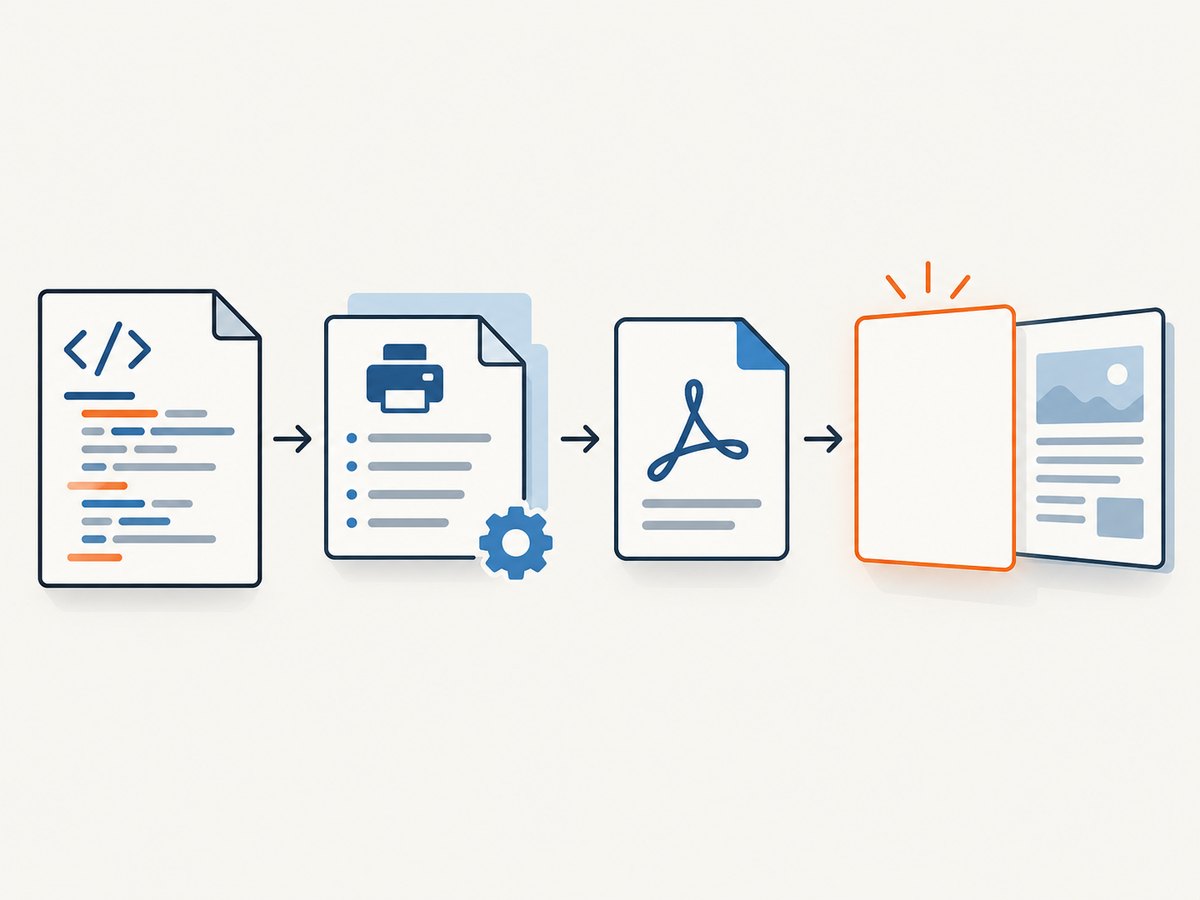
Compare both media modes with the same page:
import puppeteer from 'puppeteer';

const browser = await puppeteer.launch({ headless: true });
const page = await browser.newPage();
await page.goto('http://localhost:3000/document.html', { waitUntil: 'networkidle0' });

await page.emulateMediaType('screen');
await page.screenshot({ path: 'screen.png', fullPage: true });

await page.emulateMediaType('print');
await page.screenshot({ path: 'print.png', fullPage: true });

await browser.close();
If the opening content disappears only in print mode, inspect every @media print rule and every selector that applies to the first heading, wrapper, or ancestor. Look for display: none, visibility: hidden, zero-sized containers, absolute positioning, transforms, and large margins or padding.
Use screen media for the PDF only when that is your intended design. Puppeteer exposes this diagnostic switch with page.emulateMediaType('screen'); it is not a universal correction.
3. Remove an unintended first page break
Search HTML, CSS, and generated styles for all of these declarations:
break-before
break-after
break-inside
page-break-before
page-break-after
page-break-inside
Inspect the first visible element and its ancestors, plus any empty element before it. A rule such as break-before: page on the first section creates a blank page when the renderer honors it. A legacy page-break-before: always can have the same effect.
Use modern fragmentation properties with a fallback only where your renderer needs it:
.chapter {
  break-before: page;
  page-break-before: always;
}

.cover + .chapter {
  break-before: auto;
  page-break-before: auto;
}
The CSS Fragmentation specification defines the break model, but support differs between engines. WeasyPrint documents support for @page, page selectors, and break-before, break-after, and break-inside. Verify behavior in the renderer and version you actually deploy.
4. Inspect @page, paper size, margins, and scale
Page geometry can be set in CSS, in the converter API, or in both places. In Puppeteer, PDF options include paper format, explicit width and height, margins, scale, page ranges, and preferCSSPageSize. That option controls whether a CSS @page size takes priority over API dimensions.
import puppeteer from 'puppeteer';

const browser = await puppeteer.launch({ headless: true });
const page = await browser.newPage();
await page.goto('http://localhost:3000/document.html', { waitUntil: 'networkidle0' });

await page.pdf({
  path: 'document.pdf',
  format: 'A4',
  printBackground: true,
  margin: {
    top: '16mm',
    right: '16mm',
    bottom: '16mm',
    left: '16mm'
  },
  preferCSSPageSize: true
});

await browser.close();
Start with one source of truth. Either define the page in CSS:
@page {
  size: A4;
  margin: 16mm;
}

html, body {
  margin: 0;
  padding: 0;
}
or define it in the API. If both are required, document which one wins and test the first and later pages. Also check whether a page range such as 2- is hiding the page you expected, and whether headers or footers occupy space that makes the first content appear displaced.
Do not begin by shrinking everything with an arbitrary percentage. Scaling can hide the symptom while changing text size, image quality, and later pagination.
5. Reproduce with minimal HTML
Delete content until the blank page either remains or disappears. Keep the smallest document that still fails:
<!doctype html>
<html>
<head>
  <meta charset="utf-8">
  <style>
    @page { size: A4; margin: 16mm; }
    body { margin: 0; font: 16px/1.4 sans-serif; }
  </style>
</head>
<body>
  <h1>First visible heading</h1>
  <p>Minimal reproduction content.</p>
</body>
</html>
Then add back one stylesheet, component, image, web font, script, and page-break rule at a time. A minimal case tells you whether the issue is in your template or in the converter. It also gives maintainers the information requested by projects such as wkhtmltopdf: exact tool version, operating system, and a detailed HTML/CSS/JS test case.
6. Renderer-specific checks
Puppeteer and Chromium
- Confirm whether print media or screen media is intended.
- Check
format,width,height, margins,scale,pageRanges, andpreferCSSPageSize. - Wait for the actual content, fonts, and images before calling
page.pdf(). - Inspect the first element’s bounding rectangle in both media modes.
const box = await page.locator('body > *:not([hidden])').first().boundingBox();
console.log(box);
WeasyPrint
Check its documented support for @page, page selectors, and fragmentation properties. Test break-before and break-inside on the actual installed version, because support and layout details are renderer-specific.
wkhtmltopdf and other converters
Record the binary version and all command-line switches. Reduce JavaScript, external assets, and CSS until the first blank page is reproducible. A browser preview is not proof that a non-browser converter will apply the same print rules.
7. A systematic troubleshooting checklist
| Symptom | Likely cause | Fix to try |
|---|---|---|
| Page one is empty; content starts on page two | Break on the first visible block or an empty preceding element | Remove or scope break-before/page-break-before; inspect ancestors |
| Only PDF is empty | Print stylesheet hides or relocates content | Compare screen and print media; correct the print rule |
| Large blank area precedes content | Margin, padding, header, absolute positioning, or transform | Inspect computed geometry and PDF margins; reset body margins |
| Blank page appears after changing paper size | CSS @page conflicts with API dimensions |
Choose the controlling geometry and test preferCSSPageSize |
| Only some documents fail | Template-specific page-break or hidden element | Minimize the failing document and diff its computed styles |
| First page is missing from an otherwise valid PDF | Page range or post-processing selection | Remove pageRanges and inspect any PDF merge/split step |
| Content appears only after fonts or images load | PDF generated before layout stabilized | Wait for network idle and required selectors; set explicit timeouts |
8. Reliability and performance
- Pin the renderer version in CI and production. A browser upgrade can change fragmentation and print layout.
- Use deterministic fonts, asset URLs, viewport dimensions, timezone, and locale when output is compared byte-for-byte or by visual diff.
- Wait for the content that matters instead of relying only on a fixed delay. A selector wait is usually faster and more reliable than a long universal sleep.
- Keep a regression fixture containing the smallest blank-first-page document and one real template.
- Reuse a browser process when safe, but create an isolated page per job and close pages in a finally block.
- Large images, web fonts, JavaScript, and external requests increase render time and can expose race conditions. Cache stable assets and set bounded navigation and PDF timeouts.
Measure both total conversion time and PDF page count. A fix that removes the blank page but adds an unintended extra page has not fixed the layout.
9. Cost and operational choices
Self-hosting a browser gives control over versions and network access, but you maintain Chromium, fonts, sandboxing, concurrency, retries, and observability. A hosted capture service can remove that browser setup. Compare the cost of engineering time, queue capacity, failed jobs, and storage with the service’s billed successful captures. Keep blank-page detection in your application so a technically successful response is not automatically accepted as valid content.
10. Or skip the browser setup
ScreenshotNeo provides a single-request website capture API and can return PNG, JPEG, WebP, or PDF. See the ScreenshotNeo documentation for PDF options and the full request surface.
For a clean capture request:
curl -G "https://api.screenshotneo.com/v1/shot" -d access_key=YOUR_API_KEY --data-urlencode url=https://stripe.com -o shot.webpimport requests
r = requests.get("https://api.screenshotneo.com/v1/shot", params={"access_key": "YOUR_API_KEY", "url": "https://stripe.com"}, timeout=90)
open("shot.webp", "wb").write(r.content)const q = new URLSearchParams({ access_key: 'YOUR_API_KEY', url: 'https://stripe.com' });
const res = await fetch(`https://api.screenshotneo.com/v1/shot?${q}`);Cookie banners, newsletter popups, and chat widgets are removed before the shot. Bot checks, blank pages, timeouts, failed loads, and cache hits are not billed, and response headers identify the page verdict and billing status. An MCP server lets AI agents use take_screenshot, get_page_info, and capture_pdf. The free plan includes 1,000 screenshots a month with no card; paid plans start at $5 for 3,000 shots. Create a free ScreenshotNeo account.
11. FAQ
Is a blank first page always caused by page-break-before?
No. Print media rules, margins, page geometry, hidden ancestors, page ranges, and renderer bugs can produce the same symptom.
Should I always force screen media for PDF generation?
No. Use screen media only when the screen layout is the intended print design. Otherwise fix the print stylesheet.
Can CSS alone guarantee identical pagination in every converter?
No. Fragmentation support is renderer-specific. Test the exact engine and version used in production.
What information should accompany a bug report?
Include the renderer and version, operating system, invocation or API options, source HTML/CSS/JS, and the smallest reproducible case.


