How to Fix Blank Handlebars PDFs Generated With Puppeteer
Find why a Handlebars PDF is blank by inspecting generated HTML, print CSS, loading state, fonts, and Puppeteer PDF options.
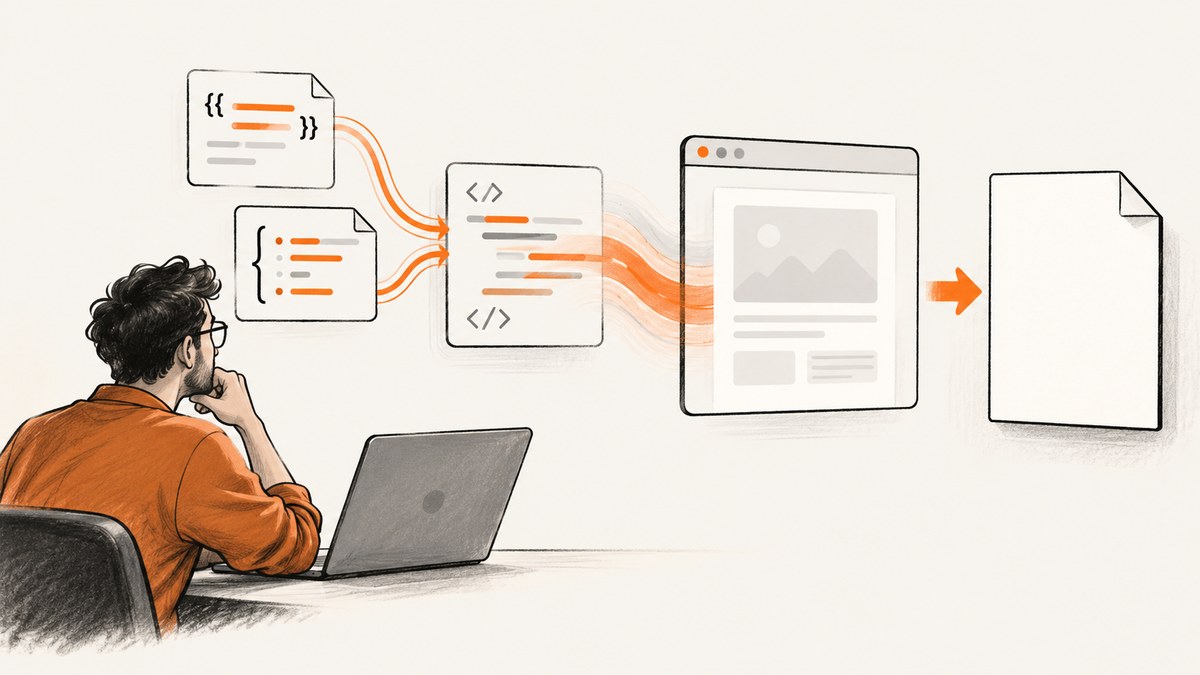
A blank Handlebars PDF usually means one of three things: Handlebars produced empty or incomplete HTML, Puppeteer captured the page before its content was ready, or print rendering hid content that was visible on screen. Inspect the final HTML first, then compare browser output with PDF output, and finally check print media, fonts, colors, and PDF options.
Handlebars only creates the markup string. Puppeteer receives that string through page.setContent(), or renders a URL through page.goto(). The PDF call then applies print CSS by default. A successful page.pdf() call therefore does not prove that the template contained content or that the content was printable.
1. Verify the HTML Handlebars Actually Generated
Compile the template with the same data used in production and save the exact result before launching Chromium. Do not infer that the markup is correct merely because compilation completed.

import fs from 'node:fs/promises';
import Handlebars from 'handlebars';

const source = await fs.readFile('./invoice.hbs', 'utf8');
const template = Handlebars.compile(source);
const data = {
  invoiceNumber: 'INV-1042',
  customer: { name: 'Ada Lovelace' },
  items: [
    { description: 'Consulting', quantity: 2, price: 120 }
  ]
};

const html = template(data);
await fs.writeFile('./debug-rendered.html', html, 'utf8');
console.log({ length: html.length, preview: html.slice(0, 500) });
Open debug-rendered.html in a browser or inspect it with a text search. Confirm that expected headings, rows, and values exist. Check conditional blocks such as {{#if}} and loops such as {{#each}}; an empty array or a differently named property can make an entire section disappear.
Also check escaping. Handlebars escapes HTML by default. If a field is intended to contain trusted markup, the triple-stash form ({{{body}}}) may be required, but only use it for sanitized input. Escaping itself does not make a PDF blank, while malformed or missing data can.
2. Render the Same HTML in Puppeteer
page.setContent(html) loads an HTML string directly. This removes routing, authentication, and server-side redirects from the diagnosis.
import fs from 'node:fs/promises';
import puppeteer from 'puppeteer';
import Handlebars from 'handlebars';

const browser = await puppeteer.launch({ headless: true });
try {
  const page = await browser.newPage();
  const source = await fs.readFile('./invoice.hbs', 'utf8');
  const html = Handlebars.compile(source)({
    invoiceNumber: 'INV-1042',
    customer: { name: 'Ada Lovelace' },
    items: [{ description: 'Consulting', quantity: 2, price: 120 }]
  });

  page.on('console', message => console.log('page console:', message.text()));
  page.on('pageerror', error => console.error('page error:', error));
  page.on('requestfailed', request =>
    console.error('request failed:', request.url(), request.failure()?.errorText)
  );

  await page.setContent(html, { waitUntil: 'networkidle0' });
  await page.screenshot({ path: './debug-page.png', fullPage: true });
  await page.pdf({ path: './invoice.pdf', format: 'A4', printBackground: true });
} finally {
  await browser.close();
}
The screenshot is a useful split test. If debug-page.png is already blank, investigate Handlebars data, HTML structure, scripts, or resources. If the screenshot contains the document but the PDF is blank, focus on print CSS, media emulation, page dimensions, and PDF options. Puppeteer documents Page.setContent() for loading HTML and Page.pdf() for printing a page (setContent API, pdf API).
3. Check Print CSS and Media Type
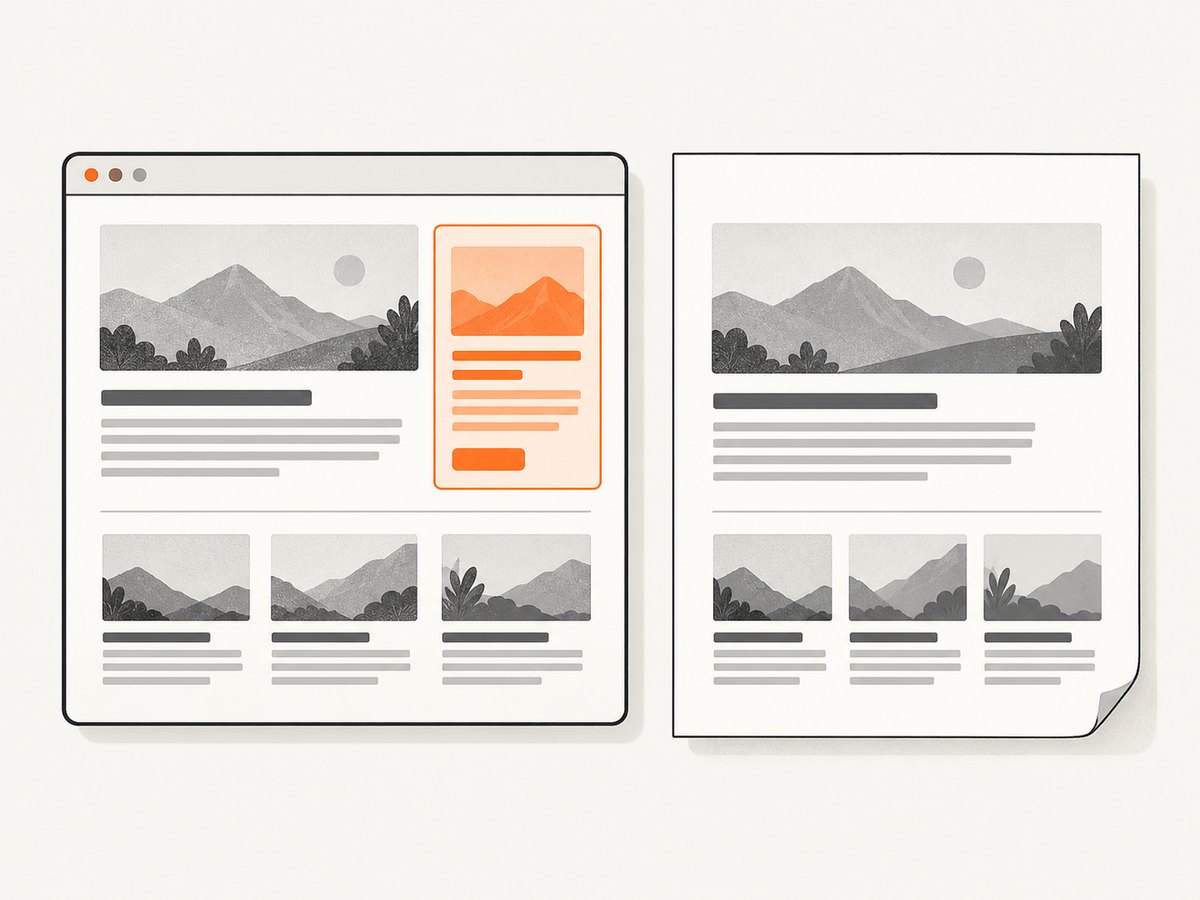
Page.pdf() uses the print CSS media type by default. A rule such as @media print { .invoice { display: none; } }, visibility: hidden, white text on a white page, or an off-page transform can produce an apparently blank file.
@media print {
  body { margin: 0; }
  .screen-only { display: none; }
  .invoice { display: block; color: #111; }
}
If the PDF should match the screen design, select screen media before printing:
await page.emulateMediaType('screen');
await page.pdf({
  path: './invoice.pdf',
  format: 'A4',
  printBackground: true
});
Use this deliberately. Screen media can preserve a design that was never prepared for paper, while print media is usually preferable for invoices and reports. Puppeteer also modifies printed colors by default. Add -webkit-print-color-adjust: exact when exact colors are required:
* {
  -webkit-print-color-adjust: exact;
  print-color-adjust: exact;
}
See the official PDF generation guide and emulateMediaType API.
4. Wait for the Right Readiness Condition
Waiting for a network event is not the same as waiting for application rendering. The Puppeteer guide demonstrates navigation with waitUntil: 'networkidle2', but a page can still be building a chart, fetching API data, or hydrating a client application afterward.
await page.goto('https://example.com/report', {
  waitUntil: 'networkidle2',
  timeout: 60000
});
await page.waitForSelector('#report-ready', { timeout: 30000 });
await page.evaluate(() => document.fonts.ready);
await page.pdf({ path: './report.pdf', format: 'A4' });
For HTML passed to setContent, add an explicit readiness marker when scripts are involved:
await page.setContent(html, { waitUntil: 'domcontentloaded' });
await page.waitForFunction(() => window.__REPORT_READY === true);
Prefer a selector or application flag over an arbitrary delay. Use await new Promise(resolve => setTimeout(resolve, 500)) only when the rendering library has no observable readiness signal.
5. Fonts, Images, and Contrast
Puppeteer waits for fonts by default during PDF generation, and the PDF options describe waitForFonts as waiting for document.fonts.ready. You can make the dependency explicit:
await page.evaluate(() => document.fonts.ready);
await page.pdf({
  path: './invoice.pdf',
  format: 'A4',
  printBackground: true,
  waitForFonts: true
});
Inspect failed requests for font, stylesheet, image, and API URLs. A missing font normally does not erase all text, but a font-loading error combined with transparent text or CSS variables can make content appear invisible. Check computed styles in DevTools or with:
const diagnostics = await page.evaluate(() => {
  const element = document.querySelector('.invoice');
  if (!element) return { found: false };
  const style = getComputedStyle(element);
  return {
    found: true,
    text: element.textContent,
    display: style.display,
    visibility: style.visibility,
    opacity: style.opacity,
    color: style.color,
    background: style.backgroundColor,
    rect: element.getBoundingClientRect().toJSON()
  };
});
console.log(diagnostics);
For images, use absolute or reachable URLs, wait for the relevant selector, and inspect requestfailed events. If external resources require authentication, pass headers or cookies before loading the page.
6. A Minimal Complete Handlebars PDF Example
This example includes data validation, explicit page setup, readiness, print colors, and diagnostic output.
import Handlebars from 'handlebars';
import puppeteer from 'puppeteer';

const templateSource = `<!doctype html>
<html><head><style>
@page { size: A4; margin: 18mm; }
body { font-family: Arial, sans-serif; color: #111; }
* { -webkit-print-color-adjust: exact; print-color-adjust: exact; }
</style></head><body>
<main class="invoice">
  <h1>Invoice {{invoiceNumber}}</h1>
  <p>Customer: {{customer.name}}</p>
  <ul>{{#each items}}<li>{{description}} — {{quantity}} × {{price}}</li>{{/each}}</ul>
</main>
</body></html>`;

const data = {
  invoiceNumber: 'INV-1042',
  customer: { name: 'Ada Lovelace' },
  items: [{ description: 'Consulting', quantity: 2, price: 120 }]
};
if (!data.customer?.name || !Array.isArray(data.items) || data.items.length === 0) {
  throw new Error('Invoice data is incomplete');
}

const html = Handlebars.compile(templateSource)(data);
const browser = await puppeteer.launch({ headless: true });
try {
  const page = await browser.newPage();
  await page.setViewport({ width: 1280, height: 900, deviceScaleFactor: 1 });
  await page.setContent(html, { waitUntil: 'networkidle0' });
  await page.evaluate(() => document.fonts.ready);
  const count = await page.locator('.invoice').count();
  if (count !== 1) throw new Error(`Expected one invoice, found ${count}`);
  await page.pdf({
    path: './invoice.pdf', format: 'A4', printBackground: true,
    preferCSSPageSize: true, waitForFonts: true
  });
} finally {
  await browser.close();
}
7. Puppeteer PDF Options That Commonly Matter
| Option | Use it when | Typical concern |
|---|---|---|
format |
You want a standard paper size such as A4 or Letter. | It can override assumptions in your layout. |
width/height |
You need a custom page size. | Units and margins can create unexpected clipping. |
printBackground |
Background fills, colors, or images are part of the design. | Without it, the PDF may look empty or lose visual structure. |
preferCSSPageSize |
Your @page rule defines the authoritative size. |
Conflicting CSS and API dimensions can change pagination. |
margin |
You need controlled printable margins. | Large margins can push content outside a small custom page. |
pageRanges |
You want selected pages only. | An invalid range can yield no visible pages. |
landscape |
The document is wider than tall. | Portrait assumptions in CSS may still constrain content. |
waitForFonts |
Fonts must be ready before capture. | Check availability in the Puppeteer version you installed. |
Option names and behavior can vary by Puppeteer release. Check the documentation for your installed version before depending on a newer option.
8. Troubleshooting Common Blank-PDF Causes
| Symptom | Likely cause | Fix |
|---|---|---|
| Saved HTML is empty | Wrong data property, false conditional, or empty loop. | Log the compiled string and validate required fields before rendering. |
| Screenshot and PDF are both blank | Markup, script error, or missing resource. | Inspect HTML, console errors, failed requests, and selector counts. |
| Screenshot has content but PDF is blank | Print CSS hides or moves content. | Inspect @media print; try emulateMediaType('screen'). |
| Only backgrounds disappear | Printed backgrounds are disabled. | Set printBackground: true. |
| Text is present but invisible | Print color, opacity, visibility, or transparent text. | Inspect computed styles and set explicit print colors. |
| Only async sections are missing | Capture occurs before hydration or data fetch completion. | Wait for a selector, readiness flag, or application-specific event. |
| Images are missing | Bad URL, blocked request, CORS/authentication, or capture too early. | Log failed requests, use reachable URLs, and wait for images. |
| Blank output after adding page ranges | Range does not match generated pages. | Remove pageRanges, inspect page count, then add a valid range. |
| Works locally but fails in production | Different Chromium, sandbox, fonts, environment variables, or network access. | Log versions and paths, package required fonts, and reproduce in the deployment image. |
9. Performance, Reliability, and Cost Considerations
Launching a browser for every request is simple but expensive in latency and memory. Reuse a browser process, create isolated pages, and always close pages in a finally block. Set navigation and selector timeouts so a broken dependency cannot hold a worker forever. Limit concurrency to the memory available to your Chromium process.
Use deterministic readiness conditions. networkidle2 can be useful for navigation, but analytics, long polling, and WebSockets may prevent an idle state or make it misleading. A dedicated ready selector is usually more reliable for an application you control. Cache stable assets and avoid unnecessary third-party requests when generating many documents.
For reliability, record the rendered HTML length, URL, Puppeteer and Chromium versions, elapsed stages, failed requests, and PDF byte length. A zero-byte or unusually small file should be treated as a failed job. Keep a debug screenshot and HTML sample behind an access-controlled diagnostic path rather than exposing customer data.
PDF generation itself has no per-page Puppeteer fee, but your infrastructure pays for CPU, memory, storage, and bandwidth. If you need screenshots or PDFs without maintaining browser workers, an API can move those operational concerns to a capture service.
Or skip the browser setup
ScreenshotNeo provides a single GET request for a PNG, JPEG, WebP, or PDF. See the ScreenshotNeo API documentation for all options.
curl -G "https://api.screenshotneo.com/v1/shot" -d access_key=YOUR_API_KEY --data-urlencode url=https://stripe.com -o shot.webpimport requests
r = requests.get("https://api.screenshotneo.com/v1/shot", params={"access_key": "YOUR_API_KEY", "url": "https://stripe.com"}, timeout=90)
open("shot.webp", "wb").write(r.content)const q = new URLSearchParams({ access_key: 'YOUR_API_KEY', url: 'https://stripe.com' });
const res = await fetch(`https://api.screenshotneo.com/v1/shot?${q}`);ScreenshotNeo accepts cookie and consent banners like a visitor, then removes more than 60 known consent platforms, newsletter popups, and chat widgets; each step can be disabled. Bot checks and CAPTCHAs, blank pages, timeouts, failed loads, and cache hits are not billed, and response headers report the page verdict and billing status. Its MCP server gives Claude, Cursor, and other MCP clients take_screenshot, get_page_info, and capture_pdf tools.
The service also supports full-page captures with lazy images loaded, CSS element capture, dark mode, device presets and custom viewports, retina scale, PDF paper and page options, custom CSS and JavaScript, clicks, selector waits, delays, network-idle waits, request blocking, headers, cookies, user agents, authorization, timezone, geolocation, transparent backgrounds, resizing, selectable cache TTLs, signed links, asynchronous jobs with signed webhooks, bulk capture for up to 100 URLs per call, usage reporting, and an OpenAPI specification. The Free plan includes 1,000 shots per month with no card; paid plans start at $5 for 3,000 shots. Create a free ScreenshotNeo account.
FAQ
Does Handlebars need a special Puppeteer adapter?
No. Handlebars produces a string; pass that string to page.setContent() or serve it from a URL and use page.goto().
Should I always use networkidle0?
No. It can wait indefinitely on pages with persistent connections. Use the narrowest reliable readiness condition for your application.
Why does screen preview differ from the PDF?
PDF generation uses print media by default, so print rules, page size, margins, and color adjustment can change the result.
Can a successful PDF call still produce a blank file?
Yes. The call can complete while the input HTML is empty or while CSS hides every printable element. Validate content before and after rendering.
Which evidence is needed to diagnose a report?
Provide the template, real input data, compiled HTML, Puppeteer call, relevant CSS, Puppeteer and Chromium versions, and a screenshot of the rendered page.


