How to Fix Blank HTML-to-PDF Output in Node.js with Puppeteer
A blank Puppeteer PDF can start with missing page content, unfinished rendering, print CSS, or PDF options. Diagnose each layer with this Node.js checklist.

A blank PDF from Puppeteer does not point to one universal failure. The page may be empty before printing, client-side content may not have rendered yet, print CSS may hide content, or PDF options may select the wrong page area. Diagnose those layers in order: inspect the page, wait for the application’s real ready state, compare screen and print media, then review the PDF settings and browser logs.
Puppeteer’s page.pdf() API renders using the print CSS media type by default. That matters when a page looks correct in a browser window but its PDF is blank. The checks below apply to HTML passed to page.setContent() and pages opened with page.goto().
1. Check whether the page has content before PDF generation
Do not start by changing Chrome launch flags. First prove that the browser page contains the content you expect immediately before calling page.pdf(). Log the title, inspect a known selector, save the page HTML, and capture a screenshot. If those checks show a blank page, PDF generation is downstream of the real problem.
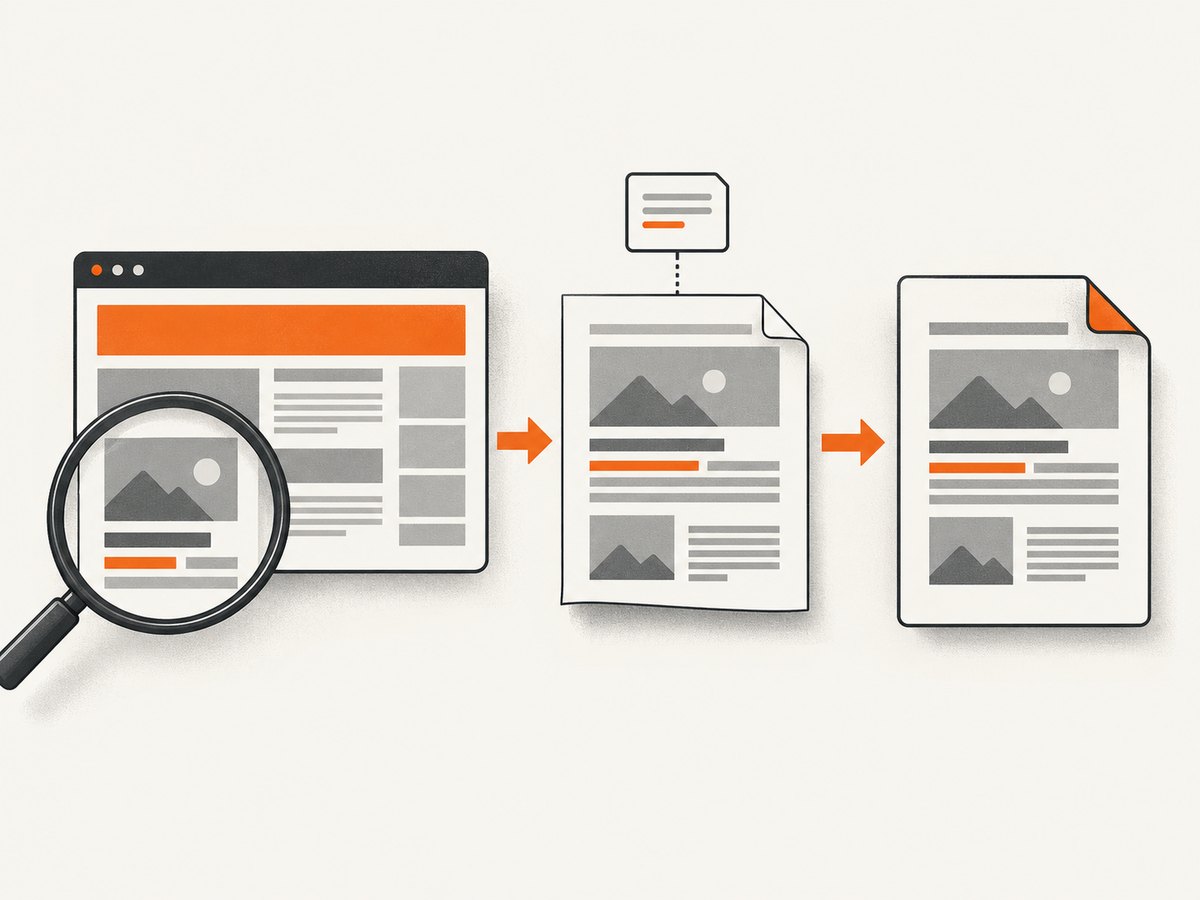
For a client-rendered application, waiting for the initial document load is not necessarily enough. Wait for a selector that appears only when the application has rendered the data, or for an explicit application-ready condition your page exposes. A fixed delay can help confirm a timing suspicion, but it is a fragile production readiness signal because rendering and network time vary.
page.setContent() is asynchronous: await it. Its wait options let you wait for a navigation lifecycle condition, but they cannot know whether your app has completed its own data work. Puppeteer’s setContent() reference documents the method and options.
2. Use a diagnostic script that records page state
Save this as make-pdf.mjs. It uses a local HTML example so the basic workflow is self-contained. Replace the sample markup with your HTML or replace setContent() with goto() for a URL. Install Puppeteer with npm install puppeteer and run it with node make-pdf.mjs.
import puppeteer from 'puppeteer';

const html = `<!doctype html>
<html>
<head>
  <meta charset="utf-8">
  <title>PDF diagnostic</title>
  <style>
    body { font: 16px sans-serif; padding: 32px; }
    @media print { .screen-only { display: none; } }
  </style>
</head>
<body>
  <main id="pdf-content">
    <h1>PDF content is present</h1>
    <p>If this text appears in the PDF, the basic pipeline works.</p>
  </main>
</body>
</html>`;

const browser = await puppeteer.launch();
try {
  const page = await browser.newPage();
  page.on('console', msg => console.log('PAGE:', msg.type(), msg.text()));
  page.on('pageerror', error => console.error('PAGE ERROR:', error));
  page.on('requestfailed', request =>
    console.error('REQUEST FAILED:', request.url(), request.failure()?.errorText),
  );
  page.on('response', response => {
    if (response.status() >= 400) {
      console.error('HTTP ERROR:', response.status(), response.url());
    }
  });

  await page.setContent(html, { waitUntil: 'load' });
  await page.waitForSelector('#pdf-content');

  console.log('Title:', await page.title());
  console.log('HTML length:', (await page.content()).length);
  console.log('Text:', await page.$eval('#pdf-content', el => el.innerText));
  await page.screenshot({ path: 'before-print.png', fullPage: true });

  await page.pdf({
    path: 'output.pdf',
    printBackground: true,
    waitForFonts: true,
  });
} finally {
  await browser.close();
}
The event listeners distinguish browser-side JavaScript and request failures from Node.js exceptions. The screenshot shows what the page rendered before print styling is applied. This is a diagnostic pattern; choose a selector and wait condition that match your own page and installed Puppeteer version.
3. Wait for the right kind of readiness
When navigating to a URL, Puppeteer supports lifecycle waits such as load and network-idle conditions. The official PDF generation guide shows networkidle2 in a navigation example. Treat that as one possible navigation wait, not proof that client-side rendering is complete: an app can fetch data after initial load, and some pages keep connections open continuously.
await page.goto('https://example.com/report', {
  waitUntil: 'networkidle2',
});
await page.waitForSelector('[data-report-ready="true"]');
await page.pdf({ path: 'report.pdf' });
For setContent(), await the call, then wait for an application-specific selector or state. If the page is driven by JavaScript, make the readiness condition represent the finished content rather than an arbitrary number of milliseconds. If the app has no ready marker, wait for a stable, meaningful element and verify its text or count.
- Selector never appears: verify the selector in the actual DOM, check whether the app threw an exception, and confirm that the expected data request succeeded.
- Selector appears too early: choose a marker that is set only after data and required rendering finish.
- Fonts are missing or substituted:
page.pdf()waits for fonts by default. Keep that default unless logs show a specific font wait problem. On a background page, the API notes that waiting for fonts can requirepage.bringToFront(). - Images are absent: inspect failed requests and image loading state. A page becoming network-idle does not guarantee every desired image rendered successfully.
4. Compare screen and print CSS
page.pdf() uses print media. A stylesheet can therefore hide the whole document, hide a parent container, set text to white, collapse dimensions, or move content through print-only positioning and page-break rules. Search your CSS for @media print, print-specific selectors, visibility, display, color, and sizing rules.
As a diagnostic comparison, generate one PDF after switching to screen media:
await page.emulateMediaType('screen');
await page.pdf({ path: 'screen-media-diagnostic.pdf' });
If the screen-media PDF contains the page while the default print PDF does not, that strongly narrows the search to print styling or print rendering behavior. It is a diagnostic inference from Puppeteer’s documented media behavior, not a guaranteed fix. Restore print media behavior after the comparison and repair the applicable CSS. The PDF method reference documents the screen-media option.
For designs that intentionally depend on exact background colors, use printBackground: true and consider CSS such as -webkit-print-color-adjust: exact. Puppeteer notes that print output may modify colors for printing. Background graphics are separate from ordinary foreground text: disabling them alone should not make normal text disappear.
5. Check PDF options that can exclude or obscure content
Start with a minimal call to page.pdf(), then add your production options back one at a time. The PDFOptions reference lists available settings and defaults. These are the main settings to inspect when output differs from the page:
| Option | What to check |
|---|---|
pageRanges |
A range outside the document can select no useful pages. Omit it to generate all pages while debugging. |
format |
The documented default is Letter. When supplied, format takes priority over width and height; avoid assuming both dimensions control the result. |
preferCSSPageSize |
Check whether CSS @page sizing should take precedence over the PDF dimensions. |
scale |
The default is 1. An accidental very small scale can make content appear absent or unreadable. |
margin |
The documented default is no margin. Large custom margins can squeeze a narrow layout; compare with the default. |
omitBackground |
The documented default is false. If enabled, the page background is omitted; check whether your design relies on a background to distinguish content. |
printBackground |
The default is false, which suppresses background graphics. Enable it when the expected design depends on background fills or images. |
Paper size and CSS can interact: a layout sized for a wide sheet may clip or scale unexpectedly on Letter paper. Test the default PDF options first, then add the exact paper format, dimensions, ranges, and margins required by the output. Avoid changing several settings together because that makes it harder to identify the setting that changed the result.
6. Separate Node.js errors from page and browser errors
A PDF script crosses three layers: your Node.js code, code running inside the page, and the browser process. A rejected promise or incorrect HTML string belongs to the Node layer; a client exception belongs to the page; a launch or crash problem may belong to the browser/runtime. Puppeteer’s debugging guide recommends inspecting these layers separately.
For a visual check, launch with headless: false and watch what the page displays before printing. For browser process logs, use dumpio: true in launch options. These are observability tools, not blank-PDF fixes. Keep verbose protocol logging limited to diagnosis because logs may contain sensitive information.
const browser = await puppeteer.launch({
  headless: false, // temporary visual debugging
  dumpio: true,    // forward browser process output
});
Also check that your installed Puppeteer package and browser binary form a supported pair. Puppeteer maintains a supported browsers reference. Confirm the deployed environment has the expected executable and runtime dependencies, especially if the same script works locally but fails in a container or hosted environment.
7. Troubleshooting: symptom, likely layer, next action
| Symptom | Likely cause to investigate | Action |
|---|---|---|
| Both the screenshot and PDF are blank | Navigation, content assignment, app rendering, or failed data requests | Inspect page.content(), title, selector, console, page errors, response statuses, and screenshot before PDF generation. |
| Screenshot has content, PDF is blank | Print CSS or PDF configuration | Compare screen media, inspect @media print, remove pageRanges temporarily, and test default paper and margins. |
| Static HTML works; app URL is blank | Client data or scripts are not ready, or app requests fail | Wait for an app-ready selector; inspect console output, page errors, and failed or error-status requests. |
| Text appears but backgrounds or colored blocks do not | Background printing is disabled | Set printBackground: true; use print color adjustment if exact colors matter. |
| Only some pages are empty | Page breaks, oversized elements, print layout, or page-range selection | Remove pageRanges, inspect print CSS and element dimensions, then add pagination options back individually. |
| PDF call hangs around font loading | Font readiness or an environment-specific loading issue | Inspect font requests and page lifecycle. Change waitForFonts only when evidence points to that wait; disabling it can produce substituted fonts. |
| Works locally but fails after deployment | Browser install, version pairing, runtime resources, or deployment setup | Check Puppeteer’s supported browser mapping, executable availability, browser logs with dumpio, and the deployment’s browser requirements. |
| Browser exits or script fails before PDF output | Launch/runtime error or an unhandled Node.js exception | Read the full Node stack, forward browser logs, confirm browser installation, and preserve cleanup with try/finally. |
These are diagnostic branches, not a statistical ranking of causes. Official documentation describes the APIs and debugging methods; it does not establish one root cause or prevalence for blank PDFs.
8. Improve reliability, runtime, and cost behavior
Reliability comes from explicit readiness and cleanup. Wait for the content your document actually needs, log enough state to diagnose failed runs, and always close the browser in a finally block. In a service handling multiple documents, also isolate each job’s page state and apply a timeout policy appropriate to your application so a stalled page does not occupy resources indefinitely.
Performance is a trade-off with completeness. Waiting for every network connection to disappear can be slow or ineffective on pages with long-lived connections; waiting for a specific ready selector is often a more direct signal when you control the page. Skipping font readiness can reduce waiting in a particular case but may change font appearance. Reuse decisions, concurrency, timeouts, and retries should be based on your workload and deployment limits; the cited Puppeteer documentation does not provide a universal throughput or cost benchmark.
For cost, account for the browser runtime and infrastructure you operate, plus the time spent handling retries and debugging. There is no single cost per PDF implied by Puppeteer itself. Avoid blind retries for a deterministic print CSS or invalid page range: fix the underlying condition first. When failures are intermittent, retain the page URL or input identifier, relevant error logs, and a diagnostic screenshot under your data-retention rules.
Or skip the browser setup
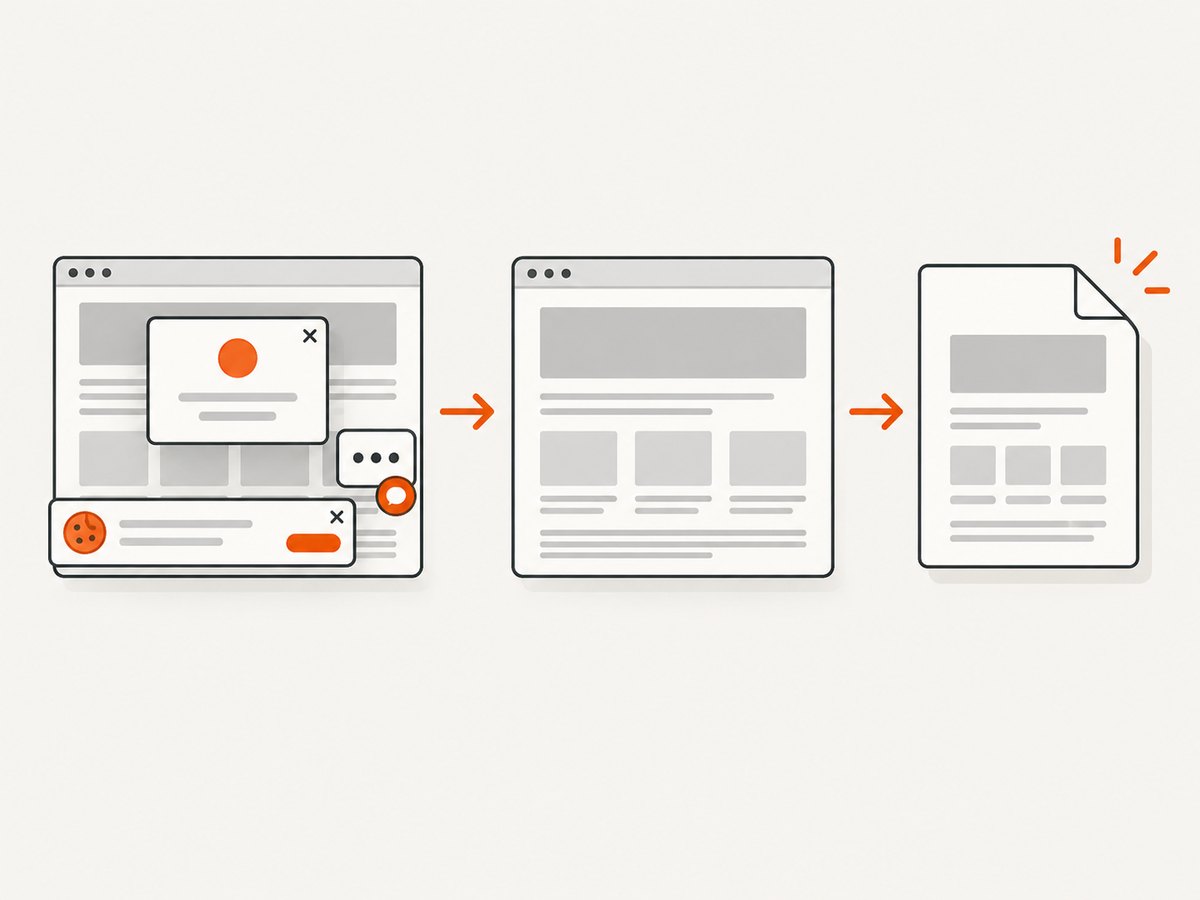
If your job is to capture a URL as a PDF or image and you do not need a custom Puppeteer page, ScreenshotNeo provides a one-call screenshot API. It is a website screenshot API and MCP server for developers. Its clean-shot flow accepts cookie and consent banners like a visitor and removes 60+ known consent platforms, newsletter popups, and chat widgets before capture; each step can be turned off. Bot checks, blank pages, timeouts, failed loads, and cache hits are not billed, and response headers report the page verdict and billing status. AI agents can use its MCP server tools, including take_screenshot, get_page_info, and capture_pdf.
See the ScreenshotNeo API documentation for request options. This cURL example requests a PDF:
curl -G "https://api.screenshotneo.com/v1/shot" \
  -d access_key=YOUR_API_KEY \
  --data-urlencode url=https://stripe.com \
  -d format=pdf \
  -o page.pdf
For an image response, choose PNG, JPEG, or WebP as documented in the API options. ScreenshotNeo supports PDF options such as paper size, margins, landscape, and page ranges. The API also supports full-page capture, custom viewport and device presets, waiting for selectors or network idle, custom headers and cookies, and other capture controls. See the docs for exact parameter names and accepted values.
Python equivalent:
import requests

r = requests.get(
    "https://api.screenshotneo.com/v1/shot",
    params={
        "access_key": "YOUR_API_KEY",
        "url": "https://stripe.com",
        "format": "pdf",
    },
    timeout=90,
)
r.raise_for_status()
with open("page.pdf", "wb") as f:
    f.write(r.content)
Node.js equivalent:
const q = new URLSearchParams({
  access_key: 'YOUR_API_KEY',
  url: 'https://stripe.com',
  format: 'pdf',
});
const res = await fetch(`https://api.screenshotneo.com/v1/shot?${q}`);
if (!res.ok) throw new Error(`ScreenshotNeo request failed: ${res.status}`);
await import('node:fs/promises').then(({ writeFile }) =>
  writeFile('page.pdf', Buffer.from(await res.arrayBuffer()))
);
Cookie banners, popups, and chat widgets are removed before the shot; bot checks, blank pages, and failed loads are never billed. The MCP server lets AI agents take screenshots. The free plan includes 1,000 screenshots a month with no card; paid plans start at $5 for 3,000. Visit ScreenshotNeo, or sign up free for 1,000 screenshots a month with no card.
FAQ
Why is my Puppeteer PDF blank when the page looks fine?
Because PDF generation uses print media by default. Print-specific CSS can produce a different layout from the screen. Compare the media modes and inspect the print rules.
Does networkidle2 guarantee that my HTML is ready?
No. It is a navigation lifecycle condition, not an application-level guarantee. Wait for a selector or state that means your data and rendering are complete.
Should I always set printBackground: true?
Only when your expected output depends on background graphics. The default is false; that setting suppresses backgrounds, not ordinary foreground text.
Can changing a launch flag fix the blank output?
Only if the observed logs or deployment issue implicate browser startup or runtime behavior. First verify that the page is populated and inspect print media and PDF options.


