How to Fix Blank HTML-to-PDF Screens in iOS React Native
Find whether your HTML, PDF file, or preview is blank, then diagnose iOS React Native HTML-to-PDF failures with evidence-driven fixes.
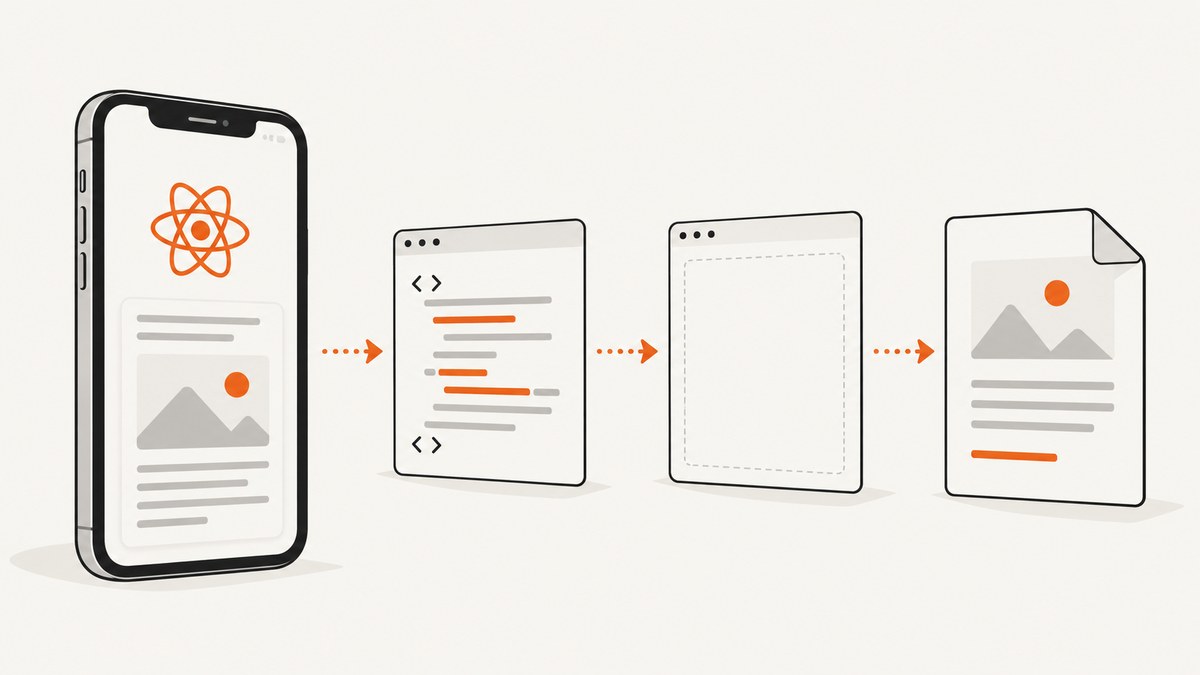
A blank result can occur at three different stages: the HTML/WebView is blank, the generated PDF contains blank pages, or the PDF preview is blank even though the file is valid. Identify the first blank stage before changing code.
1. Identify which artifact is blank
| What you see | Likely stage | First evidence to collect |
|---|---|---|
| WebView shows white screen | HTML loading or WebView rendering | onLoad, onError, source URL/string, local-file path |
| PDF file exists but pages are empty | HTML-to-PDF generation | HTML string, generatePDF result, file size and path |
| Preview is white but the file opens elsewhere | PDF preview component or URI handling | Open the file outside the preview and log the URI |
These failures are related but are not interchangeable. A local WebView path issue does not prove that the PDF generator failed, and a blank preview does not prove that PDF generation produced blank pages.
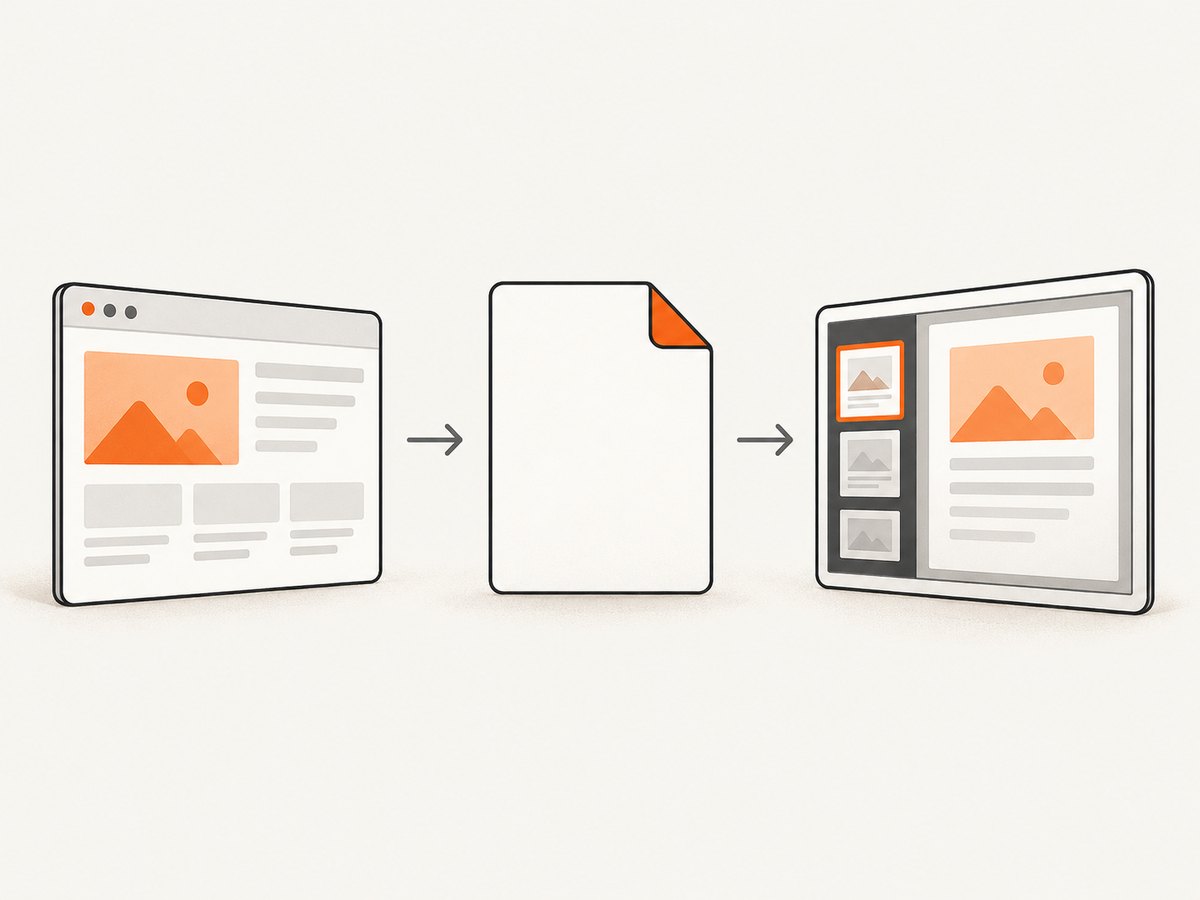
2. Create a known-good minimal reproduction
Start with a literal HTML string containing only a heading and plain text. This separates the generation contract from external assets, JavaScript, fonts and complex CSS.
import React, {useState} from 'react';
import {Button, Text, View} from 'react-native';
import RNHTMLtoPDF from 'react-native-html-to-pdf';

export default function PdfDiagnostic() {
  const [message, setMessage] = useState('Not generated');

  async function createPdf() {
    const html = `<!doctype html>
      <html>
        <head>
          <meta name="viewport" content="width=device-width, initial-scale=1">
          <style>body { font-family: sans-serif; padding: 24px; }</style>
        </head>
        <body>
          <h1>iOS PDF diagnostic</h1>
          <p>If this text appears, the HTML input is not empty.</p>
        </body>
      </html>`;

    try {
      const result = await RNHTMLtoPDF.convert({
        html,
        fileName: 'ios-pdf-diagnostic',
        height: 842,
        width: 595,
        padding: 24,
        bgColor: '#ffffff'
      });
      console.log('generatePDF result:', result);
      setMessage(JSON.stringify(result));
    } catch (error) {
      console.error('generatePDF failed:', error);
      setMessage(String(error));
    }
  }

  return (
    <View style={{padding: 24}}>
      <Button title="Generate diagnostic PDF" onPress={createPdf} />
      <Text selectable>{message}</Text>
    </View>
  );
}
The react-native-html-to-pdf README documents HTML input, a returned generation result, page dimensions, a custom output directory, and iOS padding and background-color settings. On iOS, its README states that Documents is the only accepted custom directory. Check the package README for the version installed in your project.
3. Verify the generation contract and output file
- Log the exact HTML string immediately before calling
generatePDF. Confirm it is notundefined, an empty string, or an unresolved template. awaitthe call and log the complete returned object.- Inspect the returned file path or URL and confirm the file exists with a non-zero size.
- Open that file with a separate PDF viewer or share sheet. Do not rely only on the in-app preview.
- Run the same minimal HTML on a simulator and a physical device, recording the iOS and React Native versions.
Do not assume that a successful promise means the preview rendered correctly. Generation and display are separate operations.
4. Check page geometry and iOS options
Use explicit dimensions while diagnosing. A page that is technically generated can appear empty if content is outside the page area or hidden by unsuitable styling.
| Option | Diagnostic use |
|---|---|
height, width |
Set a known paper-sized rectangle and verify content fits inside it. |
padding |
Use a small positive value so content is not clipped at an edge. |
bgColor |
Set an explicit contrasting background while checking whether the page is truly empty. |
directory |
If used on iOS, use the documented Documents directory. |
The available evidence documents these controls but does not prove that one particular dimension or color value causes every blank result. Change one variable at a time.
5. Remove external dependencies from the HTML
Once the minimal document works, add your real content incrementally.
- Inline critical CSS while diagnosing.
- Replace remote images with a plain paragraph, then add images one at a time.
- Check that image URLs are reachable from the device, not only from your development machine.
- Temporarily remove scripts, web fonts, animations and client-side rendering.
- Use explicit dimensions for images and containers.
- Escape user-provided text before inserting it into HTML.
This process identifies the first addition that changes a working PDF into a blank one.
6. If a WebView itself is blank
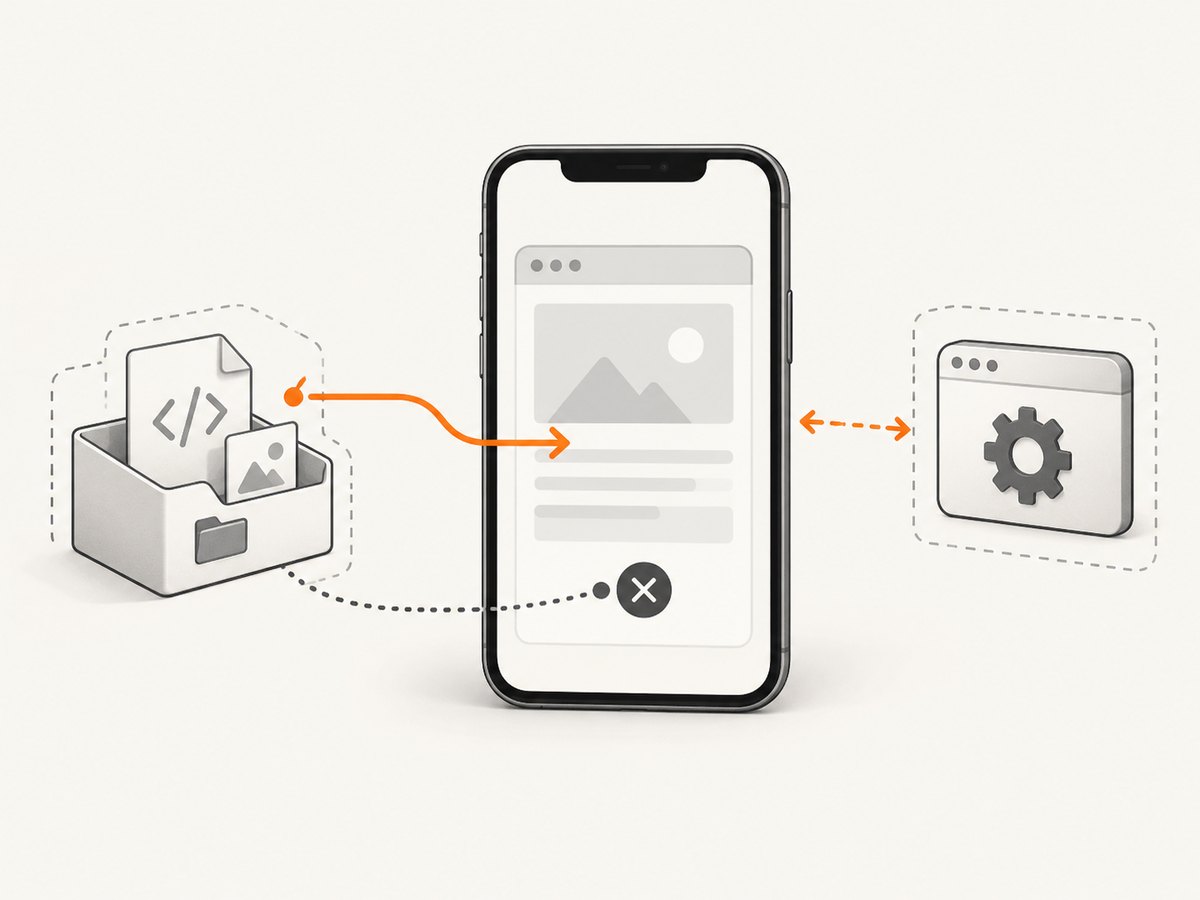
WKWebView can load HTML from a server, a local file or an HTML string, and Apple documents PDF representation support. In React Native, inspect the WebView independently from PDF generation.
import React from 'react';
import {WebView} from 'react-native-webview';

export default function HtmlDebugView({html}) {
  return (
    <WebView
      originWhitelist={['*']}
      source={{html}}
      onLoad={event => console.log('WebView loaded', event.nativeEvent)}
      onError={event => console.error('WebView error', event.nativeEvent)}
      onContentProcessDidTerminate={event =>
        console.error('Web content process terminated', event.nativeEvent)
      }
    />
  );
}
The React Native WebView reference documents onLoad, onError and onContentProcessDidTerminate. iOS web content runs in a separate process that can be terminated independently, including after backgrounding. Treat the termination callback as evidence to investigate, not as proof of a PDF-generator defect.
Local HTML files
Resolve the path inside the iOS app sandbox. An arbitrary project path is not automatically a valid runtime URL. One reported issue described a blank local HTML file with a particular React Native, WebView and iOS combination; that report is a symptom report, not a general fix.
Log the final URI, confirm the file is packaged or copied into the sandbox, and compare it with an inline source={{html}} document. If inline HTML works while the file does not, continue investigating path resolution and resource access instead of changing PDF settings.
7. If the PDF preview is blank
- Confirm the generated file exists and has a non-zero size.
- Log the exact URI passed to the preview component.
- Try opening or sharing the URI with another viewer.
- Verify the preview component expects a local file URI and that the URI scheme matches its documentation.
- Check whether the preview is mounted before the asynchronous generation result arrives.
- Render an error state when generation fails instead of displaying an empty preview.
If another viewer displays the pages, focus on preview URI handling and lifecycle. If every viewer shows blank pages, return to the HTML and generation stages.
8. A staged debugging checklist
- Record React Native,
react-native-html-to-pdf,react-native-webview, iOS and device/simulator versions. - Capture the exact HTML input.
- Generate a heading-only PDF.
- Log and inspect the generation result.
- Verify the output path and file size.
- Open the file outside the app preview.
- Add CSS, images and scripts one at a time.
- For WebView failures, record
onLoad,onErrorand content-process termination. - Retest on a physical device.
9. Common errors and fixes
| Symptom | Cause to investigate | Action |
|---|---|---|
| Returned result has no usable path | Generation rejected the input or options | Catch the exception, log the complete result, and test the minimal HTML. |
| File path is returned but file is missing | Wrong directory or sandbox assumption | Use the documented iOS Documents directory and verify the resolved path. |
| PDF opens with blank pages | Empty HTML, unsupported dependency, or content outside page geometry | Use the known-good document, explicit dimensions and incremental additions. |
| Inline WebView works; local file is blank | Invalid runtime path or inaccessible resource | Log the final sandbox URI and confirm the file is available to the app. |
| WebView becomes blank after backgrounding | iOS content process termination | Record onContentProcessDidTerminate and implement recovery only after confirming it fires. |
| Preview is blank while another viewer works | Preview URI or mount timing | Pass the verified file URI after generation completes and show loading/error states. |
10. Performance, reliability and cost considerations
Large HTML documents, high-resolution images, web fonts and scripts increase rendering work and make failures harder to isolate. Keep diagnostic HTML small, inline critical styles, size images deliberately and avoid unnecessary JavaScript. For production, log stage-specific errors without logging sensitive document contents.
Reliability improves when generation, file verification and preview are separate states. A retry should be bounded and should not hide a deterministic HTML or path error. Test both simulator and physical devices because local files, memory pressure and process lifecycle can differ.
The reviewed sources do not provide a universal success rate, benchmark or cost comparison for these libraries. Choose versions deliberately and record them in bug reports.
11. Or skip the browser setup
If your actual goal is a screenshot or PDF of a public webpage rather than rendering an app-owned HTML document, ScreenshotNeo provides a single HTTP request. See the ScreenshotNeo API documentation for options.
curl -G "https://api.screenshotneo.com/v1/shot" -d access_key=YOUR_API_KEY --data-urlencode url=https://stripe.com -o shot.webpimport requests
r = requests.get("https://api.screenshotneo.com/v1/shot", params={"access_key": "YOUR_API_KEY", "url": "https://stripe.com"}, timeout=90)
open("shot.webp", "wb").write(r.content)const q = new URLSearchParams({ access_key: 'YOUR_API_KEY', url: 'https://stripe.com' });
const res = await fetch(`https://api.screenshotneo.com/v1/shot?${q}`);ScreenshotNeo removes cookie banners, newsletter popups and chat widgets before capture. Bot checks, blank pages and failed loads are never billed, and the response reports the page verdict and billing status. Its MCP server lets AI agents take screenshots, inspect pages and capture PDFs. The free plan includes 1,000 screenshots per month with no card; paid plans start at $5 for 3,000.
Create a free ScreenshotNeo account to get started.
12. FAQ
Does a blank WebView prove the PDF generator is broken?
No. WebView loading, PDF generation and PDF preview are separate stages. Test each independently.
Is there one universal iOS fix?
The available reports do not establish one. Reproduce with exact package, React Native, iOS and device details.
What should I test first?
A literal heading-and-paragraph HTML string, followed by file existence and opening the PDF outside the preview.
When should I investigate onContentProcessDidTerminate?
When the WebView becomes blank after backgrounding or otherwise disappears, and the callback confirms the iOS content process ended.
Can ScreenshotNeo convert my local React Native HTML?
ScreenshotNeo captures URLs. It is useful when the source is a reachable webpage; app-local HTML still requires an in-app renderer or a service that can access the content.


