How to Fix Blank Screenshots in html2canvas
Fix blank or incomplete html2canvas screenshots by checking timing, CORS, canvas limits, iframes, CSS support, and browser-only constraints.
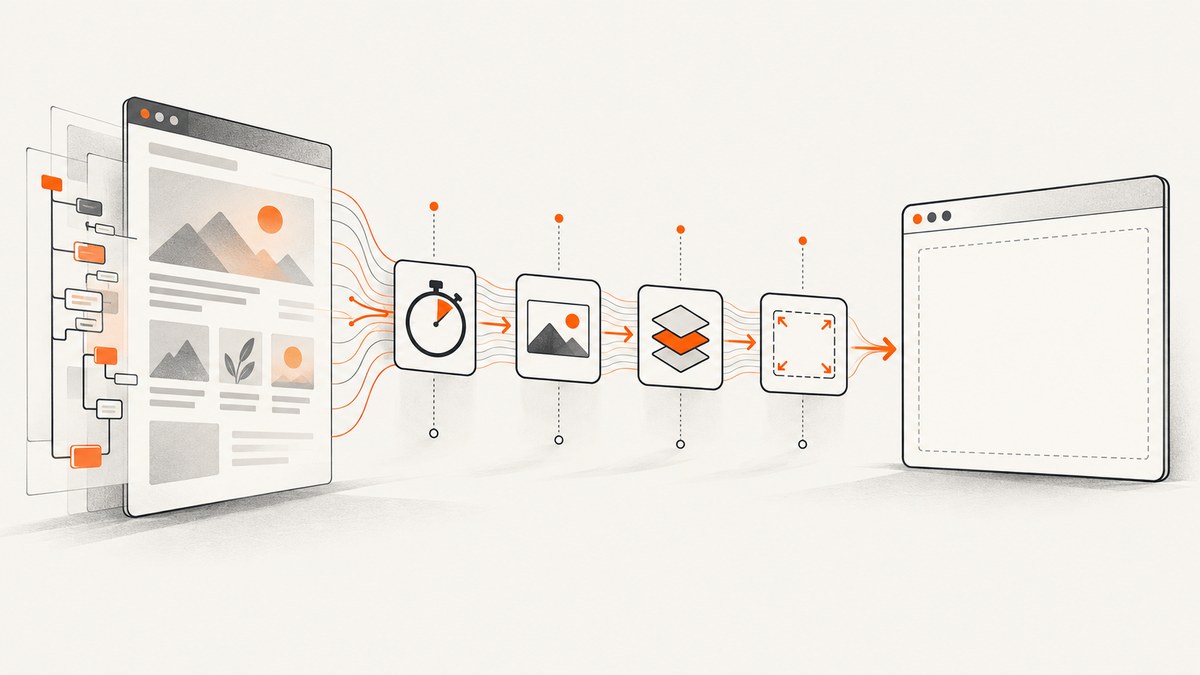
A blank html2canvas result usually comes from one of five causes: the wrong element or capture timing, failed external resources, cross-origin restrictions, an oversized canvas, or CSS and content that html2canvas cannot reconstruct. Check them in that order.
- Confirm the target element exists, is attached to the document, and contains the expected content when capture starts.
- Enable logging and inspect the console and Network panel for failed scripts, images, fonts, and other resources.
- Classify the failure: everything is blank, only remote images are missing, an iframe is missing, or styling is incomplete.
- Set
windowWidthandwindowHeightfrom the target’s scroll dimensions for large captures. - Remove or isolate unsupported CSS and inaccessible cross-origin content.
html2canvas reconstructs an image from DOM information. It does not capture the browser’s already-composited pixels, so it cannot reproduce every CSS property or security-restricted resource. See the official FAQ and operation and limitations documentation.
1. Start with a known-good capture
Run this in a browser after the target has rendered. It verifies the selector, waits for the browser’s current image-loading state, captures the full element dimensions, and downloads a PNG.
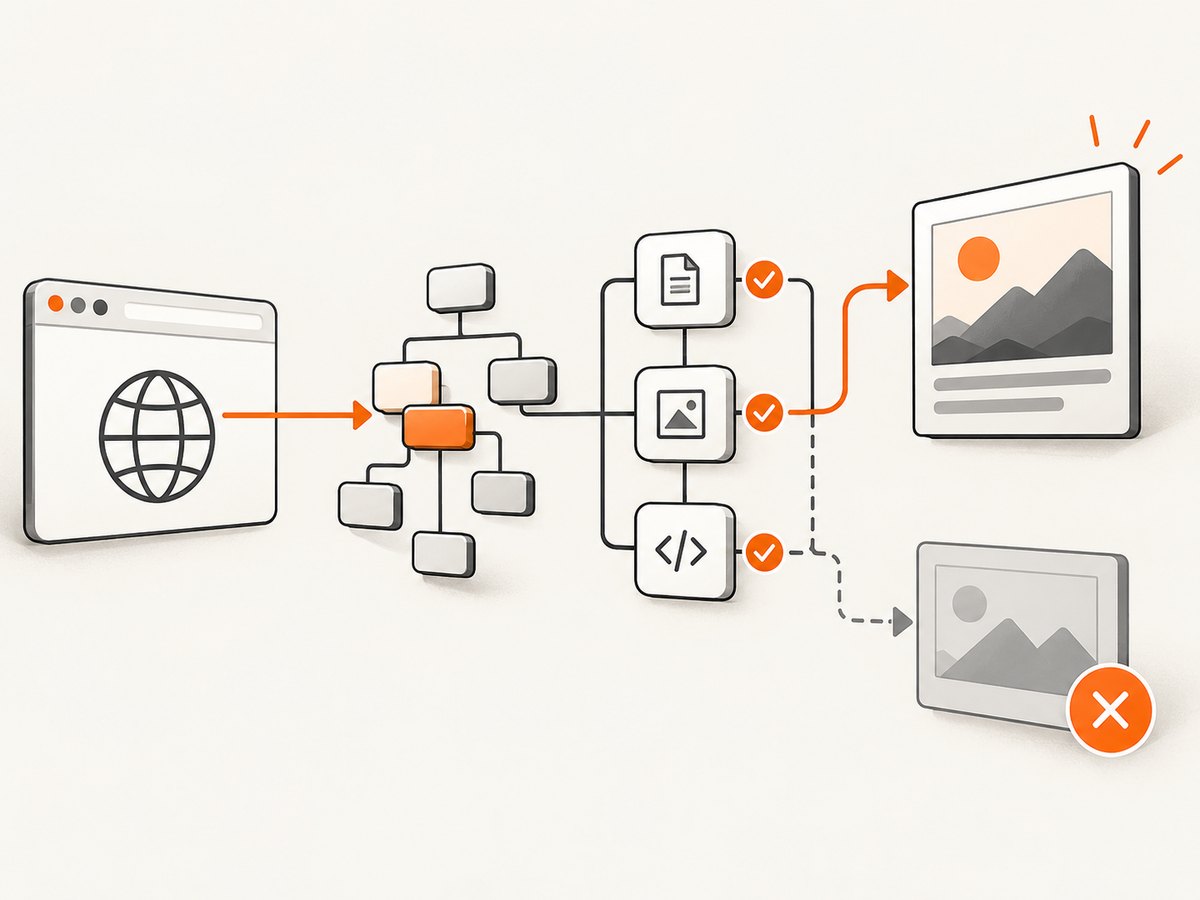
<script src='https://cdn.jsdelivr.net/npm/html2canvas@1.4.1/dist/html2canvas.min.js'></script>
<script>
async function capture() {
  const element = document.querySelector('#invoice');
  if (!element) throw new Error('Target #invoice was not found');
  if (!document.documentElement.contains(element)) throw new Error('Target is detached');

  await new Promise(resolve => {
    if (document.readyState === 'complete') return resolve();
    window.addEventListener('load', resolve, { once: true });
  });

  const canvas = await html2canvas(element, {
    windowWidth: element.scrollWidth,
    windowHeight: element.scrollHeight,
    logging: true,
    imageTimeout: 15000,
    useCORS: true,
    allowTaint: false
  });

  if (!canvas.width || !canvas.height) throw new Error('html2canvas returned an empty canvas');
  const link = document.createElement('a');
  link.download = 'invoice.png';
  link.href = canvas.toDataURL('image/png');
  link.click();
}
capture().catch(error => console.error('Screenshot failed:', error));
</script>
The configuration reference documents these options. Logging is enabled by default in the cited documentation, but setting it explicitly makes the intent clear while debugging.
2. Check the target and capture timing
A selector can return null, an empty shell, or a hidden template while an application is still rendering. Log the target immediately before capture:
const element = document.querySelector('#app');
console.log({ element, connected: element?.isConnected, text: element?.innerText, rect: element?.getBoundingClientRect() });
Start capture only after the application has inserted its content and after the readiness condition that matters for your page. A fixed delay can help with a known animation, but a selector, application-ready signal, or resource-ready condition is more reliable. Do not expect html2canvas to render content that was never present in the captured DOM.
Use onclone for capture-only changes
onclone lets you modify the cloned document without changing the live page. This is useful for disabling an animation, expanding a collapsed region, or applying a capture-only style.
const canvas = await html2canvas(element, {
  onclone: clonedDocument => {
    clonedDocument.querySelectorAll('.animated, .cursor').forEach(node => {
      node.style.animation = 'none';
      node.style.caretColor = 'transparent';
    });
  }
});
3. Turn on diagnostics and inspect failed resources
With logging: true, read the browser console while capturing. In Network tools, look for failed or blocked image, font, stylesheet, script, and API requests. A long imageTimeout only gives a slow image more time; it cannot fix a 403 response, a CORS denial, or unsupported content.
const canvas = await html2canvas(element, {
  logging: true,
  imageTimeout: 30000
});
Check the page itself first. If JavaScript failed, the target may never have been populated. If an image request failed, the screenshot can be incomplete even when the surrounding DOM is correct.
4. Fix missing remote images and tainted canvases
Cross-origin images require cooperation from the image server. Set useCORS: true only when the remote response includes an appropriate Access-Control-Allow-Origin header for your page. Otherwise, use a same-origin proxy that your application controls.
const canvas = await html2canvas(element, {
  useCORS: true,
  allowTaint: false,
  proxy: '/image-proxy'
});
allowTaint defaults to false. When false, html2canvas skips images that would taint the canvas. Setting it to true does not bypass browser security; a tainted canvas cannot normally be read with toDataURL() or exported. An existing canvas that was already tainted remains unsafe.
Inspect the image response headers, not just the image URL. Redirects, signed URLs, CDNs, and credentials can change whether the final response permits CORS. If the image is private, proxy it through an authorized same-origin endpoint rather than exposing credentials in the browser.
5. Handle long pages and canvas size limits
An empty or partially rendered canvas can be a size-limit failure. The project FAQ warns that browsers can silently produce blank or partial output when a canvas exceeds their limits. Limits vary by browser, platform, device memory, and browser version; treat published figures as approximate rather than guarantees.
const width = element.scrollWidth;
const height = element.scrollHeight;
const canvas = await html2canvas(element, {
  windowWidth: width,
  windowHeight: height
});
console.log({ width: canvas.width, height: canvas.height });
If a viewport capture works but a full-page capture fails, capture smaller sections and process them separately. Reducing the target dimensions or capture scale can also reduce memory pressure, but no setting can exceed the browser’s canvas area limits.
6. Isolate unsupported CSS and inaccessible content
html2canvas implements the CSS properties it understands while traversing the DOM. It is not a pixel-for-pixel browser screenshotter, and unsupported or partially implemented CSS can produce missing or inaccurate visual details. Temporarily simplify the target’s styles to identify the property responsible. Test backgrounds, filters, transforms, blend modes, pseudo-elements, and complex layout rules independently.
Use ignoreElements to omit a known-problematic node during diagnosis:
const canvas = await html2canvas(element, {
  ignoreElements: node => node.matches('.video, .third-party-widget')
});
This is a deliberate omission, not a way to make unsupported content render. If fidelity to the browser’s final pixels is required, use a native browser screenshot API or browser automation instead.
7. Understand iframe and browser security boundaries
Same-origin iframe content can be read under the browser’s normal access rules. A cross-origin frame cannot be rendered by reading its document, and a sandboxed frame without allow-same-origin has additional restrictions. Capture the content from an authorized context, change the embedding arrangement when you control both origins, or use a browser-level screenshot approach.
8. Know where html2canvas runs
html2canvas depends on window, document, computed styles, and browser APIs. It runs in a browser, not directly in Node.js. For server-side screenshots, the project’s FAQ points to Puppeteer or Playwright, which drive a real browser. For browser extensions, use the extension’s native capture APIs such as chrome.tabs.captureVisibleTab() or browser.tabs.captureVisibleTab(), subject to current browser documentation.
9. A practical troubleshooting table
| Symptom | Likely cause | Fix |
|---|---|---|
| Entire canvas is blank | Target is empty, capture runs too early, or canvas exceeds browser limits | Log the element, wait for rendering, set scroll dimensions, and try a smaller region |
| Text appears but images do not | Image request failed or is cross-origin without permission | Inspect Network, use useCORS with server headers, or use a same-origin proxy |
toDataURL throws a security error |
The canvas is tainted by an unsafe image or existing canvas | Keep allowTaint: false and make every image CORS-safe or same-origin |
| Only an iframe is missing | The frame is cross-origin or sandbox-restricted | Capture from an authorized same-origin context or use browser automation |
| Styles differ from the page | CSS property is unsupported or incompletely implemented | Simplify the style, use onclone, or switch to a native screenshot |
| Long capture is partial | Canvas width, height, or area limit | Capture sections, reduce dimensions, and avoid assuming a universal maximum |
| Node.js import fails | html2canvas requires browser globals | Run it in a browser or use Puppeteer, Playwright, or a screenshot API |
10. Choose the right capture method
Keep html2canvas when a DOM-derived canvas is sufficient and you control the page’s resources. Choose a native extension API or browser automation when you need the browser’s composited pixels, cross-origin page content, or server-side execution. Compare the approaches by fidelity, execution context, security boundaries, output size, and CSS requirements.
Or skip the browser setup
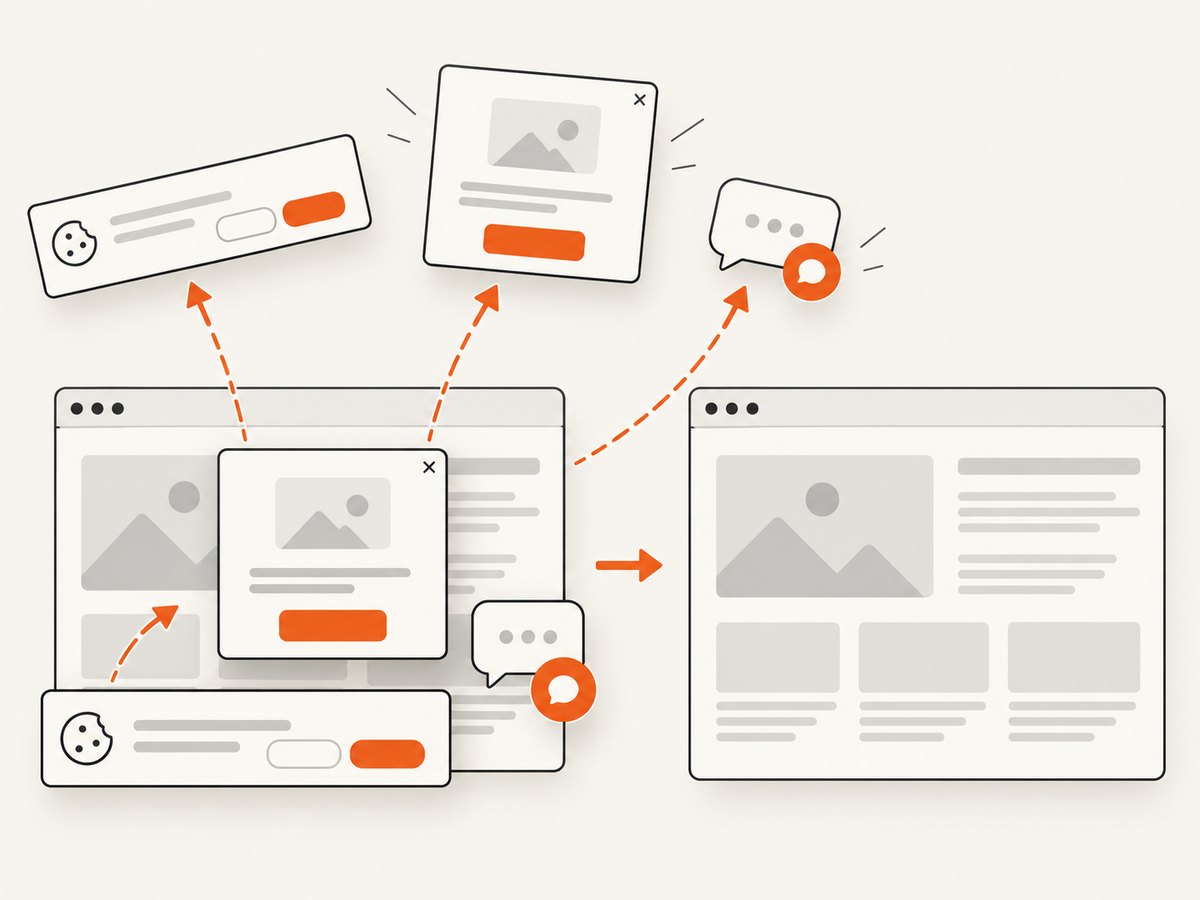
ScreenshotNeo provides a website screenshot API when you do not want to maintain browser setup, CORS workarounds, and capture orchestration. Cookie and consent banners are accepted and removed before capture, along with 60+ known consent platforms, newsletter popups, and chat widgets; each cleanup step can be turned off. Bot checks, blank pages, timeouts, failed loads, and cache hits are not billed, and responses identify the verdict and billing status with X-Page-Verdict and X-Billed headers. Its MCP server lets Claude, Cursor, and other MCP clients use take_screenshot, get_page_info, and capture_pdf.
See the ScreenshotNeo API documentation for all options. One request returns PNG, JPEG, WebP, or PDF:
curl -G 'https://api.screenshotneo.com/v1/shot' -d access_key=YOUR_API_KEY --data-urlencode url=https://stripe.com -o shot.webpimport requests
r = requests.get('https://api.screenshotneo.com/v1/shot', params={'access_key': 'YOUR_API_KEY', 'url': 'https://stripe.com'}, timeout=90)
r.raise_for_status()
open('shot.webp', 'wb').write(r.content)const q = new URLSearchParams({ access_key: 'YOUR_API_KEY', url: 'https://stripe.com' });
const res = await fetch(`https://api.screenshotneo.com/v1/shot?${q}`);
if (!res.ok) throw new Error(`HTTP ${res.status}`);
const data = Buffer.from(await res.arrayBuffer());
require('fs').writeFileSync('shot.webp', data);ScreenshotNeo also supports full-page captures with lazy images loaded, CSS-selector element capture, dark mode, device presets and custom viewports, retina scale, custom CSS and JavaScript, clicks, waits, blocked requests, headers, cookies, user agents, authorization, timezone, geolocation, transparent backgrounds, resizing, configurable caching, signed links, asynchronous jobs with signed webhooks, bulk capture of 100 URLs per call, a usage API, and an OpenAPI specification. The free plan includes 1,000 screenshots per month without a card; paid plans start at $5 for 3,000.
Create a free ScreenshotNeo account and get 1,000 screenshots a month with no card.
FAQ
Can html2canvas take a screenshot of any webpage?
No. It reconstructs accessible DOM and CSS, so unsupported properties, cross-origin frames, and inaccessible resources remain limitations.
Does increasing imageTimeout solve blank output?
Only when images are slow. It does not solve CORS, failed requests, tainted canvases, or unsupported content.
Should I set allowTaint: true?
Usually no. It does not bypass browser security and can prevent normal canvas export.
Why does a small element work while the full page fails?
The full page may exceed a browser canvas dimension or area limit. Capture sections and compare the target’s scroll dimensions with the browser’s available limits.
What should I use for server-side screenshots?
Use Puppeteer, Playwright, or a screenshot API that runs a browser on the server. html2canvas itself needs browser globals.
Primary references: html2canvas FAQ, documentation on operation and limitations, configuration reference, and getting started guide.


