How to Fix Blank or Invalid PDFs Generated by Playwright Python
Diagnose blank, incomplete, or unreadable Playwright PDFs by checking Chromium, page readiness, print CSS, assets, and PDF options—in that order.
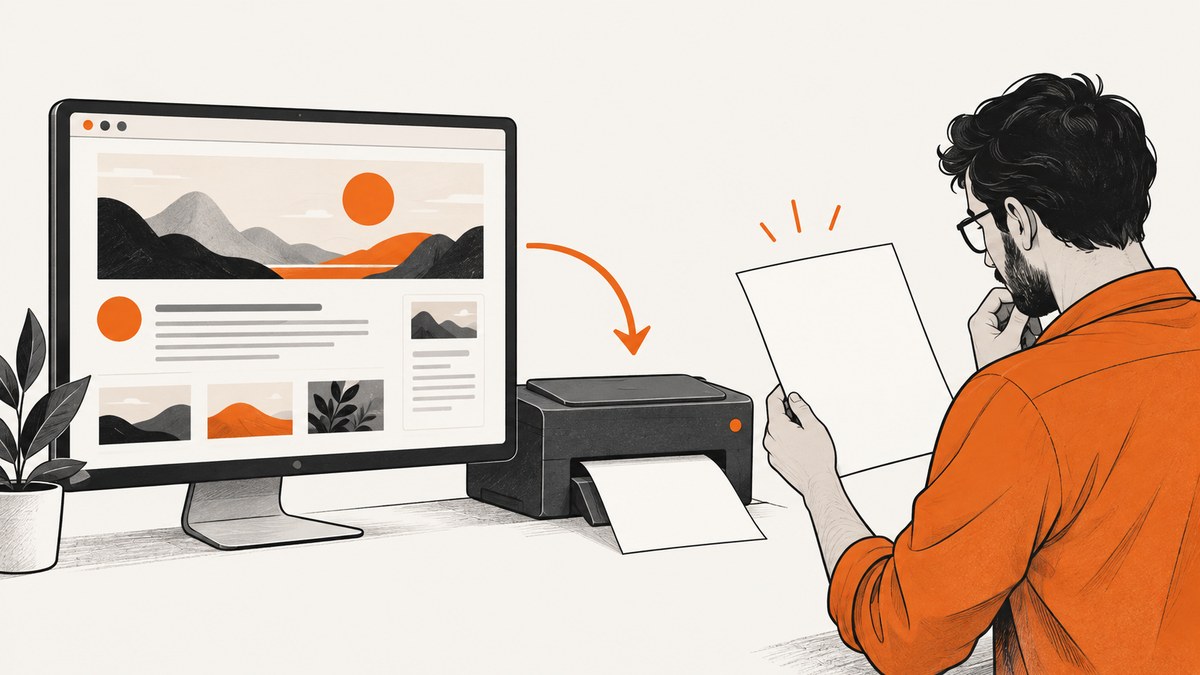
A blank or invalid PDF from Playwright Python can mean two different things: a PDF reader rejects the file, or the file opens but its pages are empty, clipped, or missing content. Start by using Chromium, then check whether you want print or screen CSS, wait for the specific content that must appear, and inspect print styles and PDF sizing options. No single setting fixes every failure.
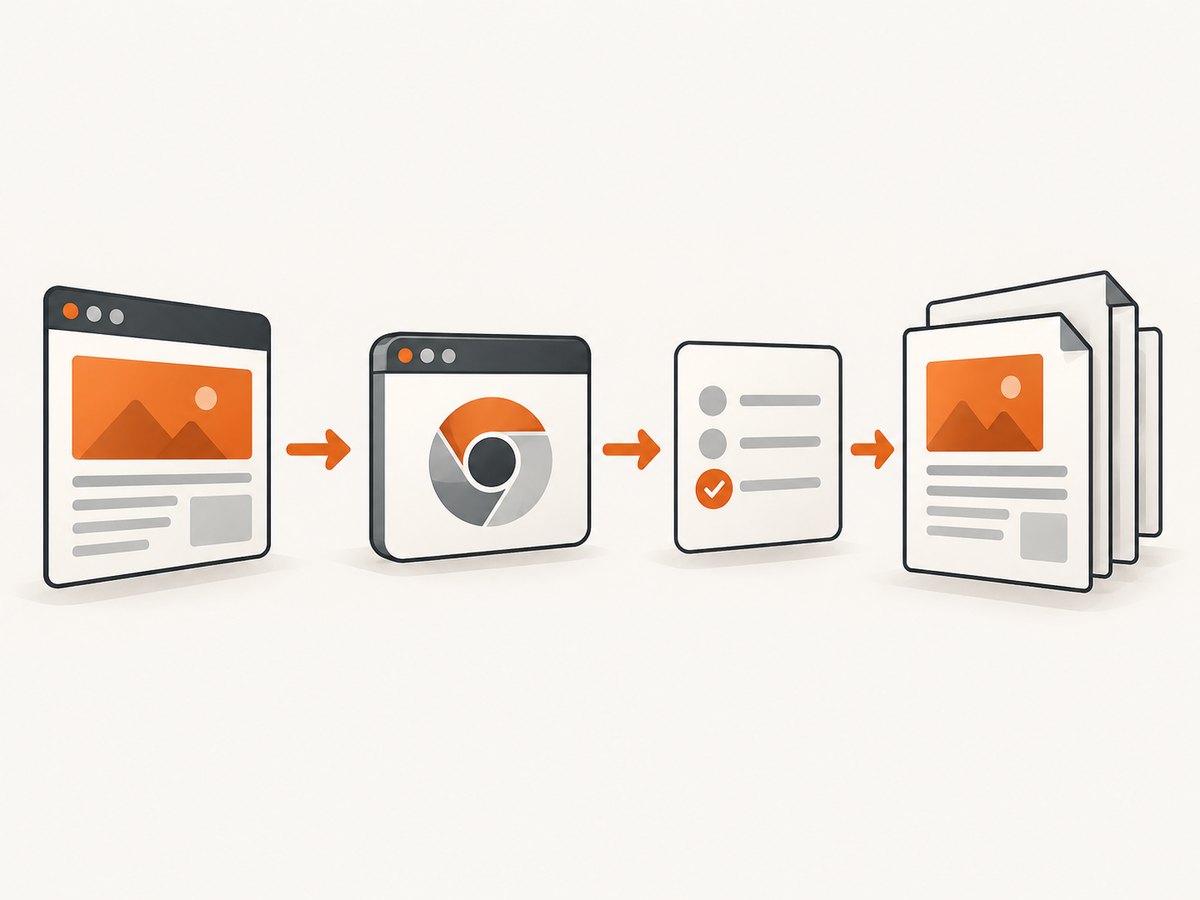
For a reliable first pass, generate the PDF with Chromium, explicitly select the intended media mode, wait for a page-specific readiness signal, enable backgrounds if they matter, and save the returned bytes or use path. Playwright’s Page API documents the PDF options; its navigation guide explains why a page’s load event may not mean an app has finished populating content.
1. First identify what “invalid” means
Before changing settings, separate generation failure from rendering failure:
- Generation failed: Playwright raised an exception, the process exited, or no output file was saved. Record the full exception and check the engine, browser installation, and file path.
- The PDF reader rejects the file: Check that the file exists, has nonzero size, and is the exact file produced by the current run. Do not assume that a blank page and a malformed PDF are the same problem.
- The PDF opens but looks wrong: Inspect print media, page readiness, CSS visibility, backgrounds, image loading, page size, margins, and scaling.
page.pdf() returns PDF bytes and can also save to a path. For debugging, save to a known absolute path and print the path and byte length. Avoid diagnosing an old file left over from a previous run.
2. Use Chromium for Playwright PDF generation
Use Playwright’s Chromium browser for this page.pdf() workflow. A Playwright Python issue reported an explicit “PDF generation is only supported for Headless Chromium” error when the reporter attempted PDF generation with WebKit. That report identifies Playwright 1.53.0, WebKit, Ubuntu 22.04, and Python 3.10, so treat it as a concrete versioned report rather than a claim about every browser workflow. See the [issue report](https://github.com/microsoft/playwright-python/issues/2909).
Install Playwright and its Chromium build in the same environment where the script will run:
python -m pip install playwright
python -m playwright install chromium
If browser installation fails in a container or CI, fix that environment setup first. A script that imports successfully can still lack the executable browser build. Keep the Playwright package and its managed browser installation aligned; when behavior differs across machines, record the Playwright version, browser build or channel, operating system, and launch mode.
3. A complete Python example with explicit readiness
This asynchronous example writes to report.pdf, waits for a report heading that the application renders when its content is ready, and uses print CSS. Replace the URL and selector with the real page and its reliable readiness signal.
import asyncio
from pathlib import Path
from playwright.async_api import async_playwright

async def main():
    output = Path("report.pdf").resolve()

    async with async_playwright() as p:
        browser = await p.chromium.launch(headless=True)
        page = await browser.new_page()

        response = await page.goto(
            "https://example.com/report",
            wait_until="load",
            timeout=60_000,
        )
        if response is not None and response.status >= 400:
            raise RuntimeError(f"Page returned HTTP {response.status}")

        # Replace this with a selector that appears after your report is ready.
        await page.locator("[data-report-ready='true']").wait_for(
            state="visible",
            timeout=30_000,
        )

        # page.pdf() uses print CSS by default. Make that choice explicit.
        await page.emulate_media(media="print")
        pdf_bytes = await page.pdf(
            path=str(output),
            format="A4",
            print_background=True,
            prefer_css_page_size=True,
            margin={
                "top": "12mm",
                "right": "12mm",
                "bottom": "12mm",
                "left": "12mm",
            },
        )
        print(f"Wrote {output} ({len(pdf_bytes)} bytes)")
        await browser.close()

asyncio.run(main())
If the page has no explicit ready marker, wait for a meaningful element such as the final report heading, a populated table row, or an application-owned completion state. Waiting for a selector only proves the condition represented by that selector; choose one that corresponds to the content you need in the document.
Print CSS or screen CSS?
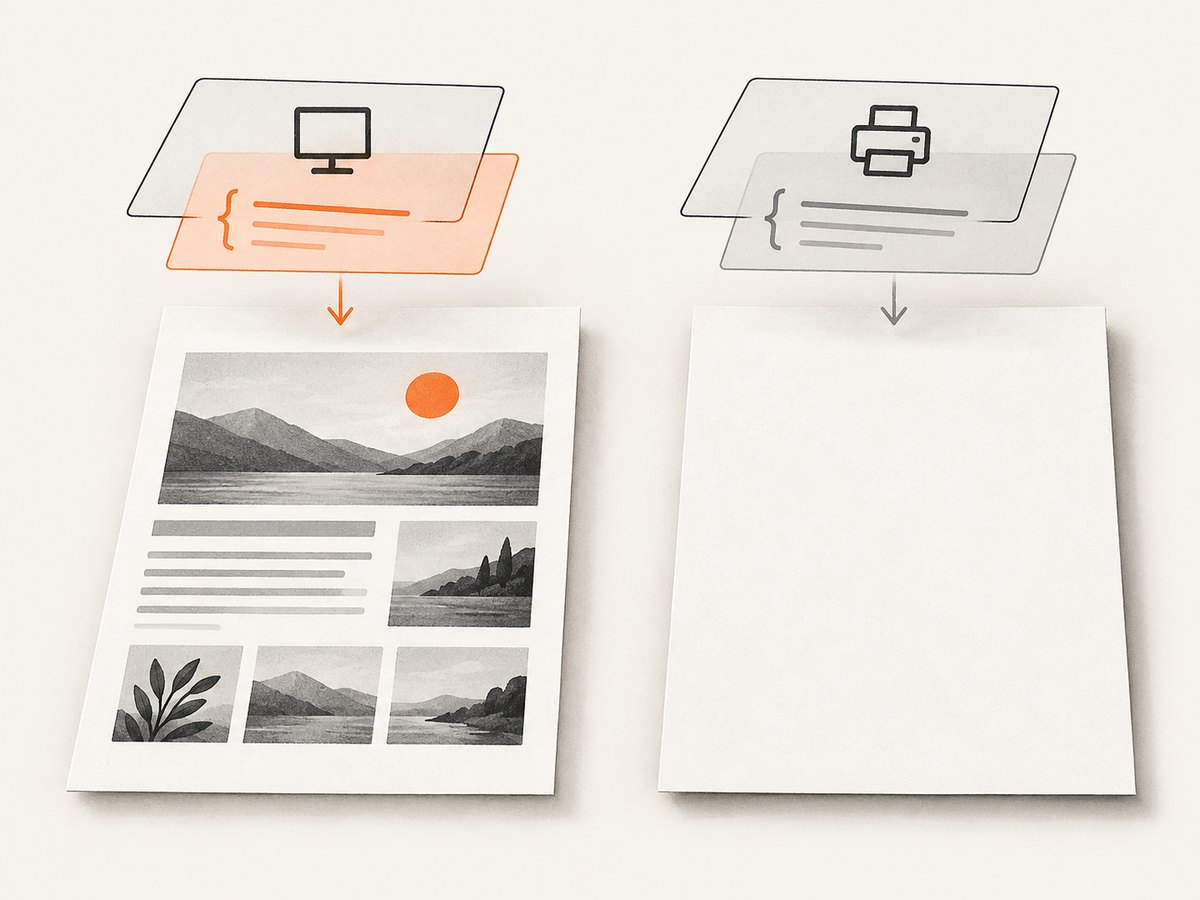
page.pdf() uses print CSS media by default. That can activate @media print rules that hide navigation, change layout, remove backgrounds, or alter element visibility. If the page’s screen layout is the desired document, switch media before calling pdf():
await page.emulate_media(media="screen")
pdf_bytes = await page.pdf(path="screen-layout.pdf", print_background=True)
Use media="print" when the site has a deliberate print stylesheet. Use media="screen" when the on-screen composition is what you need. Inspect the page’s own CSS for rules that hide important elements, constrain content to a viewport, create zero-height containers, or place text and backgrounds in unreadable combinations. Those are useful things to investigate, not universal explanations for every blank document.
4. Wait for the content and assets you actually need
page.goto() normally waits for the load event, which includes dependent resources such as stylesheets, scripts, iframes, and images. Modern applications can still fetch data, lazily load images, or populate their interface after that event. Therefore, “navigation finished” and “the report is ready to print” are different conditions. The [navigation guide](https://playwright.dev/python/docs/navigations) describes this distinction.
Prefer a page-specific wait over a generic delay:
# Better: wait for a real readiness condition
await page.get_by_role("heading", name="Quarterly report").wait_for()

# Or wait for an app-owned state
await page.locator("[data-state='complete']").wait_for()
A fixed wait_for_timeout(5000) can conceal timing issues while remaining too short on a slow run and wasteful on a fast one. Playwright discourages using networkidle as a generic readiness test; pages may keep connections open or become idle before application work completes. Use it only when network idleness itself is meaningful for your specific page, and still verify the content condition.
For missing images, inspect the image element and its source, check whether lazy-loaded images have entered the document, and verify that the page’s required assets have loaded before printing. A historical [Playwright issue #2456](https://github.com/microsoft/playwright/issues/2456) described blank image areas on Windows 10 with Python 3.11.8, Playwright 1.44.0, and Chromium 125.0.6422.26. The reproduction included networkidle, screen media, and print_background=True. This is evidence of a reported, environment-specific defect in that setup; it does not show that current versions share it or that those options are ineffective generally. Reproduce with a minimal page and current versions before attributing your result to the same issue.
5. Check print CSS and PDF options
Once the file opens and the intended content is ready, review output settings. Playwright documents the options on the [Page API](https://playwright.dev/python/docs/api/class-page).
| Option or behavior | What to check |
|---|---|
print_background |
Defaults to false. Set true when background colors or images convey necessary information. |
format |
Choose a known paper format such as A4 or Letter; unexpected defaults can make a layout look clipped. |
width and height |
Accept CSS-like units such as in, cm, mm, or px. Avoid conflicting dimensions unless you intend to control the page size directly. |
margin |
Set all four margins deliberately when content touches the edge or page breaks are surprising. |
prefer_css_page_size |
When true, gives the page’s CSS @page size priority over the PDF format, width, or height settings. |
page_ranges |
Limit output to requested pages; check that the range does not exclude the content you expected. |
scale |
Defaults to 1 and must be between 0.1 and 2. Scaling can help fit content, but excessive shrinking can make it unreadable. |
display_header_footer |
Enables header and footer templates. Template scripts are not evaluated, and page styles are not visible inside templates. |
Playwright may modify colors for print. If exact colors matter, the API documentation points to the CSS property -webkit-print-color-adjust. Check @page rules and @media print styles along with the PDF arguments: a CSS page size and a PDF format can interact, especially when prefer_css_page_size changes which one takes priority.
6. A systematic troubleshooting checklist
- Reproduce once and identify the symptom. Is there an exception, no file, a rejected PDF, a blank page, missing text, or missing images? Save the output to a fresh, known path.
- Confirm the engine. Launch
p.chromiumfor thepage.pdf()generation path. Capture the complete exception if it fails. - Check the loaded page before printing. Inspect the title and target text or element. Wait for the app-specific condition that means the report is ready.
- Choose media explicitly. Compare print and screen media if the document is blank or styled unexpectedly. Check the site’s
@media printand@pagerules. - Check required assets. For missing images or fonts, verify their URLs and load state, and make sure lazy content has been triggered.
- Review paper geometry. Check format, CSS page size, margins, page ranges, and scale for clipping or accidental exclusion.
- Reduce the page to a minimal reproduction. Use one URL, one target element, current Playwright and browser versions, and the smallest output settings that still reproduce the issue.
Common errors, causes, and fixes
| Symptom | Likely area to inspect | Fix to try |
|---|---|---|
| “Only supported for Headless Chromium” | PDF generation attempted with WebKit or another unsupported path. | Launch Playwright Chromium and generate the PDF there; retain the exception and environment details. |
| PDF opens but is blank | Print CSS hides content, or the app has not rendered the content yet. | Try screen media, inspect print rules, and wait for a page-specific ready selector. |
| Text or rows are missing | Data arrives after navigation load, or a conditional state was not reached. | Wait for the final heading, expected row, or application completion marker. |
| Images are blank or absent | Lazy loading, inaccessible assets, CSS behavior, or an environment-specific browser issue. | Verify source URLs and loaded state; trigger relevant lazy content and test a minimal reproduction on current versions. |
| Backgrounds or colors disappear | Background printing is off by default or print color adjustment changes colors. | Set print_background=True and inspect print color CSS. |
| Content is clipped or unexpectedly scaled | Format, dimensions, margins, CSS @page, page range, or scale conflict. |
Set page geometry intentionally and check whether CSS page size should take precedence. |
| Navigation or selector wait times out | Wrong URL, failed navigation, changed selector, or readiness state never occurs. | Check response status and page content; update the selector to a stable, visible application signal. |
7. Reliability, performance, and operating cost
For repeatable output, pin the Playwright dependency, install its matching Chromium build in the runtime image, and log the version, URL, media mode, and PDF options with each job. Save to a unique path or handle the returned buffer directly so parallel jobs cannot overwrite one another. Always close the browser in a finally block in long-lived workers so an exception does not leave browser processes behind.
PDF creation requires rendering the page in a browser, so complexity and asset loading affect completion time and resource use. Keep navigation and readiness timeouts finite and chosen for the workload. If a report contains many images or a very long page, verify that the intended size and page range are necessary; smaller output scope can reduce work. Do not claim a fixed speed or memory figure without measuring the actual pages and runtime.
Use browser automation when you need control over your own page, authentication state, application readiness, or print-specific rendering. For scheduled or high-volume workflows, account for browser runtime, concurrency, retries, storage, and the cost of rendering pages that fail. Record failure categories separately: navigation error, readiness timeout, PDF exception, and visually incomplete output require different fixes.
8. Or skip the browser setup
If the goal is a page screenshot rather than a custom Playwright PDF workflow, [ScreenshotNeo](https://screenshotneo.com) offers a one-request screenshot API and an MCP server for AI agents. It can also return PDFs. The API has options for viewport or full-page capture, formats, waits, custom CSS, and other capture controls; see the [ScreenshotNeo docs](https://screenshotneo.com/docs/).
curl -G "https://api.screenshotneo.com/v1/shot" \
  -d access_key=YOUR_API_KEY \
  --data-urlencode url=https://stripe.com \
  -o shot.webp
import requests
r = requests.get(
"https://api.screenshotneo.com/v1/shot",
params={"access_key": "YOUR_API_KEY", "url": "https://stripe.com"},
timeout=90,
)
r.raise_for_status()
open("shot.webp", "wb").write(r.content)const q = new URLSearchParams({
access_key: 'YOUR_API_KEY',
url: 'https://stripe.com'
});
const res = await fetch(`https://api.screenshotneo.com/v1/shot?${q}`);
if (!res.ok) throw new Error(`Screenshot request failed: ${res.status}`);
await Bun.write('shot.webp', res);- Cookie and consent banners, newsletter popups, and chat widgets are removed before the shot; each step can be turned off.
- Bot checks, CAPTCHAs, blank pages, timeouts, failed loads, and cache hits are not billed; response headers report the page verdict and billing status.
- An MCP server exposes
take_screenshot,get_page_info, andcapture_pdfto Claude, Cursor, and other MCP clients. - The free plan includes 1,000 shots per month with no card. Paid plans start at $5 for 3,000 shots; every feature is available on every plan.
Create a free ScreenshotNeo account for 1,000 screenshots a month, with no card required.
9. Frequently asked questions
Does page.pdf() return bytes or a file path?
It returns PDF bytes. Pass path to save the output directly, or write the returned bytes to your own storage destination.
Can I generate a PDF with Firefox or WebKit?
For this Playwright page.pdf() workflow, use Chromium. Playwright’s other browser engines support other automation tasks, but the documented PDF generation route is Chromium.
Should I always set networkidle before printing?
No. It is discouraged as a generic readiness test. Wait for the specific content condition that matters to the document.
Why does my on-screen page look right while the PDF does not?
The PDF defaults to print CSS media, and print styles or PDF options can change visibility, colors, and page layout. Explicitly choose screen media if that is the intended output.
Does enabling backgrounds fix every blank PDF?
No. It only enables background graphics. It cannot make missing application data appear, change a browser engine limitation, or correct CSS that hides the content.


