How to Fix Blank Screenshots of Login Pages
Fix blank login screenshots by validating redirects, authentication state, readiness signals, targets, and viewport settings before capture.
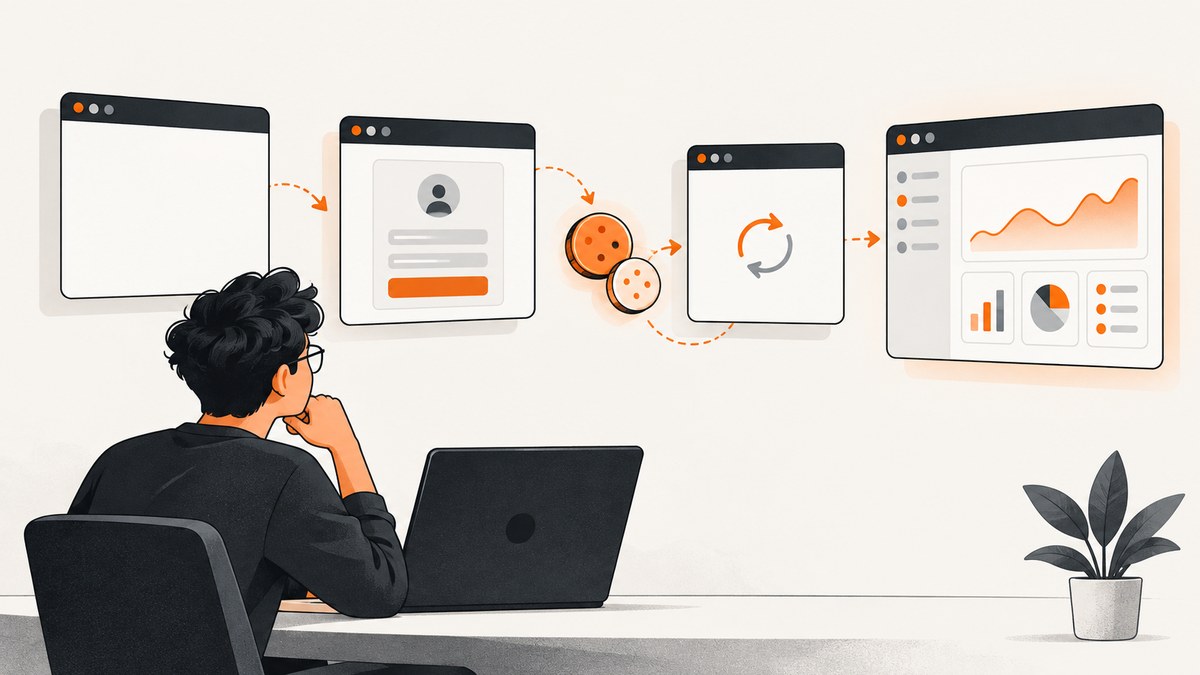
A blank screenshot of a login page usually means the capture happened in the wrong state. The browser may still be on an identity provider, waiting for a redirect, missing authentication cookies, rendering content outside the viewport, or capturing the wrong element. Treat the image as the final symptom and inspect the browser state immediately before capture.
The reliable repair is: verify the final URL, assert a visible authenticated control, use the same browser context that completed login, then capture the viewport before trying an element or full-page screenshot. A successful load event alone does not prove that a modern application is ready.
Quick repair checklist
- Print the current URL immediately before the screenshot.
- Wait for the final post-login URL or a stable route.
- Assert that a dashboard, profile control, logout button, or other signed-in element is visible.
- Use the same browser context for login and capture.
- Take a normal viewport screenshot first.
- Try an element screenshot or
fullPage: trueonly after the viewport capture works. - Check viewport size, device scale, background settings, and the selected target.
- Compare a DOM or accessibility assertion with the image to separate rendering problems from screenshot-target problems.
Why login screenshots turn blank
The redirect has not finished
Login often crosses several URLs: your application, an identity provider, a callback route, and finally the authenticated page. Cookies can be set during more than one redirect. If the screenshot runs after a click but before the final navigation, it may capture a transition page, an error route, or an empty application shell. Playwright recommends waiting for a meaningful condition such as a final URL or visible UI state because modern pages continue work after the load event. See the Playwright navigation guide.

The browser context is not authenticated
Cookies, local storage, and session storage belong to a browser context. Logging in one context and capturing in another produces a valid but anonymous page. A saved storage-state file must also belong to the correct account and environment. Playwright warns that storage-state files can contain sensitive cookies and headers that could impersonate a test account, so protect them and never commit them.
The page is ready, but the target is wrong
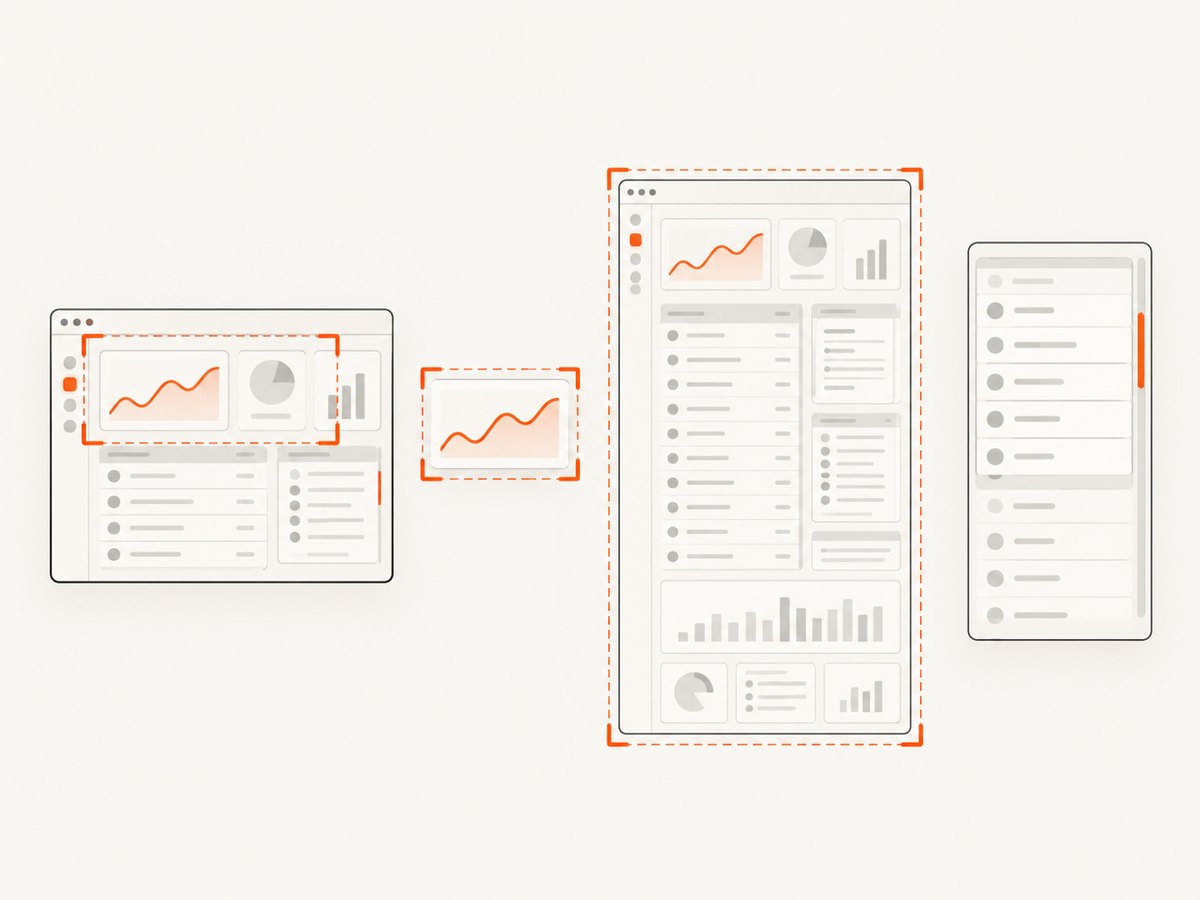
A viewport screenshot captures what is currently visible. An element screenshot captures only the matching element. A full-page screenshot expands the page vertically, but it does not automatically solve a horizontally scrolling application or an element inside a separate scroll container. A selector that matches a hidden template, a zero-sized wrapper, or a stale route can produce an image that looks empty.
Scale or background settings change the appearance
Device scale affects pixel dimensions, while transparent backgrounds can make a light page appear empty when viewed against a light image viewer. Confirm the CSS viewport, device scale, and background option before changing application code. Playwright documents viewport, element, and full-page screenshot modes in its screenshot guide.
A reproducible Playwright fix
The following Node.js script logs the URL, waits for the final route, verifies an authenticated control, and captures three useful forms of evidence. Replace the selectors and credentials with values for your application.
import { chromium, expect } from '@playwright/test';

const browser = await chromium.launch({ headless: true });
const context = await browser.newContext({
  viewport: { width: 1440, height: 900 },
  deviceScaleFactor: 1,
});
const page = await context.newPage();

await page.goto('https://example.com/login', { waitUntil: 'domcontentloaded' });
await page.getByLabel('Email').fill(process.env.LOGIN_EMAIL);
await page.getByLabel('Password').fill(process.env.LOGIN_PASSWORD);
await Promise.all([
  page.waitForURL('**/dashboard', { waitUntil: 'domcontentloaded' }),
  page.getByRole('button', { name: /sign in|log in/i }).click(),
]);

// A URL match is useful, but a visible authenticated control is stronger.
await expect(page.getByRole('heading', { name: /dashboard/i })).toBeVisible();
console.log('URL before capture:', page.url());
console.log('Title:', await page.title());

await page.screenshot({ path: 'dashboard-viewport.png' });
await page.screenshot({ path: 'dashboard-full.png', fullPage: true });
await page.locator('[data-testid="dashboard-main"]').screenshot({
  path: 'dashboard-element.png',
});

// Save only after the authenticated state is verified.
await context.storageState({ path: 'playwright/.auth/user.json' });
await browser.close();
The important detail is the paired wait: waitForURL and a visible authenticated locator. If your application uses a client-side router and the URL does not change, replace the URL assertion with a route-specific element assertion. If the login button opens a popup, wait for the popup and continue in that page rather than capturing the original login tab.
Reuse authenticated state safely
After a verified login, reuse storage state for later captures instead of repeating a fragile login flow. Create the state in a setup step, then load it into the context used for the screenshot.
import { chromium, expect } from '@playwright/test';

const browser = await chromium.launch();
const context = await browser.newContext({
  storageState: 'playwright/.auth/user.json',
  viewport: { width: 1440, height: 900 },
});
const page = await context.newPage();
await page.goto('https://example.com/dashboard', { waitUntil: 'domcontentloaded' });
await expect(page.getByRole('heading', { name: /dashboard/i })).toBeVisible();
console.log('Authenticated URL:', page.url());
await page.screenshot({ path: 'authenticated.png' });
await browser.close();- Keep one state file per environment or test account.
- Regenerate the file when sessions expire or permissions change.
- Store it outside source control and restrict filesystem access.
- Do not assume a state file created for staging works on production.
Choose the correct capture scope
| Capture | Use it when | Common blank-result cause |
|---|---|---|
| Viewport | You need exactly what a user sees at a fixed size | The content is below the fold or a responsive breakpoint hides it |
| Element | You need a card, dashboard panel, or authenticated control | The selector matches a hidden template, an iframe wrapper, or zero-sized node |
| Full page | You need the complete document height | The application uses an inner scroll container or lazy content has not loaded |
Start with a viewport capture because it is easiest to interpret. If the viewport is correct but the element image is blank, inspect the locator count and bounding box:
const target = page.locator('[data-testid="dashboard-main"]');
console.log('matches:', await target.count());
console.log('box:', await target.boundingBox());
await expect(target).toBeVisible();
For full-page pages with lazy images, scroll or wait for the application to finish loading its content before capture. For an inner scroll area, capture that element or scroll it explicitly; fullPage describes the document, not every nested scrolling surface.
Use meaningful readiness signals
Fixed sleeps are brittle. A five-second delay can be too short on a slow run and waste time on a fast run. Prefer conditions tied to the page:
- Final URL: wait for the callback or dashboard route.
- Visible UI: wait for a heading, account menu, logout button, or unique dashboard control.
- Application state: wait for a loading indicator to disappear or for a known API response when that response defines readiness.
- Selector-specific wait: wait for the exact element you plan to capture.
Network idle can help for pages that load data through many requests, but it is not a universal definition of readiness. Analytics, WebSockets, polling, and long-lived requests can keep a page active indefinitely. Combine a bounded network wait with a visible UI assertion.
Diagnose the browser before changing the screenshot
Add temporary diagnostics around the capture:
console.log({ url: page.url(), title: await page.title() });
console.log('body text:', (await page.locator('body').innerText()).slice(0, 500));
console.log('dashboard visible:', await page.getByTestId('dashboard-main').isVisible().catch(() => false));
await page.screenshot({ path: 'debug-before-capture.png', animations: 'disabled' });
If the body text is empty, investigate navigation, JavaScript errors, blocked resources, or authentication. If text and the authenticated control are present but the image is blank, investigate the target locator, clipping, viewport, device scale, and background. An accessibility snapshot or DOM assertion can show that the page structure exists even when the selected screenshot region is wrong. Screenshots are visual evidence; they are not a substitute for structural assertions.
Or skip the browser setup
ScreenshotNeo provides a website screenshot API and MCP server. When the login page can be reached with headers, cookies, an Authorization value, or a user agent, one request can capture it without maintaining Playwright infrastructure. See the ScreenshotNeo documentation for the full parameter list.
cURL
curl -G "https://api.screenshotneo.com/v1/shot" \
  -d access_key=YOUR_API_KEY \
  --data-urlencode url=https://stripe.com \
  -o shot.webp
Python
import requests

r = requests.get(
    "https://api.screenshotneo.com/v1/shot",
    params={"access_key": "YOUR_API_KEY", "url": "https://stripe.com"},
    timeout=90,
)
r.raise_for_status()
open("shot.webp", "wb").write(r.content)
Node.js
const q = new URLSearchParams({
  access_key: 'YOUR_API_KEY',
  url: 'https://stripe.com'
});
const res = await fetch(`https://api.screenshotneo.com/v1/shot?${q}`);
if (!res.ok) throw new Error(`HTTP ${res.status}`);
const body = Buffer.from(await res.arrayBuffer());
await Bun.write('shot.webp', body);
For an authenticated page, pass the supported custom cookies, headers, user agent, or Authorization settings described in the docs. You can also wait for a selector, a delay, or network idle; run custom JavaScript; click an element before capture; hide selectors; select an element; enable full-page capture; choose a device or viewport; and set retina scale. If the page needs a browser interaction that cannot be represented by those options, keep the Playwright workflow and use the API for simpler captures.
ScreenshotNeo removes cookie and consent banners, newsletter popups, and chat widgets before capture. Bot checks, blank pages, timeouts, failed loads, and cache hits are not billed, and the response identifies the result with X-Page-Verdict and X-Billed headers. Its MCP server exposes take_screenshot, get_page_info, and capture_pdf for Claude, Cursor, and other MCP clients. The Free plan includes 1,000 screenshots per month without a card; paid plans start at $5 for 3,000 shots. Create a free ScreenshotNeo account.
Troubleshooting common failures
| Symptom | Likely cause | Fix |
|---|---|---|
| Screenshot shows the login form | Redirect or authentication did not complete | Log page.url(), wait for the final URL, and assert a signed-in control. |
| URL is correct but content is empty | Client-side data has not rendered | Wait for the data-bound selector or loading state to finish; do not rely only on load. |
| Element screenshot is blank | Wrong, hidden, or zero-sized selector | Check count(), isVisible(), and boundingBox(); use a stable test ID. |
| Full-page image misses dashboard content | Content is inside an inner scroll container | Capture the scroll container or scroll it before capture. |
| Only headless mode is blank | Viewport, timing, fonts, or animations differ | Set the viewport explicitly, disable animations for diagnosis, and wait for visible UI. |
| Page appears white in an image viewer | Transparent background or white content | Use an opaque background and inspect the raw image against a contrasting viewer. |
| State works locally but not in CI | Expired state, different origin, timezone, or environment | Create state in the same environment, verify the origin, and log the final URL and account marker. |
| Intermittent blank images | Race between redirect, data fetch, and capture | Replace sleeps with URL plus UI assertions and retry only after collecting diagnostics. |
Performance, reliability, and cost
Performance
Reuse a browser process and authenticated state when capturing many pages. Keep the viewport only as large as required, and avoid full-page captures when a specific element answers the question. Disable unnecessary animations and third-party resources during debugging. A bounded readiness condition is generally faster and more reliable than a long fixed sleep.
Reliability
Make readiness assertions specific to the authenticated experience. A generic body selector can pass on an error page. Record the final URL, page title, and a short body-text sample with failures. Keep separate state files for accounts with different permissions, because a valid session can still produce a page without the feature you expect.
Cost
Browser automation consumes your own compute and maintenance time. With ScreenshotNeo, only clean shots are billed; bot checks, blank pages, timeouts, failed loads, and cache hits cost nothing, and cache behavior can be configured with a TTL. Bulk capture supports up to 100 URLs per call, and async jobs with signed webhooks are available for longer workflows. Plans range from Free (1,000 shots per month) to paid tiers beginning at $5 for 3,000 shots; every feature is on every plan.
FAQ
Does a successful login request prove the screenshot will contain the dashboard?
No. The request can succeed while redirects, cookies, client-side data, or rendering are still in progress. Assert the final URL and a visible authenticated control.
Should I always use full-page screenshots?
No. Start with a viewport capture. Use full-page mode for a document whose content flows with the page, and use an element capture for a nested scroll area or specific panel.
Can I share a Playwright storage-state file?
Treat it as a secret. It may contain cookies and headers that can impersonate the account. Store it securely and generate separate files for different environments.
What if the application requires a CAPTCHA?
Do not attempt to bypass it. Use an approved test account or a supported test environment, then verify the resulting authenticated state before capture.
When is an API preferable to Playwright?
Use an API when the page can be prepared with supported cookies, headers, authorization, waits, and selectors and you want a simpler capture pipeline. Keep browser automation for complex interactive login flows that require several user actions.


