How to Fix Blank PDFs from NReco HTML-to-PDF with Angular Highcharts
Fix blank NReco PDFs by waiting for Highcharts SVG, making assets reachable, and avoiding wkhtmltopdf compatibility traps.

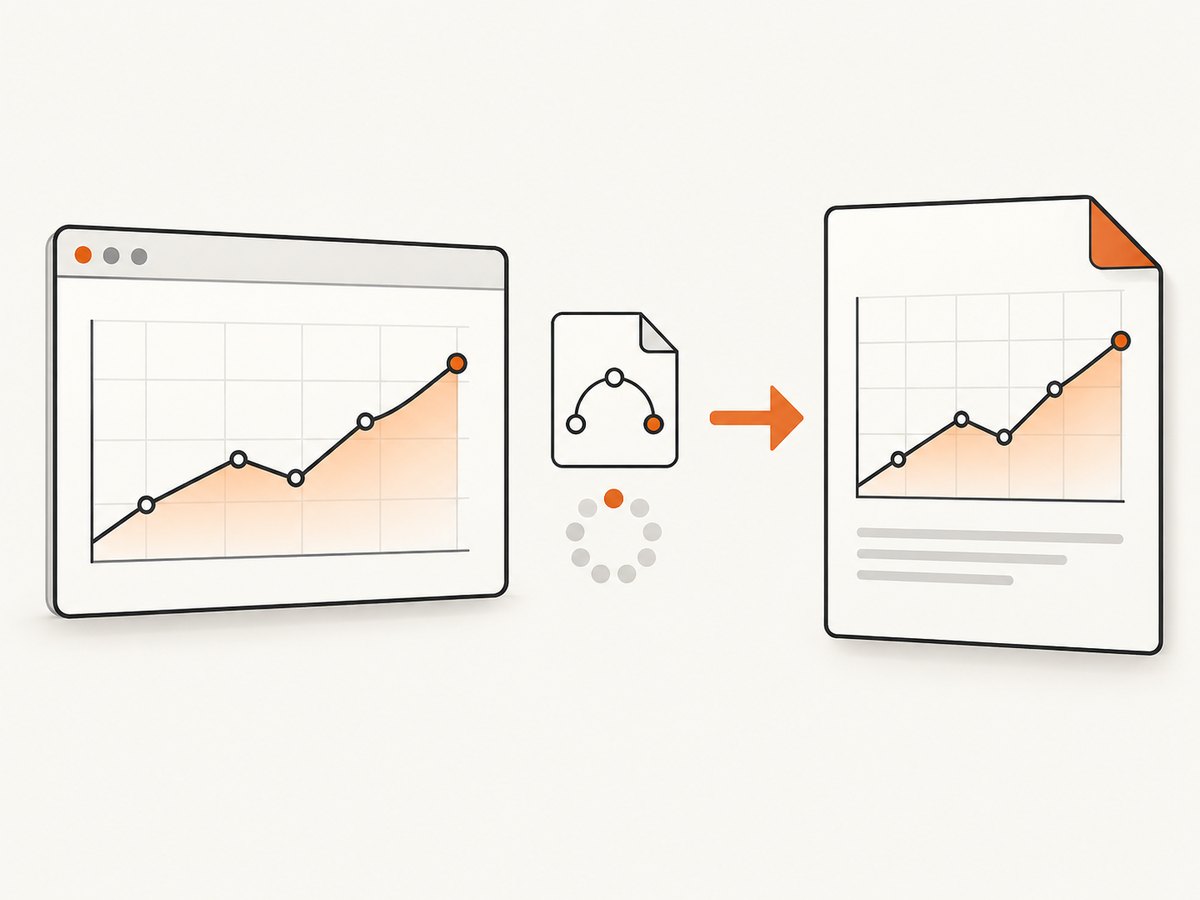
Short answer: NReco.PdfGenerator can execute JavaScript, but it renders through wkhtmltopdf and its QtWebKit 4.8 engine. A blank Angular Highcharts PDF usually means the converter captured before the chart SVG existed, could not reach a script or data resource, or encountered JavaScript and CSS that QtWebKit cannot run. Render the chart only in the browser, wait for a deterministic readiness signal, verify the generated HTML contains a populated SVG with dimensions, make every dependency reachable, and enable NReco logging.
Why the browser chart works but the PDF is blank
Angular Highcharts renders SVG through the DOM and accesses window and document. It must not run during Angular server-side rendering. NReco executes JavaScript before PDF rendering, but wkhtmltopdf uses the older QtWebKit 4.8 engine, which has limited support for modern CSS and JavaScript. Flexbox, grid, ES2015 syntax, module loading, unsupported APIs, delayed data requests, and dynamic SVG creation can all produce an empty result.
NReco also needs to fetch every external script, stylesheet, image, font, and data endpoint itself. Relative URLs, authentication that exists only in the browser session, blocked network requests, and certificate or DNS problems can leave the converter with an empty chart.
NReco’s documentation describes JavaScript execution and external-resource loading in its PDF generator FAQ. Its compatibility notes identify QtWebKit 4.8 and limited modern CSS3 and ES2015 support as common constraints. The Highcharts Angular integration documentation explains the dependency on browser globals.
A reliable fix sequence
- Save the exact HTML sent to NReco. Open that HTML in a normal browser. Confirm the chart container contains an
<svg>, populated series paths, and nonzero width and height. - Keep chart creation browser-only. Guard initialization with an Angular browser check and create the chart in
ngAfterViewInitor an equivalent post-data lifecycle. - Expose readiness explicitly. Set an application flag or resolve a dedicated PDF view only after data has loaded and the chart callback has run. Check the SVG dimensions before calling NReco.
- Make dependencies absolute and reachable. Use fully qualified HTTPS URLs for JavaScript, CSS, fonts, images, and API calls. Pass required cookies or authorization to the converter, or expose a protected PDF endpoint that it can access.
- Use a PDF-specific stylesheet. Give the chart a fixed pixel width and height. Avoid flex and grid in the print view. Transpile JavaScript to syntax the QtWebKit engine can execute.
- Start without
--print-media-type. NReco warns that this option can crash wkhtmltopdf on pages containing complex JavaScript such as dynamic SVG charts. Use an explicit print class or a separate stylesheet instead. - Turn on logs. Set
Quiet = falseand subscribe toLogReceived. Look for missing files, JavaScript exceptions, blocked requests, and failed data loads.
Angular implementation that waits for Highcharts
The following pattern separates browser rendering from PDF capture. The readiness signal is more reliable than an arbitrary sleep.
import { AfterViewInit, Component, Inject, PLATFORM_ID } from '@angular/core';
import { isPlatformBrowser } from '@angular/common';
import * as Highcharts from 'highcharts';

@Component({
  selector: 'app-report',
  template: `
    <section id="report-chart" class="pdf-chart"></section>
    <span id="chart-ready" hidden>false</span>
  `
})
export class ReportComponent implements AfterViewInit {
  chartReady = false;

  constructor(@Inject(PLATFORM_ID) private platformId: object) {}

  ngAfterViewInit(): void {
    if (!isPlatformBrowser(this.platformId)) return;

    const options: Highcharts.Options = {
      chart: { type: 'line', width: 900, height: 420 },
      title: { text: 'Revenue' },
      series: [{
        type: 'line',
        name: 'Revenue',
        data: [12, 18, 16, 24, 31]
      }]
    };

    Highcharts.chart('report-chart', {
      ...options,
      chart: {
        ...options.chart,
        events: {
          load: () => this.markChartReady()
        }
      }
    });
  }

  private markChartReady(): void {
    const host = document.getElementById('report-chart');
    const svg = host?.querySelector('svg');
    const ready = !!svg && svg.getBoundingClientRect().width > 0
      && svg.getBoundingClientRect().height > 0
      && host!.querySelectorAll('path').length > 0;

    this.chartReady = ready;
    document.getElementById('chart-ready')!.textContent = String(ready);
  }
}
For a data-driven chart, call markChartReady() only after the HTTP request resolves and the chart’s load or redraw callback fires. A dedicated PDF route can render this view and remain available until the readiness element reports true.
Use a fixed PDF stylesheet
/* Loaded by the PDF endpoint with an absolute URL. */
.pdf-page {
  width: 960px;
  background: #fff;
  color: #111;
}
.pdf-chart {
  width: 900px;
  height: 420px;
  display: block;
}
.no-pdf {
  display: none;
}
Keep layout primitives simple in the PDF view. A fixed chart size also prevents a zero-height parent from collapsing the SVG.
Generate the PDF with NReco and diagnostics enabled
using NReco.PdfGenerator;

public byte[] GenerateReportPdf(string renderedHtml, ILogger logger)
{
    var converter = new HtmlToPdfConverter
    {
        Quiet = false,
        CustomWkHtmlArgs = " --enable-javascript --javascript-delay 1500 "
    };

    converter.LogReceived += (_, e) =>
        logger.LogInformation("wkhtmltopdf: {Line}", e.Data);

    return converter.GeneratePdf(renderedHtml);
}
The delay is a safety net, not a readiness protocol. Prefer an endpoint that returns HTML only after the chart is ready, or render a server-side SVG and pass that stable HTML to NReco. If you retain a delay, make it long enough for the slowest expected data request and inspect logs for requests that still finish afterward.
Verify the HTML before conversion
- Write the exact string passed to
GeneratePdfor the file passed toGeneratePdfFromFileto disk. - Open it in a browser with network access disabled if possible. This reveals accidental dependencies on the original application session.
- Inspect the chart host. It should contain an SVG element, one or more series paths, and explicit nonzero dimensions.
- Check that script and stylesheet URLs are absolute. Confirm fonts, images, and data endpoints return successful responses to the converter process.
- Compare the browser’s console and network errors with NReco’s
LogReceivedoutput.
Common causes and fixes
| Symptom | Likely cause | Fix |
|---|---|---|
| Entire PDF is blank | HTML endpoint returned an empty shell, authentication failed, or JavaScript crashed. | Save the input HTML, open it directly, enable NReco logs, and verify the response body and credentials. |
| Chart container exists but has no SVG | Capture started before Angular data or Highcharts initialization completed. | Use a chart callback and readiness endpoint; increase delay only as a temporary fallback. |
| SVG exists but is zero by zero | Parent layout collapsed or dimensions depend on unsupported CSS. | Set pixel width and height on the chart and its parent; remove flex or grid from the PDF stylesheet. |
| Text appears but lines or points do not | Dynamic series data arrived after capture, or SVG paths were not created. | Wait for the data request and chart redraw; assert that series paths exist before conversion. |
| Works locally, fails on the server | Relative URLs, DNS, TLS, firewall, proxy, or missing cookies. | Use absolute URLs, test from the server identity, pass cookies or authorization, and inspect process logs. |
| JavaScript syntax error in logs | QtWebKit cannot parse ES2015, modules, or newer browser APIs. | Transpile the PDF bundle, avoid module-only scripts, and use a compatibility build. |
| Layout changes unexpectedly | Print media rules or unsupported CSS alter the page. | Use an explicit PDF class or stylesheet. Do not make --print-media-type the first remedy. |
| wkhtmltopdf crashes | Complex JavaScript, especially dynamic SVG charts, combined with print-media processing. | Remove --print-media-type, simplify the view, and consider a browser-engine export path. |
| Images or fonts are missing | Resources are relative, protected, or blocked. | Use absolute URLs and make credentials available to the converter; check every request in logs. |
When NReco is the wrong rendering path
Choose an export path based on browser-engine compatibility, readiness control, network isolation, chart-data privacy, and operational complexity. NReco is useful when a stable HTML view fits QtWebKit’s limits. A browser-based renderer is a better fit when the page depends on modern CSS, ES modules, browser APIs, or complex chart interactions.

Highcharts documents client-side PDF export with exporting.js, offline-exporting.js, jsPDF, and svg2pdf. Missing one of those dependencies can cause export errors. Highcharts also documents a server export path that accepts chart SVG or configuration and renders with Puppeteer. Client-side export keeps data in the browser; a private export server provides controlled rendering.
Or skip the browser setup
ScreenshotNeo can capture a ready web page through one request, including PNG, JPEG, WebP, or PDF output. See the API documentation for all options.
curl -G "https://api.screenshotneo.com/v1/shot" -d access_key=YOUR_API_KEY --data-urlencode url=https://stripe.com -o shot.webpimport requests
r = requests.get("https://api.screenshotneo.com/v1/shot", params={"access_key": "YOUR_API_KEY", "url": "https://stripe.com"}, timeout=90)
open("shot.webp", "wb").write(r.content)const q = new URLSearchParams({ access_key: 'YOUR_API_KEY', url: 'https://stripe.com' });
const res = await fetch(`https://api.screenshotneo.com/v1/shot?${q}`);Cookie and consent banners, newsletter popups, and chat widgets are removed before the shot. Bot checks, blank pages, failed loads, timeouts, and cache hits are not billed; response headers identify the page verdict and billing result. An MCP server provides take_screenshot, get_page_info, and capture_pdf tools for Claude, Cursor, and other MCP clients. The free plan includes 1,000 screenshots a month with no card; paid plans start at $5 for 3,000 shots.
Create a free ScreenshotNeo account and start with 1,000 screenshots per month without a card.
Performance, reliability, and cost notes
- Performance: eliminate unnecessary scripts and assets from the PDF route, use a fixed chart size, and wait on a readiness signal instead of repeatedly polling the DOM.
- Reliability: make the HTML deterministic, log converter output, pin the PDF stylesheet, and keep a fallback export path for charts that require a modern browser engine.
- Privacy: verify where chart data is rendered. Client-side Highcharts export avoids sending data to a public export service; a private server gives controlled execution.
- Cost: NReco conversion consumes your own application and worker resources. ScreenshotNeo bills only clean shots; failed loads, blank pages, bot checks, timeouts, and cache hits are not billed.
Deployment checklist
- Angular Highcharts initialization is browser-only.
- Data loading completes before capture begins.
- The generated HTML contains a populated SVG with nonzero dimensions.
- All assets and data URLs are absolute and reachable by the converter.
- Authentication, cookies, proxy, DNS, and TLS work from the converter process.
- The PDF stylesheet avoids flex, grid, and unsupported browser APIs.
- JavaScript is transpiled to syntax QtWebKit can parse.
--print-media-typeis disabled while diagnosing dynamic SVG failures.- NReco logs are enabled in staging and retained with failed jobs.
- A browser-based or client-side Highcharts export path is available when the page exceeds wkhtmltopdf’s limits.
FAQ
Does adding a longer JavaScript delay always fix a blank chart?
No. It can help with slow loading, but it cannot fix an unreachable API, a JavaScript syntax error, a zero-height container, or an SVG feature the rendering engine cannot handle. A readiness signal is preferable.
Should I render Highcharts during Angular SSR?
No. Highcharts accesses window and document. Keep chart creation in the browser lifecycle or use a separate server-compatible export representation.
Can I keep using modern CSS in the main application?
Yes. Give the PDF endpoint its own simple stylesheet and fixed dimensions so the legacy converter does not need to interpret the application’s full layout system.
What should I inspect first when only production fails?
Inspect the saved production HTML, then test every script, stylesheet, image, font, and data URL from the server identity. Authentication and network reachability are frequent differences between local and production environments.
When should I switch away from wkhtmltopdf?
Switch when the chart or page depends on modern JavaScript, CSS, browser APIs, or interactions that remain unreliable after you simplify the PDF view and make readiness deterministic.


