How to Fix a Blank Page When Navigating to a URL with Puppeteer
A blank Puppeteer page can come from navigation, network, HTTP, browser, or content failures. Check the final URL, response, and expected page content to find the cause.
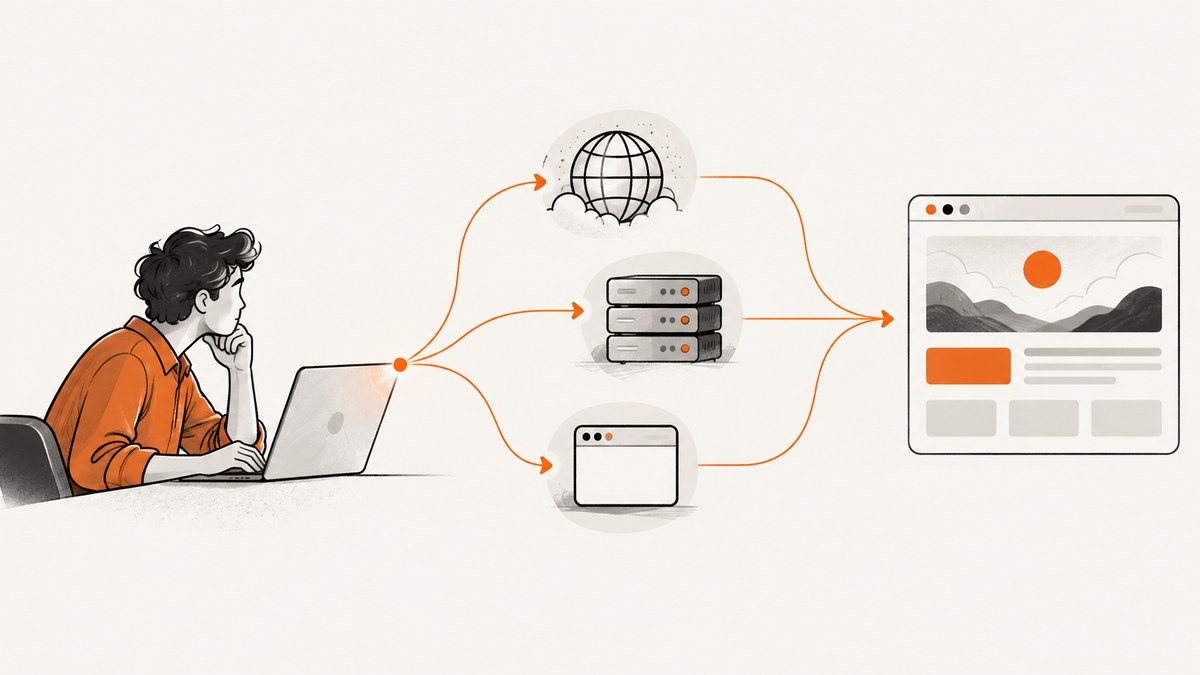
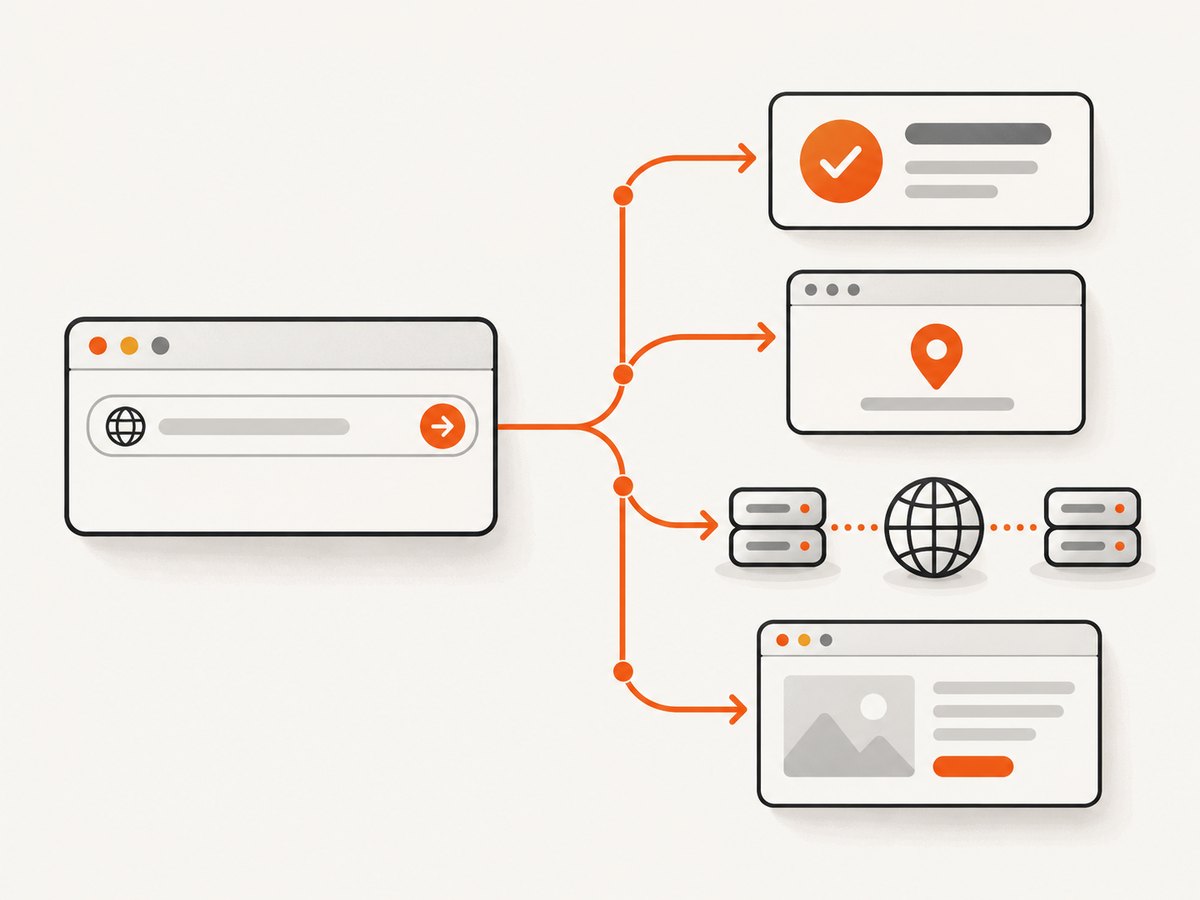
A blank page in Puppeteer is a symptom, not a diagnosis. Start by recording whether page.goto() threw, the returned HTTP status, the final URL, and whether the expected content exists. A navigation promise resolving does not prove that the intended page rendered: the destination may be an HTTP error page, a browser error screen, a redirect, a login page, or an app that has not finished rendering.
The diagnostic example below uses a fully qualified HTTPS URL, waits for the DOM rather than every network request to finish, and checks for page-specific content. Adjust the selector and wait condition to match the target. Puppeteer documents that goto() can return null for about:blank and same-URL hash changes, and that headless shell can return HTTP error statuses such as 404 without throwing. Puppeteer navigation API
1. Run a diagnostic navigation
Install Puppeteer in a Node.js project with npm install puppeteer. Save this as diagnose.js and run node diagnose.js. Replace the URL and selector with the page and content your task actually needs.
import puppeteer from 'puppeteer';

const targetUrl = 'https://example.com/';
const expectedSelector = 'main';

const browser = await puppeteer.launch();
try {
  const page = await browser.newPage();
  page.setDefaultNavigationTimeout(30_000);

  let response;
  try {
    response = await page.goto(targetUrl, {
      waitUntil: 'domcontentloaded',
      timeout: 30_000,
    });
  } catch (error) {
    console.error('Navigation threw:', error.message);
    console.error('URL at failure:', page.url());
    throw error;
  }

  const result = {
    finalUrl: page.url(),
    status: response?.status() ?? null,
    responseUrl: response?.url() ?? null,
    title: await page.title().catch(() => null),
    bodyText: await page.locator('body').innerText().catch(() => ''),
  };
  console.log(result);

  if (page.url().startsWith('chrome-error://')) {
    throw new Error('Chrome reached a browser error page');
  }
  if (response && response.status() >= 400) {
    throw new Error(`HTTP response: ${response.status()}`);
  }

  // A null response is possible for same-document navigation. Validate state.
  if (targetUrl !== 'about:blank') {
    await page.waitForSelector(expectedSelector, { timeout: 10_000 });
  }
  const text = await page.locator('body').innerText();
  if (!text.trim()) throw new Error('The page body has no visible text');
} finally {
  await browser.close();
}
This deliberately treats “navigation completed” and “the task succeeded” as separate conditions. For a site whose main content appears later, wait for a stable, meaningful marker such as a product title or article heading. A generic body check can pass on an error template or consent screen, so prefer a selector unique to the intended page.
2. Check the URL and navigation result
Pass a complete URL, including its scheme: https://example.com/path. A missing or malformed scheme can produce an invalid destination or unexpected behavior. Log the exact input URL and page.url() after navigation. The latter reveals redirects and can expose a destination you did not expect.
page.goto() resolves with the main-resource response, which is the response for the last redirect in a redirect chain. It can reject for an invalid URL, timeout, unreachable server, SSL error, failed main resource, or blocked URL. Catch and log the error rather than suppressing it; otherwise, a later screenshot or DOM read may make the original cause harder to identify. API details and exceptions
| Evidence | What it suggests | Next check |
|---|---|---|
| Navigation throws a timeout | The chosen completion condition was not reached in time. | Inspect wait condition, network activity, and whether the page content already exists. |
Navigation throws a net::ERR_… |
Browser or network could not complete a request. | Check DNS, connectivity, proxy, TLS, URL, and browser logs. |
| Response status is 4xx or 5xx | The server returned an HTTP error response. | Check the URL, access rules, and server response body. |
Final URL starts with chrome-error:// |
Chrome displayed a browser-level error page. | Use the navigation error and environment evidence to identify why. |
| Status 200, wrong page | A valid HTTP response may contain an app error, login, or unexpected redirect target. | Check final URL, title, text, and a task-specific selector. |
3. Choose a wait condition that matches the page
The waitUntil option controls when Puppeteer considers navigation complete:
domcontentloaded: the initial HTML was parsed. Useful when you will explicitly wait for a selector or application state.load: the page load event fired, after load-dependent resources. This can take longer where resources are slow.networkidle0: no more than zero network connections for the configured idle period.networkidle2: no more than two network connections for the configured idle period.
Network-idle conditions can be a poor fit for pages that keep connections open, poll, or load analytics continuously. A timeout in that case does not necessarily mean the useful content is missing. Try domcontentloaded and wait for the expected selector instead. Conversely, if a site inserts its main content after initial parsing, domcontentloaded alone is too early. Pair it with a selector, a bounded delay, or an application-specific readiness check.
await page.goto(targetUrl, { waitUntil: 'domcontentloaded', timeout: 30_000 });
await page.waitForSelector('[data-page-ready="true"]', { timeout: 15_000 });
Do not simply raise the timeout until the script passes. A larger timeout can be appropriate for a known slow destination, but first determine whether the wait condition is meaningful and whether the page is making progress. Record elapsed time and the final URL so an actual network outage does not look like ordinary slowness.
4. Separate HTTP errors from browser and content errors
A response object can exist even when its status is not successful. Inspect response.status() and decide explicitly whether your task can proceed. In headless shell, Puppeteer says valid HTTP status codes including 404 and 500 do not by themselves cause goto() to throw. A status check is therefore necessary if those responses should fail your job. Puppeteer API
A 200 response is not a content check. A server can return a branded error page, a login screen, an interstitial, or a client-side app shell that never fills in. After navigation, validate the content your workflow requires. For extraction, check a specific heading or data element; for screenshots, check the title or a known landmark before saving the image.
Also account for response-less cases. Puppeteer documents null for navigation to about:blank and for a same-document hash change. Do not dereference a missing response. If your code navigates to either case, use URL and DOM state to validate success instead. For ordinary cross-document navigation, a missing response deserves investigation.
5. Diagnose network failures, Chrome warnings, and unsupported pages
DNS and connectivity
For net::ERR_NAME_NOT_RESOLVED or similar network failures, verify that the hostname is spelled correctly and resolves from the same machine or container running Chrome. Check outbound network rules, DNS configuration, proxy settings, and whether the site is reachable from that environment. A URL that works in your laptop browser may fail from a restricted server. Puppeteer’s navigation API lists unreachable servers and failed main-resource loads among navigation exceptions.
Remote HTTP warning page
Puppeteer’s troubleshooting guide describes a Chrome for Testing behavior: HttpsFirstBalancedModeAutoEnable can make remote HTTP navigation produce net::ERR_BLOCKED_BY_CLIENT and show a warning page. Local HTTP hosts do not trigger the warning according to that guide. Prefer HTTPS when the site supports it. If you intentionally need to test remote HTTP, Puppeteer documents this launch argument:
const browser = await puppeteer.launch({
  args: ['--disable-features=HttpsFirstBalancedModeAutoEnable'],
});
Use this only when the HTTP warning is the observed cause and HTTP testing is intended; it does not fix DNS, server, or content failures. Check the guide for behavior matching your installed Chrome version. Puppeteer troubleshooting
PDF and browser startup problems
Headless shell does not support navigation to PDF documents through page.goto(). If the destination is a PDF, handle it as a document download or use an appropriate PDF workflow rather than treating the blank page as a normal HTML navigation failure.
If the blank result is actually because Chrome never starts correctly, inspect the launch error and runtime. In Linux containers, missing shared libraries, unwritable profile or cache paths, and browser installation problems can prevent reliable startup. Puppeteer’s troubleshooting guide recommends inspecting Chrome’s library dependencies with ldd chrome for missing shared libraries and notes that Chrome writes profile, configuration, and cache data. Confirm those paths are writable by the process user and use the troubleshooting steps for the exact launch error.
6. Use a repeatable debugging checklist
- Log inputs: URL, Puppeteer version, browser mode, and relevant launch options. Avoid logging credentials or sensitive headers.
- Capture outcome: thrown error, response status, response URL, final page URL, title, and a short body-text sample.
- Validate content: wait for a task-specific selector or text, not just the navigation promise.
- Classify the symptom: timeout, network/DNS/TLS, HTTP status, Chrome error page, HTTP warning, unsupported PDF, or runtime setup.
- Change one variable: for example, use HTTPS, adjust
waitUntil, or fix a container dependency. Re-run and compare the evidence. - Retry deliberately: retry only errors your workflow classifies as transient. Do not blindly repeat form submissions or other actions with side effects.
For intermittent failures, log timestamps and attempt counts, set a finite timeout, and cap retries with backoff. Keep a positive content check after any retry. Otherwise, retry logic can turn a persistent error page into a falsely successful job or multiply requests to a struggling origin.
7. Common errors and fixes
| Observed error or symptom | Likely cause | Fix |
|---|---|---|
Navigation timeout of … ms exceeded |
Wait condition is too strict, the site is slow, or a connection remains active. | Try domcontentloaded, then wait for the required selector with its own timeout. Increase limits only when measured site behavior warrants it. |
net::ERR_NAME_NOT_RESOLVED |
Invalid hostname or DNS failure in the execution environment. | Correct the URL and test DNS/connectivity from the same runtime. |
net::ERR_CONNECTION_REFUSED or timeout |
Server or network path is not accepting/responding to the connection. | Check service availability, firewall, proxy, port, and outbound access. |
| SSL or certificate error | TLS negotiation or certificate validation failed. | Verify the URL and certificate chain. Do not disable certificate checks as a general workaround. |
| Status 404 or 500 without thrown error | The server returned a valid HTTP response with an error status. | Check status explicitly and fix the route or server-side issue. |
net::ERR_BLOCKED_BY_CLIENT for remote HTTP |
Chrome’s HTTP warning behavior may be active. | Use HTTPS where supported; use the documented feature flag only for intentional HTTP testing. |
| Blank or wrong page with status 200 | Redirect, app error, login, delayed rendering, or an empty app shell. | Inspect final URL and DOM; wait for and verify the actual expected content. |
| Blank result for a PDF URL | Headless shell cannot navigate to PDF documents. | Use a download or PDF-specific handling path. |
| Chrome fails before navigation | Browser installation, dependencies, permissions, or writable runtime paths. | Use the launch error and Puppeteer troubleshooting guide; inspect Linux dependencies and profile/cache permissions. |
8. Keep capture scripts reliable and efficient
Set finite navigation and selector timeouts so a stuck destination does not hold a worker forever. Wait for the least restrictive event that still supports a correct result, then verify a meaningful page marker. This avoids spending time waiting for unrelated network activity while still preventing premature capture.
Use a fresh page or browser context when session state could affect results. Cookies and cache can change redirects and visible content; Puppeteer documents that separate browser contexts do not share cookies or cache. For repeatable checks, control whether the workflow intentionally reuses session state. Browser context API
For reliability, close browsers in a finally block, record enough diagnostic evidence to classify failures, and make retries bounded. Avoid broad retry-on-any-error policies: repeated attempts do not repair invalid URLs, consistent 404s, unsupported PDF navigation, or missing system libraries. Cost depends on your own browser runtime and infrastructure; the research sources provide no benchmark or universal per-capture cost. Track browser time and failed attempts in your deployment before changing concurrency or timeout settings.
9. Or skip the browser setup
If you need a screenshot rather than browser automation, ScreenshotNeo is a website screenshot API and MCP server. One GET request returns an image or PDF, and its API documentation describes the options.

curl -G "https://api.screenshotneo.com/v1/shot" -d access_key=YOUR_API_KEY --data-urlencode url=https://stripe.com -o shot.webpimport requests
r = requests.get("https://api.screenshotneo.com/v1/shot", params={"access_key": "YOUR_API_KEY", "url": "https://stripe.com"}, timeout=90)
open("shot.webp", "wb").write(r.content)const q = new URLSearchParams({ access_key: 'YOUR_API_KEY', url: 'https://stripe.com' });
const res = await fetch(`https://api.screenshotneo.com/v1/shot?${q}`);- Cookie banners, popups, and chat widgets are removed before the shot; those steps can be turned off.
- Bot checks, blank pages, and failed loads are never billed. Response headers report the page verdict and billing status.
- An MCP server provides
take_screenshot,get_page_info, andcapture_pdftools for AI agents. - 1,000 screenshots a month are free with no card; paid plans start at $5 for 3,000. Every feature is available on every plan.
Sign up for ScreenshotNeo’s free plan and get 1,000 screenshots a month with no card.
10. FAQ
Does page.goto() guarantee the page is usable?
No. Check status, final URL, and the content your task needs.
Why did page.goto() return null?
That can be expected for about:blank or same-document hash navigation. Validate page state rather than reading a response status.
Should I always use networkidle0?
No. It can wait indefinitely or time out on pages with ongoing requests. Choose the condition that reflects your task, then wait for specific content.
Is a blank page always a Puppeteer bug?
No. The evidence may point to the site, network, HTTP response, Chrome behavior, or browser environment. The final URL, status, error, and DOM narrow it down.
Primary references: Puppeteer Frame.goto API, Puppeteer troubleshooting, and Browser context API.


