How to Fix Blank Pages in Cypress Test Videos
A blank Cypress video can mean recording never started, the file is empty, or Cloud playback is stuck. Use this checklist to isolate the cause.

If a Cypress test video shows a blank page, first confirm the run uses cypress run and video recording is enabled with video: true. Cypress does not record videos in cypress open. Next, check the actual video file separately from Cypress Cloud playback: a blank file and a Cloud player stuck on “tests loading” are different symptoms. There is no single documented fix for every blank-video report, so compare a minimal reproduction across browsers and local and CI runs before changing settings.
1. Confirm Cypress is configured to record
Video recording is disabled by default. Cypress records videos per spec during a cypress run when recording is enabled. The default output folder is cypress/videos; videosFolder can change it. Cypress clears that folder before a run by default, unless you set trashAssetsBeforeRuns: false. Check the configuration actually loaded by the command you run, especially if the project has separate config files or scripts.
Enable recording in JavaScript
const { defineConfig } = require('cypress');

module.exports = defineConfig({
  video: true,
  videosFolder: 'cypress/videos',
  trashAssetsBeforeRuns: true,
});
Enable recording in TypeScript
import { defineConfig } from 'cypress';

export default defineConfig({
  video: true,
  videosFolder: 'cypress/videos',
  trashAssetsBeforeRuns: true,
});
These settings make the intent explicit. You can omit videosFolder and trashAssetsBeforeRuns to use their defaults. If you disable cleanup, old files may remain, so verify a file was created by the current run rather than opening a stale recording.
Run the command that records video
npx cypress run --spec "cypress/e2e/example.cy.js"Running npx cypress open is useful for interactive debugging, but it does not record a Cypress video. Do not treat the absence of a video from an open-mode session as a failed recording.
2. Identify which “blank” you are seeing
Before changing browser flags, compression settings, or CI resources, locate the artifact and inspect it outside the player where possible. The practical distinction is:

| Observation | What to check next |
|---|---|
| No video file exists | Confirm cypress run, video: true, the configured output folder, and CI artifact collection. |
| File exists but plays blank or is invalid | Check that it belongs to this run, reproduce with a minimal spec, and compare browser and environment. |
| Local/downloaded file plays, Cloud view is blank or stuck loading | Treat this as a playback/display problem and compare the original artifact with the Cloud view. |
| Video starts, then freezes or drops frames | For CI, inspect CPU and memory use; resource shortage is one documented explanation for frozen or dropped frames. |
A historical Cypress issue describes a Cloud video view stuck at “tests loading” even though tests were reported as passing or failing. It is an example of a playback symptom, not proof of a current widespread issue or a confirmed cause. Likewise, an older report of blank video under a particular Windows and Electron setup should not be used as current compatibility guidance.
3. Reduce the test to a minimal reproduction
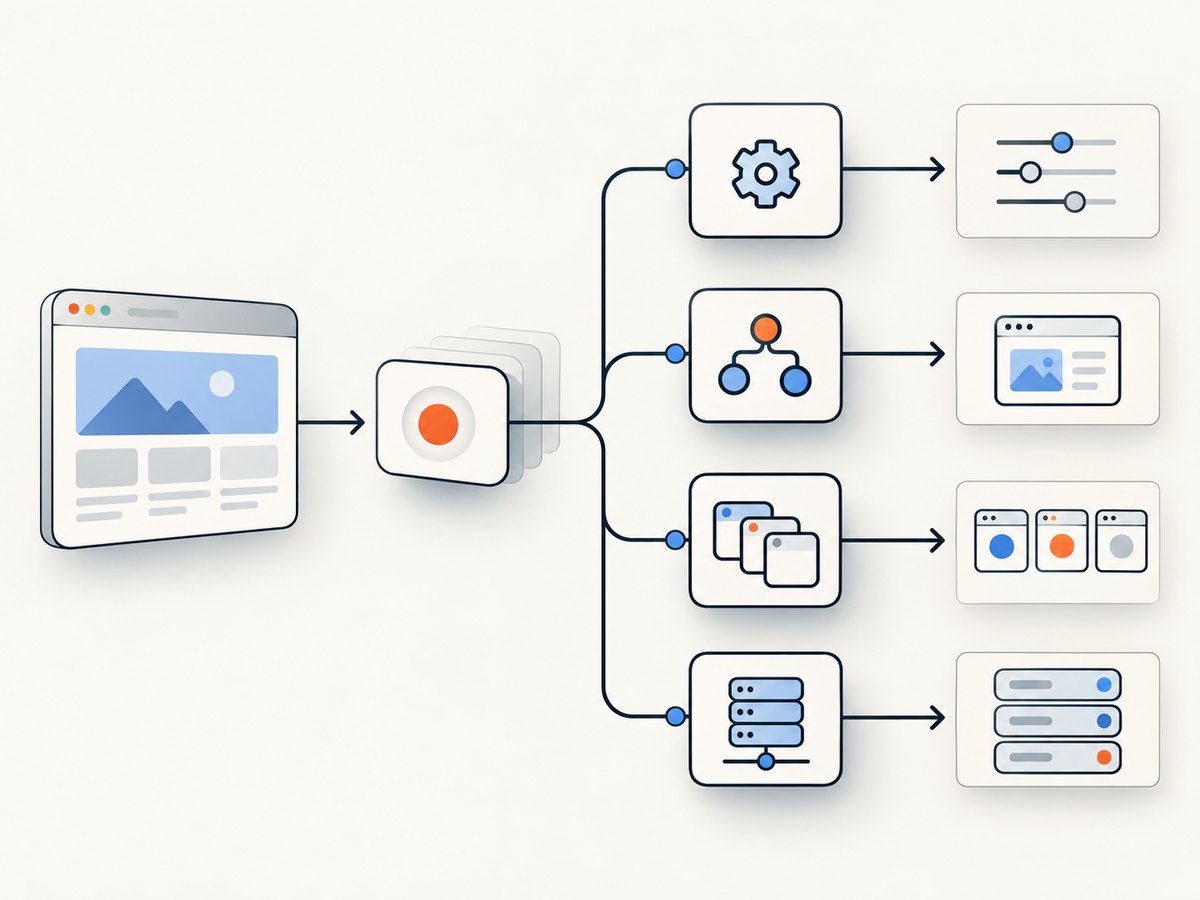
Cypress recommends reducing unexpected behavior to the smallest reproduction that still shows it, splitting large specs and long tests, and comparing browsers and environments. This helps distinguish an app or test-specific failure from a recording or playback issue.
- Choose one spec that reliably produces the symptom. If the issue appears only in a large spec, split it into smaller specs or shorten the relevant test and rerun.
- Run the same small case locally and in CI, keeping the Cypress version and test code fixed.
- Compare the browsers available in your setup. Record the Cypress version, browser and version, operating system, command, and whether the run was local or CI.
- Inspect the downloaded video, if available, as well as the Cloud view. Note whether the entire file is blank, only part is blank, it freezes, or only the player fails to load.
- Use screenshots or Test Replay as additional evidence where available. They can help show whether the test reached the expected page even if the video is unusable.
Change one condition at a time. If you upgrade Cypress, change browsers, and increase CI capacity all at once, a successful rerun will not reveal which change mattered.
4. Check CI capacity when the recording freezes or drops frames
Cypress’s CI guidance says a container without sufficient resources can cause video recordings to freeze or drop frames. That guidance is specifically about frozen or dropped frames; it does not establish low resources as the cause of every completely blank video.
Enable the CI provider’s CPU and memory logs, then inspect utilization during the affected spec. If the machine is constrained during the run, try a more powerful container or provider and compare the same reproduction. Keep the test and browser constant for that comparison. If resource use looks healthy, continue investigating the artifact, browser, and Cloud playback rather than assuming that more capacity will fix it.
5. Collect Cypress video diagnostics
For video recording logs, Cypress documents the DEBUG=cypress:server:video environment variable. On macOS or Linux, run:
DEBUG=cypress:server:video npx cypress run --spec "cypress/e2e/example.cy.js"In a Windows command prompt, set the variable for the command session first:
set DEBUG=cypress:server:video
npx cypress run --spec "cypress/e2e/example.cy.js"
Capture the output for the minimal reproduction and note where recording begins or reports an error. Avoid sharing secrets or sensitive test data in logs when asking for help.
Isolate Command Log performance or browser crashes
Cypress documents two diagnostic options for cases where the Command Log contributes to performance problems or browser crashes:
CYPRESS_NO_COMMAND_LOG=1 npx cypress run --spec "cypress/e2e/example.cy.js"
npx cypress run --no-runner-ui --spec "cypress/e2e/example.cy.js"
These are isolation experiments, not general blank-video fixes. Disabling the Command Log also means screenshots and videos will not include it. Compare the output with the ordinary run and use the option only to test whether that part of the runner is involved.
6. Review compression only if the evidence points to encoding
The videoCompression setting controls the CRF used for compression. Cypress documents that setting it to false or 0 skips encoding. That distinction is relevant if evidence points to the compression or encoding path, but Cypress does not document changing compression as a general fix for blank videos.
const { defineConfig } = require('cypress');

module.exports = defineConfig({
  video: true,
  videoCompression: false,
});
Compare the resulting artifact with the default configuration and consider the effect on file size and CI artifact storage before keeping an uncompressed setting. If the original file is absent, the player alone is stuck, or no evidence implicates encoding, prioritize those symptoms instead.
7. Common errors and practical fixes
| Symptom | Likely check | Action |
|---|---|---|
| No recording after using the interactive app | The command was cypress open. |
Run the spec with cypress run and enable video: true. |
| Recording expected but no file is found | Video is disabled, config differs from expectation, or the folder path differs. | Inspect the active config and locate the configured videosFolder. |
| Old video appears to be the new run | Output folder cleanup is disabled or CI is restoring old artifacts. | Check timestamps and artifact paths; use a clean destination or verify the current run’s output. |
| Cloud player shows loading while the test completed | Player display and underlying file may differ. | Download or inspect the artifact separately and record the symptom as a Cloud playback issue. |
| CI recording freezes or skips frames | CPU or memory pressure may be present. | Enable resource logs; compare on a more capable container if utilization supports that hypothesis. |
| Video issue accompanies slow runs or browser crashes | Command Log overhead may be relevant. | Try CYPRESS_NO_COMMAND_LOG=1 or --no-runner-ui as a diagnostic comparison. |
| Suspected corrupt or unexpectedly processed video | Encoding behavior may be relevant. | Compare with videoCompression: false or 0; do not assume this addresses unrelated failures. |
Or skip the browser setup
If your goal is to capture a website page as an image or PDF rather than troubleshoot a Cypress test recording, ScreenshotNeo offers a one-request screenshot API. See the ScreenshotNeo API documentation for request options. For example, this cURL request saves a WebP screenshot:
curl -G "https://api.screenshotneo.com/v1/shot" -d access_key=YOUR_API_KEY --data-urlencode url=https://stripe.com -o shot.webpThe equivalent Python request is:
import requests

r = requests.get(
    "https://api.screenshotneo.com/v1/shot",
    params={"access_key": "YOUR_API_KEY", "url": "https://stripe.com"},
    timeout=90,
)
open("shot.webp", "wb").write(r.content)
And Node.js:
const q = new URLSearchParams({ access_key: 'YOUR_API_KEY', url: 'https://stripe.com' });
const res = await fetch(`https://api.screenshotneo.com/v1/shot?${q}`);
if (!res.ok) throw new Error(`Screenshot request failed: ${res.status}`);
await import('node:fs/promises').then(fs => fs.writeFile('shot.webp', Buffer.from(await res.arrayBuffer())));
ScreenshotNeo accepts cookie or consent banners and removes more than 60 known consent platforms, newsletter popups, and chat widgets before the shot; each step can be turned off. Bot checks, blank pages, timeouts, failed loads, and cache hits cost nothing, and response headers say the page verdict and whether it was billed. Its MCP server gives AI agents tools for screenshots, page information, and PDF capture. The free plan includes 1,000 screenshots a month with no card; paid plans start at $5 for 3,000. Visit ScreenshotNeo and sign up for 1,000 free screenshots a month, no card required.
Performance, reliability, and cost considerations
Keep Cypress video diagnostics focused. A small spec is faster to rerun and makes comparisons more useful than repeatedly recording a long suite. On CI, resource monitoring can identify whether a recording problem coincides with CPU or memory pressure. More capable CI capacity has a cost, so first measure usage and reproduce the symptom before changing the machine size.
Retain the actual video and relevant logs for the failing run when possible; confirm artifact upload and path handling in CI. Since Cypress clears the configured videos folder before a run by default, use a deliberate artifact collection step and verify its destination. If you preserve folders by setting trashAssetsBeforeRuns: false, account for stale files and storage growth. Uncompressed videos can also occupy more space, so use that setting only when encoding is the suspected issue and compare the tradeoff.
FAQ
Does Cypress record video in cypress open?
No. Cypress records videos during cypress run, with recording enabled.
Does a blank Cloud player prove the video file is empty?
No. Inspect the underlying artifact separately; the player and file can present different symptoms.
Will headed mode fix a blank video?
There is no general evidence here to support that. An old issue reports a context-specific headed-mode behavior, not a current universal fix.
Should I always turn off video compression?
No. Use it as a comparison only when the evidence suggests encoding is involved; it is not a general remedy.
What information should I include when asking for help?
Include the Cypress version, browser and OS, command, local or CI context, the exact symptom, whether the downloaded file differs from Cloud playback, and a minimal reproduction.


