How to Fix Blank Pages in html2pdf.js
Diagnose blank, empty, and cut-off html2pdf.js PDFs by isolating canvas limits, page breaks, images, CSS, and browser rendering.
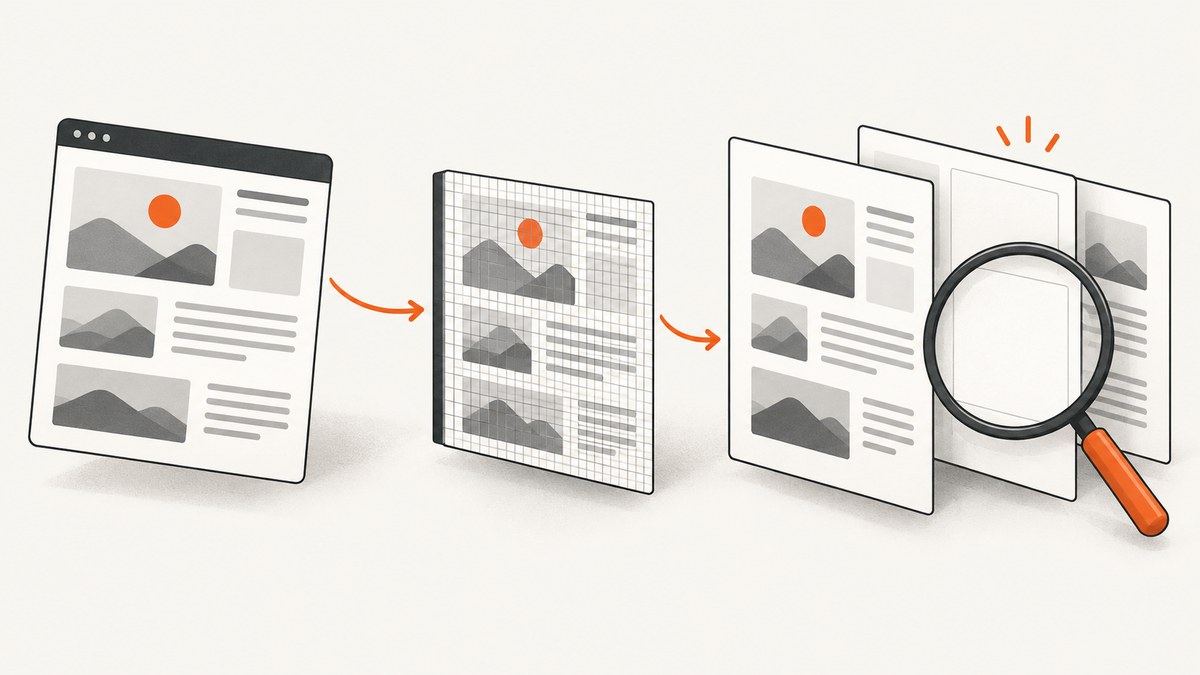
A blank html2pdf.js PDF can be caused by several different failures. First determine whether the source element, intermediate canvas, or PDF assembly is empty. Then check canvas dimensions, page-break rules, cross-origin images, unsupported CSS, and browser limits. The fix depends on which stage fails.
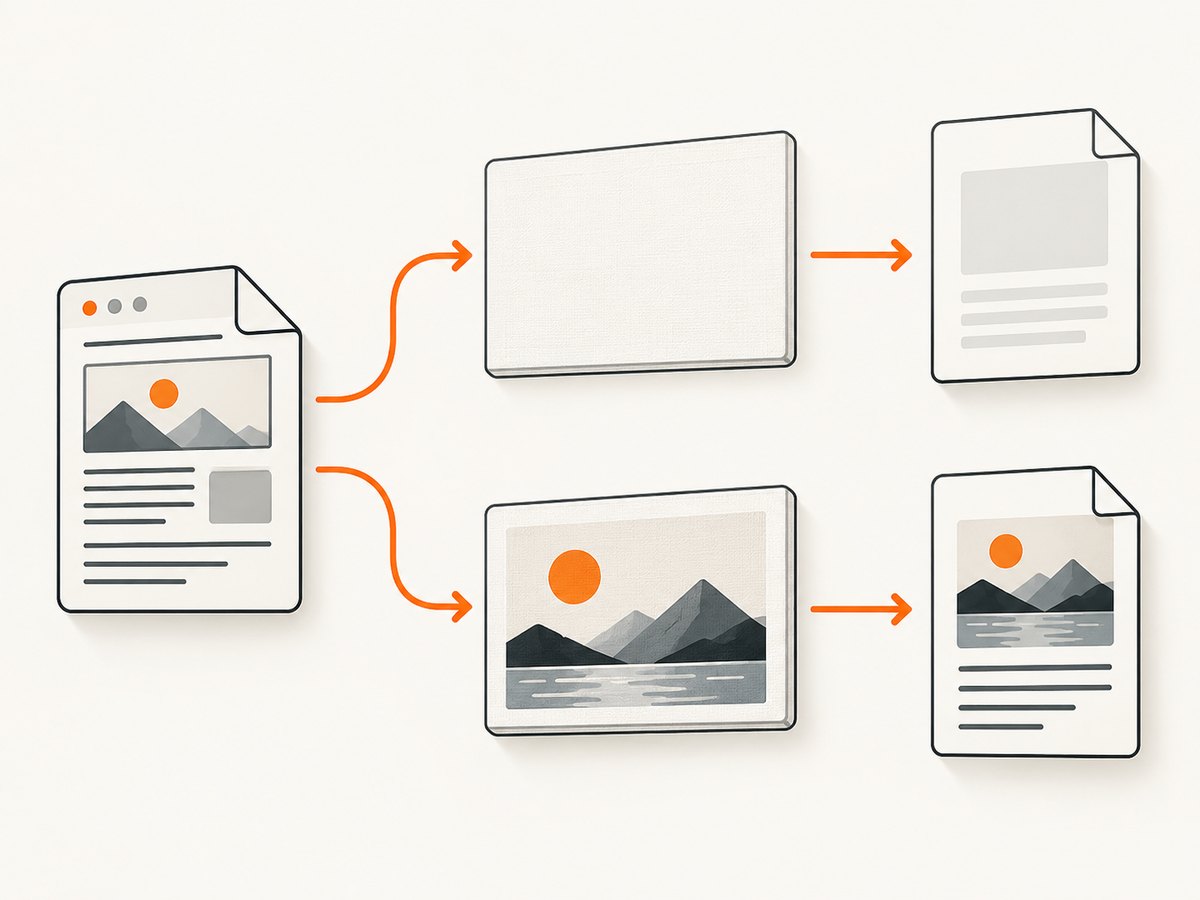
html2pdf.js follows a documented pipeline: source HTML becomes a cloned container, then a canvas, then an image, then a PDF file. Inspecting the canvas stage before changing PDF settings is the fastest way to separate a rendering problem from a pagination problem. See the html2pdf.js documentation and the html2canvas FAQ for the project’s known limitations.
1. Reproduce the exact failure
Start with the smallest page that still fails. Keep the same html2pdf.js version, browser, operating system, target element, CSS, fonts, images, and options. Record which symptom you have:
- Entirely blank PDF: every page is white.
- Blank first page: later pages contain content, but page one is empty.
- Missing images: text appears but external images do not.
- Cut-off content: text or a section stops at a page or canvas boundary.
- Empty canvas: the intermediate canvas is already blank before PDF creation.
These are not interchangeable bugs. A blank canvas usually points to rendering, image loading, or a canvas-size limit. A blank leading page is more likely to involve page-break or margin interaction.
2. Inspect the canvas before PDF assembly
Use the worker API to render the element and inspect the canvas. If the canvas is white or has the wrong dimensions, changing jsPDF page size will not solve the problem.
<script src='https://cdnjs.cloudflare.com/ajax/libs/html2pdf.js/0.10.1/html2pdf.bundle.min.js'></script>
The CDN version above is an example from the project documentation, not a claim about the latest release. Check the version installed in your application and reproduce with that exact dependency.
3. Check browser canvas dimensions
Very large captures can exceed the maximum canvas width, height, or total area supported by the browser and device. The result can be a completely blank or partly rendered canvas without a useful JavaScript exception. The html2pdf.js README describes this as an HTML5 limitation; html2canvas documents the same silent-failure behavior in its FAQ.
For a tall element, first try matching the rendering viewport to the element’s full dimensions:
const element = document.querySelector('#report');

html2pdf().set({
  html2canvas: {
    windowWidth: element.scrollWidth,
    windowHeight: element.scrollHeight,
    scale: 1
  }
}).from(element).save();
This is a diagnostic configuration, not a guarantee that the result fits. If it still fails, reduce the capture dimensions: lower scale, split the document into sections, reduce unusually wide content, or render separate PDFs. A retina scale of 2 doubles both dimensions and increases total pixel area roughly fourfold, so it can turn a working document into a blank one.
Project FAQ guidance gives rough maximum dimensions of about 32,767 pixels for current Chrome/Chromium, Firefox, and desktop Safari, with different maximum areas. iOS Safari can be lower depending on device memory. Treat those numbers as browser-dependent guidance rather than safe production limits.
4. Test page-break configuration
When the blank page occurs at one position, temporarily remove aggressive page-break rules. html2pdf.js supports css, legacy, and avoid-all modes, plus targeted before, after, and avoid selectors. The default behavior uses CSS and legacy handling.
html2pdf().set({
  pagebreak: {
    mode: ['css', 'legacy'],
    before: ['.page-start'],
    after: ['.page-end'],
    avoid: ['table', 'tr', '.keep-together']
  }
}).from(document.querySelector('#report')).save();
Do not begin with avoid-all across every element. It asks the pagination algorithm to keep many nodes intact and can create unexpected whitespace or blank leading pages. Add selectors narrowly and reintroduce them one at a time.
A December 2023 issue reports a blank first page with avoid-all; that report says removing span from an avoid selector fixed that particular document. A July 2024 issue reports text clipped in the middle with version 0.9.2, avoid-all, and a margin setting; the author says removing the margin helped in that setup. These reports are useful leads, not universal fixes. Compare each change against a minimal reproduction.
5. Use CSS breaks deliberately
Prefer semantic break classes over broad avoidance rules. Make the page structure explicit:
.page-break-before { break-before: page; page-break-before: always; }
.page-break-after { break-after: page; page-break-after: always; }
.keep-together { break-inside: avoid; page-break-inside: avoid; }

...
Then configure mode: ['css', 'legacy']. Check for a container whose height is larger than one PDF page; an unbreakable block can force large gaps or overflow. Tables, flex layouts, absolutely positioned elements, and nested transforms deserve special attention because cloned layout can differ from the live page.
6. Fix cross-origin images and fonts
html2canvas follows browser origin rules. With its default allowTaint: false, images that would taint the canvas are skipped. To include a cross-origin image, the image server must send an appropriate Access-Control-Allow-Origin header and the renderer must request it with CORS enabled.
html2pdf().set({
  html2canvas: {
    useCORS: true,
    allowTaint: false,
    imageTimeout: 15000
  }
}).from(document.querySelector('#report')).save();
useCORS: true cannot bypass a server that does not grant access. If you control neither origin, serve the asset through a same-origin proxy, convert it to a data URL, or replace it with a same-origin copy. Wait until images and web fonts are loaded before calling html2pdf.js:
await document.fonts.ready;
await Promise.all([...document.images].map(img => {
  if (img.complete) return Promise.resolve();
  return new Promise(resolve => {
    img.addEventListener('load', resolve, { once: true });
    img.addEventListener('error', resolve, { once: true });
  });
}));

await html2pdf().from(document.querySelector('#report')).save();
An image that fails to load should not leave layout-dependent code waiting forever. The example resolves on both load and error so you can log failures and continue diagnosing.
7. Reduce unsupported or fragile rendering
html2canvas does not reproduce every CSS property perfectly, and html2pdf.js clones the DOM before rendering. If the canvas has content but looks wrong, remove features from the smallest reproduction until the failure disappears. Check filters, blend modes, complex gradients, pseudo-elements, transforms, sticky positioning, videos, SVGs, shadow-heavy layouts, and scripts that mutate the DOM during capture.
Give the cloned content stable dimensions. Avoid measuring an element while an animation is running, and disable transitions during capture:
.pdf-capture *, .pdf-capture *::before, .pdf-capture *::after {
  animation: none !important;
  transition: none !important;
}
const target = document.querySelector('#report');
target.classList.add('pdf-capture');
try {
  await html2pdf().set({
    html2canvas: { scale: 1, backgroundColor: '#ffffff' }
  }).from(target).save();
} finally {
  target.classList.remove('pdf-capture');
}
8. Use a controlled diagnostic configuration
When you need a baseline, remove optional complexity and add features back gradually:
const target = document.querySelector('#report');

const options = {
  margin: 0.4,
  filename: 'debug.pdf',
  image: { type: 'jpeg', quality: 0.92 },
  html2canvas: {
    scale: 1,
    useCORS: true,
    allowTaint: false,
    backgroundColor: '#ffffff',
    logging: true,
    windowWidth: target.scrollWidth,
    windowHeight: target.scrollHeight
  },
  jsPDF: { unit: 'in', format: 'letter', orientation: 'portrait' },
  pagebreak: { mode: ['css', 'legacy'] }
};

html2pdf().set(options).from(target).save();
Once this works, change one variable at a time: scale, margins, image format, page-break selectors, custom fonts, and large sections. Keep a record of the first change that brings the blank page back.
9. Common errors and fixes
| Symptom | Likely cause | Action |
|---|---|---|
| Every page is blank | Canvas dimension or area limit | Inspect canvas width and height; lower scale or split the document. |
| First page is blank | Aggressive avoid-all, selector, or margin interaction |
Remove avoid-all, test CSS mode, then add targeted selectors. |
| Text stops halfway down | Canvas height, oversized block, or pagination rule | Compare scroll dimensions, reduce scale, and test margins and breaks independently. |
| Images disappear | CORS or failed image load | Use same-origin assets or useCORS with server headers; wait for images. |
| PDF works locally but not in production | Different origin, fonts, browser, or asset timing | Log versions and network failures; reproduce in the deployment browser. |
| Output is huge or text cannot be selected | Image-based renderer | Accept the documented trade-off or evaluate a PDF workflow that creates real text. |
10. Performance, reliability, and output trade-offs
Rendering happens in the browser, so memory pressure grows with pixel area, not just HTML length. A long page at high scale can allocate a very large bitmap before jsPDF writes the file. Use the lowest scale that meets your visual requirement, compress photographic content, avoid duplicate high-resolution assets, and split long reports when practical.
Run captures outside the main interaction path when possible. Disable animations, wait for deterministic content, and set an application-level timeout around the promise. Capture the same browser and viewport in production that you used during diagnosis. For repeatable output, pin dependency versions and keep a fixture page in your regression checks.
html2pdf.js renders the page into an image and places that image in the PDF. The documented output therefore does not provide selectable or searchable text and can be large. If accessibility, text search, or very large documents is a requirement, assess another rendering approach after documenting browser, server, layout-fidelity, and operational constraints.
11. Or skip the browser setup
If your goal is a clean screenshot or PDF of a URL rather than browser-side PDF assembly, ScreenshotNeo provides a single HTTP request. It accepts the cookie or consent banner like a visitor and removes more than 60 known consent platforms, newsletter popups, and chat widgets before capture; each step can be turned off. Bot checks, blank pages, timeouts, failed loads, and cache hits are not billed, and the response identifies the result with X-Page-Verdict and X-Billed headers. It also provides an MCP server with take_screenshot, get_page_info, and capture_pdf tools for Claude, Cursor, and other MCP clients.

See the ScreenshotNeo API documentation for all options. The basic call is:
curl -G 'https://api.screenshotneo.com/v1/shot' \
  -d access_key=YOUR_API_KEY \
  --data-urlencode url=https://stripe.com \
  -o shot.webp
import requests
r = requests.get(
'https://api.screenshotneo.com/v1/shot',
params={'access_key': 'YOUR_API_KEY', 'url': 'https://stripe.com'},
timeout=90,
)
r.raise_for_status()
open('shot.webp', 'wb').write(r.content)const q = new URLSearchParams({
access_key: 'YOUR_API_KEY',
url: 'https://stripe.com'
});
const res = await fetch(`https://api.screenshotneo.com/v1/shot?${q}`);
if (!res.ok) throw new Error(`HTTP ${res.status}`);
const data = Buffer.from(await res.arrayBuffer());
require('fs').writeFileSync('shot.webp', data);Options include full-page capture with lazy images loaded, CSS-element capture, dark mode, device presets or custom viewports, retina scale, PDF paper size and margins, custom CSS and JavaScript, clicks, selector waits, delays, network-idle waits, request blocking, headers, cookies, user agents, authorization, timezone, geolocation, transparent backgrounds, resizing, TTL caching, signed image links, async jobs with signed webhooks, bulk capture of up to 100 URLs, usage reporting, and an OpenAPI specification. Existing parameter names used by other screenshot APIs also work, which can simplify migration.
The Free plan includes 1,000 shots per month with no card. Paid plans start at $5 for 3,000 shots; yearly billing gives two months free, and every feature is included on every plan. Create a free ScreenshotNeo account to start.
12. A repeatable debugging checklist
- Save the exact HTML, CSS, options, dependency version, browser, and viewport.
- Render the intermediate canvas and record its dimensions.
- Try scale 1 and remove
avoid-all. - Match
windowWidthandwindowHeightto the target scroll dimensions. - Wait for fonts and images; inspect cross-origin response headers.
- Reintroduce margins, page-break selectors, and complex CSS separately.
- Split oversized documents and compare each section.
- Decide whether image-based, browser-only PDF output meets searchability and size requirements.
FAQ
Why does html2pdf.js fail silently?
Canvas limits can produce blank or partial output without an exception. Inspect the canvas and its dimensions before PDF creation.
Should I always use useCORS: true?
Only when the image server permits your origin. The option cannot override missing CORS headers; a same-origin proxy may be required.
Is avoid-all required for clean pagination?
No. Start with CSS and legacy modes, then apply avoid to specific blocks that must remain together.
Can html2pdf.js create searchable text?
Its documented renderer places an image in the PDF, so the resulting text is not selectable or searchable.
When should I stop tuning html2pdf.js?
Stop when the required document exceeds practical browser canvas limits, needs selectable text, or depends on CSS the cloned renderer cannot reproduce reliably. At that point, evaluate a workflow designed for those requirements.


