How to Fix Blank Pages in Playwright Headless Tests
Diagnose why Playwright shows about:blank or an empty page: inspect navigation responses, runtime errors, failed requests, popups, and CI setup.
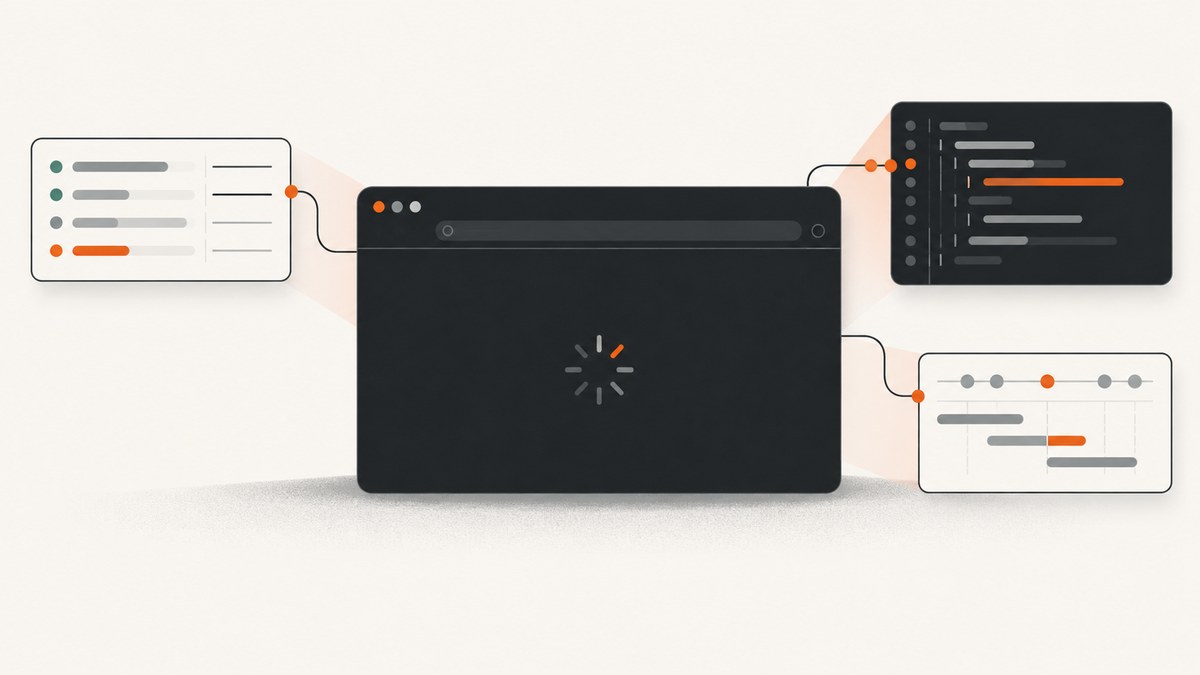
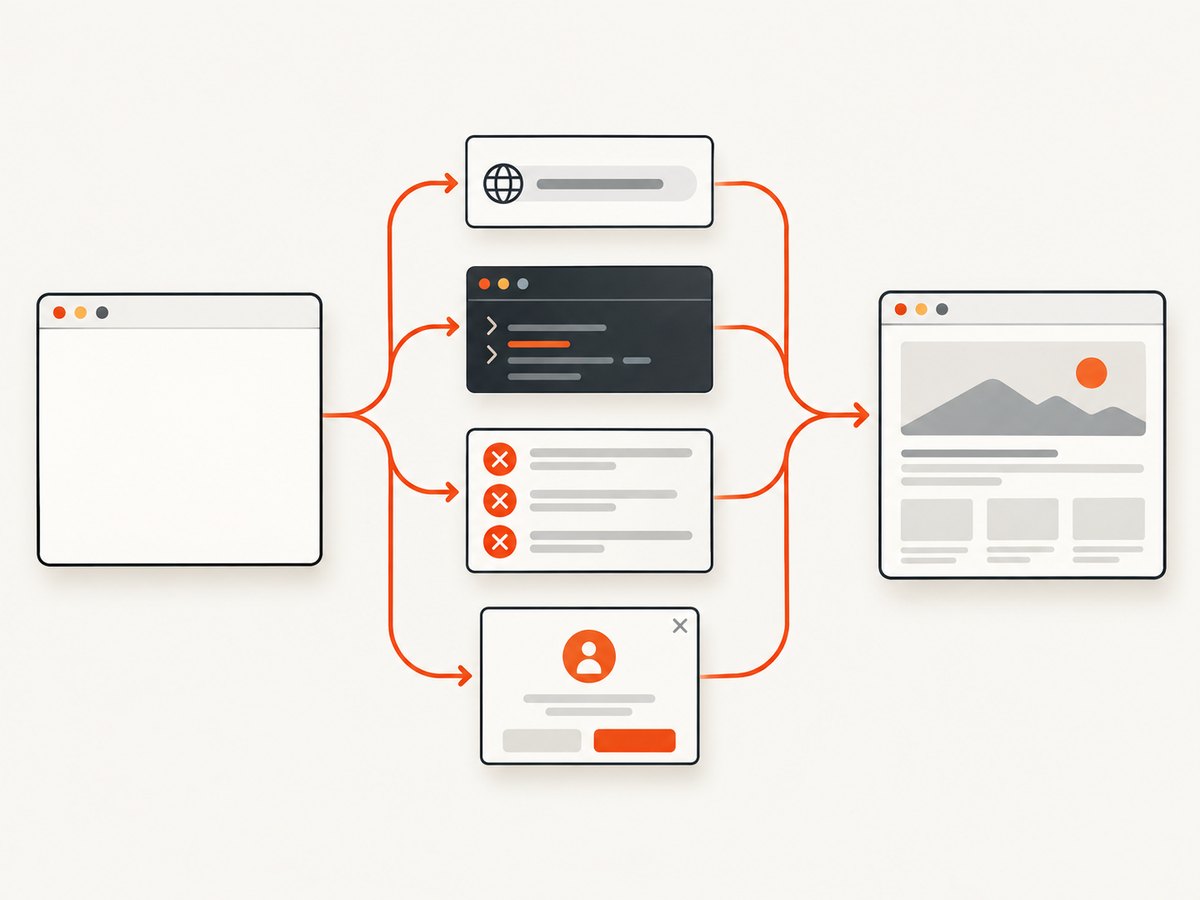
A blank page in a Playwright headless test is a symptom, not a diagnosis. First check the page URL and the value returned by page.goto(); then inspect the HTTP status, JavaScript errors, failed requests, and whether the content opened in a second tab. Only after identifying which step failed should you change waits or CI configuration.
Playwright runs browsers headless by default. Headless mode alone does not mean navigation or rendering failed. Its goto() method returns the main document response, but returns null for about:blank and same-URL navigations that only change the hash. It throws for conditions such as an invalid URL, timeout, unreachable host, SSL error, or failed main resource. An HTTP 404 or 500 is still a response, so check its status explicitly. See the official Page API and debugging guide.
1. Start with the navigation result
Save the response instead of treating the absence of an exception as proof that the expected page loaded. Log the current URL immediately after navigation and compare it to the target. If the URL is still about:blank, check whether the navigation line ran, whether the URL variable has the value you expect, and whether the test is operating on the intended page.
const targetUrl = 'http://localhost:3000/';
const response = await page.goto(targetUrl, {
  waitUntil: 'domcontentloaded',
  timeout: 30_000,
});

console.log({
  targetUrl,
  actualUrl: page.url(),
  status: response?.status() ?? null,
  statusText: response?.statusText() ?? null,
});

if (response && response.status() >= 400) {
  throw new Error(`Main document returned HTTP ${response.status()}`);
}
This is a diagnostic pattern, not a universal requirement to fail on every non-2xx status. Your application may intentionally serve a route with a status your test needs to inspect. The key is to make the status visible and assert the outcome your application promises.
2. Use a readiness condition that matches the page
page.goto() supports commit, domcontentloaded, load, and networkidle. The default is load. Use commit when you only need to know that the response arrived and document loading began; use domcontentloaded when you need the parsed document; use load when the page’s load event is meaningful to your test.
For application readiness, assert on a meaningful locator or state after navigation. A page can fire its load event while its client-side app is still fetching data, and a page can continue to make background requests after its interface is ready. Playwright discourages using networkidle as a test readiness condition; rely on assertions instead. For example:
await page.goto('http://localhost:3000/dashboard', {
  waitUntil: 'domcontentloaded',
});
await expect(page.getByRole('heading', { name: 'Dashboard' })).toBeVisible();
await expect(page.getByTestId('account-summary')).toContainText('Balance');
The assertion tells you what “ready” means to the user. A fixed sleep only tells you that time passed; it can make tests slower while still failing on a slower runner. If the app needs a known API response, wait for that response and then assert on the rendered result.
3. Collect browser, console, and network evidence
Register event listeners before navigation so early errors and requests are not missed. Save the HTML and a screenshot alongside the logs. A nonempty document does not prove the interface rendered, but it helps distinguish an empty response from a JavaScript app that failed after returning its shell.
page.on('console', msg => {
  console.log('console:', msg.type(), msg.text());
});
page.on('pageerror', error => {
  console.error('pageerror:', error);
});
page.on('crash', () => {
  console.error('page crashed');
});
page.on('requestfailed', request => {
  console.error('requestfailed:', request.url(), request.failure()?.errorText);
});
page.on('response', response => {
  if (response.status() >= 400) {
    console.error('http error:', response.status(), response.url());
  }
});

const response = await page.goto('http://localhost:3000/', {
  waitUntil: 'domcontentloaded',
});
console.log('navigation:', page.url(), response?.status() ?? null);
console.log('html bytes:', (await page.content()).length);
await page.screenshot({ path: 'blank-page.png', fullPage: true });
The Page API documents page events including console, pageerror, crash, requestfailed, and response. A failed request is different from an HTTP error response: a request can fail at the network layer, while an HTTP 404 is a completed response with an error status. Look at the URL and failure text to identify missing bundles, blocked API calls, DNS problems, or other network causes.
4. Follow the result with this decision tree
| Evidence | Likely area to inspect | Next step |
|---|---|---|
page.url() is about:blank; no navigation response |
Navigation was skipped, target URL is wrong, or test uses another page | Log the resolved URL and inspect the page/context used by the test. |
goto() throws |
Invalid URL, timeout, SSL, unreachable host, or failed main resource | Read the exception category and fix the URL, server availability, certificate, or timeout cause. |
| Response status is 404 or 500 | Server answered, but route or application failed | Inspect the response body, server logs, and route configuration. Do not treat this as a navigation exception. |
| URL and response are correct; page has little or no visible UI | Client-side exception, missing asset, failed API, or app not ready | Inspect pageerror, console output, failed requests, HTML, and a screenshot. |
| Original page is blank after an action opens a tab | Test is still asserting against the opener | Await the popup or context page event before the action, then use the returned page. |
| Only CI fails or browser will not launch | Missing browser binary or Linux dependency, environment difference | Enable DEBUG=pw:browser, install browsers and dependencies, and check headed display requirements. |
| Failure appears intermittently | Timing, load variation, or resource contention | Capture a trace on retry and inspect its snapshots, network activity, and actions. |
5. Check that you are using the right page
When a click opens a popup, create the event promise before clicking. Otherwise, a fast popup can appear before the test starts waiting. Then switch all URL and locator checks to the popup page.
const popupPromise = page.waitForEvent('popup');
await page.getByRole('link', { name: 'Open report' }).click();
const report = await popupPromise;
await report.waitForLoadState('domcontentloaded');
await expect(report.getByRole('heading', { name: 'Report' })).toBeVisible();
If the page is created by a different part of the test and the opener is unknown, wait for a new page on the browser context with context.waitForEvent('page'). The event-before-action sequence is documented in Playwright’s Pages guide.
6. Reproduce the failure visibly
For a local reproduction, run one test in debug mode:
npx playwright test path/to/example.spec.ts --debugThis opens the Playwright Inspector and runs headed with debugging-friendly settings. You can also call await page.pause() at the point just before the blank state, or launch a browser manually with headless: false when using the Playwright library outside the test runner. Headed Linux execution needs a display server; in CI that usually means running under Xvfb, for example xvfb-run npx playwright test. For CI browser startup errors, DEBUG=pw:browser npx playwright test prints browser launch diagnostics. See the official CI guide.
7. Make CI failures diagnosable
Install the browser binaries and their operating-system dependencies for the Playwright version in your project. A common CI setup step is:
npm ci
npx playwright install --with-deps
npx playwright test
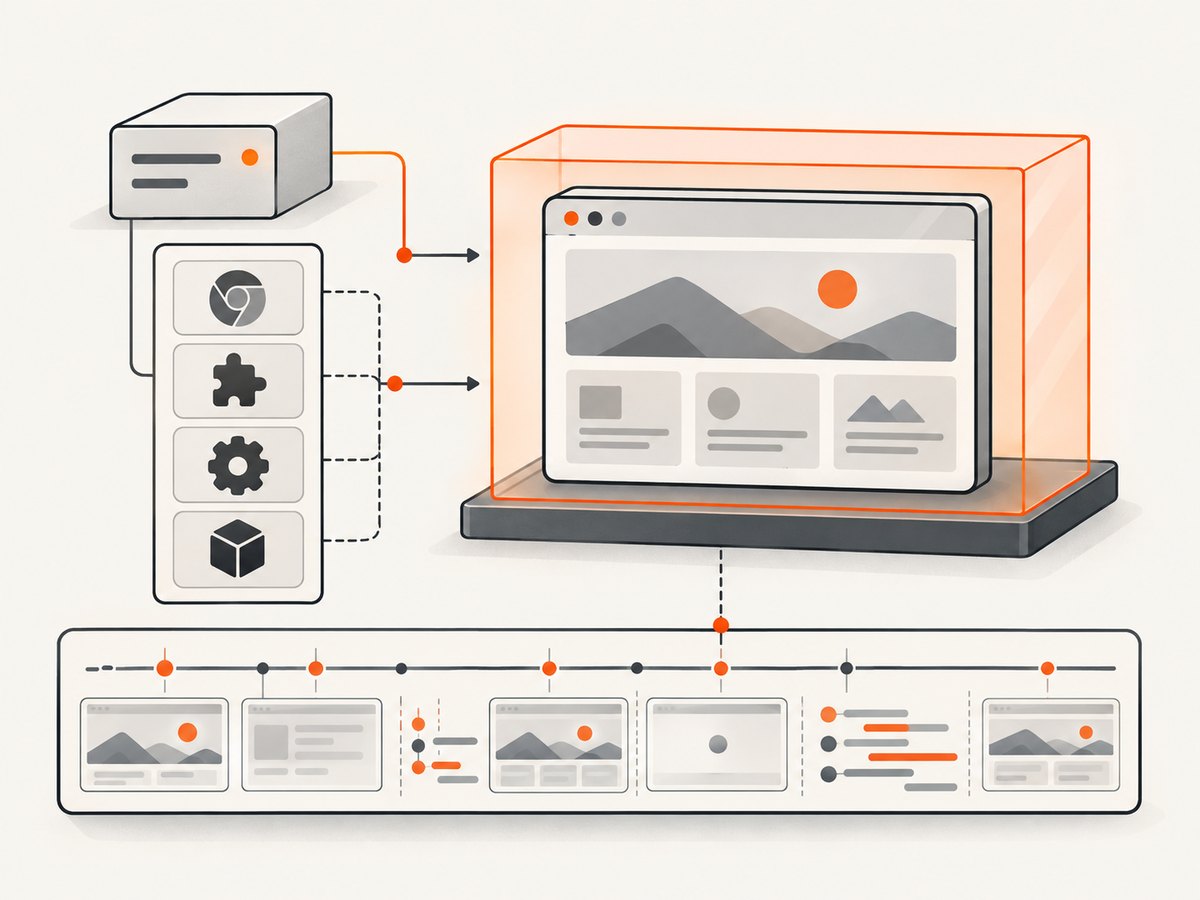
Playwright browser binaries are tied to Playwright releases; after upgrading Playwright, install the browsers again. Keep a failing test’s trace so you can inspect what the browser saw at each action, even when the failure cannot be reproduced locally.
import { defineConfig } from '@playwright/test';

export default defineConfig({
  retries: process.env.CI ? 1 : 0,
  use: {
    trace: 'on-first-retry',
    screenshot: 'only-on-failure',
  },
});
Open the trace from the test report or use npx playwright show-trace path/to/trace.zip. Trace Viewer helps inspect action timing, DOM snapshots, screenshots, and network activity. Playwright notes that recording a trace on every test can be performance-heavy; first-retry capture preserves evidence for intermittent failures while limiting routine recording overhead. See Trace Viewer and Playwright best practices.
8. Common errors and fixes
page.goto: net::ERR_NAME_NOT_RESOLVED or connection refused
The browser cannot resolve the hostname or connect to the server. Confirm the URL, ensure the test server is running and reachable from the browser process, and use the correct host inside containers. A service bound only to a container’s loopback address may not be reachable from another container.
Navigation timeout
The selected lifecycle event did not occur before the timeout, or the host is slow/unreachable. Inspect the target and request evidence first. If the page is a long-lived app, try domcontentloaded and follow it with a locator assertion. Adjust the timeout only when the expected operation is legitimately slower; do not raise it to conceal a broken route.
HTTP 404/500 with no thrown navigation error
This is expected Playwright behavior for valid HTTP responses. Check response.status(), then fix the server route, test data, or application error. The official navigation API documentation explains the distinction.
HTML is present, but the screen is empty
Look for a frontend exception, missing JavaScript bundle, failed API request, hidden root element, or app-level loading state. Use the event listeners and screenshot above; then check the corresponding server or browser console evidence.
Executable doesn't exist or browser launch failure in CI
Install Playwright’s browser build for the installed package and install OS dependencies with npx playwright install --with-deps. For launch details, run DEBUG=pw:browser. If debugging headed on Linux, provide Xvfb.
Popup test reports blank page
Wait for the popup before clicking, and assert on the returned popup’s URL or content. Waiting on the original page’s navigation will not diagnose a separate tab.
9. Performance, reliability, and cost considerations
Prefer a specific readiness assertion to a fixed delay or networkidle. It usually makes the test both clearer and less dependent on network timing. Capture screenshots and traces on failure or retry rather than every passing run when artifact volume and execution overhead matter. A trace contains useful diagnostic material, so retain and share it according to your project’s data-handling practices.
In CI, reproducibility matters: install the browser version paired with the Playwright package, use an explicit server startup check, and reduce worker concurrency when resource contention is suspected. Playwright’s CI guidance recommends one worker as a stability-first option; increase parallelism only when the runner has capacity and results remain stable. Browser installation consumes setup time and disk space, while traces and screenshots consume artifact storage. Keep only the evidence useful to diagnose failures.
Or skip the browser setup
If the goal is a website screenshot rather than a browser test, ScreenshotNeo is a website screenshot API and MCP server. One GET request takes a URL and returns an image or PDF. See the API documentation for options.
curl -G "https://api.screenshotneo.com/v1/shot" \
  -d access_key=YOUR_API_KEY \
  --data-urlencode url=https://stripe.com \
  -o shot.webp
import requests
r = requests.get(
"https://api.screenshotneo.com/v1/shot",
params={"access_key": "YOUR_API_KEY", "url": "https://stripe.com"},
timeout=90,
)
r.raise_for_status()
open("shot.webp", "wb").write(r.content)const q = new URLSearchParams({
access_key: 'YOUR_API_KEY',
url: 'https://stripe.com',
});
const res = await fetch(`https://api.screenshotneo.com/v1/shot?${q}`);
if (!res.ok) throw new Error(`Screenshot request failed: ${res.status}`);
await import('node:fs/promises').then(fs => fs.writeFile('shot.webp', Buffer.from(await res.arrayBuffer())));ScreenshotNeo removes cookie and consent banners, newsletter popups, and chat widgets before capture. Bot checks, blank pages, failed loads, timeouts, and cache hits are not billed; response headers report the page verdict and billing status. Its MCP server provides take_screenshot, get_page_info, and capture_pdf tools for Claude, Cursor, and other MCP clients. The free plan includes 1,000 screenshots per month with no card; paid plans start at $5 for 3,000. These features are available on every plan. Use this when you need an image of a URL; keep Playwright for assertions about application behavior.
Create a free ScreenshotNeo account for 1,000 screenshots a month, with no card required.
FAQ
Does headless mode cause pages to be blank?
Headless mode is Playwright’s default. A blank result needs diagnosis through the URL, navigation response, page errors, failed requests, and readiness assertions.
Is response === null always a failure?
No. Navigation to about:blank and same-URL hash changes can return null. Check the actual URL and the navigation your test intended to perform.
Can Playwright navigate to a PDF in headless mode?
The Page API documents a limitation for navigating directly to PDF documents in headless mode. If your workflow concerns PDF output, use an appropriate PDF generation path rather than treating it as a normal rendered HTML page.
Should I set a longer timeout?
Only after evidence shows the expected navigation or readiness condition legitimately takes longer. First confirm that the server responds, the route is correct, and the test waits for the right application state.


