How to Fix Blank Puppeteer Screenshots of Next.js Pages
Diagnose blank Next.js screenshots by checking navigation, hydration, readiness, browser errors, and capture options with runnable Puppeteer fixes.
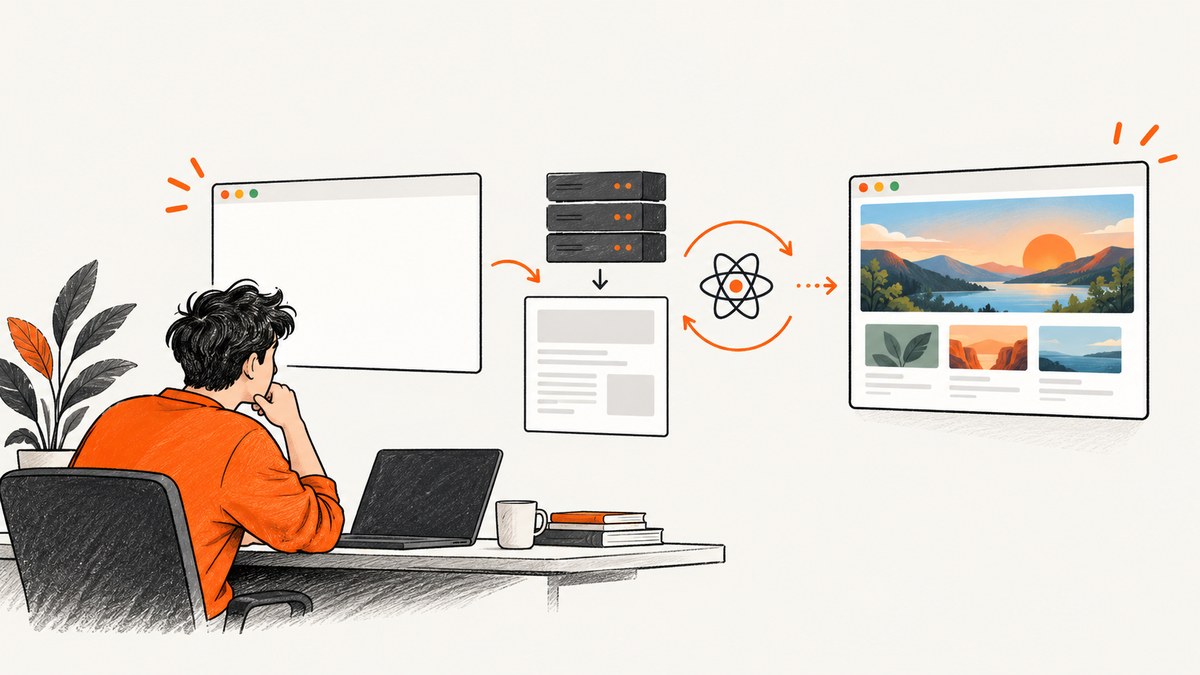
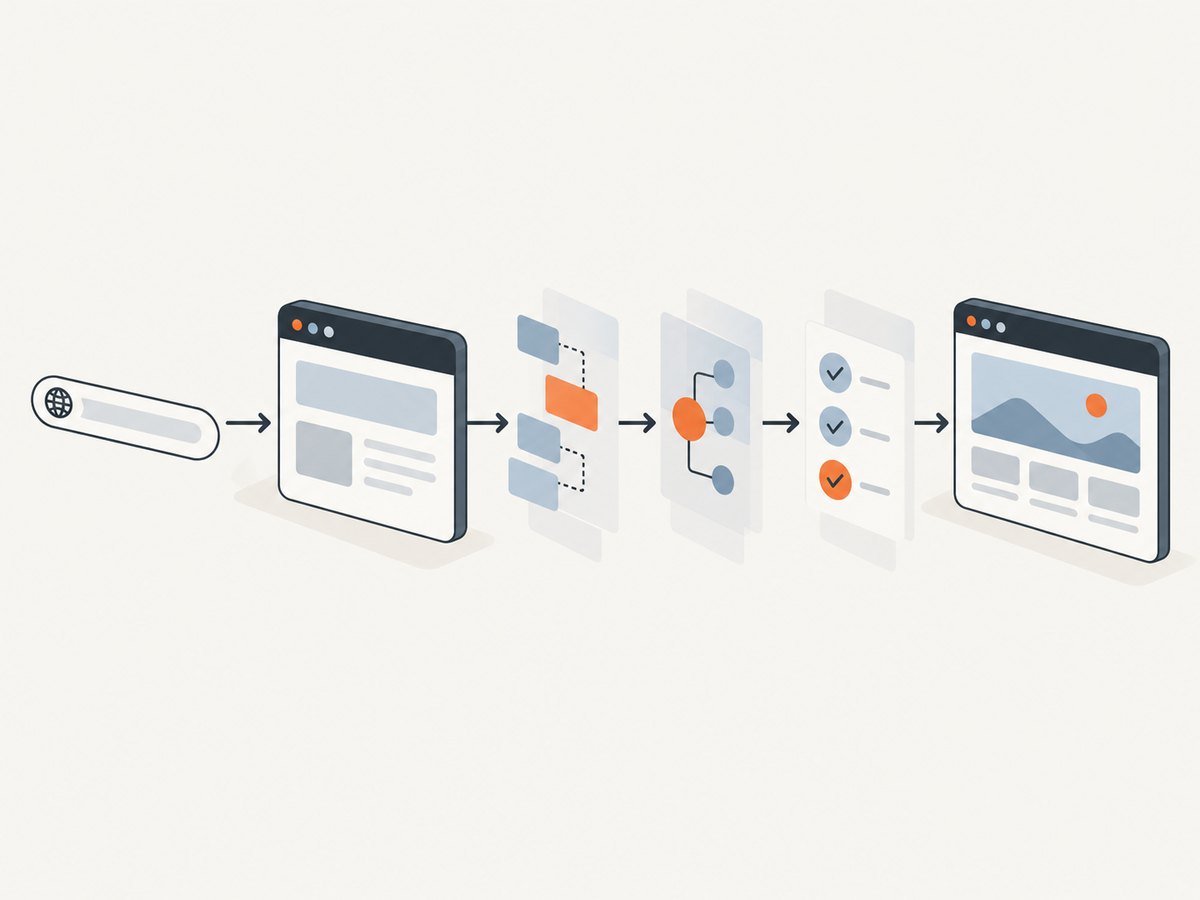
A blank Puppeteer screenshot is a symptom, not a diagnosis. The failure usually occurs in one of three stages: navigation returned the wrong document, Next.js failed while rendering or hydrating, or the screenshot was taken before the required content was ready.
Start by proving what the browser received and rendered before changing screenshot settings. Log the final URL and main response, inspect a selector or text that must exist, collect console and request errors, then wait for an application-specific readiness signal. Only after those checks should you adjust waitUntil, screenshot options, or viewport settings.
This guide gives a complete diagnostic workflow, runnable Puppeteer code, Next.js fixes, edge-case handling, and a browser-free option with ScreenshotNeo.
1. Understand what “blank” means
page.goto() completing does not prove that your intended route rendered. Puppeteer’s navigation APIs can complete for valid HTTP statuses such as 404 and 500, so a successful promise may still represent an error document. Likewise, networkidle2 only describes network activity; it does not prove that a React component hydrated or that a chart finished drawing.
| Failure stage | Typical evidence | Best first action |
|---|---|---|
| Navigation or response | Unexpected final URL, 404/500 response, redirect, login page | Log URL and response status; inspect the HTML |
| Server render or hydration | Expected selector missing, page errors, React hydration warning | Fix the Next.js render mismatch or runtime error |
| Capture timing | DOM is correct after a delay, screenshot is empty or incomplete | Wait for a specific selector or app-ready marker |
| Element or styling | Page screenshot works but element screenshot is blank | Check dimensions, visibility, clipping, and CSS |
2. Use a diagnostic Puppeteer script first
The following CommonJS script records the information needed to identify the failing stage. Replace the URL and readiness selector with values from your application.
const puppeteer = require('puppeteer');

(async () => {
  const browser = await puppeteer.launch({
    headless: true,
    // Add this only in environments where the sandbox cannot start:
    // args: ['--no-sandbox', '--disable-setuid-sandbox']
  });
  const page = await browser.newPage();

  page.on('console', msg => console.log(`[console:${msg.type()}] ${msg.text()}`));
  page.on('pageerror', error => console.error('[pageerror]', error));
  page.on('requestfailed', request => {
    console.error('[requestfailed]', request.url(), request.failure()?.errorText);
  });
  page.on('response', response => {
    if (response.status() >= 400) {
      console.error('[response]', response.status(), response.url());
    }
  });

  const target = 'http://localhost:3000/dashboard';
  const response = await page.goto(target, {
    waitUntil: 'domcontentloaded',
    timeout: 60000,
  });

  console.log('final URL:', page.url());
  console.log('main status:', response ? response.status() : 'no response');
  console.log('title:', await page.title());

  const marker = '[data-testid="dashboard-ready"]';
  try {
    await page.waitForSelector(marker, { visible: true, timeout: 30000 });
  } catch (error) {
    console.error('readiness marker missing:', marker);
    console.error((await page.locator('body').innerText()).slice(0, 2000));
    await page.screenshot({ path: 'debug-failure.png', fullPage: true });
    await browser.close();
    process.exitCode = 1;
    return;
  }

  const dimensions = await page.$eval(marker, element => {
    const rect = element.getBoundingClientRect();
    const style = getComputedStyle(element);
    return { width: rect.width, height: rect.height, display: style.display, visibility: style.visibility };
  });
  console.log('marker:', dimensions);

  await page.screenshot({ path: 'page.png', fullPage: true, type: 'png' });
  await browser.close();
})();
Run it with node diagnose.js. If the marker is absent, changing image format or fullPage will not fix the underlying problem. Fix the route, runtime, or readiness condition first.
3. Verify navigation, redirects, and HTTP responses
Record page.url() after navigation and inspect the response status. A redirect to authentication, a trailing-slash mismatch, a locale redirect, or a server error can leave you capturing a page that is technically valid but visually empty.
const response = await page.goto('https://example.com/reports', {
  waitUntil: 'load',
  timeout: 60000,
});

if (!response) throw new Error('Navigation returned no main-document response');
if (response.status() >= 400) {
  throw new Error(`Unexpected HTTP status ${response.status()} at ${page.url()}`);
}
if (new URL(page.url()).pathname !== '/reports') {
  throw new Error(`Unexpected final URL: ${page.url()}`);
}
Use domcontentloaded when you want to begin inspecting quickly, load when document resources must finish, networkidle2 when no more than two connections remain for the idle period, and networkidle0 only when the page can genuinely become quiet. Analytics, polling, WebSockets, and advertisements can prevent network-idle conditions indefinitely.
4. Check the DOM before checking pixels
Inspect a distinctive heading, data attribute, or text node that proves the intended component exists. This separates a rendering failure from a screenshot failure.
const state = await page.evaluate(() => ({
  title: document.title,
  bodyText: document.body.innerText.slice(0, 1000),
  htmlLength: document.documentElement.outerHTML.length,
  hasAppRoot: Boolean(document.querySelector('#__next, #root')),
}));
console.log(state);

const heading = await page.$('h1[data-page="reports"]');
if (!heading) throw new Error('Reports heading was not rendered');
If the body is empty, inspect server output and routing. If the expected text is present but the image is blank, inspect the selected element’s box, computed styles, and screenshot clipping.
5. Fix Next.js hydration mismatches
Next.js defines hydration as React attaching event handlers to prerendered HTML. A hydration error occurs when the tree rendered on the server differs from the tree produced during the browser’s first render. Common causes include invalid HTML nesting, reading window or localStorage during render, time-dependent values, browser extensions, CSS-in-JS configuration, and HTML modified by an edge or CDN layer. See the Next.js hydration error documentation.
Move browser-only work into useEffect
'use client';

import { useEffect, useState } from 'react';

export default function WidthLabel() {
  const [width, setWidth] = useState(null);

  useEffect(() => {
    setWidth(window.innerWidth);
  }, []);

  return <span data-testid="width-ready">{width ?? 'Loading'}</span>;
}
The server and the browser initially render the same placeholder. The browser-only value arrives after hydration.
Disable prerendering for a browser-dependent component
import dynamic from 'next/dynamic';

const ClientChart = dynamic(() => import('./ClientChart'), { ssr: false });

export default function ReportsPage() {
  return <ClientChart />;
}
Use this when a component cannot render meaningfully without browser APIs. suppressHydrationWarning is a narrow escape hatch for unavoidable differences; it does not repair mismatched content, so prefer correcting the render logic.
6. Wait for the content that matters
Puppeteer’s screenshot guide demonstrates waiting with networkidle2 before calling page.screenshot(); the Page API also provides waitForNetworkIdle(). Treat those as timing tools, not proof of visual correctness. An explicit selector or application-ready marker is usually more diagnostic.
await page.goto('http://localhost:3000', { waitUntil: 'networkidle2', timeout: 60000 });
await page.waitForSelector('[data-testid="app-ready"]', {
  visible: true,
  timeout: 30000,
});
await page.screenshot({ path: 'ready.png', fullPage: true });
For lazy images, wait for both the container and image completion:
await page.waitForSelector('main[data-loaded="true"]', { visible: true });
await page.evaluate(async () => {
  const images = Array.from(document.images);
  await Promise.all(images.map(image => image.complete
    ? Promise.resolve()
    : new Promise(resolve => {
        image.addEventListener('load', resolve, { once: true });
        image.addEventListener('error', resolve, { once: true });
      })));
});
Use a fixed delay only for a known animation or third-party widget that has no observable readiness signal. A delay alone is fragile because slower machines and cold caches need different amounts of time.
7. Capture the right target and configure the viewport
For a full page, use fullPage: true. For one component, use an element handle and confirm its dimensions first.
await page.setViewport({ width: 1440, height: 900, deviceScaleFactor: 1 });
const card = await page.waitForSelector('[data-testid="summary-card"]', { visible: true });
const box = await card.boundingBox();
if (!box || box.width === 0 || box.height === 0) throw new Error('Card has no visible area');
await card.screenshot({ path: 'summary-card.png', type: 'png' });
Relevant page.screenshot() options include:
| Option | Use |
|---|---|
path |
Write bytes to a file; omit it to receive a buffer. |
type |
png, jpeg, or supported webp output. |
quality |
JPEG/WebP quality; it does not affect PNG. |
fullPage |
Capture the complete scrollable page. |
clip |
Capture a rectangle with x, y, width, and height. |
omitBackground |
Render transparent pixels instead of the default background. |
encoding |
Return binary bytes or a base64 string. |
captureBeyondViewport |
Control capture outside the current viewport when clipping. |
A blank result caused by CSS is often fixed by selecting the visible child rather than a zero-height wrapper, removing an accidental display:none, or waiting until a transition ends. Test both a viewport screenshot and the element screenshot to isolate the issue.
8. Troubleshooting common errors
| Symptom | Likely cause | Fix |
|---|---|---|
| White page, 404 or 500 in logs | Wrong route, redirect, or server error | Check final URL/status and reproduce the URL outside Puppeteer. |
Navigation timeout |
Polling, WebSockets, slow assets, or blocked request | Use domcontentloaded, then wait for a selector; inspect failed requests. |
| Expected selector never appears | Runtime exception, failed API request, or hydration mismatch | Read pageerror, console errors, response statuses, and server logs. |
| DOM text exists but pixels are blank | Zero-size element, hidden CSS, clipping, or transparent styling | Log getBoundingClientRect(), computed styles, and capture the page. |
| Images missing | Lazy loading, cross-origin failure, or capture before image load | Wait for image completion and inspect request failures. |
| Works headed, fails headless | Different viewport, sandbox, GPU, fonts, or timing | Set viewport explicitly, compare modes, and fix the first browser error. |
Target closed |
Browser crash, process termination, or resource exhaustion | Reduce concurrency, close pages, increase memory, and capture browser logs. |
| Iframe is gray or blank | Frame content blocked or not ready | Inspect frame URLs and permissions; wait for a frame-specific selector. |
9. Make captures reliable in CI
- Pin compatible Puppeteer, Chromium, and Next.js versions.
- Use a deterministic viewport, timezone, locale, user agent, and test data.
- Wait for an application-owned readiness marker instead of a long arbitrary sleep.
- Record the final URL, status, console errors, page errors, failed requests, and a debug HTML or screenshot artifact on failure.
- Close pages and browsers in
finallyblocks so retries do not leak processes. - Keep retries narrow: retry transient navigation or network failures, but fix deterministic hydration and selector errors.
let browser;
try {
  browser = await puppeteer.launch({ headless: true });
  const page = await browser.newPage();
  // navigate, assert readiness, and capture
} finally {
  if (browser) await browser.close();
}
10. Performance and cost considerations
Launching a browser is expensive compared with reusing one browser process and opening a fresh page per capture. Reuse a browser when safe, but isolate cookies and test data with separate contexts. Avoid waiting for networkidle0 on pages that poll continuously. Capture an element instead of a full page when the consumer needs only one component, and use JPEG/WebP quality settings when file size matters.
Do not hide failures by taking a screenshot after a timeout and treating it as valid. A fast failed image creates downstream work and makes cache or retry behavior harder to reason about. Save diagnostic metadata with each artifact so a blank image can be traced to its URL, status, readiness condition, and browser errors.
11. Or skip the browser setup
ScreenshotNeo provides a single GET request that returns a PNG, JPEG, WebP, or PDF. Cookie and consent banners are accepted and removed before capture, along with more than 60 known consent platforms, newsletter popups, and chat widgets; each step can be disabled. Bot checks, blank pages, timeouts, failed loads, and cache hits cost nothing, and response headers report the page verdict and whether the request was billed.

See the ScreenshotNeo API documentation for all options. This is the equivalent one-call capture:
curl -G "https://api.screenshotneo.com/v1/shot" -d access_key=YOUR_API_KEY --data-urlencode url=https://stripe.com -o shot.webpimport requests
r = requests.get("https://api.screenshotneo.com/v1/shot", params={"access_key": "YOUR_API_KEY", "url": "https://stripe.com"}, timeout=90)
open("shot.webp", "wb").write(r.content)const q = new URLSearchParams({ access_key: 'YOUR_API_KEY', url: 'https://stripe.com' });
const res = await fetch(`https://api.screenshotneo.com/v1/shot?${q}`);Options cover full-page capture with lazy images loaded, CSS-selector element capture, dark mode, 12 device presets or any viewport, retina scale, PDF paper sizes and page ranges, custom CSS and JavaScript, clicks, selector or network-idle waits, request blocking, headers, cookies, user agents, authorization, timezone, geolocation, transparent backgrounds, resizing, chosen cache TTLs, signed image links, asynchronous jobs with signed webhooks, bulk capture of up to 100 URLs per call, usage reporting, and an OpenAPI specification. An MCP server exposes take_screenshot, get_page_info, and capture_pdf to Claude, Cursor, and other MCP clients.
There are 1,000 free screenshots each month with no card. Paid plans start at $5 for 3,000 screenshots, and every feature is included on every plan. Create a free ScreenshotNeo account.
12. FAQ
Does networkidle2 guarantee a non-blank screenshot?
No. It measures network activity. The route can still contain a hydration error, a hidden component, or an API failure. Pair it with an application-specific selector.
Should I always use fullPage: true?
No. Use it for a complete document. For a card, chart, or other component, capture the visible element after checking its bounding box.
Is suppressHydrationWarning a complete fix?
No. It suppresses a warning for narrowly intended differences and does not make mismatched content correct. Move browser-only work to an effect or disable prerendering for that component when appropriate.
Why does the same URL work manually but fail in CI?
CI may use a different viewport, locale, timezone, font set, environment variable, browser version, network policy, or authentication state. Log those inputs and the first browser error.
What information is needed to reproduce a blank capture?
Provide the target URL, Puppeteer and Chrome versions, launch options, viewport, screenshot options, Next.js version, response status, final URL, console and page errors, failed requests, and the smallest reproducible code.


