How to Fix Blank Puppeteer PDFs in Cloud Environments
Diagnose blank Puppeteer PDFs in production with a practical workflow for readiness, print CSS, Chrome, Linux, containers, and cloud runtimes.
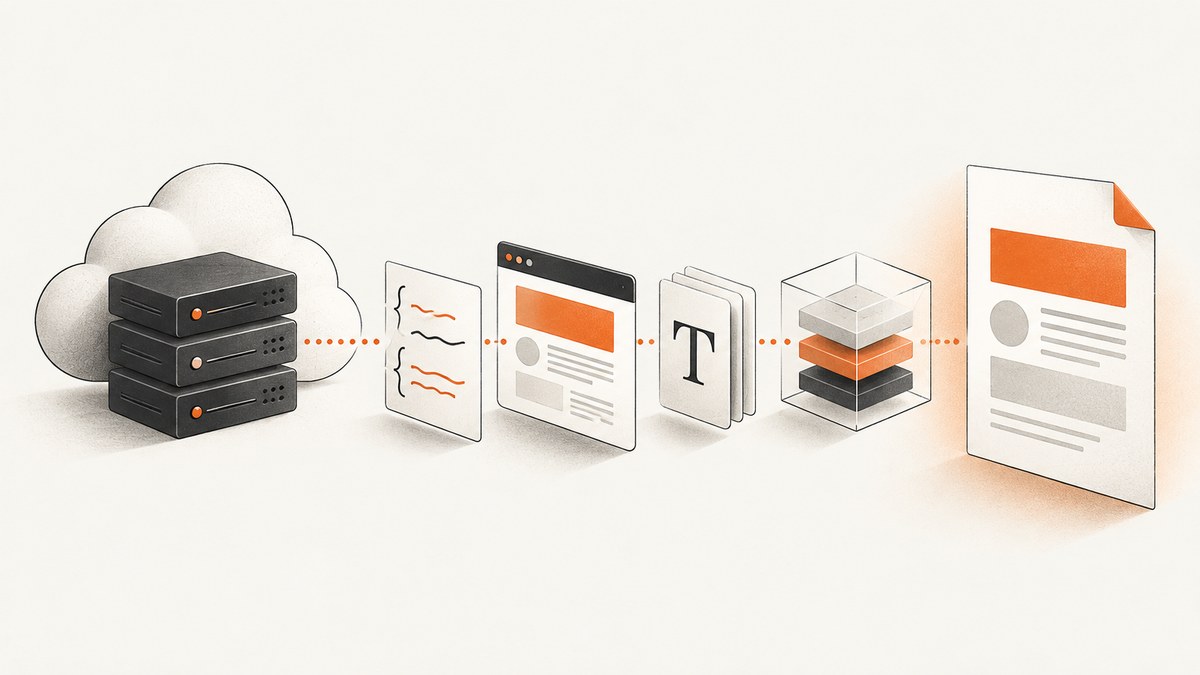
A blank PDF from Puppeteer in production is usually a symptom, not a diagnosis. Start by separating three cases: Chrome never launched, the page was not ready when page.pdf() ran, or print-mode CSS produced an empty layout. Reproduce the same URL in the deployed image, record browser and runtime versions and logs, then follow the branch that matches the evidence.
Puppeteer’s API generates PDFs with the print CSS media type by default. If your page is designed for the screen, call page.emulateMediaType('screen') before printing. The Puppeteer PDF guide demonstrates waiting for navigation with waitUntil: 'networkidle2'; treat that as a baseline, then add an application-specific readiness check for data loaded after navigation.
1. Confirm what “blank” means
Download the exact bytes returned by the deployed process and inspect them with a PDF reader or pdfinfo. A valid PDF with a white page is different from a zero-byte file, a truncated response, or a browser launch exception that your HTTP handler converted into an empty download.
| Symptom | Likely branch | First check |
|---|---|---|
| Zero bytes or no file | Process error, response handling, or launch failure | Server logs, exit status, and whether page.pdf() was reached |
| Valid pages with no content | Print CSS, hidden app shell, or capture before hydration | Print stylesheet and a screenshot immediately before PDF generation |
| Text missing but graphics present | Fonts or font loading | Installed fonts, network requests, and character coverage |
| Works locally, fails in cloud | Browser binary, Linux libraries, sandbox, writable paths, or provider behavior | Executable path, image digest, launch flags, and deployment logs |
Record the Puppeteer version, Chrome or Chromium version, Node.js version, provider and base image, URL, navigation result, console and page errors, launch arguments, output size, and whether a screenshot from the same page is populated.
2. Use a known-good PDF baseline
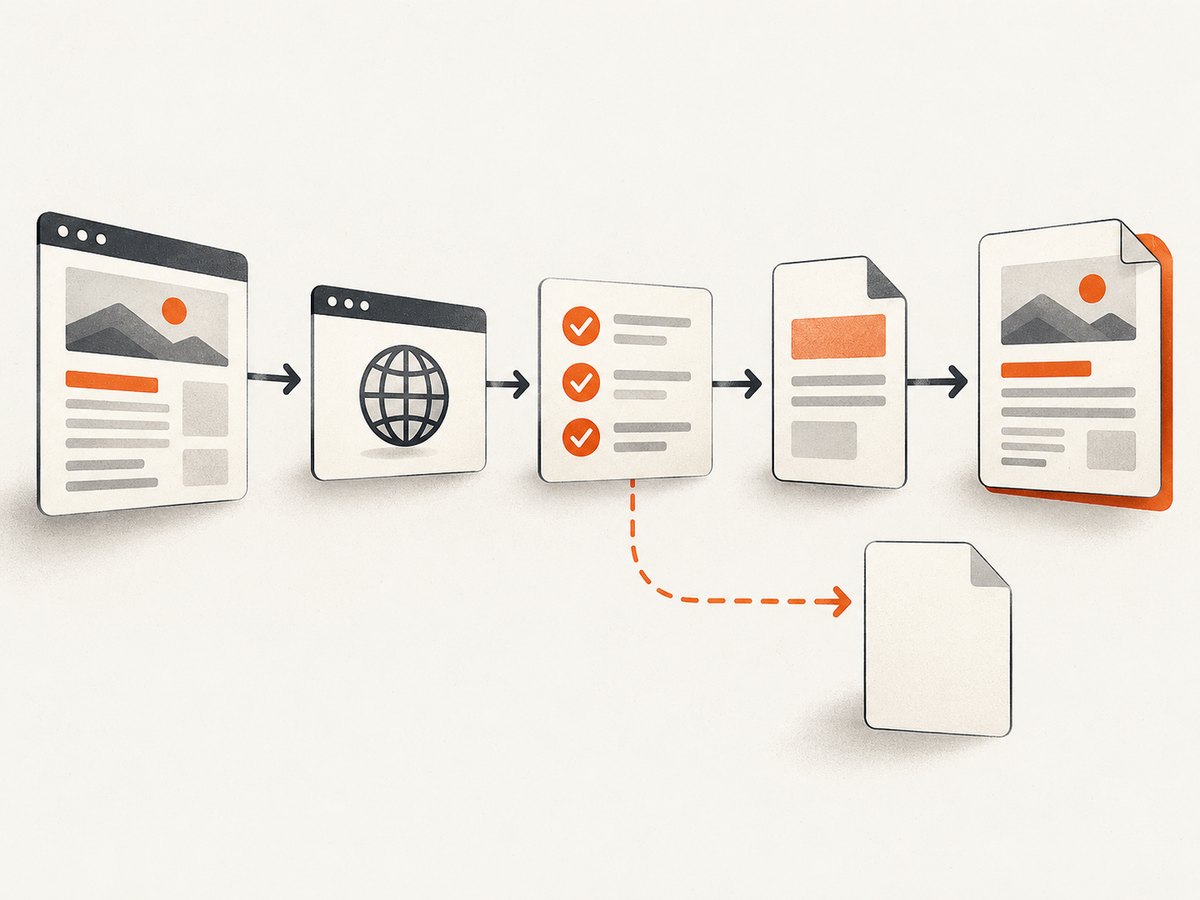
This Node.js program follows Puppeteer’s documented navigation and PDF shape while making cleanup deterministic. Replace the readiness selector with one your application renders only after its data is present.
import puppeteer from 'puppeteer';

const url = process.argv[2] ?? 'https://example.com';
const browser = await puppeteer.launch();
try {
  const page = await browser.newPage();
  page.on('console', msg => console.error('[console]', msg.type(), msg.text()));
  page.on('pageerror', error => console.error('[pageerror]', error));
  const response = await page.goto(url, { waitUntil: 'networkidle2', timeout: 60000 });
  if (!response || !response.ok()) throw new Error(`Navigation failed: ${response?.status()} ${url}`);
  await page.waitForSelector('[data-report-ready="true"]', { timeout: 30000 });
  // page.pdf() uses print CSS by default. Enable screen CSS only intentionally.
  // await page.emulateMediaType('screen');
  await page.pdf({ path: 'output.pdf', format: 'A4', printBackground: true, preferCSSPageSize: true, margin: { top: '16mm', right: '16mm', bottom: '16mm', left: '16mm' } });
} finally { await browser.close(); }
If there is no reliable selector, wait for a domain-specific promise: an exposed function that resolves after hydration, a report API response, or a custom event. A fixed delay can mask races and makes every request slower, so use it only for an unavoidable timer.
3. Check print CSS and page setup
Page.pdf() switches to print media. Inspect the page under that media type and look for display:none, visibility:hidden, zero-height containers, white text on white backgrounds, and print-only templates that depend on a server flag. If the required output is the screen appearance, call:
await page.emulateMediaType('screen');
await page.pdf({ path: 'screen-style.pdf', printBackground: true });
Printing also modifies colors by default. Add -webkit-print-color-adjust: exact in your print stylesheet when exact colors matter. Color adjustment alone does not explain an entirely empty document; verify visibility and layout first.
Use printBackground: true for colored panels, preferCSSPageSize: true when the document defines @page, and explicit format or width/height when it does not. Check that an @page rule is not setting an unexpected size. Header and footer templates can cover content if their margins are too small.
4. Prove the page is populated before printing
Network idle means the browser reached a quiet period; it does not guarantee that delayed API data, timers, canvas drawing, or client-side hydration has completed. Inspect a meaningful value before printing:
await page.waitForFunction(() => {
  const report = document.querySelector('[data-report]');
  return report && report.textContent.trim().length > 0;
}, { timeout: 30000 });

const state = await page.evaluate(() => ({
  title: document.title,
  url: location.href,
  bodyText: document.body?.innerText.slice(0, 500),
  width: document.documentElement.scrollWidth,
  height: document.documentElement.scrollHeight
}));
console.error(state);
await page.screenshot({ path: 'before-print.png', fullPage: true });
Puppeteer’s PDF guide states that PDF generation waits for fonts by default. The operating system still needs fonts that cover your scripts. If Latin text appears but CJK or special symbols do not, compare installed fonts and fallback between local and cloud images.
5. Verify browser installation and Linux libraries
The puppeteer package normally downloads a compatible Chrome for Testing during installation. CI systems that block install scripts can skip that download and later report “Could not find Chrome.” Make browser installation an explicit build step or allow Puppeteer’s installer, and confirm the cache is included in the deployed artifact. With puppeteer-core, no browser is downloaded; provide a valid executablePath or channel.
import puppeteer from 'puppeteer-core';
const browser = await puppeteer.launch({ executablePath: process.env.CHROME_PATH, headless: 'new' });
When Chrome exits before Puppeteer connects, inspect the binary and image rather than changing PDF options. On Linux, the official troubleshooting guide recommends checking shared libraries with:
ldd /path/to/chrome | grep 'not found'Install dependencies required by that Chrome build and base image. Package lists copied from another distribution become stale quickly. Record which google-chrome, the executable version, and the image package manifest in deployment logs.
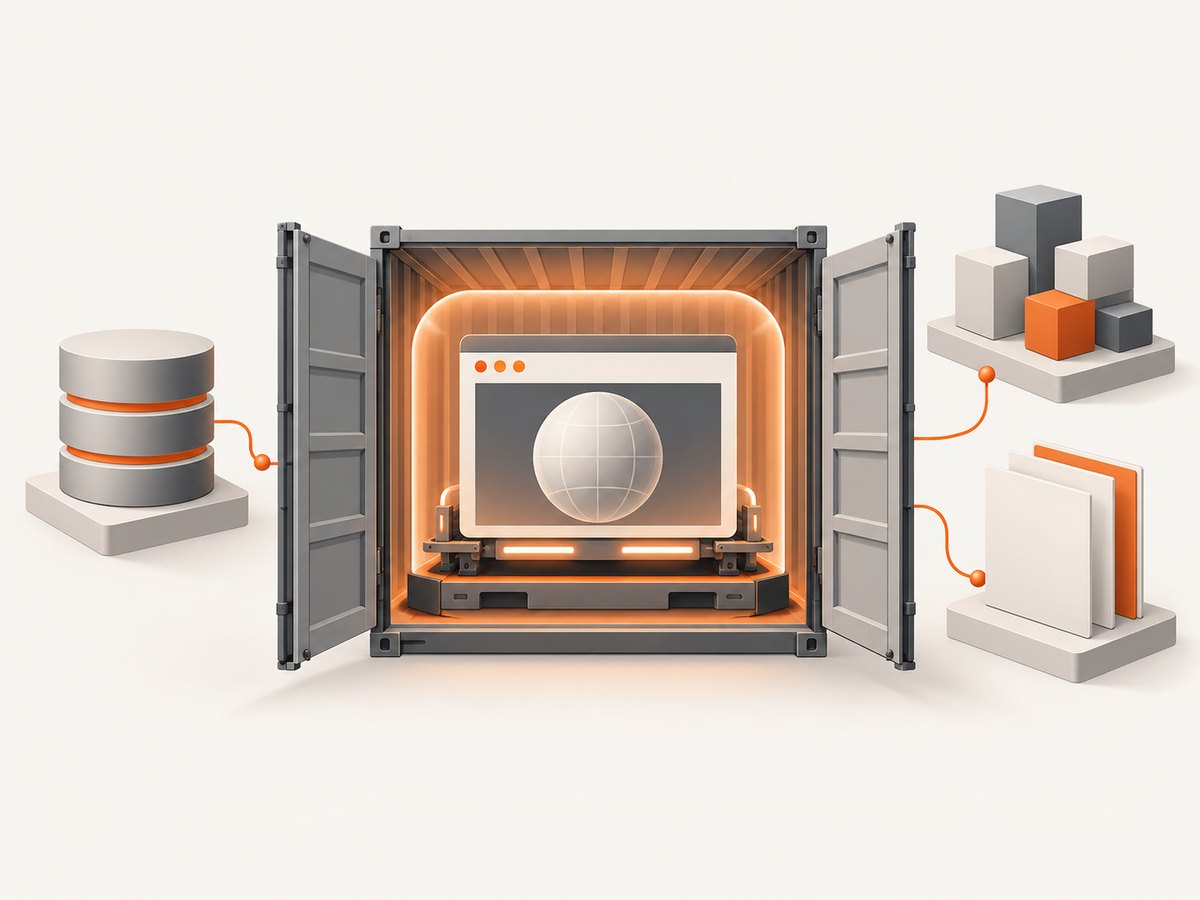
6. Make restricted containers writable and sandboxed
Chrome writes profile, configuration, and cache data during startup. In a read-only container, give it a writable user-data directory, such as a writable /tmp mount, and configure the cache location used by your package manager.
const browser = await puppeteer.launch({ userDataDir: '/tmp/puppeteer-profile', args: ['--disable-dev-shm-usage'] });Do not add --no-sandbox as a blanket cloud fix. Puppeteer strongly discourages running without the sandbox. If logs say “No usable sandbox!”, configure the host or container so Chrome’s sandbox can run, then retest with the smallest launch configuration. Use no-sandbox mode only when your platform’s security team has accepted the isolation trade-off.
7. Account for provider behavior
The official troubleshooting page documents a custom Dockerfile and system dependencies for Cloud Run because the default Node.js runtime lacks packages needed by Headless Chrome. It also warns that Cloud Run may remove CPU after an HTTP response is sent; browser work started after responding can appear stalled. Finish PDF generation before sending the response, or configure always-allocated CPU for background work.
For App Engine standard and Cloud Functions Node.js, the guide notes that system packages are available and recommends placing Puppeteer’s cache inside node_modules to accommodate cached dependency installation. Lambda deployments must account for package-size limits and a compatible Chromium package. EC2 requires Chromium and its dependencies to be installed on the instance. These instructions are provider- and image-specific: verify current runtime versions, architecture, and temporary-storage limits before copying commands.
8. Harden the production handler
Always close the browser in a finally block, enforce navigation and total job timeouts, and return an error instead of an empty success response. Reuse a browser process when your platform allows it, but create a fresh page per job and clear cookies or storage when requests are isolated. Limit concurrent pages to available memory; renderer crashes can look like random blank files.
async function renderPdf(url) {
  const browser = await getSharedBrowser();
  const page = await browser.newPage();
  try {
    await page.goto(url, { waitUntil: 'networkidle2', timeout: 60000 });
    await page.waitForSelector('[data-report-ready="true"]', { timeout: 30000 });
    const pdf = await page.pdf({ format: 'A4', printBackground: true });
    if (pdf.length < 1000) throw new Error('Suspiciously small PDF');
    return pdf;
  } finally { await page.close(); }
}
A size threshold is a monitoring signal, not proof of correctness. Keep a sanitized sample URL and compare a pre-print screenshot, PDF page count, and extracted text in diagnostics.
9. Performance, reliability, and cost
- Startup: browser launch dominates cold starts. Bake Chrome and libraries into the image, and keep the browser warm where supported.
- Memory: full-page PDFs, large canvases, and concurrent tabs increase renderer memory. Queue jobs or cap concurrency before Chrome is killed.
- Readiness: selector or application-state checks reduce retries compared with arbitrary sleeps.
- Retries: retry transient navigation and provider errors with bounded backoff, but do not retry deterministic print-CSS failures.
- Observability: log versions, URL, navigation status, readiness duration, PDF byte count, and failure branch. Do not log cookies or authorization headers.
- Cost: browser minutes, cold starts, temporary storage, and egress are billed by your cloud provider. Measure representative pages in the target region and architecture.
10. Troubleshooting checklist
- Can the deployed process launch Chrome and print
example.com? - Does a screenshot taken immediately before
page.pdf()contain the expected content? - Is the page intentionally using print CSS, or should it emulate screen media?
- Does a readiness selector prove asynchronous data is present?
- Are Chrome shared libraries and required fonts installed?
- Are profile, cache, and temporary directories writable?
- Is the sandbox configured instead of disabled?
- Does the provider keep CPU available until PDF bytes are produced?
- Are browser version, Puppeteer version, architecture, and base image the same as the working environment?
Or skip the browser setup
If you need a reliable screenshot or PDF endpoint, ScreenshotNeo handles the browser environment behind one GET request. See the API documentation for all options.
curl -G "https://api.screenshotneo.com/v1/shot" -d access_key=YOUR_API_KEY --data-urlencode url=https://stripe.com -o shot.webpimport requests
r = requests.get("https://api.screenshotneo.com/v1/shot", params={"access_key": "YOUR_API_KEY", "url": "https://stripe.com"}, timeout=90)
open("shot.webp", "wb").write(r.content)const q = new URLSearchParams({ access_key: 'YOUR_API_KEY', url: 'https://stripe.com' });
const res = await fetch(`https://api.screenshotneo.com/v1/shot?${q}`);Cookie banners, newsletter popups, and chat widgets are removed before the shot. Bot checks, blank pages, failed loads, timeouts, and cache hits are not billed, and response headers identify the page verdict and billing result. ScreenshotNeo also offers PDF capture, full-page and element shots, custom CSS and JavaScript, waits, blocking rules, headers, cookies, user agents, geolocation, caching, async jobs, bulk capture, signed links, usage data, and an MCP server with take_screenshot, get_page_info, and capture_pdf for AI agents. The free plan includes 1,000 shots each month with no card; paid plans start at $5 for 3,000 shots. Create a free ScreenshotNeo account.
FAQ
Does networkidle2 guarantee a complete PDF?
No. It is a navigation baseline. Pages that hydrate late, poll APIs, draw canvases, or wait on timers need an explicit readiness check.
Should I always use emulateMediaType('screen')?
Only when the desired output is the screen layout. Reports that rely on print styles should keep print media.
Why does Puppeteer say it cannot find Chrome?
The browser download may have been skipped by blocked install scripts, or you may be using puppeteer-core, which does not download a browser. Install a compatible browser and configure its executable path.
Is a missing font the same as a blank PDF?
Usually no. Missing fonts tend to remove or substitute glyphs while other layout remains. Compare fonts and fallback when only particular scripts are affected.
What evidence belongs in a bug report?
Include versions, provider and image, launch logs, navigation status, console errors, readiness condition, PDF byte count, and a screenshot from the same deployed page.


