How to Fix Blurry PNG Images Rendered From Canvas
Fix blurry Canvas PNG exports with Retina scaling, correct redraws, image interpolation, CSS checks, and reliable PNG downloads.
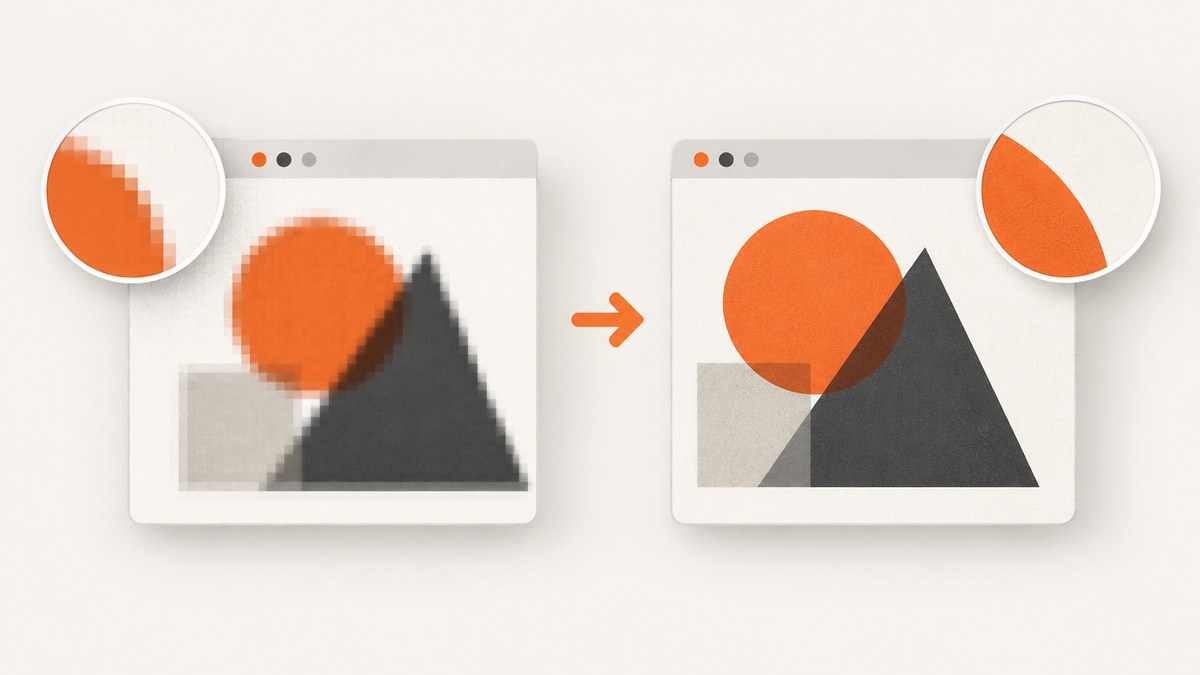
Direct fix: size the Canvas bitmap in physical pixels, keep its CSS size in CSS pixels, scale the drawing context by window.devicePixelRatio, and redraw after resizing. Then verify the exported PNG at its native dimensions before changing CSS or interpolation settings.
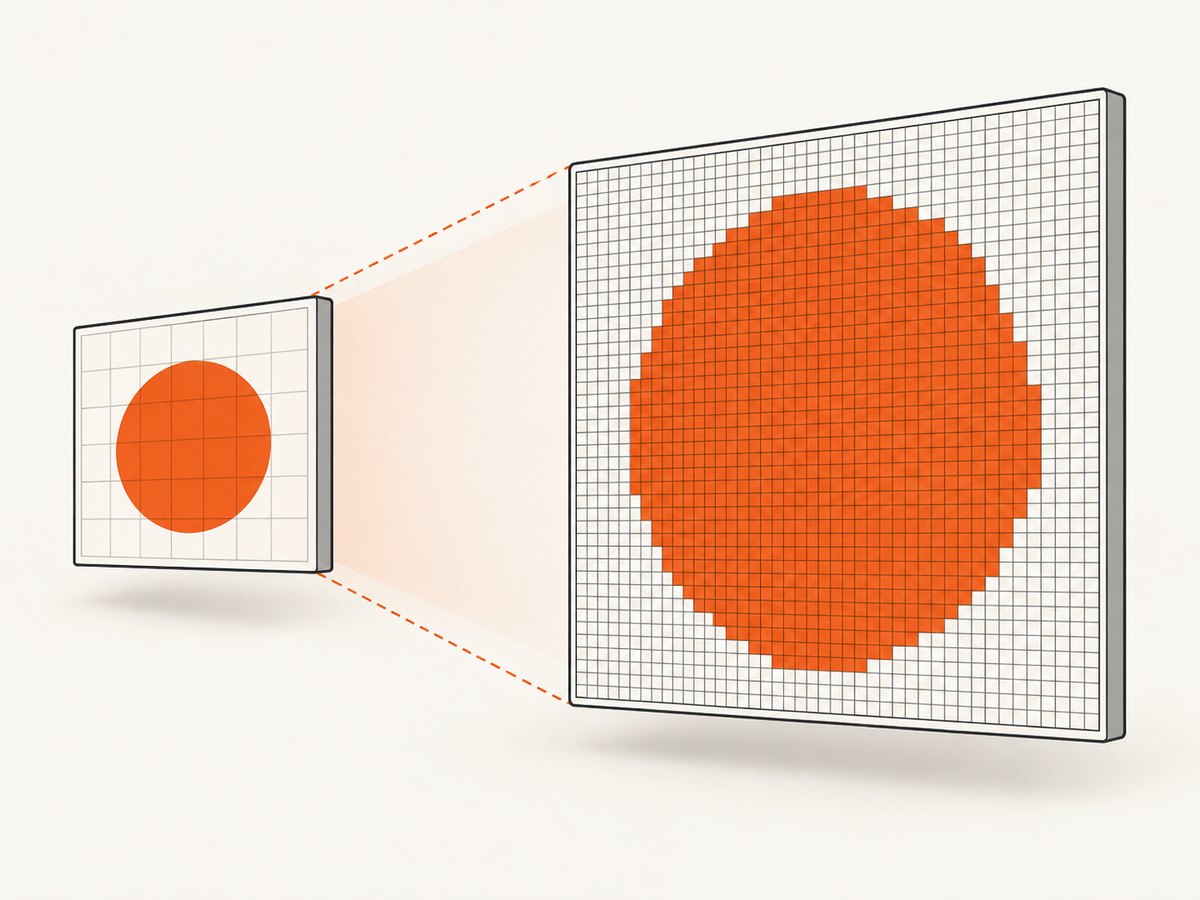
A Canvas has two sizes: the intrinsic bitmap size in canvas.width and canvas.height, and the displayed CSS size. If the bitmap is only as large as the CSS box on a Retina or other HiDPI display, the browser must enlarge too few pixels and the result looks soft. MDN recommends using window.devicePixelRatio to add the required pixel density for sharper Retina rendering (MDN: Window.devicePixelRatio).
1. Use a high-DPI Canvas backing store
Set the backing-store dimensions before drawing, leave the visual size in CSS pixels, and transform the context so your drawing code can continue using CSS-pixel coordinates.
function setupCanvas(canvas, cssWidth, cssHeight) {
  const dpr = window.devicePixelRatio || 1;

  canvas.style.width = `${cssWidth}px`;
  canvas.style.height = `${cssHeight}px`;
  canvas.width = Math.floor(cssWidth * dpr);
  canvas.height = Math.floor(cssHeight * dpr);

  const ctx = canvas.getContext('2d');
  ctx.setTransform(dpr, 0, 0, dpr, 0, 0);
  return ctx;
}

const canvas = document.querySelector('#chart');
const ctx = setupCanvas(canvas, 800, 450);

ctx.fillStyle = '#fff';
ctx.fillRect(0, 0, 800, 450);
ctx.fillStyle = '#1463ff';
ctx.fillRect(80, 80, 640, 290);
On a display with a device pixel ratio of 2, an 800 by 450 CSS-pixel Canvas receives a 1600 by 900 bitmap. The drawing still uses coordinates from 0 to 800 and 0 to 450 because of the context transform.
Why the transform matters
Changing canvas.width and canvas.height changes the bitmap and resets the drawing state. The transform must be applied after the dimensions are assigned. Without the transform, every coordinate and line width is interpreted in physical pixels, so your scene can become half the intended CSS size on a DPR 2 display.
2. Resize and redraw when the pixel ratio changes
Browser zoom and moving a window between displays can change devicePixelRatio. A resize operation clears the bitmap, so keep rendering in a function and call it again after resizing.
function render(canvas, cssWidth, cssHeight, draw) {
  const dpr = window.devicePixelRatio || 1;
  canvas.style.width = `${cssWidth}px`;
  canvas.style.height = `${cssHeight}px`;
  canvas.width = Math.round(cssWidth * dpr);
  canvas.height = Math.round(cssHeight * dpr);

  const ctx = canvas.getContext('2d');
  ctx.setTransform(dpr, 0, 0, dpr, 0, 0);
  draw(ctx, cssWidth, cssHeight);
  return { ctx, dpr };
}

const canvas = document.querySelector('#chart');
const draw = (ctx, width, height) => {
  ctx.clearRect(0, 0, width, height);
  ctx.fillStyle = 'white';
  ctx.fillRect(0, 0, width, height);
  ctx.strokeStyle = '#222';
  ctx.lineWidth = 2;
  ctx.beginPath();
  ctx.moveTo(24, height - 24);
  ctx.lineTo(width - 24, 24);
  ctx.stroke();
};

function paint() {
  render(canvas, 800, 450, draw);
}

paint();
window.addEventListener('resize', paint);
If you need to detect only a DPR change, store the last value and compare it before rendering. A ResizeObserver is useful when the Canvas size changes because its container changes, while the window itself does not.
let lastDpr = window.devicePixelRatio || 1;
const observer = new ResizeObserver(() => {
  const dpr = window.devicePixelRatio || 1;
  if (dpr !== lastDpr || canvas.clientWidth !== 0) {
    lastDpr = dpr;
    paint();
  }
});
observer.observe(canvas.parentElement);
Do not preserve an old bitmap by assigning new dimensions and expecting the pixels to remain. Save application data and redraw the scene instead. If preserving pixels is unavoidable, copy the old bitmap to an offscreen Canvas before resizing, but redrawing from source data gives more predictable quality.
3. Make the Canvas responsive without losing detail
Use the element’s layout width for the CSS size, then multiply by the current DPR. Clamp the backing resolution when very large canvases would consume excessive memory.
function resizeToDisplaySize(canvas, maxDpr = 3) {
  const rect = canvas.getBoundingClientRect();
  const dpr = Math.min(window.devicePixelRatio || 1, maxDpr);
  const width = Math.max(1, Math.round(rect.width * dpr));
  const height = Math.max(1, Math.round(rect.height * dpr));

  if (canvas.width !== width || canvas.height !== height) {
    canvas.width = width;
    canvas.height = height;
    const ctx = canvas.getContext('2d');
    ctx.setTransform(dpr, 0, 0, dpr, 0, 0);
    return { changed: true, ctx, cssWidth: rect.width, cssHeight: rect.height, dpr };
  }

  return { changed: false, ctx: canvas.getContext('2d'), cssWidth: rect.width, cssHeight: rect.height, dpr };
}

function drawResponsive() {
  const size = resizeToDisplaySize(document.querySelector('#chart'));
  const { ctx, cssWidth, cssHeight } = size;
  draw(ctx, cssWidth, cssHeight);
}

new ResizeObserver(drawResponsive).observe(document.querySelector('#chart'));
drawResponsive();
Use a DPR cap only when memory or rendering time is a problem. A cap trades some physical detail for predictable resource use; it does not fix an undersized Canvas by itself.
4. Distinguish Canvas blur from source-image interpolation
High-DPI backing-store scaling fixes an undersampled Canvas. It cannot create detail that is absent from a source image. If drawImage() enlarges a small photo or sprite, the browser interpolates the source pixels.
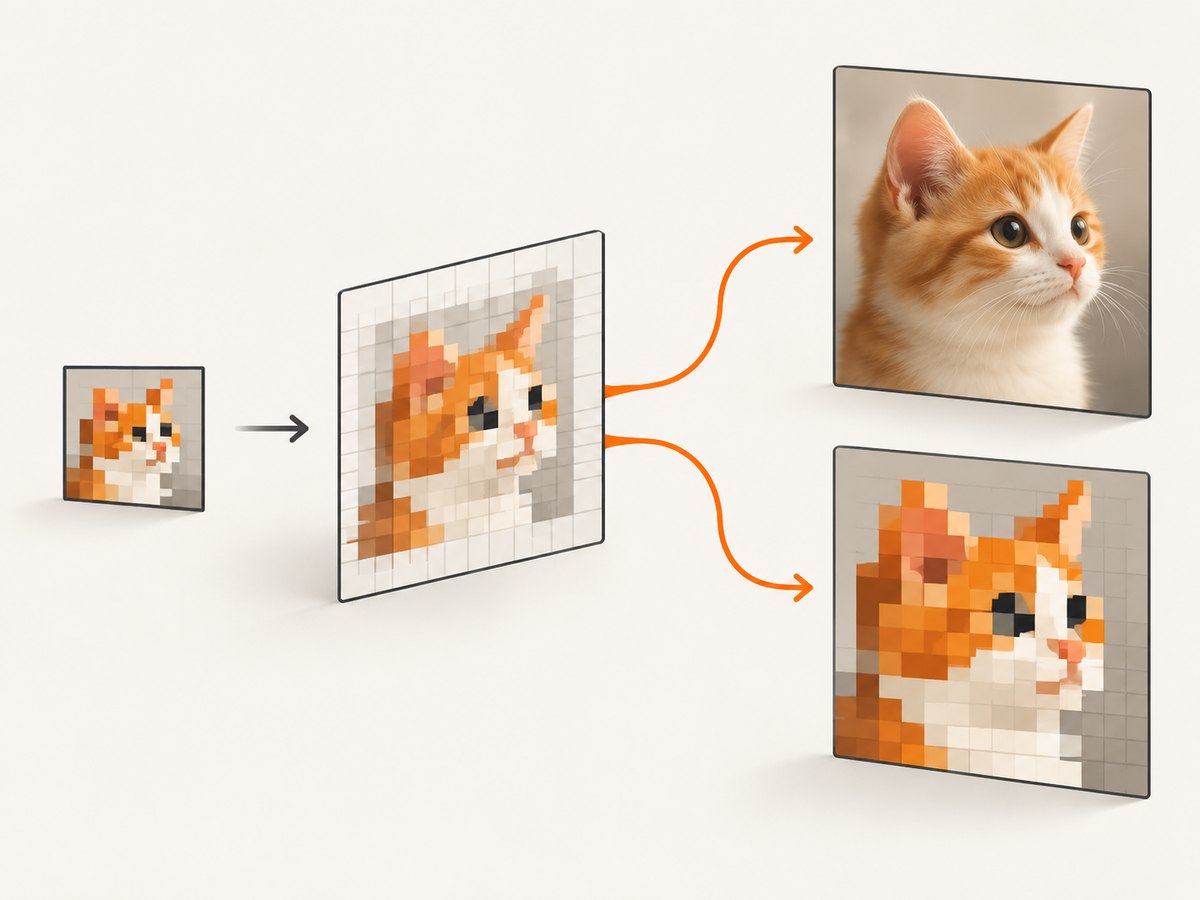
For pixel art and hard-edged sprites, disable smoothing immediately before the draw:
const sprite = new Image();
sprite.src = '/sprites/player.png';
sprite.onload = () => {
  ctx.imageSmoothingEnabled = false;
  ctx.drawImage(sprite, 0, 0, 256, 256);
};
MDN states that imageSmoothingEnabled defaults to true and that setting it to false retains pixel sharpness when enlarging images (MDN: imageSmoothingEnabled). This is appropriate for pixel art and some line-art sprites. Keep smoothing enabled for photographs and most natural images, where disabling it creates jagged edges.
Set the related quality hint when supported:
ctx.imageSmoothingEnabled = true;
ctx.imageSmoothingQuality = 'high';
ctx.drawImage(photo, 0, 0, targetWidth, targetHeight);
The quality hint is implementation-dependent. It cannot compensate for a source that is smaller than the output.
5. Check how the exported PNG is displayed
A PNG can be sharp at its natural pixel dimensions and still look blurry after an <img> or CSS rule enlarges it. Compare the exported dimensions with the display dimensions.
const image = new Image();
image.src = pngUrl;
image.onload = () => {
  console.log({
    naturalWidth: image.naturalWidth,
    naturalHeight: image.naturalHeight,
    cssWidth: image.getBoundingClientRect().width,
    cssHeight: image.getBoundingClientRect().height,
    dpr: window.devicePixelRatio
  });
};
For intentionally pixelated artwork, CSS can request nearest-neighbor-like presentation:
canvas.pixel-art,
img.pixel-art {
  image-rendering: pixelated;
}
MDN documents image-rendering as the control for images displayed at a size different from their natural size; crisp-edges and pixelated are aimed at hard-edged graphics, while smooth interpolation is normally better for photographs (MDN: image-rendering). Do not apply pixelated to normal text, charts, or photos as a general blur fix.
6. Export with toBlob() for large PNGs
canvas.toDataURL() is convenient for small images, but it creates the entire encoded image as an in-memory string. For large exports, use toBlob() and an object URL. MDN recommends this approach to avoid large data URLs and related memory or URL-length problems (MDN: HTMLCanvasElement.toBlob()).
function downloadPng(canvas, filename = 'canvas.png') {
  canvas.toBlob((blob) => {
    if (!blob) throw new Error('PNG encoding failed');
    const url = URL.createObjectURL(blob);
    const link = document.createElement('a');
    link.href = url;
    link.download = filename;
    link.click();
    setTimeout(() => URL.revokeObjectURL(url), 0);
  }, 'image/png');
}

downloadPng(document.querySelector('#chart'));
PNG is lossless, so changing the format does not restore missing pixels. If your goal is a smaller file rather than lossless output, JPEG or WebP can reduce size, but both can introduce compression artifacts.
7. Avoid tainted Canvas exports
If an image comes from another origin without suitable CORS headers, drawing it can taint the Canvas. A tainted Canvas blocks pixel-reading and export APIs, usually with a security exception. Set crossOrigin before assigning src, and ensure the image server sends an appropriate Access-Control-Allow-Origin header.
const photo = new Image();
photo.crossOrigin = 'anonymous';
photo.onload = () => {
  ctx.drawImage(photo, 0, 0);
  downloadPng(canvas);
};
photo.onerror = () => console.error('Image failed to load with CORS enabled');
photo.src = 'https://example.com/photo.jpg';
Credentials and wildcard CORS settings must match the server policy. If you cannot change the remote server, proxy the asset through a server you control and apply the correct headers there.
8. A complete sharp-export example
<canvas id='chart' style='width: 800px; height: 450px'></canvas>
<button id='download'>Download PNG</button>
<script>
const canvas = document.querySelector('#chart');
const cssWidth = 800;
const cssHeight = 450;

function paint() {
  const dpr = window.devicePixelRatio || 1;
  canvas.style.width = `${cssWidth}px`;
  canvas.style.height = `${cssHeight}px`;
  canvas.width = Math.round(cssWidth * dpr);
  canvas.height = Math.round(cssHeight * dpr);

  const ctx = canvas.getContext('2d');
  ctx.setTransform(dpr, 0, 0, dpr, 0, 0);
  ctx.clearRect(0, 0, cssWidth, cssHeight);

  ctx.fillStyle = '#f7f8fa';
  ctx.fillRect(0, 0, cssWidth, cssHeight);
  ctx.fillStyle = '#111827';
  ctx.font = '600 28px system-ui, sans-serif';
  ctx.fillText('Sharp Canvas export', 40, 60);
  ctx.strokeStyle = '#1463ff';
  ctx.lineWidth = 4;
  ctx.beginPath();
  ctx.moveTo(40, 120);
  ctx.lineTo(760, 360);
  ctx.stroke();
}

function downloadPng() {
  canvas.toBlob((blob) => {
    if (!blob) return;
    const url = URL.createObjectURL(blob);
    const a = document.createElement('a');
    a.href = url;
    a.download = 'canvas.png';
    a.click();
    setTimeout(() => URL.revokeObjectURL(url), 0);
  }, 'image/png');
}

paint();
window.addEventListener('resize', paint);
document.querySelector('#download').addEventListener('click', downloadPng);
</script>
9. Diagnostic checklist
- Log
canvas.width,canvas.height, andgetBoundingClientRect(). The bitmap should be approximately CSS width multiplied by DPR and CSS height multiplied by DPR. - Log
window.devicePixelRatio. Check browser zoom and repeat the check after moving the window to another display. - Confirm dimensions were assigned before drawing and that the scene was redrawn after every resize.
- Check whether
drawImage()enlarges a low-resolution source. Choose smoothing based on pixel art versus photographic content. - Open the downloaded PNG at 100% or native dimensions before judging it. Then inspect the CSS size of any subsequent
<img>. - Confirm the export is PNG and use
toBlob()for large images instead of a huge data URL. - If export throws a security error, check cross-origin image loading and response headers.
10. Common errors and fixes
| Symptom | Cause | Fix |
|---|---|---|
| Canvas looks blurry only on Retina | Bitmap dimensions equal CSS dimensions | Multiply the backing dimensions by devicePixelRatio and apply a matching transform. |
| Everything becomes tiny after the fix | Dimensions were multiplied by DPR but the context was not transformed | Call ctx.setTransform(dpr, 0, 0, dpr, 0, 0) after assigning dimensions. |
| Drawing disappears after resize | Assigning width or height clears the bitmap and resets state | Resize first, then redraw the complete scene and restore styles. |
| Text is still soft | Text is being rendered into a low-resolution bitmap or the export is enlarged later | Use a high-DPI backing store and inspect the PNG at native size and the final CSS size. |
| Pixel art has fuzzy edges | Image interpolation is enabled | Set imageSmoothingEnabled = false for the sprite draw only. |
| Photos have jagged edges | Smoothing was disabled globally | Re-enable smoothing for photographic content. |
| PNG export throws a security exception | Canvas is tainted by a cross-origin image | Configure CORS, set crossOrigin before src, or use a same-origin proxy. |
| Large export freezes the tab | Very large bitmap or data URL allocation | Reduce dimensions, cap DPR, and export with toBlob(). |
| PNG is sharp when opened but blurry in a page | CSS or responsive layout enlarges it | Compare natural and rendered dimensions and remove unintended scaling. |
11. Performance, reliability, and memory
Pixel count drives cost
A 2000 by 1200 bitmap contains four times as many pixels as a 1000 by 600 bitmap. A DPR of 2 multiplies each dimension, so total pixels rise by roughly four times; a DPR of 3 raises them by roughly nine times. Large backing stores consume more memory and make redraws and PNG encoding slower.
Render only when needed
Resize and redraw on actual layout or DPR changes. For animations, use requestAnimationFrame, avoid repeatedly allocating large temporary Canvases, and render at the output size you actually need.
Keep export deterministic
Set fonts, colors, transforms, and dimensions explicitly. Wait for images and fonts to load before drawing. Redraw from application data after resizing rather than scaling an old bitmap. These practices reduce differences between an on-screen preview and the downloaded file.
Choose the export path for the output
Use PNG when you need lossless pixels or transparency. Use JPEG or WebP when smaller photographic files are more important than lossless encoding. Use toBlob() for large output and remember that DPI metadata does not add pixel detail.
12. Or skip the browser setup
If you need a screenshot of a rendered page rather than a Canvas export pipeline, ScreenshotNeo captures a URL with one request and returns PNG, JPEG, WebP, or PDF. Its capture options include full-page screenshots, Retina scale, custom viewports, element selectors, custom CSS and JavaScript, waits, dark mode, and transparent backgrounds.
ScreenshotNeo removes cookie and consent banners, newsletter popups, and chat widgets before capture. Bot checks, blank pages, timeouts, failed loads, and cache hits are not billed, and the response identifies the result with X-Page-Verdict and X-Billed headers. Its MCP server provides take_screenshot, get_page_info, and capture_pdf for Claude, Cursor, and other MCP clients.
See the ScreenshotNeo API documentation for the complete option list.
cURL
curl -G 'https://api.screenshotneo.com/v1/shot' -d access_key=YOUR_API_KEY --data-urlencode url=https://stripe.com -o shot.webpPython
import requests
r = requests.get('https://api.screenshotneo.com/v1/shot', params={'access_key': 'YOUR_API_KEY', 'url': 'https://stripe.com'}, timeout=90)
r.raise_for_status()
open('shot.webp', 'wb').write(r.content)
Node.js
const q = new URLSearchParams({ access_key: 'YOUR_API_KEY', url: 'https://stripe.com' });
const res = await fetch(`https://api.screenshotneo.com/v1/shot?${q}`);
if (!res.ok) throw new Error(`Screenshot failed: ${res.status}`);
const image = Buffer.from(await res.arrayBuffer());
require('fs').writeFileSync('shot.webp', image);
There is a free plan with 1,000 screenshots per month and no card. Paid plans start at $5 for 3,000 shots, and every feature is available on every plan. Create a free ScreenshotNeo account.
13. FAQ
Does increasing PNG DPI make a Canvas sharper?
No. DPI metadata describes intended print density; it does not add pixels. Increase the Canvas bitmap dimensions before drawing.
Should I always use the maximum device pixel ratio?
No. Use the required DPR for the target display or output, then cap it when memory, encoding time, or upload size becomes a problem.
Why is a Canvas blurry only after download?
Inspect the downloaded bitmap at native size. If it is sharp there, the blur is introduced by the image viewer, CSS scaling, browser zoom, or a later resize.
Can imageSmoothingEnabled = false fix blurry text?
Usually no. It controls image interpolation in operations such as drawImage(). Text and vector paths need a correctly sized backing store and a redraw.
When should I use toDataURL()?
It is suitable for small, immediate inline data. For large PNGs, prefer toBlob() and an object URL to avoid a large in-memory string.


